# Sticky add to cart bar

{% tabs %}
{% tab title="Desktop" %}

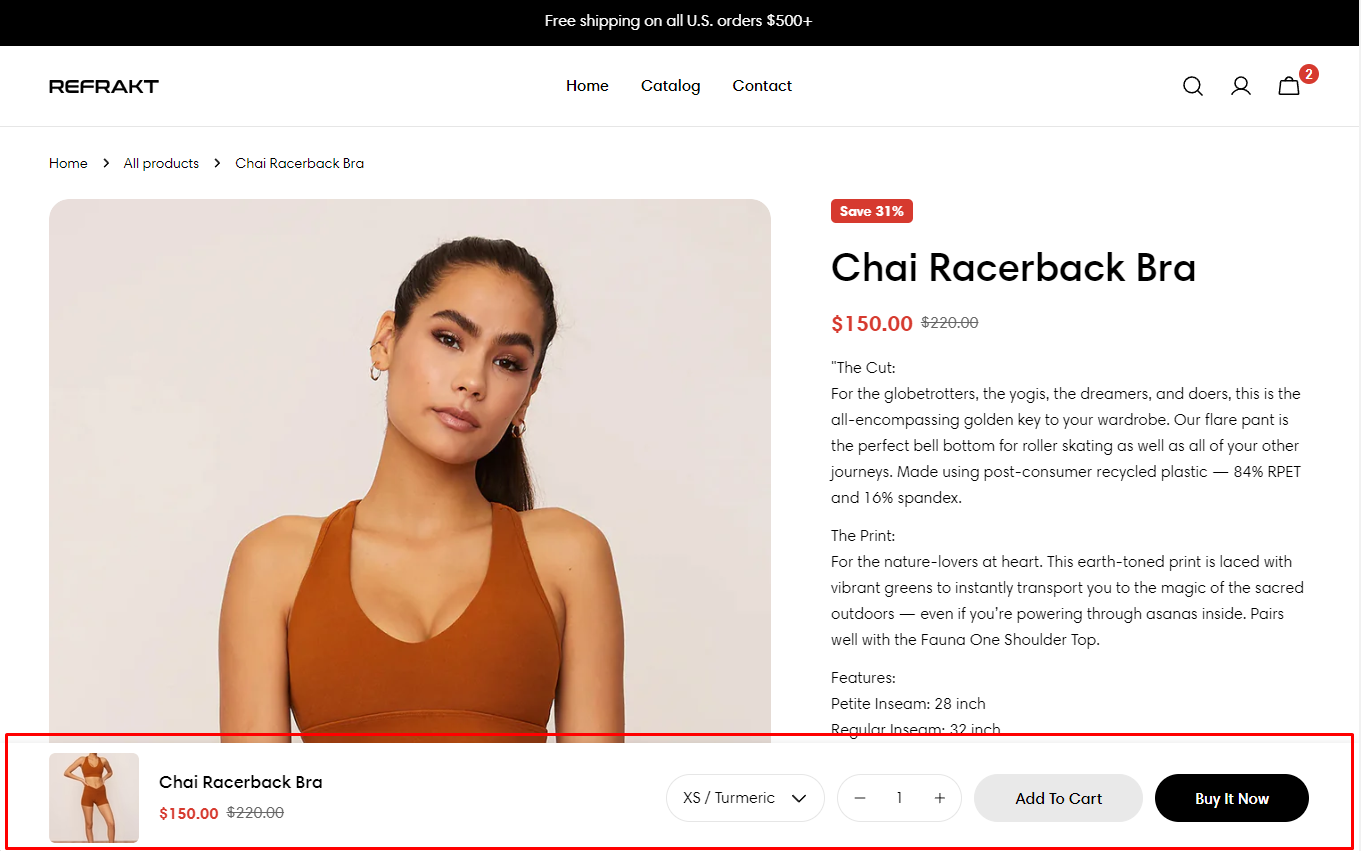
<figure><img src="https://3064615700-files.gitbook.io/~/files/v0/b/gitbook-x-prod.appspot.com/o/spaces%2F3yE7VVjvl0MgK6awOPKB%2Fuploads%2F3kWlr5wDWmVys3gv52sc%2Fimage.png?alt=media&#x26;token=ae740193-0346-4fdb-8288-583f6ed7efdd" alt=""><figcaption></figcaption></figure>
{% endtab %}

{% tab title="Mobile" %}

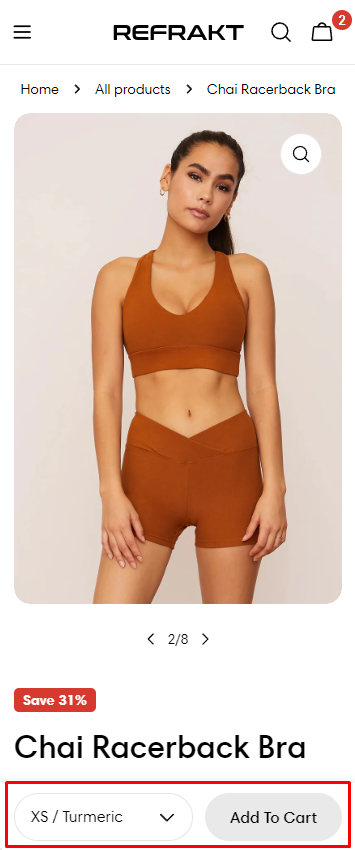
<figure><img src="https://3064615700-files.gitbook.io/~/files/v0/b/gitbook-x-prod.appspot.com/o/spaces%2F3yE7VVjvl0MgK6awOPKB%2Fuploads%2F8XsH8yoViR4OwW6SLMJV%2Fimage.png?alt=media&#x26;token=7e2cee86-cd19-40f7-80d8-98fe8b736bba" alt=""><figcaption></figcaption></figure>
{% endtab %}
{% endtabs %}

The **Sticky add to cart bar** section ensures that your customers can quickly add products to their cart while browsing through a product page without needing to scroll back up. It provides a persistent, visible call-to-action, improving user experience and increasing conversions.

In this article, we will show you how to set up the Sticky add to cart bar section.

{% hint style="info" %}
This feature is available on :sparkles: Sleek version **1.4.0** and above :sparkles:

See [Changelog](https://docs.foxecom.com/sleek-theme/changelog).
{% endhint %}

## How to access the Sticky add to cart bar section on your Product page

{% hint style="success" %}
**Steps**:

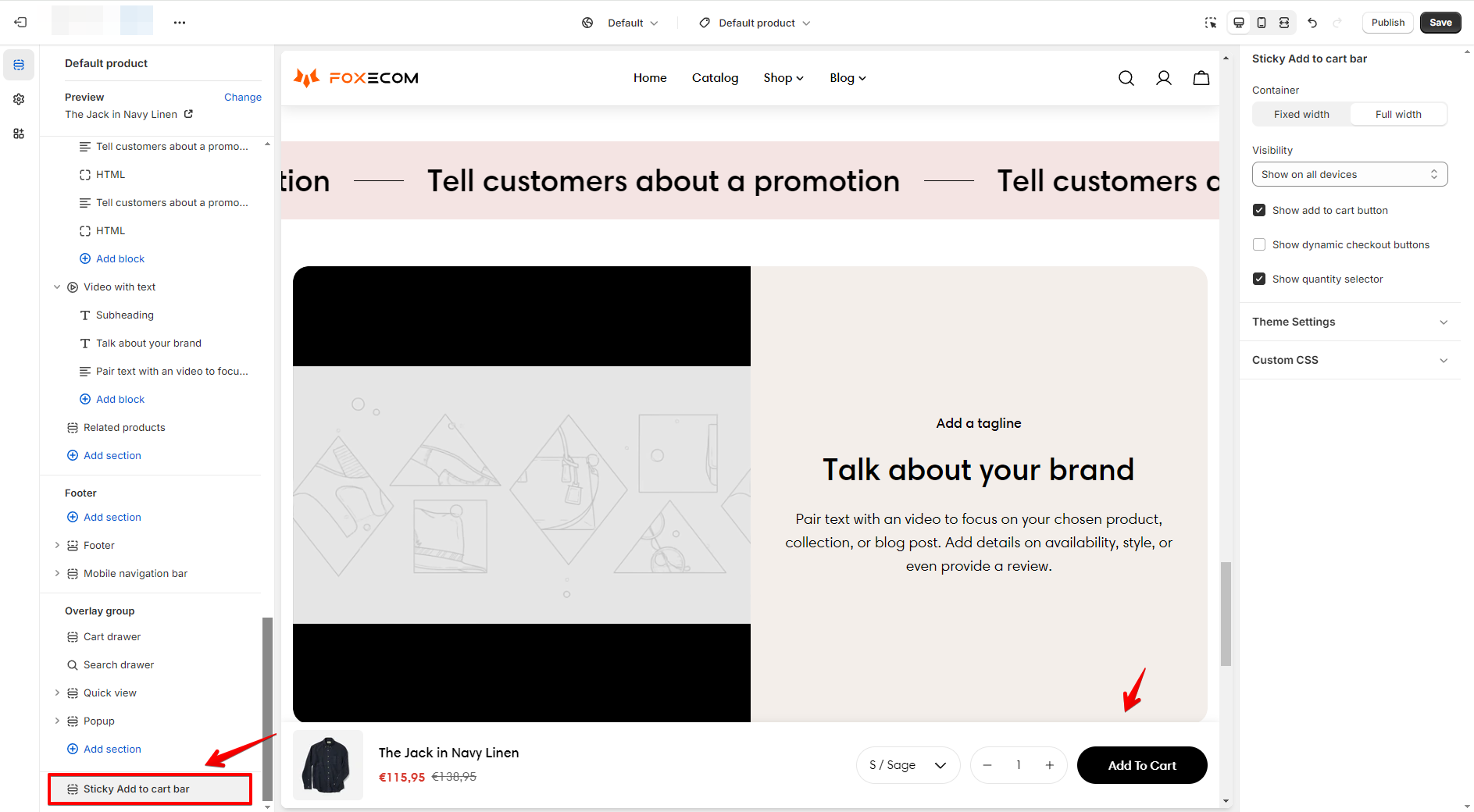
1. In the theme editor **(Customize)**, click **Sticky add to cart bar**.
2. Edit the settings.
3. **Save** the settings.
   {% endhint %}

<figure><img src="https://3064615700-files.gitbook.io/~/files/v0/b/gitbook-x-prod.appspot.com/o/spaces%2F3yE7VVjvl0MgK6awOPKB%2Fuploads%2FN8KEzKiFdmQKeUtmC4Xt%2Fimage.png?alt=media&#x26;token=a1f0e9ff-fc5d-4aa2-b0d7-f388fb8ac81a" alt=""><figcaption></figcaption></figure>

## How to edit the Sticky add to cart bar section

Upon selecting the **Sticky add to cart Bbar** section, a range of customization options will be available:

### **Container:**

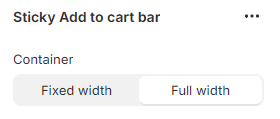
* **Fixed Width**: The bar will maintain a set width, ensuring consistency across all product pages. To adjust the fixed width of your store, go to **Theme settings** > [Layout](https://docs.foxecom.com/sleek-theme/theme-settings/layout).
* **Full Width**: The bar will stretch across the entire screen width for better visibility and ease of use, especially on larger screens.
<figure><img src="https://3064615700-files.gitbook.io/~/files/v0/b/gitbook-x-prod.appspot.com/o/spaces%2F3yE7VVjvl0MgK6awOPKB%2Fuploads%2FivSLJtPxC8WtIAYJIyrS%2Fimage.png?alt=media&#x26;token=8912fbbe-1094-4d74-b0a3-9635c3ef5a09" alt=""><figcaption></figcaption></figure>

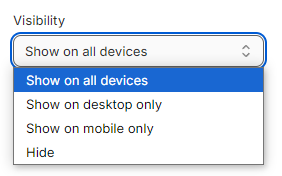
### **Visibility:**

* **Show on all devices**: Display the sticky add to cart bar on both mobile and desktop versions of the store.
* **Show on desktop only**: Ensure the sticky bar is only shown to desktop users.
* **Show on mobile only**: Ensure the sticky bar is only shown to mobile users.
* **Hide**: Temporarily disable the sticky add to cart bar.
<figure><img src="https://3064615700-files.gitbook.io/~/files/v0/b/gitbook-x-prod.appspot.com/o/spaces%2F3yE7VVjvl0MgK6awOPKB%2Fuploads%2F9lhrmjzDONw29X1e9St3%2Fimage.png?alt=media&#x26;token=d95f8b38-55f6-44d9-a04a-9d48d6cec2c7" alt=""><figcaption></figcaption></figure>

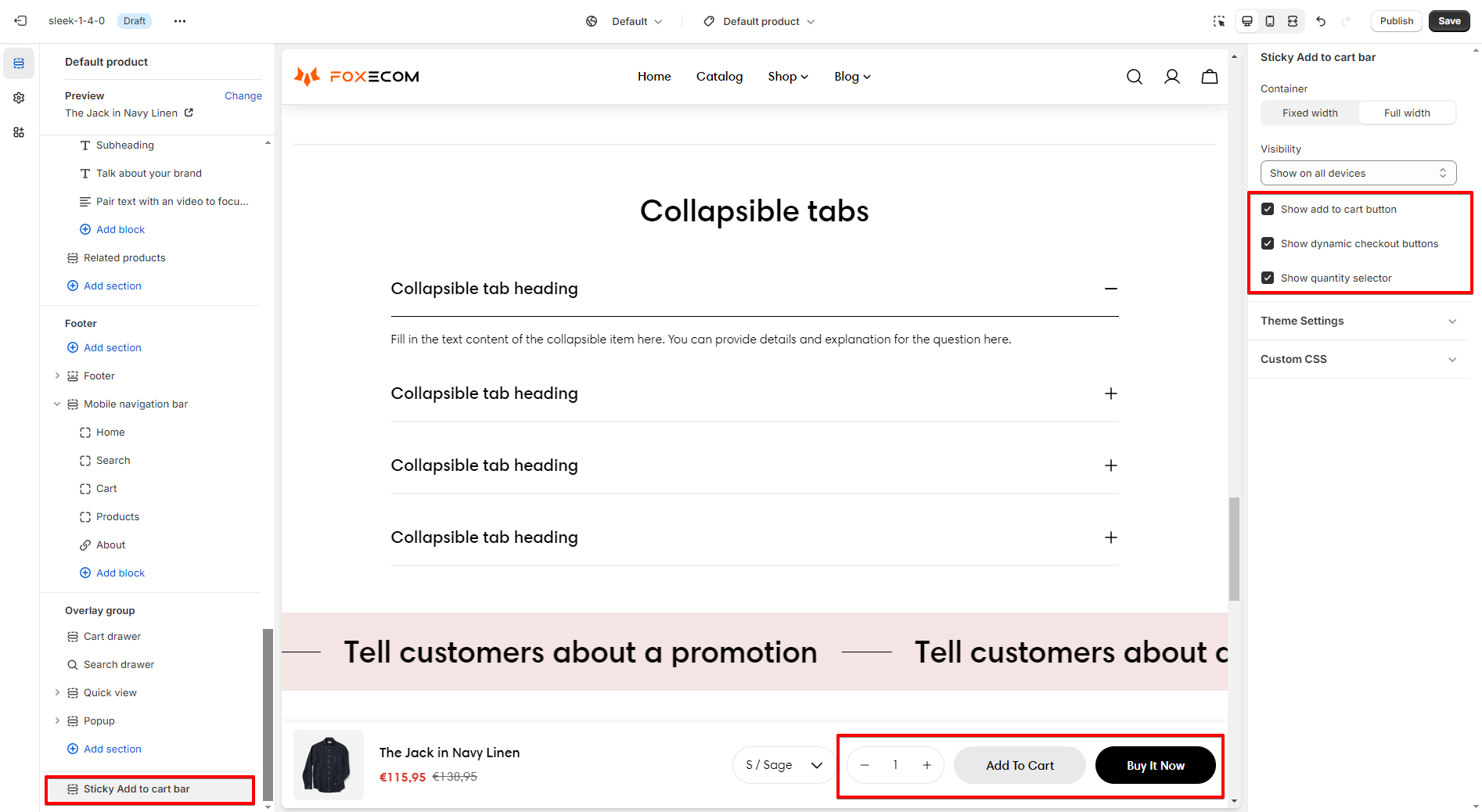
* **Show add to cart button:** Checking this option will display the "Add To Cart" button, allowing users to instantly add the current product to their cart from anywhere on the page.

<figure><img src="https://3064615700-files.gitbook.io/~/files/v0/b/gitbook-x-prod.appspot.com/o/spaces%2F3yE7VVjvl0MgK6awOPKB%2Fuploads%2FqEv5uo80uvIgKUct6g2K%2Fimage.png?alt=media&#x26;token=b53989de-f3e4-4c06-b8f5-4009e7e59ed6" alt=""><figcaption></figcaption></figure>

* **Show dynamic checkout buttons:** This option lets you show dynamic checkout options within the sticky bar. This option is only available on desktop devices.

Learn more about [Dynamic checkout buttons here](https://help.shopify.com/en/manual/online-store/dynamic-checkout).&#x20;

<figure><img src="https://3064615700-files.gitbook.io/~/files/v0/b/gitbook-x-prod.appspot.com/o/spaces%2F3yE7VVjvl0MgK6awOPKB%2Fuploads%2Fr8ctj7RgKPEh8LUcJxTO%2Fimage.png?alt=media&#x26;token=8a1ecaab-aff5-4678-934c-91609eb1b0b1" alt=""><figcaption></figcaption></figure>

* **Show quantity selector:** Displays a quantity selector in the sticky bar so customers can quickly adjust the number of products they want to add to the cart. This option is only available on desktop devices.

<figure><img src="https://3064615700-files.gitbook.io/~/files/v0/b/gitbook-x-prod.appspot.com/o/spaces%2F3yE7VVjvl0MgK6awOPKB%2Fuploads%2FcVVw1QtrwocE2x6bKvd4%2Fimage.png?alt=media&#x26;token=58146f42-39d6-494f-9703-84a744525362" alt=""><figcaption></figcaption></figure>

<figure><img src="https://3064615700-files.gitbook.io/~/files/v0/b/gitbook-x-prod.appspot.com/o/spaces%2F3yE7VVjvl0MgK6awOPKB%2Fuploads%2FXIsqhmEdJXH42HZlS41e%2Fimage.png?alt=media&#x26;token=5f9157b8-4fdb-4185-a235-ffa7800405e1" alt=""><figcaption></figcaption></figure>

{% hint style="info" %}
**Note:**

* The **Sticky add to cart bar** section is **only displayed on** **product pages** **when the main Add to cart button is not in the viewport**, making it context-specific and preventing clutter on other types of pages like collections or home pages.
* It ensures customers have a quick way to purchase without needing to scroll back to the [Product information](https://docs.foxecom.com/sleek-theme/collections-and-products/product-page/product-information) section.
  {% endhint %}

<figure><img src="https://3064615700-files.gitbook.io/~/files/v0/b/gitbook-x-prod.appspot.com/o/spaces%2F3yE7VVjvl0MgK6awOPKB%2Fuploads%2Fn5BRyWJxocqX0TJrWfqG%2FFoxify%20-%20Inblog%20banner%201%20(2).jpg?alt=media&#x26;token=0eccb653-c94d-483e-bbf5-8fc03931a071" alt=""><figcaption><p><a href="https://foxecom.com/products/foxify-shopify-app?utm_source=HelpCenter&#x26;utm_medium=banner&#x26;utm_campaign=customer+success">Try Foxify free now</a></p></figcaption></figure>