# Product grid

<figure><img src="https://3064615700-files.gitbook.io/~/files/v0/b/gitbook-x-prod.appspot.com/o/spaces%2F3yE7VVjvl0MgK6awOPKB%2Fuploads%2FqLxjuYtpx75ZtpdeTN1r%2Fimage.png?alt=media&#x26;token=befb20bb-4e18-47c2-97ec-d551024d16c3" alt=""><figcaption></figcaption></figure>

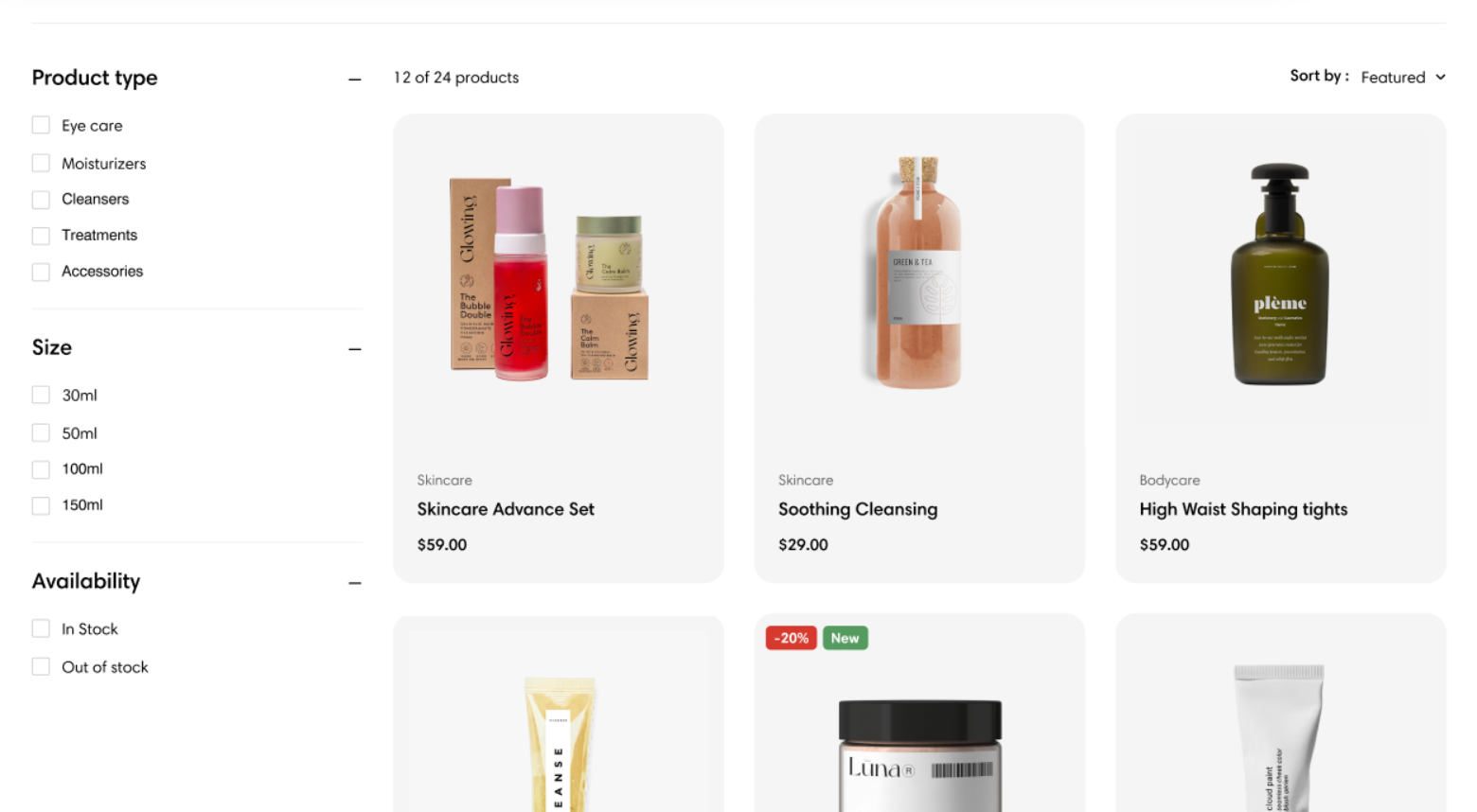
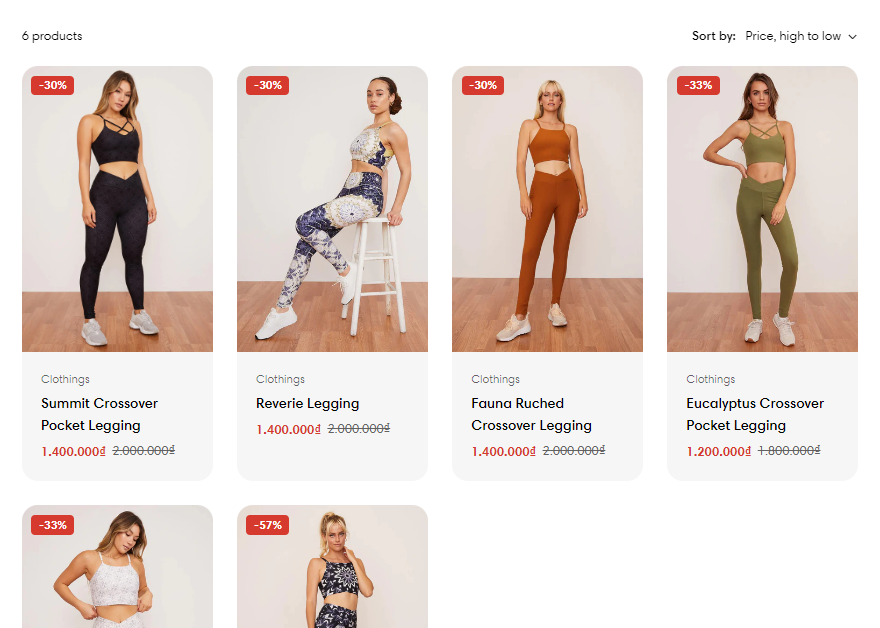
This article guides you on how to customize and show a list of products based on a category in a grid view on your collection page.

{% hint style="success" %}
Steps

1. In the theme editor (**Customize**), open the template selector.
2. Select **Collections**, then **Default collection.**
3. On the left-sidebar, locate **Product grid**
4. Make necessary changes **> Save.**
   {% endhint %}

## General and layout

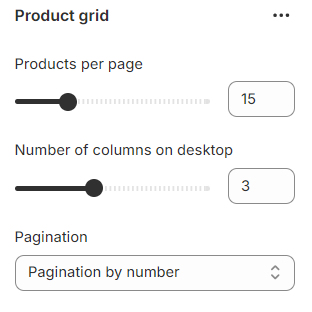
Set the number of **Products per page** (8-36 products) and the **Number of columns on desktop** (1-6 products);

<figure><img src="https://3064615700-files.gitbook.io/~/files/v0/b/gitbook-x-prod.appspot.com/o/spaces%2F3yE7VVjvl0MgK6awOPKB%2Fuploads%2F9jSI6qYxSmOfayPlqW0C%2Fimage.png?alt=media&#x26;token=3e3d9f98-ddbf-4bf9-a5c8-081bdeeffcbc" alt=""><figcaption></figcaption></figure>

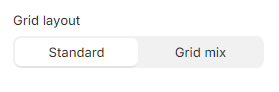
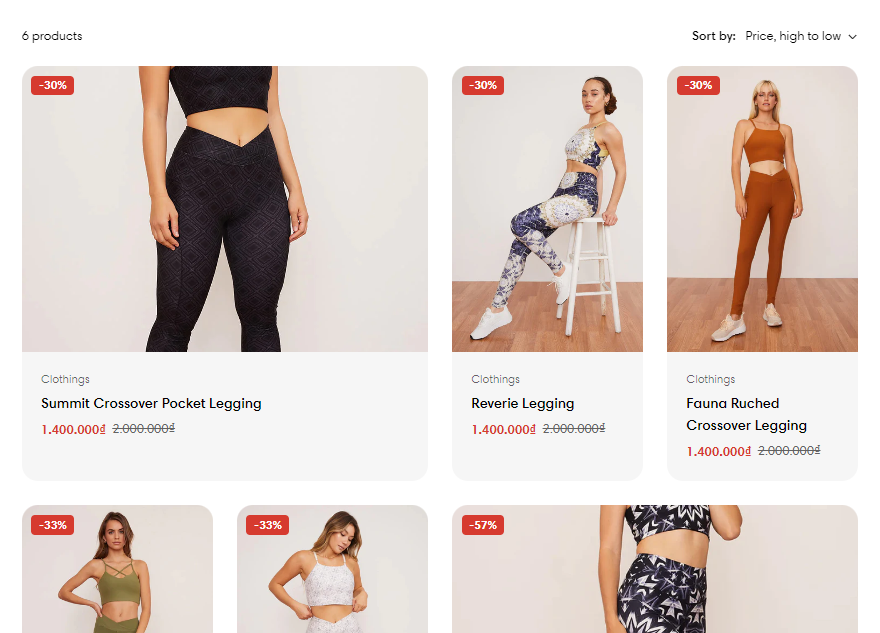
Provide the Product grid with an appealing and appropriate **Grid layout**:

* Standard
* Grid mix

<figure><img src="https://3064615700-files.gitbook.io/~/files/v0/b/gitbook-x-prod.appspot.com/o/spaces%2F3yE7VVjvl0MgK6awOPKB%2Fuploads%2FD2DrGXOURWyMuiU2VTJ1%2Fimage.png?alt=media&#x26;token=16af7756-dbe3-43aa-82f4-6afcb2bea754" alt=""><figcaption></figcaption></figure>

{% tabs %}
{% tab title="Standard" %}

<figure><img src="https://3064615700-files.gitbook.io/~/files/v0/b/gitbook-x-prod.appspot.com/o/spaces%2F3yE7VVjvl0MgK6awOPKB%2Fuploads%2FwuEOSaB6GWH1awQDxaAN%2Fimage.png?alt=media&#x26;token=35400e3c-fd1a-4229-96d8-923805d361bd" alt=""><figcaption></figcaption></figure>
{% endtab %}

{% tab title="Grid mix" %}

<figure><img src="https://3064615700-files.gitbook.io/~/files/v0/b/gitbook-x-prod.appspot.com/o/spaces%2F3yE7VVjvl0MgK6awOPKB%2Fuploads%2F5SP2tEe5VBc9IKVe0UlE%2Fimage.png?alt=media&#x26;token=bc81abe1-c813-40fc-8bea-cf81fa86e71e" alt=""><figcaption></figcaption></figure>
{% endtab %}
{% endtabs %}

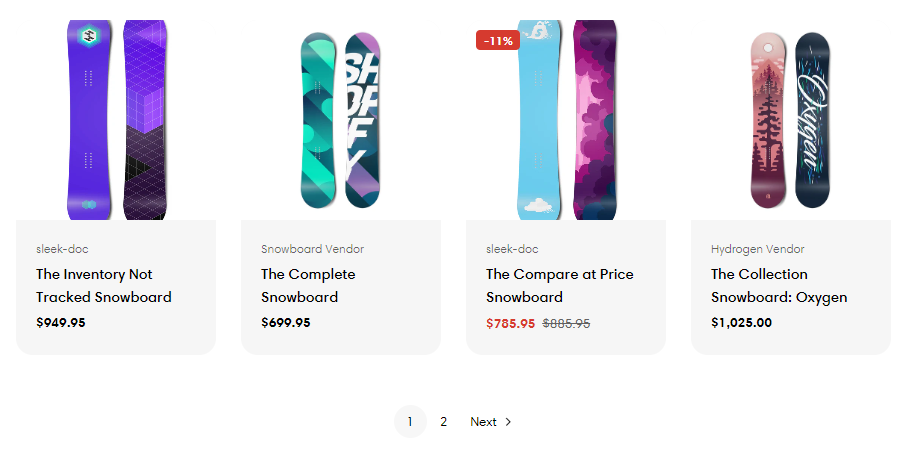
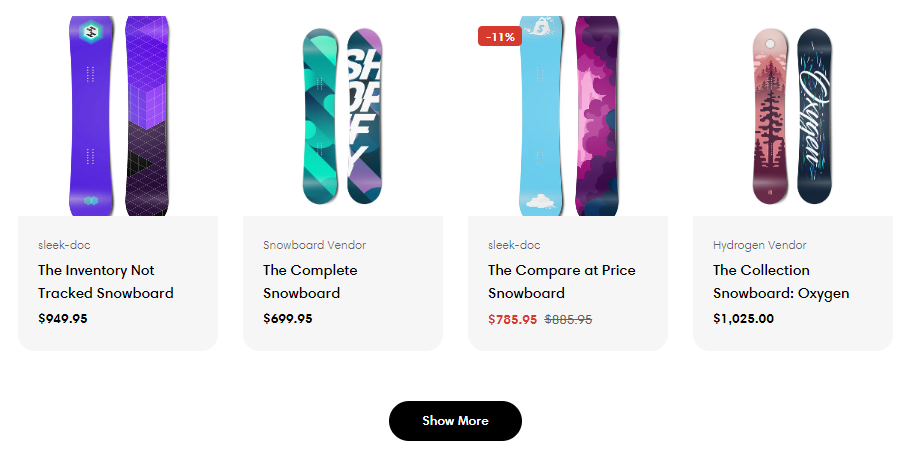
Moreover, you can also enable **Pagination** in 3 ways:

{% tabs %}
{% tab title="Pagination by number" %}

<figure><img src="https://3064615700-files.gitbook.io/~/files/v0/b/gitbook-x-prod.appspot.com/o/spaces%2F3yE7VVjvl0MgK6awOPKB%2Fuploads%2FccRZqx2WmGBBjpxWJsnJ%2Fimage.png?alt=media&#x26;token=2cf5c5e6-5a0a-4bd7-885a-d8d03c28ad05" alt=""><figcaption></figcaption></figure>
{% endtab %}

{% tab title="Load more button" %}

<figure><img src="https://3064615700-files.gitbook.io/~/files/v0/b/gitbook-x-prod.appspot.com/o/spaces%2F3yE7VVjvl0MgK6awOPKB%2Fuploads%2FZPhRb6zquxHkSYwyus7r%2Fimage.png?alt=media&#x26;token=e72f81c6-9157-4f20-99a5-0614a2538af5" alt=""><figcaption></figcaption></figure>
{% endtab %}

{% tab title="Infinite" %}

<figure><img src="https://3064615700-files.gitbook.io/~/files/v0/b/gitbook-x-prod.appspot.com/o/spaces%2F3yE7VVjvl0MgK6awOPKB%2Fuploads%2F5ordJ7GTqqwjJOdK1hqC%2Fscreencast-admin.shopify.com-2024.06.06-00_21_21.gif?alt=media&#x26;token=70f8986e-53fa-49b3-8cdc-a4ca5b2bc821" alt=""><figcaption></figcaption></figure>
{% endtab %}
{% endtabs %}

## Filtering and Sorting

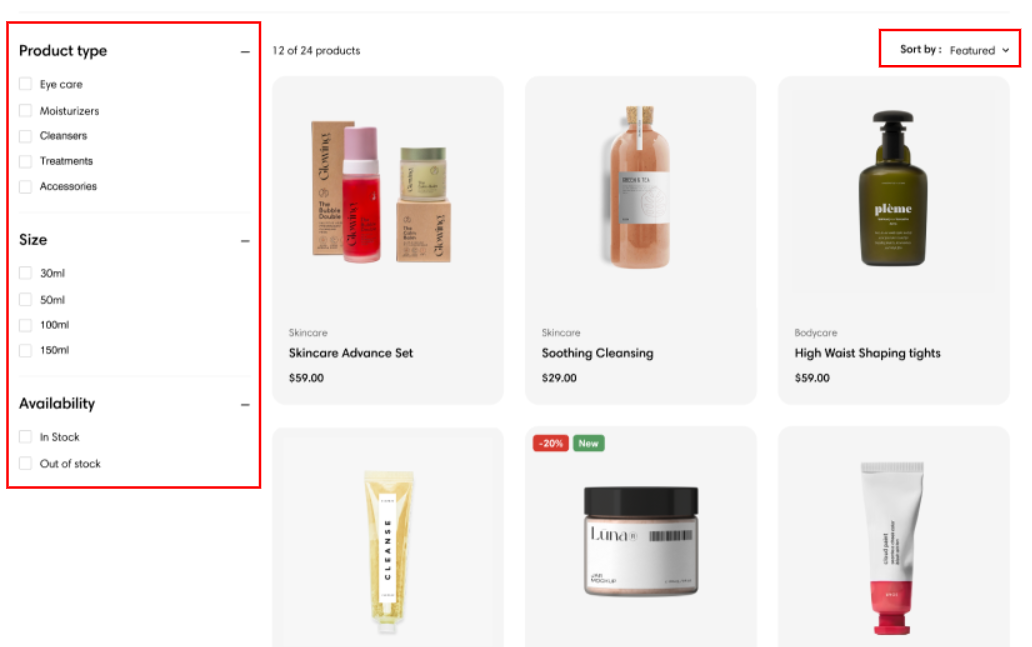
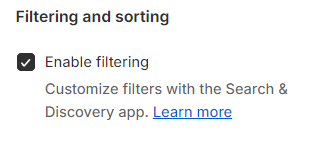
Allow your customers to filter collections and search results by product availability, price, color, and more.&#x20;

<figure><img src="https://3064615700-files.gitbook.io/~/files/v0/b/gitbook-x-prod.appspot.com/o/spaces%2F3yE7VVjvl0MgK6awOPKB%2Fuploads%2FxJtn0buleRcdo061ldAK%2Fimage.png?alt=media&#x26;token=5f27b9b8-715f-46ce-8573-1a3da6e80778" alt=""><figcaption></figcaption></figure>

This section allows you to **Enable filtering** for the collection. You can customize filters with the **Search & Discovery** app. [Learn more](https://help.shopify.com/manual/online-store/search-and-discovery/filters)

<figure><img src="https://3064615700-files.gitbook.io/~/files/v0/b/gitbook-x-prod.appspot.com/o/spaces%2F3yE7VVjvl0MgK6awOPKB%2Fuploads%2FtIfYg4uhBoMyZHFC4VK8%2Fimage.png?alt=media&#x26;token=4f2dd657-2973-4010-9106-bd697f2444d2" alt=""><figcaption></figcaption></figure>

You can also **Enable sorting** on the collection. The collection can be sorted by:

* Featured
* Best selling
* Alphabetically, A-Z
* Alphabetically, Z-A
* Price, low to high
* Price, high to low
* Date, old to new
* Date, new to old

<figure><img src="https://3064615700-files.gitbook.io/~/files/v0/b/gitbook-x-prod.appspot.com/o/spaces%2F3yE7VVjvl0MgK6awOPKB%2Fuploads%2FvoSHjhymmHr3MJdbCxVb%2Fimage.png?alt=media&#x26;token=4ced12b4-294e-4445-9d34-86e9abc95760" alt=""><figcaption></figcaption></figure>

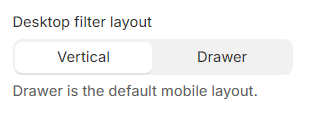
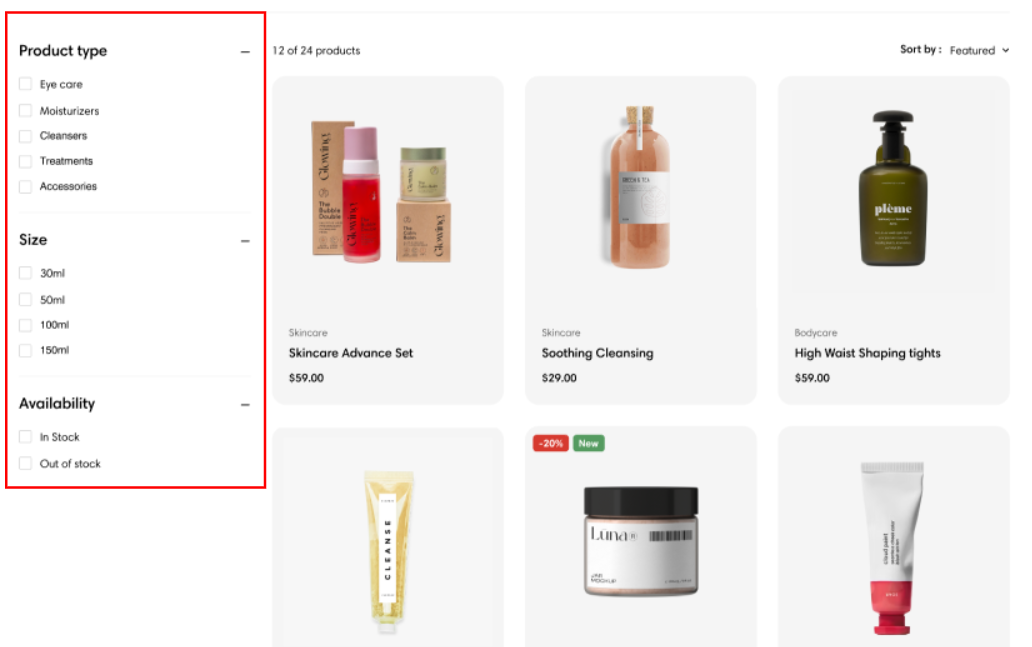
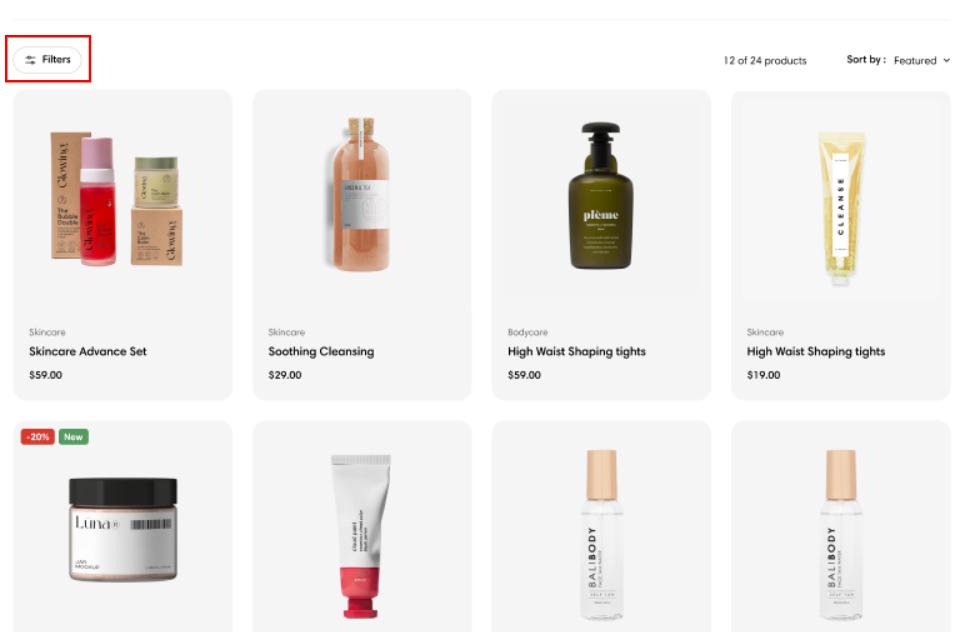
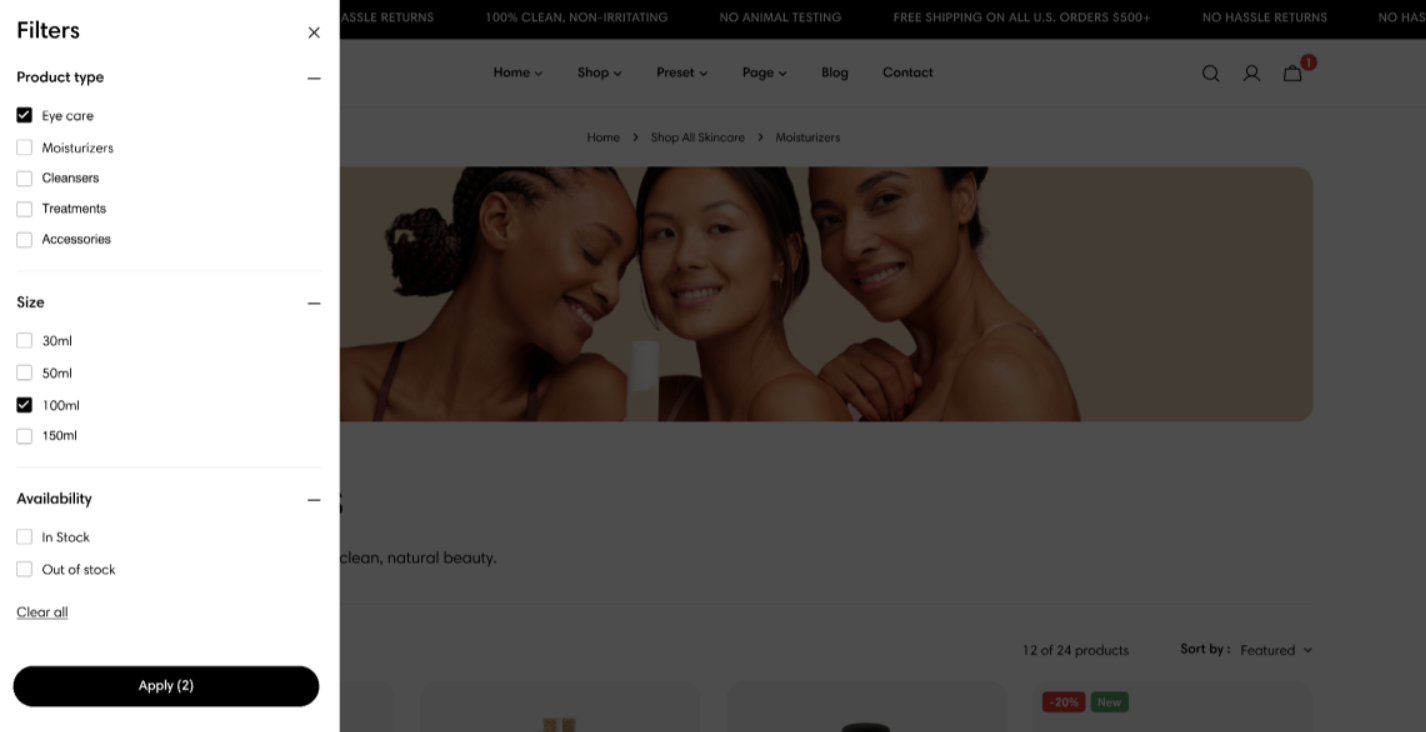
There are 2 types of **Desktop filter layout**s: Vertical and Drawer (Default mobile layout)<br>

<figure><img src="https://3064615700-files.gitbook.io/~/files/v0/b/gitbook-x-prod.appspot.com/o/spaces%2F3yE7VVjvl0MgK6awOPKB%2Fuploads%2FLRcoHyWM8El1r9IdI72v%2Fimage.png?alt=media&#x26;token=71870abf-cb67-4c8f-b760-a8a2364fb0fa" alt=""><figcaption></figcaption></figure>

{% tabs %}
{% tab title="Vertical" %}

<figure><img src="https://3064615700-files.gitbook.io/~/files/v0/b/gitbook-x-prod.appspot.com/o/spaces%2F3yE7VVjvl0MgK6awOPKB%2Fuploads%2FJE5EPblqwgdWAb0wEcT1%2Fimage.png?alt=media&#x26;token=6441b403-fac7-4c0f-bbf5-cd598326df96" alt=""><figcaption></figcaption></figure>
{% endtab %}

{% tab title="Drawer" %}

<figure><img src="https://3064615700-files.gitbook.io/~/files/v0/b/gitbook-x-prod.appspot.com/o/spaces%2F3yE7VVjvl0MgK6awOPKB%2Fuploads%2F3OQWSmT1xLMekcSIjQBj%2Fimage.png?alt=media&#x26;token=9b91750f-9ea4-47e9-bba1-34bbad757d05" alt=""><figcaption></figcaption></figure>

<figure><img src="https://3064615700-files.gitbook.io/~/files/v0/b/gitbook-x-prod.appspot.com/o/spaces%2F3yE7VVjvl0MgK6awOPKB%2Fuploads%2F021hzI6QCgTu7Ogbgbwz%2Fimage.png?alt=media&#x26;token=740c7905-3639-4c31-84aa-b2b95b4bd4bc" alt=""><figcaption></figcaption></figure>
{% endtab %}
{% endtabs %}

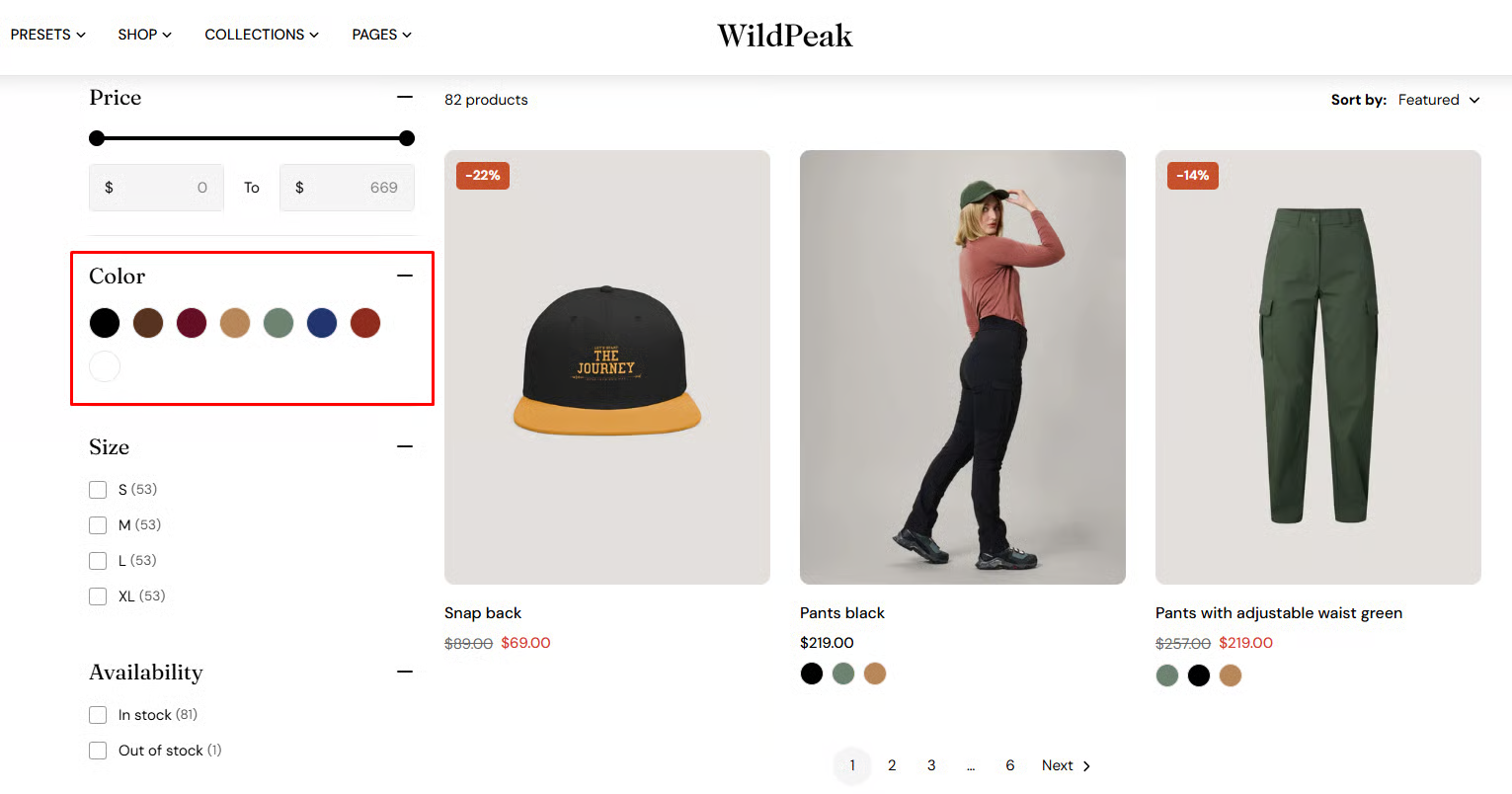
If you want the color filter to display as color swatches instead of text swatches, simply **Enable color swatches** for the filters.

<figure><img src="https://3064615700-files.gitbook.io/~/files/v0/b/gitbook-x-prod.appspot.com/o/spaces%2F3yE7VVjvl0MgK6awOPKB%2Fuploads%2F8cntOek0uTcaBDNrVtqX%2Fimage.png?alt=media&#x26;token=208d5404-e537-49a3-8ced-f52b6c475129" alt=""><figcaption></figcaption></figure>

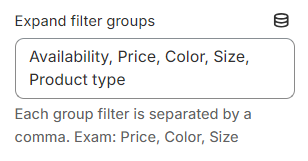
If you want the filter groups to open/expand automatically when accessing the collection page, you can insert group filter name into the **Expand filter groups** field, and each group filter is separated by a comma. Exam: Price, Color, Size

<figure><img src="https://3064615700-files.gitbook.io/~/files/v0/b/gitbook-x-prod.appspot.com/o/spaces%2F3yE7VVjvl0MgK6awOPKB%2Fuploads%2FpcyU3Ac2HnvvaeprXrXp%2Fimage.png?alt=media&#x26;token=063d090e-7aa7-4391-b03a-a95ffabb33d9" alt=""><figcaption></figcaption></figure>

### How to customize filters

{% hint style="info" %}
Customizing the filters in your store requires the [Shopify Search & Discovery](https://apps.shopify.com/search-and-discovery) app.&#x20;

The app also allows you to customize search results and product recommendations to give you more control over how customers discover your products.&#x20;

Learn how to [customize filters with the app](https://help.shopify.com/en/manual/online-store/search-and-discovery/filters).
{% endhint %}

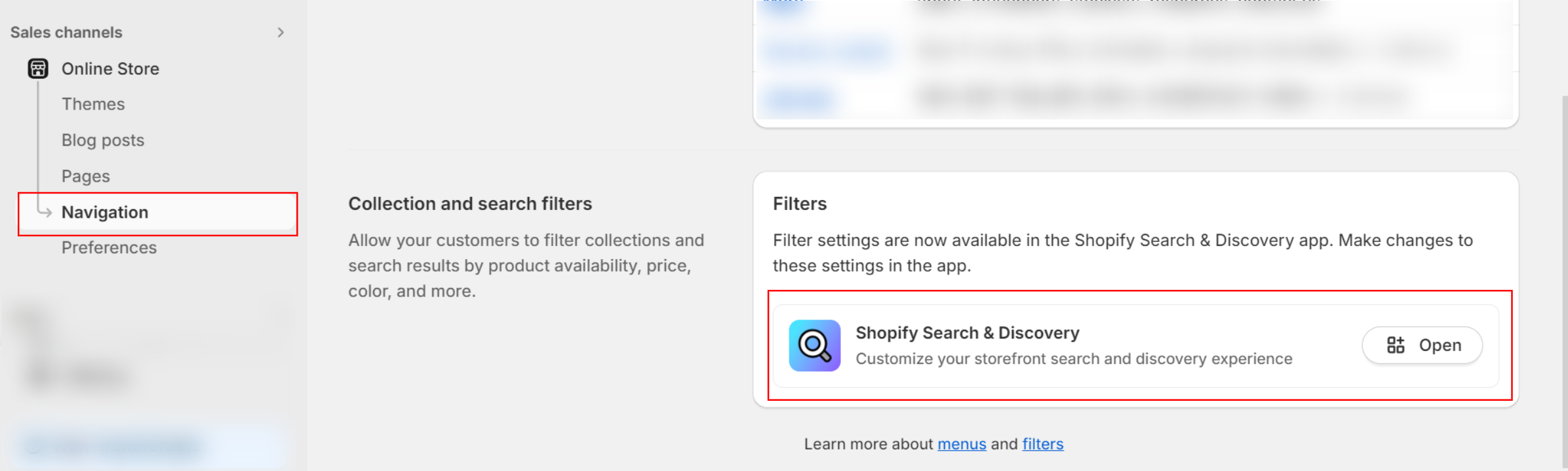
1. Go to **Online store > Navigation**&#x20;
2. Click **Add** and install the [**Shopify Search & Discovery**](https://apps.shopify.com/search-and-discovery) app for your store

<figure><img src="https://3064615700-files.gitbook.io/~/files/v0/b/gitbook-x-prod.appspot.com/o/spaces%2F3yE7VVjvl0MgK6awOPKB%2Fuploads%2Ftd0iC3DZIRXY9Fj9oAQT%2Fimage.png?alt=media&#x26;token=a80a2960-f80b-4d19-8a85-f469b5f8c425" alt=""><figcaption></figcaption></figure>

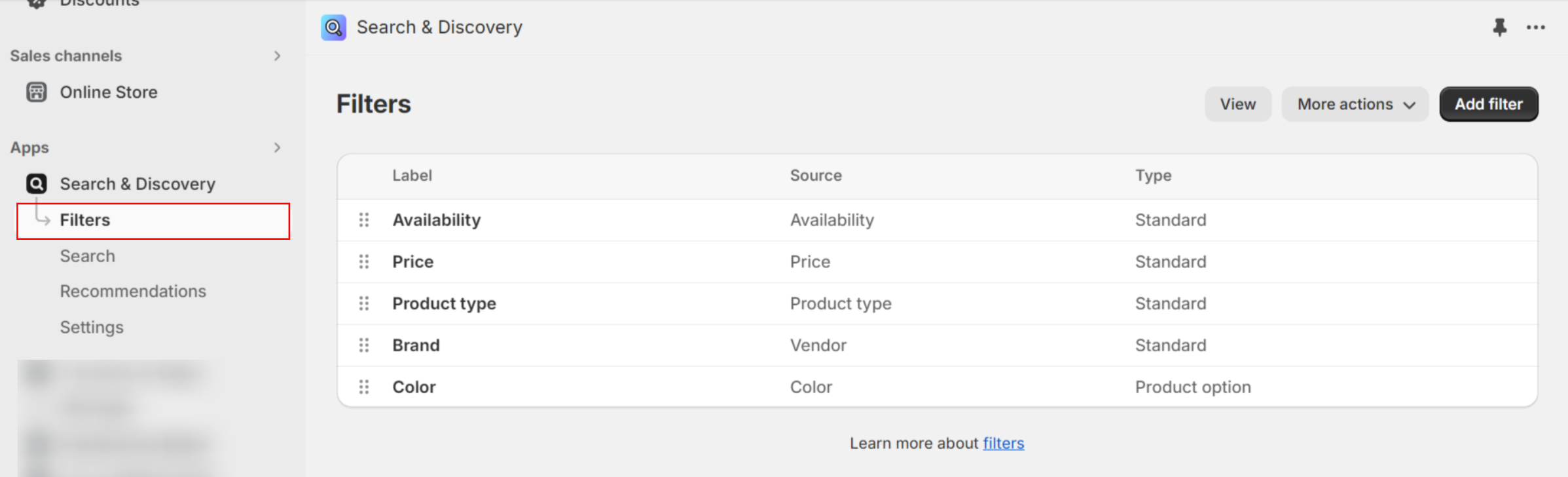
3. Go to **Apps** > **Search & Discovery** > **Filters** > **Edit filters**

<figure><img src="https://3064615700-files.gitbook.io/~/files/v0/b/gitbook-x-prod.appspot.com/o/spaces%2F3yE7VVjvl0MgK6awOPKB%2Fuploads%2FvZJue2qQn0D9AxQ39Ly9%2Fimage.png?alt=media&#x26;token=776d60a8-d818-40d6-86ff-4bf37b1b1800" alt=""><figcaption></figcaption></figure>

4. Add or remove filters to show/hide from the storefront filters > **Save** the settings.
5. In the theme editor (**Customize**), open the template selector > Select **Collections** > **Default collection.**
6. On the left-sidebar, locate **Product listing** > Select **Enable filtering** checkbox
7. **Save**

## Mobile Layout

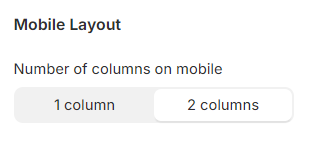
You can adjust the **Number of columns on mobile** to **1 column** or **2 columns.**

<figure><img src="https://3064615700-files.gitbook.io/~/files/v0/b/gitbook-x-prod.appspot.com/o/spaces%2F3yE7VVjvl0MgK6awOPKB%2Fuploads%2FsrghuXD7OfzzNWO3q95H%2Fimage.png?alt=media&#x26;token=d36bb2c1-172a-4b8f-b625-e40fbdab58b3" alt=""><figcaption></figcaption></figure>

***

<figure><img src="https://3064615700-files.gitbook.io/~/files/v0/b/gitbook-x-prod.appspot.com/o/spaces%2F3yE7VVjvl0MgK6awOPKB%2Fuploads%2FCUsSjb0C17R7p2e4MiL1%2Flivechat883x471%20(1).png?alt=media&#x26;token=1ad5a821-413a-4e9b-a7f5-850fc173bcd3" alt=""><figcaption><p><a href="https://apps.shopify.com/xflow?utm_source=foxecom&#x26;utm_medium=help_center_sleek&#x26;utm_campaign=banner">Install XFlow Back In Stock Automation FREE</a></p></figcaption></figure>