# Navigation

Navigation elements in Foxify help your customers move through your store easily, whether on desktop or mobile.
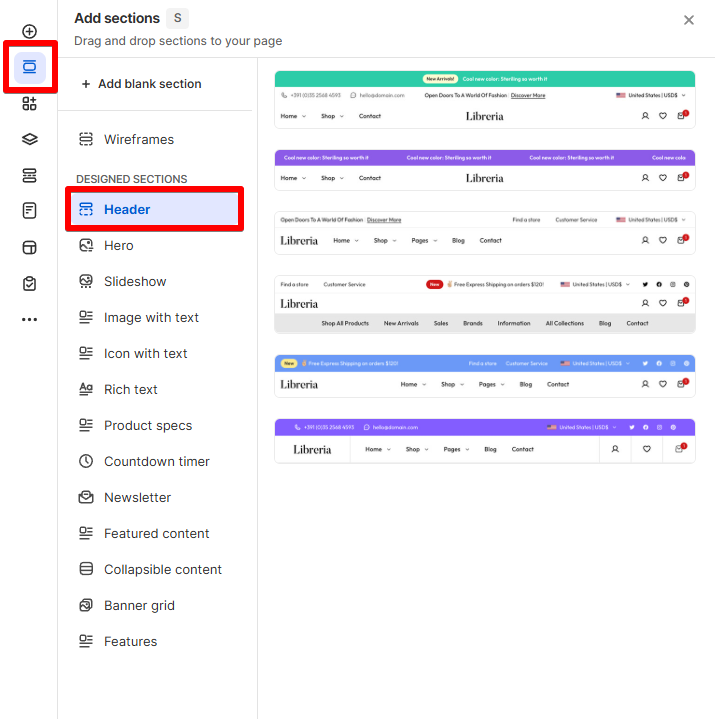
Check out our **pre-designed sections of Header** for quick setup and inspiration. 💖
👀 Learn more: [Add a Section](https://docs.foxecom.com/foxify-app/foxstudio/page-customization/add-a-section)
## Menu

The **Menu** element lets you display a horizontal or vertical navigation bar on your storefront. It's the main structure for showing key site links like “Home,” “Catalog,” or “About.”
On mobile, the menu is shown as a drawer.
### How to add a Menu element
Steps:
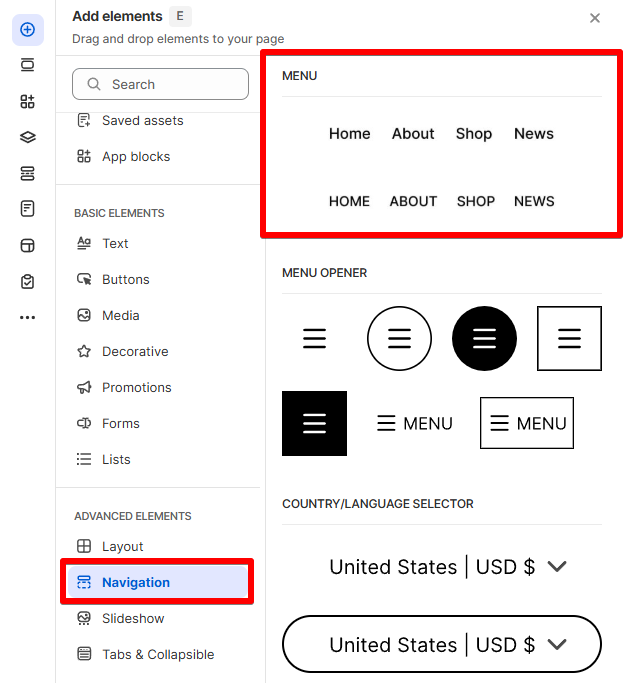
1. In the FoxStudio editor, on the left Sidebar > Click **Add elements**, or press **E**.
2. In **Advanced elements**, select **Navigation.**
3. Drag the **Menu** element onto your canvas.
4. Make necessary changes.
### How to edit a Menu element
Steps:
1. **Select** the element in the editor.
2. All the formatting tools for the element can be found in the **Inspector** panel.
#### Main menu
Select a menu from your **Shopify admin > Content > Menus** to display.
[Learn how to manage your store's menu in Shopify.](https://help.shopify.com/en/manual/online-store/menus-and-links/editing-menus)
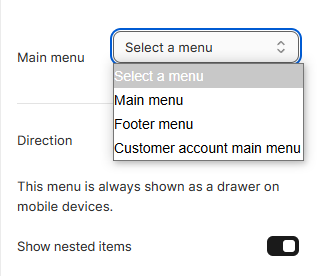
**🧐 Not see any menus to select?**
Make sure you provide your **Storefront password** in **Foxify** **Settings > Account**.
[/pages/AvmYf8LEitQtqS447K36#id-2.-store-with-a-password](/foxify-app/foxstudio/add-and-edit-elements/pages/AvmYf8LEitQtqS447K36#id-2.-store-with-a-password "mention")
#### Direction
Set to display your menu items horizontally or vertically.

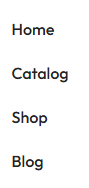
* **Show nested items**: Enable to show nested menu items on dropdowns when hovering.

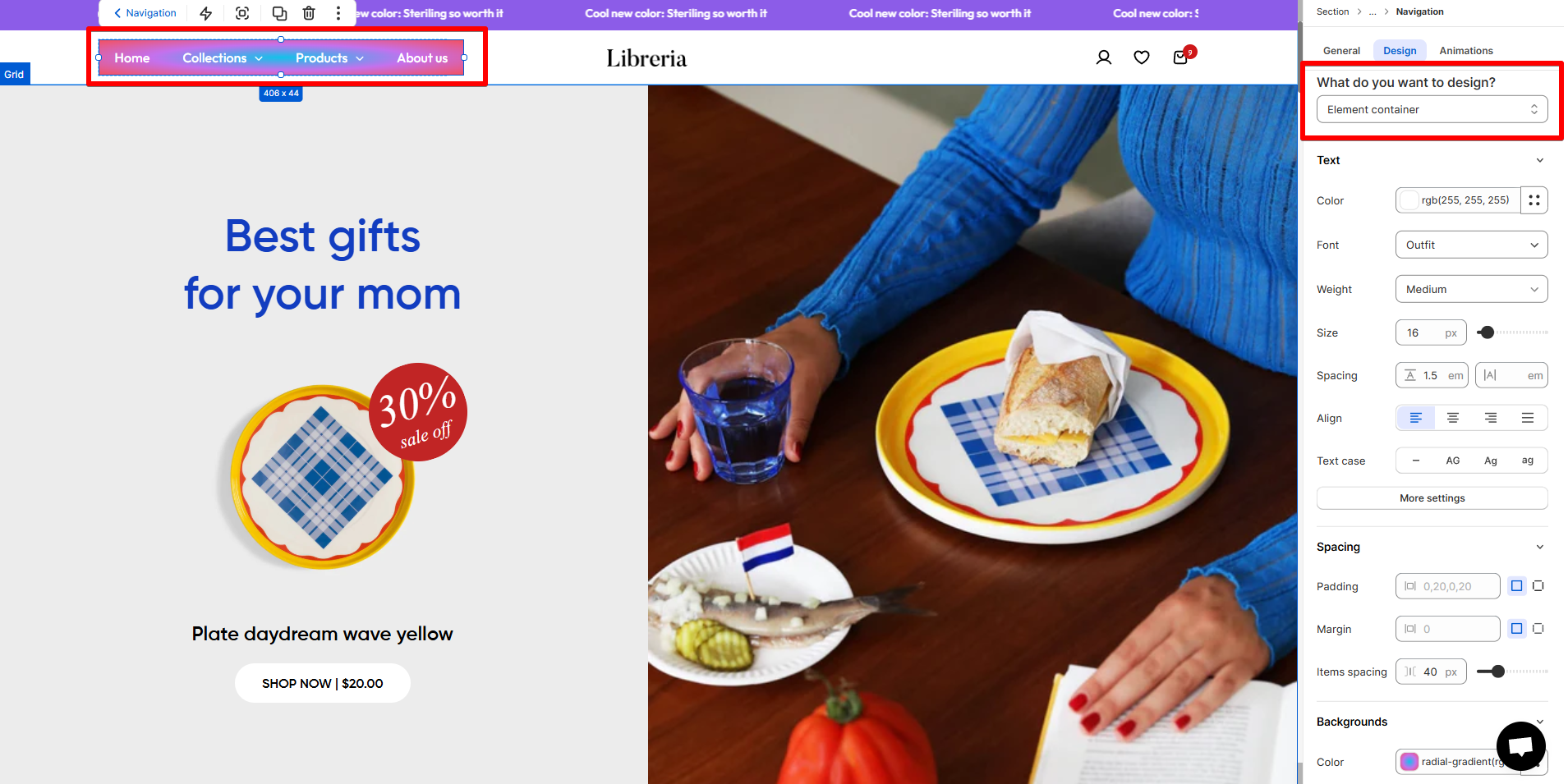
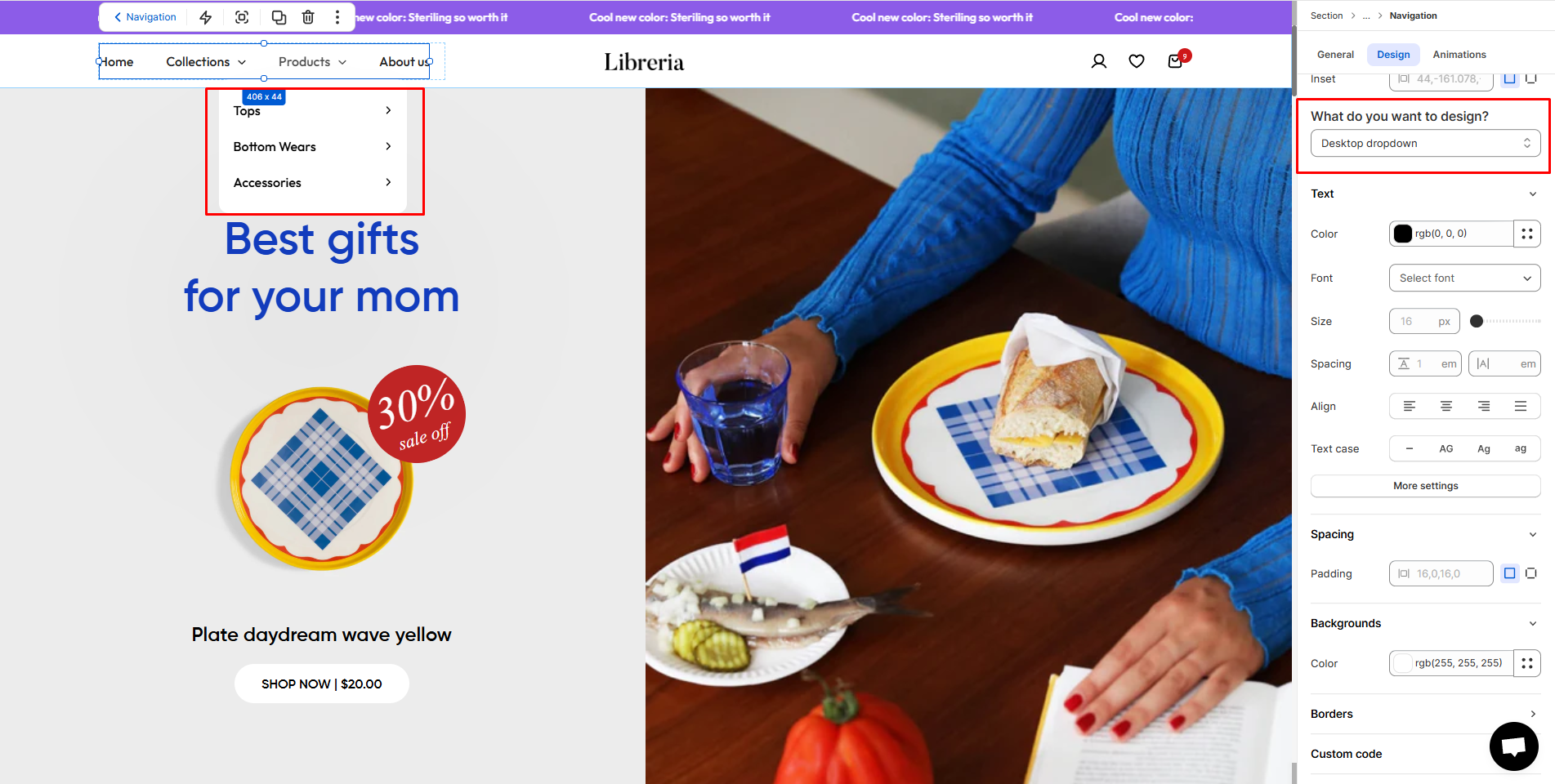
#### Design
Decide what you want to design:
* Element container
* Desktop dropdown
## Menu opener
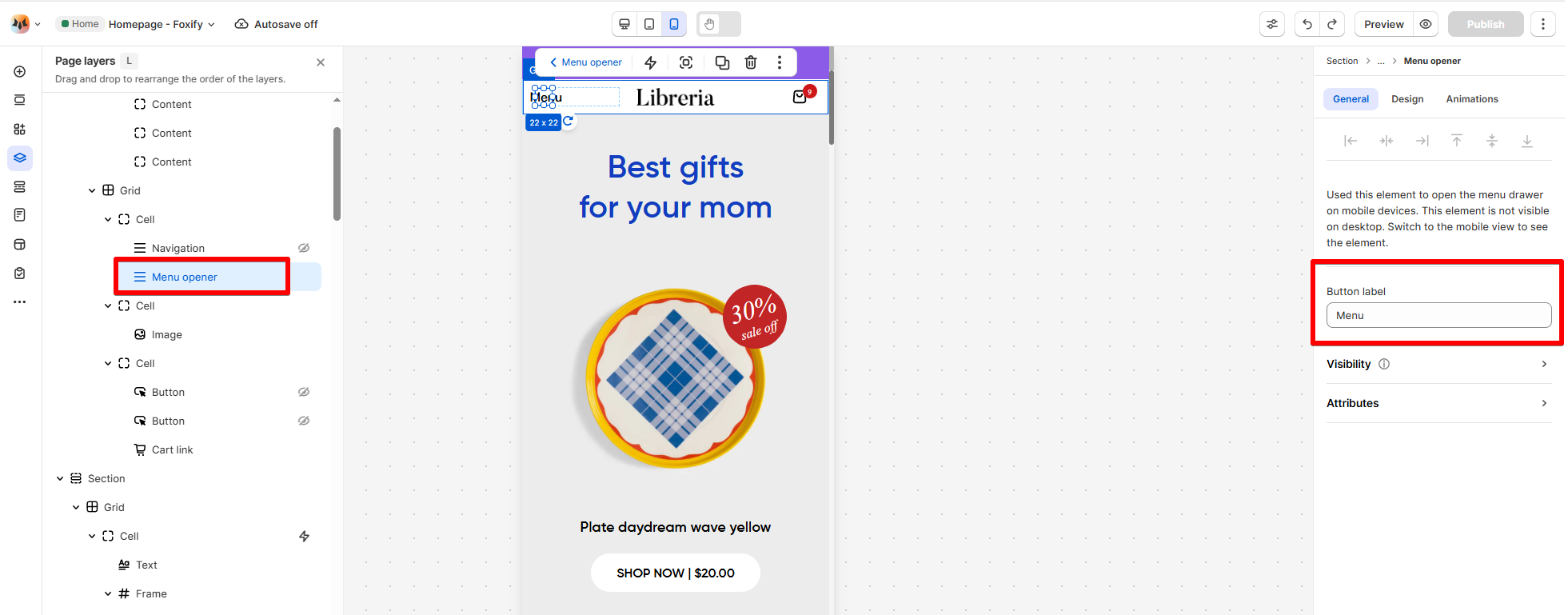
The **Menu opener** is a compact mobile-friendly navigation element that replaces the standard menu on smaller screens. **It displays a hamburger icon which, when tapped, reveals the menu as a drawer**.
Steps:
1. In the FoxStudio editor, on the left Sidebar > Click **Add elements**, or press **E**.
2. In **Advanced elements**, select **Navigation.**
3. Drag the **Menu opener** element onto your canvas.
4. Make necessary changes.
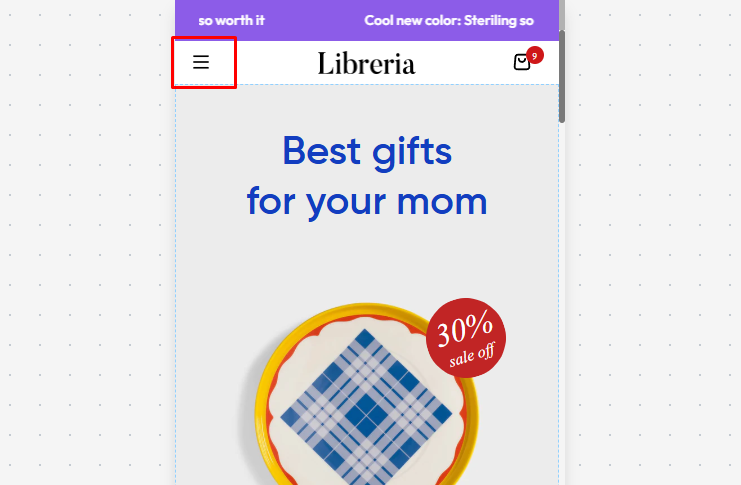
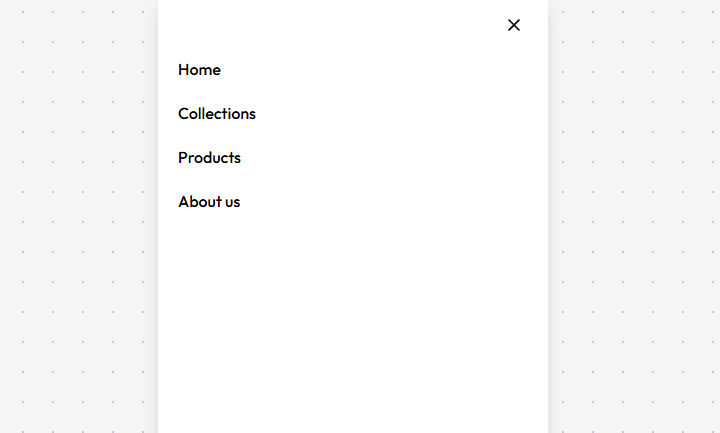
You can also replace the default hamburger icon with a text button label.
## Country/Language selector

Allow shoppers to view your site in their local language and currency with the **Country/Language selector**.
### How to add a Country/Language selector element
Steps:
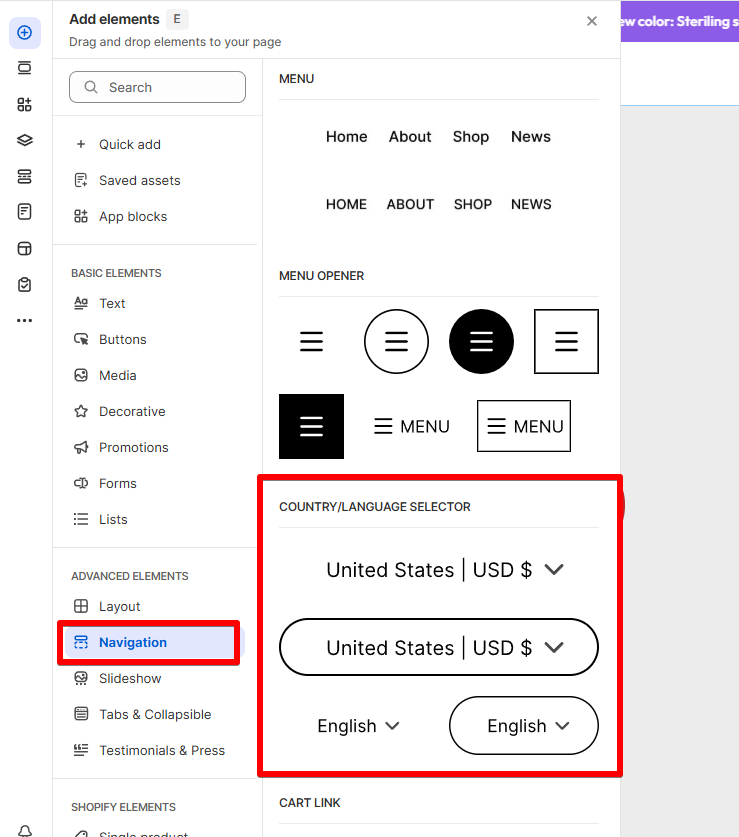
1. In the FoxStudio editor, on the left Sidebar > Click **Add elements**, or press **E**.
2. In **Advanced elements**, select **Navigation.**
3. Drag the **Country/language selector** element onto your canvas.
4. Make necessary changes.
### How to edit a Country/Language selector element
Steps:
1. **Select** the element in the editor.
2. All the formatting tools for the element can be found in the **Inspector** panel.
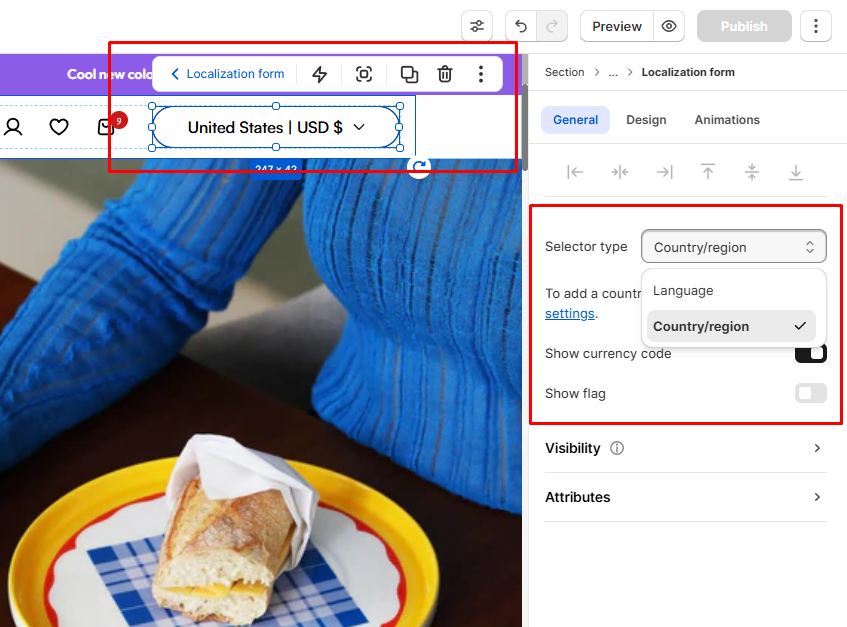
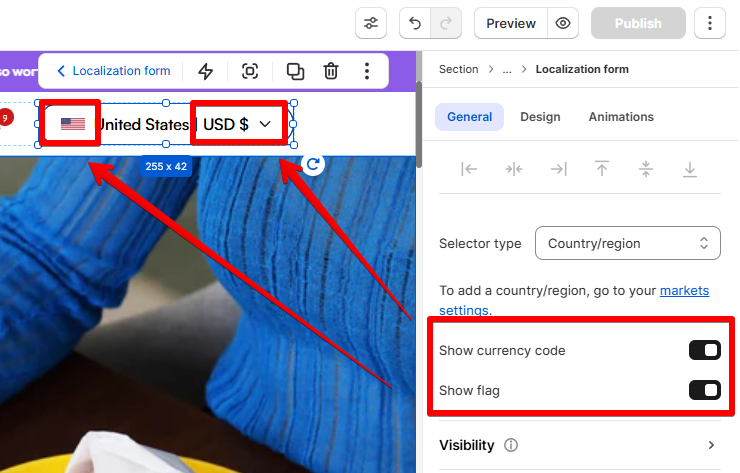
* **Selector type**: Select what you want to show to customers:
* **Country/region selector**
* **Language selector**
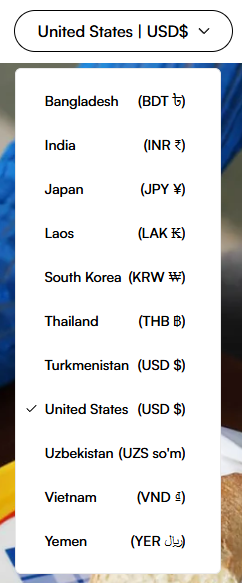
To manage your store's regions, check out **Shopify Markets**:
You can choose to display the **currency code** and/or **flag** in your selector.
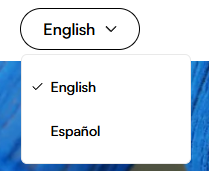
To manage your store languages, check out **Shopify help center**:
## Cart link

Add a cart icon to your header. It optionally shows the number of items in the cart and links to either the cart drawer or the cart page.
### How to add a Cart link
Steps:
1. In the FoxStudio editor, on the left Sidebar > Click **Add elements**, or press **E**.
2. In **Advanced elements**, select **Navigation.**
3. Drag the **Cart link** element onto your canvas.
4. Make necessary changes.
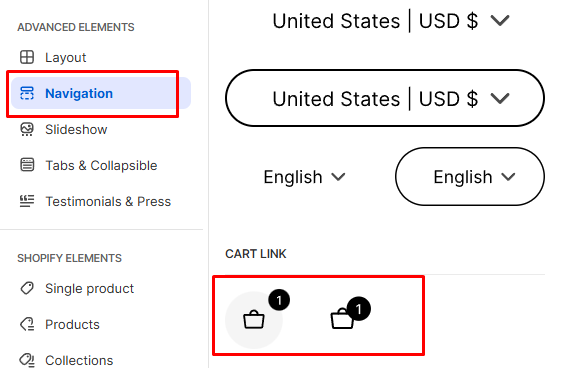
💡 **Tip**: Make the cart icon easy to spot – top right is standard.
### How to edit the Cart link element
Steps:
1. **Select** the element in the editor.
2. All the formatting tools for the element can be found in the **Inspector** panel.
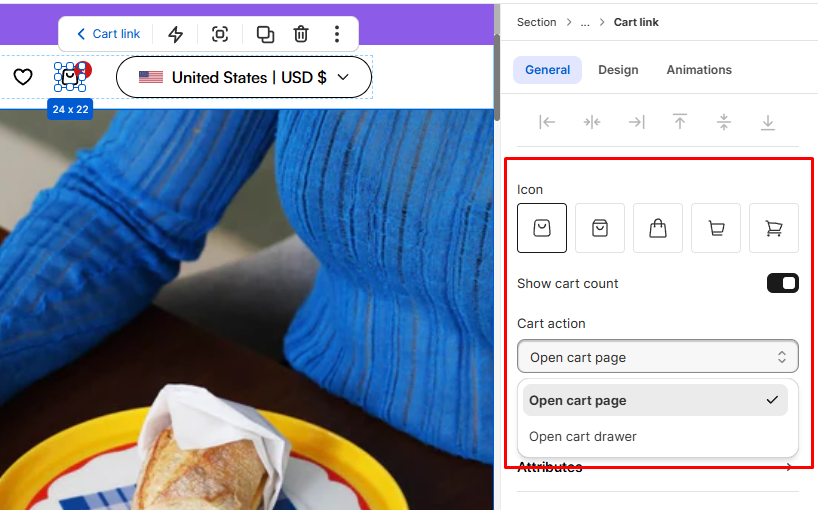
* **Icon**: Choose your preferred Cart icon style.
* Toggle **Show cart count** if you want to display item quantity.
* Select the **Cart action**:
* Open cart drawer
* Open cart page