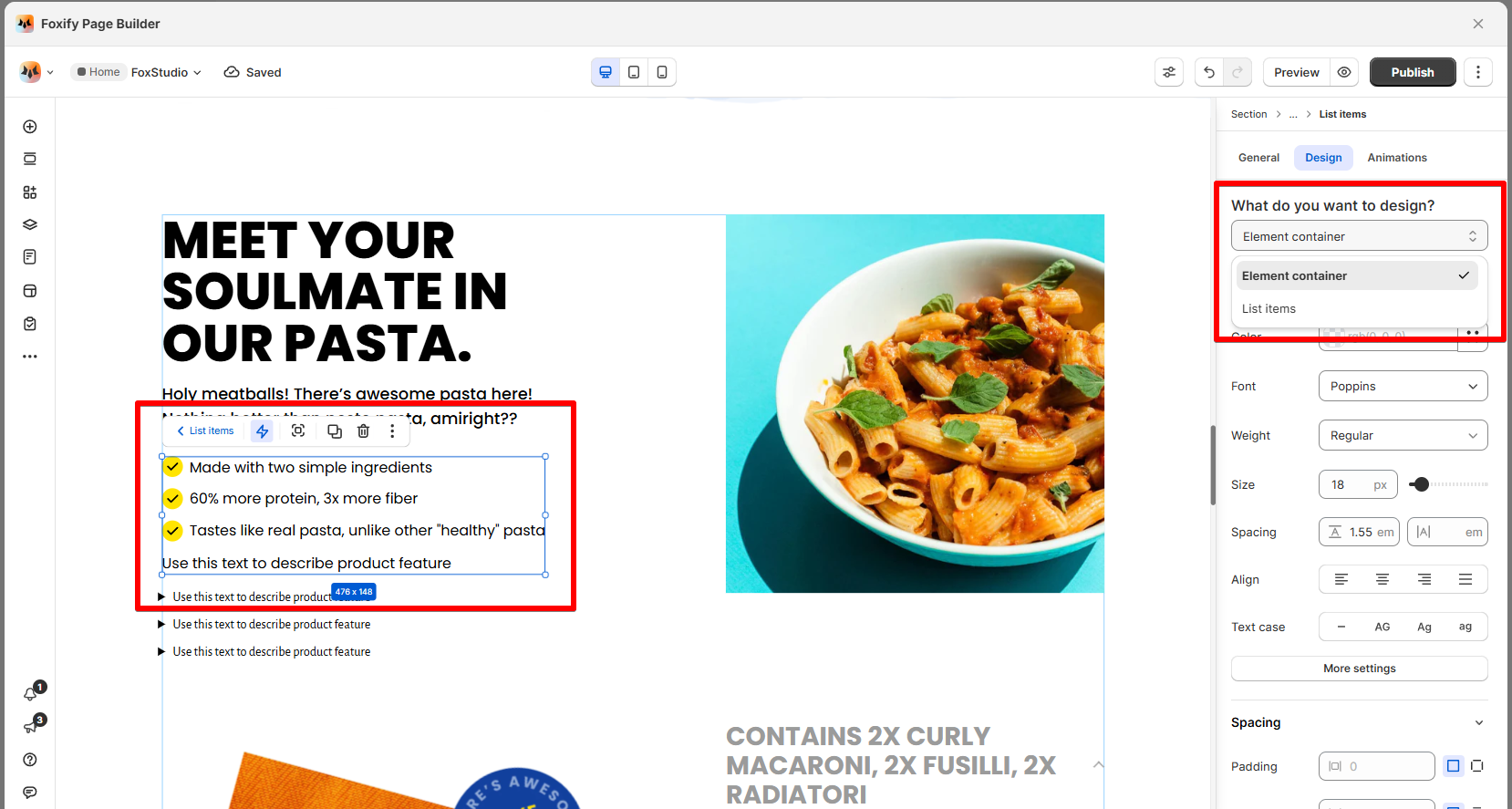
# List items
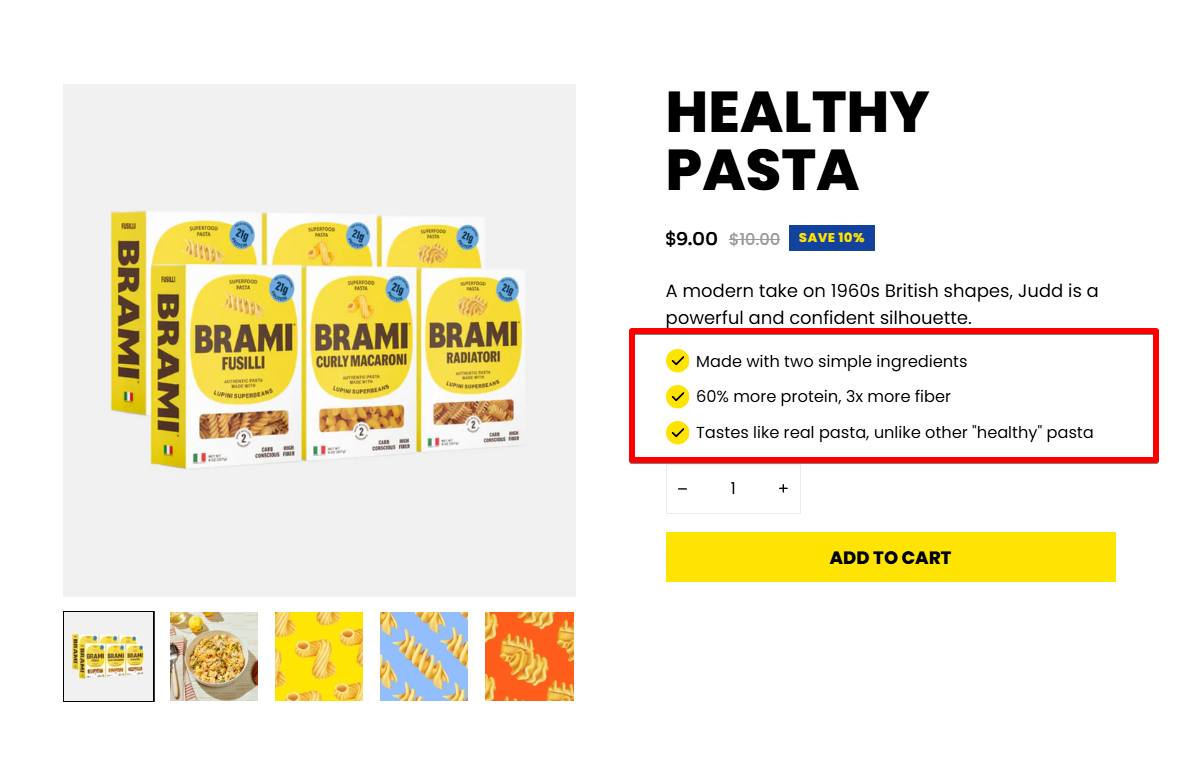
Use the **List items** element to display text having the same layout, but containing unique content in each. List items are great at emphasizing product benefits, key features, or quick selling points for better conversion.
## How to add List items
**Steps:**
1. In the FoxStudio editor, on the left Sidebar > Click **Add elements**, or press **E**.
2. Select **Lists** > **List items.**
3. Drag the List items onto your canvas.
## How to edit List items
**Steps:**
1. **Select** the relevant list items element in the editor.
2. All the formatting tools for the element can be found in the right-handsided **Inspector** panel.
### General settings
#### Manage list items
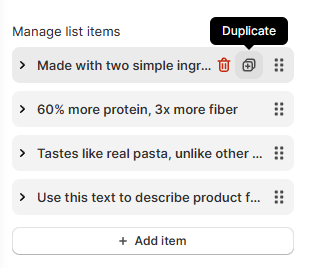
Click **Add item** to add more to your list.
You can also remove/duplicate/reorder an item within the list.
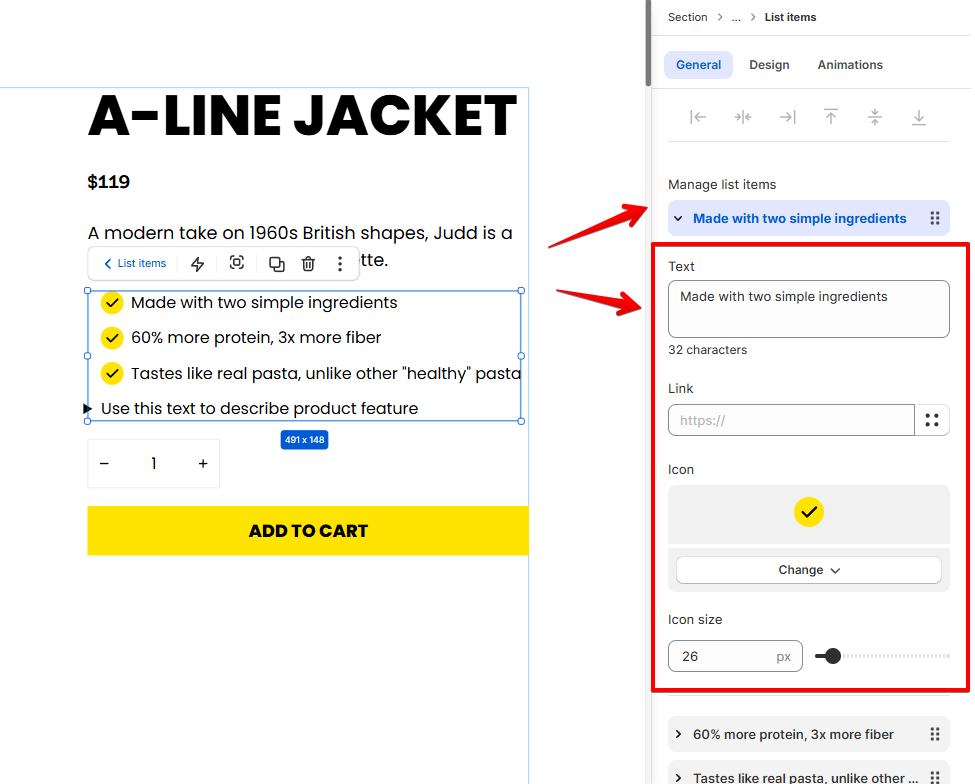
You can view and manage the content of each list item individually. Options include:
* **Text**: Enter the text content for the list item.
* **Link**: Add a clickable link to the list item if needed. This is useful for directing users to a product page or more information. If you don't need links, leave this field blank.
* **Icon**: Add or change an icon next to the list item text. You can adjust the size of the icon using the slider.
#### List style
If an icon is set for the list item, the icon will replace the list style.
* Select a style for list formatting:
* None (no bullets)
* Disc
* Circle
* Decimal (numbered list)
* Square
* Disclosure closed/open (useful for dropdown-like lists)
⭐ **Tip**: Use "Disc" or "Circle" for simple bullets and "Decimal" for ordered steps.
### Design settings
Target specific parts of the Contact form for customization:
* **Element container**: Adjust text styles for items, wrapper's background colors, padding, borders, and spacing.
* **List items:** Adjust spacing, borders, and background color for individual list items.