# Slideshow

Display a series of images or content in a rotating, visually appealing format. This interactive feature captures the attention of visitors, creating an engaging experience that encourages them to explore more.
## How to add Slideshow
**Steps:**
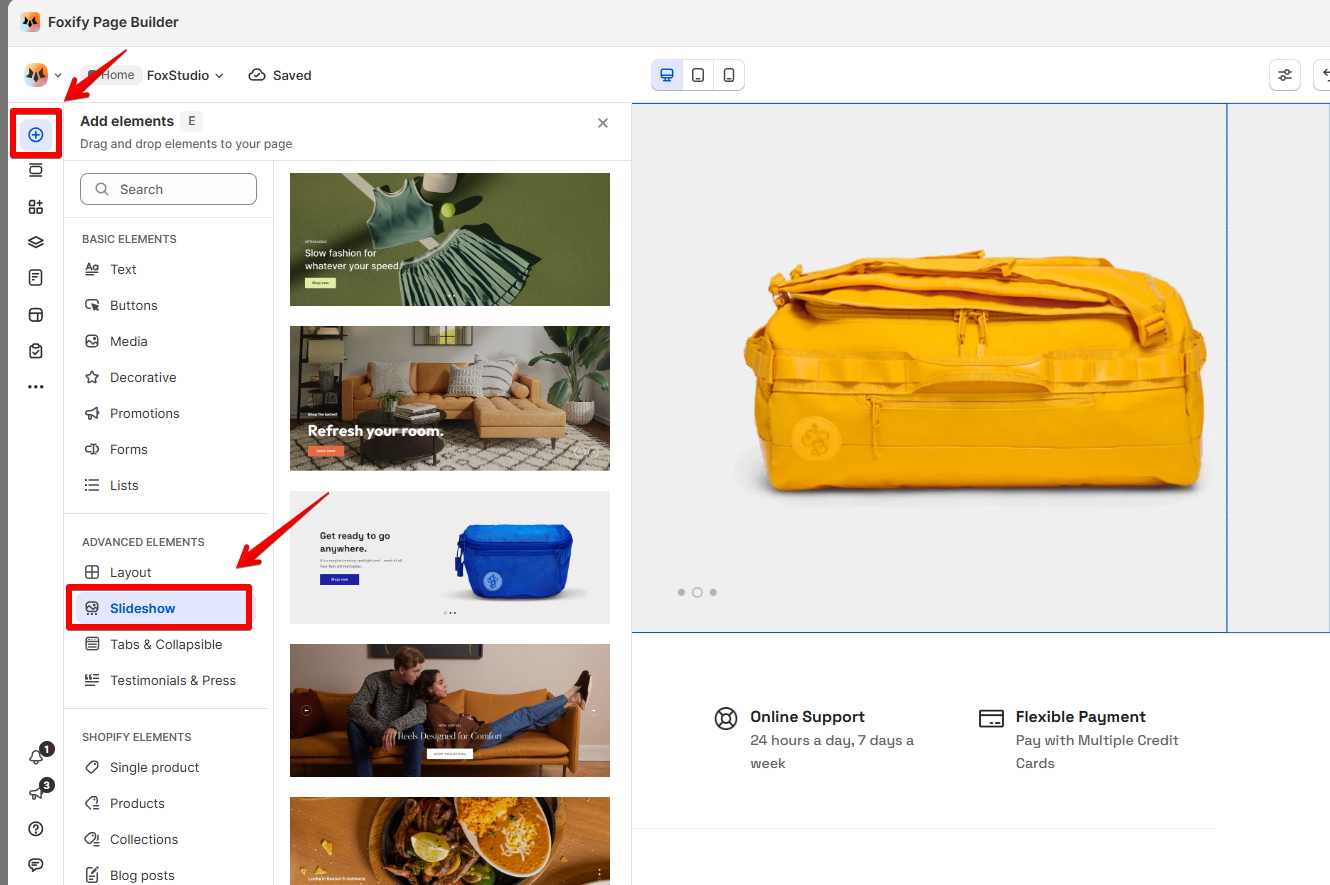
1. In the FoxStudio editor, on the left Sidebar > Click **Add elements**, or press **E**.
2. In **Advanced elements**, select **Slideshow** or select **Quick add** > select **Slideshow.**
3. Drag the slideshow onto your canvas.
## How to edit Slideshow
**Steps:**
1. **Select** the relevant slideshow element in the editor.
2. All the formatting tools for the element can be found in the right-handsided **Inspector** panel.
### Manage slides
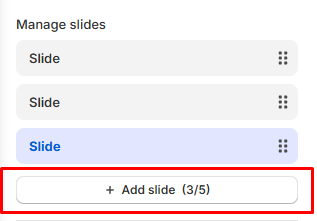
* **Add new slides:**
Click **Add slide** to add a new slide to your slideshow. You can add up to 5 slides within the Slideshow element.
* **Reorder slides:**
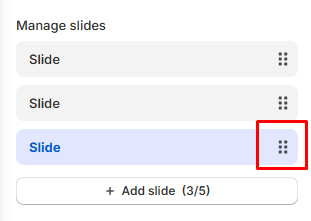
Rearrange your slides to change the order in which your content is displayed to your visitors by dragging the six-dot icon.
* **Remove slides**:
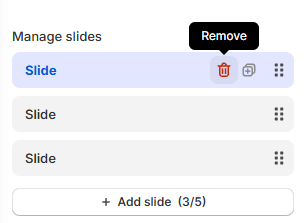
If you no longer need a slide, you can delete it to keep your slideshow up to date.
Hover over the slide you want to remove, click the **Remove** _reX9mp7g.svg) icon.
### Customize your slides
Click on the slide you wish to edit in the Slideshow.
Each slide includes the following customizable options:
* **Image**: Upload an image to be displayed as the main content of the slide.
* **Mobile image**: For better mobile responsiveness, you can upload a separate image for mobile devices.
* **Image overlay opacity**: Use the slider to adjust the opacity of the overlay. This can help text or other elements placed on top of the slide stand out more clearly.
### Add content over a slide
Add whatever elements you want to your slideshow including text, images, videos, and buttons. Using different content on each slide keeps visitors engaged and encourages them to explore your site further.
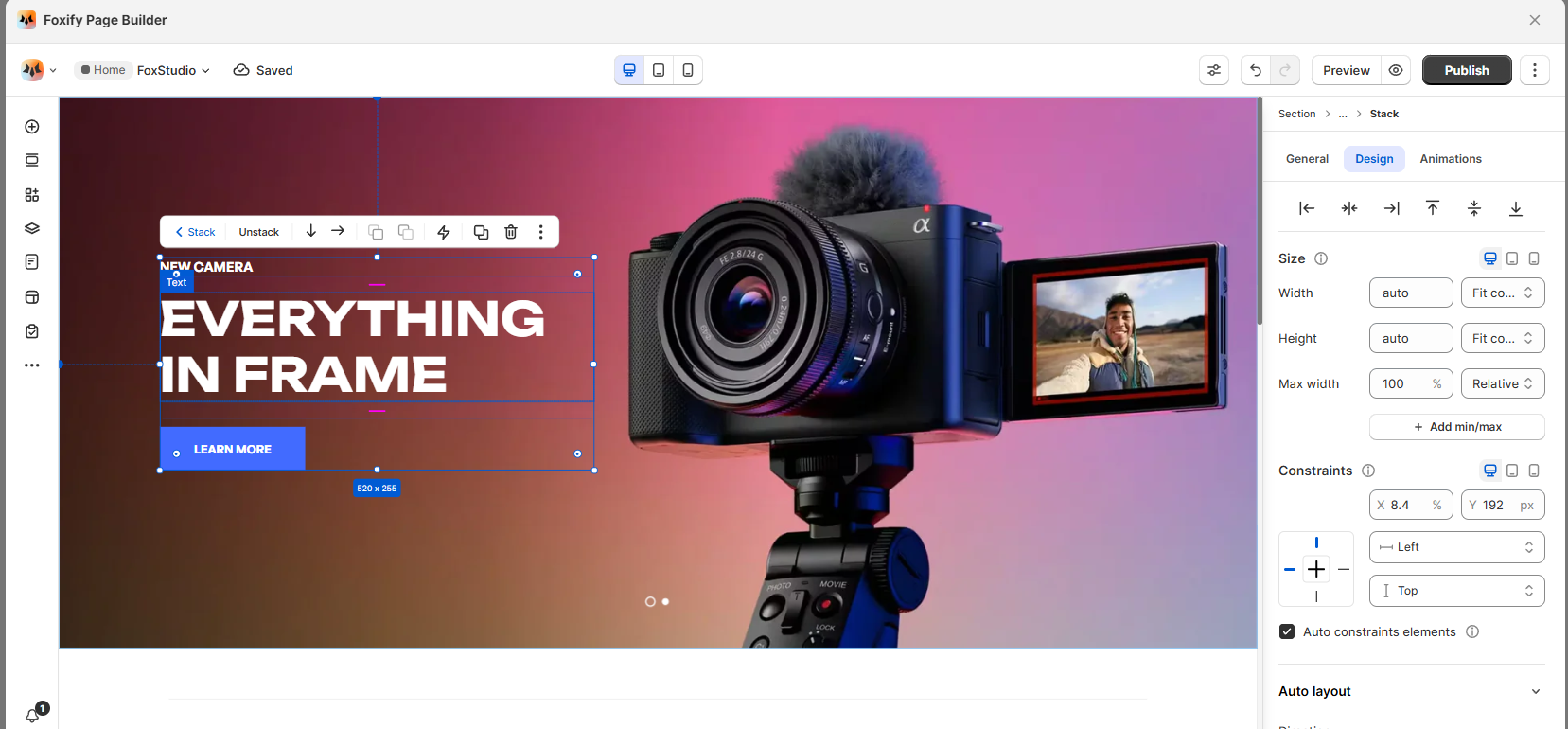
Use the **Layers panel** to easily navigate and manage the hierarchy of elements on your page.
Page layers
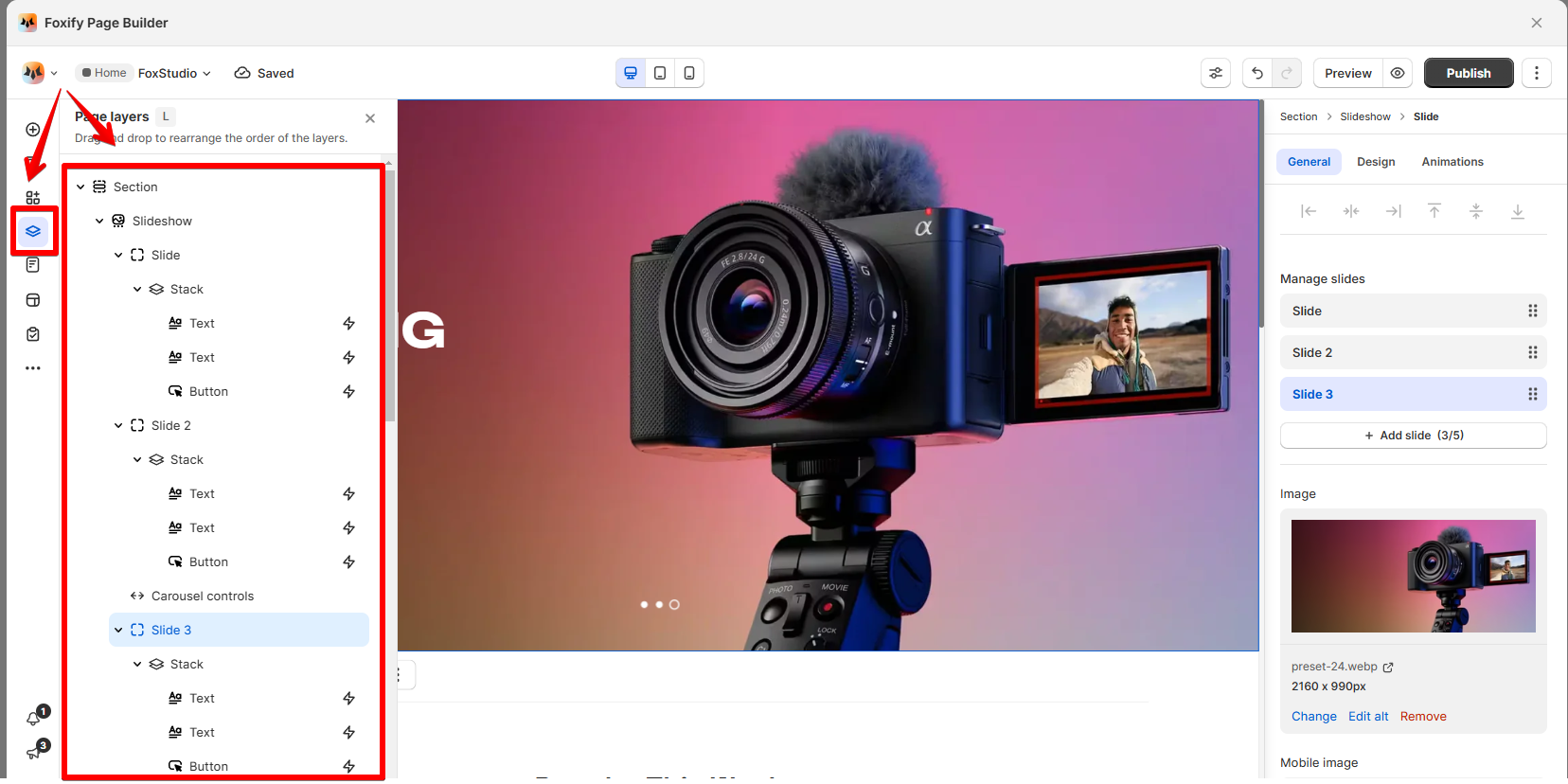
icon.

### Customize your slides
Click on the slide you wish to edit in the Slideshow.
Each slide includes the following customizable options:
* **Image**: Upload an image to be displayed as the main content of the slide.
* **Mobile image**: For better mobile responsiveness, you can upload a separate image for mobile devices.
* **Image overlay opacity**: Use the slider to adjust the opacity of the overlay. This can help text or other elements placed on top of the slide stand out more clearly.
### Add content over a slide
Add whatever elements you want to your slideshow including text, images, videos, and buttons. Using different content on each slide keeps visitors engaged and encourages them to explore your site further.

Use the **Layers panel** to easily navigate and manage the hierarchy of elements on your page.
Page layers
