# Collapsible content
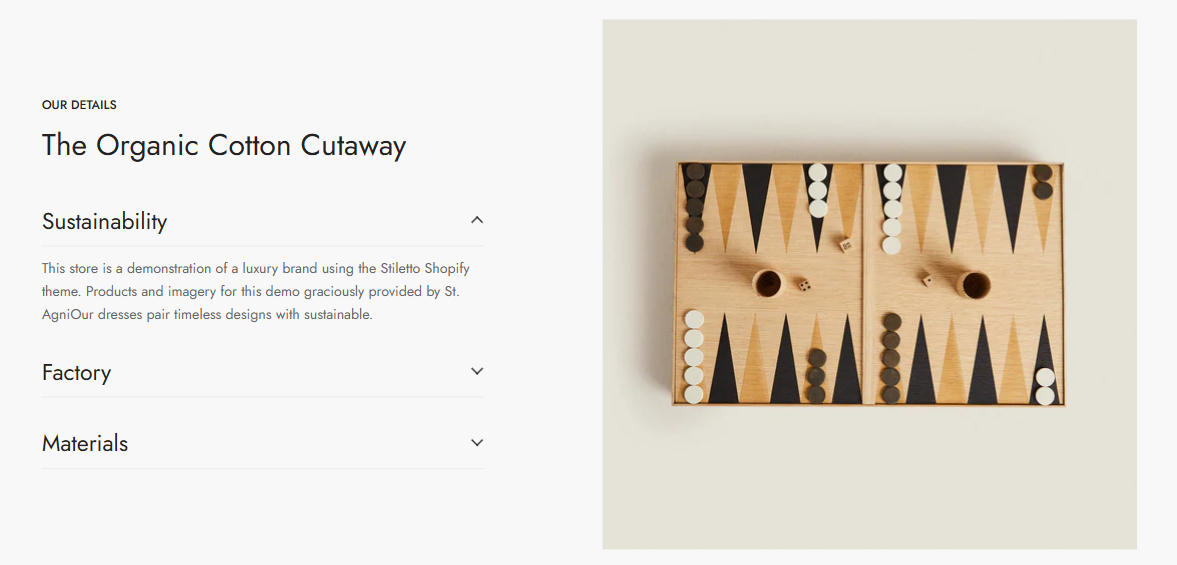
Collapsible content is a great way to organize content and improve the user experience on your website. Easily create and customize collapsible content to present information in a clean, space-saving format using FoxStudio.
Collapsible tabs are content blocks that can be expanded or collapsed with a simple click. They help declutter pages by hiding less important details until the user chooses to see them. This feature is ideal for FAQs, product details, policies, or any other type of content that doesn’t need to be visible at all times.
## How to add Collapsible content
**Steps:**
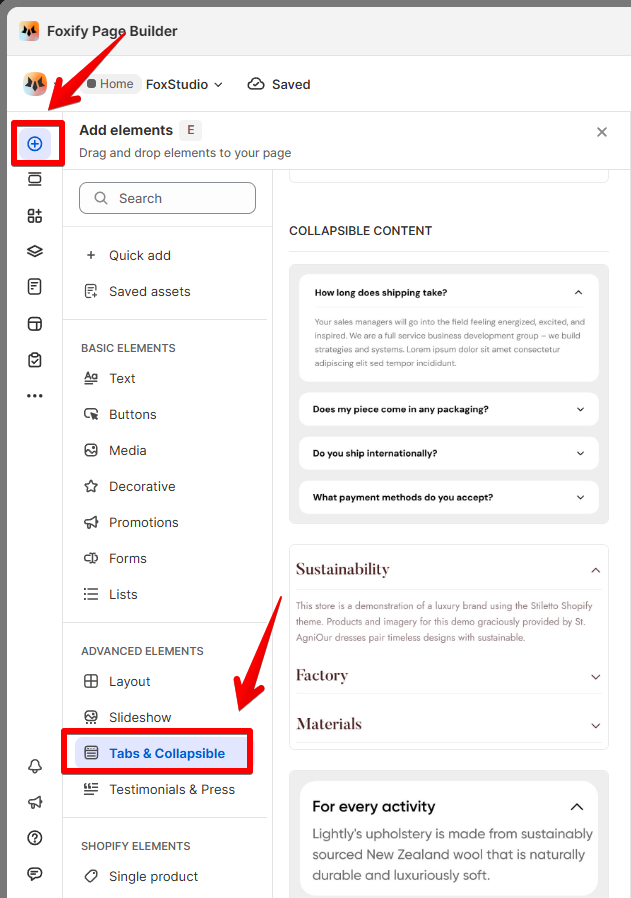
1. In the FoxStudio editor, on the left Sidebar > Click **Add elements**, or press **E**.
2. In **Advanced elements**, select **Tabs & Collapsible.**
3. Drag the collapsible content onto your canvas.
## How to edit Collapsible content
**Steps:**
1. **Select** the relevant collapsible content element in the editor.
2. All the formatting tools for the element can be found in the **Inspector** panel.
### Manage collapsible items
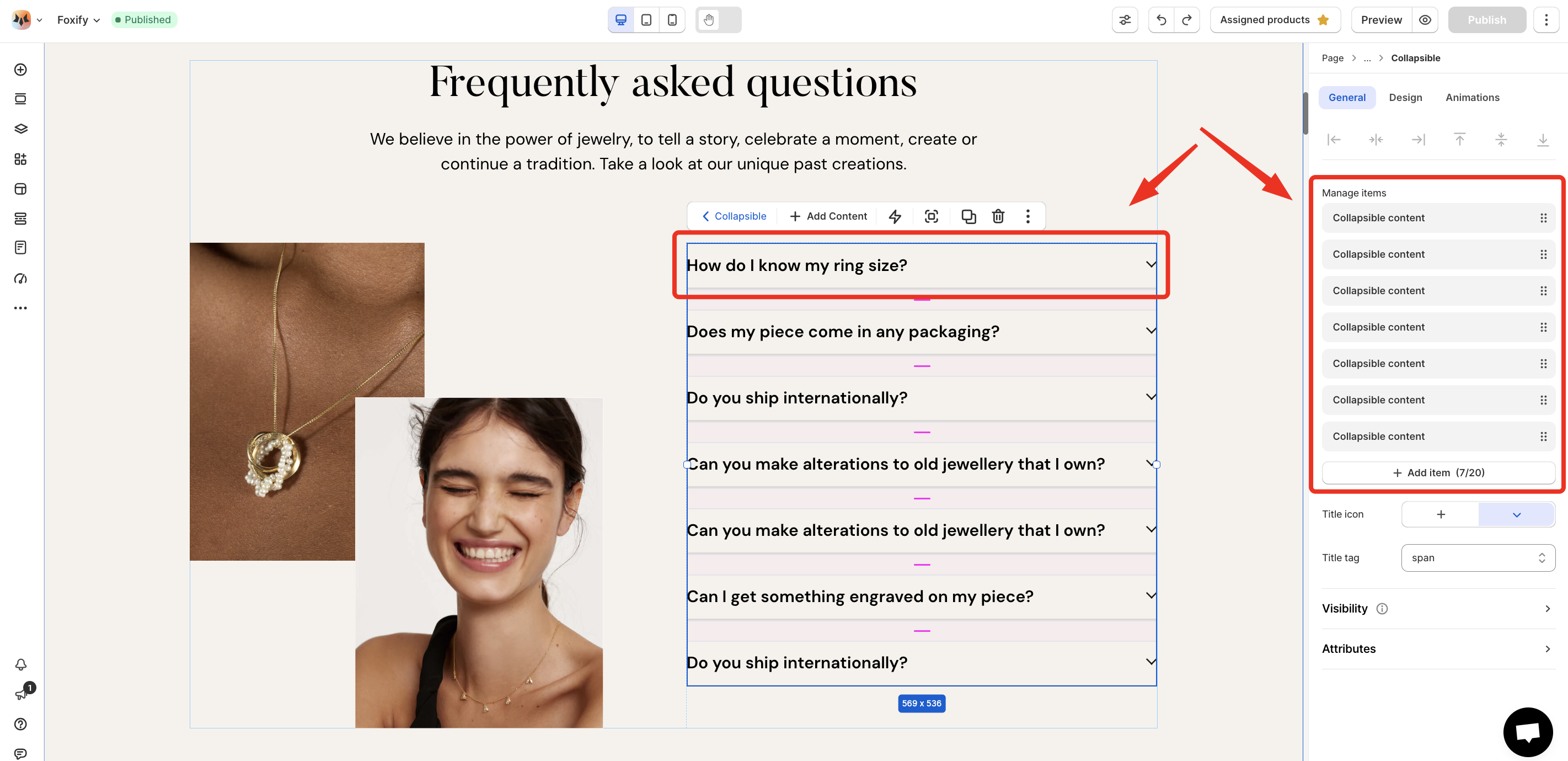
* **Add new items**
Click **Add item** to add a new collapsible item. You can add up to 20 items within the Collapsible content element.
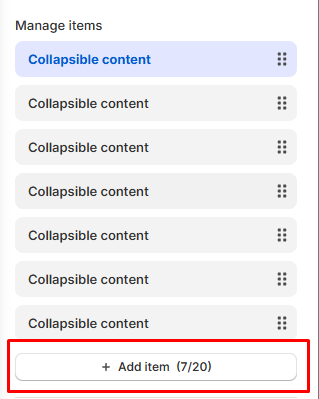
* **Reorder items:**
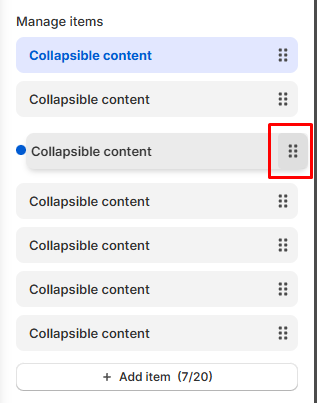
Rearrange your tabs to change the order in which your content is displayed to your visitors by dragging the six-dot icon.
* **Remove items**:
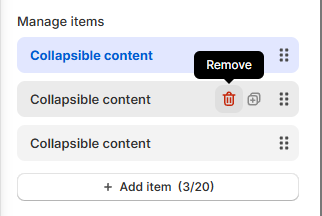
If you no longer need a collapsible item, you can delete it to keep your element up to date.
Hover over the item you want to remove, click the **Remove** _reX9mp7g.svg) icon.
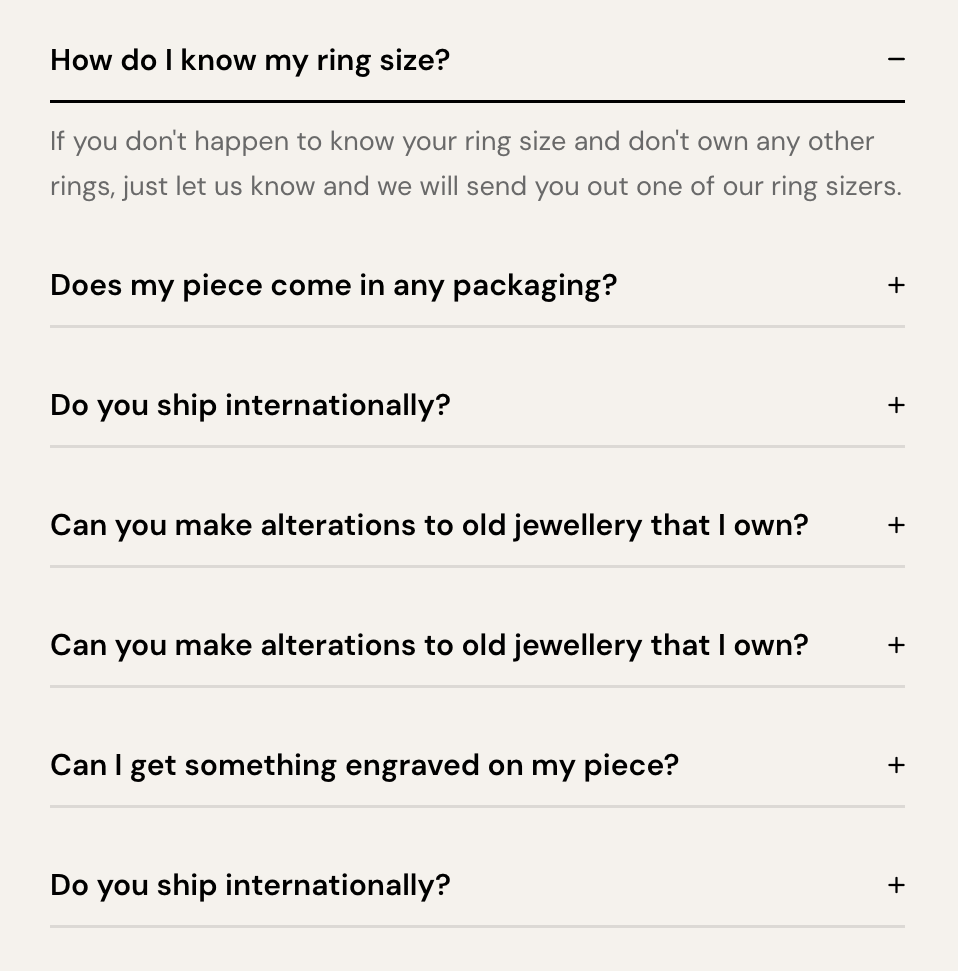
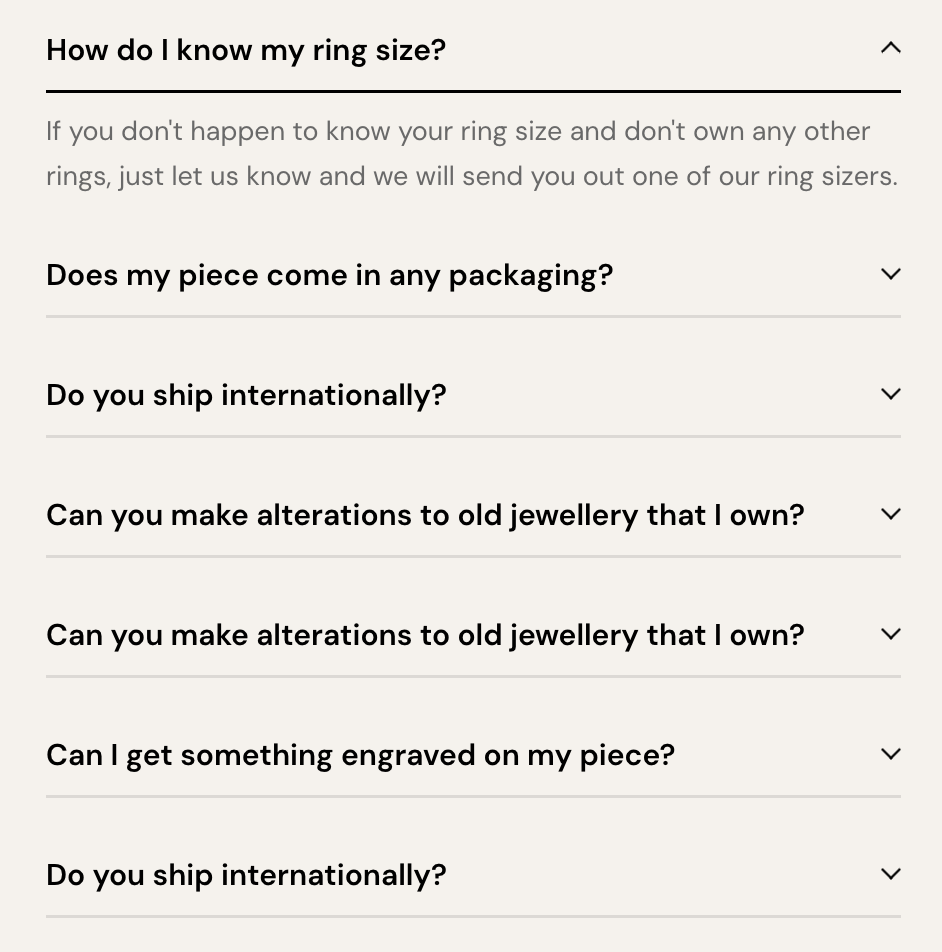
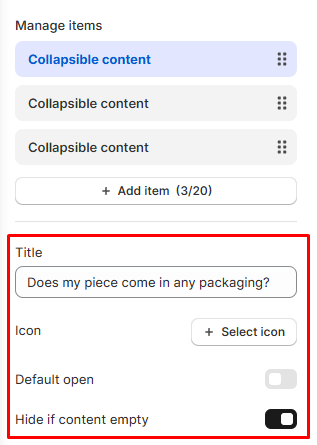
* **Title icon:** Choose an icon that will display next to each collapsible item title (Plus/Arrow).
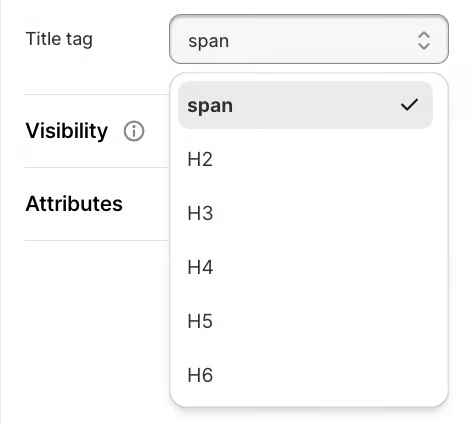
* **Title tag:** Define the HTML tag (e.g., span, h2, h3) for the collapsible item titles.
### Customize your collapsible content
Click on the collapsible item you wish to edit.
#### General setting
Edit the title of the tab to fit your content. Choose an icon from the icon library or upload a custom icon to represent the tab visually.
#### Design settings
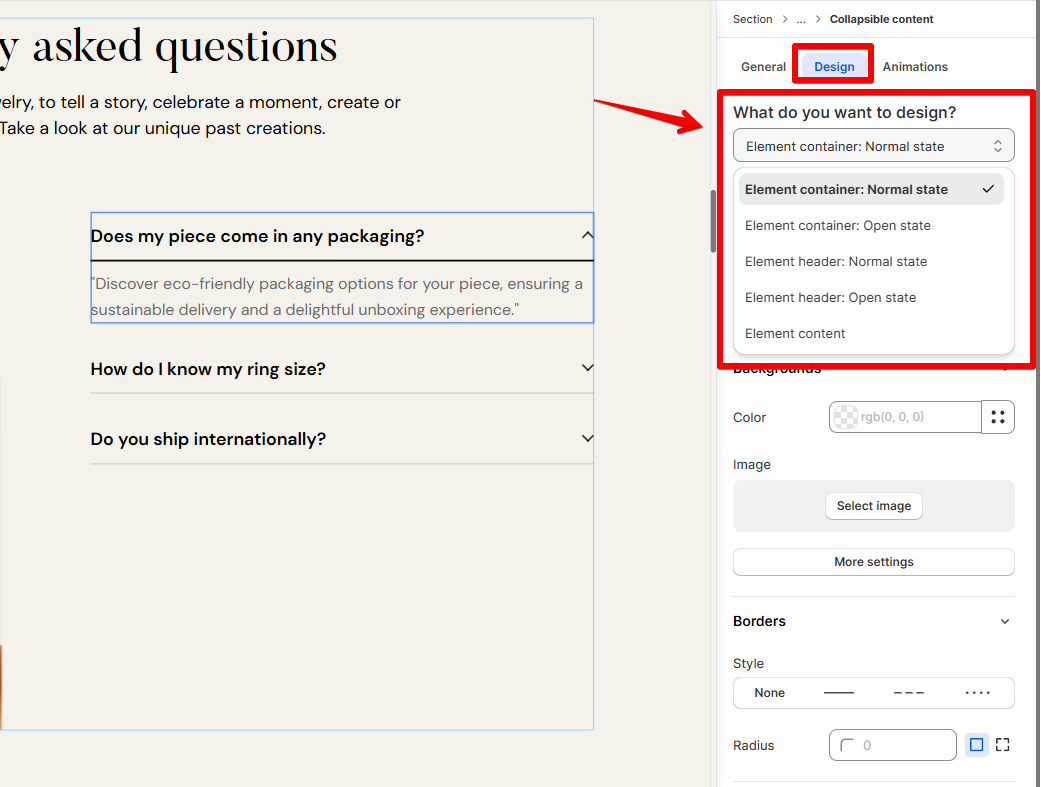
You can design and style different parts and states of the collapsible content.
Use the dropdown menu to choose the specific part you want to design:
* **Element Container**
* **Normal State**: Customize the container when it is collapsed (not expanded).
* **Open State**: Customize the container when it is expanded.
* **Element Header**
* **Normal State**: Style the header when the tab is not expanded.
* **Open State**: Style the header when the tab is expanded.
* **Element Content**
* Customize the content section within the tab.
### Add content over a collapsible item
Add whatever elements you want to your collapsible item including text, images, videos, and buttons. Using different content on each tab keeps visitors engaged and encourages them to explore your site further.
**Pro tip:** Make sure you test and ensure the collapsible tabs look good on mobile devices📱.
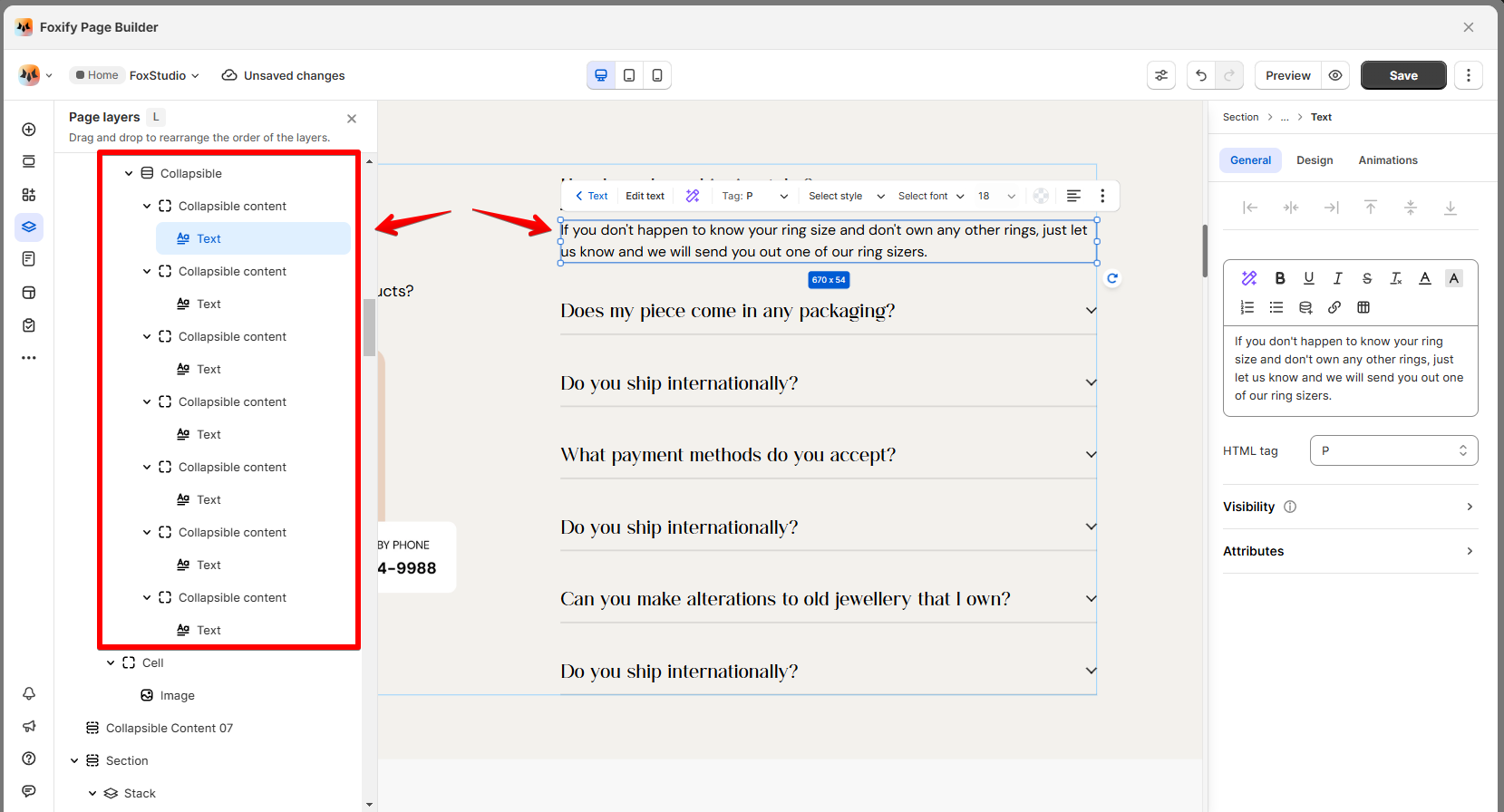
Use the **Layers panel** to easily navigate and manage the hierarchy of elements on your page.
Page layers
## FAQs
#### **How many collapsible items can I add?**
You can add up to 20 collapsible items in your collapsible content. However, for optimal user experience, try to keep the number of items reasonable.
#### **Can I use images and videos inside the collapsible content?**
Yes! You can add images, videos, links, and even HTML content inside the content section.
#### **Why aren't my collapsible items working?**
Check if there are conflicting scripts on your page. If the issue persists, reach out to our **Support team** via in-app live chat or email [happytohelp@foxecom.com](mailto:happytohelp@foxecom.com) ✅
icon.

* **Title icon:** Choose an icon that will display next to each collapsible item title (Plus/Arrow).


* **Title tag:** Define the HTML tag (e.g., span, h2, h3) for the collapsible item titles.

### Customize your collapsible content
Click on the collapsible item you wish to edit.
#### General setting
Edit the title of the tab to fit your content. Choose an icon from the icon library or upload a custom icon to represent the tab visually.

#### Design settings
You can design and style different parts and states of the collapsible content.
Use the dropdown menu to choose the specific part you want to design:
* **Element Container**
* **Normal State**: Customize the container when it is collapsed (not expanded).
* **Open State**: Customize the container when it is expanded.
* **Element Header**
* **Normal State**: Style the header when the tab is not expanded.
* **Open State**: Style the header when the tab is expanded.
* **Element Content**
* Customize the content section within the tab.

### Add content over a collapsible item
Add whatever elements you want to your collapsible item including text, images, videos, and buttons. Using different content on each tab keeps visitors engaged and encourages them to explore your site further.
**Pro tip:** Make sure you test and ensure the collapsible tabs look good on mobile devices📱.
Use the **Layers panel** to easily navigate and manage the hierarchy of elements on your page.
Page layers

## FAQs
#### **How many collapsible items can I add?**
You can add up to 20 collapsible items in your collapsible content. However, for optimal user experience, try to keep the number of items reasonable.
#### **Can I use images and videos inside the collapsible content?**
Yes! You can add images, videos, links, and even HTML content inside the content section.
#### **Why aren't my collapsible items working?**
Check if there are conflicting scripts on your page. If the issue persists, reach out to our **Support team** via in-app live chat or email [happytohelp@foxecom.com](mailto:happytohelp@foxecom.com) ✅