# Layer slider

The Layer slider element creates professional slideshows by pairing images with a flexible content container. Effortlessly incorporate text, buttons, or icons to build eye-catching, dynamic banners.
## How to add a Layer slider element
**Steps:**
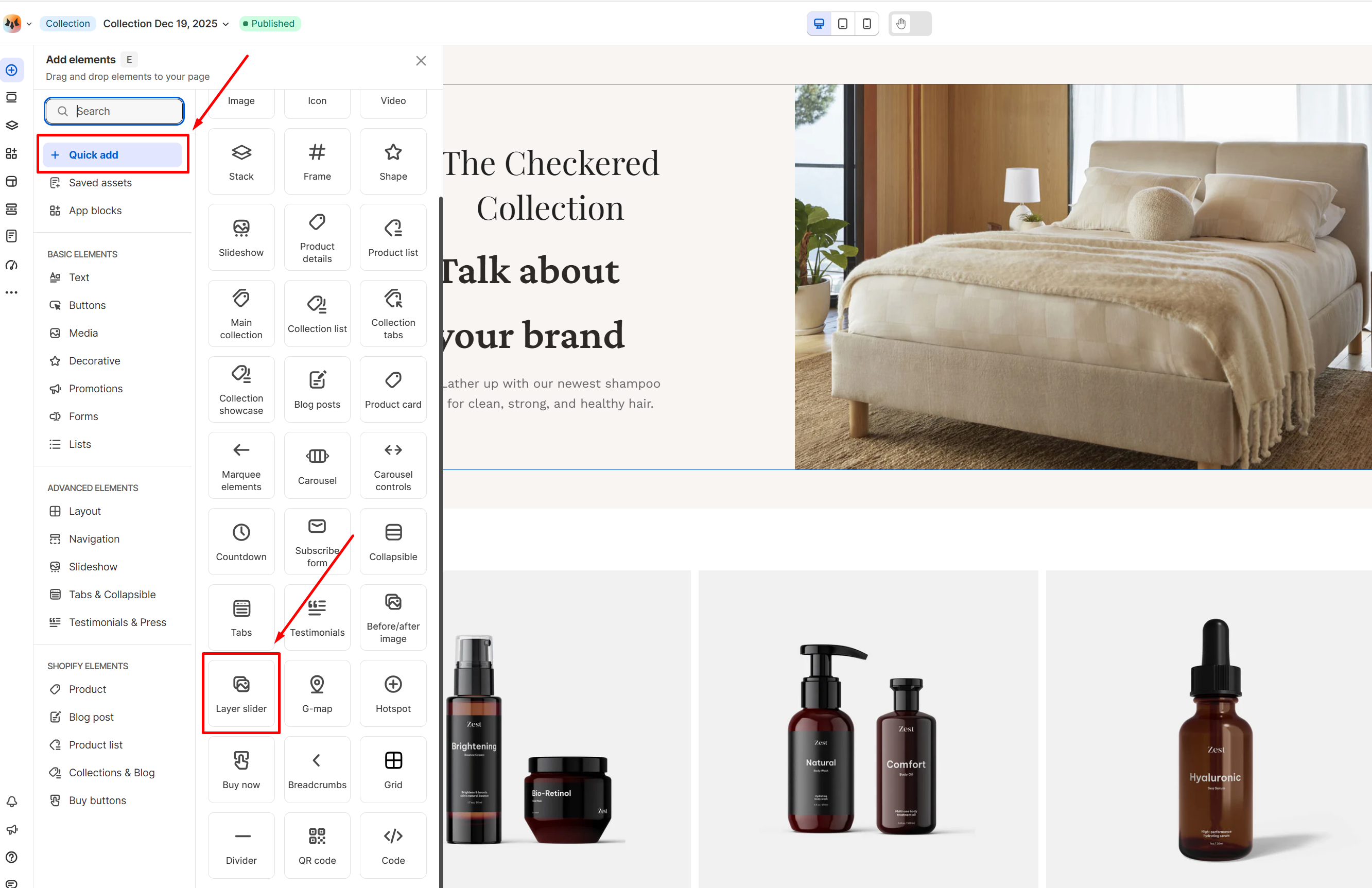
1. In the FoxStudio editor, on the left Sidebar > Click **Add elements**, or press **E**.
2. Select **Quick add**, select **Layer slider** element.
3. Drag the image slide onto your canvas.
## How to edit Layer slide
**Steps:**
1. **Select** the relevant layer slide element in the editor.
2. All the formatting tools for the element can be found in the right-handsided **Inspector** panel.
### General settings
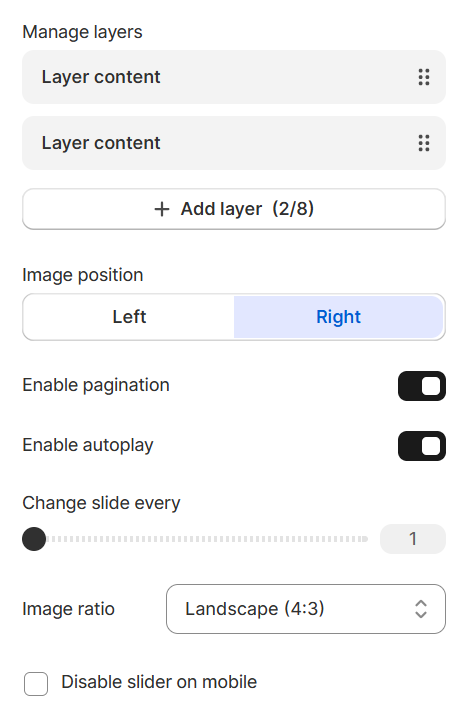
#### Manage slides
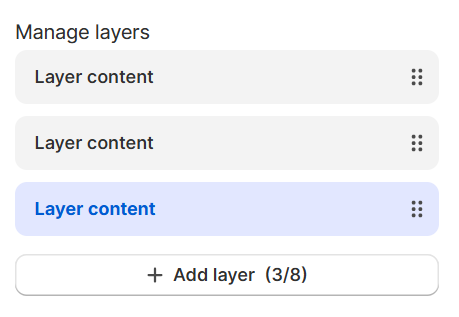
* **Add new slides:**
Click **Layer content** to add a new slide to your layer slide. You can add up to 8 slides within the Layer Slide element.
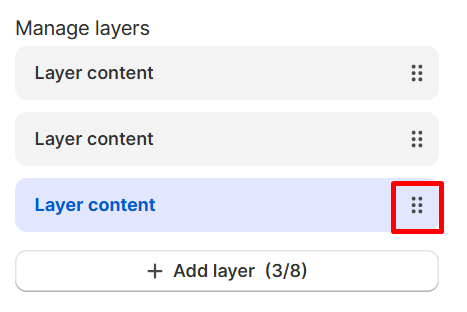
* **Reorder slides:**
Rearrange your slide to change the order in which your content is displayed to your visitors by dragging the six-dot icon.
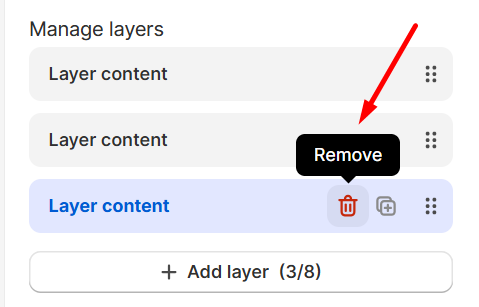
* **Remove slides**:
If you no longer need a layer, you can delete it to keep your layer content up to date.
Hover over the slide you want to remove, click the **Remove**  icon.
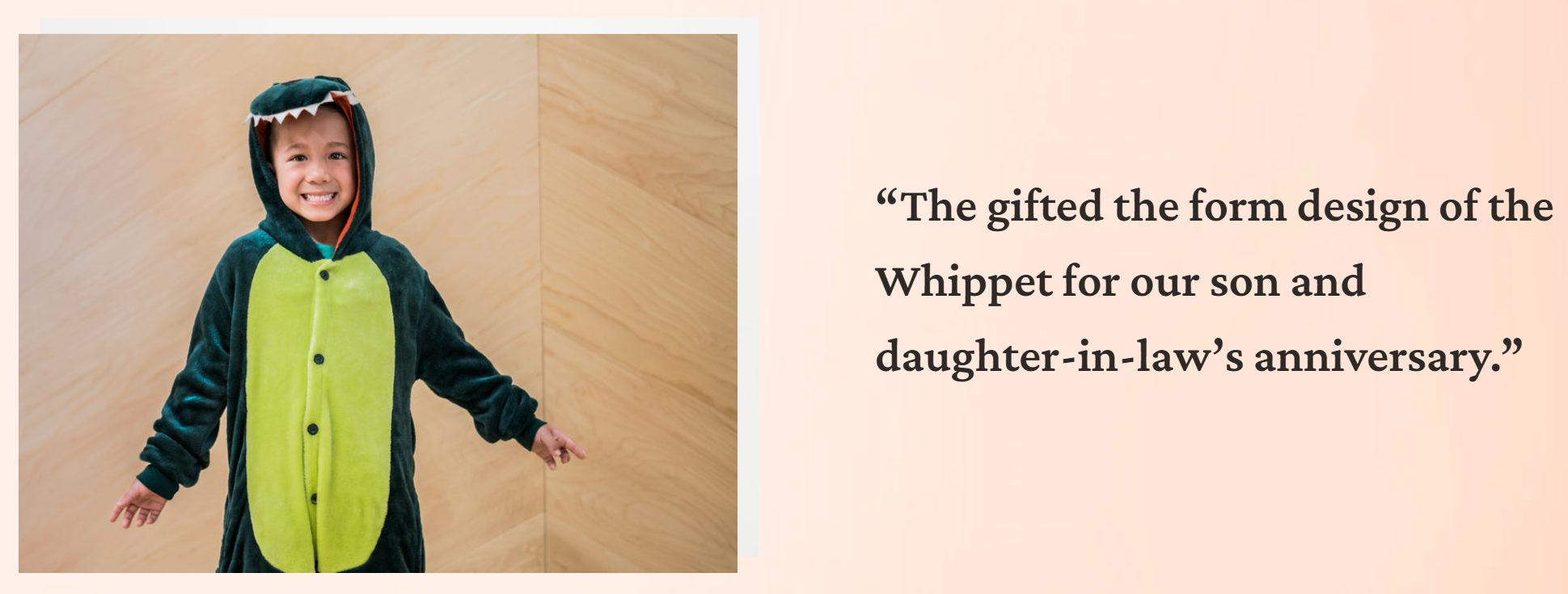
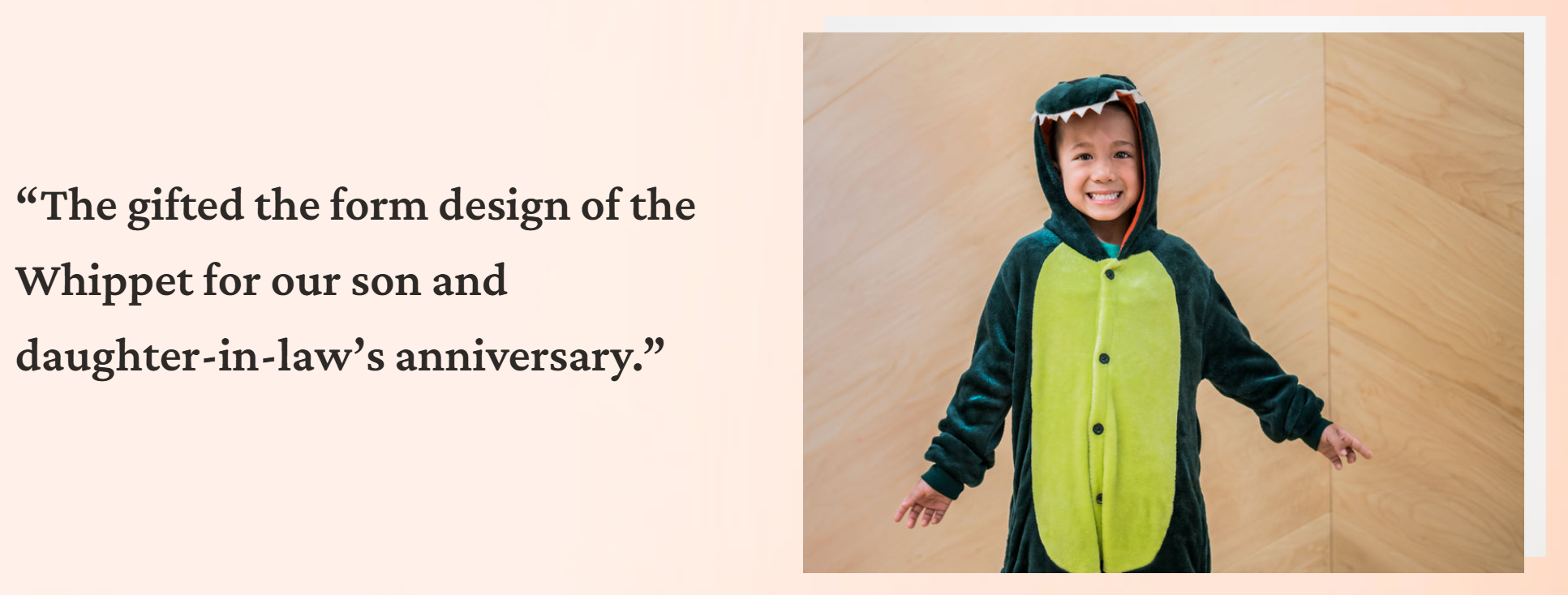
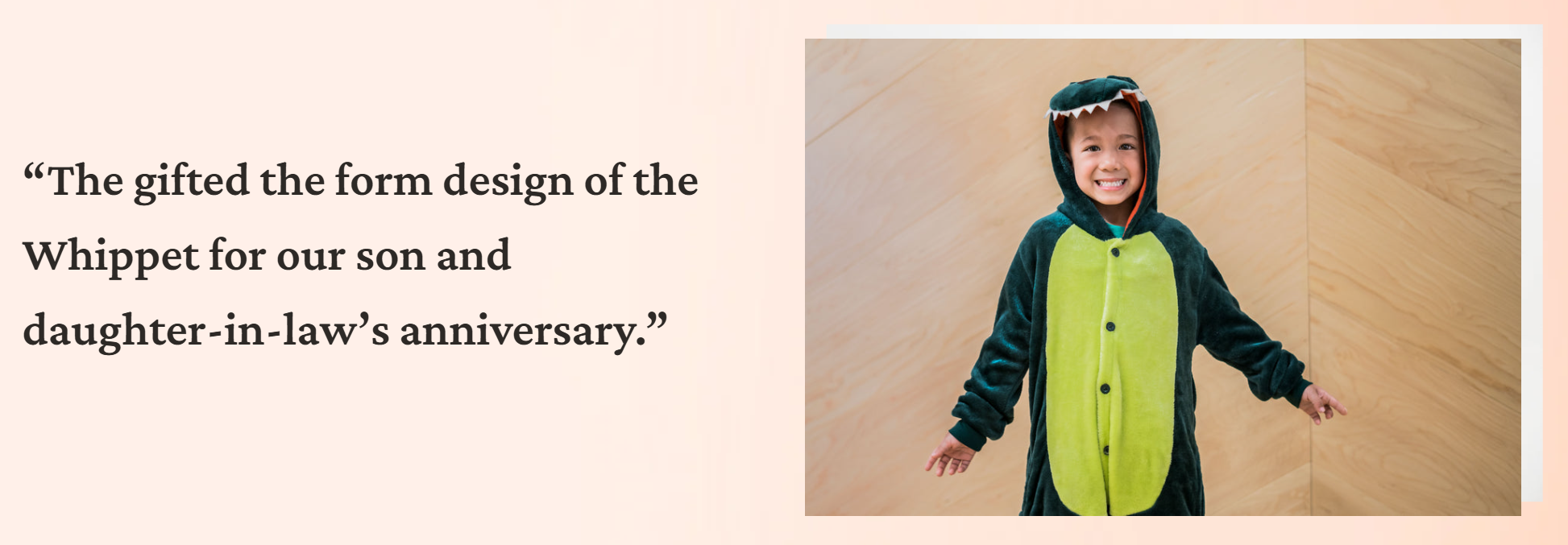
* **Image position**: Choose the image placement relative to the content area: Left or Right.
* **Enable pagination**: Toggle the navigation dots at the center of the slider.
* **Enable autoplay**: Toggle to transition slides automatically and set the duration (in seconds) for each slide to stay on screen.
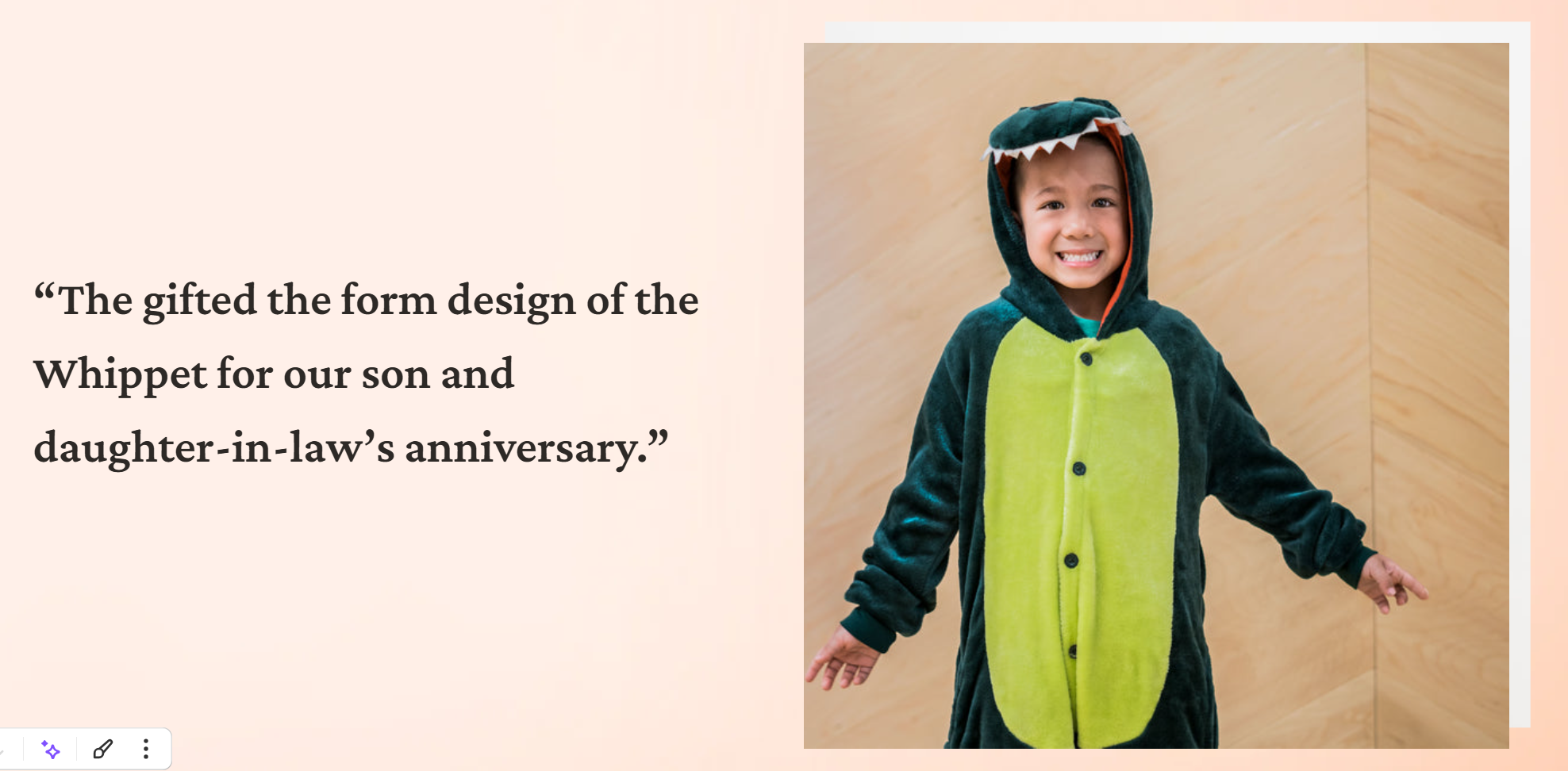
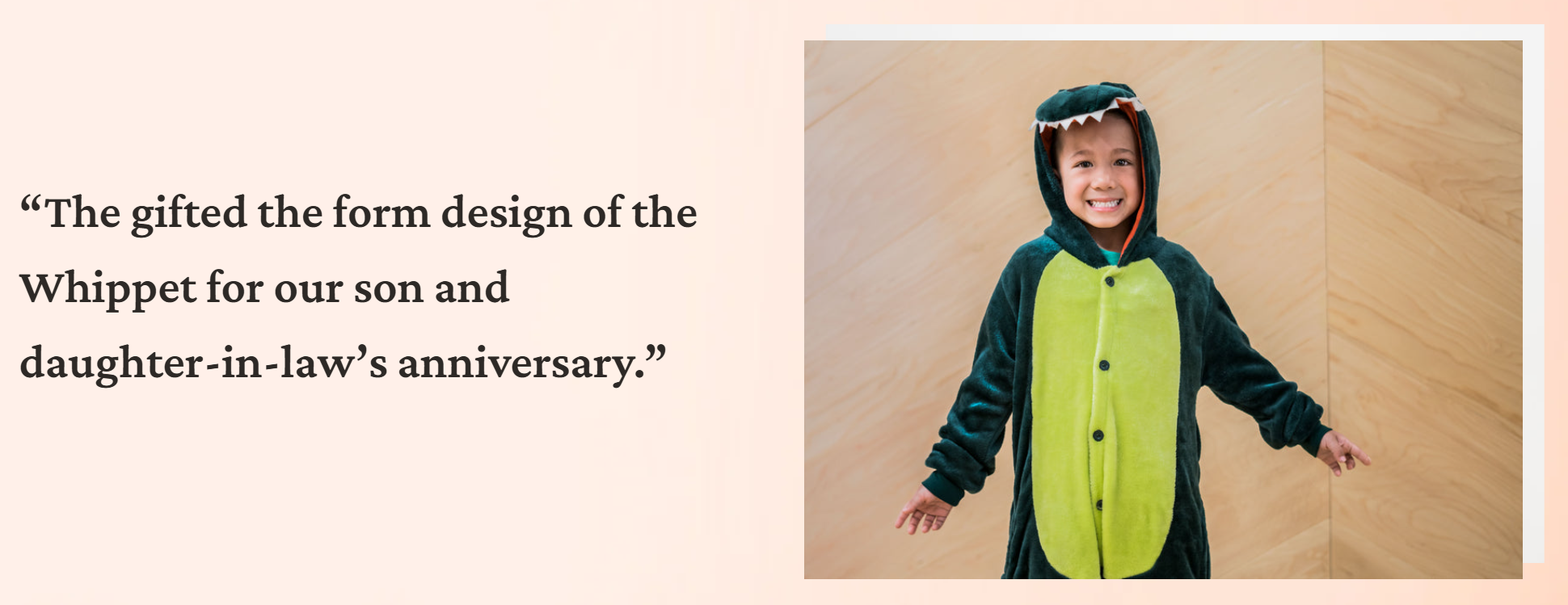
* **Image ratio**: Set the aspect ratio for the images

* **Disable slider on mobile**: Toggle this on to disable the sliding transition and display your slides in a vertical layout on mobile.
### Design settings
**Size & Constraints Settings:** Use these controls to define the element’s dimensions and positioning behavior across devices.
Constraints
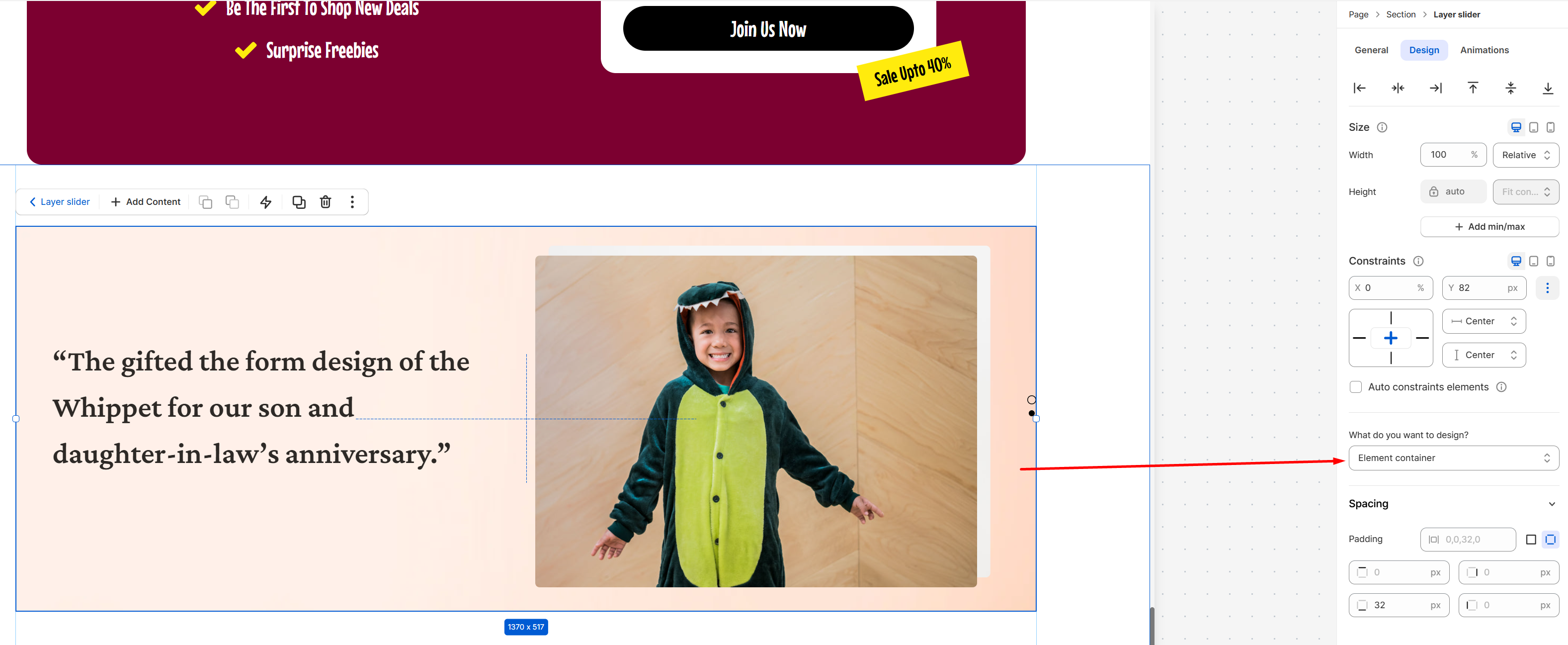
* **Spacing**: Adjust the spacing (padding and gap) of the element.
* **Backgrounds**: Set background to the theme either with a color or a media. If a color and a media are set as the background of an element at the same time, it will prioritize the media.
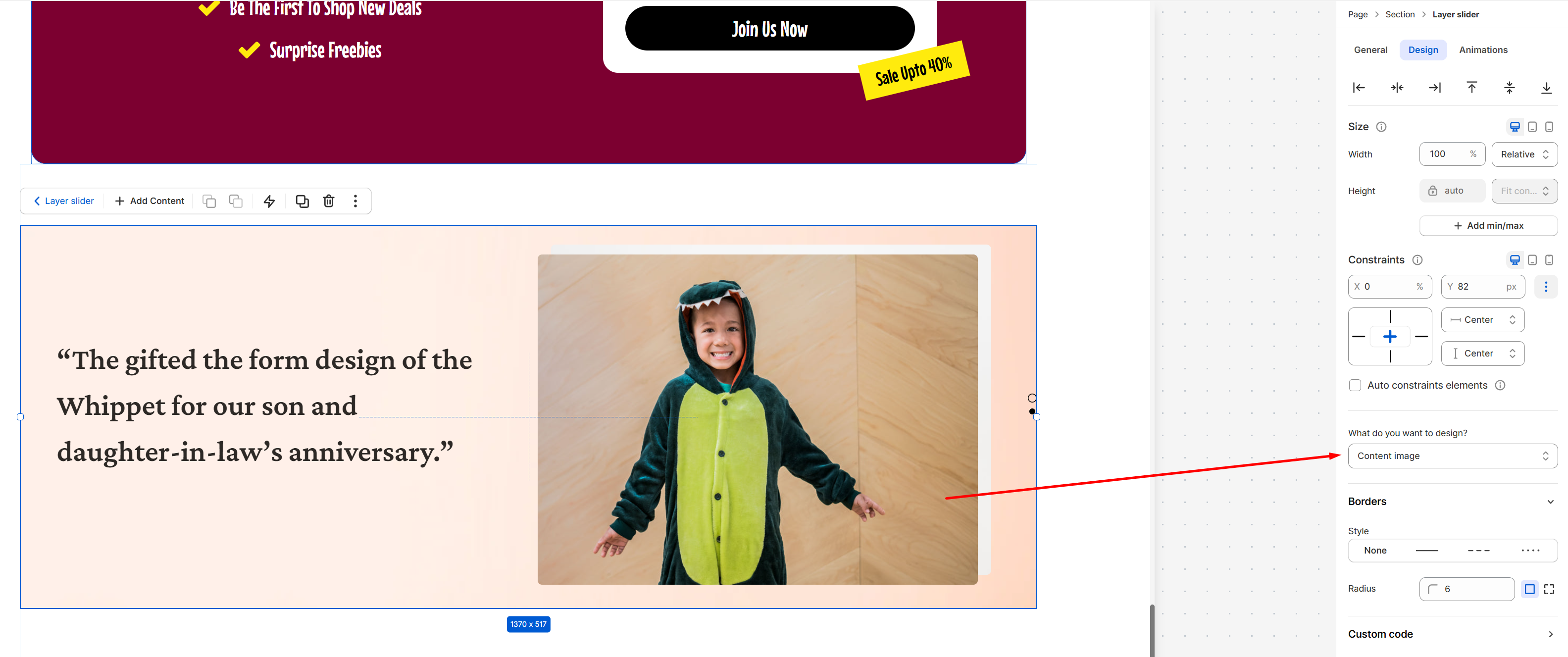
* **Borders**: Apply a border to the element and define the border radius value.
* **Borders**: Apply a border to the element and define the border radius value.
### Animations
Animations
icon.

* **Image position**: Choose the image placement relative to the content area: Left or Right.


* **Enable pagination**: Toggle the navigation dots at the center of the slider.
* **Enable autoplay**: Toggle to transition slides automatically and set the duration (in seconds) for each slide to stay on screen.
* **Image ratio**: Set the aspect ratio for the images




* **Disable slider on mobile**: Toggle this on to disable the sliding transition and display your slides in a vertical layout on mobile.
### Design settings
**Size & Constraints Settings:** Use these controls to define the element’s dimensions and positioning behavior across devices.
Constraints

* **Spacing**: Adjust the spacing (padding and gap) of the element.
* **Backgrounds**: Set background to the theme either with a color or a media. If a color and a media are set as the background of an element at the same time, it will prioritize the media.
* **Borders**: Apply a border to the element and define the border radius value.

* **Borders**: Apply a border to the element and define the border radius value.
### Animations
Animations