# Text
_gBLJKO7W.png)
Foxify makes it easy for you to add and customize text across your Shopify store, allowing you to create eye-catching headlines, informative paragraphs, or Calls-to-Action that drive conversions.
## How to add Text
**Steps:**
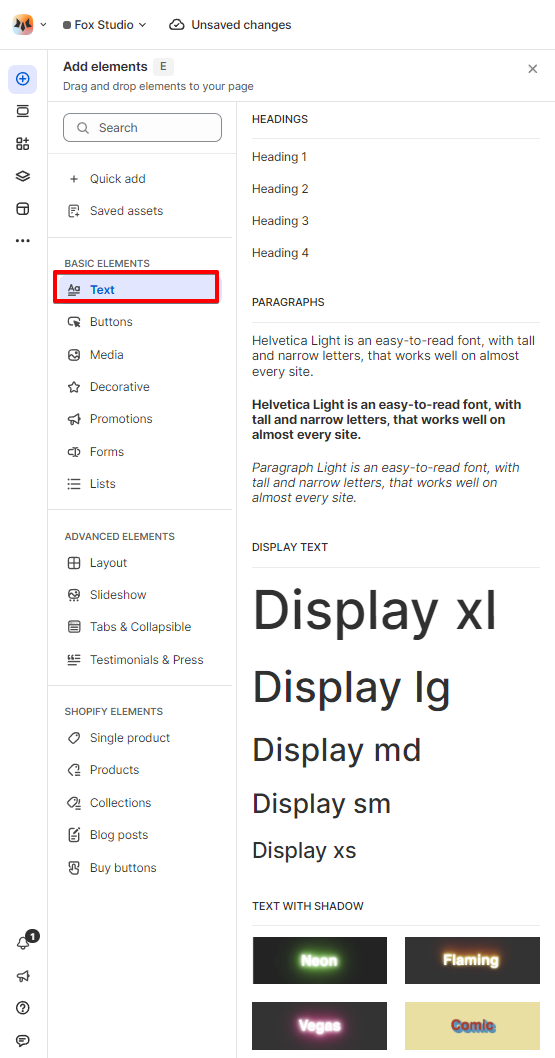
1. In the FoxStudio editor, on the left sidebar, click **Add elements**, or press **E**.
2. Choose **Text.**
3. Drag the text onto your canvas.
4. Click **Edit text** and type your text.
### Types of Text
Different types of text can be added:
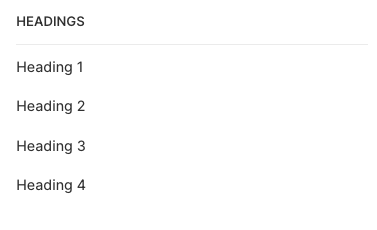
* **Headings**: Headings are great for highlighting important sections or structuring content. Foxify offers options for different heading levels (H1, H2, H3, H4).
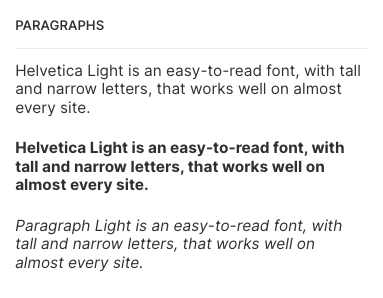
* **Paragraphs:** Use paragraphs to add detailed descriptions, product information, or other text content.
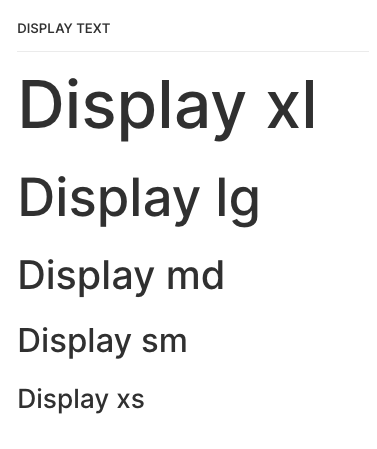
* **Display text**: Display text is a larger, more prominent type used for banners, promotions, or to grab attention. It’s often used as part of a hero section or call-to-action area.
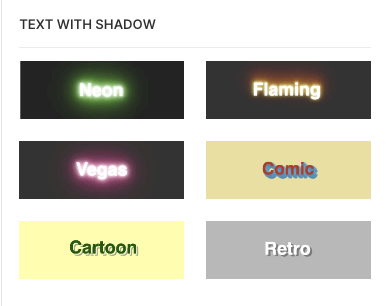
* **Text with shadow**: Text with shadow adds depth and visual interest to your text, making it stand out on the page.
## How to edit Text
Organizing your text through proper formatting enhances communication and visual clarity. Additionally, you can apply different formatting for each breakpoint, ensuring an optimal display on every screen.
**Steps:**
1. **Select** the relevant text element in the editor.
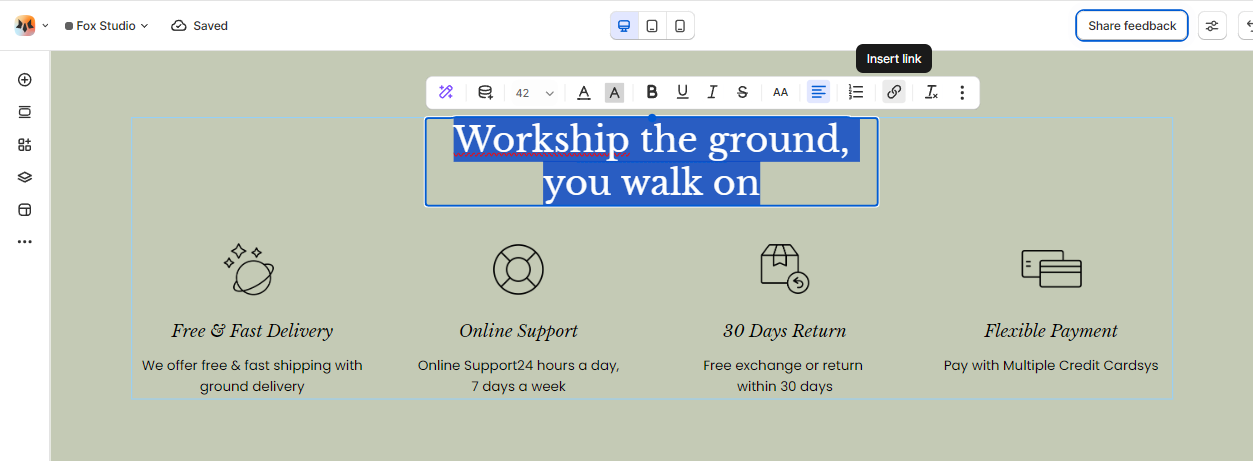
2. Use the tools bar above the selected text element to quickly optimize it.
All the following formatting tools can be found in the **Inspector** panel.
_FIvE5FKG.png)
Formatting options:
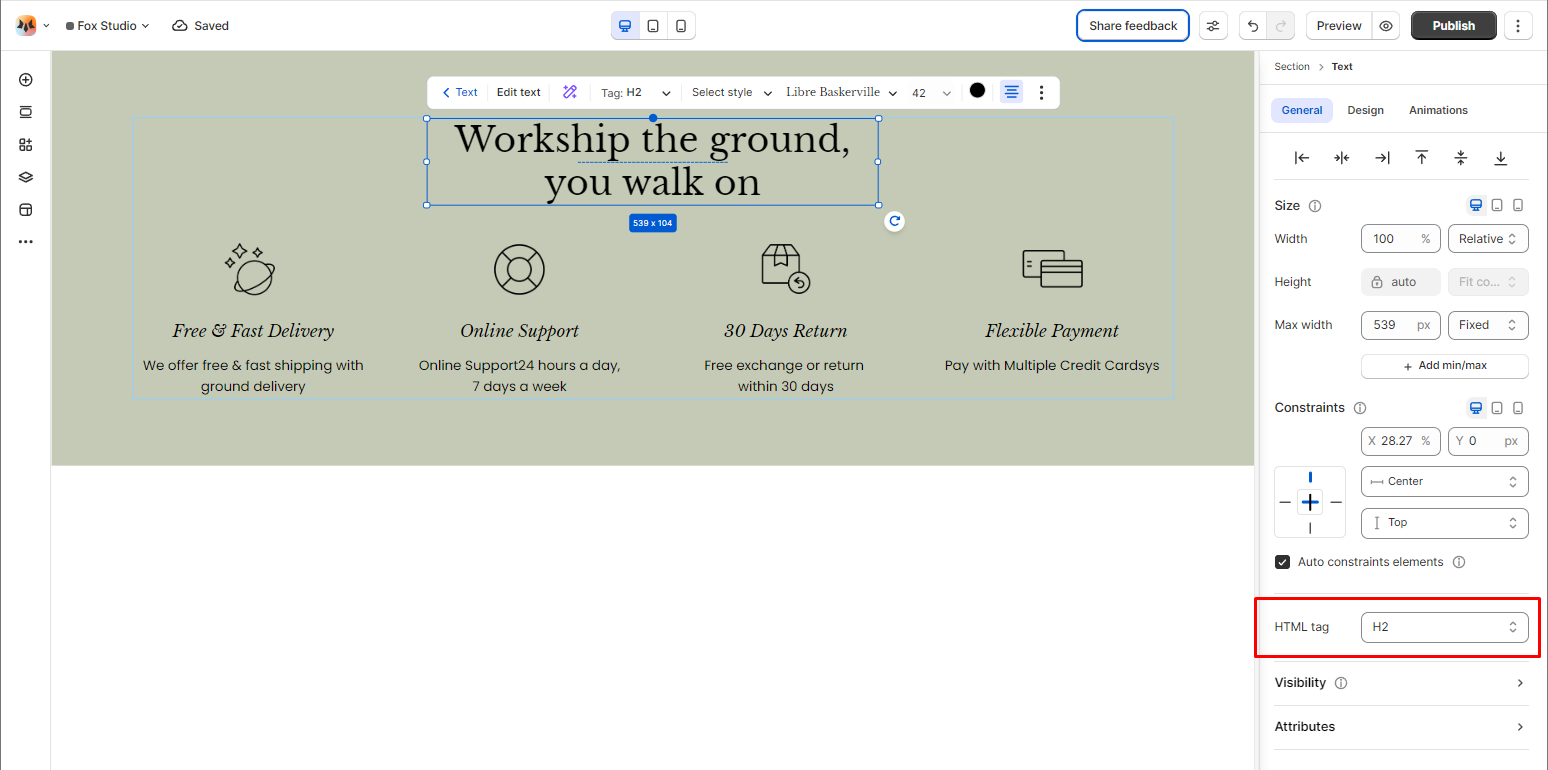
### HTML tag
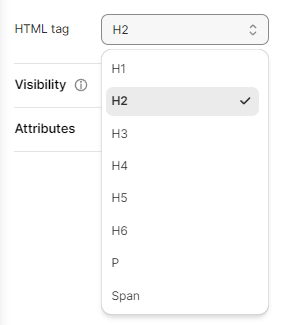
Set the HTML code for headings and paraphraph on your site. The tags have a top-down hierarchy from H1 (Heading 1) to H6 (Heading 6), Paragraph (P), and Span.
### Text style
Select your **pre-defined typography** in the **Global styles** to apply to an existing text element.
See more: [Global styles](https://docs.foxecom.com/foxify-app/pages/global-styles)
### Text font, spacing, color, and styles
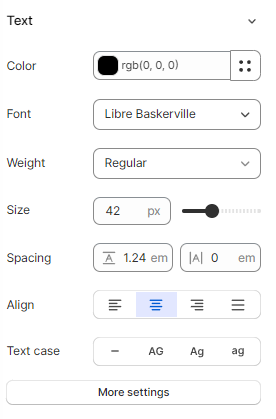
* **Font**: Choose from hundreds of fonts. You can also [upload your own fonts to Foxify](https://docs.foxecom.com/foxify-app/faqs-and-troubleshooting/faqs/add-custom-font).
* **Color**: Change the text color.
* **Weight** and **Size**: Define the font weight and font size of the text.
* **Spacing:** Change the spacing between the lines and characters in the text box.
* **Align**: Align your text to the left, center, or right, or justify it across the text box.
* **Text case**: Click the icons to set the text's capitalization: **As typed** — , **Upper case** **AG**, **Title case** **Ag**, or **Lower case** **ag**.
* More settings:
* **Text style**: Normal/ *Italic*.
* Decoration: None/ Underline/ ~~Strikethrough.~~
### Effects
You can apply a shadow effect to your text using one of the available presets, or leave it at "None" if no shadow is desired.
* **Text shadow**: Click on one of the shadow icons to apply it instantly.
* **Opacity:**
* Use the slider to adjust the transparency of your text.
* A value of 1 means full opacity (solid text), while lower values make the text more transparent, blending it into the background.
_4zsCf7a5.png)
**More Formatting Option:**
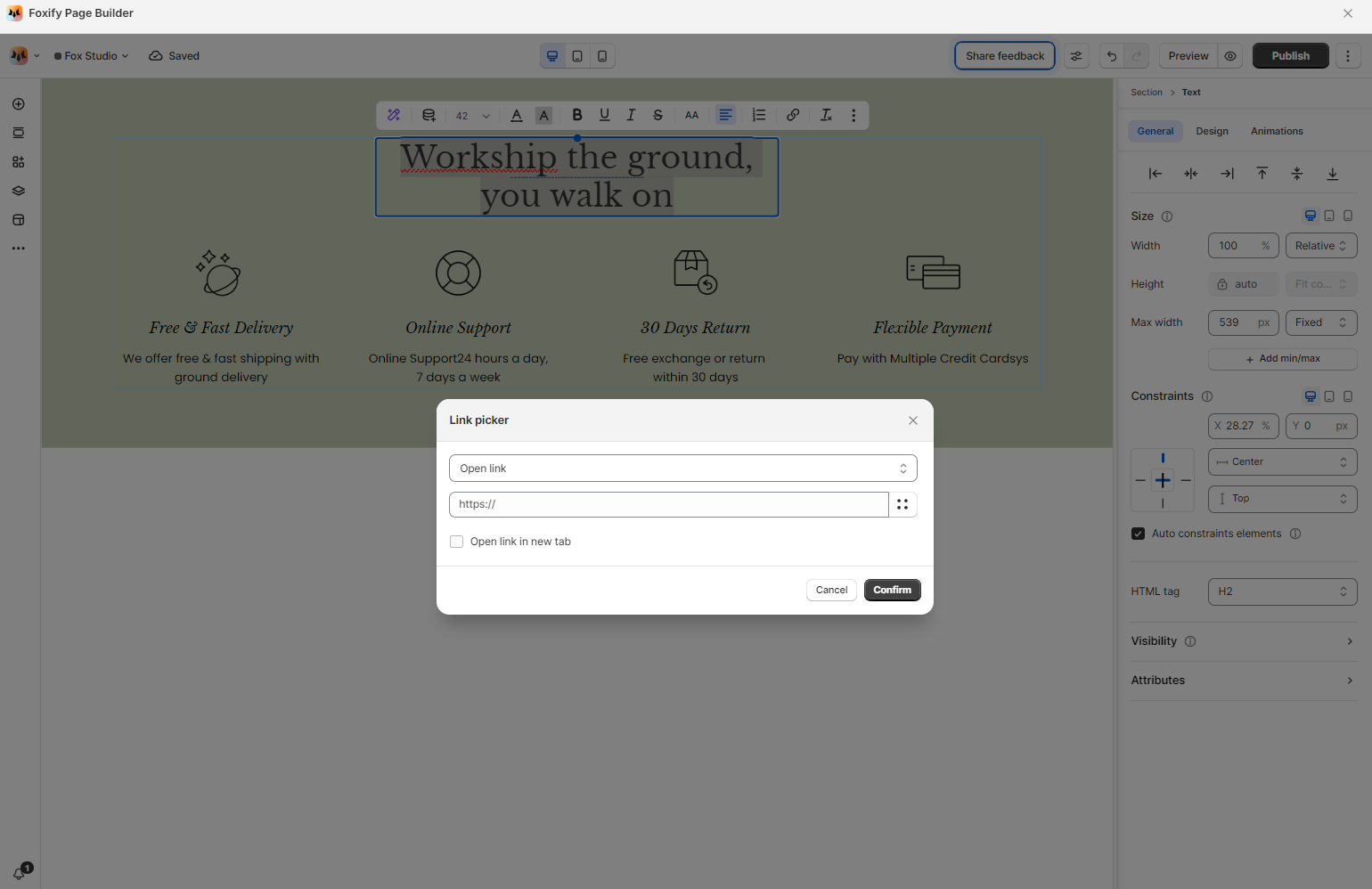
* **Hyperlinks**: Add links to your text by selecting the text and clicking the link icon from the editing toolbar.