# Google map
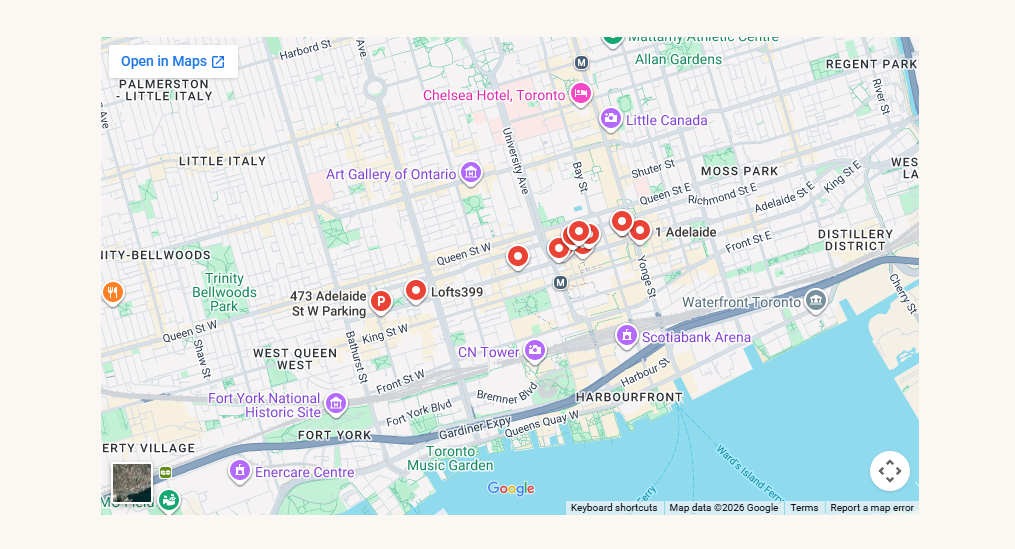
Embed an interactive Google map on any Foxify page — show your store location, service area, or any address your customers need to find.
## When to use this element
Use the Google map element when you want to show a physical location directly on your page — so customers don't have to leave to search for directions.
Best fits for:
* A contact page showing your store or studio address
* A landing page for an in-store event or pop-up
* A multi-location page showing different outlets or pickup points
* Any page where helping customers find you physically drives conversions
#### How is this different from similar elements?
Google map
## Quick setup
**Add the element**
Click **Add elements** (or press **E**) → find **Google map** → drag it onto your canvas.
**Enter your address**
In the Inspector panel → **General** tab → **Address** field, type the full address you want to display (e.g. "2293 Adelaide St, Ontario, Toronto, Canada").
**Adjust zoom level**
Use the **Zoom level** slider to set how close or wide the map view appears. A level of 14–16 works well for a single store address.
**Preview and publish**
Check how the map looks on mobile. Click **Save & Publish** when ready.
> **Expected result:** An interactive map appears on your page centered on the address you entered. Customers can zoom in and out, and click **Open in Maps** to get directions in Google Maps.
### Settings — General
| Setting | What it does | When to use |
| --- | --- | --- |
| Address | The location the map centers on | Enter a full address for best accuracy — street, city, country. Partial addresses may pin the wrong location. |
| Google map API key | Unlocks custom map styling | Optional — only needed if you want to change the map's visual style (colors, labels, etc.). Leave empty for the default Google Maps style. Get a key from Google Cloud Platform Console. |
| Zoom level | Controls how close or wide the initial map view appears | **10–12** — shows a wide city-level view. **14–16** — street level, good for a single address. **17+** — very close zoom, useful for showing a specific building. |
| Overlay opacity | Applies a color overlay on top of the map | Set to 0% for a normal map. Increase to blend the map into your page design — useful when you want a subtle branded feel over the map. |
**API key note:** The default map works without an API key — it uses the standard Google Maps embed. An API key is only required if you want to apply a custom map style. You can get one for free from the [Google Cloud Platform Console →](https://console.cloud.google.com/)