# Import & Export pages
Move a Foxify page between Shopify stores by exporting it to a file and importing it into another store — useful for cloning a design across a multi-store setup, or migrating from staging to live.
Exported files use the **.foxify** format and can only be re-imported into Foxify.
## When to use this
Best fits for:
* You manage multiple Shopify stores and want to reuse a page design instead of rebuilding it
* You're moving a page from a dev or staging store to your live store
* You want a backup of a finished page design before making major changes
## How to export a page
From Pages manager:
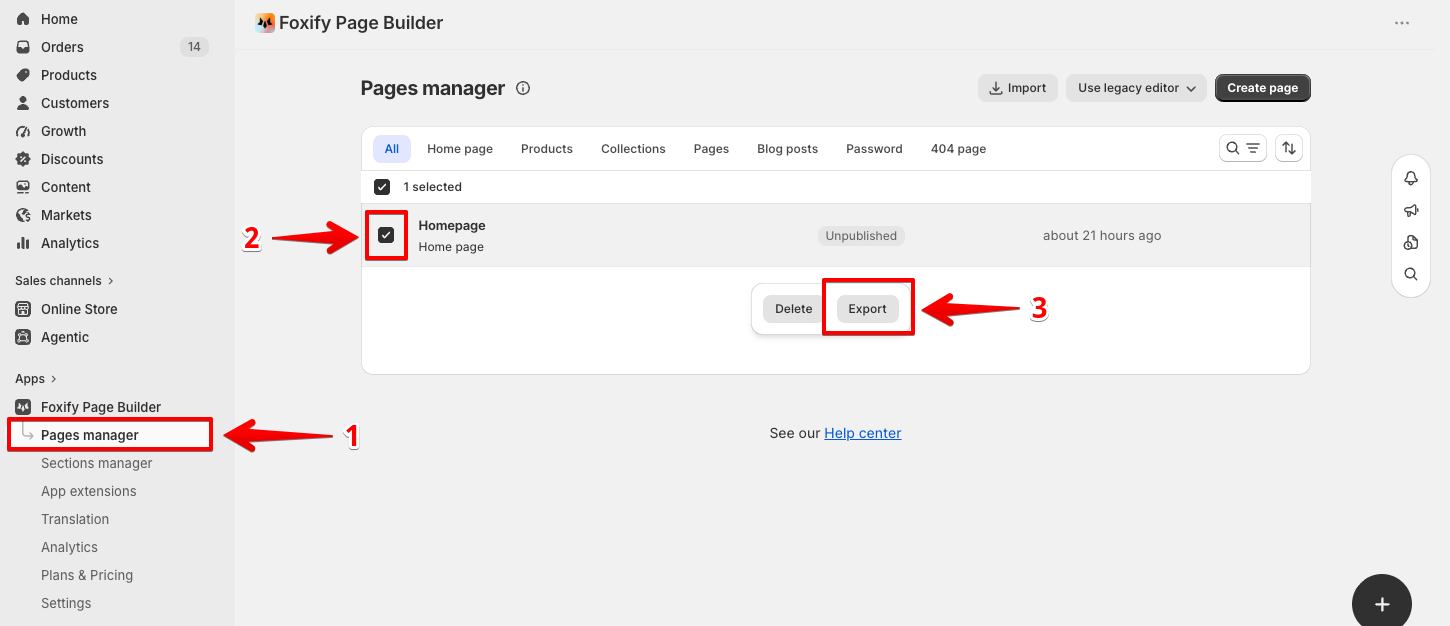
1. In the Foxify dashboard, go to **Pages manager**.
2. Check the box next to the page (or pages) you want to export.
3. In the selection bar, click **Export**.
Or from the page editor:
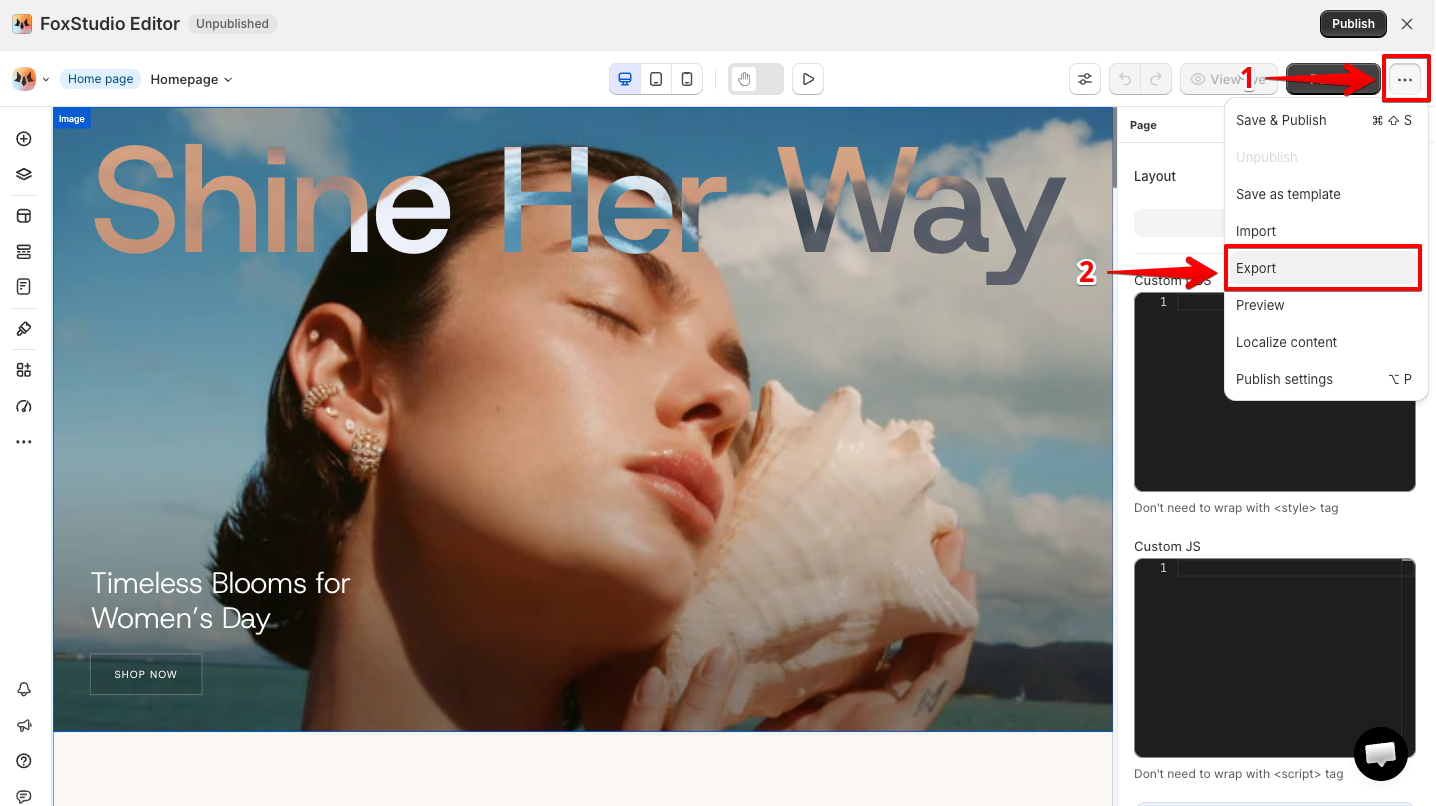
1. On the editor's top bar, click the three-dot icon.
2. Select **Export**.
## How to import a page
From Pages manager — imports as a new page:
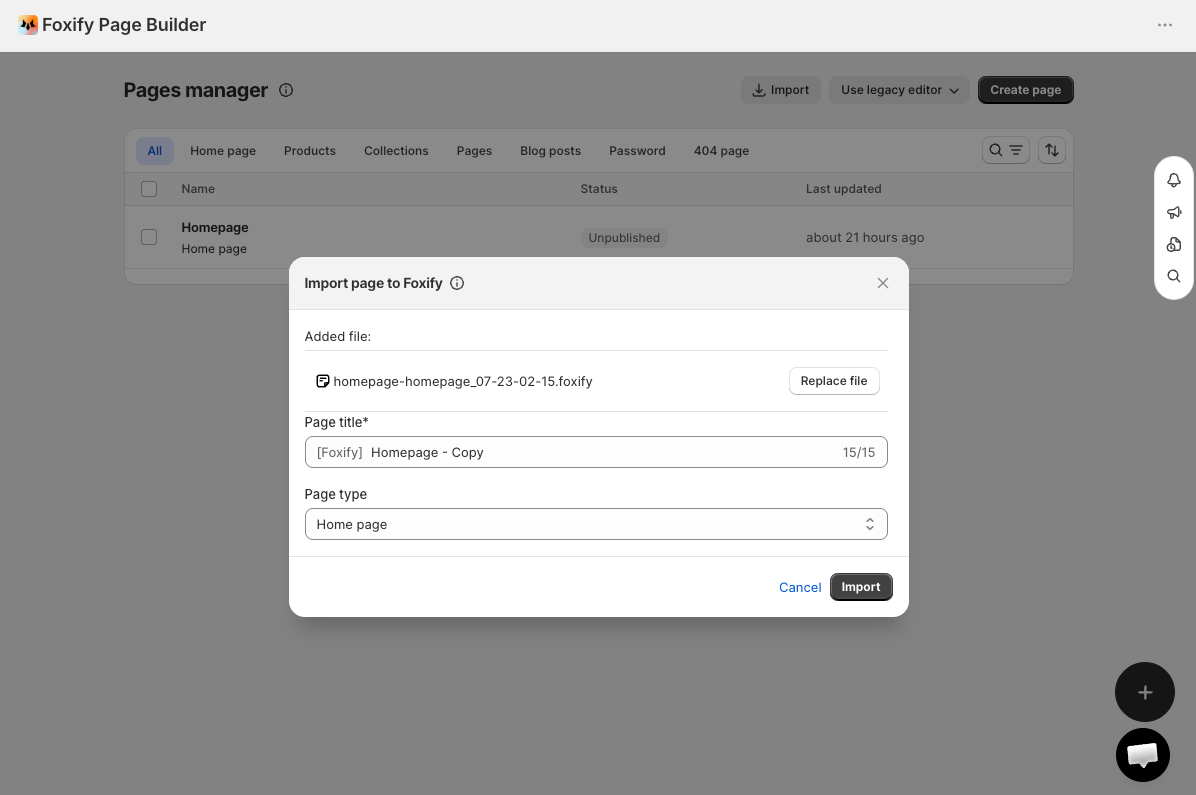
In the Foxify dashboard, go to **Pages manager**.
1. Click **Import** in the top-right corner.
2. In the **Import page to Foxify** dialog, add your **.foxify** file.
3. Enter a **Page title** and select the **Page type**.
4. Click **Import**.
Or from the page editor — imports onto the current page:
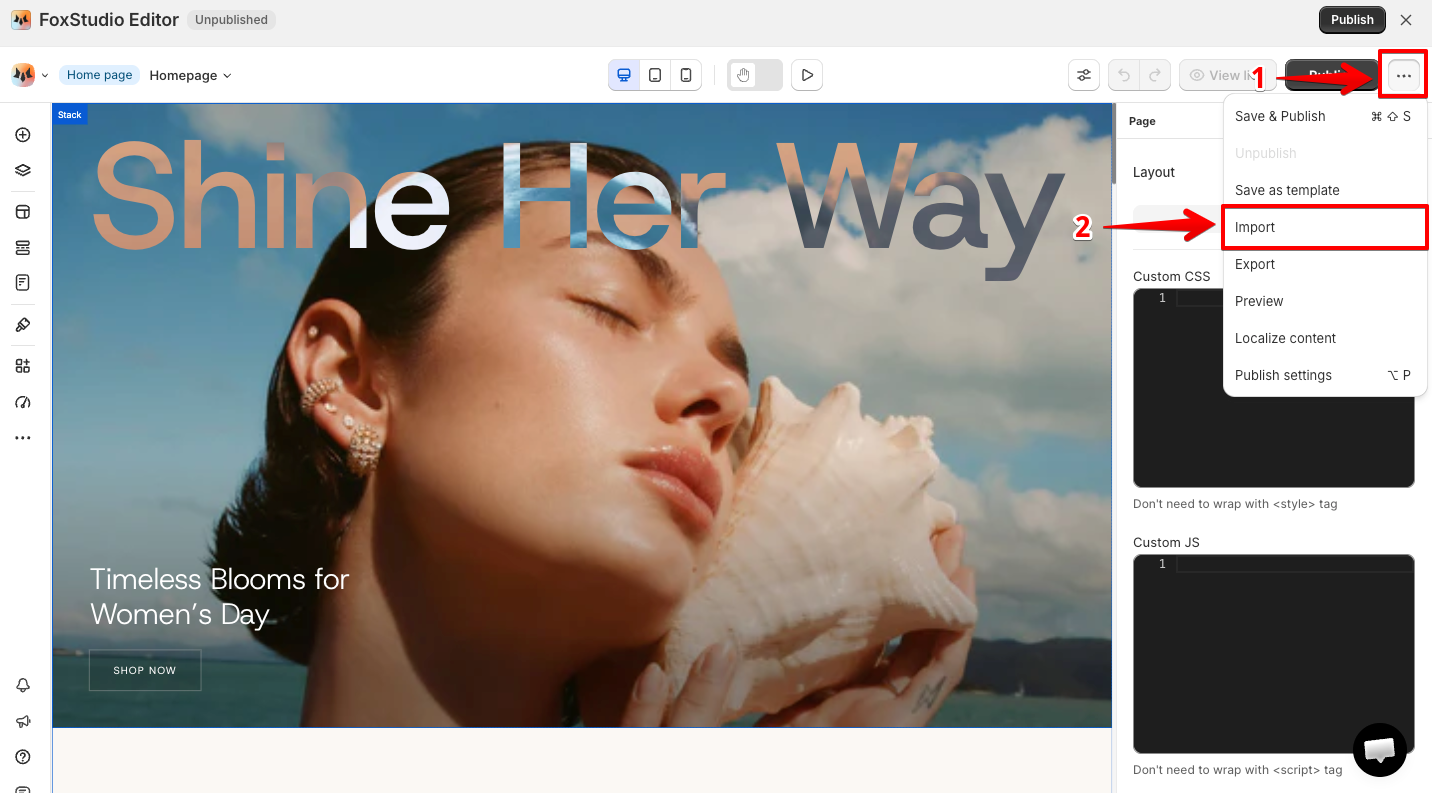
1. On the editor's top bar, click the three-dot icon.
2. Select **Import**.
3. Add your **.foxify** file.
4. Under **Select data to import**, check which of the following you want to bring in: **Page data**, **Custom code**, **Page settings** (excluding page handle and page title), and **Page locales**. All are checked by default.
5. Click **Import**.
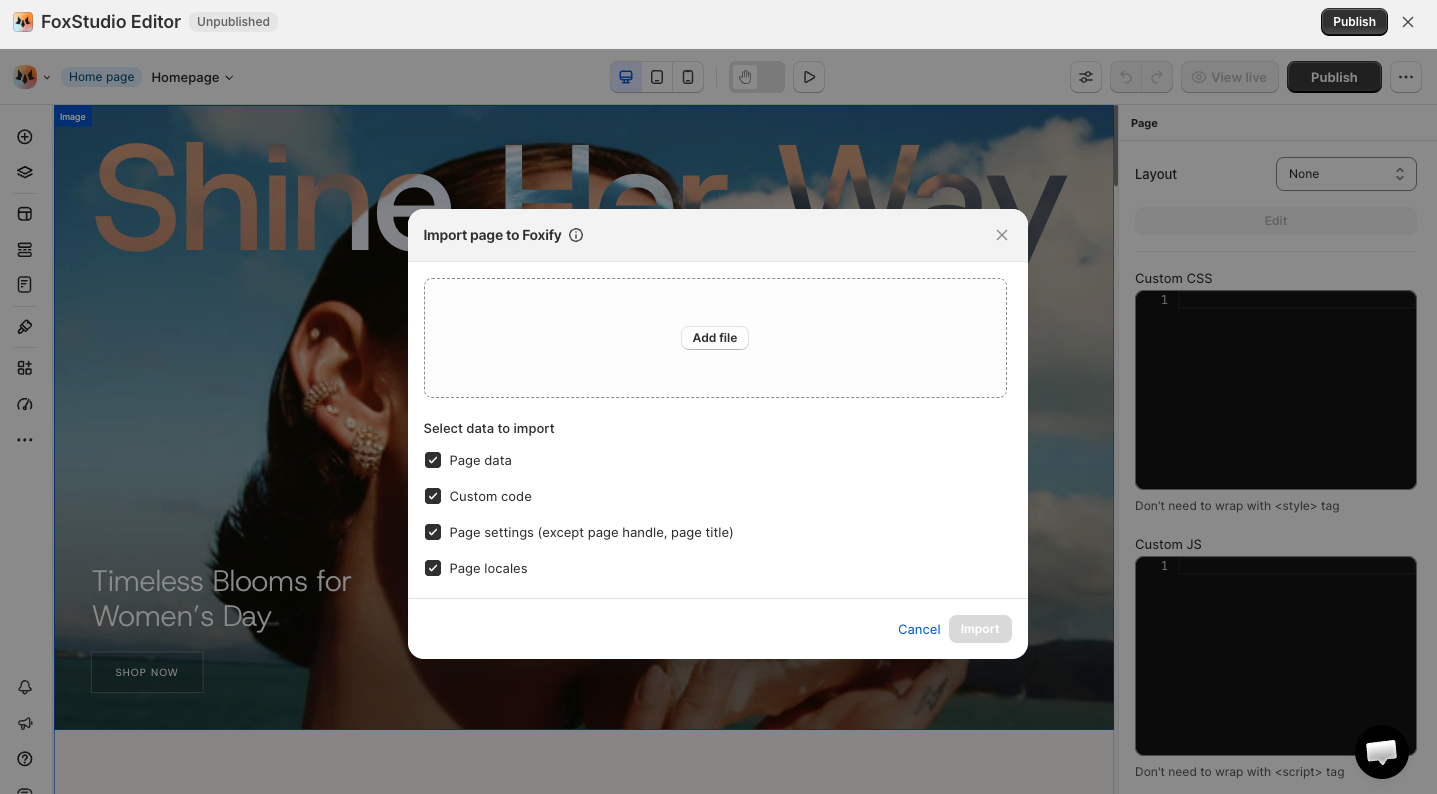
Importing from the page editor overwrites whichever data types you leave checked on your current page. Your page's handle and title are always kept as-is. Uncheck anything you don't want replaced before confirming.
## FAQs
#### What file format do exported pages use?
Pages export as **.foxify** files.
#### Does importing overwrite my existing page?
It depends on where you import from. From Pages manager, importing always creates a new page. From inside the page editor, importing applies onto your current page — you choose which data types (page data, custom code, page settings, locales) get overwritten.
#### Can I change the page's URL handle after importing?
Yes — the handle isn't touched by import either way. Update it from **Page settings** in the editor. Learn more: [Page settings](https://docs.foxecom.com/foxify-app/foxstudio/page-customization/page-settings)
## Related articles
Create a page
Templates
Save a page as a template