# Video
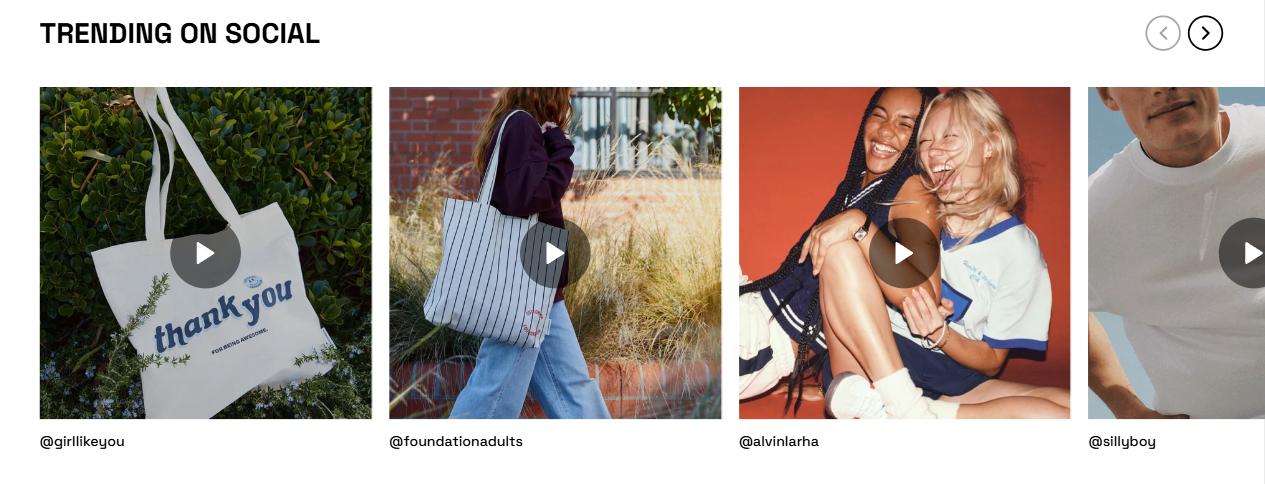
Videos are a powerful way to engage your audience and enhance your website. FoxStudio makes it simple to add and customize videos to match your design needs. Follow the steps below to add and edit videos effectively.
## How to add an video
**Steps:**
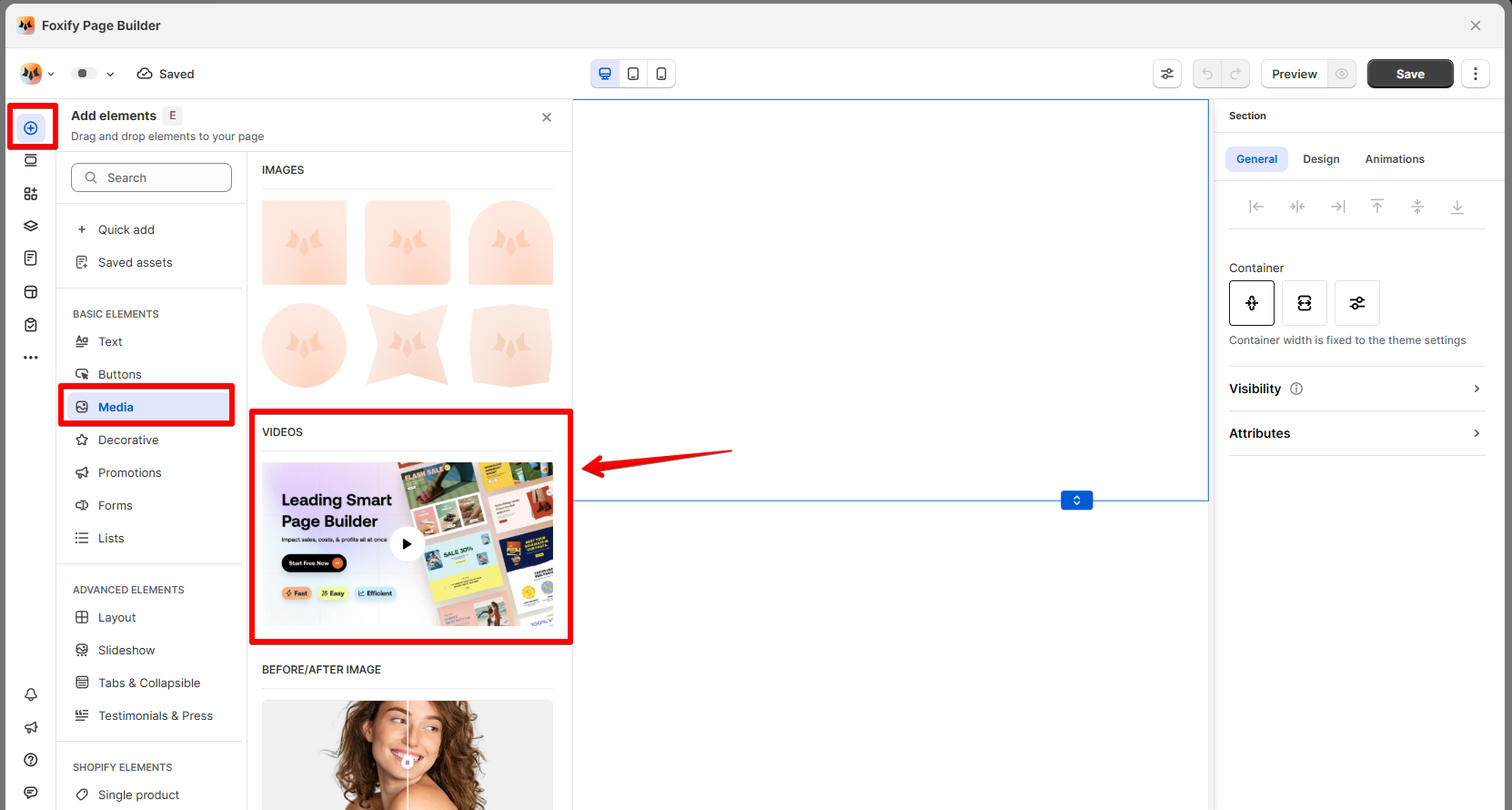
1. In the FoxStudio editor, on the left Sidebar > Click **Add elements (**_KqvedGnv.svg)), or press **E**.
2. Select **Media** > **Videos** or in **Quick add**, select **Video** element.
3. Drag the video onto your canvas.
## How to edit a video
Once you've added the image, you can customize it to match your design.
**Steps:**
1. **Select** the relevant video element in the editor.
2. Use the tools bar above the selected video element to quickly edit it.
All the formatting tools below can be found in the right-handsided **Inspector** panel.
### Add a video
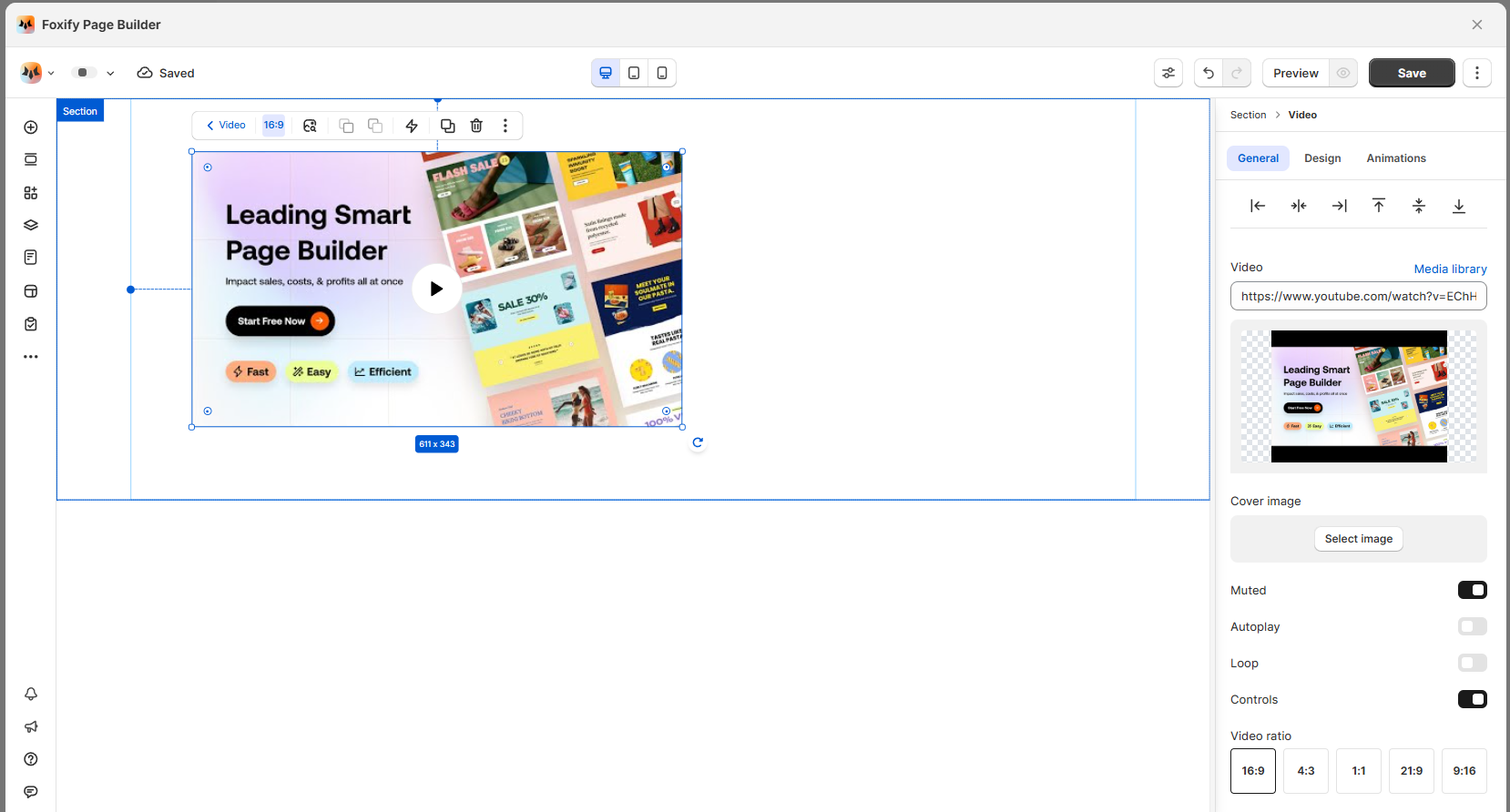
Insert your video link or select one from your Shopify Files.
Vimeo, Youtube or MP4 links are supported.
Pro tips ⭐:
* **Use high-quality videos**: Ensure videos are clear and visually appealing for a better user experience.
* **Optimize for load times**: Compress large video files to avoid slow page loading.
### Video settings
* **Cover image**: Add a cover image that displays before the video starts playing.
* Click **Select Image** to upload or choose a custom thumbnail.
* **Playback options**:
* **Muted**: Enable this option to mute the video by default.
* **Autoplay**: The video can be set to automatically play if they're muted.
* **Loop**: Choose this option to play the video on a continuous loop.
* **Controls**: Enable or disable playback controls for the video (e.g., play/pause, volume). (this setting is applied for Shopify-hosted videos).
You can play a video automatically as it enters the viewport by enabling the options **Muted**, **Autoplay,** and **Lazy load**.
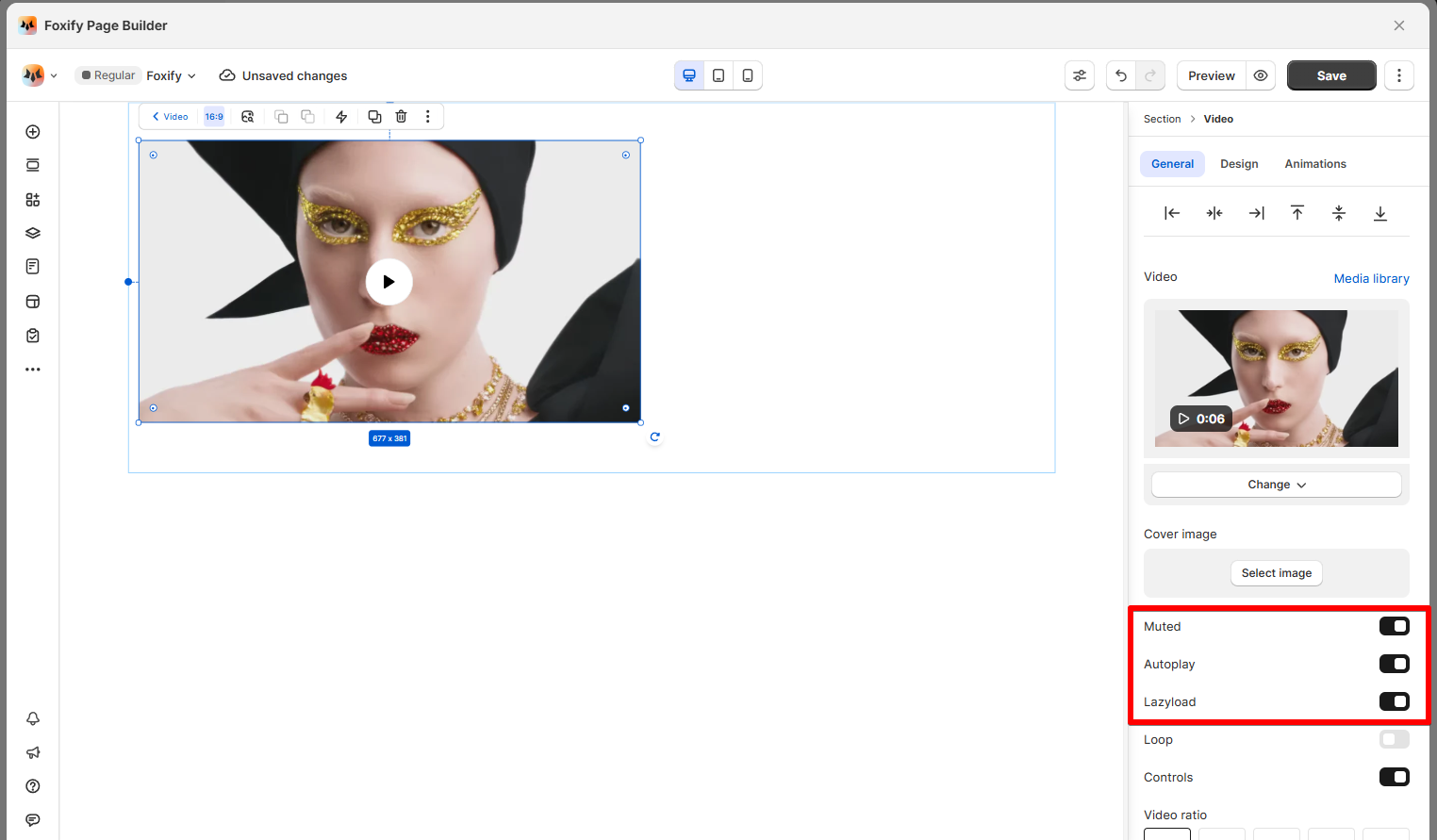
Browsers will block any video from auto-playing if it is not muted, so ensure your videos are set to mute.
* **Video ratio:** Choose the aspect ratio for your video display:
* **16:9** (default widescreen)
* **4:3** (traditional screen)
* **1:1** (square)
* **21:9** (cinematic)
* **9:16** (vertical for mobile).
## FAQ
### Why is my video not playing on my live site?
If you or your visitors notice that videos or elements with motion (like animation effects or marquee text) aren’t playing on your live site, this could be due to the **Reduced Motion** feature enabled on some devices.
#### **What is reduced motion?**
Reduced Motion is an accessibility feature designed to enhance the browsing experience for individuals with disabilities or impairments by disabling motion effects like animations and videos. It’s built into various operating systems to provide a more accessible user experience.
#### How to disable reduced motion?
Follow the steps for your specific device or operating system:
* [iPhone and iPad](https://support.apple.com/en-us/111781): `Settings` > `Accessibility` > `Motion`
* [Mac OS](https://support.apple.com/en-il/guide/mac-help/mchlc03f57a1/mac): `Settings` > `Accessibility` > `Display`
* [Windows OS](https://support.microsoft.com/en-us/office/turn-off-office-animations-9ee5c4d2-d144-4fd2-b670-22cef9fa025a): `Settings` > `Ease of Access` > `Display` > `Show animations`
* Android: `Settings` > `Accessibility` > `Remove Animations`
**Note**: On some devices, **Reduced Motion** may be automatically enabled when in low battery or power-saving mode. Disabling these modes can also help restore video playback functionality.