# Subscribe form

<figure><img src="https://1749964694-files.gitbook.io/~/files/v0/b/gitbook-x-prod.appspot.com/o/spaces%2FfgpgvtRaQLc36GYyIktZ%2Fuploads%2FZXwbRNS5yMuZbigrc4fi%2Fimage.png?alt=media&#x26;token=4484bb9e-3b7e-45b3-a453-3adc22f22948" alt=""><figcaption></figcaption></figure>

A Subscribe form is a powerful tool to connect with your audience, build your mailing list, and drive engagement.

## How to add a subscribe form

{% hint style="success" %}
**Steps:**

1. In the FoxStudio editor, on the left Sidebar > Click **Add elements**, or press **E**.
2. Select **Forms** > **Subscribe form** or in **Quick add**, select **Subscribe form**.
3. Drag the Subscribe form onto your canvas.
   {% endhint %}

## How to edit a subscribe form

{% hint style="success" %}
**Steps:**

1. **Select** the relevant subscribe form element in the editor.
2. Use the tools bar above the selected subscribe form element to quickly edit it.

All the formatting tools below can be found in the right-handsided **Inspector** panel.
{% endhint %}

### General settings

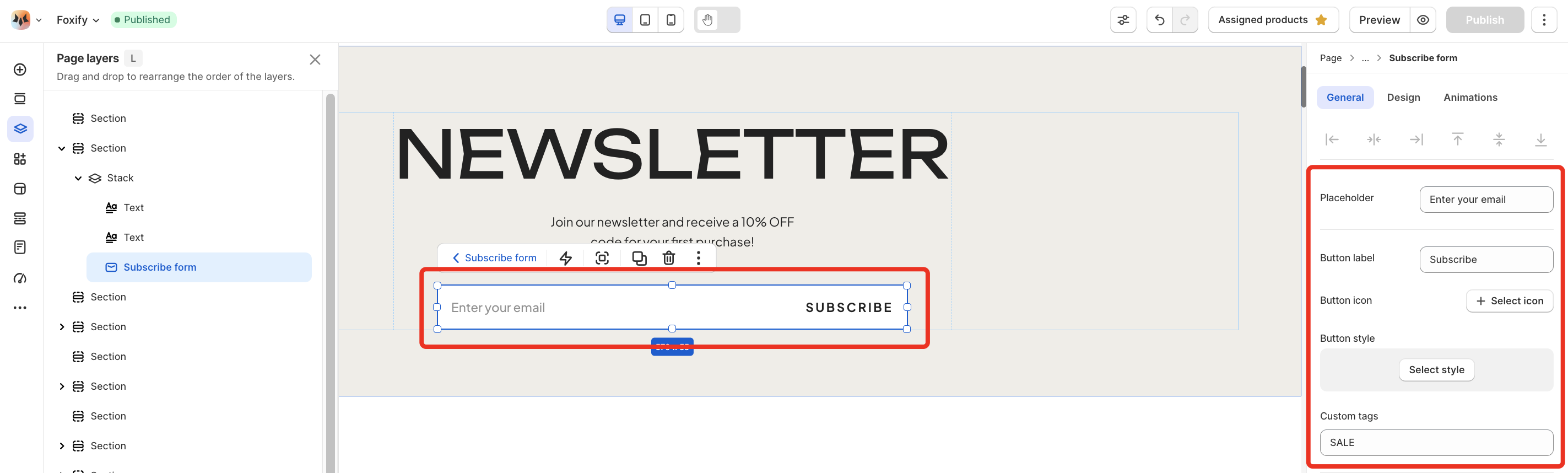
* **Placeholder**: Enter the text you want to appear inside the email input box (e.g., “Enter your email”).
* **Button label**: Enter the button label field with your preferred text, such as "Join Now" or "Get Updates".
* **Button icon**: Click on **+ Select icon** to add an icon to your subscribe button. Choose an icon from the library to enhance visual appeal.
* **Button style**: Apply a pre-designed button style as set in [global-styles](https://docs.foxecom.com/foxify-app/page-management/global-styles "mention").

<figure><img src="https://1749964694-files.gitbook.io/~/files/v0/b/gitbook-x-prod.appspot.com/o/spaces%2FfgpgvtRaQLc36GYyIktZ%2Fuploads%2FIke9qzBuCTwXqCQaLdQs%2Fimage.png?alt=media&#x26;token=f1124ec6-8bc7-48d7-9caf-ced25b3da47a" alt=""><figcaption></figcaption></figure>

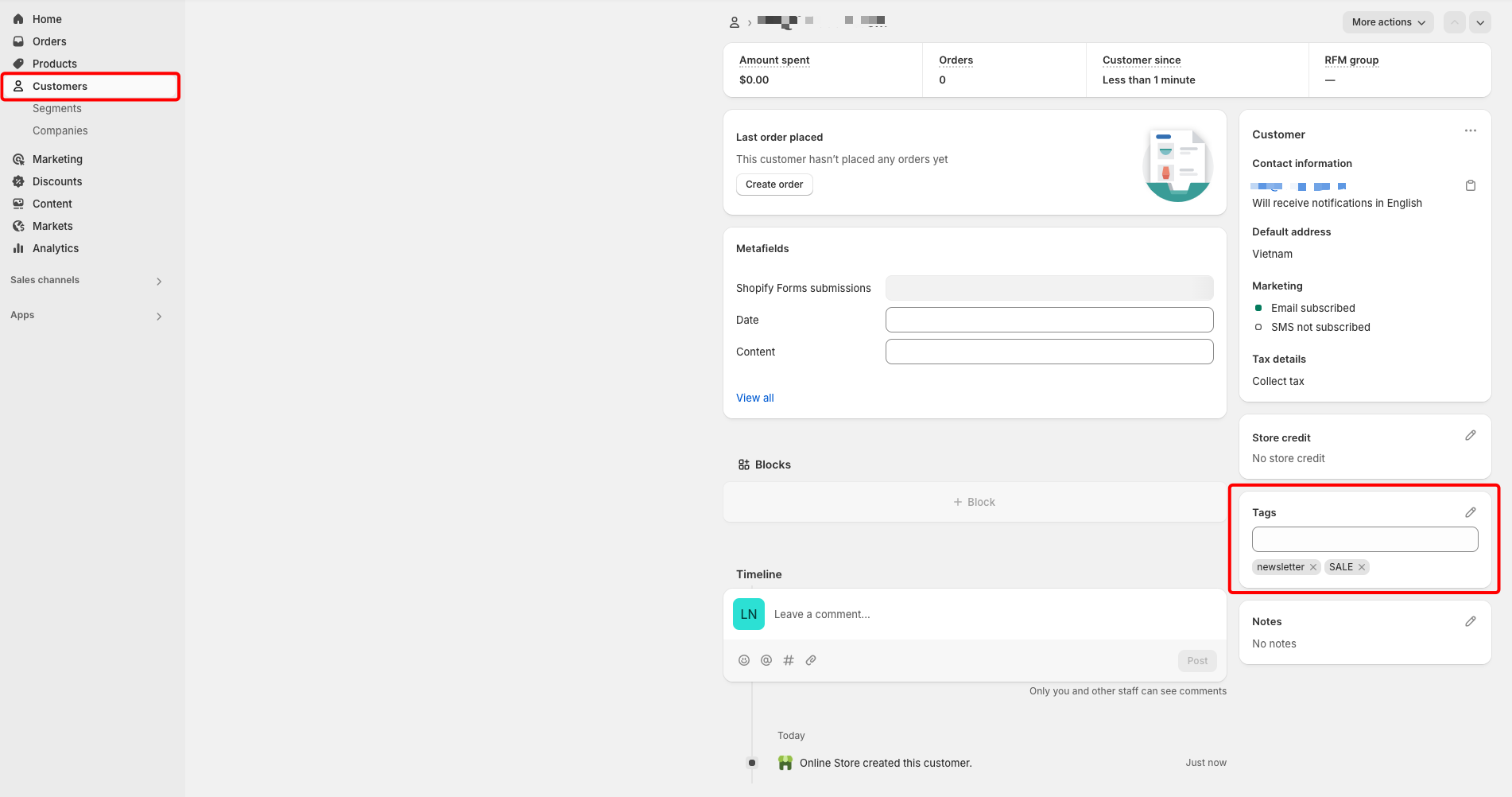
* **Custom tags:** Add custom tags to subscribers collected through this form. These tags will automatically appear in the Customer profile > Tags section in Shopify when customers successfully subscribe.&#x20;

<div align="left"><figure><img src="https://1749964694-files.gitbook.io/~/files/v0/b/gitbook-x-prod.appspot.com/o/spaces%2FfgpgvtRaQLc36GYyIktZ%2Fuploads%2FC9lQyjupVL4see2aklxm%2Fimage.png?alt=media&#x26;token=6b4bb2df-56eb-43a6-b391-f65f996cb5be" alt=""><figcaption></figcaption></figure></div>

#### Success

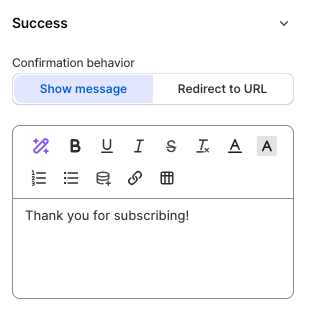
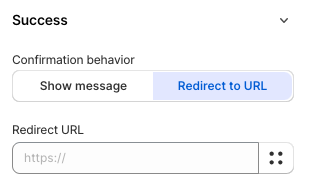
**Confirmation behavior:** Choose what happens after a customer successfully subscribes with 2 options:

* **Show message:** Display a custom confirmation message after the customer subscribes.
* **Redirect to URL:** Redirect subscribers to a specific page.
{% tabs %}
{% tab title="Show message" %}

<figure><img src="https://1749964694-files.gitbook.io/~/files/v0/b/gitbook-x-prod.appspot.com/o/spaces%2FfgpgvtRaQLc36GYyIktZ%2Fuploads%2F0p2OV70Lr71gPEU87LDg%2Fimage.png?alt=media&#x26;token=43063b67-e12d-4c59-b788-19f9abe0d285" alt=""><figcaption></figcaption></figure>
{% endtab %}

{% tab title="Redirect to URL" %}

<figure><img src="https://1749964694-files.gitbook.io/~/files/v0/b/gitbook-x-prod.appspot.com/o/spaces%2FfgpgvtRaQLc36GYyIktZ%2Fuploads%2FDjFgi45nsoGEuG0DedqD%2Fimage.png?alt=media&#x26;token=a31d4ecf-4759-4093-8bf2-955d18f9f3f4" alt=""><figcaption></figcaption></figure>
{% endtab %}
{% endtabs %}

### Design settings

{% hint style="success" %}
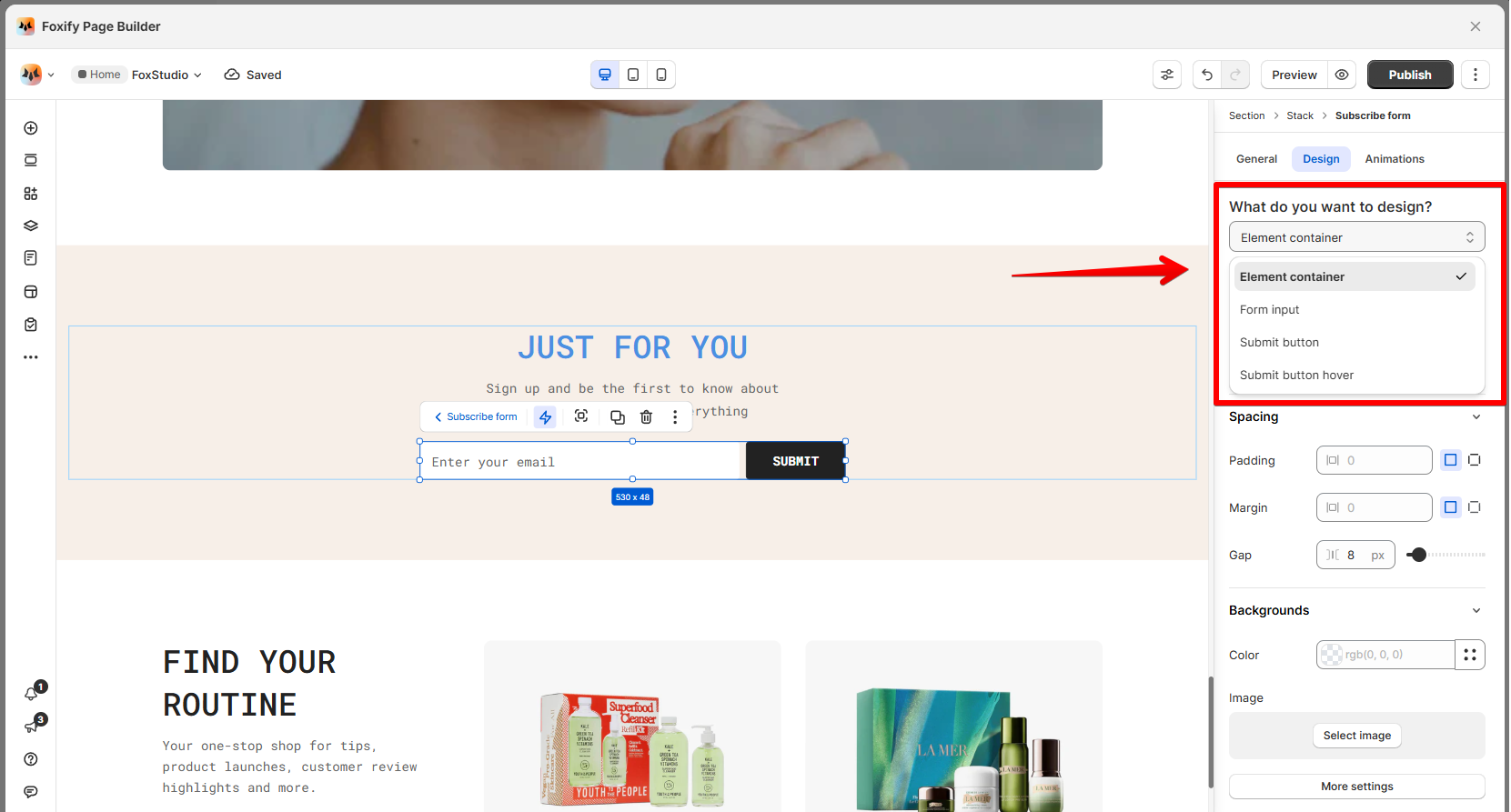
Target specific parts of the Subscribe form for customization:

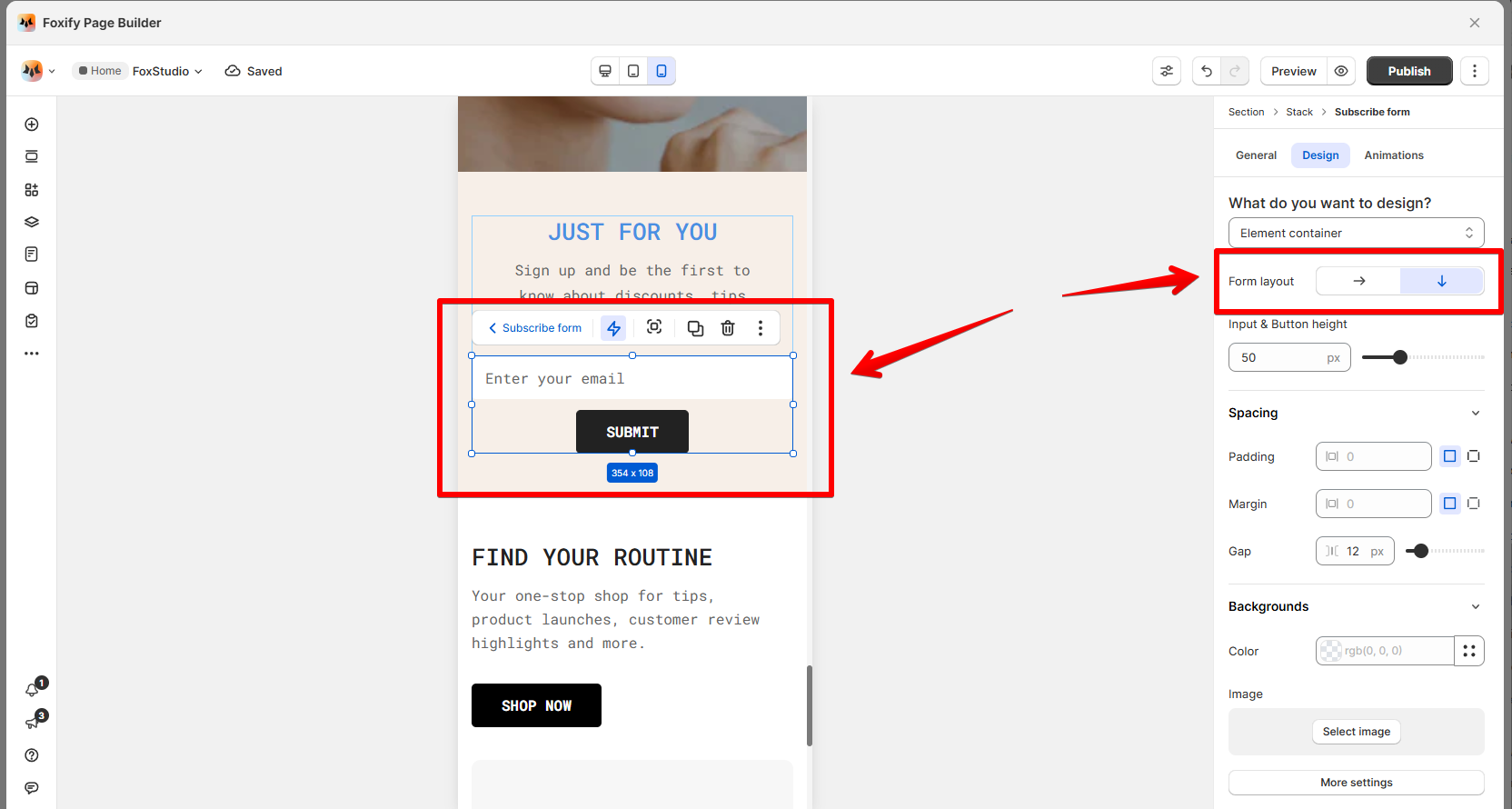
* **Element container**: Overall form wrapper
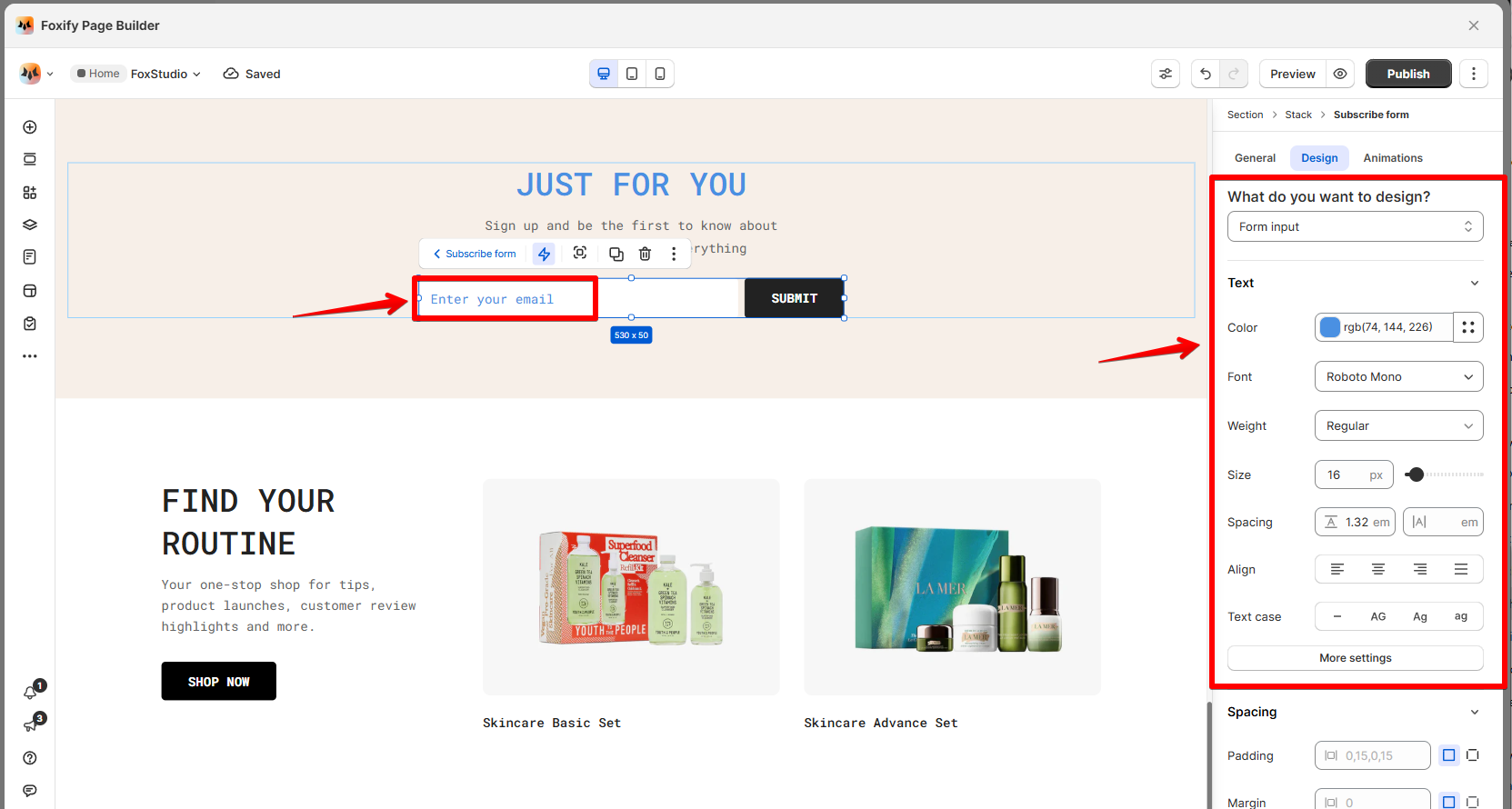
* **Form input**: Email input field
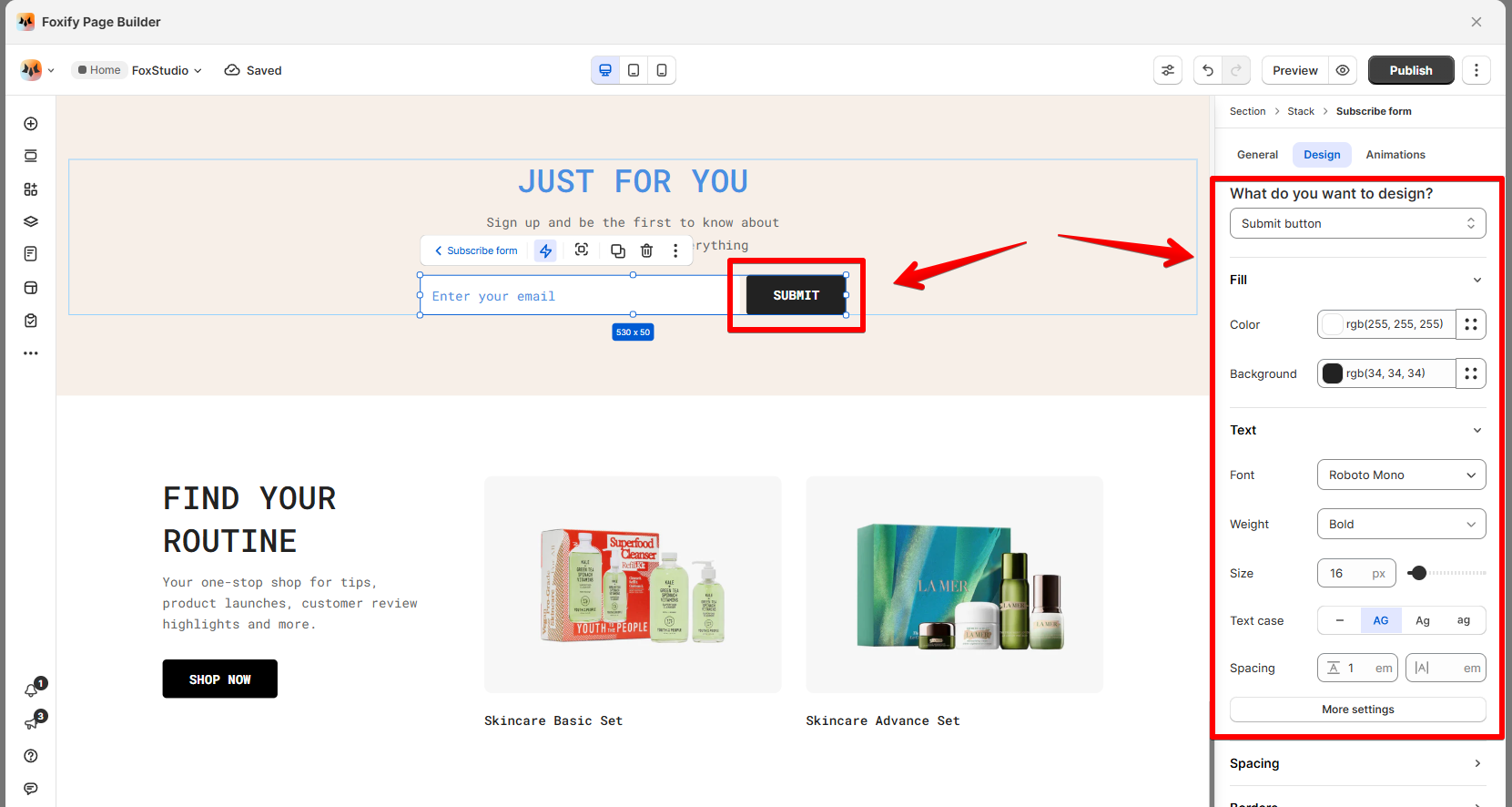
* **Submit button**: Subscribe button
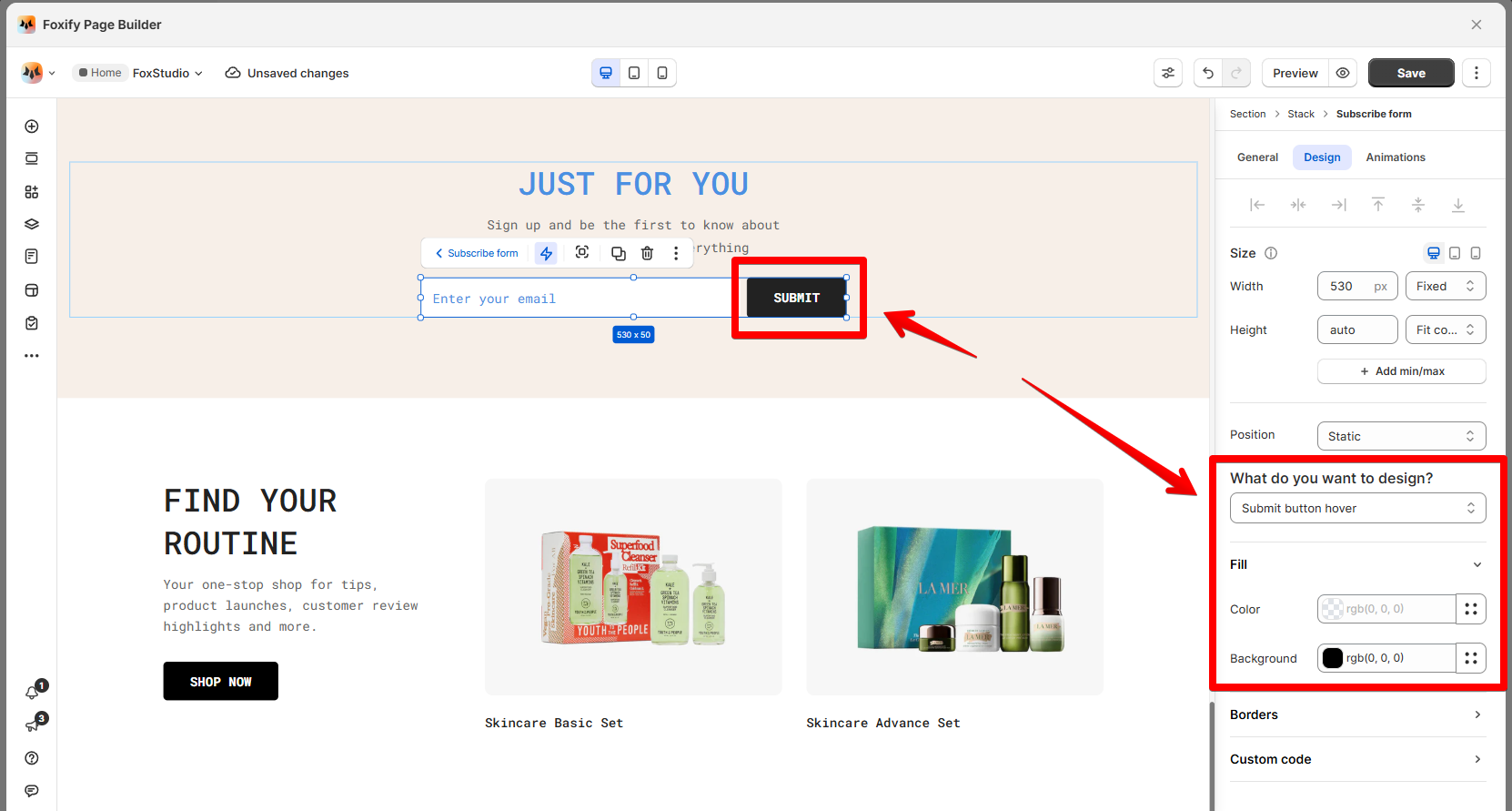
* **Submit button hover**: Button appearance on hover.
  {% endhint %}

<figure><img src="https://1749964694-files.gitbook.io/~/files/v0/b/gitbook-x-prod.appspot.com/o/spaces%2FfgpgvtRaQLc36GYyIktZ%2Fuploads%2FB4SGQo8gTv3GTx29vaPn%2Fimage.png?alt=media&#x26;token=16796986-b0fd-4ed7-b501-4cd8763ef5e2" alt=""><figcaption></figcaption></figure>

{% tabs %}
{% tab title="Element container" %}

* **Form layout**: Horizontal <img src="https://1749964694-files.gitbook.io/~/files/v0/b/gitbook-x-prod.appspot.com/o/spaces%2FfgpgvtRaQLc36GYyIktZ%2Fuploads%2F21lXutCYCdeOgomxlIJv%2FArrowRightIcon.svg?alt=media&#x26;token=1989d0c3-6752-4181-9bf0-4b7be8e45470" alt="" data-size="line">/Vertical <img src="https://1749964694-files.gitbook.io/~/files/v0/b/gitbook-x-prod.appspot.com/o/spaces%2FfgpgvtRaQLc36GYyIktZ%2Fuploads%2F1sllAwocOq3FzFR1E41x%2FArrowDownIcon.svg?alt=media&#x26;token=bf58a2d4-71c8-46e5-b416-28487b929b46" alt="" data-size="line">

<figure><img src="https://1749964694-files.gitbook.io/~/files/v0/b/gitbook-x-prod.appspot.com/o/spaces%2FfgpgvtRaQLc36GYyIktZ%2Fuploads%2Fw6xEnjOWXkXTNqW8HaB2%2Fimage.png?alt=media&#x26;token=395ef1f7-a78c-4323-b0cf-a73f41e50baf" alt=""><figcaption></figcaption></figure>

* **Input & Button height**: Adjust the height of the input field and button for better visual alignment.
  {% endtab %}

{% tab title="Form input" %}
Adjust the text style of the form input text.
<figure><img src="https://1749964694-files.gitbook.io/~/files/v0/b/gitbook-x-prod.appspot.com/o/spaces%2FfgpgvtRaQLc36GYyIktZ%2Fuploads%2FMJLsRc36oTCMbu1spbaO%2Fimage.png?alt=media&#x26;token=9a227431-25bb-4a45-b795-b07bbfae3b21" alt=""><figcaption></figcaption></figure>
{% endtab %}

{% tab title="Submit button" %}
Style the submit button.

<figure><img src="https://1749964694-files.gitbook.io/~/files/v0/b/gitbook-x-prod.appspot.com/o/spaces%2FfgpgvtRaQLc36GYyIktZ%2Fuploads%2FRmcDSfiyxKYLmIZkdxUd%2Fimage.png?alt=media&#x26;token=45517553-0d4c-422d-9a4d-ddb14671b13c" alt=""><figcaption></figcaption></figure>
{% endtab %}

{% tab title="Submit button hover" %}
Adjust the button's colors when hovering.
<figure><img src="https://1749964694-files.gitbook.io/~/files/v0/b/gitbook-x-prod.appspot.com/o/spaces%2FfgpgvtRaQLc36GYyIktZ%2Fuploads%2Ff4XMPyCWME2x7mxY9bjf%2Fimage.png?alt=media&#x26;token=5648314d-2e95-4237-b5a2-5acb1db860d0" alt=""><figcaption></figcaption></figure>
{% endtab %}
{% endtabs %}

{% hint style="info" %}
**Pro tips** :thumbsup::

* Keep the placeholder text clear and actionable (e.g., “Subscribe for updates”).
* Use contrasting button colors to make the form stand out.
* Test the form on both **desktop** and **mobile devices** for responsiveness.
  {% endhint %}

### Animations

{% content-ref url="../layout-and-styling/animations" %}
[animations](https://docs.foxecom.com/foxify-app/foxstudio/layout-and-styling/animations)
{% endcontent-ref %}

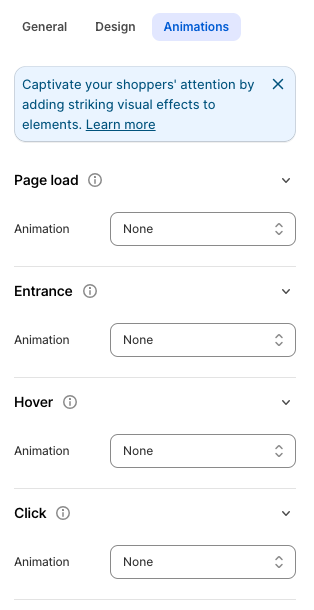
<figure><img src="https://1749964694-files.gitbook.io/~/files/v0/b/gitbook-x-prod.appspot.com/o/spaces%2FfgpgvtRaQLc36GYyIktZ%2Fuploads%2FsqjgAGHvPI5nHMqCn3Bm%2Fimage.png?alt=media&#x26;token=5440dcbe-e29f-4675-940a-5dff47fc7670" alt=""><figcaption></figcaption></figure>


---

# Agent Instructions: Querying This Documentation

If you need additional information that is not directly available in this page, you can query the documentation dynamically by asking a question.

Perform an HTTP GET request on the current page URL with the `ask` query parameter:

```
GET https://docs.foxecom.com/foxify-app/foxstudio/add-and-edit-elements/subscribe-form.md?ask=<question>
```

The question should be specific, self-contained, and written in natural language.
The response will contain a direct answer to the question and relevant excerpts and sources from the documentation.

Use this mechanism when the answer is not explicitly present in the current page, you need clarification or additional context, or you want to retrieve related documentation sections.