# Image
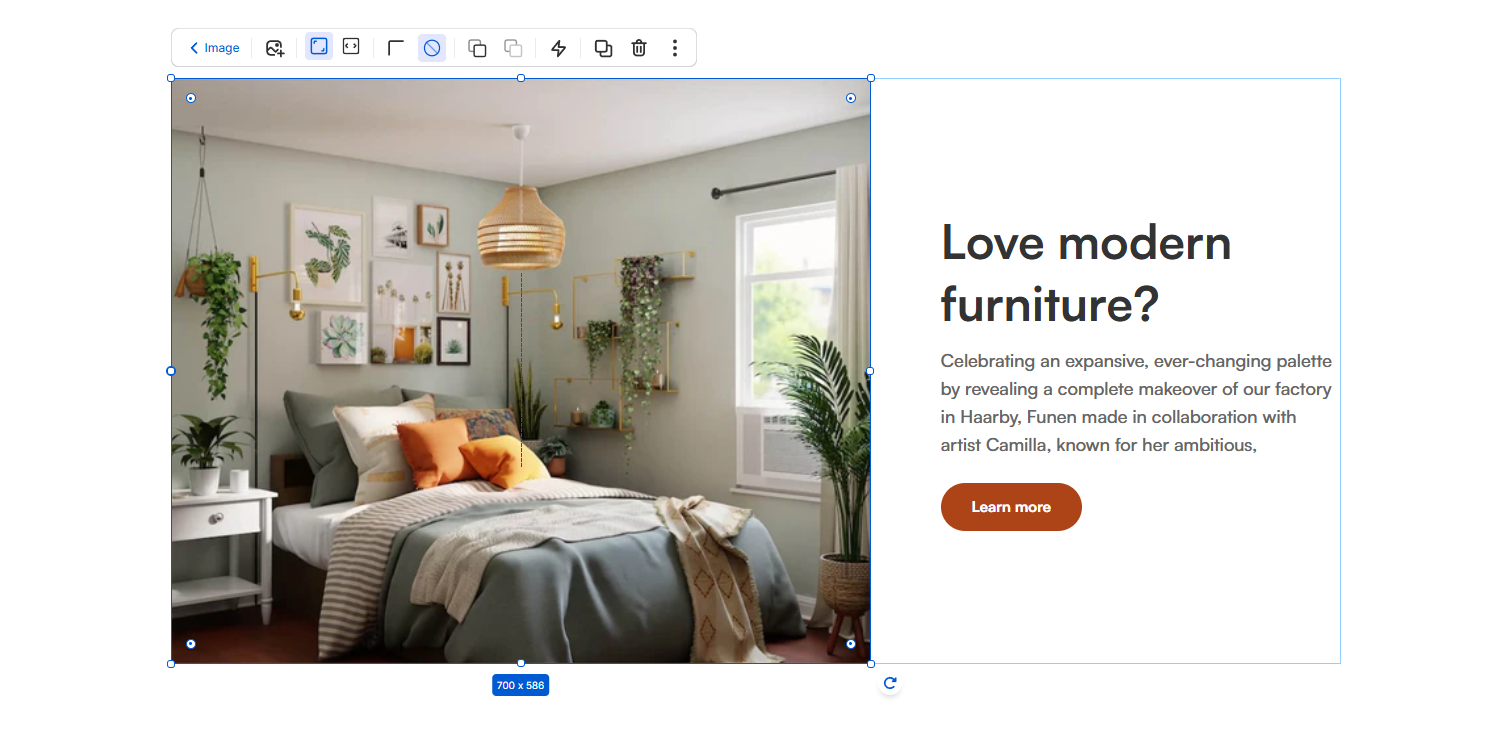
FoxStudio makes adding and customizing images simple and intuitive. This guide walks you through the steps to add and edit images effectively in FoxStudio.
## How to add an image
**Steps:**
1. In the FoxStudio editor, on the left Sidebar > Click **Add elements**, or press **E**.
2. Select **Media** > **Images** or in **Quick add**, select **Image** element.
3. Drag the image onto your canvas.
## How to edit an image
Once you've added the image, you can customize it to match your design.
**Steps:**
1. **Select** the relevant image element in the editor.
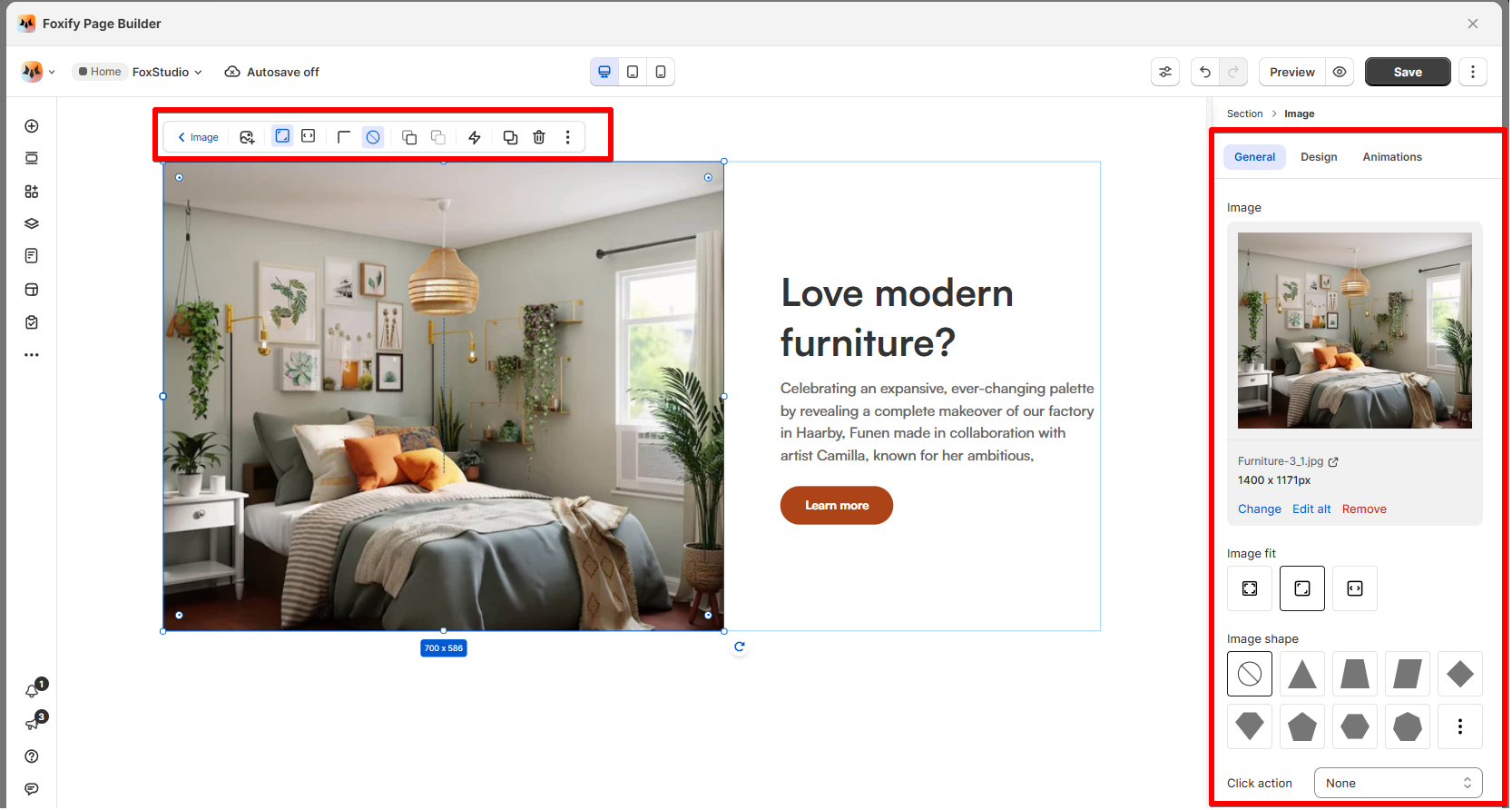
2. Use the tools bar above the selected image element to quickly edit it.
All the formatting tools below can be found in the right-handsided **Inspector** panel.
### Image fit
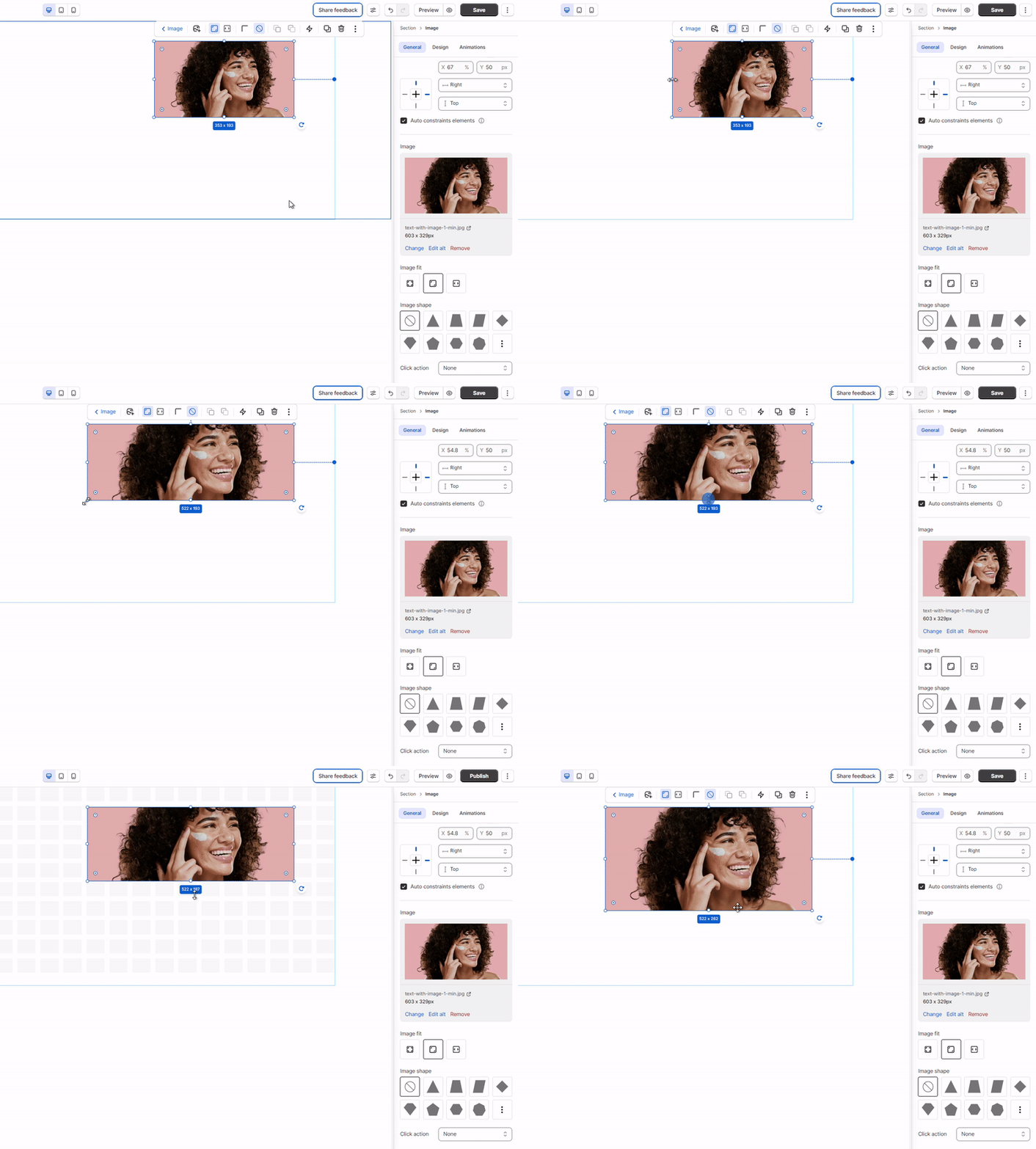
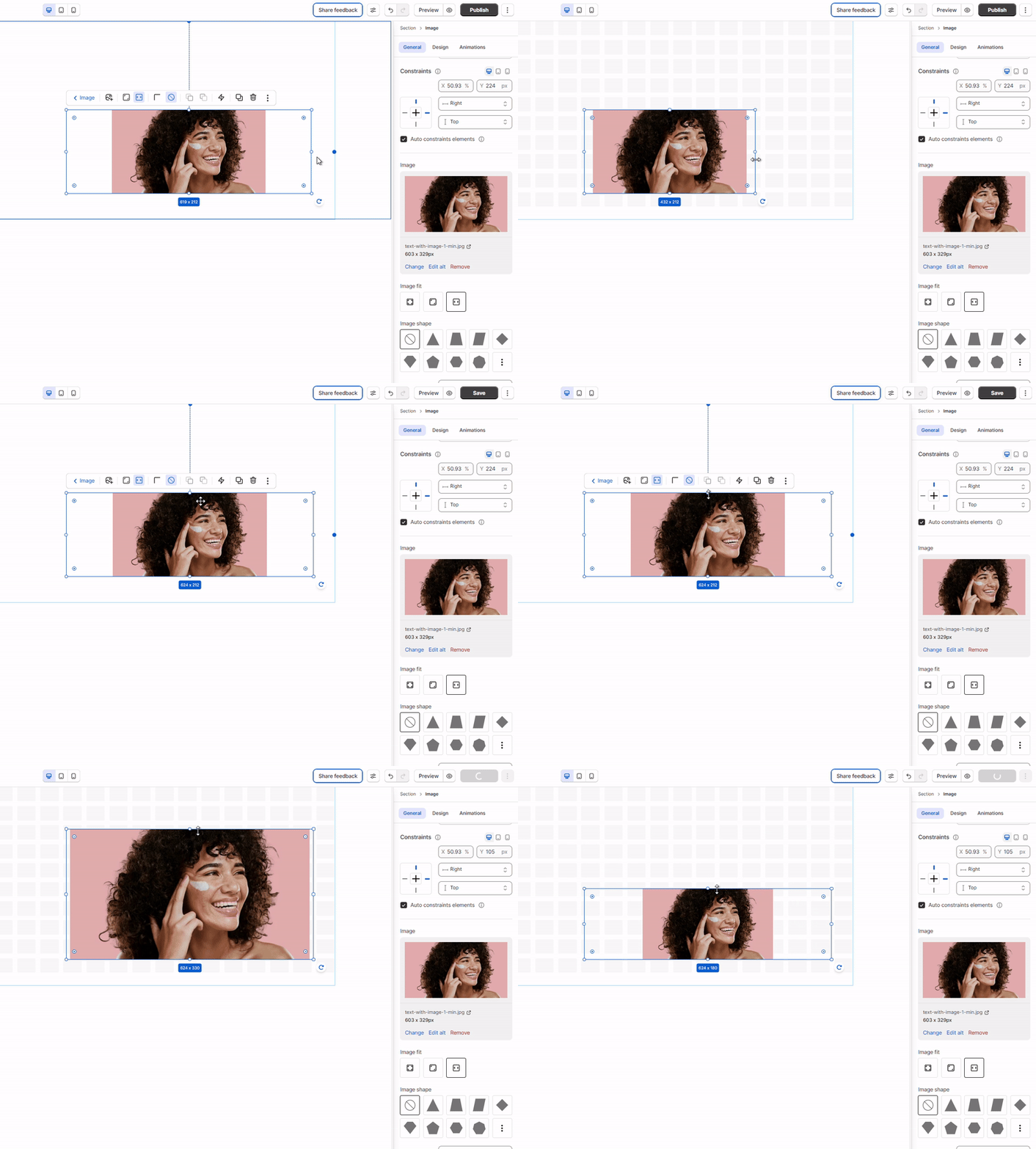
Adjust how the image fits within its container:
* **Keep image ratio**: Maintains the original aspect ratio of the image while resizing it to fit within the container.
* **Fill bounding box**: Stretches the image to fill the entire container, which may distort its aspect ratio.
* **Fit to bounding box**: Scales the image to fit within the container while ensuring the entire image is visible, with possible empty spaces.
### Image shape
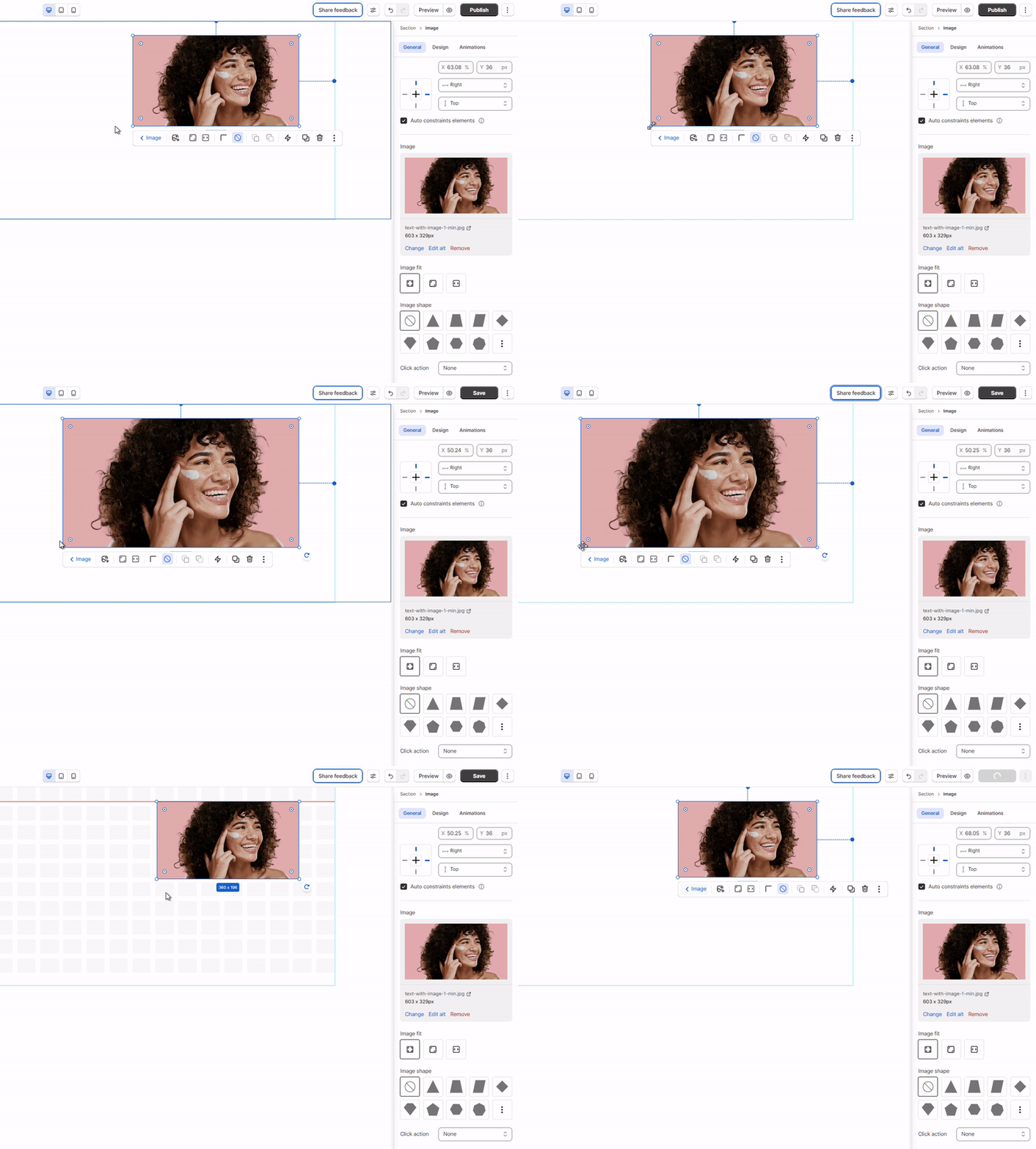
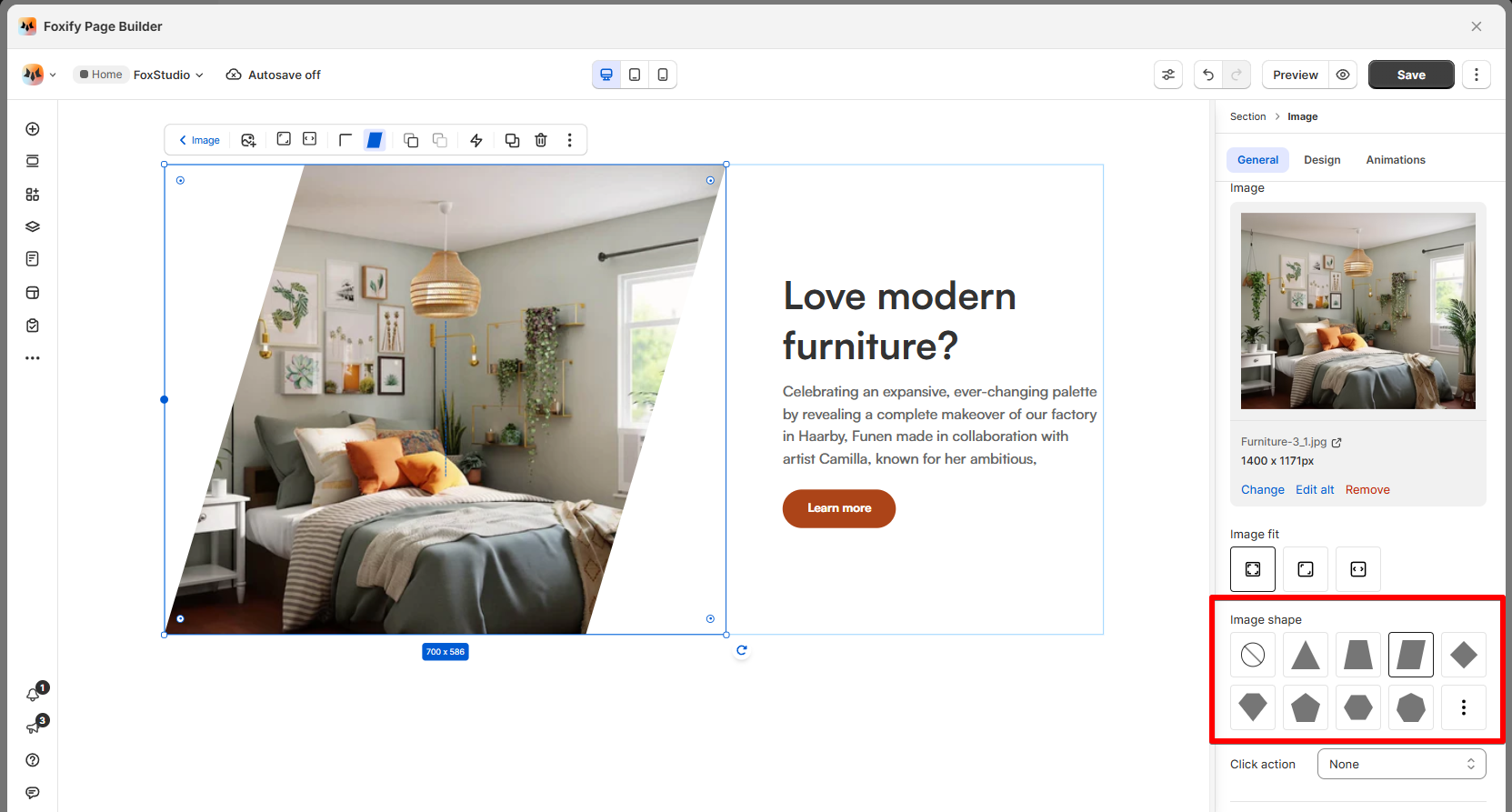
Select from pre-defined shapes (e.g., circle, hexagon, triangle) to apply unique styling to your image.
### Click action
Define what happens when users click on an image.
* **None**: No action is taken when the image is clicked. This is ideal for decorative or static images.
* **Open link**: Redirect users to a specific URL when the image is clicked.
* **Send email**: Opens the user's default email client to send an email.
* You can specify:
* **Email Address**: The recipient's email address.
* **Subject**: The default subject line for the email.
* **Call phone**: Initiates a phone call when the image is clicked. Enter the phone number in the provided field.
* **Jump to anchor**:
* Scrolls the user to a specific section of the page.
* Select or enter the anchor ID to link to the corresponding section.
❓ Learn more: [Create an anchor link](https://docs.foxecom.com/foxify-app/faqs-and-troubleshooting/faqs/create-an-anchor-link)
* **Open pop-up**: Displays a pop-up window containing additional information, media, or content when the image is clicked.