# Countdown timer
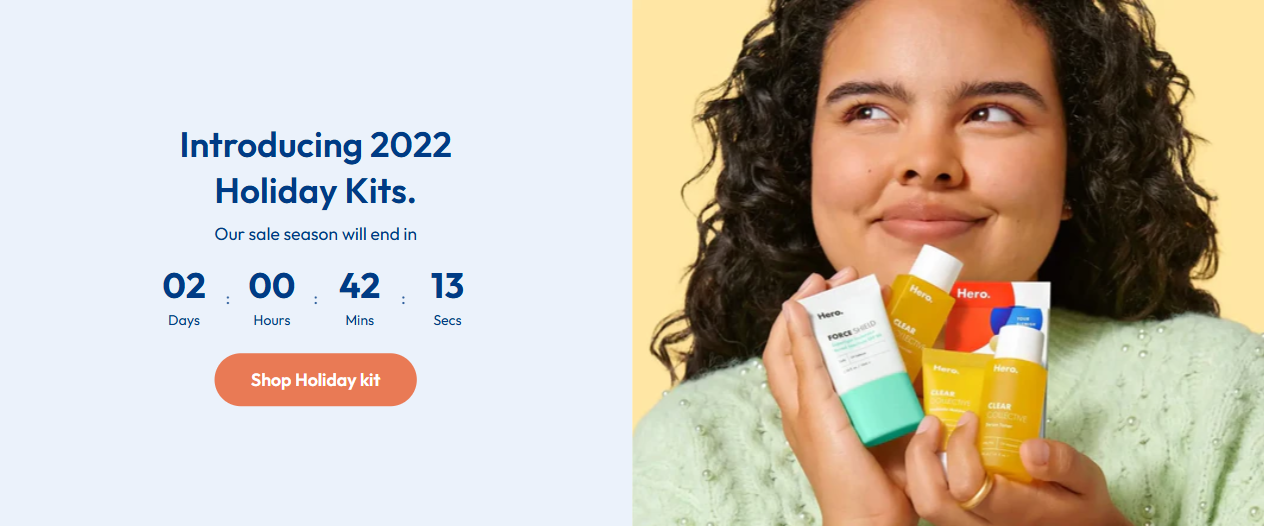
Countdown timer is a great way to create urgency and boost engagement on your page. It can be used for flash sales, product launches, or upcoming events. This guide walks you through adding and customizing a countdown timer.
## How to add a countdown timer
**Steps:**
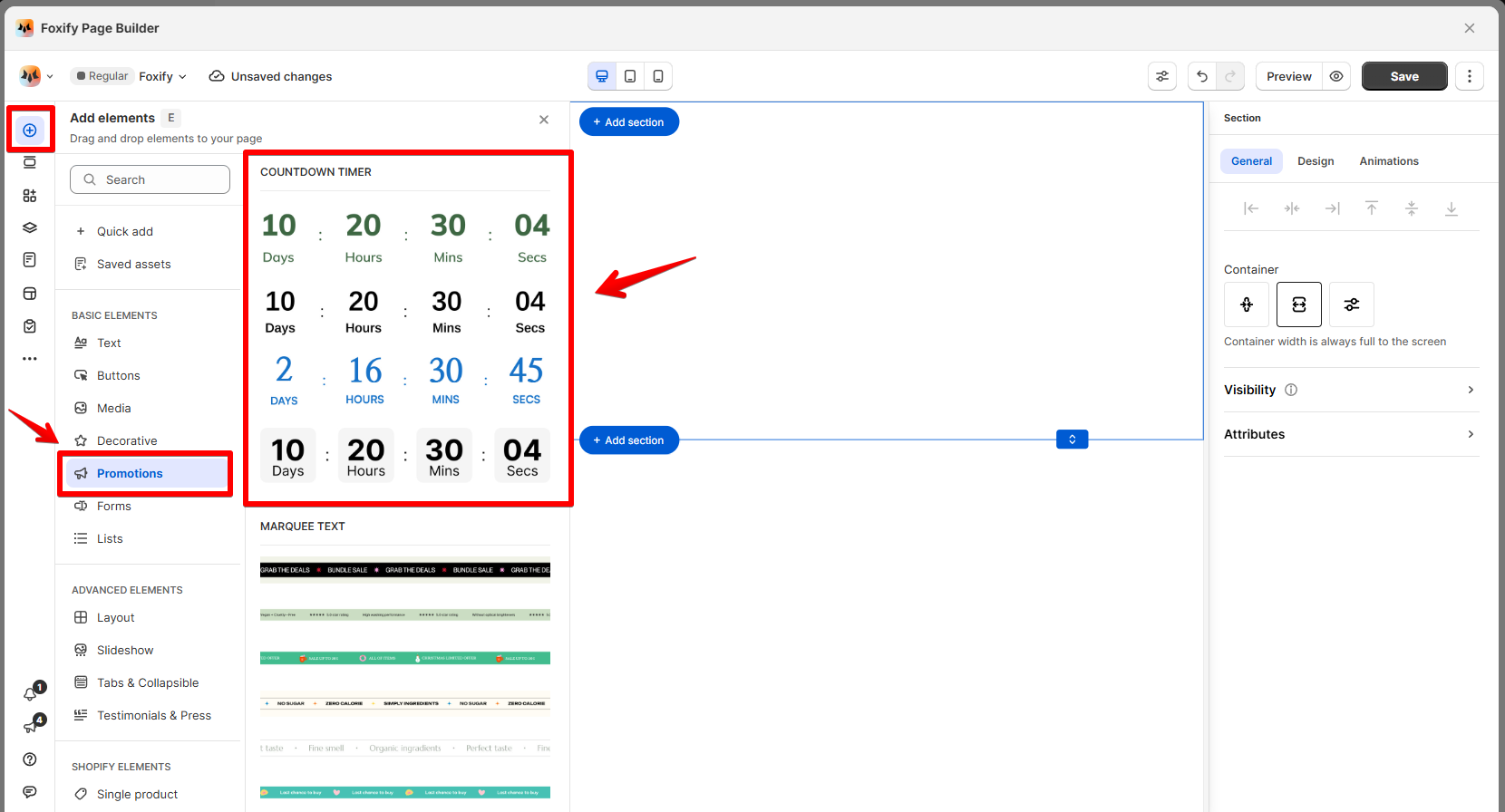
1. In the FoxStudio editor, on the left Sidebar > Click **Add elements**, or press **E**.
2. Select **Promotions** > **Countdown timer** or in **Quick add**, select **Countdown** element.
3. Drag the countdown timer onto your canvas.
## How to edit a countdown timer
**Steps:**
1. **Select** the relevant countdown timer element in the editor.
2. Use the tools bar above the selected countdown timer element to quickly edit it.
All the formatting tools below can be found in the right-handsided **Inspector** panel.
### General settings
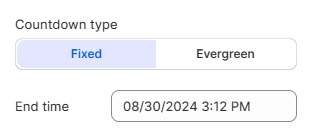
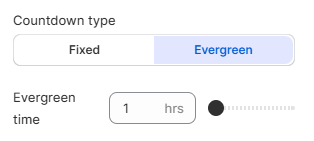
* **Countdown type:**
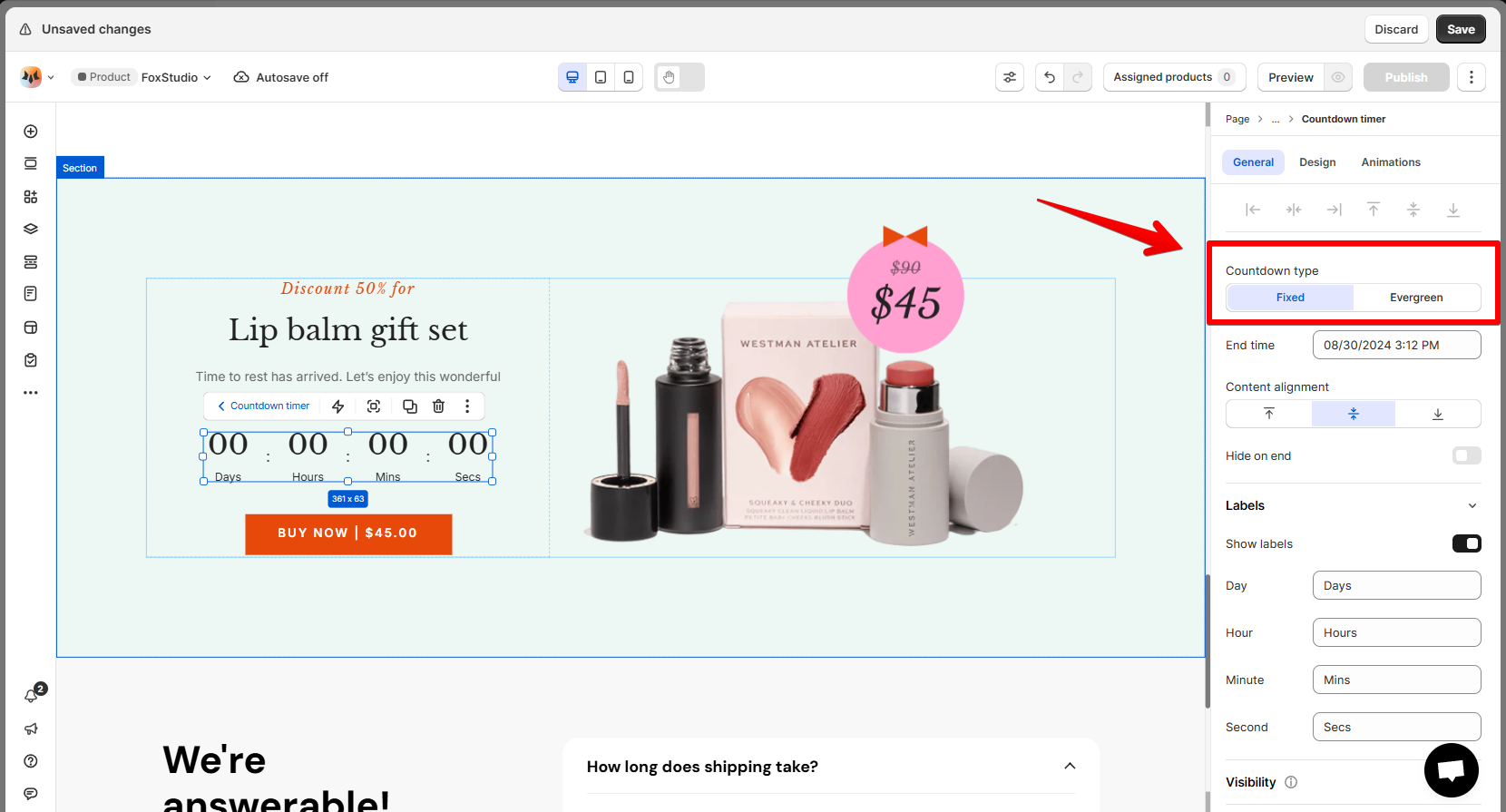
This timer runs down to a specific date and time that you set (perfect for promotions or limited-time sales).
This is a new option that allows you to set a countdown that resets after a specific period of time. It’s great for creating urgency on a consistent basis for new visitors.
⭐ **Tip**: The Evergreen timer works automatically, so it’s ideal for stores running recurring promotions or time-sensitive offers, such as flash sales or daily deals.
* **Content alignment:** Align the countdown timer to the left, center, or right of its container using the alignment options.
* **Hide on end**: Toggle this option ON to automatically hide the timer when it reaches the end.
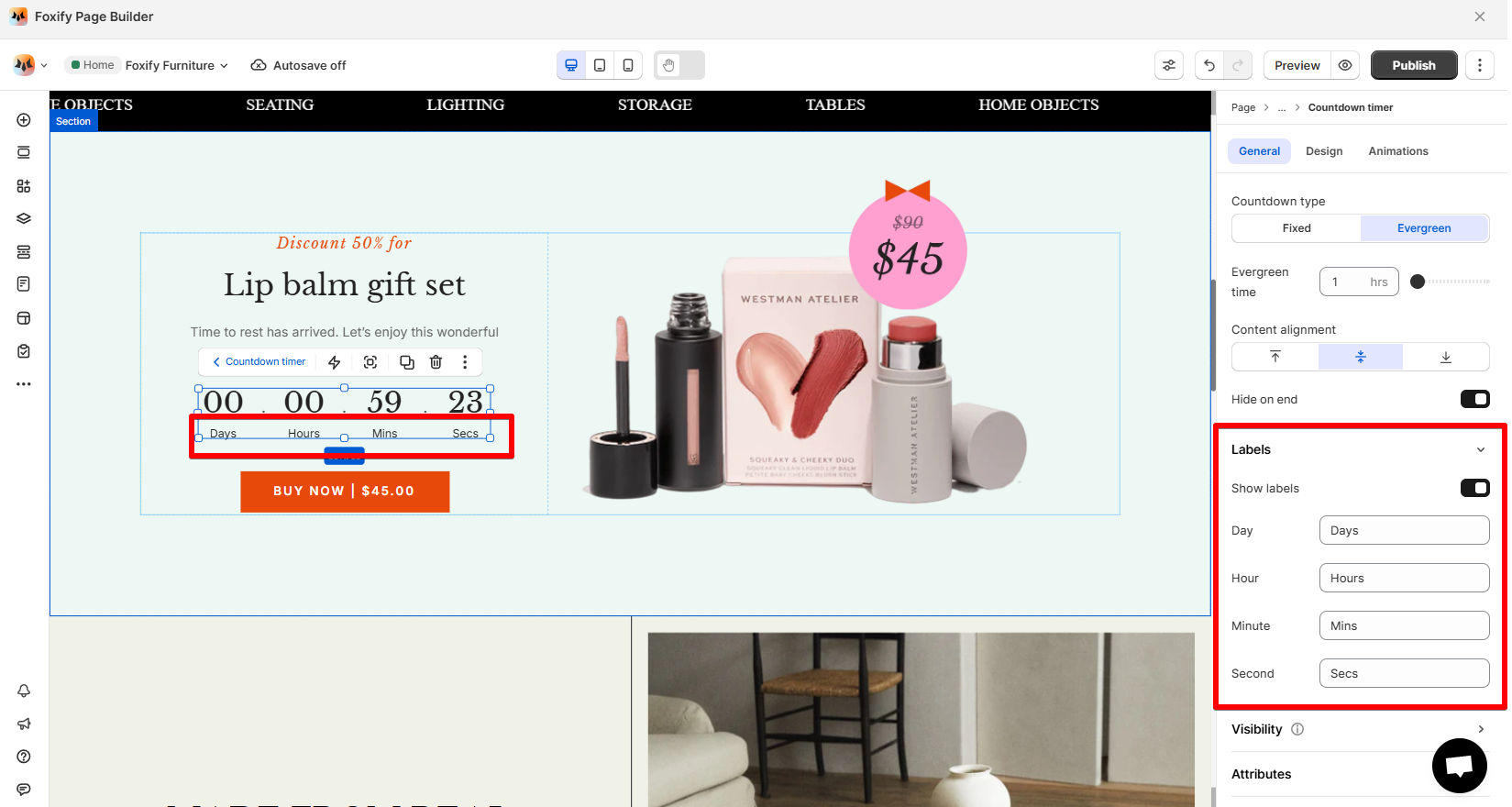
* **Labels**:
* Toggle the **Show labels** option to display or hide the time unit labels (Days, Hours, Minutes, Seconds).
* Customize the label text for each time unit as needed, or use the default wordings.
### Design settings
Besides settings for [Size](https://docs.foxecom.com/foxify-app/foxstudio/layout-and-styling/resize-an-element) and [Constraints](https://docs.foxecom.com/foxify-app/foxstudio/layout-and-styling/constraints), you can edit specific elements of a countdown timer.
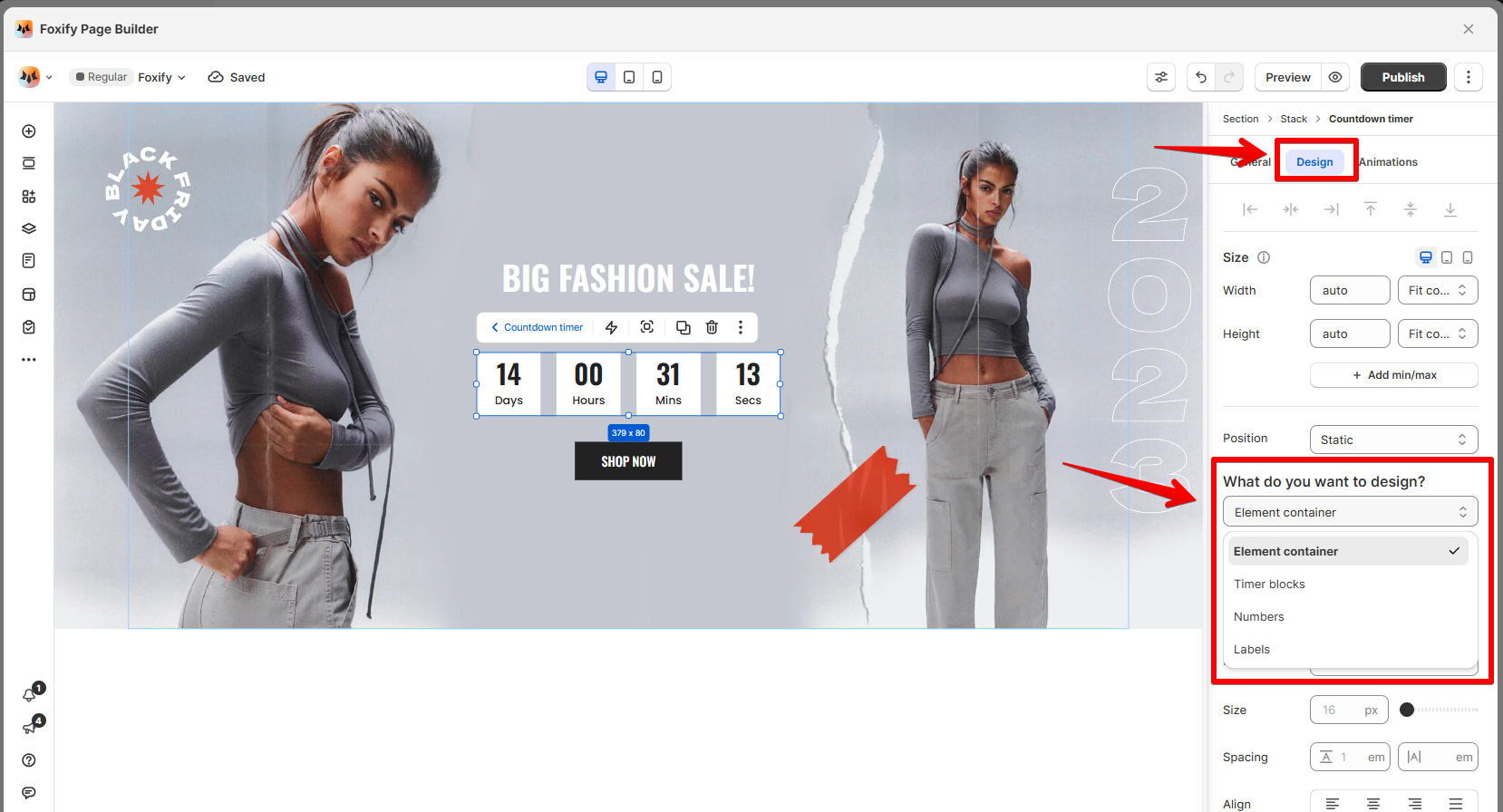
Choose what you want to customize from the dropdown menu.
* **Element container**: Adjust the overall container (Text style, Spacing, Background, Borders).
* **Timer blocks**: Style the blocks that display the countdown numbers (Text style, Size, Background, Borders).
* **Numbers**: Change the font style, color, and spacing of the numbers.
* **Labels**: Change the font style, color, and spacing of the numbers.