# Sections & Presets

{% hint style="warning" %}
**Starting January 24, 2025**, the **Legacy Editor (Basic editor)** will **no longer be available for creating pages** for new users.\
New users should use **FoxStudio** instead.

👉 Learn more about FoxStudio: [foxstudio](https://docs.foxecom.com/foxify-app/foxstudio "mention")
{% endhint %}

## What is a section?

Similar to Shopify sections, Foxify sections are modules that you use to customize the layout of your online store.&#x20;

Unlike Shopify sections, Foxify sections deliver a wide range of blocks with sheer customizability, allowing you to adjust every detail and create a layout you're happy with.

> *With Foxify, every little detail matters.*

## Add a section

Add a new section to any page in your online store.

{% hint style="success" %}
Steps:

1. From your Foxify dashboard, click on the template you want to edit.
2. In the template editor, click **Add section** in the [left sidebar](https://docs.foxecom.com/foxify-app/page-editor#the-left-sidebar) or **+ Add section** at the end of the [page outlines](https://docs.foxecom.com/foxify-app/page-editor#page-outlines).  &#x20;
3. Select a new section from the list or use the **Search** bar to search for a specific term.
4. &#x20;Click on the new section to edit the blocks within the section.
5. Make necessary changes.
6. Click **Save**.
   {% endhint %}

## What are section presets?

Foxify brings you a powerful and high-converting list of section presets that have been used for thousands of online stores.&#x20;

You can get inspired by those presets (updated regularly) to create your ideal section and bring a stellar user experience.

<figure><img src="https://1749964694-files.gitbook.io/~/files/v0/b/gitbook-x-prod.appspot.com/o/spaces%2FfgpgvtRaQLc36GYyIktZ%2Fuploads%2F48X8PmidZOLlGOKZ62UJ%2Fezgif.com-gif-maker.gif?alt=media&#x26;token=ddcc20df-511a-4bb0-993b-290035febb48" alt=""><figcaption></figcaption></figure>

## Save a custom section as a preset

After creating the section you're happy with, you can save and reuse it on other pages with Foxify.

{% hint style="success" %}
Steps:

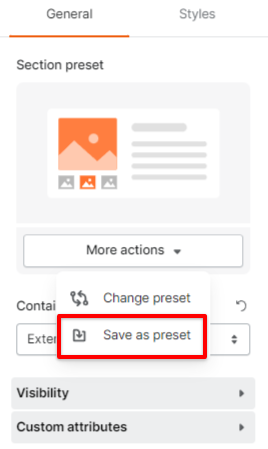
1. After customizing a section, click on that section
2. In the **General** settings tab, navigate to the **Section preset** section
3. Select the **More actions** button
4. Click **Save as preset.**
   {% endhint %}

<figure><img src="https://1749964694-files.gitbook.io/~/files/v0/b/gitbook-x-prod.appspot.com/o/spaces%2FfgpgvtRaQLc36GYyIktZ%2Fuploads%2FcvrDSy6qAFgbWyxgbBnS%2Fimage.png?alt=media&#x26;token=26102249-e100-4018-a721-8ddc2a45395e" alt=""><figcaption></figcaption></figure>

You will then see the saved presets in the corresponding section preset list.

## Use a section preset

{% hint style="success" %}
Steps:

1. After adding a section to your page, click on that section to select preset.
2. In the section's general settings tab, select **Change preset.**
3. Hover on the presets, hit **Preview** to see if it suits you, and click **Select** to add a preset.
4. Click **Use this preset anyway** and customize the section to your liking.&#x20;
5. Hit **Save** to finish.
   {% endhint %}

<figure><img src="https://1749964694-files.gitbook.io/~/files/v0/b/gitbook-x-prod.appspot.com/o/spaces%2FfgpgvtRaQLc36GYyIktZ%2Fuploads%2F21DwmkN5X60VX48TUWIm%2Fezgif.com-gif-maker%20(1).gif?alt=media&#x26;token=a7857871-1fbb-4fae-986d-bde6359b9d3e" alt=""><figcaption></figcaption></figure>

{% hint style="info" %}
We are excited to have a regular update on our section and block library. Kindly check often for new sections and blocks!
{% endhint %}