# Marquee text
_kchhfKxe.gif)
The Marquee text is a dynamic element that allows you to create scrolling text, perfect for announcements, promotions, or eye-catching updates on your page.
## How to add a marquee text
**Steps:**
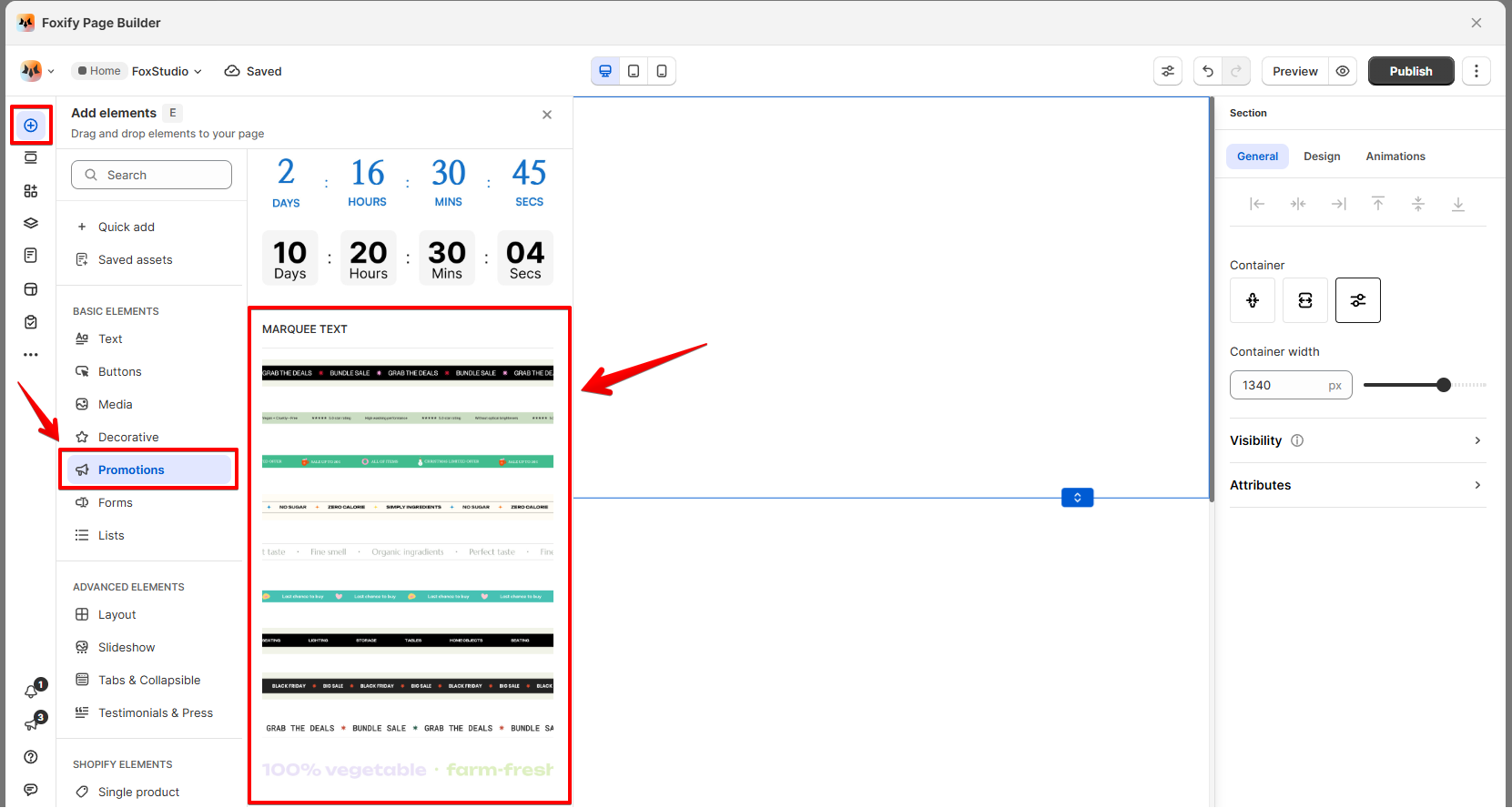
1. In the FoxStudio editor, on the left Sidebar > Click **Add elements (**_KqvedGnv.svg)), or press **E**.
2. Select **Promotions** > **Marquee text** or in **Quick add**, select **Marquee elements**.
3. Drag the marquee text onto your canvas.
## How to edit marquee text
**Steps:**
1. **Select** the relevant marquee text element in the editor.
2. Use the tools bar above the selected marquee text element to quickly edit it.
All the formatting tools below can be found in the right-handsided **Inspector** panel.
### General settings
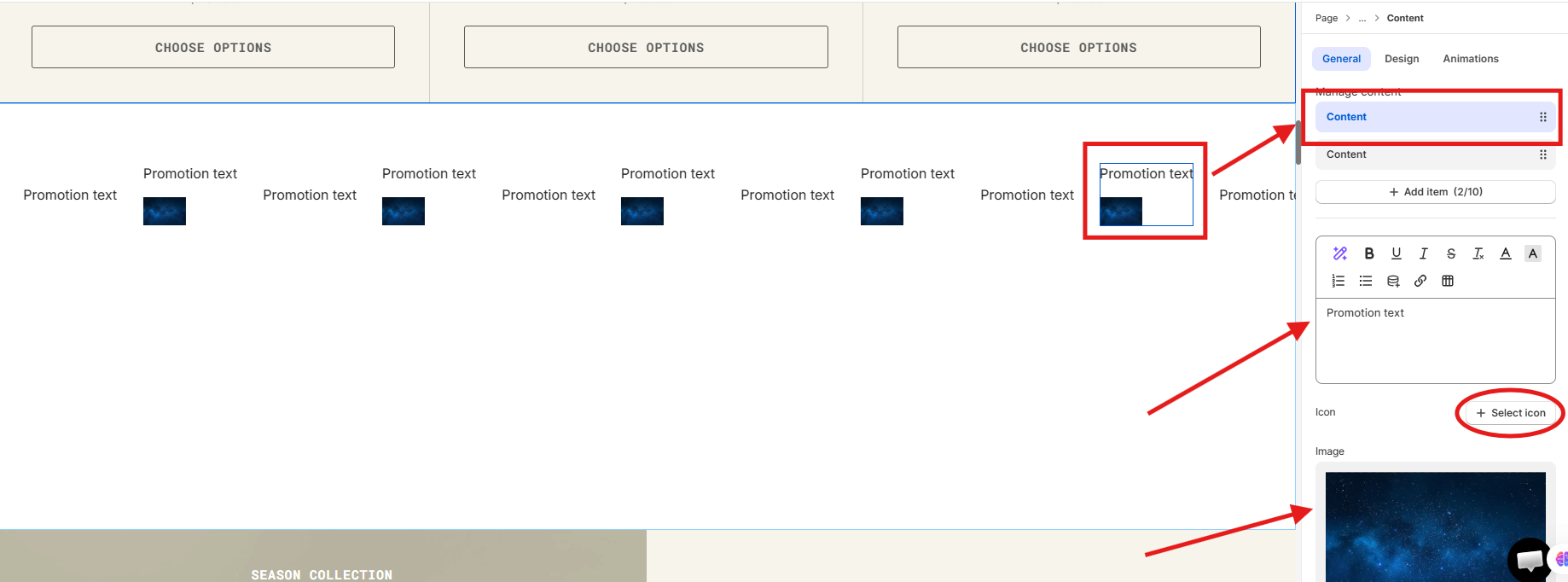
* **Manage content:**
* Click on **Content** to edit or add items to the marquee.
* Add up to 10 content items. For each item, you can:
* **Add text**: Enter the text you want to display.
* **Add an icon and/or an image**: Use the Select Icon or Select Image option to enhance your marquee text visually.
* **Link**: link your marquee text to your desired page.
* **Scroll direction**: Choose the direction of the scroll: Left to Right or Right to Left .
* **Content layout:** Choose the direction in which your marquee items are arranged.
The layout configuration only applies when both text and icon/image are assigned to each **Content** item.


* **Content alignment**: Align the text and visuals vertically: Top, Center, or Bottom.
* **Scroll speed**: Adjust the scrolling speed using the slider. Increase or decrease the speed to match the design's tempo.
* **Pause on hover**: Enable this option to pause the scrolling effect when a visitor hovers over the marquee.
### Design settings
Customize the appearance of your marquee content to match your branding and create a visually appealing scrolling element.
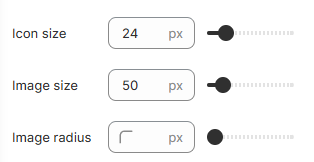
* **Icon and image:**
* **Icon size**: Adjust the icon size slider to increase or decrease the size of the icon used in your marquee text. Ensure icons are proportional to the text for a balanced look.
* **Image size**: Use the image size slider to resize any images accompanying your marquee text.
* **Image radius:** Set the image radius to give your images rounded corners.
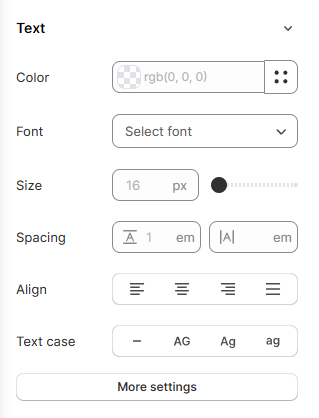
* **Text:** Style the text (color, font, size, etc.) to fit your branding.
**Pro tips** ⭐:
* Experiment with these settings to find the perfect balance of text size, font, and spacing. Preview your changes to ensure the marquee text looks seamless and aligns with your design goals.
* For further customization, explore the [Animations](https://docs.foxecom.com/foxify-app/foxstudio/layout-and-styling/animations) tab to add dynamic effects like fade-ins or bounces, making your marquee text even more engaging!