# Contact form
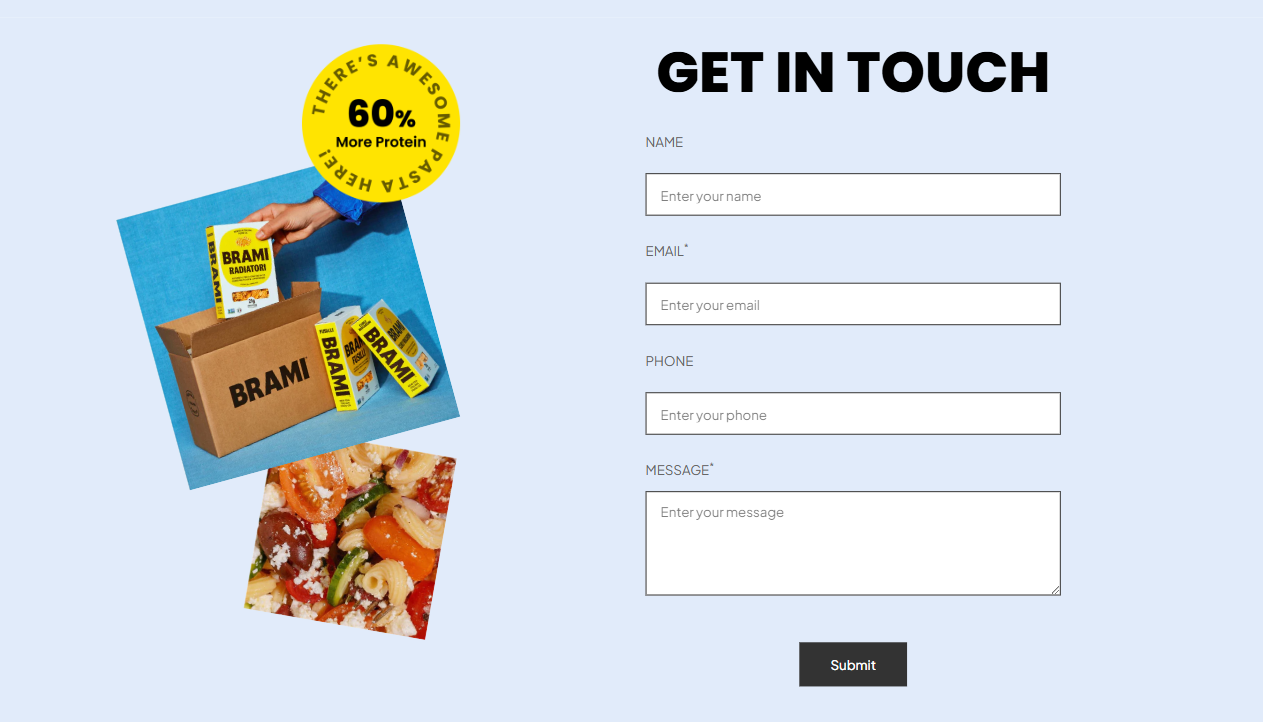
The **Contact Form** is a critical tool for businesses to maintain smooth communication with customers. It allows you to collect customer inquiries, feedback, or other important information directly on your website.
Your contact form sends all submissions to the sender email address of your store. You can change the sender email address in the [**Notifications**](https://admin.shopify.com/settings/notifications?utm_source=foxecom\&utm_medium=help_center_foxify_contact_form\&utm_campaign=anchor_text\&utm_term=notifications) settings page of your Shopify admin.
## How to add a contact form
**Steps:**
1. In the FoxStudio editor, on the left Sidebar > Click **Add elements (**_KqvedGnv.svg)), or press **E**.
2. Select **Forms** > **Contact form.**
3. Drag the Contact form onto your canvas.
## How to edit a contact form
**Steps:**
1. **Select** the relevant contact form element in the editor.
2. Use the tools bar above the selected contact form element to quickly edit it.
All the formatting tools below can be found in the right-handsided **Inspector** panel.
### General settings
#### **Contact fields**
* Click **Add field** to add a new field to your contact form.
* Each contact field includes:
* **Label**: Set the title or name of the field that users will see. Example: "Name", "Email", "Phone Number".
* **Field type**: Define the type of input the field accepts (Text, Select, Checkbox, etc.).
* **Field name**: Assign a unique identifier to the field for backend reference.
* Field names must be unique across the form.
* Used for mapping submissions to email integrations or databases.
* **Options** (for **Field type as Select**): Define preset options.
* Enter each option on a new line.
Example:
```rust
Option 1
Option 2
Option 3
```
* **Placeholder**: Displays sample text inside the field to guide users on what to enter.
* **ID**: Adds a custom HTML ID to the field for advanced customizations or integrations. Useful for developers who want to apply custom styles or scripts.
* **Required:** Makes the field mandatory for form submission.
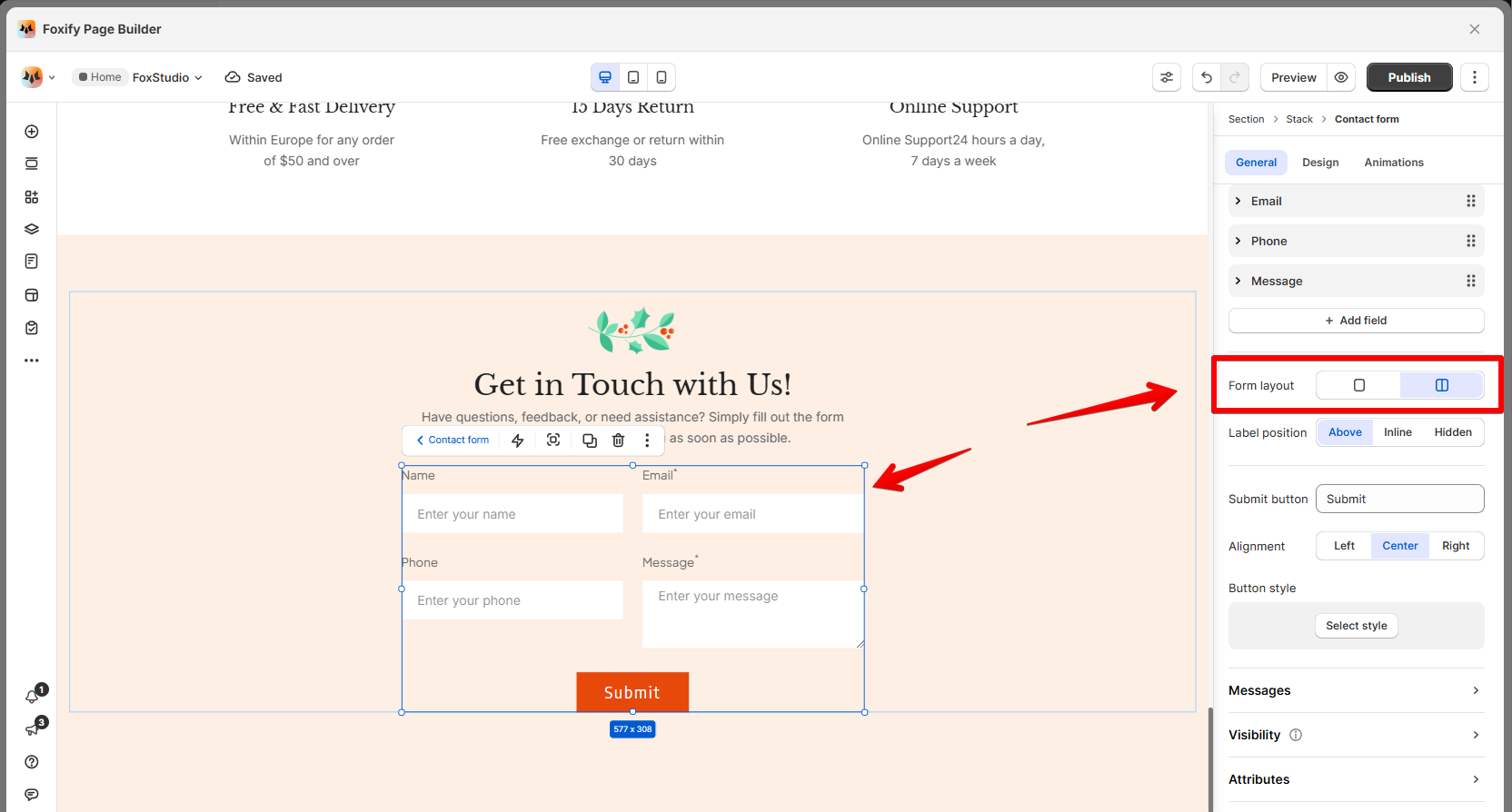
#### Form layout
Choose between a single-column or 2-column layout for your form.
#### Label position
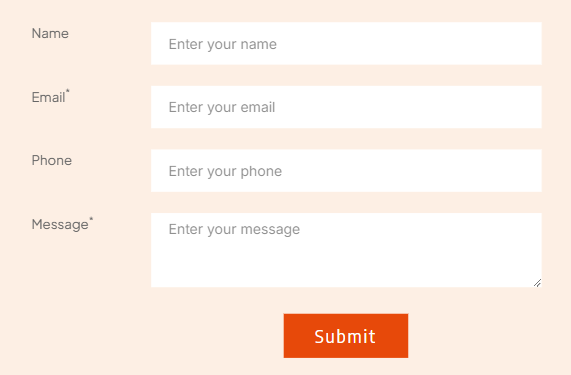
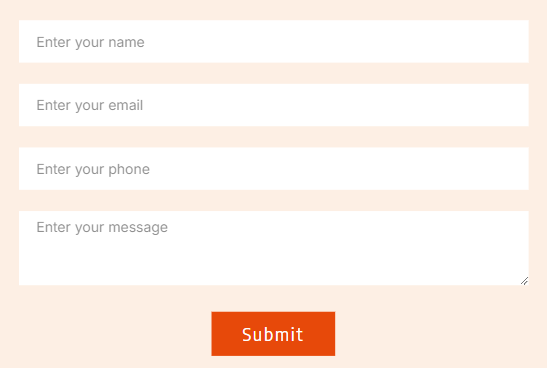
Set the position of field labels as **Above**, **Inline**, or **Hidden**.
Labels are displayed on top of each field, which improves readability, especially on mobile devices.
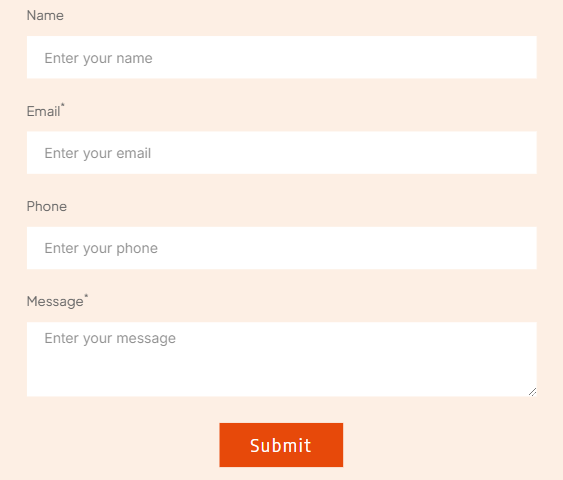
Works well for shorter forms or to save space, where labels appear next to the input fields.
This option works for desktop and tablet view only.
Ideal for minimalist designs or when placeholder text inside fields already provides sufficient guidance.
#### Submit button
* **Button label**: Edit the text displayed on the submit button (e.g., "Submit" or "Send Message").
* **Alignment**: Align the submit button to the left, center, or right.
* **Button style**: Click **Select style** to choose from pre-defined styles in [Global styles](https://docs.foxecom.com/foxify-app/pages/global-styles)
#### Message
Set up messages displayed to users after form submission:
* **Thank You Message**: This message appears when the form is successfully submitted.
* **Error Message**: This message appears when the form submission fails due to an issue (e.g., missing required fields, or connectivity errors).
✅ *Tips:*
* *Use a warm, reassuring tone to confirm the form submission and provide a timeline for follow-up.*
* *Keep the error message clear and concise. Optionally, suggest next steps like refreshing the page or double-checking required fields.*
### Design settings
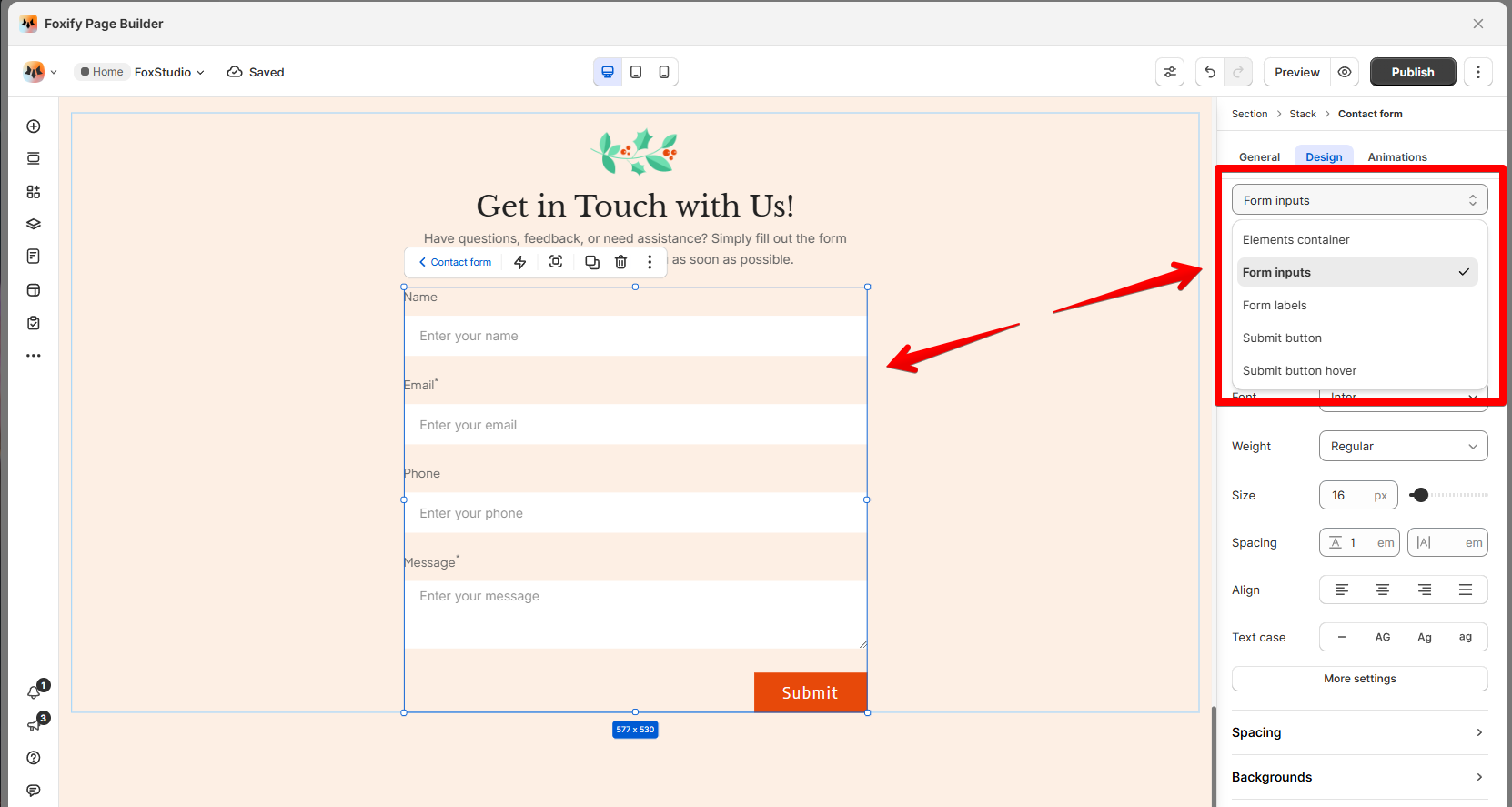
Target specific parts of the Contact form for customization:
* **Element container**: Adjust background colors, padding, borders, and spacing for the entire form container.
* **Form inputs**: Customize the appearance of input fields, including height, borders, background colors, text styles, and spacing.
* **Form labels:** Modify the font style, size, and colors of labels displayed in the form.
* **Submit button**: Design the submit button's appearance, including its background color, border, padding, and text styling.
* **Submit button hover**: Set styles for the button when hovered over (colors and borders).