# Button
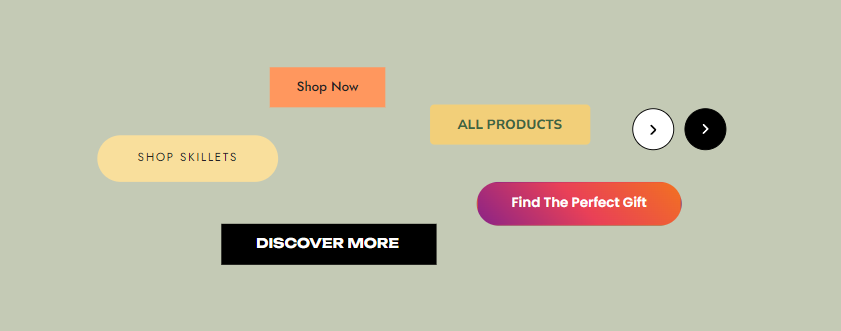
Buttons are essential elements for guiding users through your site and encouraging actions such as buying a product, signing up for a newsletter, or navigating between pages.
Foxify makes it simple to add, customize, and style buttons to suit your store's look and functionality.
## How to add a Button
Steps:
1. In the FoxStudio editor, on the left Sidebar > Click **Add elements**, or press **E**.
2. Select **Buttons.**
3. Drag the button onto your canvas.
## How to edit a Button
Once you’ve added the button, the next step is to edit its text to match your desired action.
**Steps:**
1. **Select** the relevant button element in the editor.
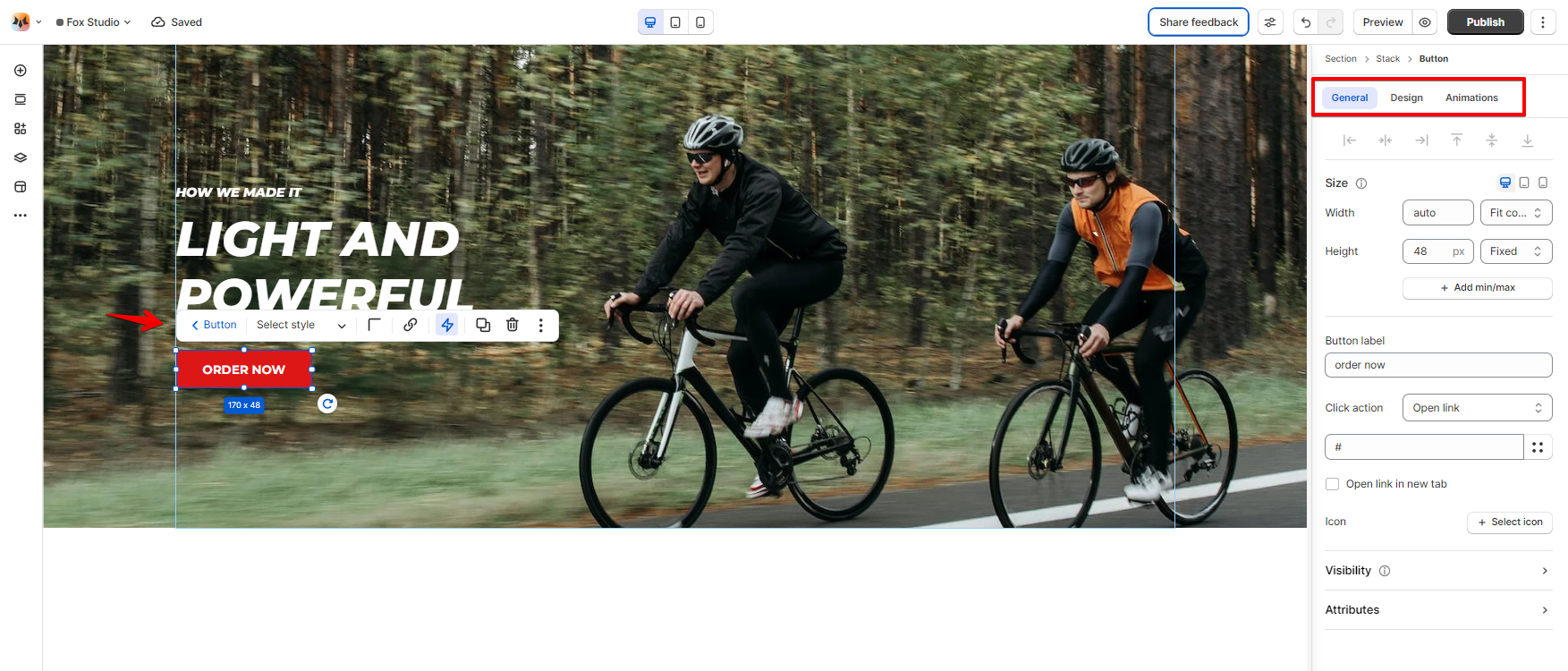
2. Use the toolbar above the selected button element to quickly edit it.
All the formatting tools below can be found in the right-hand side Inspector panel.
### Button label and Click action
Insert your **Button label** and set the **Click action** of it.
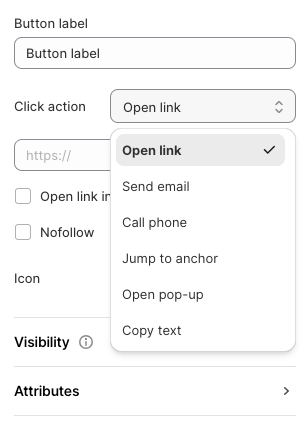
**Click action** includes:
* Open link: Insert a page URL or select a Shopify page to open the link when clicked.
* Send email: Enter the email address to let customers send an email when clicked.
* Call phone: Enter your phone number.
* Jump to anchor: Insert the section ID to jump to that specific section when clicked. See more: [Create an anchor link](https://docs.foxecom.com/foxify-app/faqs-and-troubleshooting/faqs/create-an-anchor-link)
* Open pop-up: Insert the pop-up content to open a pop-up when clicked.
* Copy text: When the button is clicked, a specific piece of text will be automatically copied to the user's clipboard.
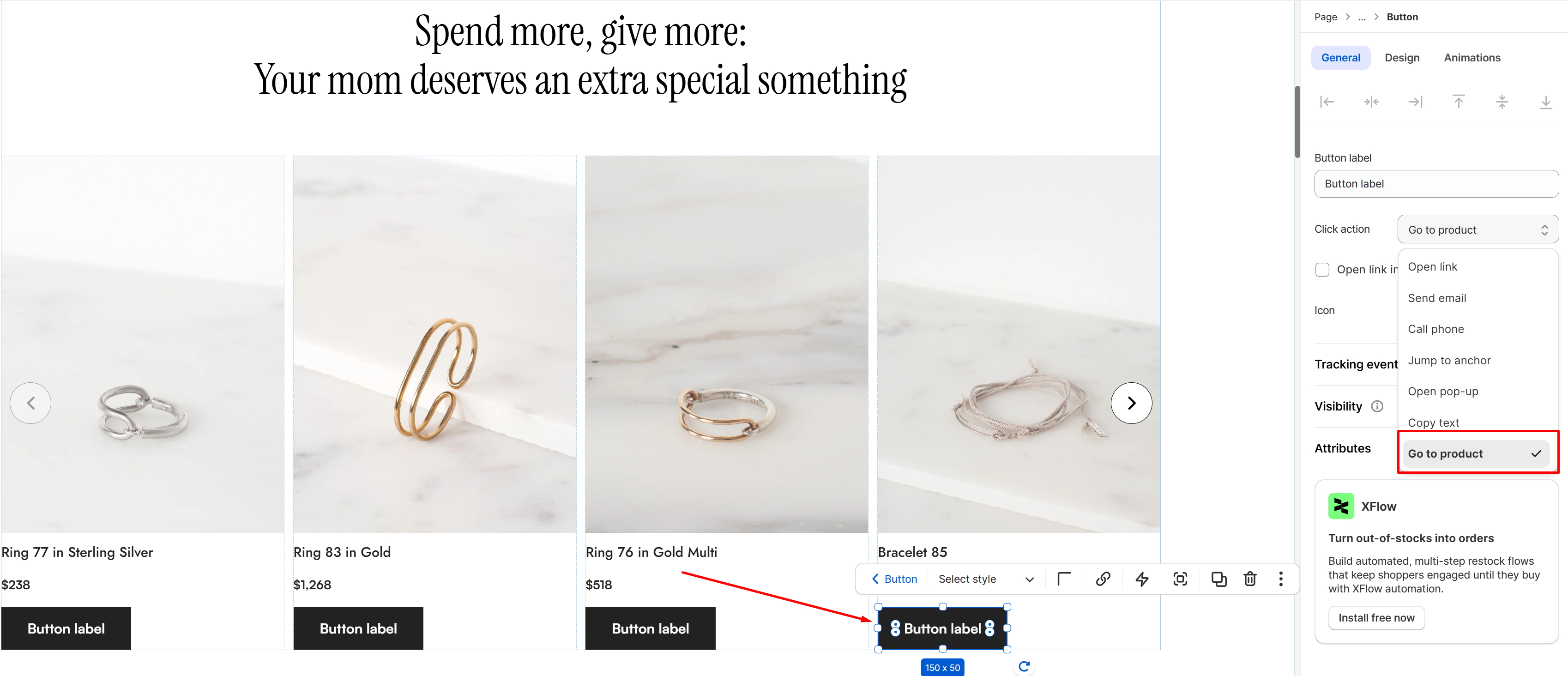
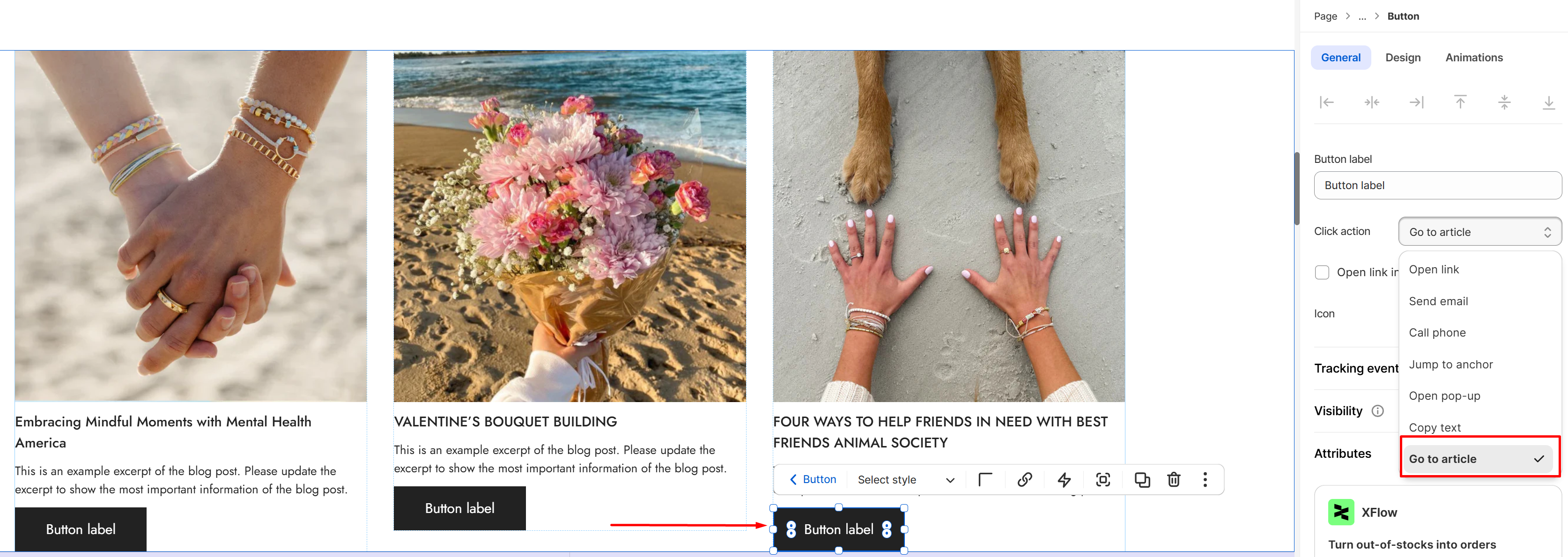
Button element will have an additional Click action **"Go to product/article"** when added to a Product/Blog Card. This is useful when a product is added directly to the cart without redirecting to the product page, or when a Blog Card has no default button — allowing you to manually add a link to the detail page.\
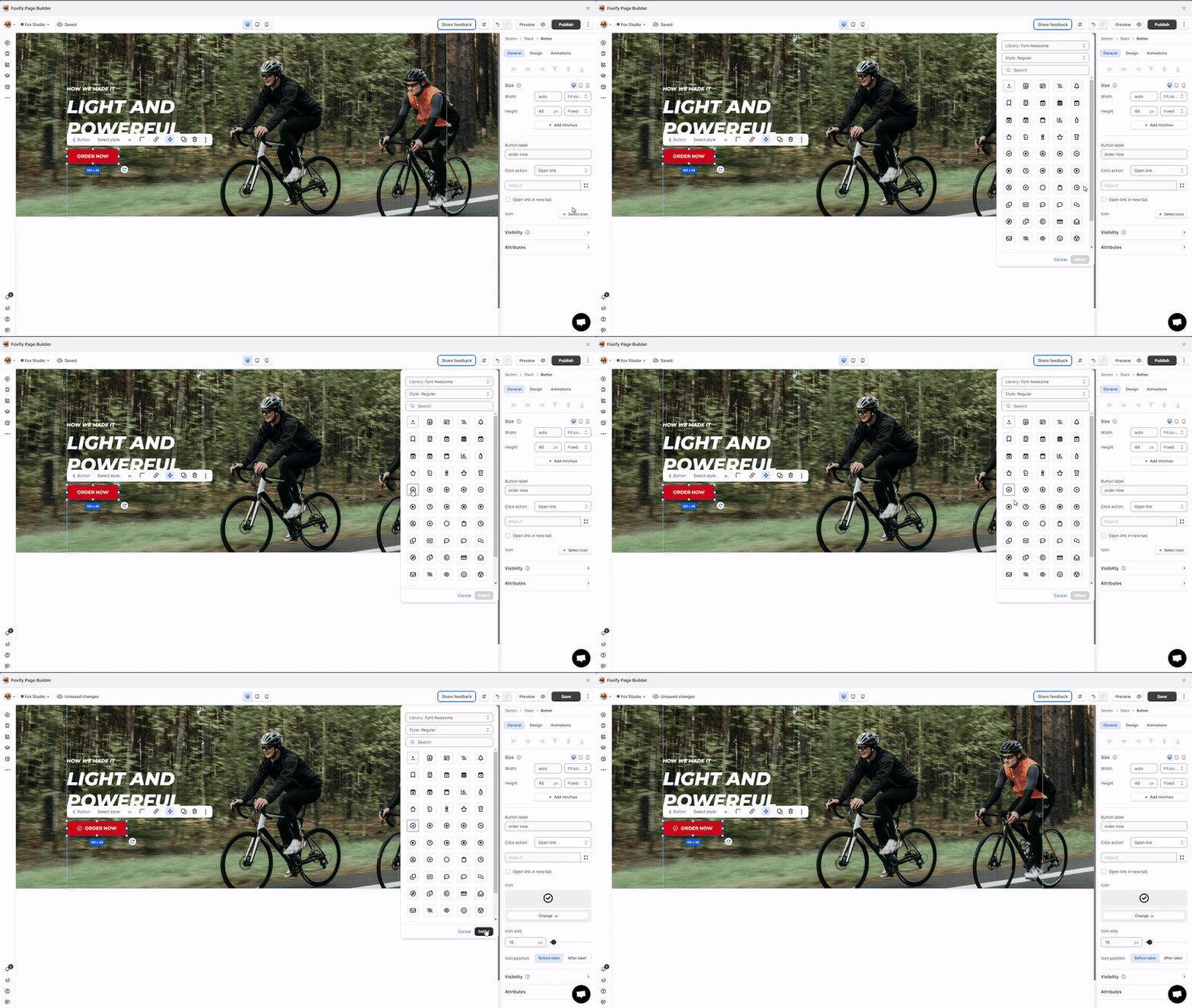
You can add an icon to your button.
### Tracking events
Tracking button interactions can provide valuable insights into your users' behavior. You can enable Google Analytics (GA) and Facebook Pixel tracking for button clicks.
Steps:
1. **Enable Tracking Events**: Toggle the **Enable tracking events** option to ON.
2. **Configure GA Event**: Under **GA Event Name**, enter the name of the event you want to track (e.g., `button_click`).
3. **Facebook Pixel Event**: Select the relevant event from the dropdown list:
* **ViewContent**
* **AddToCart**
* **InitiateCheckout**
* **Purchase**
* **Lead**
* **CompleteRegistration**
* **Custom**: If you want to create a custom event, select **Custom** and name it (e.g., `BuyNowClick`).
### Button State
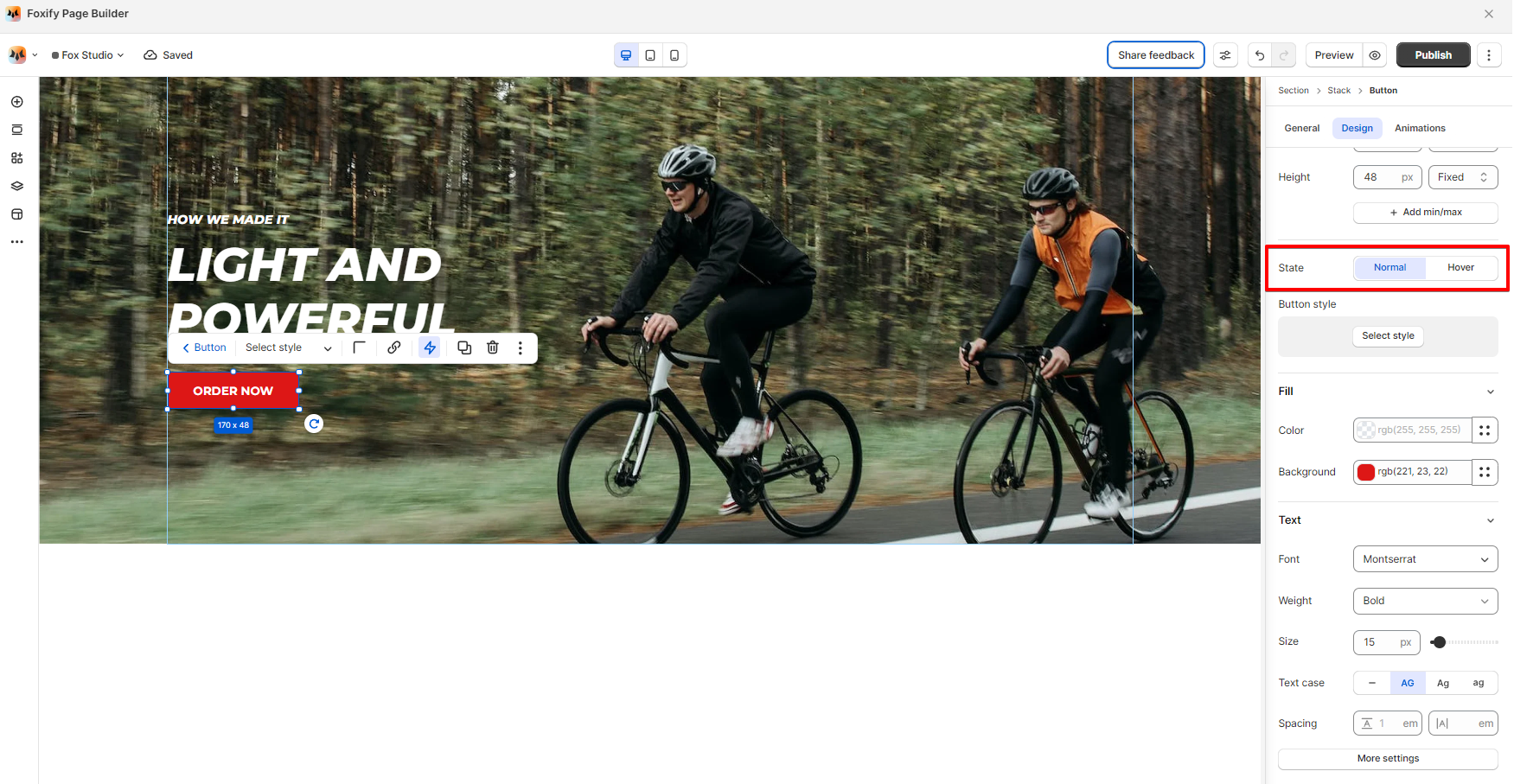
Select the button state you want to update: **Normal**/ **Hover**.
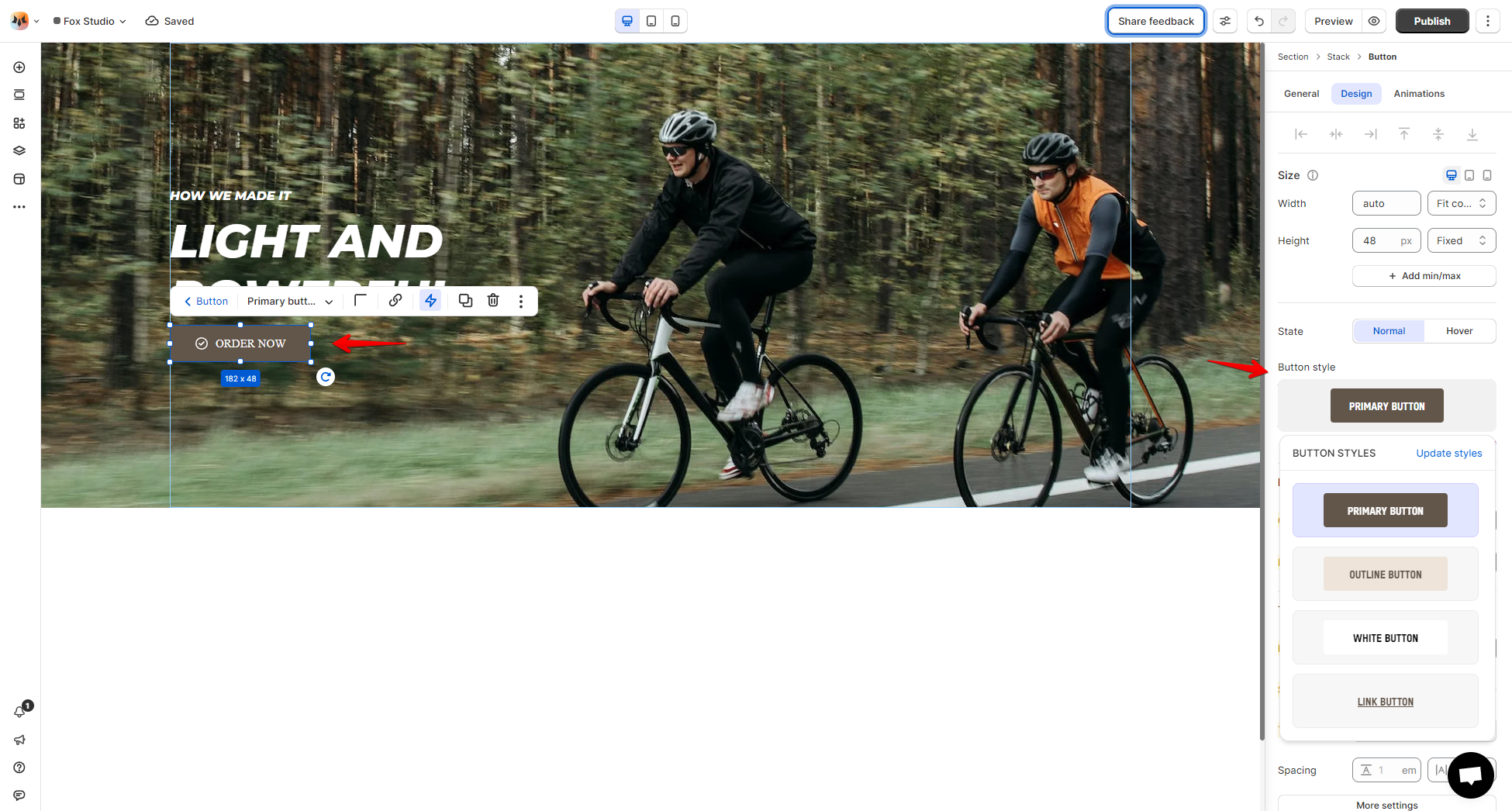
### Button Style
Select your **pre-defined button styles** in the **Global styles** to apply to an existing text element.
Select a Button style will override all custom styles made to the element.
See more: [Global styles](https://docs.foxecom.com/foxify-app/pages/global-styles)
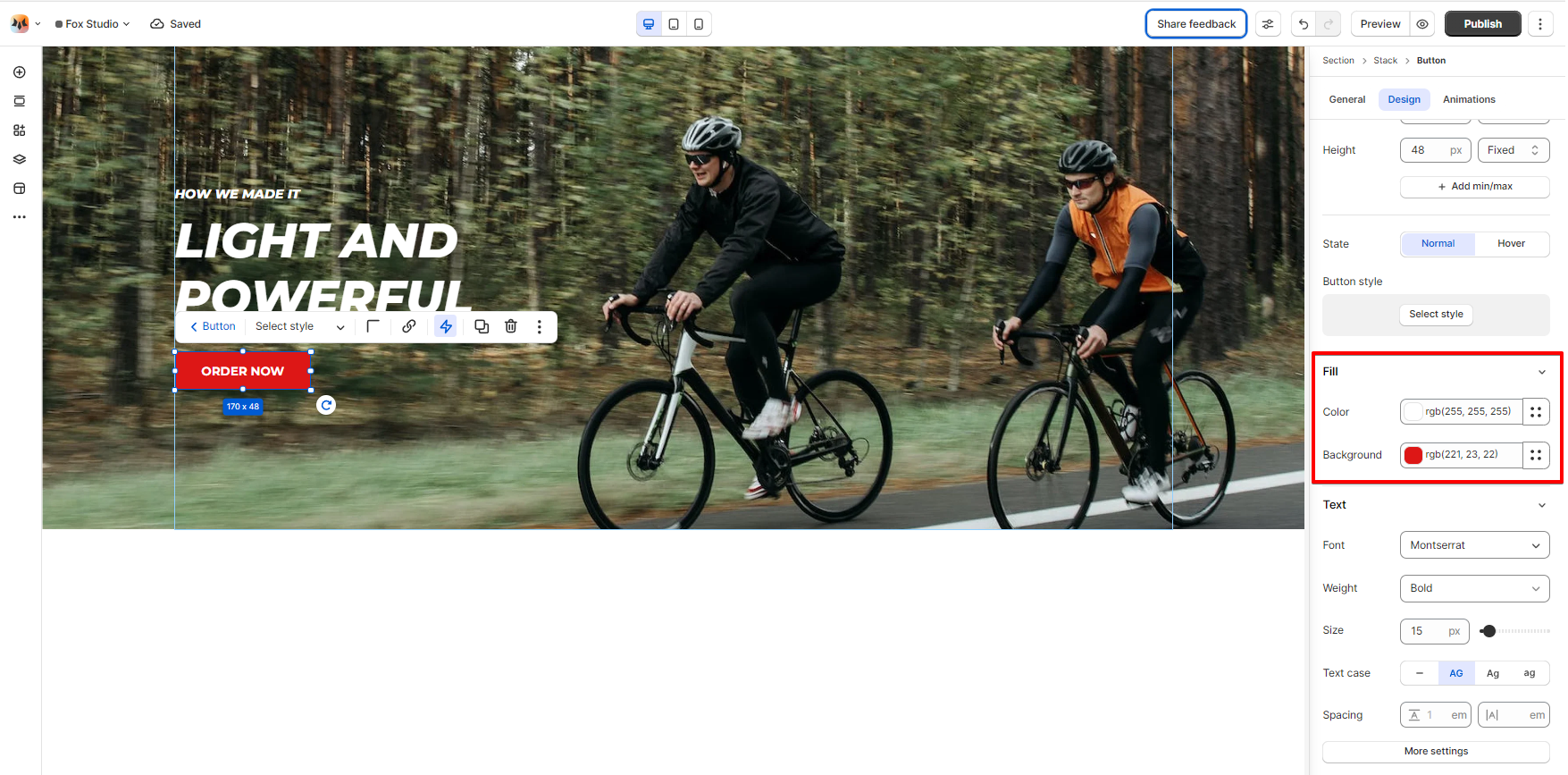
### Color Fill
Set the text color and background color of the buttons.
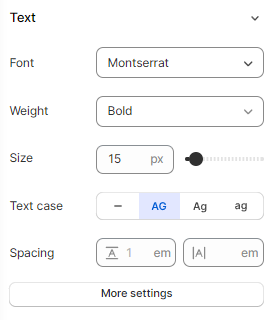
### Text Font, Spacing, and Styles
* **Font**: Choose from hundreds of fonts. You can also [upload your own fonts to Foxify](https://docs.foxecom.com/foxify-app/faqs-and-troubleshooting/faqs/add-custom-font).
* **Weight** and **Size**: Define the font weight and font size of the text.
* **Text case**: Click the icons to set the text's capitalization: **As typed** — , **Upper case** **AG**, **Title case** **Ag**, or **Lower case** **ag**.
* **Spacing:** Change the spacing between the lines and characters in the text box.
* **Text style**: Normal/*Italic*.