# Templates
Templates give you a fully designed page to start from — pick one, swap in your own content, and publish. This guide covers browsing, previewing, and changing templates in Foxify.
## When to use a template
Best fits for:
* You want a professional design fast, without building each section from scratch
* You need a starting point for inspiration, then plan to customize colors, text, and layout
* You're comparing a few directions before committing to one
### How is this different from the other ways to start a page?
## How to use Foxify templates
1. Start creating a page. See [Create a page](https://docs.foxecom.com/foxify-app/pages/page-creation).
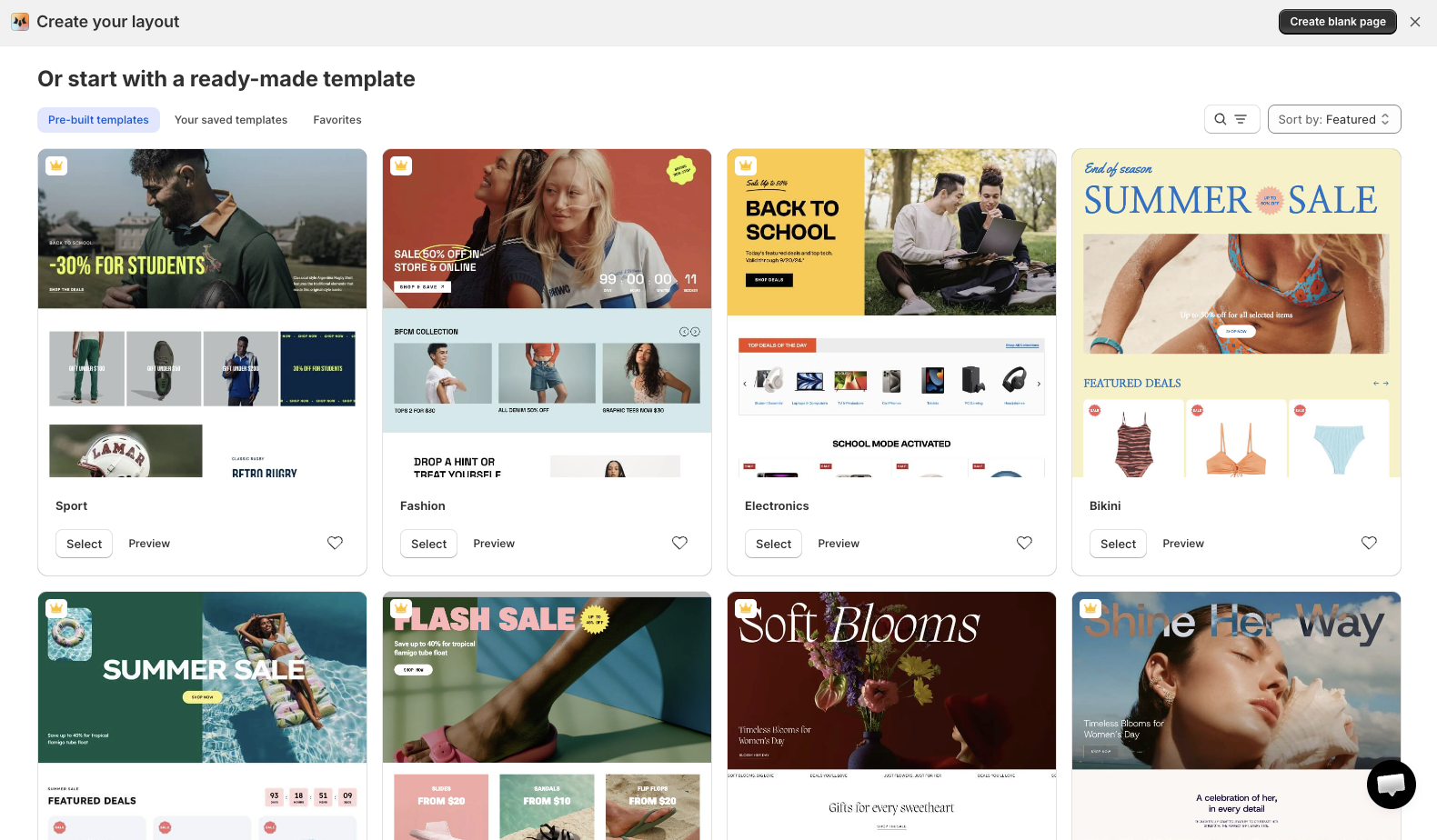
2. On the Create your layout screen, scroll to **Or start with a ready-made template**.
3. Filter by **Pre-built templates**, **Your saved templates**, or **Favorites**, and use search or **Sort by** to narrow it down.
4. Click a template to preview it, then select it to apply.
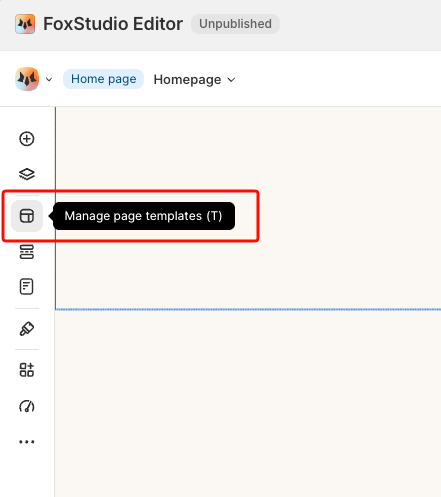
1. In the editor, open the left sidebar and select **Manage page templates**, or press **T**.
2. Select a different template to switch to.
Switching templates overrides your current design — any customization you've made is lost. Consider duplicating your page first if you want to keep the original.
## FAQs
#### Can I preview a template before applying it?
Yes — click a template in the gallery to see it before selecting it.
#### What's the difference between Pre-built templates, Your saved templates, and Favorites?
Pre-built templates are Foxify's ready-made designs. Favorites are pre-built templates you've starred for quick access. Your saved templates are your own designs, saved for reuse — see [Save a page as a template](https://docs.foxecom.com/foxify-app/pages/templates/save-a-page-as-a-template).
#### Do templates differ by page type?
Yes — the templates shown match the page type you're creating. Home page templates are different from Product page templates, for example.
#### Can I request a new template?
Yes — share your idea via in-app live chat or email.
## Related articles
Create a page
Save a page as a template
Generate a page layout with AI