# Breadcrumbs

Breadcrumb is a type of secondary navigation scheme that reveals the customers’ location on the website.
**Breadcrumbs can improve how a user and Google navigate a website**, especially if your website has many products or pages.
Furthermore, breadcrumbs have been proven to **decrease bounce rates**, keeping users on a website longer.
Lastly, the best benefit of breadcrumbs is SEO-boosting. Google bots use breadcrumbs to categorize and contextualize content in search results more efficiently.
## How to add Breadcrumbs to your page
**Steps:**
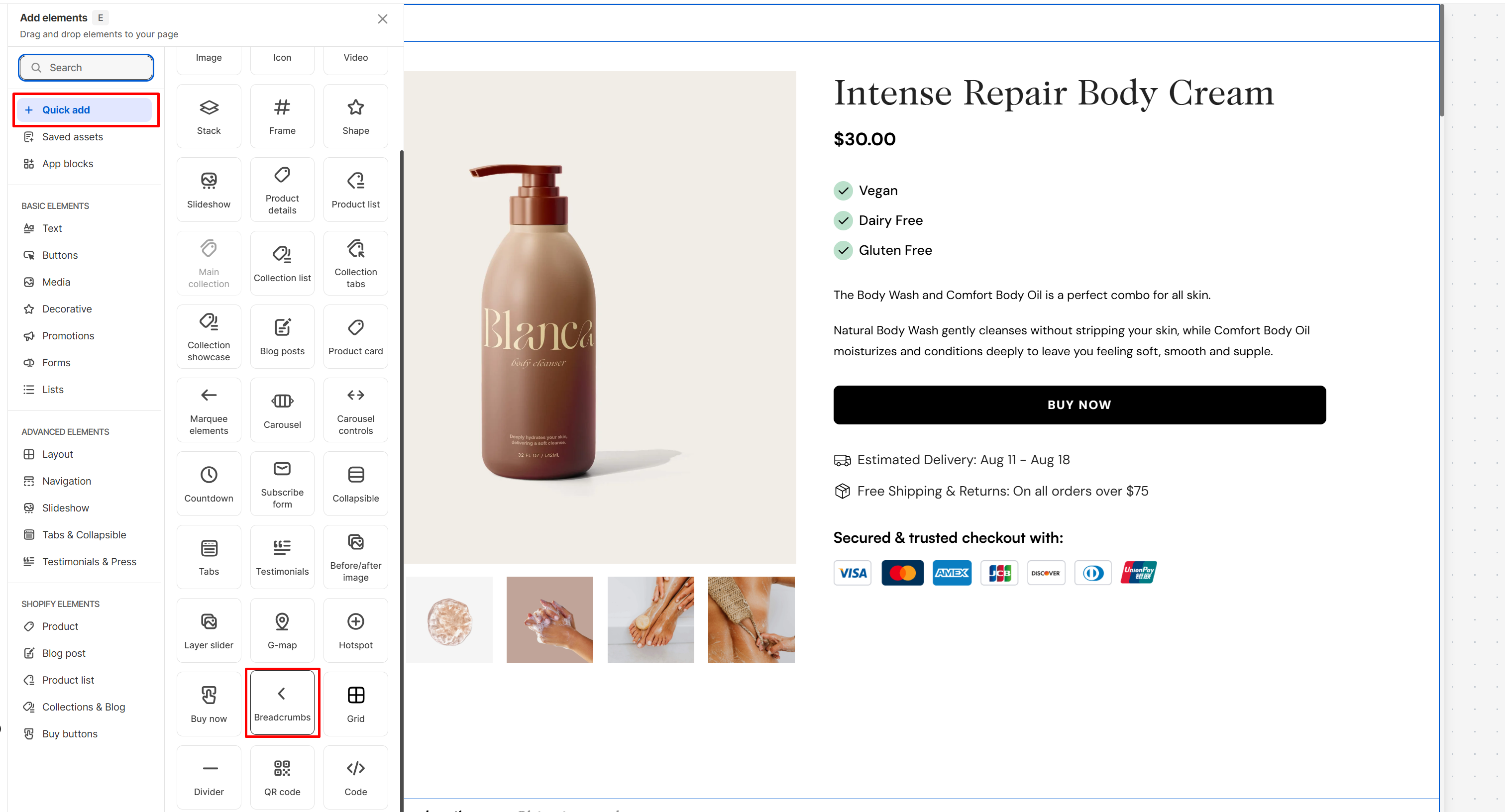
1. In the FoxStudio editor, on the left Sidebar > Click **Add elements**, or press **E**.
2. Select **Quick add**, select **Breadcrumbs** element.
3. Drag the image slide onto your canvas.
**Breadcrumbs navigation logic for product pages:**
* Single category: If the product belongs to only one collection, the breadcrumbs follow this structure:
* `Home` > `Collection` > `Current Item`
* Multiple categories: If the content belongs to multiple collections, the breadcrumbs take the collection that comes first in alphabetical order:
* `Home` > `Alphabetical Collection` > `Current Item`
**The Breadcrumbs** element is available for the following pages:
* Product page
* Collection page
* Page/Blog/Article
## How to edit Breadcrumbs
**Steps:**
1. **Select** the relevant layer slide element in the editor.
2. All the formatting tools for the element can be found in the right-hand side **Inspector** panel.
### General settings
* **Show on desktop:** Toggle this option to display the breadcrumbs on desktop screens.
* **Show on tablet:** Toggle this option to display the breadcrumbs on tablet devices.
* **Show on mobile:** Toggle this option to display the breadcrumbs on mobile devices.
### Design settings
**Size & Constraints Settings:** Use these controls to define the element’s dimensions and positioning behavior across devices.
Constraints
**Text Font, Spacing, and Styles**
* **Font**: Choose from hundreds of fonts. You can also [upload your own fonts to Foxify](https://docs.foxecom.com/foxify-app/faqs-and-troubleshooting/faqs/add-custom-font).
* **Weight** and **Size**: Define the font weight and font size of the text.
* **Text case**: Click the icons to set the text's capitalization: **As typed** — , **Upper case** **AG**, **Title case** **Ag**, or **Lower case** **ag**.
* **Spacing:** Change the spacing between the lines and characters in the text box.
* **Text style**: Normal/*Italic*.
### Animations
Animations