# Tabs
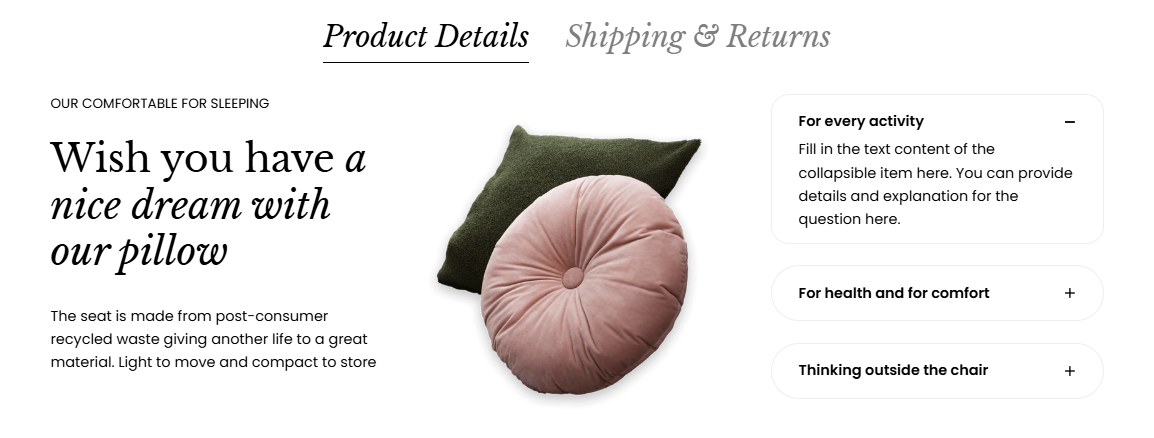
Tabs are a great way to organize content into separate sections on your page, giving users easy access to information without overwhelming them.
## How to add Tabs
**Steps:**
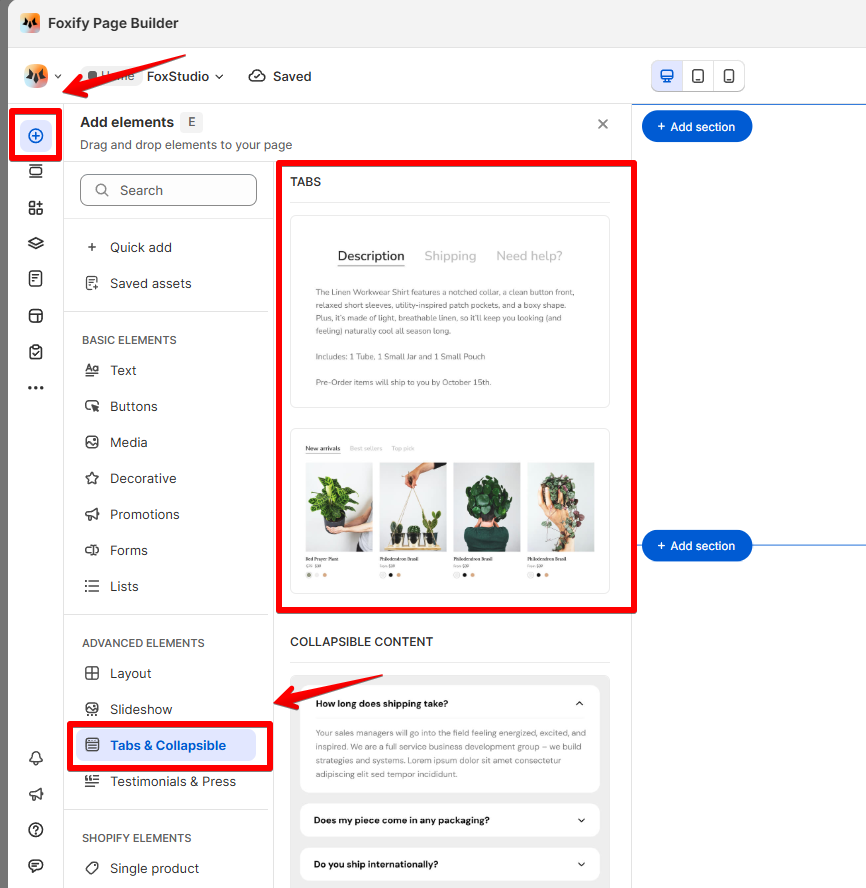
1. In the FoxStudio editor, on the left Sidebar > Click **Add elements**, or press **E**.
2. In **Advanced elements**, select **Tabs & Collapsible.**
3. Drag the tabs onto your canvas.
## How to edit Tabs
**Steps:**
1. **Select** the relevant tabs element in the editor.
2. All the formatting tools for the element can be found in the right-hand sided **Inspector** panel.
### Manage tabs
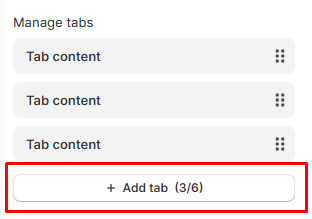
* **Add new tabs**
Click **Add tab** to add a new tab. You can add up to 6 tabs within the Tabs element.
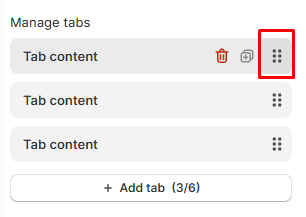
* **Reorder tabs:**
Rearrange your tabs to change the order in which your content is displayed to your visitors by dragging the six-dot icon.
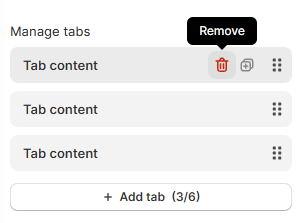
* **Remove tabs**:
If you no longer need a tab, you can delete it to keep your Tabs up to date.
Hover over the tab you want to remove, click the **Remove** _reX9mp7g.svg) icon.
### Customize your tabs
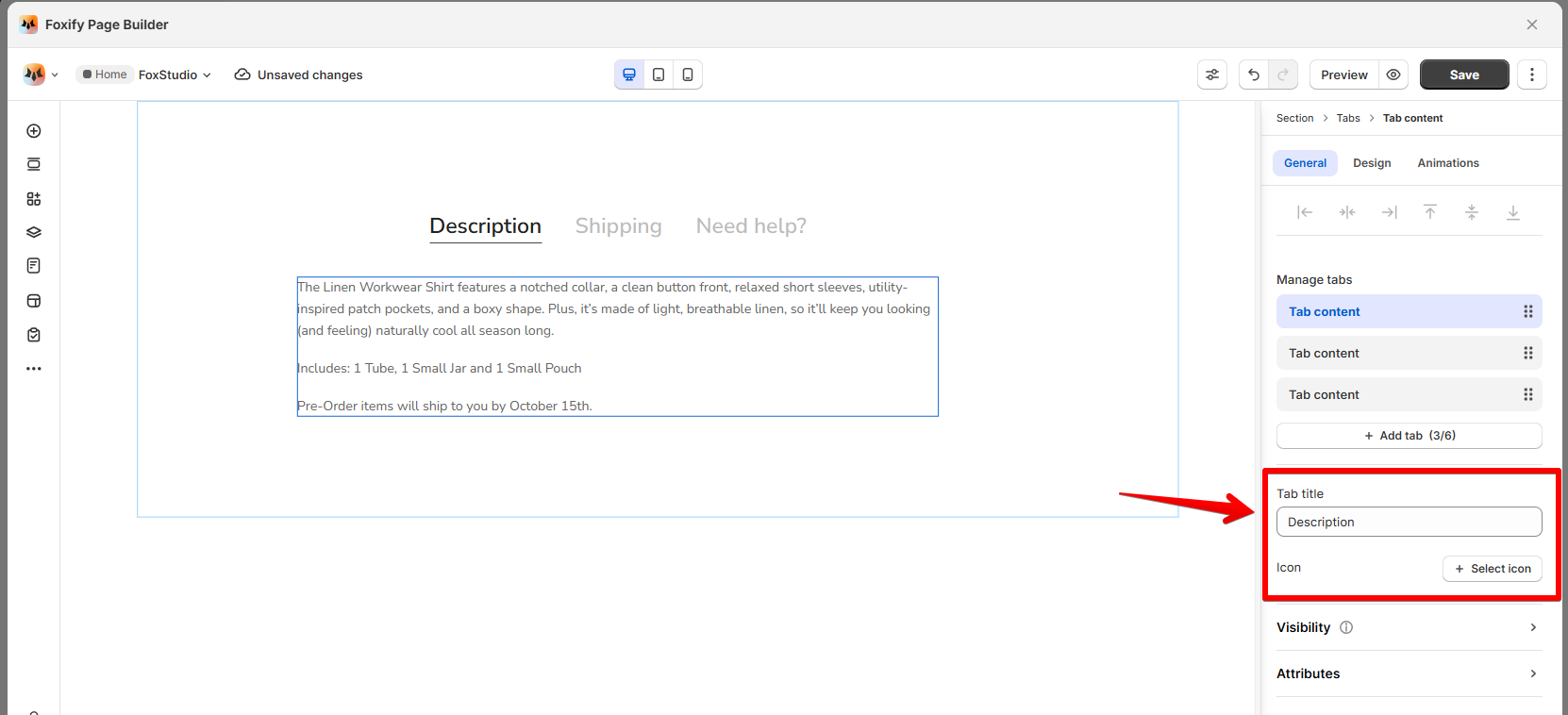
Click on the tab you wish to edit.
#### General setting
Edit the title of the tab to fit your content. Choose an icon from the icon library or upload a custom icon to represent the tab visually.
#### Design settings
Customize the tabs element so it matches the style of your brand.
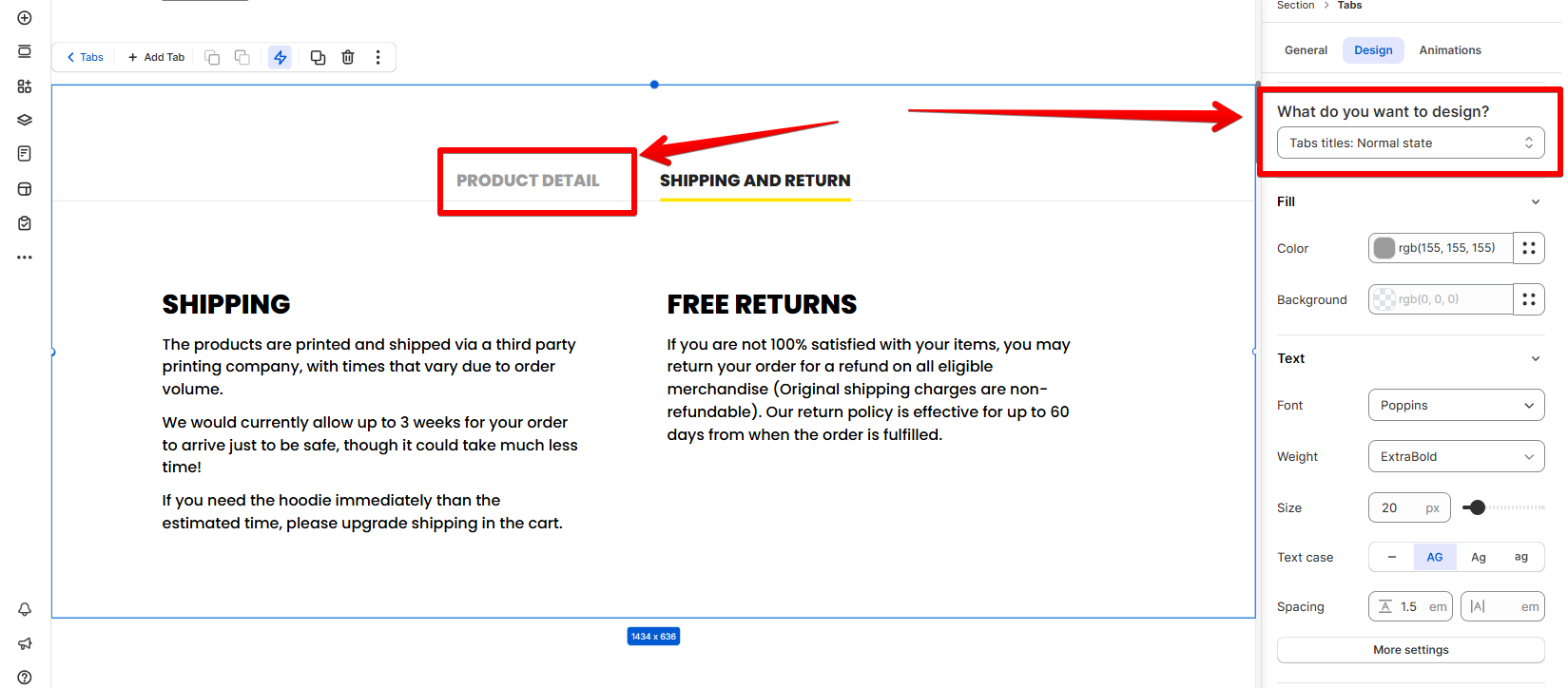
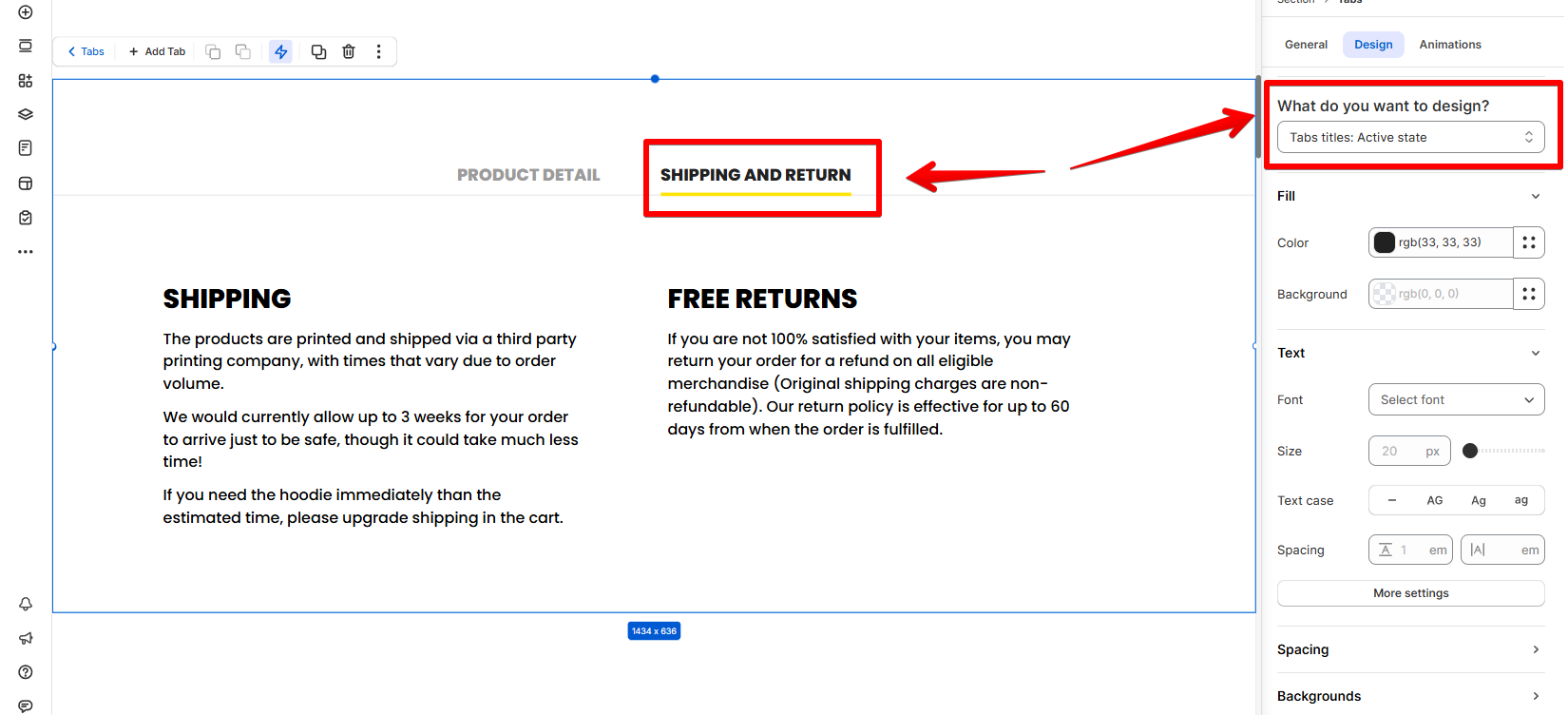
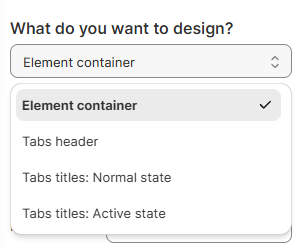
Select the part you want to design in the drop-down:
* **Element container**: Customize the wrapper that holds the entire Tabs element.
* **Tabs header**: Customize the container that holds the tab titles, adjusting elements like alignment, borders, and spacing.
* **Tabs titles - Normal state**: Style the tab titles when they are **not selected**.
* **Tabs titles - Active state**: Style the tab titles when they are **selected**.
### Add content over a tab
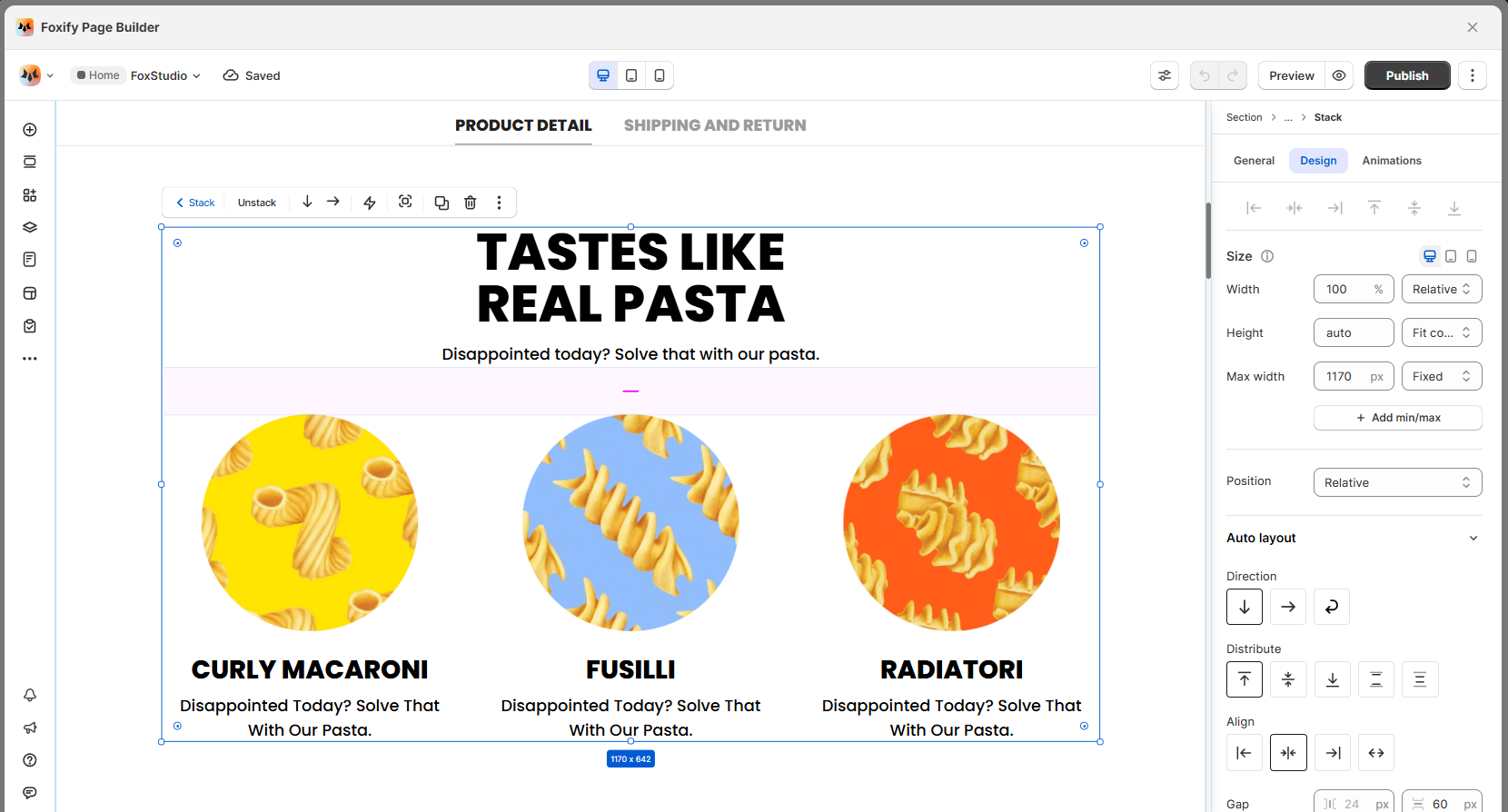
Add whatever elements you want to your tab including text, images, videos, and buttons. Using different content on each tab keeps visitors engaged and encourages them to explore your site further.
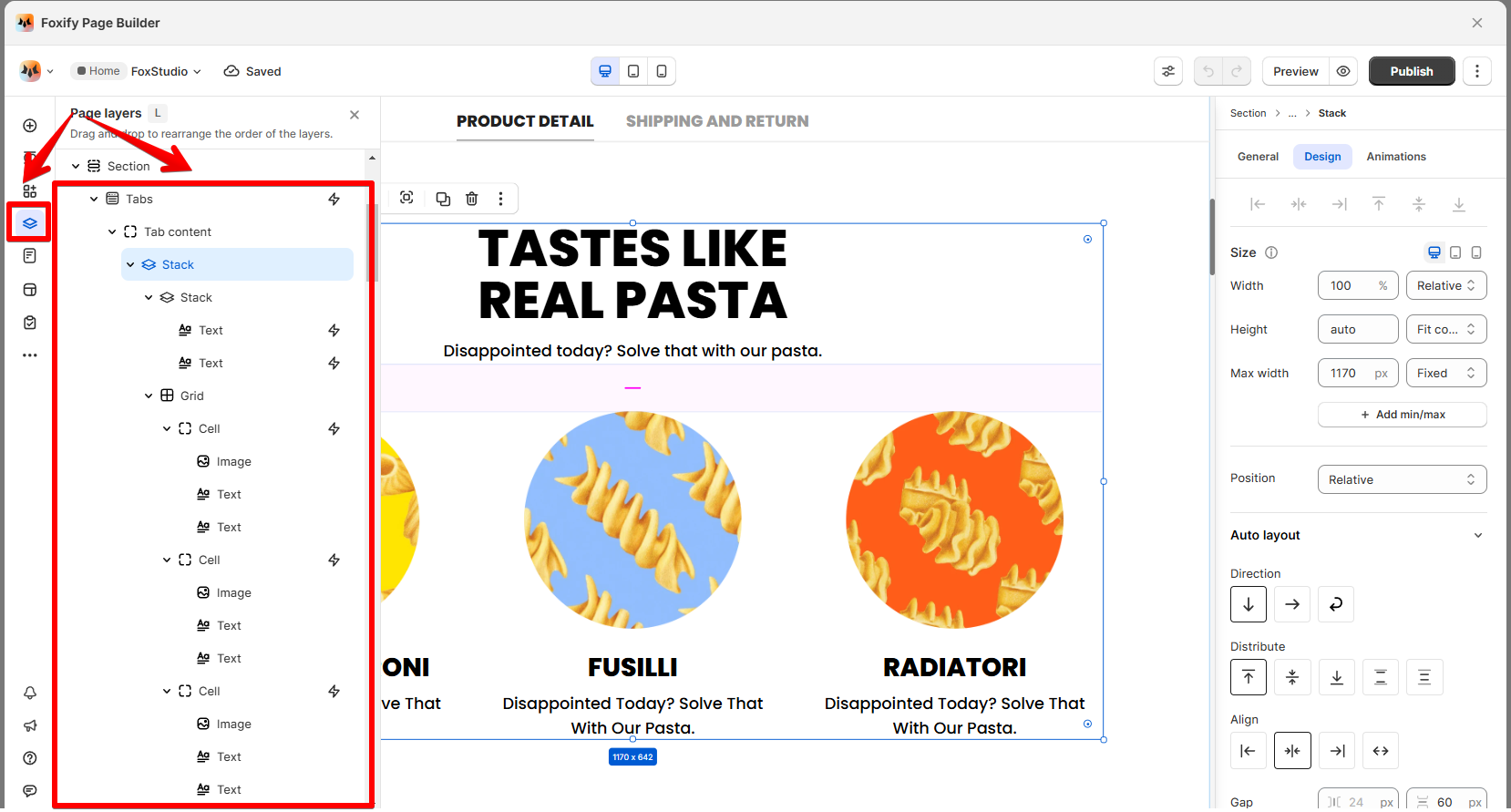
Use the **Layers panel** to easily navigate and manage the hierarchy of elements on your page.
Page layers
icon.

### Customize your tabs
Click on the tab you wish to edit.
#### General setting
Edit the title of the tab to fit your content. Choose an icon from the icon library or upload a custom icon to represent the tab visually.

#### Design settings
Customize the tabs element so it matches the style of your brand.
Select the part you want to design in the drop-down:
* **Element container**: Customize the wrapper that holds the entire Tabs element.
* **Tabs header**: Customize the container that holds the tab titles, adjusting elements like alignment, borders, and spacing.
* **Tabs titles - Normal state**: Style the tab titles when they are **not selected**.

* **Tabs titles - Active state**: Style the tab titles when they are **selected**.


### Add content over a tab
Add whatever elements you want to your tab including text, images, videos, and buttons. Using different content on each tab keeps visitors engaged and encourages them to explore your site further.

Use the **Layers panel** to easily navigate and manage the hierarchy of elements on your page.
Page layers
