# Testimonials
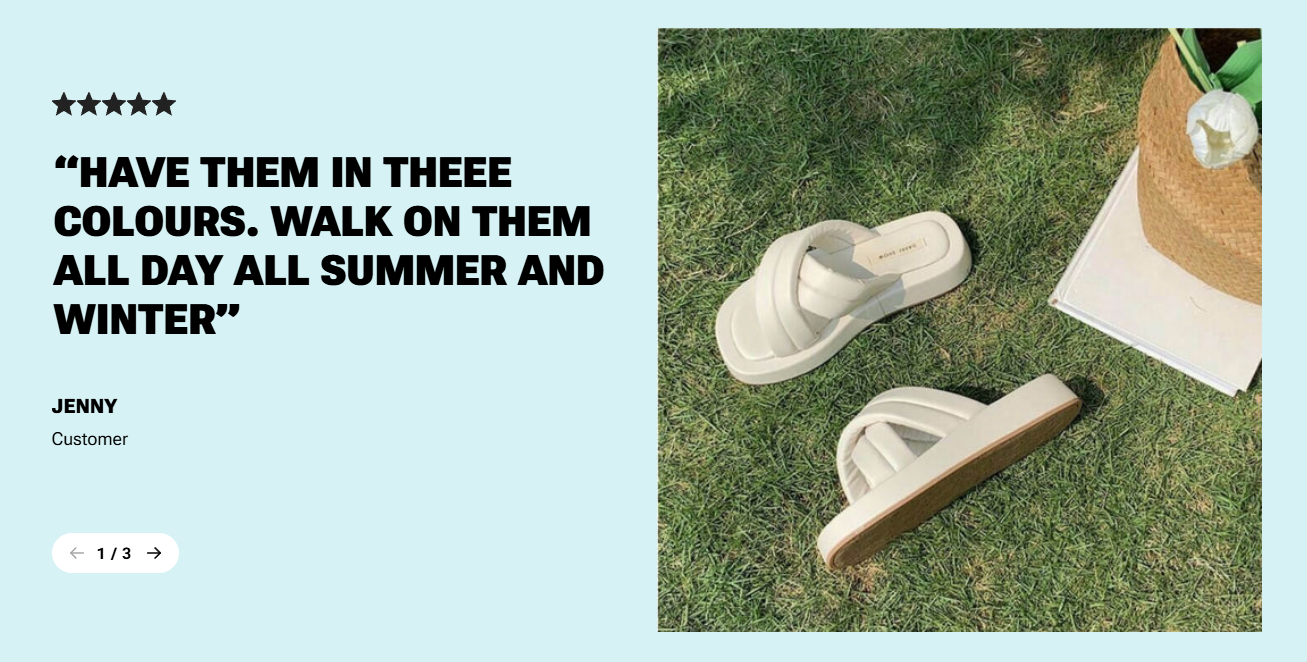
Adding testimonials to your website is a fantastic way to showcase your customers' experiences and build trust with new visitors.
**Testimonials** are positive statements or reviews given by customers or clients who have used a product, service, or brand. They serve as endorsements, reflecting the experiences and satisfaction of real users, and are typically used to build credibility and trust. 🌟
## How to add Testimonials
**Steps:**
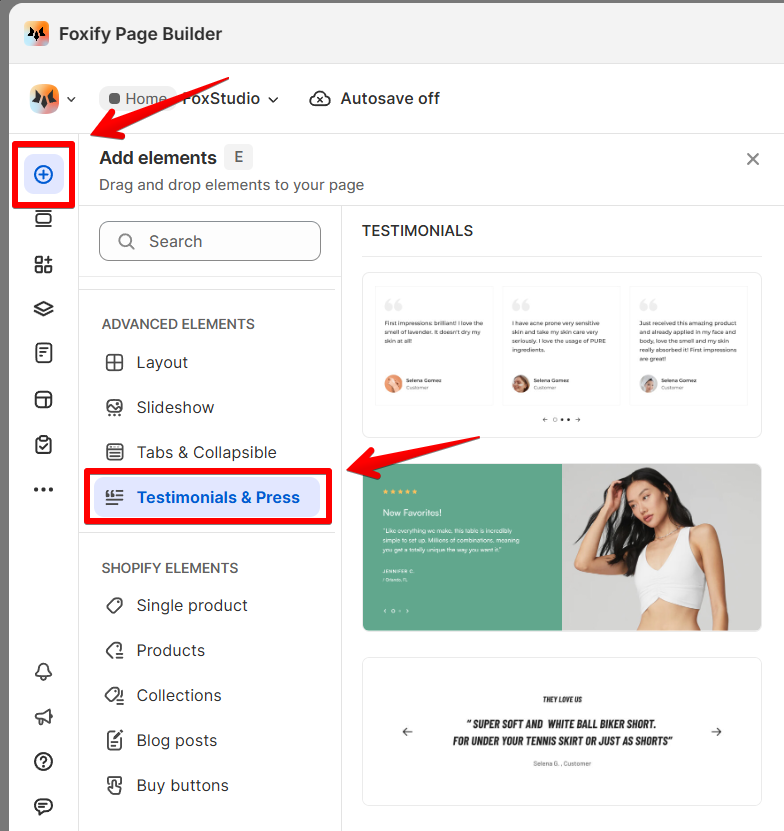
1. In the FoxStudio editor, on the left Sidebar > Click **Add elements**, or press **E**.
2. In **Advanced elements**, select **Testimonials & Press.**
3. Drag the Testimonials element onto your canvas.
## How to edit Testimonials
**Steps:**
1. **Select** the relevant testimonials content element in the editor.
2. All the formatting tools for the element can be found in the **Inspector** panel.
### Manage testimonial items
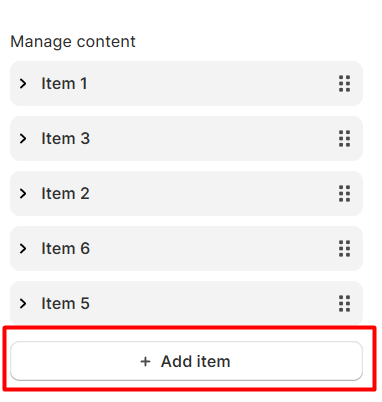
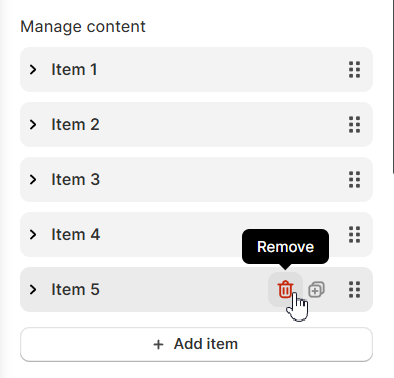
Click **Add item** to add a new testimonial item.
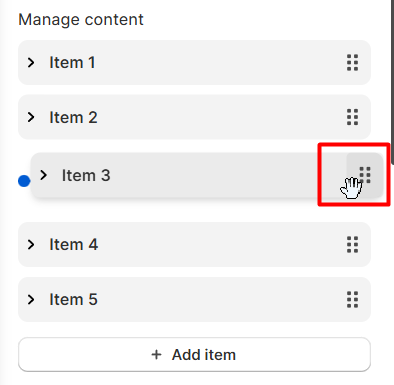
Rearrange your tabs to change the order in which your content is displayed to your visitors by dragging the six-dot icon.
If you no longer need a collapsible item, you can delete it to keep your element up to date.
Hover over the item you want to remove, click the **Remove** _reX9mp7g.svg) icon.
### Manage testimonials layout
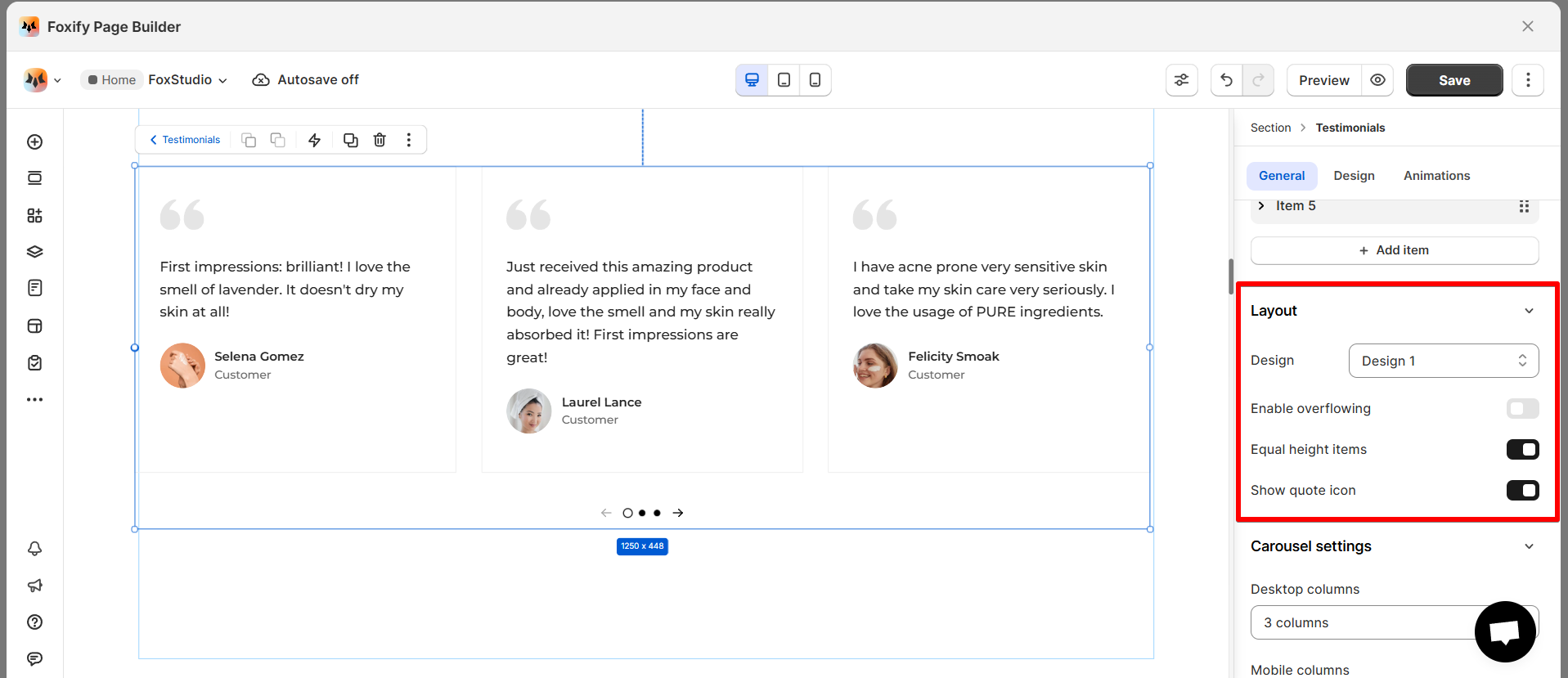
* **Design**: Select the design you want to change the overall look of your testimonials. There are 6 stylish and modern testimonial designs to choose from.
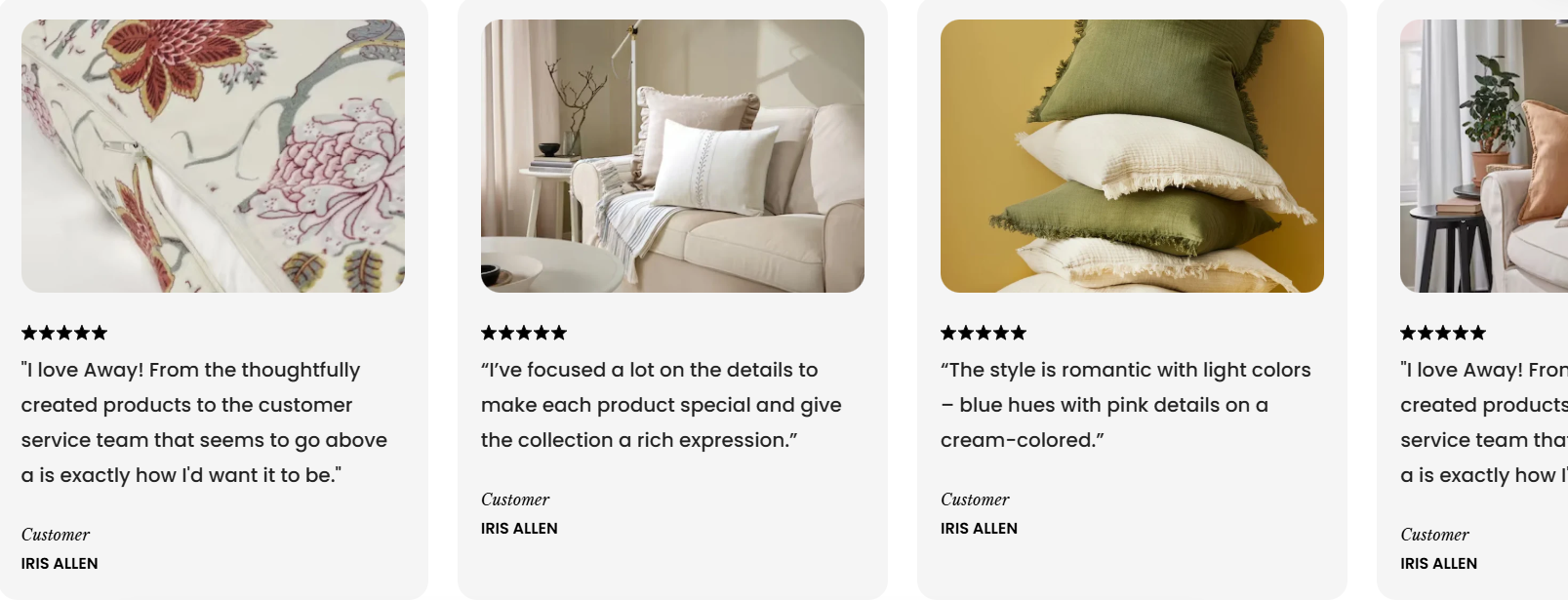
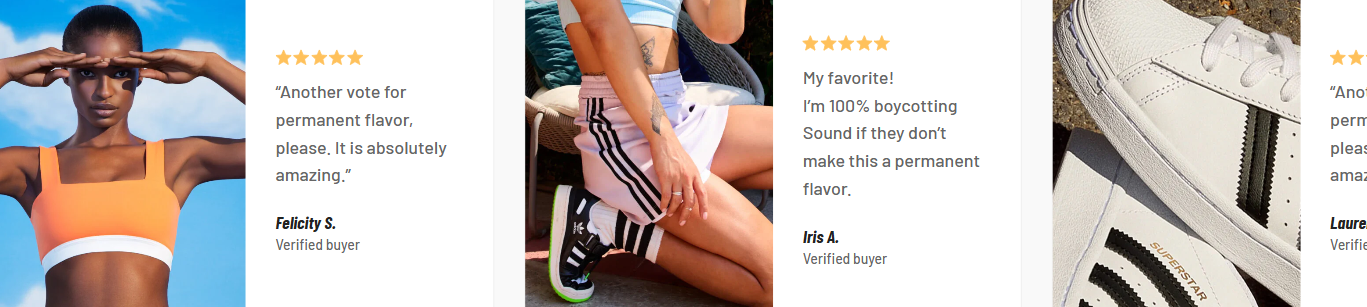
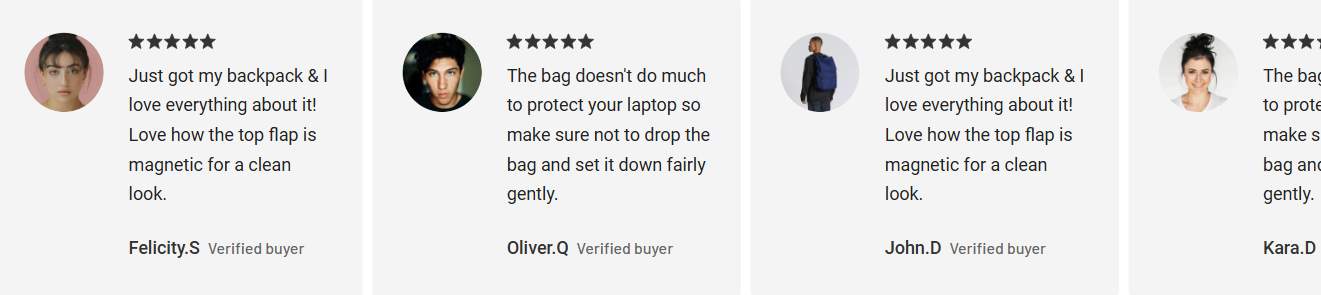
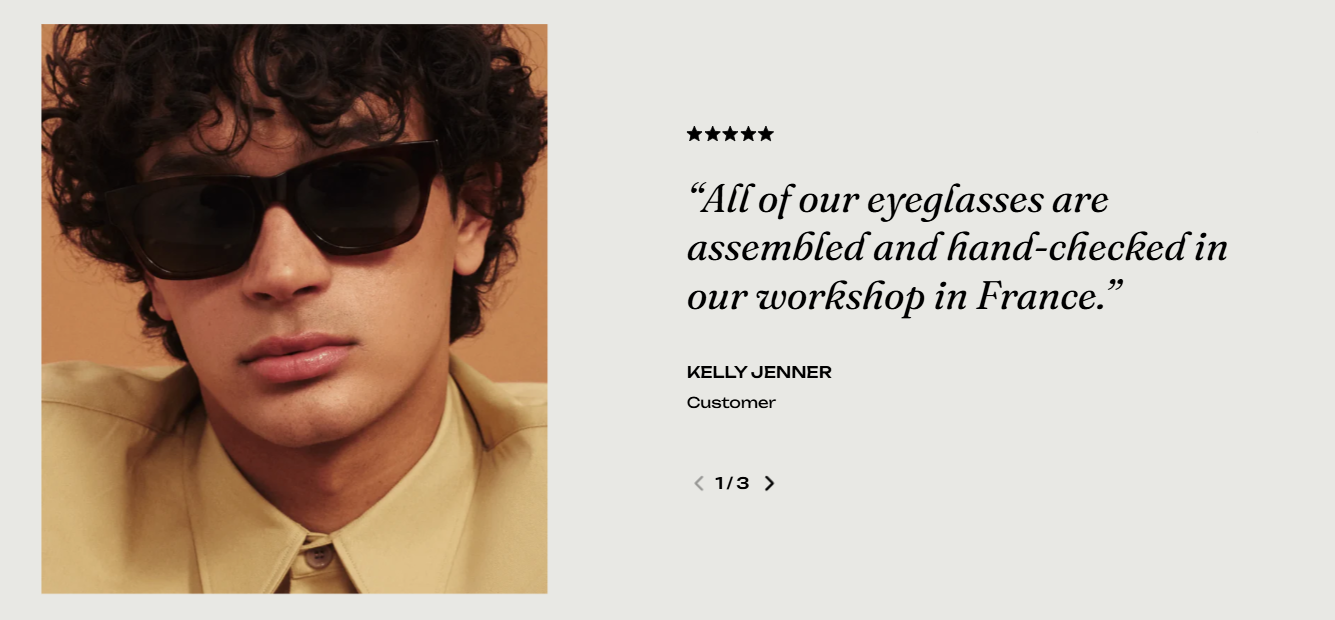
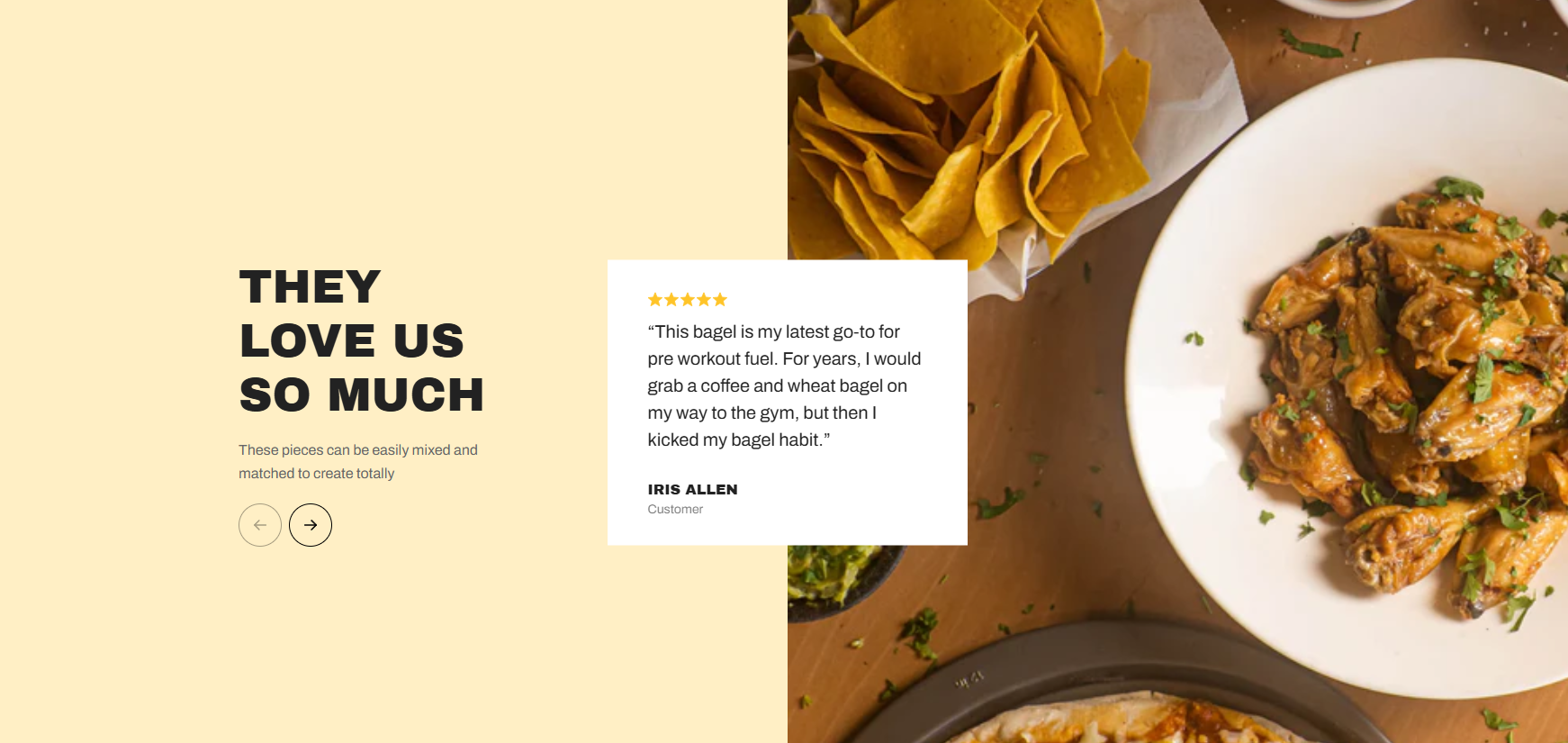
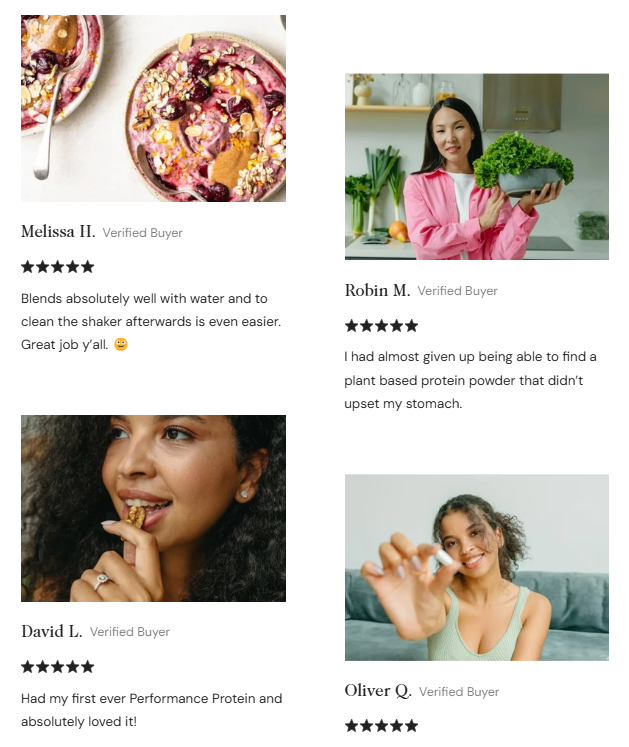
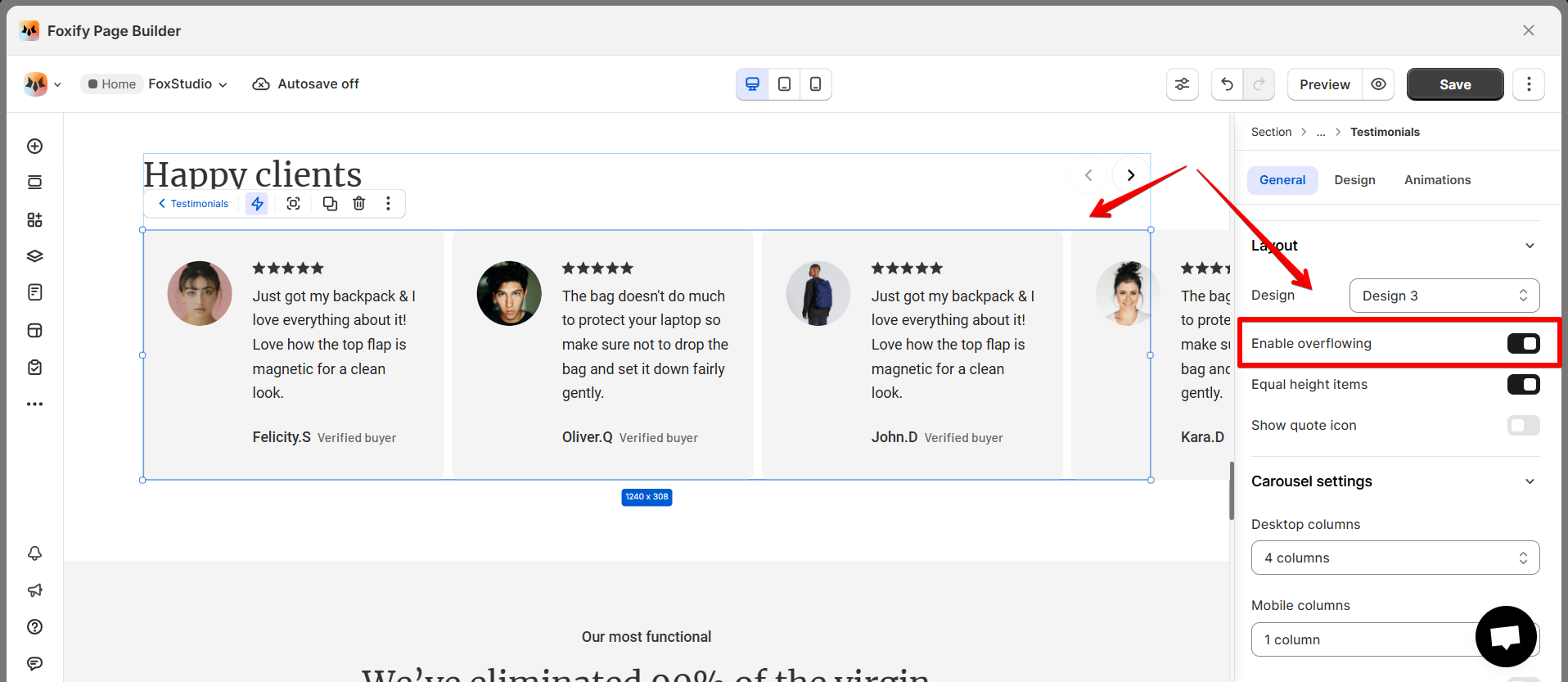
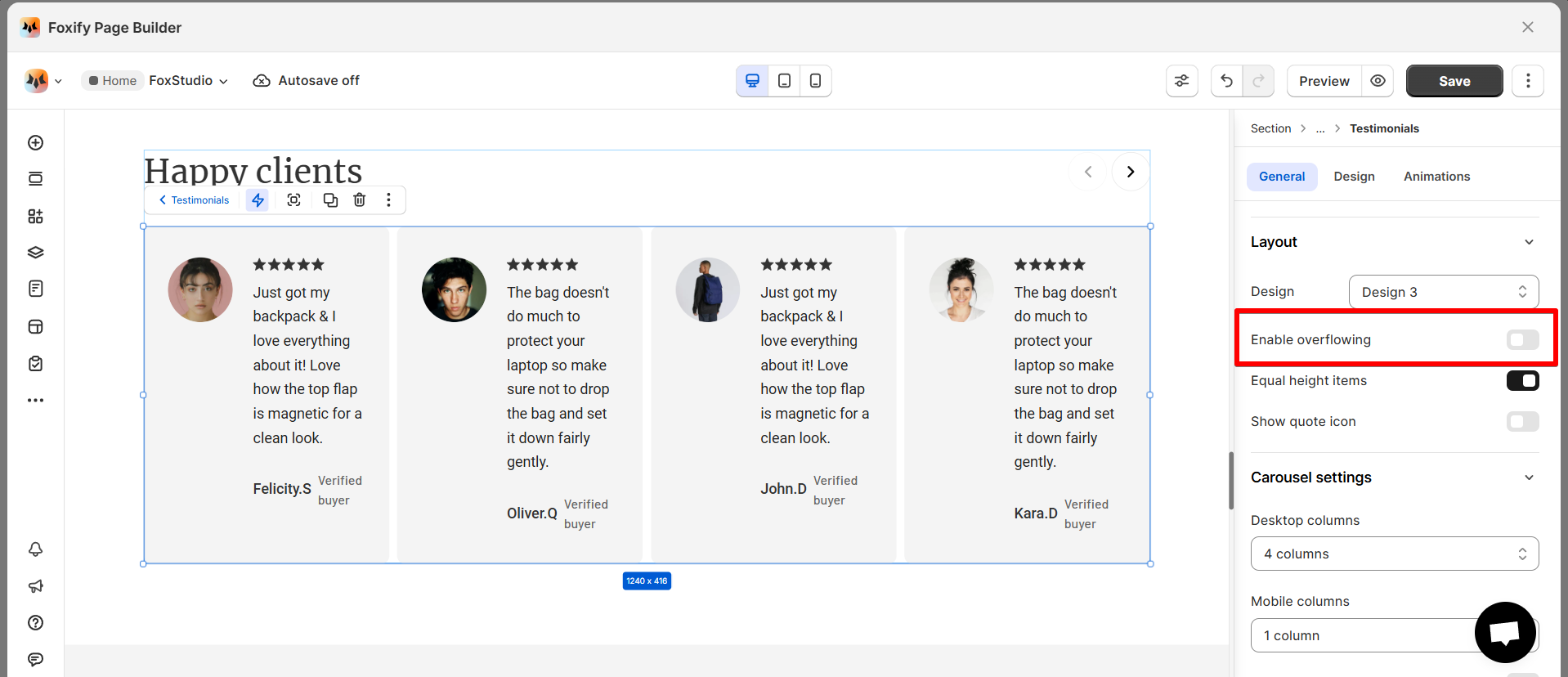
* **Enable overflowing**: Allow the testimonials to overflow horizontally (side-scroll) when there are more testimonials than can fit in the given space.
Enable overflowing works great for displaying multiple testimonials in a carousel style where users can scroll horizontally to see more feedback. 🔄
* **Equal height items:** When activated, this option ensures that all testimonial items (including images and text blocks) have the same height, even if the content inside varies in length.
This option prevents uneven spacing, giving your page a more professional look. 🧑💻
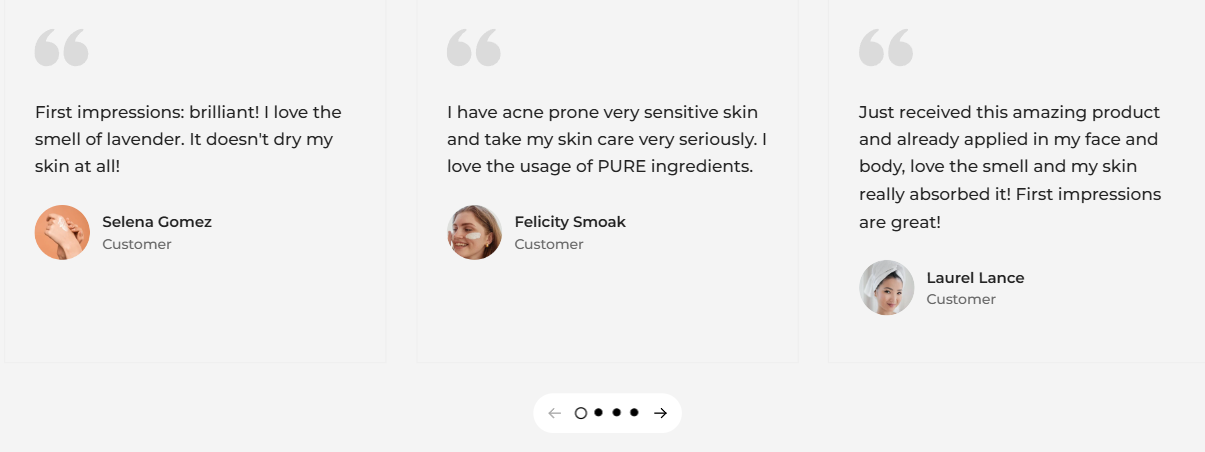
* **Show quote icon**: Add a **quote icon** next to the testimonial text.
Use this feature to make testimonials stand out and visually separate them from other text on the page. 🗨️
### Manage carousel
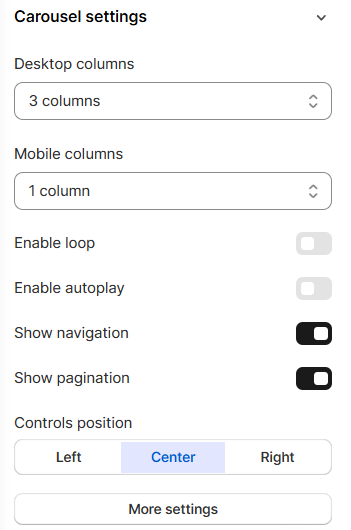
You can display testimonials in a carousel format, where the testimonials automatically rotate or can be navigated manually.
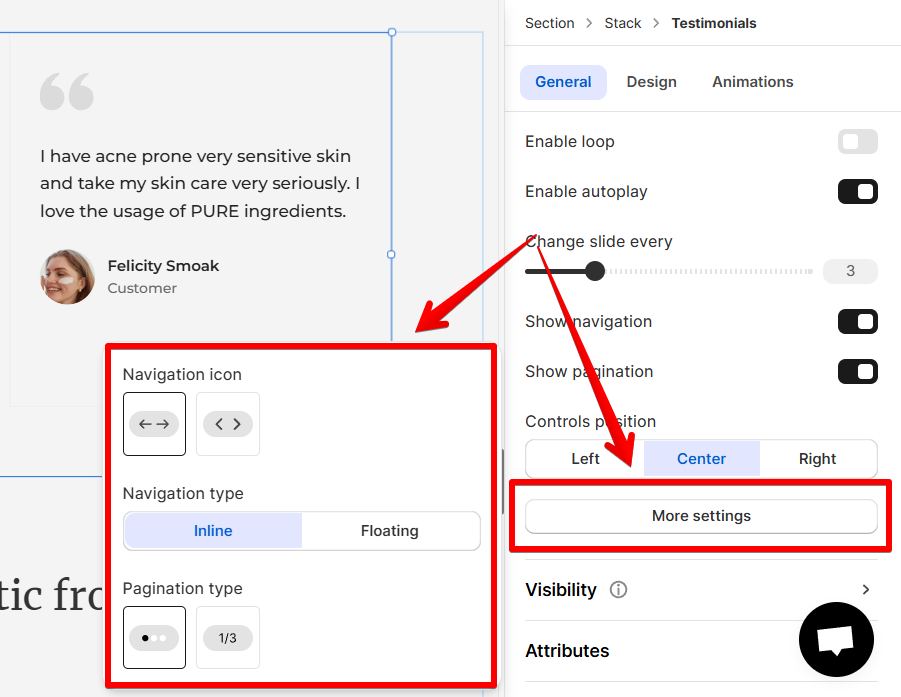
* **Columns**: Control how many testimonial items are displayed per row on desktop (1-5 columns) and mobile (1-2 columns) separately.
* **Enable loop**: Allow the carousel to continuously loop through testimonials.
* **Enable autoplay**: Control whether the carousel will automatically transition from one testimonial to the next after a certain period of time (every 1-10s).
* **Show navigation**: Control whether or not navigation arrows (previous/next buttons) appear on the carousel. These arrows allow users to manually switch between testimonials.
* **Show pagination**: Enable or disable the page dots (or bullets) that show up at the bottom of the carousel. These dots represent the number of slides, and users can click on them to jump directly to a specific testimonial.
* **Control position**: Determine where the navigation controls will appear in relation to the carousel (Left/Center/Right).
Click **More settings** to change the navigation icon, navigation type and pagination type.
### Add content over a testimonial item
Add and format the core content of your testimonials.
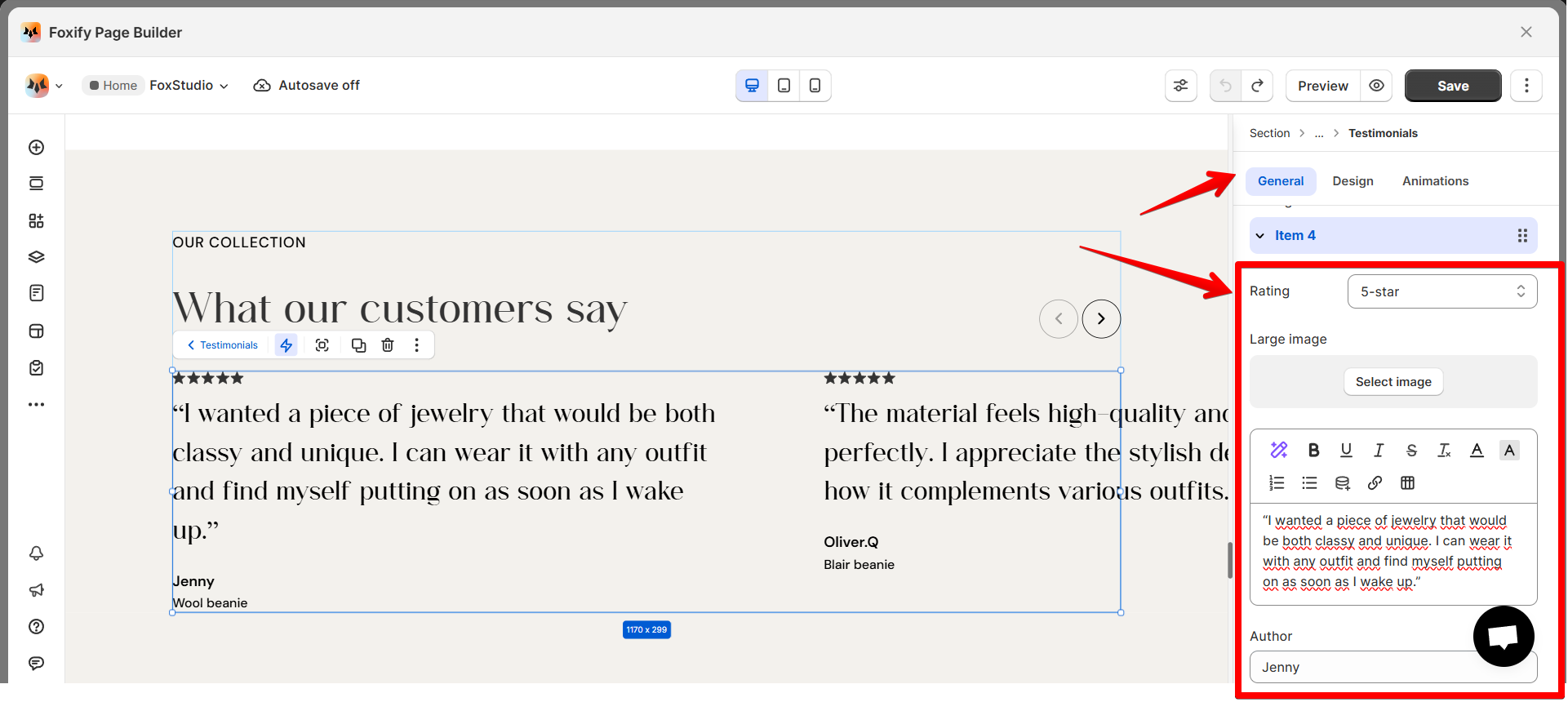
Select the item and add the content for it.
* **Rating**: Use the star rating slider to reflect customer feedback accurately.
* **Large image**: Upload or select an image to make your testimonial visually impactful. This could be a product image or any relevant visual.
* **Content**: Insert the testimonial content shared by the customer. This can be a short statement or a detailed review.
* **Author:** Enter the name of the person giving the testimonial. If you prefer, use initials or a pseudonym.
* **Bio:** Add a short description or title for the author (e.g., "CEO of Company XYZ" or "Verified Buyer").
* **Avatar:** Upload a profile picture for the author to personalize the testimonial.
### Customize your collapsible content
Select the **Design** tab from the [Inspector panel](https://docs.foxecom.com/foxify-app/foxstudio/editor-tools/inspector-panel) to customize the Testimonials element.
You can design and style different parts of the testimonial item.
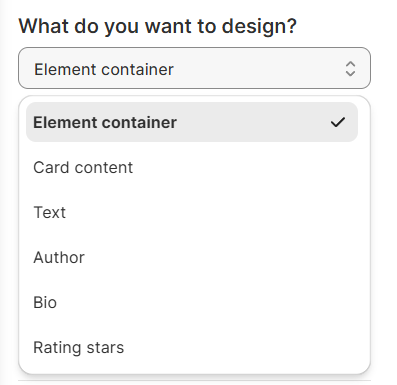
Use the dropdown menu to choose the specific part you want to design:
* **Element container:** Control the spacing and background color of the entire testimonial container.
* **Card content:** Adjust font styles of the main testimonial content.
* **Text:** Adjust the overall font style, size, and color.
* **Author:** Adjust font style for the author’s name.
* **Bio:** Adjust font style of the author’s bio
* **Rating stars**: Change the color of the stars.
⭐ **Pro tip:** Use consistent fonts and colors across all testimonials to ensure a cohesive look that aligns with your brand identity.
icon.

### Manage testimonials layout

* **Design**: Select the design you want to change the overall look of your testimonials. There are 6 stylish and modern testimonial designs to choose from.






* **Enable overflowing**: Allow the testimonials to overflow horizontally (side-scroll) when there are more testimonials than can fit in the given space.
Enable overflowing works great for displaying multiple testimonials in a carousel style where users can scroll horizontally to see more feedback. 🔄


* **Equal height items:** When activated, this option ensures that all testimonial items (including images and text blocks) have the same height, even if the content inside varies in length.
This option prevents uneven spacing, giving your page a more professional look. 🧑💻
* **Show quote icon**: Add a **quote icon** next to the testimonial text.
Use this feature to make testimonials stand out and visually separate them from other text on the page. 🗨️

### Manage carousel

You can display testimonials in a carousel format, where the testimonials automatically rotate or can be navigated manually.
* **Columns**: Control how many testimonial items are displayed per row on desktop (1-5 columns) and mobile (1-2 columns) separately.
* **Enable loop**: Allow the carousel to continuously loop through testimonials.
* **Enable autoplay**: Control whether the carousel will automatically transition from one testimonial to the next after a certain period of time (every 1-10s).
* **Show navigation**: Control whether or not navigation arrows (previous/next buttons) appear on the carousel. These arrows allow users to manually switch between testimonials.
* **Show pagination**: Enable or disable the page dots (or bullets) that show up at the bottom of the carousel. These dots represent the number of slides, and users can click on them to jump directly to a specific testimonial.
* **Control position**: Determine where the navigation controls will appear in relation to the carousel (Left/Center/Right).
Click **More settings** to change the navigation icon, navigation type and pagination type.

### Add content over a testimonial item
Add and format the core content of your testimonials.

Select the item and add the content for it.
* **Rating**: Use the star rating slider to reflect customer feedback accurately.
* **Large image**: Upload or select an image to make your testimonial visually impactful. This could be a product image or any relevant visual.
* **Content**: Insert the testimonial content shared by the customer. This can be a short statement or a detailed review.
* **Author:** Enter the name of the person giving the testimonial. If you prefer, use initials or a pseudonym.
* **Bio:** Add a short description or title for the author (e.g., "CEO of Company XYZ" or "Verified Buyer").
* **Avatar:** Upload a profile picture for the author to personalize the testimonial.
### Customize your collapsible content
Select the **Design** tab from the [Inspector panel](https://docs.foxecom.com/foxify-app/foxstudio/editor-tools/inspector-panel) to customize the Testimonials element.
You can design and style different parts of the testimonial item.
Use the dropdown menu to choose the specific part you want to design:
* **Element container:** Control the spacing and background color of the entire testimonial container.
* **Card content:** Adjust font styles of the main testimonial content.
* **Text:** Adjust the overall font style, size, and color.
* **Author:** Adjust font style for the author’s name.
* **Bio:** Adjust font style of the author’s bio
* **Rating stars**: Change the color of the stars.

⭐ **Pro tip:** Use consistent fonts and colors across all testimonials to ensure a cohesive look that aligns with your brand identity.