Starting January 24, 2025 , the Legacy Editor (Basic editor) will no longer be available for creating pages for new users.FoxStudio instead.
The Legacy editor is still available for creating custom theme sections .
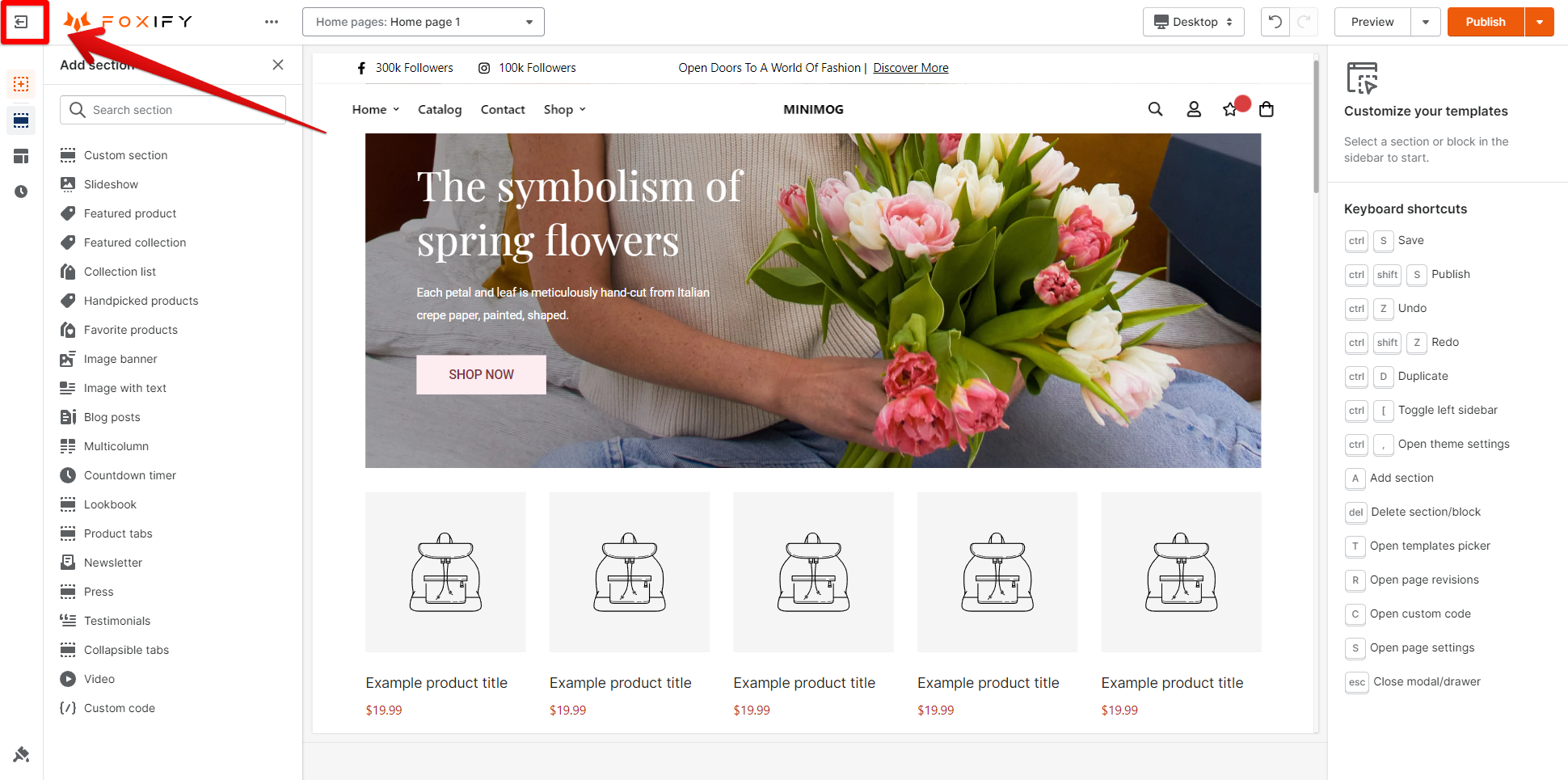
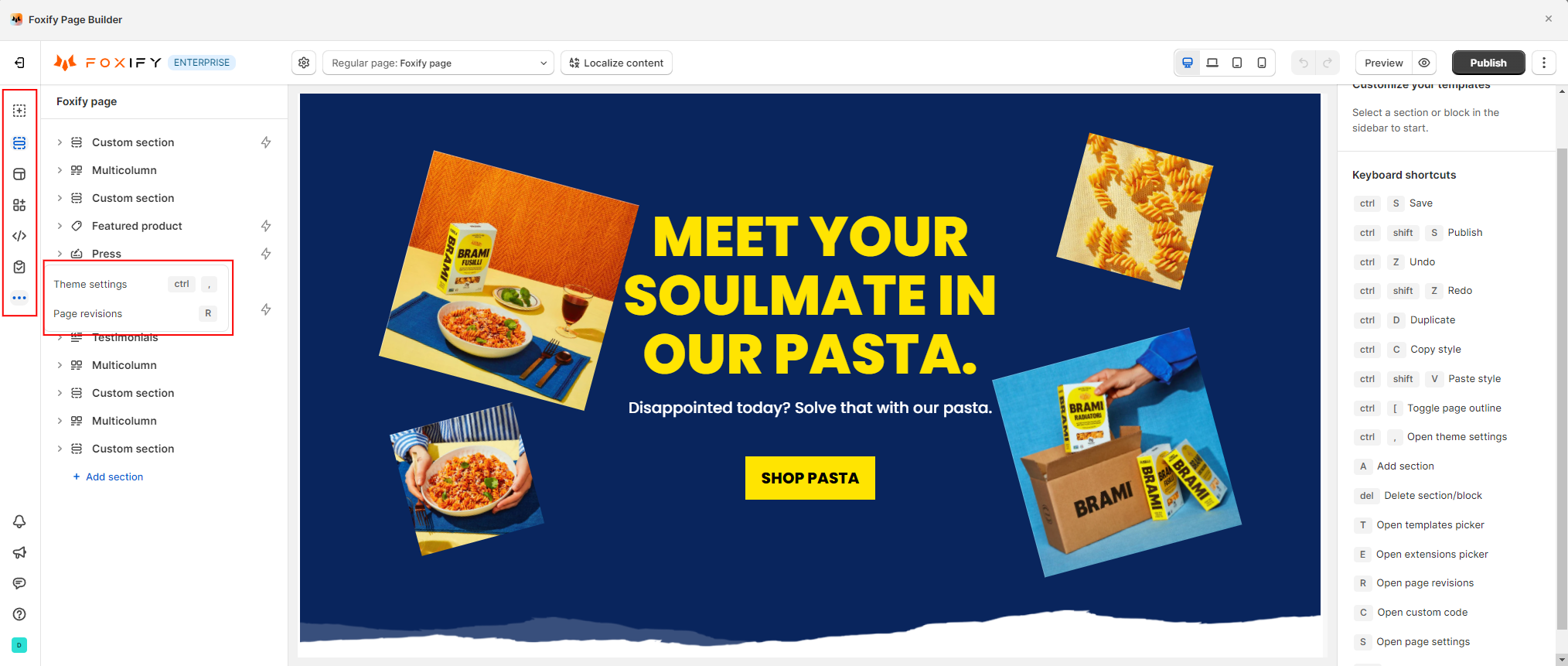
# The Top barClick the Exit button on the upper left corner to go back to your Foxify Manage pages section.
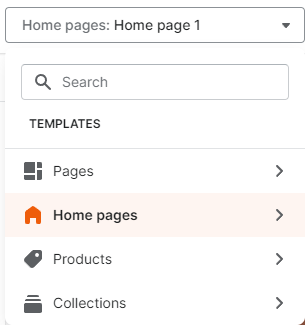
# More actions# Template selectorQuickly access other templates you created in Foxify.
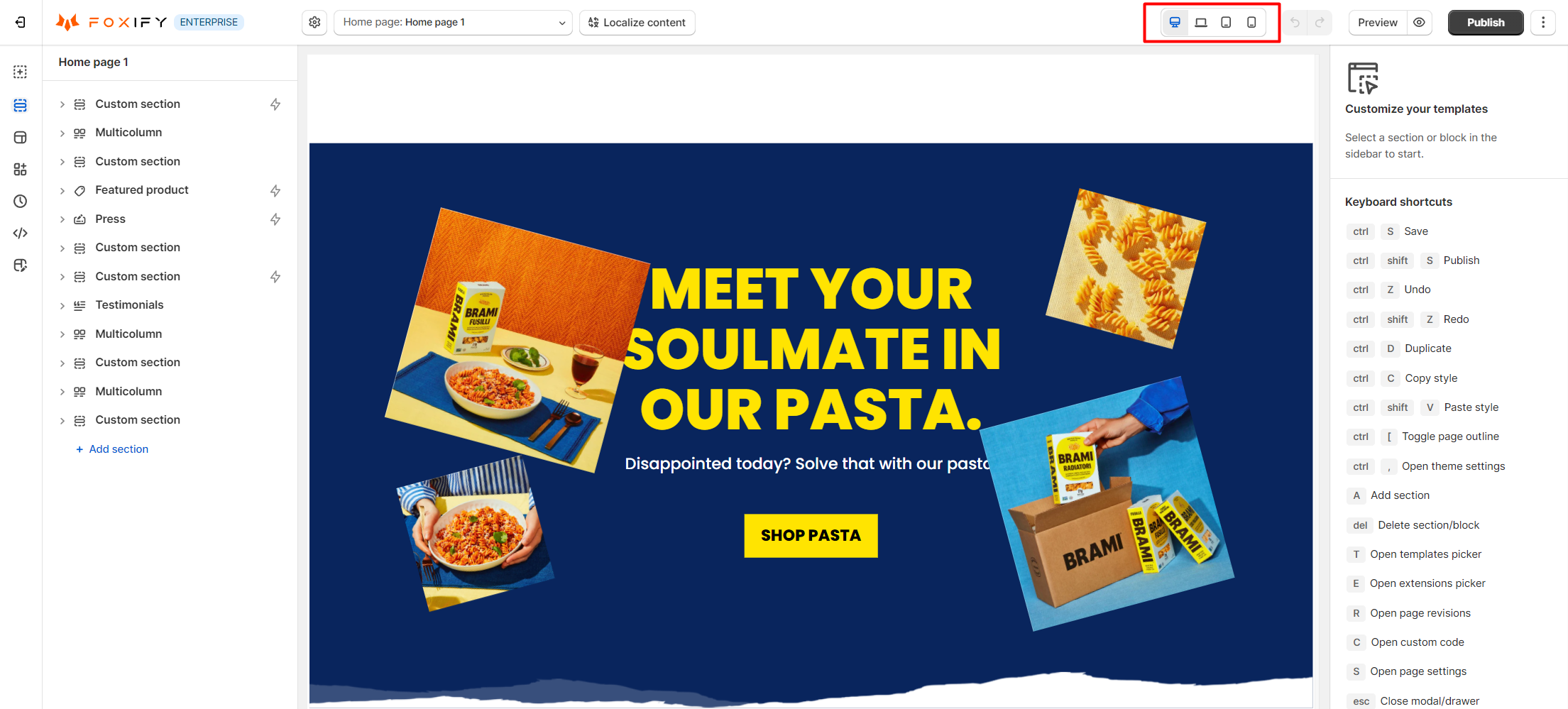
# Device mode selectorTo preview your content at different screen sizes (Desktop/ Laptop/ Tablet/ Mobile), use the device mode selector at the top of the editor.
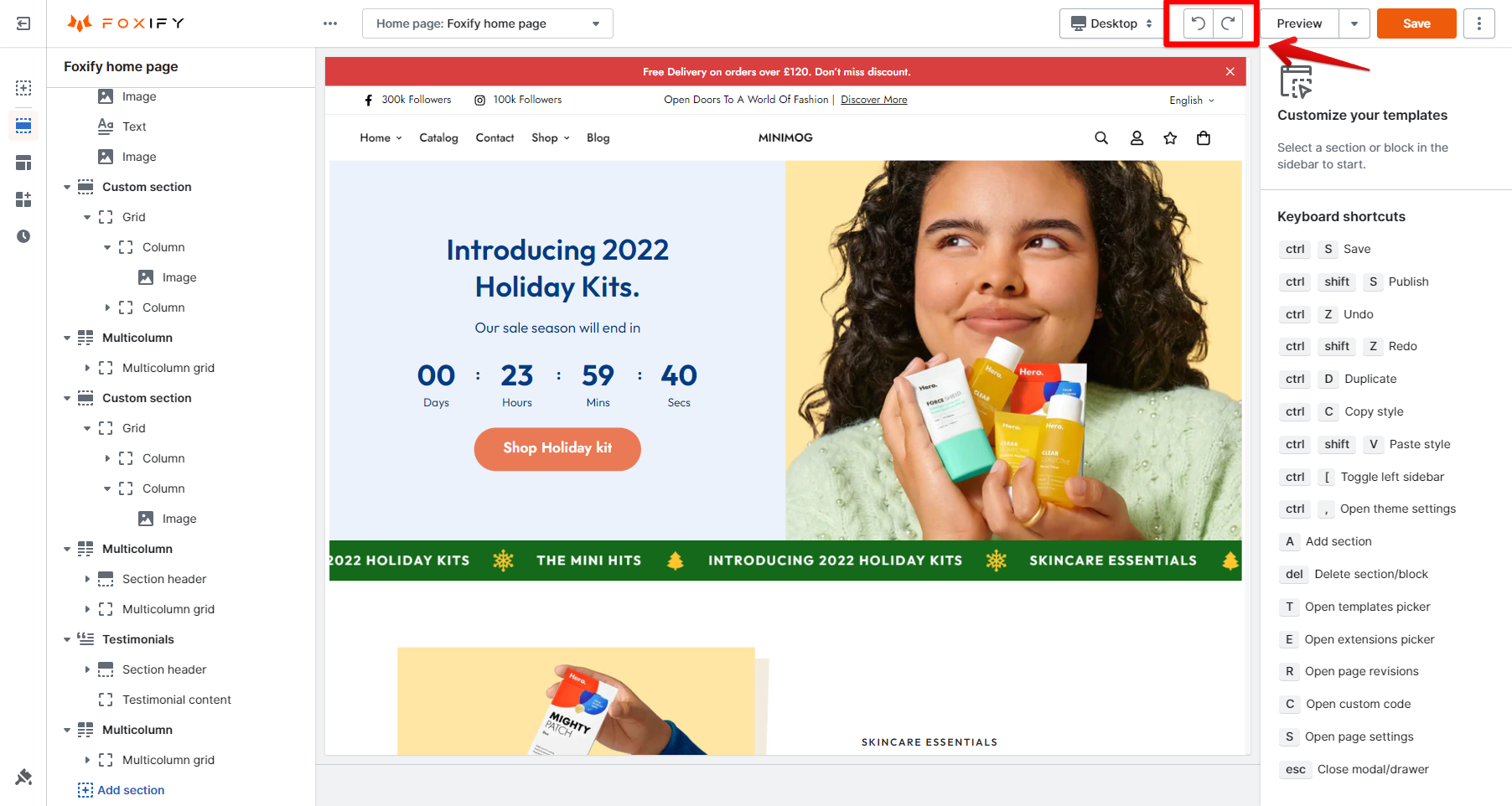
Use Undo (
Use Redo (
# Page Actions: Save, Preview, Publish, and morePage actions buttons are in the top right corner of the Editor.
Save : Hit the Save button to save all your changes.
Although Foxify provides autosave every few minutes, we highly recommend you click Save regularly while you are editing.
Preview : After saving your progress, you can quickly check how the templates look before publishing, using the Preview button.
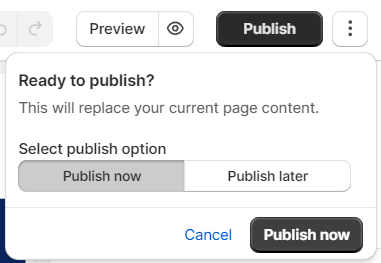
Publish :
To publish the templates, you must enable
Foxify Theme helper in your theme settings. For more information, see
this article .
For Home pages: hit Publish to sync your edits with your live store.
For Product pages, Landing pages, and Collections pages: hit Publish to save templates in your Shopify live theme.
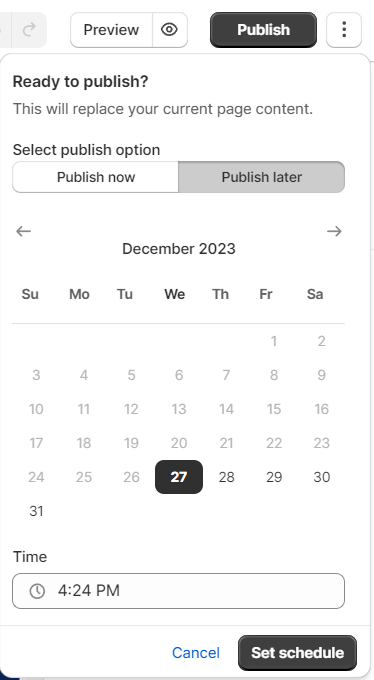
You can either publish your page right away or schedule the time.
To schedule a publish time for your template, simply click Publish > Publish later and set the date and time. After that, hit Set schedule to finish.
More actions :
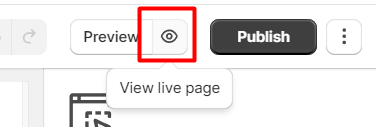
View live page : Click on this button to see your current live storefront.
For Product pages, Collections pages, and Regular pages, the live page follows their assigned templates as you set in your Shopify admin.
Unpublish : unpublish your published templates.Save as template : learn more here .Export as template : export your page as a template.json file.Import /Export your page: learn more here .
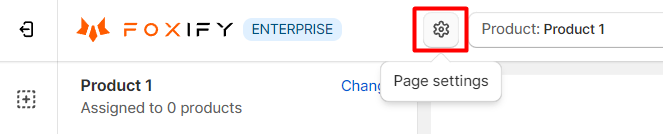
# Page titleCheck out the page title to make sure you're editing the right one. You can change your page title at the given time in
Page settings .# Add sectionQuickly browse the list of Foxify pre-made sections and add them to the editing page.
# Page outlinePage outline is the record of sections and blocks used on your template.
You can easily navigate to the section you want to edit by clicking the name of that section.
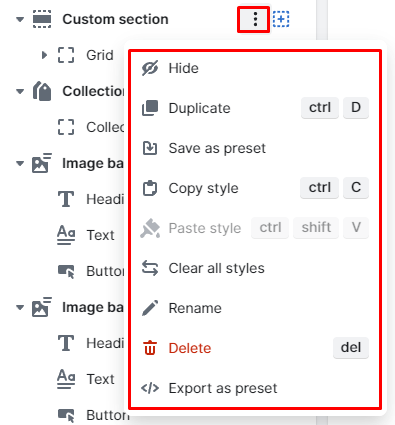
In the page outline, click on the three-dot icon next to the section/block name to hide, duplicate or delete the section/block.
If you choose to hide any section, the hidden section will be blurred out in the page outline.
# Page templatesView and change the current template.
Please be aware that once you choose to apply a new template, the new option will override your current editor content.
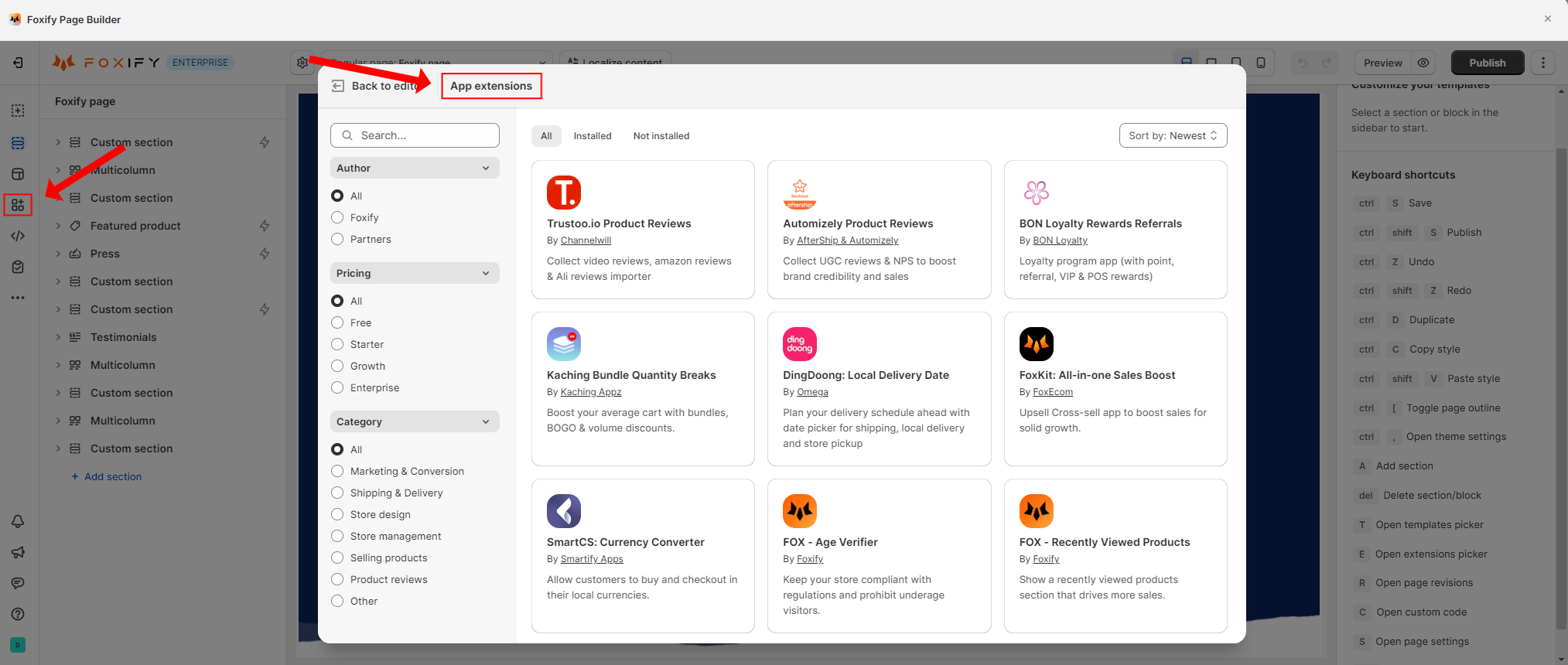
# App extensionsQuick access to the App extensions list. To learn more about this feature, check
this article .
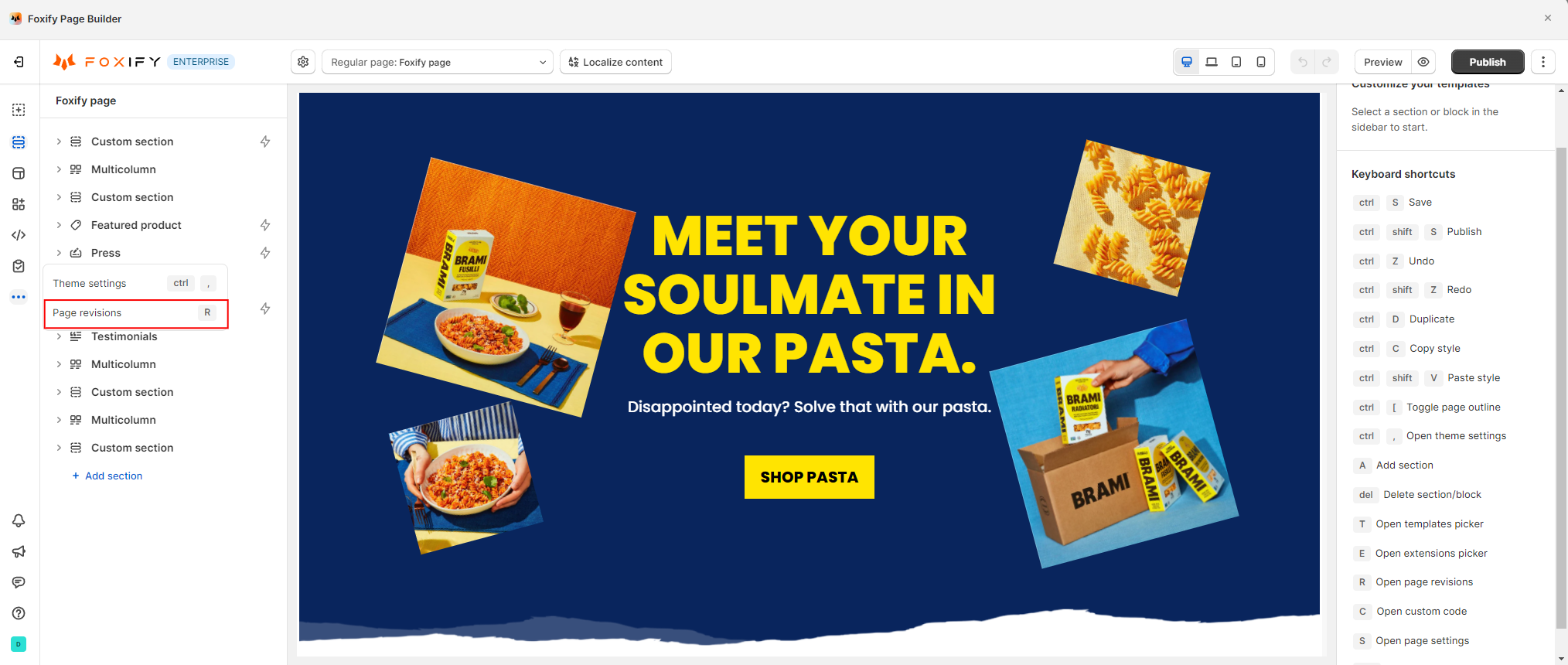
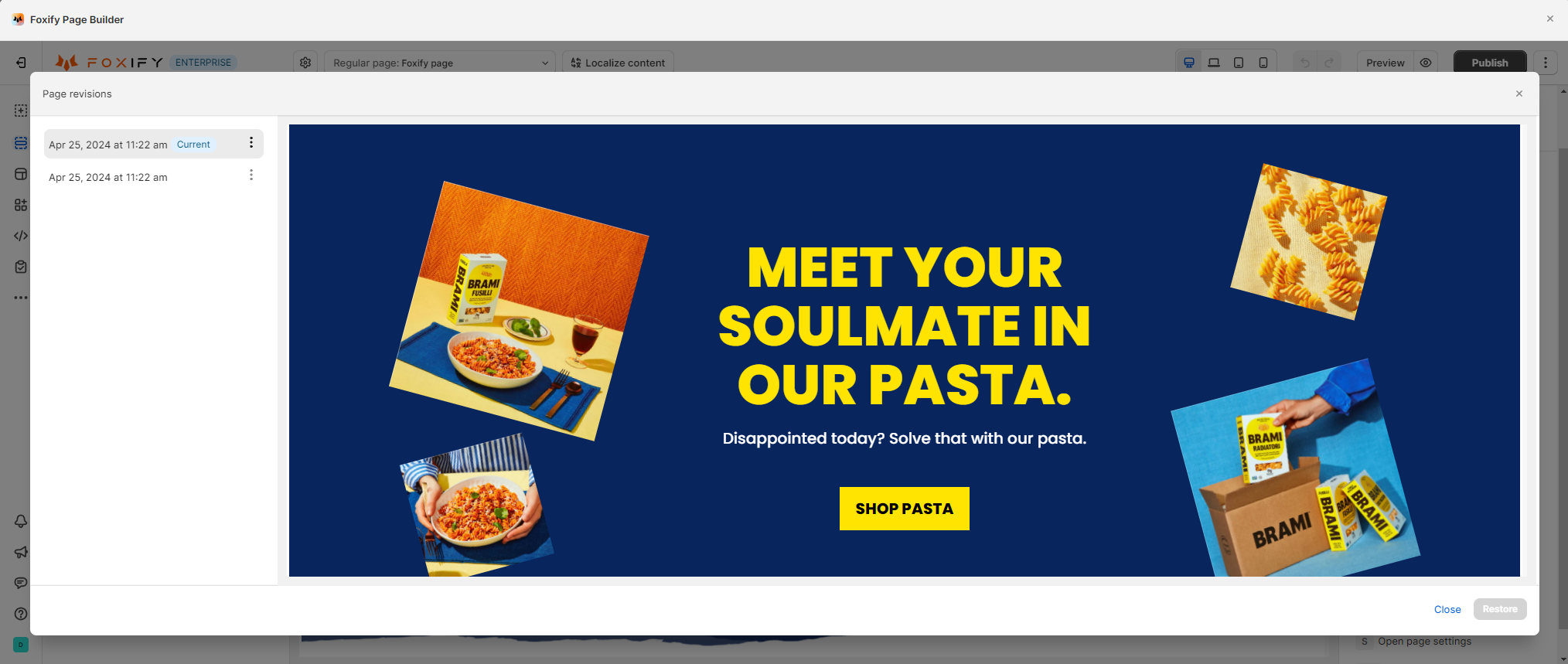
# Page revisionsCheck your page history and quickly roll back to any previous versions of your content.
The number of available page revisions depends on your current Foxify plan.
To view your plan details, click
here .
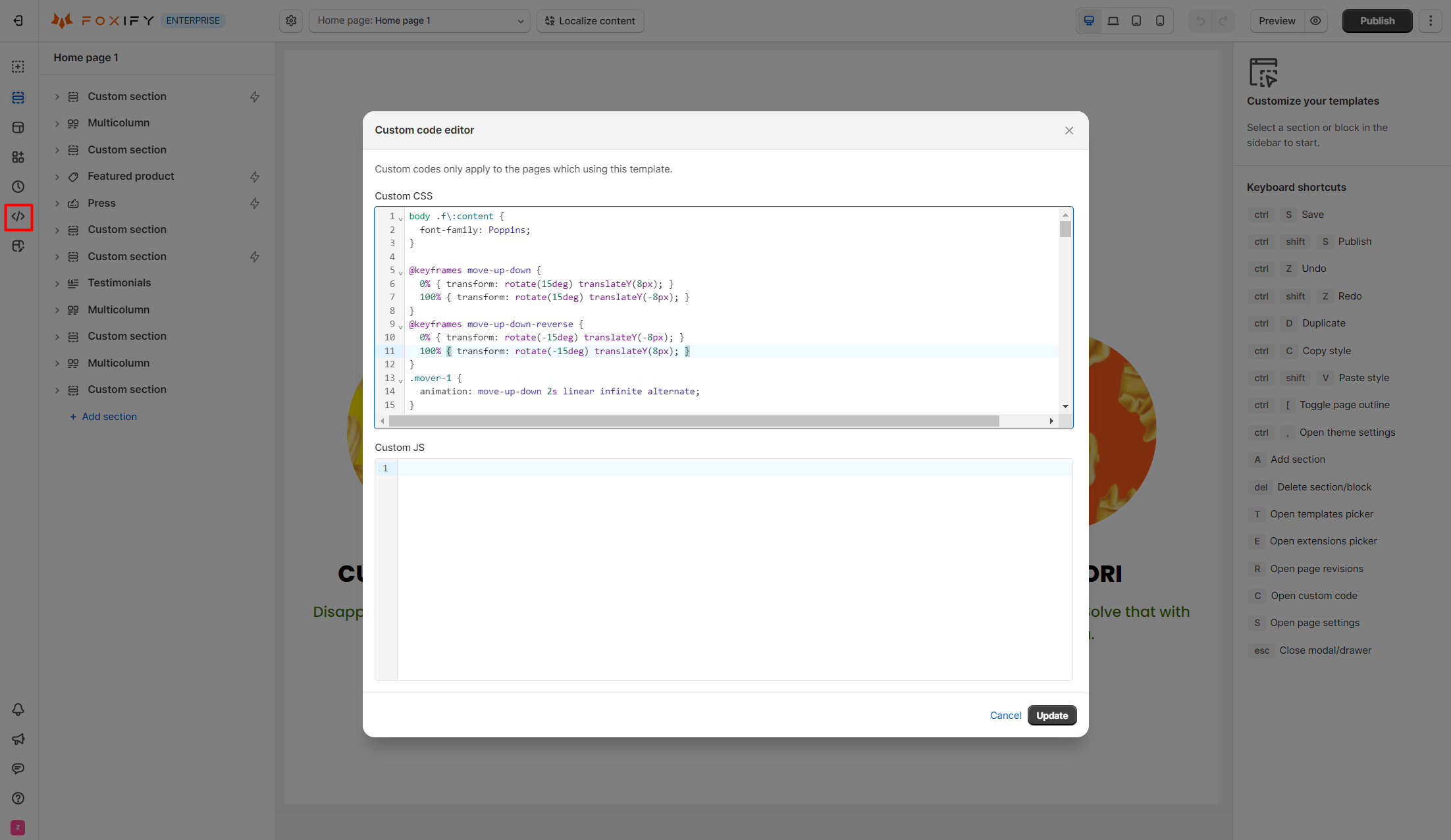
# Custom codeYou can add custom code to your template.
Custom codes only apply to the pages which use this template.
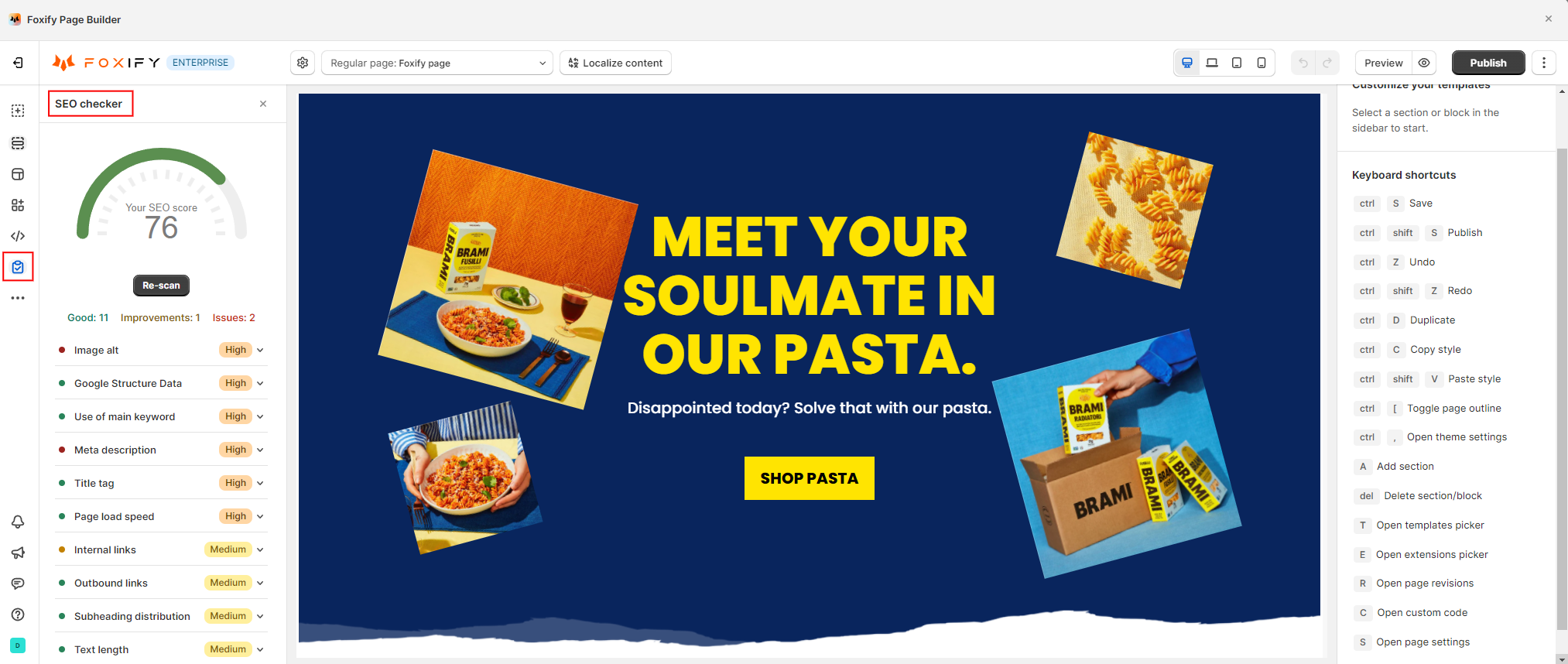
# Check SEO scoreYou can check the SEO score of the current page with one click.
Provide what you need to improve and fix on your page to improve your SEO score's page.
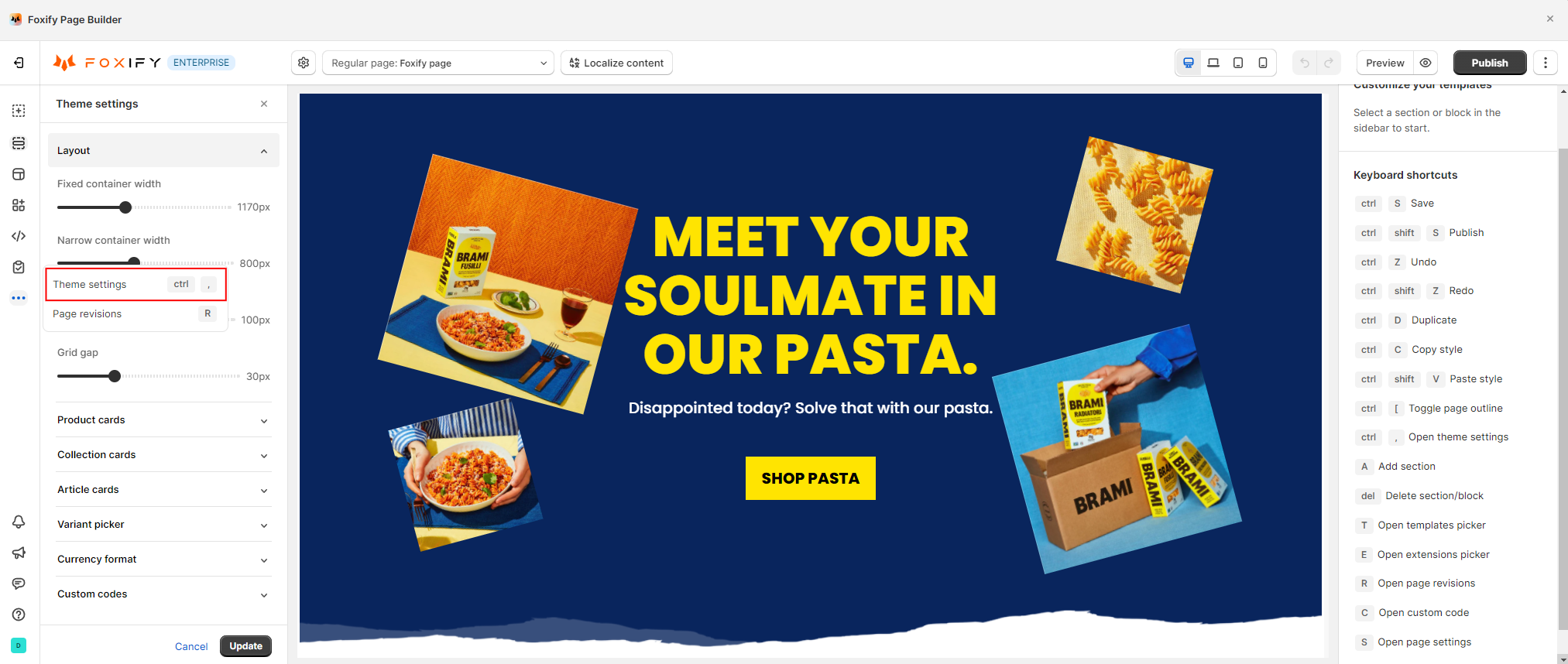
# Theme settingsYou can use Theme settings to make changes to your templates' layout, card settings, currency format, and so on.
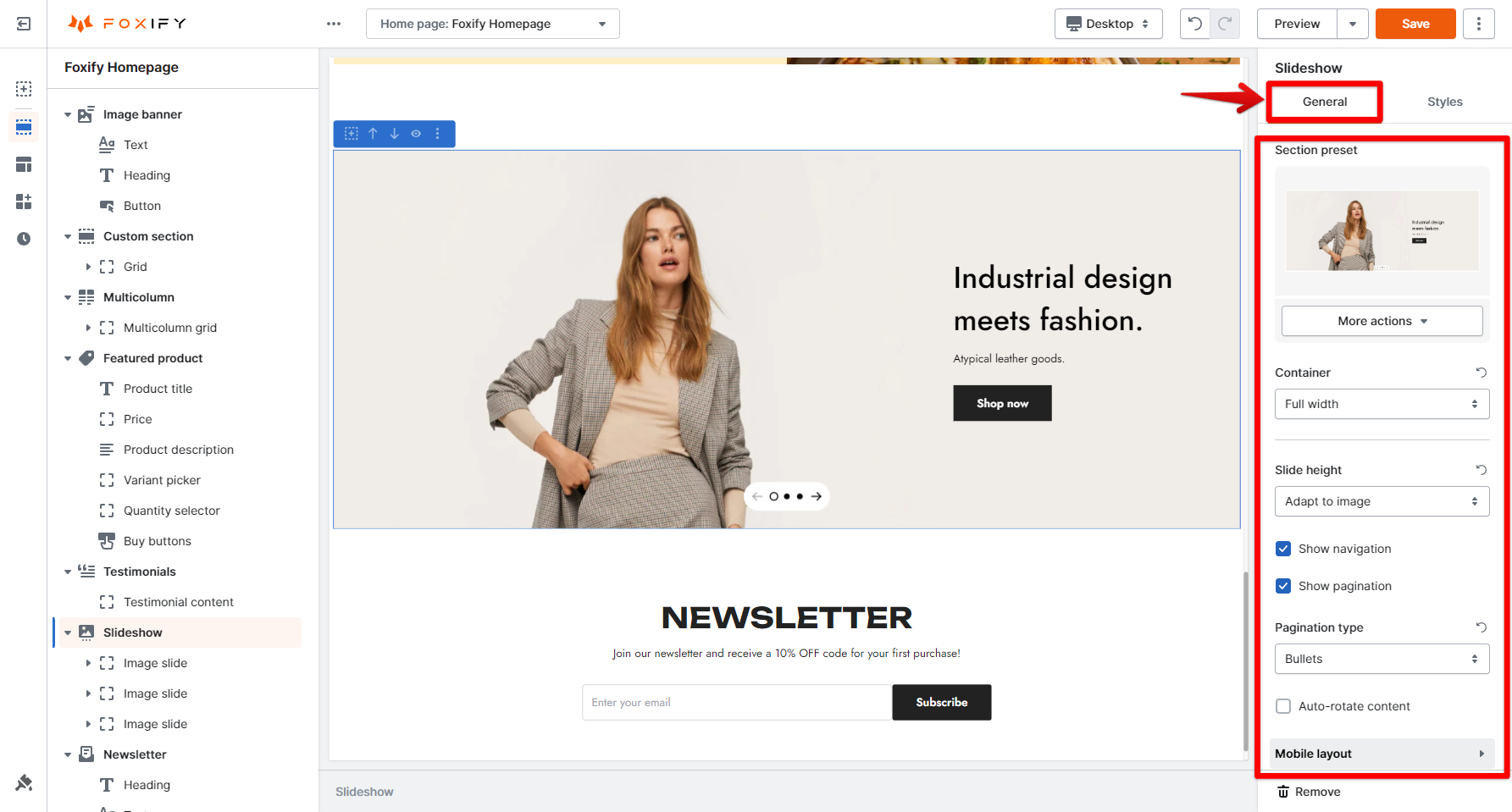
# The Configuration bar# General settings tabThis tab displays the functional parameters of the selected element.
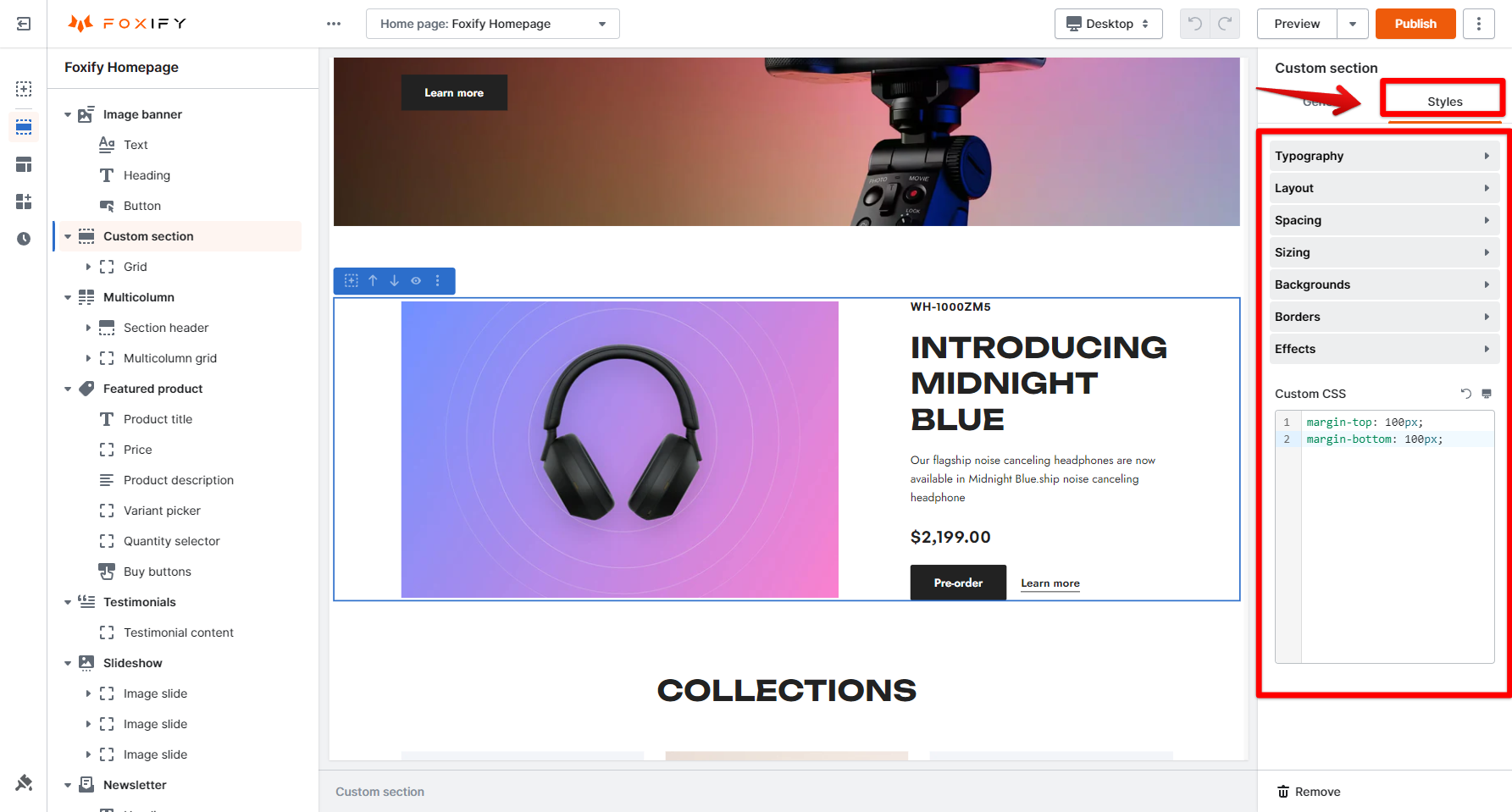
# Styles settings tabAll elements come with options for styling. In styles settings, you can adjust the content box styles, typography, spacing, opacity, etc., or add custom CSS.