# Slideshow

<div data-full-width="true"><figure><img src="https://1749964694-files.gitbook.io/~/files/v0/b/gitbook-x-prod.appspot.com/o/spaces%2FfgpgvtRaQLc36GYyIktZ%2Fuploads%2FETk3RTZrTHUxALnqCtTH%2FFoxEcom%20changelog%20%20%201250%20x%20200.png?alt=media&#x26;token=a72791be-b9fe-4806-8a28-f1592e470b10" alt=""><figcaption><p><a href="https://foxecom.com/pages/affiliate?utm_source=foxecom&#x26;utm_medium=help_center_foxify_slideshow&#x26;utm_campaign=anchor-text&#x26;utm_term=explore_foxecom_affiliate_program_perks_now">Explore FoxEcom Affiliate program perks now</a> <span data-gb-custom-inline data-tag="emoji" data-code="2728">✨</span></p></figcaption></figure></div>

<figure><img src="https://1749964694-files.gitbook.io/~/files/v0/b/gitbook-x-prod.appspot.com/o/spaces%2FfgpgvtRaQLc36GYyIktZ%2Fuploads%2FcsaxN9MSwdaL34nDHMJK%2Fimage.png?alt=media&#x26;token=3c7773a3-351f-4bd8-8083-1e11d7d22485" alt=""><figcaption></figcaption></figure>

## What is a slideshow

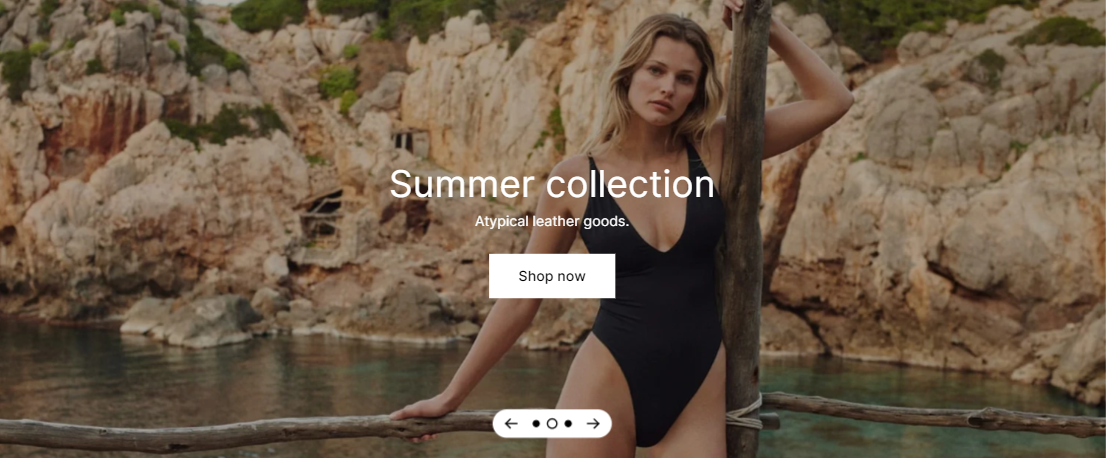
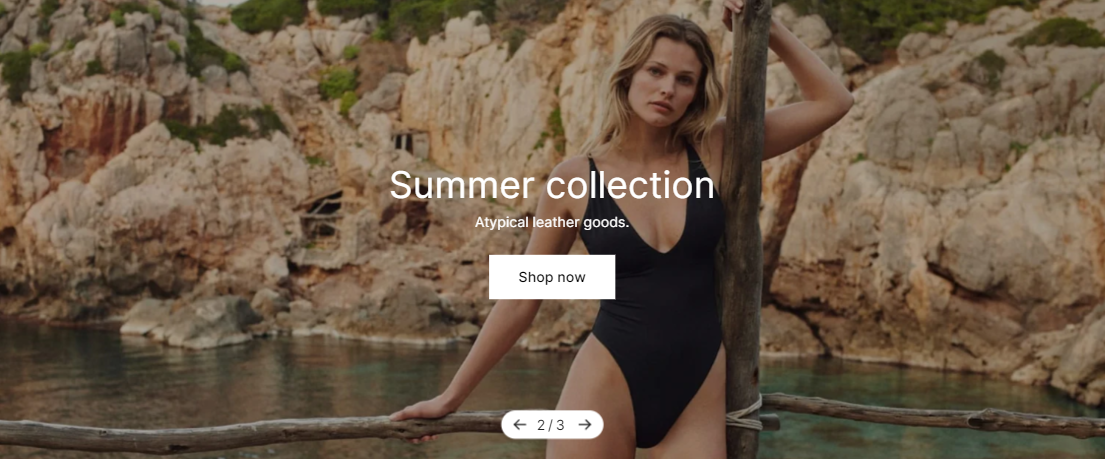
A slideshow is a quick and interactive way to showcase content and information on your site. Slideshow lets you display your most popular products/collections or shout out about what's new with a call-to-action button.&#x20;

## Customize a slideshow

After [adding a slideshow section](https://docs.foxecom.com/foxify-app/legacy-editor/sections-and-presets/..#add-a-section), you can start customizing it to your liking.&#x20;

### Section settings

#### Container

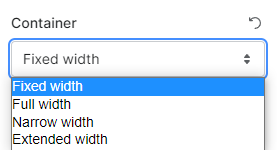
You can choose your Container type as Fixed width/Full width/Narrow width/Extended width.

<figure><img src="https://1749964694-files.gitbook.io/~/files/v0/b/gitbook-x-prod.appspot.com/o/spaces%2FfgpgvtRaQLc36GYyIktZ%2Fuploads%2FQXRRdAMuLmHxSN8DKpHs%2Fimage.png?alt=media&#x26;token=ae96d6d6-456a-467b-a673-43b5d2548c81" alt=""><figcaption></figcaption></figure>

#### Slide height

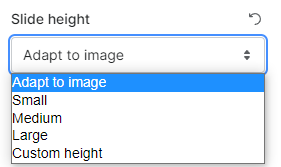
There are 5 options for the slide height to choose from:

* Adapt to image
* Small
* Medium
* Large
* Custom height.

<figure><img src="https://1749964694-files.gitbook.io/~/files/v0/b/gitbook-x-prod.appspot.com/o/spaces%2FfgpgvtRaQLc36GYyIktZ%2Fuploads%2FUh2oLXm4MCWdwQkXGqo7%2Fimage.png?alt=media&#x26;token=47191bc4-c084-48a4-bfef-b8840e7c70bc" alt=""><figcaption></figcaption></figure>

If you choose **Custom height,** use the toggle to adjust the slide height value between 0 and 800 px.

<figure><img src="https://1749964694-files.gitbook.io/~/files/v0/b/gitbook-x-prod.appspot.com/o/spaces%2FfgpgvtRaQLc36GYyIktZ%2Fuploads%2FNfFEaIKiGGn1nFxDnFGp%2Fezgif.com-gif-maker%20(3).gif?alt=media&#x26;token=200f9624-a548-47d7-b039-aa83e30fabbb" alt=""><figcaption></figcaption></figure>

#### Navigation and pagination

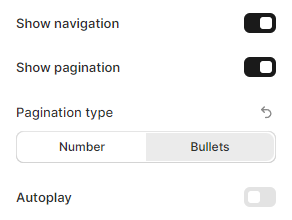
Check the corresponding boxes if you want to enable navigation and/or pagination on your slideshow.&#x20;

Please note, navigation and/or pagination show when you have two or more image slide blocks in your slideshow.

<figure><img src="https://1749964694-files.gitbook.io/~/files/v0/b/gitbook-x-prod.appspot.com/o/spaces%2FfgpgvtRaQLc36GYyIktZ%2Fuploads%2FhuIrQIabn8ZJch9P028c%2Fimage.png?alt=media&#x26;token=5e610c6d-f2d2-4756-8400-a1b720bb7742" alt=""><figcaption></figcaption></figure>

{% tabs %}
{% tab title="Pagination type as Bullets" %}

<figure><img src="https://1749964694-files.gitbook.io/~/files/v0/b/gitbook-x-prod.appspot.com/o/spaces%2FfgpgvtRaQLc36GYyIktZ%2Fuploads%2FCkCFZ6WDxXv7oeyQGDFG%2Fimage.png?alt=media&#x26;token=4589802a-cf87-4079-bef0-f832aef11ad1" alt=""><figcaption></figcaption></figure>
{% endtab %}

{% tab title="Pagination type as Numbers " %}

<figure><img src="https://1749964694-files.gitbook.io/~/files/v0/b/gitbook-x-prod.appspot.com/o/spaces%2FfgpgvtRaQLc36GYyIktZ%2Fuploads%2FI7nYJFvrB165KtolYXf8%2Fimage.png?alt=media&#x26;token=dfa83eb8-5458-4764-8ec7-8295f9ebd12a" alt=""><figcaption></figcaption></figure>
{% endtab %}
{% endtabs %}

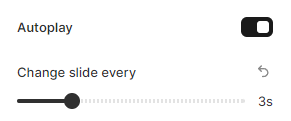
You can also make your slideshow's content auto-rotate and set the duration time (between 1 and 10s).

<figure><img src="https://1749964694-files.gitbook.io/~/files/v0/b/gitbook-x-prod.appspot.com/o/spaces%2FfgpgvtRaQLc36GYyIktZ%2Fuploads%2Fyhrw1LpYAUzVUlHWb5rq%2Fimage.png?alt=media&#x26;token=a5707962-bfc5-4827-8741-bd613d11491d" alt=""><figcaption></figcaption></figure>

<figure><img src="https://1749964694-files.gitbook.io/~/files/v0/b/gitbook-x-prod.appspot.com/o/spaces%2FfgpgvtRaQLc36GYyIktZ%2Fuploads%2Fv6etCRySd3aj5AYksutW%2Fezgif.com-gif-maker%20(2).gif?alt=media&#x26;token=5c277020-a7ff-4707-85e7-b3ecf3267bb5" alt=""><figcaption></figcaption></figure>

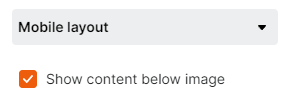
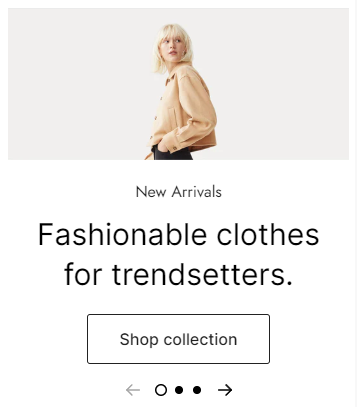
#### Mobile layout

<figure><img src="https://1749964694-files.gitbook.io/~/files/v0/b/gitbook-x-prod.appspot.com/o/spaces%2FfgpgvtRaQLc36GYyIktZ%2Fuploads%2FniO7C5tv8jsHcenDZh72%2Fimage.png?alt=media&#x26;token=b43f0c82-3a7e-4631-a342-e08f247bc67d" alt=""><figcaption></figcaption></figure>

<figure><img src="https://1749964694-files.gitbook.io/~/files/v0/b/gitbook-x-prod.appspot.com/o/spaces%2FfgpgvtRaQLc36GYyIktZ%2Fuploads%2Fj0dV3mj1xGTuhyc4oZhF%2Fimage.png?alt=media&#x26;token=03eda948-6dda-4bdb-9c1e-1a543053e497" alt=""><figcaption></figcaption></figure>

### Block settings

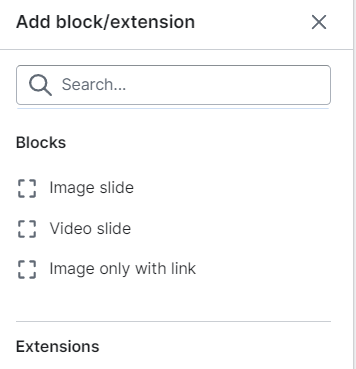
A Slideshow section includes:&#x20;

* Image slide
* Video slide
* Image only with link

<figure><img src="https://1749964694-files.gitbook.io/~/files/v0/b/gitbook-x-prod.appspot.com/o/spaces%2FfgpgvtRaQLc36GYyIktZ%2Fuploads%2FWJrwlc5ZY3mwlrTiP9YC%2Fimage.png?alt=media&#x26;token=8dd22084-988e-4f86-863d-57a49eb2a7e6" alt=""><figcaption></figcaption></figure>

Each Image slide/Video slide comes with a heading, text, and button child blocks. After adding a child block, click on it to customize.&#x20;

#### Heading&#x20;

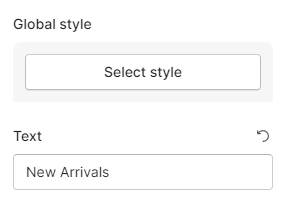
Select a text style from your [Global styles, ](https://docs.foxecom.com/foxify-app/page-management/global-styles)then add text for Heading and adjust its tags if needed.

<figure><img src="https://1749964694-files.gitbook.io/~/files/v0/b/gitbook-x-prod.appspot.com/o/spaces%2FfgpgvtRaQLc36GYyIktZ%2Fuploads%2FRegEGffgiWzMGmmkcJbj%2Fezgif.com-gif-maker%20(4).gif?alt=media&#x26;token=08fc59d5-c696-4724-a18e-51eeaa4a44c7" alt=""><figcaption></figcaption></figure>

#### Text and Rich text

Similarly, you can choose your text styles and add text for your Text block.

<figure><img src="https://1749964694-files.gitbook.io/~/files/v0/b/gitbook-x-prod.appspot.com/o/spaces%2FfgpgvtRaQLc36GYyIktZ%2Fuploads%2FeF7ttfaZgtN5Jsqqyvnv%2Fimage.png?alt=media&#x26;token=d56f230e-85b9-4207-b117-62a2b517a2bc" alt=""><figcaption></figcaption></figure>

#### Button

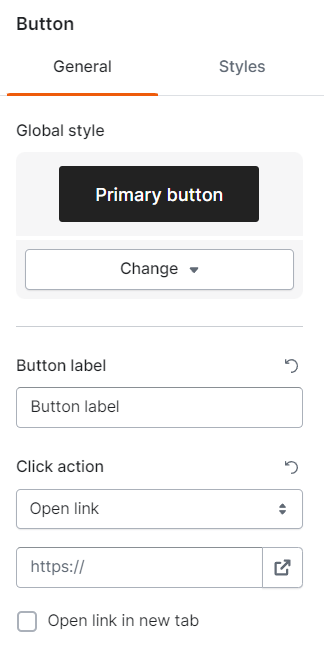
Add a button to direct your visitors to your desired page. Choose a button style from your [Global styles](https://docs.foxecom.com/foxify-app/page-management/global-styles#buttons); add the button's label, links, and icon (optional).&#x20;

You can also set the icon position as left or right.

Learn more about styling a button here:  [#how-to-customize-a-button](https://docs.foxecom.com/foxify-app/page-elements/add-and-style-buttons#how-to-customize-a-button "mention")

<figure><img src="https://1749964694-files.gitbook.io/~/files/v0/b/gitbook-x-prod.appspot.com/o/spaces%2FfgpgvtRaQLc36GYyIktZ%2Fuploads%2Fb3i8TCAiq4Ersuh7pzPZ%2Fimage.png?alt=media&#x26;token=88af02e6-fd83-4f7f-ba58-69b7c25d6ae6" alt=""><figcaption></figcaption></figure>