# Image cards

<div data-full-width="true"><figure><img src="https://1749964694-files.gitbook.io/~/files/v0/b/gitbook-x-prod.appspot.com/o/spaces%2FfgpgvtRaQLc36GYyIktZ%2Fuploads%2FETk3RTZrTHUxALnqCtTH%2FFoxEcom%20changelog%20%20%201250%20x%20200.png?alt=media&#x26;token=a72791be-b9fe-4806-8a28-f1592e470b10" alt=""><figcaption><p><a href="https://foxecom.com/pages/affiliate?utm_source=foxecom&#x26;utm_medium=help_center_foxify_image_cards&#x26;utm_campaign=anchor-text&#x26;utm_term=explore_foxecom_affiliate_program_perks_now">Explore FoxEcom Affiliate program perks now</a> <span data-gb-custom-inline data-tag="emoji" data-code="2728">✨</span></p></figcaption></figure></div>

<figure><img src="https://1749964694-files.gitbook.io/~/files/v0/b/gitbook-x-prod.appspot.com/o/spaces%2FfgpgvtRaQLc36GYyIktZ%2Fuploads%2FPKbUJD41mPAZGleUWh76%2Fimage.png?alt=media&#x26;token=47b43ec1-c3fe-424e-ba7c-5d81416cd53b" alt=""><figcaption></figcaption></figure>

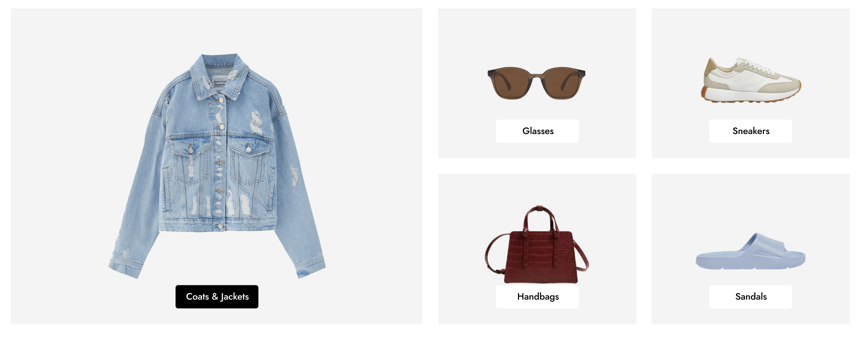
Image cards provide an eye-catching layout to present visual information to visitors. You can use this section to showcase and promote sales of featured collections or products.

## Section settings

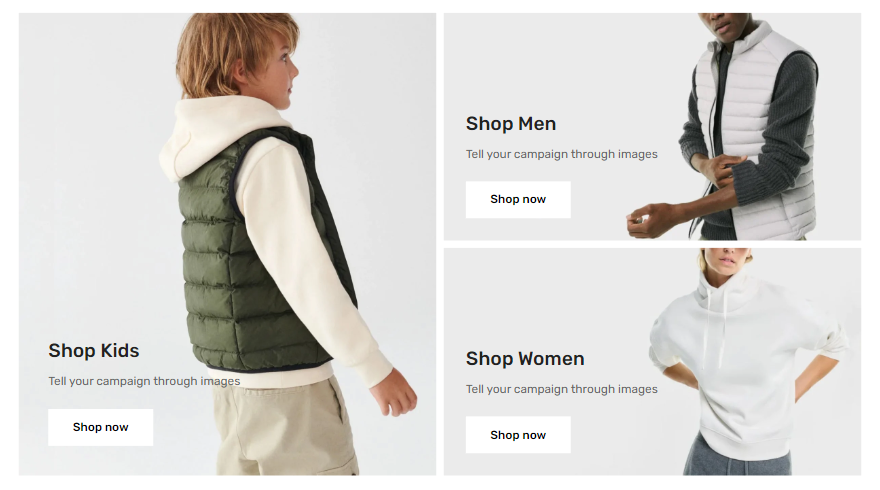
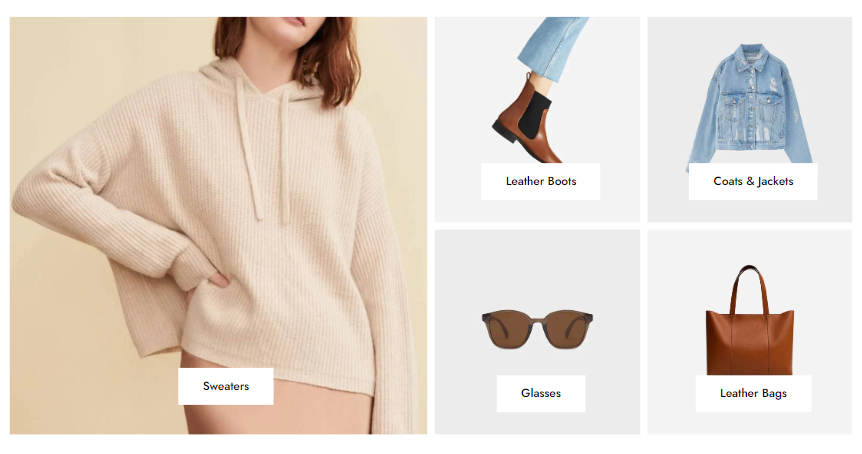
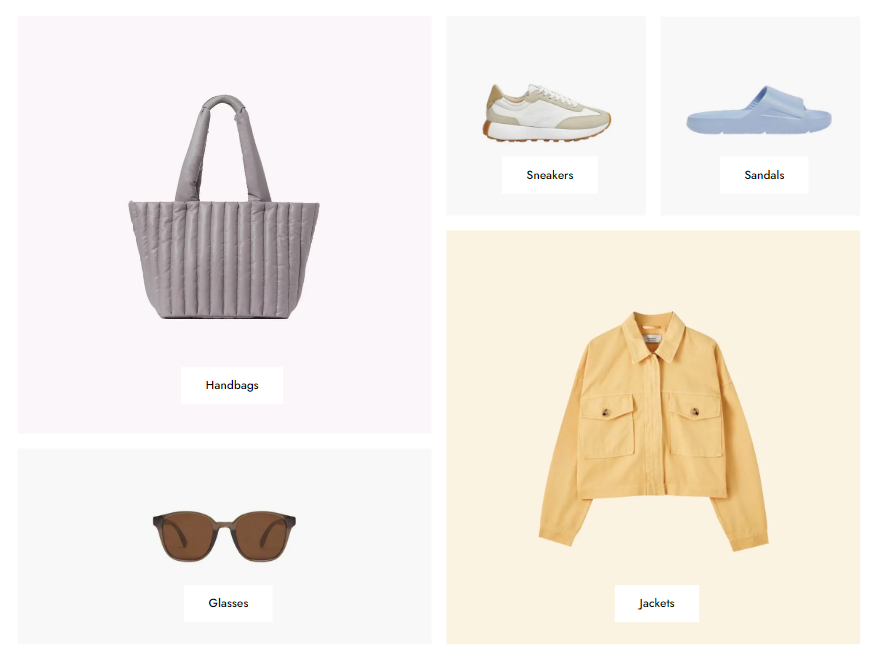
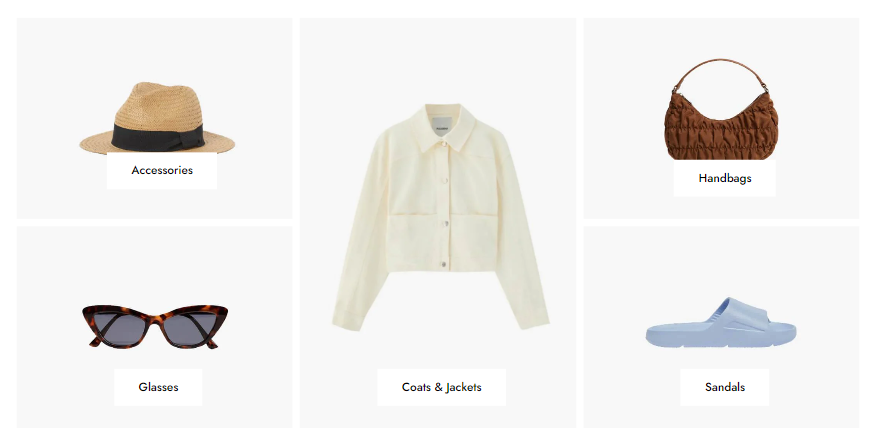
The first and foremost thing to do is to choose a layout that best fits you. Use section presets for a quick setup.

{% tabs %}
{% tab title="Grid layout 1" %}

<figure><img src="https://1749964694-files.gitbook.io/~/files/v0/b/gitbook-x-prod.appspot.com/o/spaces%2FfgpgvtRaQLc36GYyIktZ%2Fuploads%2FK9jww3J98C7o0tzbuqEo%2Fimage.png?alt=media&#x26;token=530e61ee-513b-44f8-83ad-d231bdb12323" alt=""><figcaption></figcaption></figure>
{% endtab %}

{% tab title="Grid layout 2" %}

<figure><img src="https://1749964694-files.gitbook.io/~/files/v0/b/gitbook-x-prod.appspot.com/o/spaces%2FfgpgvtRaQLc36GYyIktZ%2Fuploads%2F2UbqoJMaSadiz9EXKNpY%2Fimage.png?alt=media&#x26;token=52b42aee-8f65-406b-b2d6-c9f74a7e1d56" alt=""><figcaption></figcaption></figure>
{% endtab %}

{% tab title="Grid layout 3" %}

<figure><img src="https://1749964694-files.gitbook.io/~/files/v0/b/gitbook-x-prod.appspot.com/o/spaces%2FfgpgvtRaQLc36GYyIktZ%2Fuploads%2FplJG3Ub2hpKCxn9L6zhz%2Fimage.png?alt=media&#x26;token=9ec8d81c-2a97-46e5-8f7c-6d9ffaa3aff4" alt=""><figcaption></figcaption></figure>
{% endtab %}

{% tab title="Grid layout 4" %}

<figure><img src="https://1749964694-files.gitbook.io/~/files/v0/b/gitbook-x-prod.appspot.com/o/spaces%2FfgpgvtRaQLc36GYyIktZ%2Fuploads%2FHQ81gAmlDjdAXmT7sU6V%2Fimage.png?alt=media&#x26;token=26cba812-1217-4710-b568-2164cb8e600c" alt=""><figcaption></figcaption></figure>
{% endtab %}
{% endtabs %}

In mobile view, image cards will be stacked or displayed horizontally with a slider if you enable swipe on mobile.

<figure><img src="https://1749964694-files.gitbook.io/~/files/v0/b/gitbook-x-prod.appspot.com/o/spaces%2FfgpgvtRaQLc36GYyIktZ%2Fuploads%2FPa5wn6OtuGQpkHVtyJXu%2Fezgif.com-gif-maker%20(6).gif?alt=media&#x26;token=9ecf8525-fe7b-44b2-99be-ef777104253e" alt=""><figcaption></figcaption></figure>

## Image card block settings

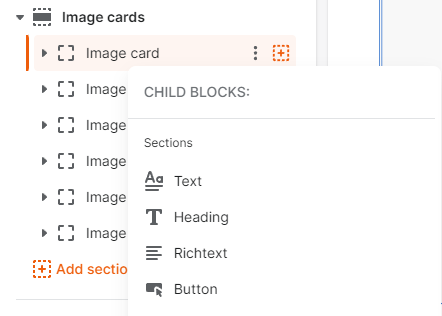
Each image card in this section comes with different child blocks: Text, Heading, Richtext, and Button. You can add as many as buttons to redirect customers to your desired pages on each image card.

<figure><img src="https://1749964694-files.gitbook.io/~/files/v0/b/gitbook-x-prod.appspot.com/o/spaces%2FfgpgvtRaQLc36GYyIktZ%2Fuploads%2FKvZtO6ilSYxzH3rT6TPV%2Fimage.png?alt=media&#x26;token=d8018f11-4bda-4e78-9349-420357b39cfe" alt=""><figcaption></figcaption></figure>

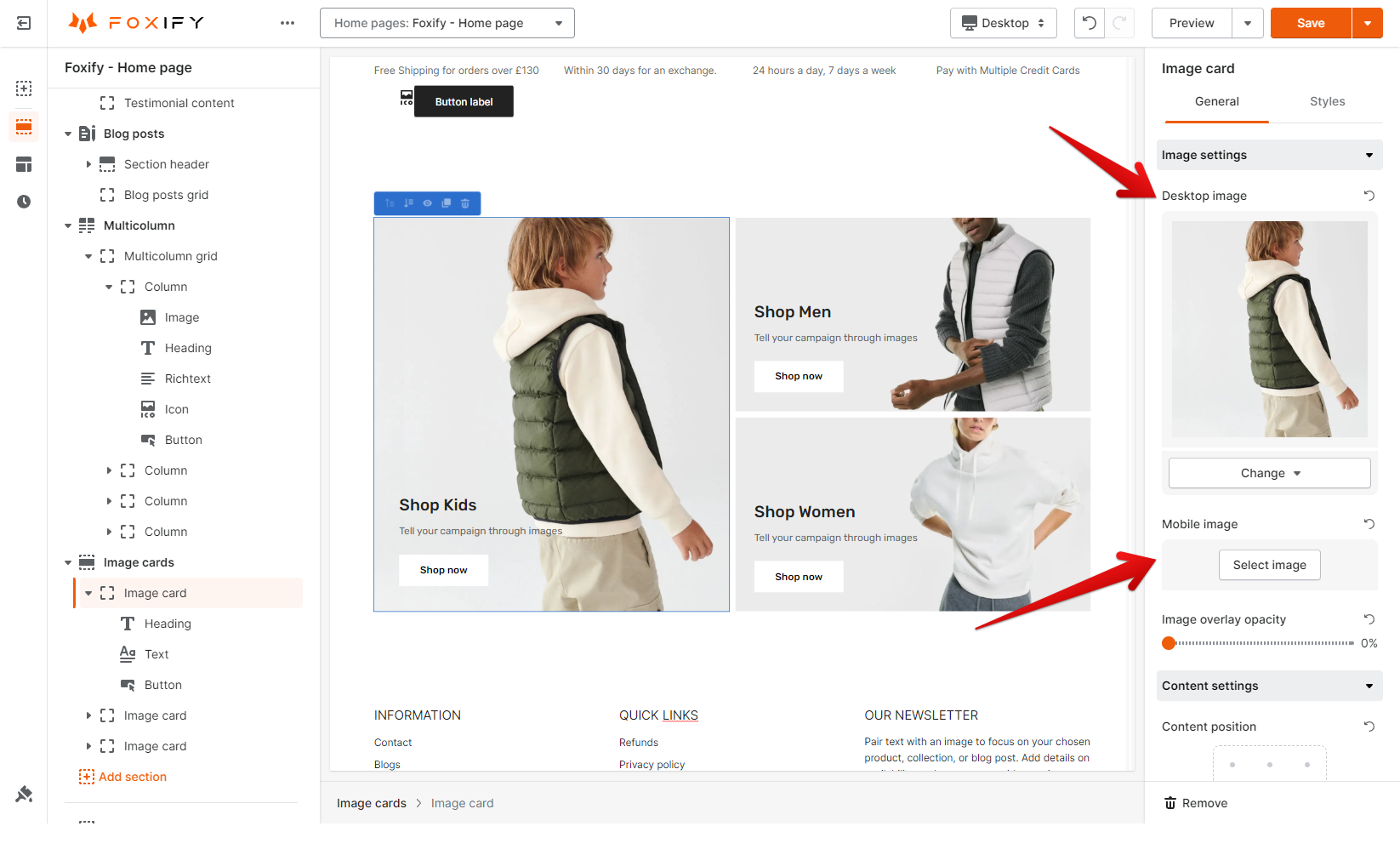
Furthermore, this section lets you add different images for your desktop and mobile versions.
<figure><img src="https://1749964694-files.gitbook.io/~/files/v0/b/gitbook-x-prod.appspot.com/o/spaces%2FfgpgvtRaQLc36GYyIktZ%2Fuploads%2FtMCsImLYFatB4U62RlEd%2Fimage.png?alt=media&#x26;token=d3eb042a-a081-4395-96ae-4f1e59651c61" alt=""><figcaption></figcaption></figure>