# Collection tabs

<div data-full-width="true"><figure><img src="/files/dHaPBf9wiTvRsPXBrcnP" alt=""><figcaption><p><a href="https://foxecom.com/pages/affiliate?utm_source=foxecom&#x26;utm_medium=help_center_foxify_collection_tabs&#x26;utm_campaign=anchor-text&#x26;utm_term=explore_foxecom_affiliate_program_perks_now">Explore FoxEcom Affiliate program perks now</a> <span data-gb-custom-inline data-tag="emoji" data-code="2728">✨</span></p></figcaption></figure></div>

<figure><img src="https://lh7-us.googleusercontent.com/Y7lhsptg79Jh9K14E_r6MWxrvHBZm9FeVALo8MKfFut0AxmC5UjouJH4ySYvYOejm-mj5oXcmlbzY62jNcN9HYPa1r2UXR2mWKm28fuMLjVu1QGZ34sVkWlhQGzQBNqPCMIOctgDTa0JV7TON61RFNA" alt=""><figcaption></figcaption></figure>

**Collection tabs** can be a great new way to showcase your highlighted collections and the information with an attractive design in one section.&#x20;

Moreover, it can help you reduce page length and ensure mobile-friendliness for visitors.

## Customize a Collection tabs section

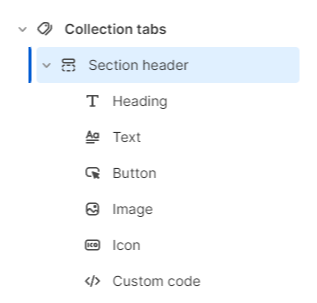
A **Collection tabs** section has 2 blocks:&#x20;

* **Section header** and&#x20;
* **Collection list**

### **Section header**

Use this block to give your section a Heading, Text, Button, Image, Icon, or Custom code if needed.&#x20;

<figure><img src="/files/4nbcdSIEZj2HEWAo1k3V" alt=""><figcaption></figcaption></figure>

### **Collection list**

#### **General**

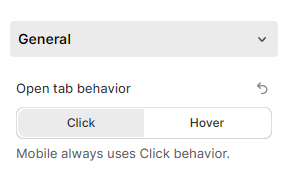
Change the tab behavior when opening by selecting the suitable behavior in the **Open tab behavior** field with two options: **Click** and **Hover**.&#x20;

{% hint style="info" %}
:sparkles: **Tip**: **Mobile** always uses **Click** behavior.
{% endhint %}

<figure><img src="/files/dSPeCg40g2XhR0xvwobP" alt=""><figcaption></figcaption></figure>

{% hint style="info" %}
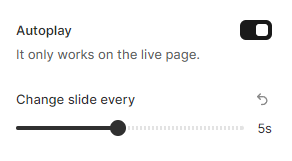
:sparkles: Tip: If you want your Collection list tabs to change automatically after a certain interval, or pause on hovering without manually clicking/ hovering, turn on the **Autoplay** toggle.
{% endhint %}

{% hint style="info" %}
:eyes: Note: It only works on the live page :white\_check\_mark:
{% endhint %}

Then, adjust the duration in the **Change slide every** field from 1s to 10s.

<figure><img src="/files/bHJebuQwzHJVrlKgGBxO" alt=""><figcaption></figcaption></figure>

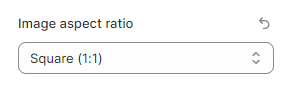
You can also provide the image with different aspect ratios in the **Image aspect ratio** field:&#x20;

* Square (1:1)
* Portrait (3:4)
* Landscape (4:3)

<figure><img src="/files/AswVbxmpo6fnOoZMDg7K" alt=""><figcaption></figcaption></figure>

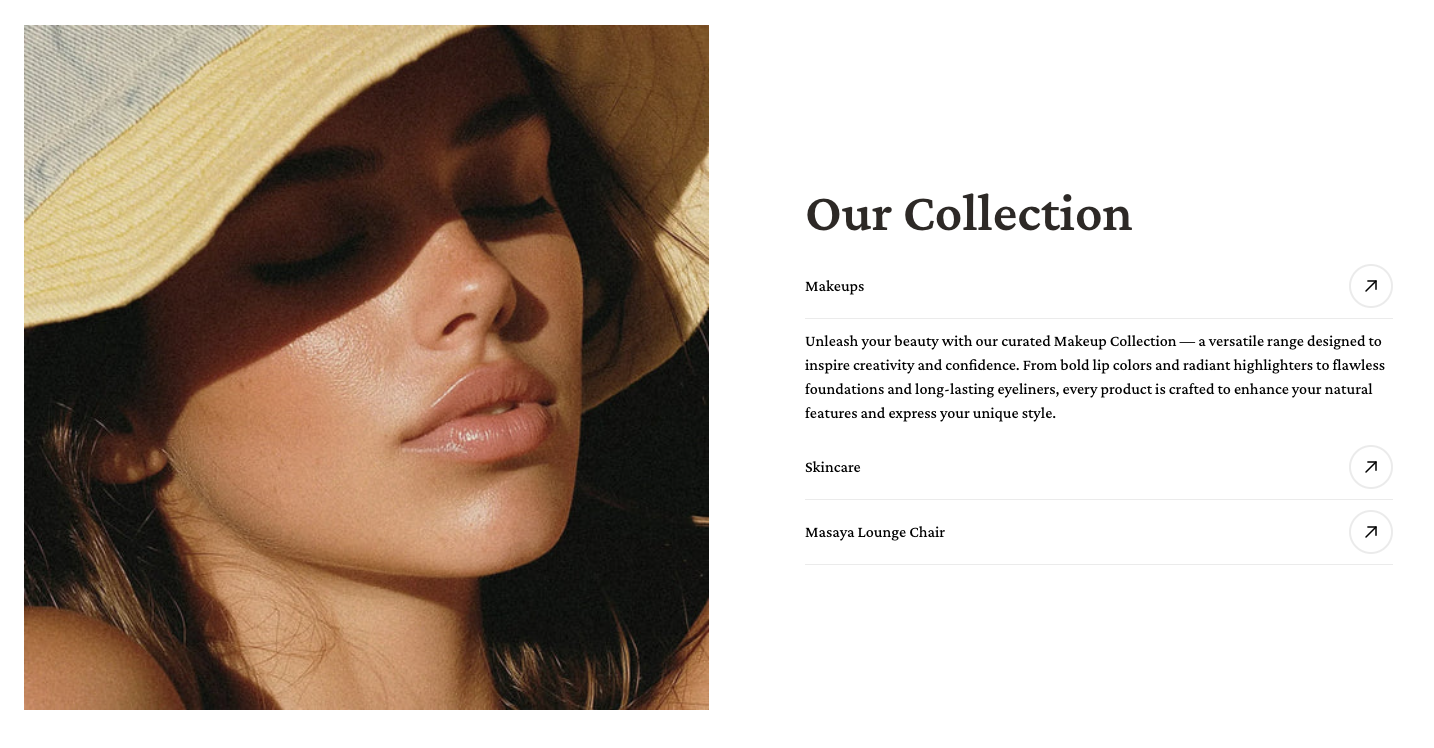
You can **show title action** to link to the collection page.

<figure><img src="/files/NtJJKGpBW2WDJ5Z3aZm7" alt=""><figcaption></figcaption></figure>

<figure><img src="/files/zl71BxNVRQEXunisAvcu" alt=""><figcaption></figcaption></figure>

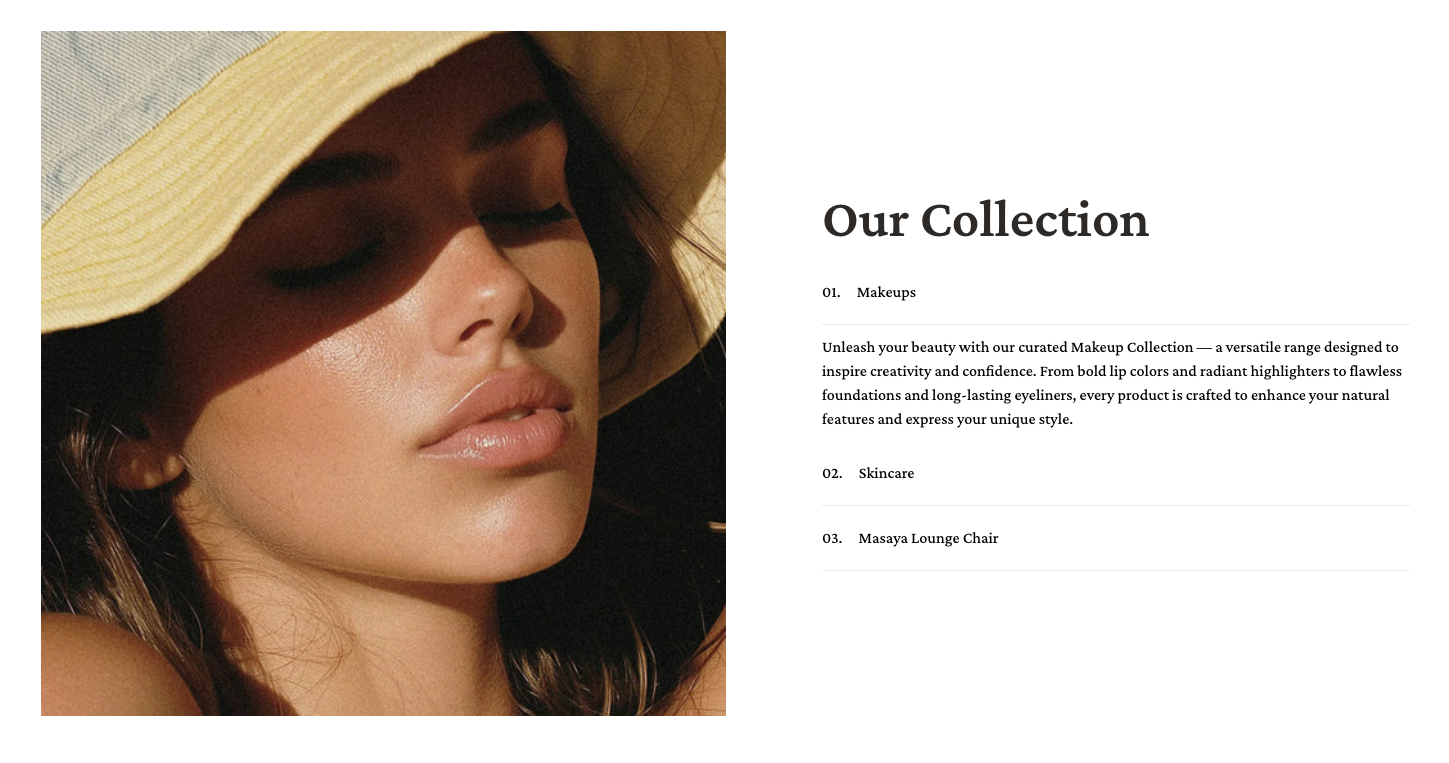
Then **show ordered number** to display the sequence number of each collection tab.

<figure><img src="/files/McVQTvUj6Ts4pgn5y1he" alt=""><figcaption></figcaption></figure>

<figure><img src="/files/GqOYakZcXCKHkWSMHWNp" alt=""><figcaption></figcaption></figure>

If you don't want to open the link in the current tab, enable the **Open link in new tab** toggle to open the link to a new tab :white\_check\_mark:

<figure><img src="/files/W2y4aerb7FfQrDyENLeH" alt=""><figcaption></figcaption></figure>

#### **Content**

In the section, add the collections you want to display.&#x20;

By default, it will show the collection's featured image and name, select a new image, and/ or add a new collection title.

You can also add the description under the collection tab by inserting it in the Text field.

<figure><img src="/files/FWB1clbvn39t6gaCIJtB" alt=""><figcaption></figcaption></figure>

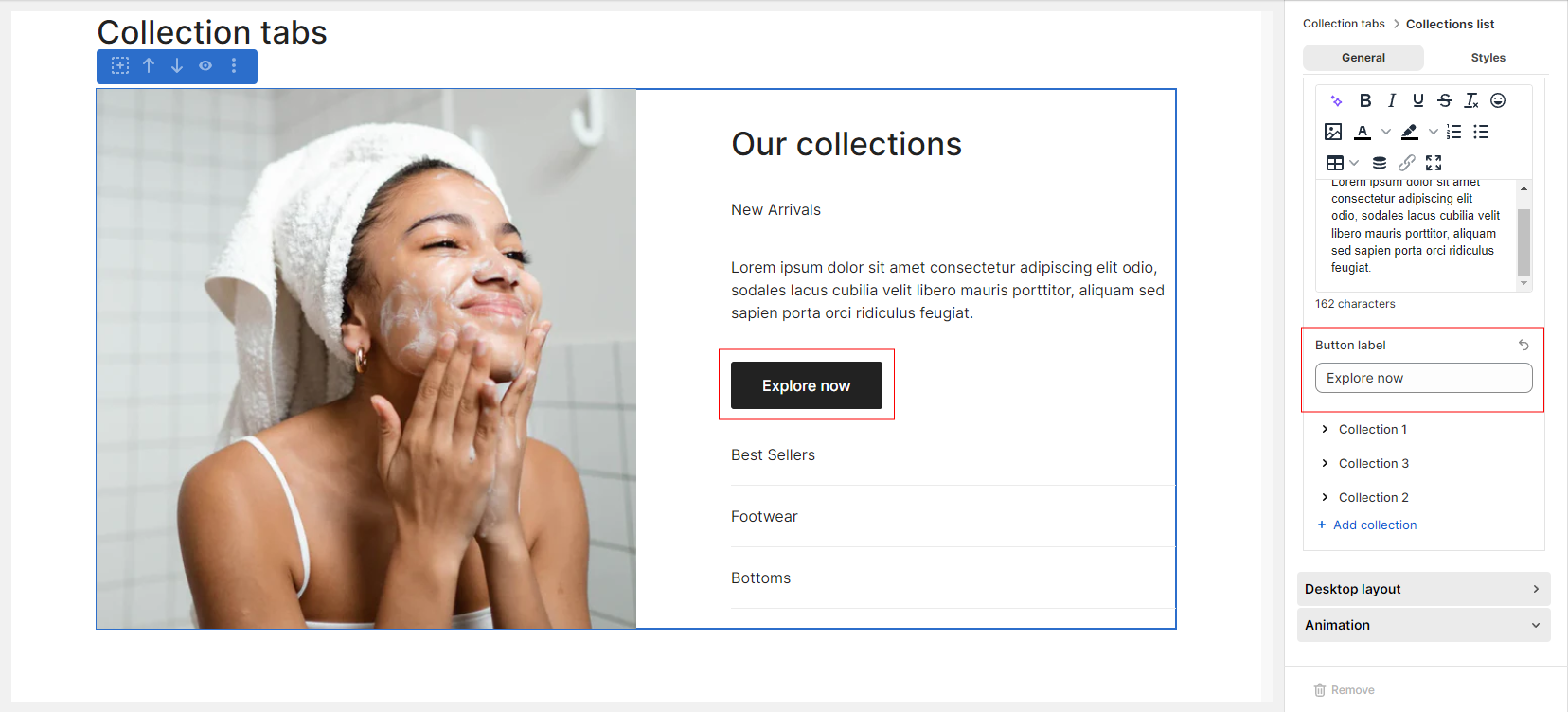
Give the button a new label if the **Link** type in the **General** settings is the **Bottom button.**

<figure><img src="/files/hCvmT8IZHbhgXZVNRmhn" alt=""><figcaption></figcaption></figure>

You can also reorder them by dragging and dropping the collection name.

<figure><img src="/files/zhKghaWgUovPT5joQUNl" alt=""><figcaption></figcaption></figure>

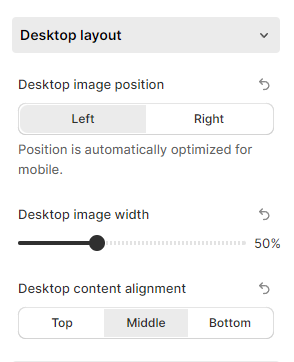
#### **Desktop layout**

Change the **Desktop image position** to the **Left** or **Right.**&#x20;

* The position will be automatically optimized for mobile

You can also change the following:&#x20;

* **Desktop image width** from 40% to 70%&#x20;
* **Desktop content alignment** with 3 options: **Top**, **Middle**, and **Bottom**

<figure><img src="/files/4Qm6G5JQCh5dvZ7KuLlc" alt=""><figcaption></figcaption></figure>

### Customize your Collection list block

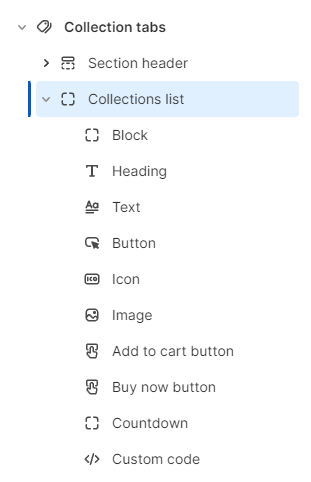
You can add and edit a maximum of **10** types of child blocks to the **Collection list** block in the **Collection tabs** section:

* Block
* Heading
* Text
* Button
* Icon
* Image
* Add to cart button
* Buy now button
* Countdown
* Custom code

<figure><img src="/files/MTK4qJWdFlUuOMK61PQ1" alt=""><figcaption></figcaption></figure>


---

# Agent Instructions: Querying This Documentation

If you need additional information that is not directly available in this page, you can query the documentation dynamically by asking a question.

Perform an HTTP GET request on the current page URL with the `ask` query parameter:

```
GET https://docs.foxecom.com/foxify-app/legacy-editor/sections-and-presets/collection-tabs.md?ask=<question>
```

The question should be specific, self-contained, and written in natural language.
The response will contain a direct answer to the question and relevant excerpts and sources from the documentation.

Use this mechanism when the answer is not explicitly present in the current page, you need clarification or additional context, or you want to retrieve related documentation sections.