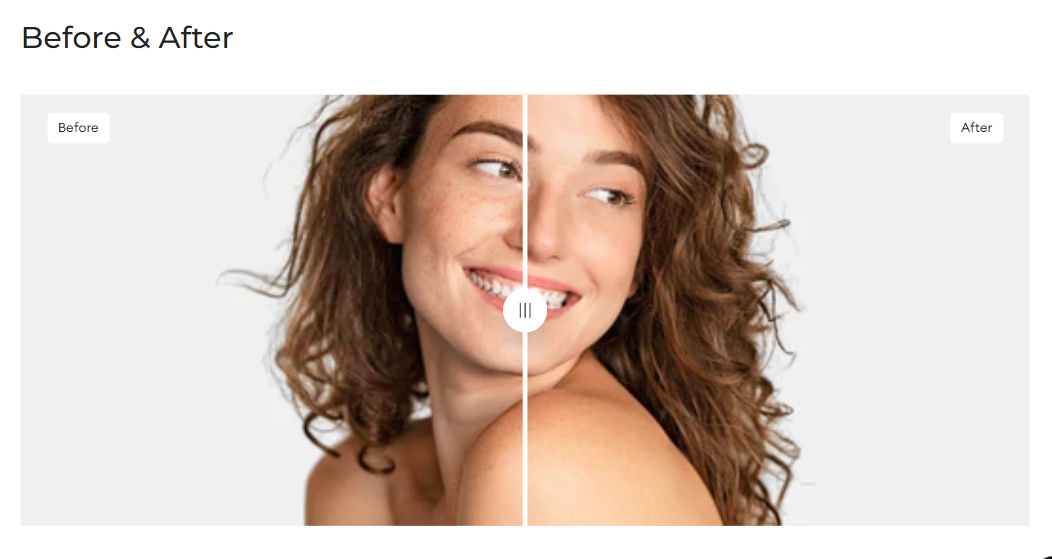
# Before/ After slider

<div data-full-width="true"><figure><img src="/files/dHaPBf9wiTvRsPXBrcnP" alt=""><figcaption><p><a href="https://foxecom.com/pages/affiliate?utm_source=foxecom&#x26;utm_medium=help_center_foxify_before_after_slider&#x26;utm_campaign=anchor-text&#x26;utm_term=explore_foxecom_affiliate_program_perks_now">Explore FoxEcom Affiliate program perks now</a> <span data-gb-custom-inline data-tag="emoji" data-code="2728">✨</span></p></figcaption></figure></div>

You can create a vertical slider for using an Image comparison section, unleashing the creative potential of your site.&#x20;

<figure><img src="/files/pZHL8av8nb94DRs9mk9D" alt=""><figcaption></figcaption></figure>

Using an **Image comparison** section can bring you several benefits such as:&#x20;

* boosting engagement on your Shopify store through interaction;
* creating compelling visual stories;
* showcasing impressive or persuasive presentations.

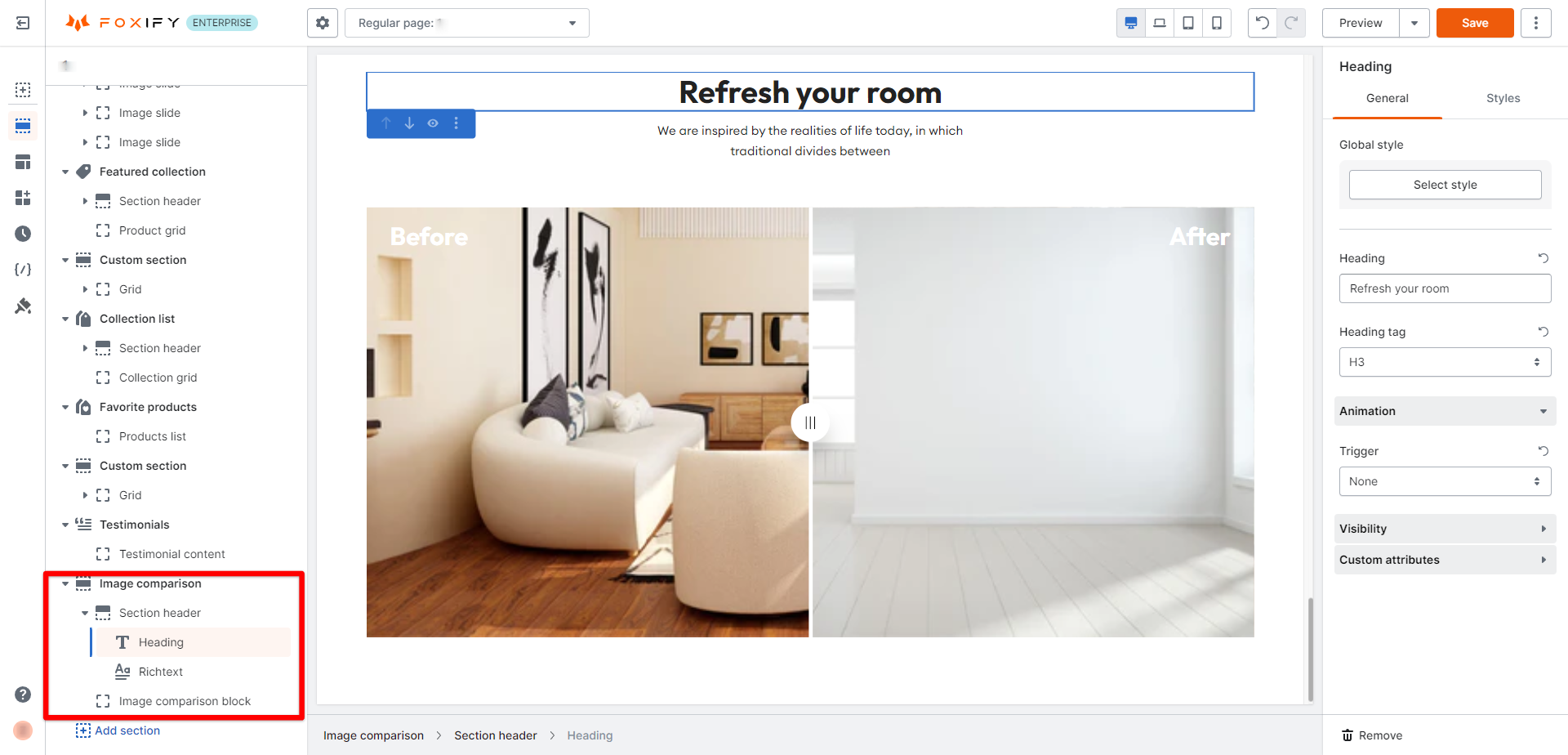
After [adding the section](/foxify-app/legacy-editor/sections-and-presets.md#add-a-section), you can then customize it to your liking 🌟

## Add a Section header

To the Section header, you can add an image, a heading, or a text child block.

<figure><img src="/files/XHw70D1Cs1IGRzRECNA5" alt=""><figcaption></figcaption></figure>

## Customize the Image comparison slider
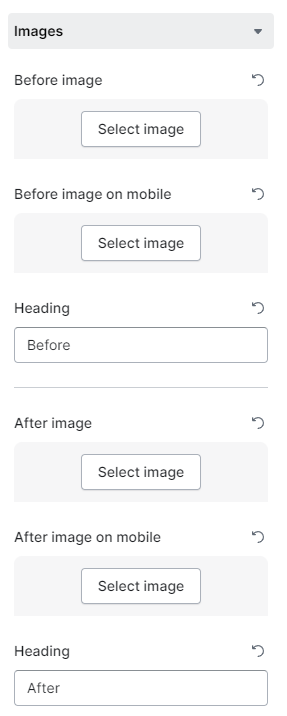
In the **General settings** > **Images** settings, add your before and after images for a comparison effect. You can also set your images on desktop and mobile view separately.

<figure><img src="/files/fuLKa1myvMRgBLJa3ui4" alt=""><figcaption></figcaption></figure>


---

# Agent Instructions: Querying This Documentation

If you need additional information that is not directly available in this page, you can query the documentation dynamically by asking a question.

Perform an HTTP GET request on the current page URL with the `ask` query parameter:

```
GET https://docs.foxecom.com/foxify-app/legacy-editor/sections-and-presets/before-after-slider.md?ask=<question>
```

The question should be specific, self-contained, and written in natural language.
The response will contain a direct answer to the question and relevant excerpts and sources from the documentation.

Use this mechanism when the answer is not explicitly present in the current page, you need clarification or additional context, or you want to retrieve related documentation sections.