# Blog posts

<div data-full-width="true"><figure><img src="/files/dHaPBf9wiTvRsPXBrcnP" alt=""><figcaption><p><a href="https://foxecom.com/pages/affiliate?utm_source=foxecom&#x26;utm_medium=help_center_foxify_blog_posts&#x26;utm_campaign=anchor-text&#x26;utm_term=explore_foxecom_affiliate_program_perks_now">Explore FoxEcom Affiliate program perks now</a> <span data-gb-custom-inline data-tag="emoji" data-code="2728">✨</span></p></figcaption></figure></div>

<figure><img src="/files/WSD3oPsgeQSov1CrSciy" alt=""><figcaption></figcaption></figure>

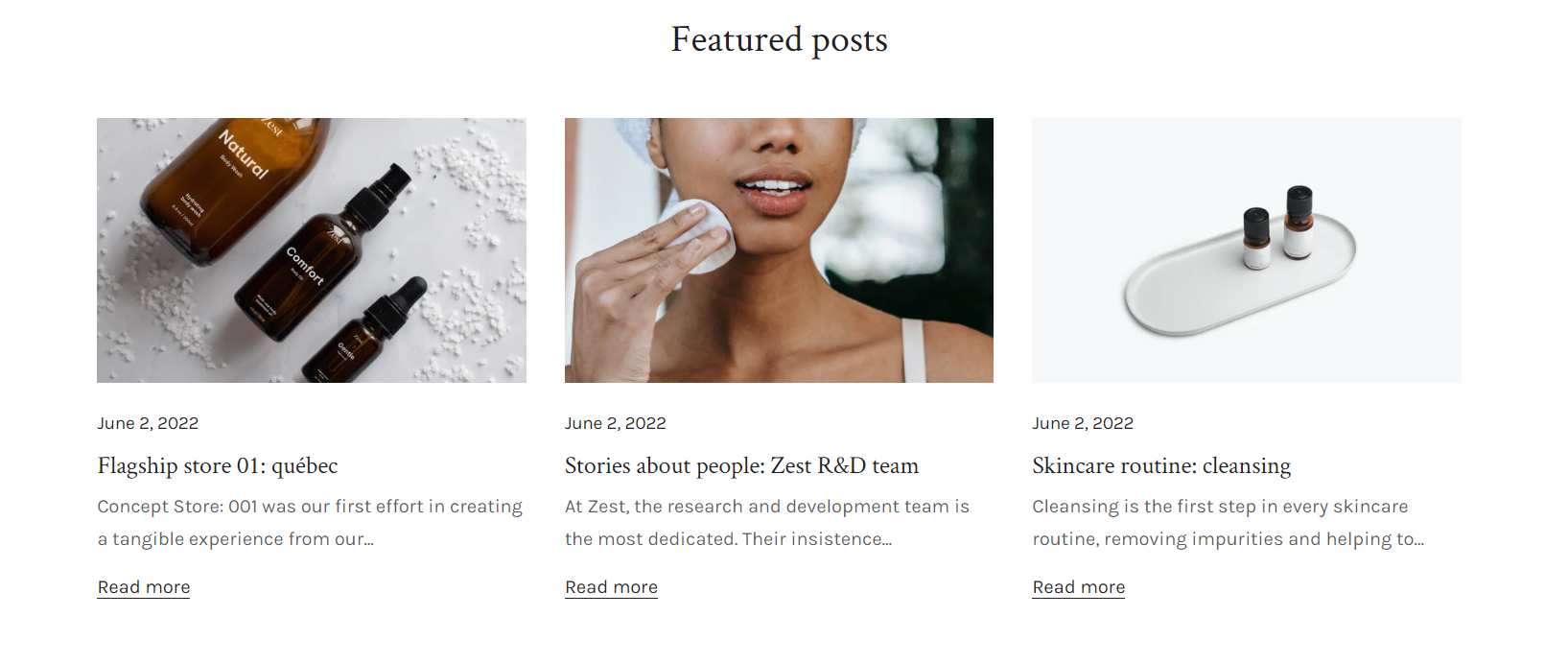
A blog acts as your brand’s direct voice to the outside world. It helps build, reaffirm and strengthen your brand name online while attracting more traffic to your website.&#x20;

In this article, we will show you how to customize your Blog posts section.

## Customize your blog posts section header&#x20;

First, you need to add a blog posts section to your page.

<figure><img src="/files/RxvsDUd0CKpV0ywYIkle" alt=""><figcaption></figcaption></figure>

In your section header block, you can easily add. remove, or reorder child blocks (which are heading, subheading, and rich text).

<figure><img src="/files/FtFq1iQmLjxQbkZxOHid" alt=""><figcaption></figcaption></figure>

## Customize your blog posts grid

### Content settings

Let's start with selecting a blog that you've created in Shopify admin > Blog posts.

Haven't added any blogs yet? Check out [this article](https://help.shopify.com/en/manual/online-store/blogs) on how to add a blog and create blog posts.

In the blog posts grid content settings, you can config your number of posts to show between 1 and 24 using the toggle.

<figure><img src="/files/2GWeyxjM1FrwwzYifFSV" alt=""><figcaption></figcaption></figure>

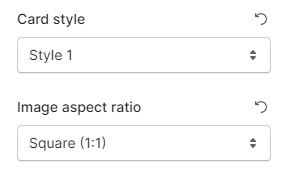
After that, change the card style and set the image aspect ratio to your liking.

<figure><img src="/files/Ez5YKLGVfcvyufN0AA4g" alt=""><figcaption></figcaption></figure>

### Desktop layout

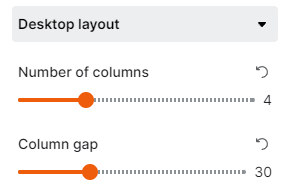
Set your number of columns (1-12 columns) and the gap between columns on the desktop view.

<figure><img src="/files/FJgyF71SuPpEmwlmH549" alt=""><figcaption></figcaption></figure>

### Mobile layout

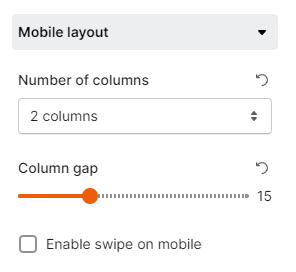
Similar to desktop layout, mobile layout lets you set your number of columns shown on mobile view (1 column/2 columns) and the column gap.

<figure><img src="/files/uc173PsgUOJRta2e06ds" alt=""><figcaption></figcaption></figure>

Check **Enable swipe on mobile** to display the blog posts grid in horizontal order with a slider.&#x20;

<figure><img src="/files/JYvKHSDGIFIWO4iX6f5U" alt=""><figcaption></figcaption></figure>


---

# Agent Instructions: Querying This Documentation

If you need additional information that is not directly available in this page, you can query the documentation dynamically by asking a question.

Perform an HTTP GET request on the current page URL with the `ask` query parameter:

```
GET https://docs.foxecom.com/foxify-app/legacy-editor/sections-and-presets/blog-posts.md?ask=<question>
```

The question should be specific, self-contained, and written in natural language.
The response will contain a direct answer to the question and relevant excerpts and sources from the documentation.

Use this mechanism when the answer is not explicitly present in the current page, you need clarification or additional context, or you want to retrieve related documentation sections.