How to add a Mailto link to your emails?
Add a mailto link to your email templates for easy contact with pre-filled details

What is a Mailto link
A mailto link lets you add an email link in your templates. When clicked, it opens the user's default email client with the recipient's email, subject, and body pre-filled, making it easy for recipients to contact you directly without needing to manually copy and paste an email address.
How to easily add a Mailto link
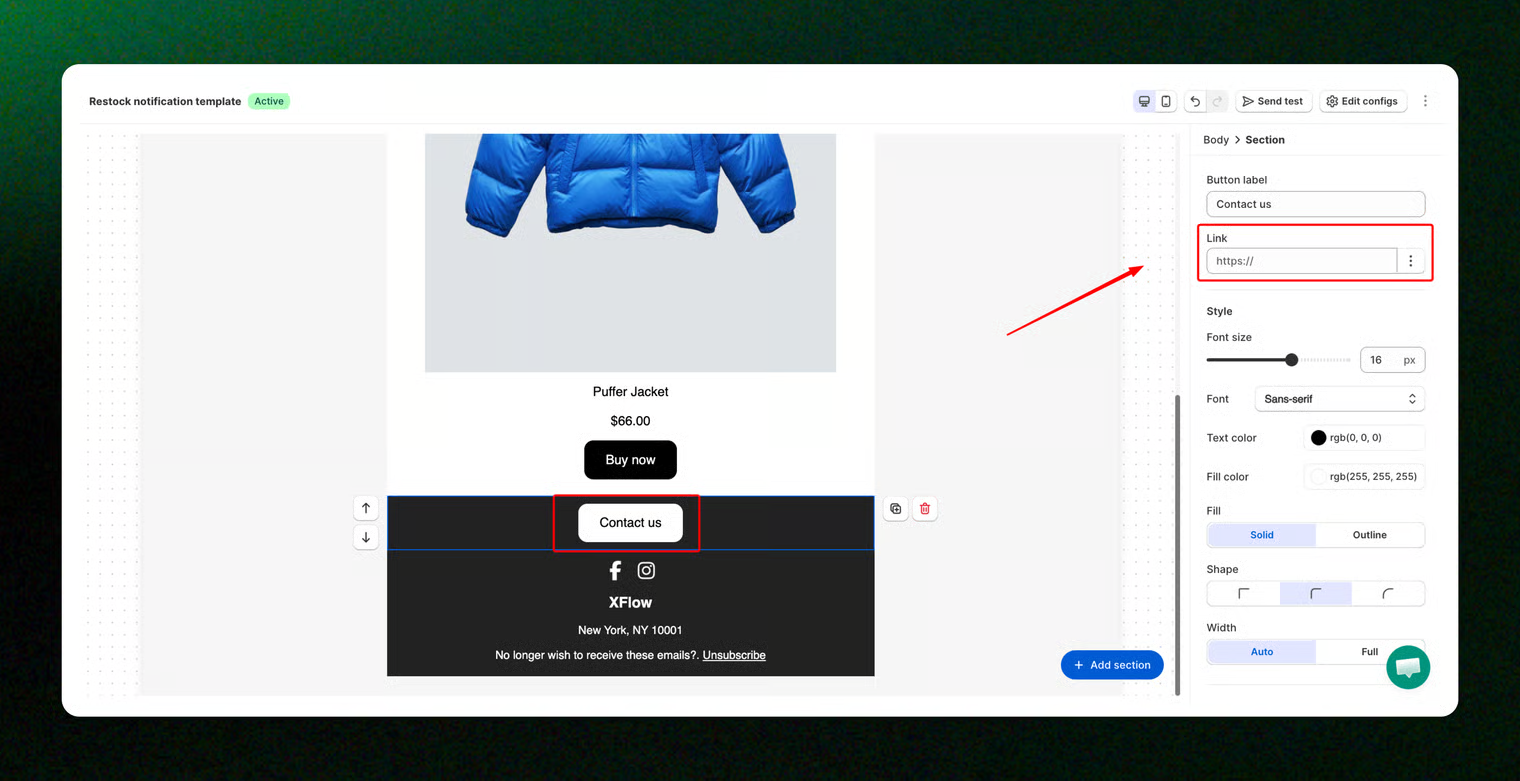
Select the button/image you want to link
Choose the block where you want to insert the mailto link. You can use any Button or Image section inside the email template builder.
Learn more: Design your email templates

Add the following code
In the Link field, add the following format:
🔗 Basic contact link
To automatically open a new email draft in the recipient's inbox with your email address pre-filled
Example: mailto:[email protected]

📧 Add a CC recipient
To include an additional email address in the CC field alongside your contact email.
Example: mailto:[email protected][email protected]

📩 Add BCC recipients
To include recipients in the BCC field who won't be visible to others.
Example: mailto:[email protected][email protected],[email protected]

📝 Prefill the subject line
To automatically fill in the subject line with your custom text, add it after the ?subject= .
Example: mailto:[email protected]?subject=XFlow Support

✒️ Prefill the subject and body
To set a custom subject line and include predefined content in the message body, append the &body= .
Example: mailto:[email protected]?subject=XFlow Support&body=Hi XFlow team, I hope this message finds you well. I am reaching out to request your assistance with an issue I’m experiencing with the app.

📞 Add click-to-call links
Share your phone number by adding a click-to-call link, which opens a prompt with the number for easy calling.


You’ve added a mailto link to your email template! 🎉
Once the mailto link is added, don't forget to click save and apply changes to the email templates
Then, send a test email to verify everything works as expected. When you click the button or image, your default email client will open with the pre-filled information.
Learn more: Preview and test your email

Common use cases
"Contact us" buttons: An excellent option for businesses looking to give recipients an easy way to get in touch.
"Report an issue" links: Perfect for product or service companies that want users to quickly report problems.
"Request a quote" buttons: A convenient option for users who need information on pricing or services.
Customer support: A common practice in many email campaigns, allowing customers to contact you directly for assistance.
Partnership or collaboration inquiries: Give partners a direct way to reach out with business or collaboration proposals.
📩 Need help?
We’re here to make your XFlow experience smooth and successful. Our support team is always ready to assist you—no matter how big or small your question is.
Last updated