# Create an email template
## Set up email settings
1. Go to **Email templates** (or **Settings**) > **Email settings.**
2. Configure your sender profile settings.
3. Click **Save**.
_BTx2JYmy.jpg)
Use **Email settings** to manage how XFlow sends and tracks your notification emails:
* **Sender profile:** Set up your sender domain and email details used to send notifications to customers.
* **Test emails:** Add email addresses for previewing and testing your emails before sending.
* **UTM tracking:** Add UTM parameters to track email traffic and performance in analytics tools.
* **Unsubscription option:** Choose how customers unsubscribe from restock alerts and manage their email preferences.
* **Email providers:** Connect and manage your email provider via API or SMTP.
*Learn more:* [*Configure your email settings*](https://docs.foxecom.com/xflow-app/email-templates/configure-your-email-settings)
## Create an email template
Click **Create email** to start creating a new email template. You can also choose a **pre-built template** as a starting point and customize it to match your campaign.
_R4tH8PMK.jpg)
## Enter template details
_l810fl01.jpg)
* **Email template name:** Enter an internal name to organize your templates.
* **Email subject:** Add the subject line that customers will see when they receive the email.
After setting up the email name and email subject, click **Create email** to proceed.
## Design your email template
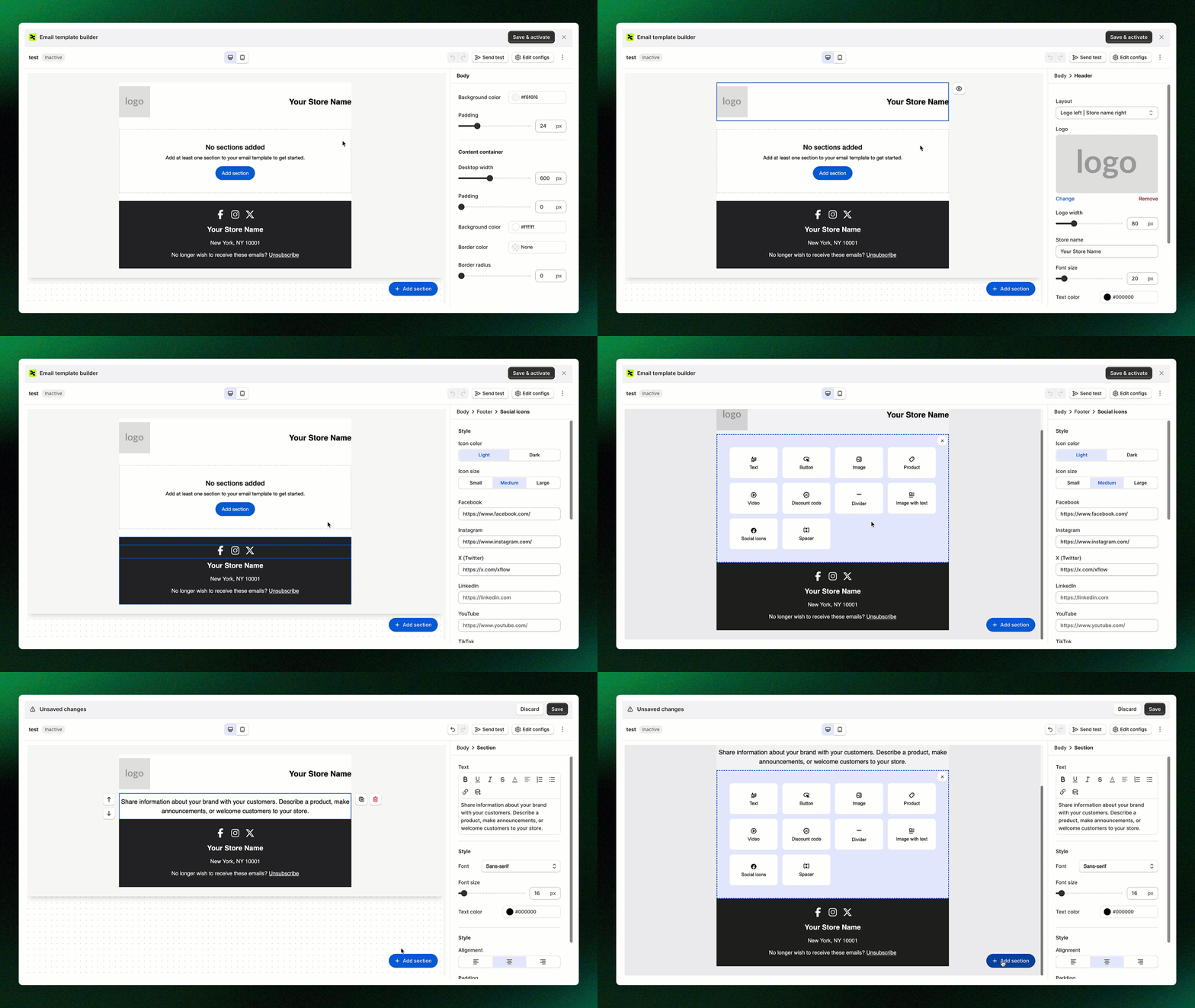
Start designing your email template by adding sections, customizing content, and adjusting layout and styles to match your brand.
*Learn how to edit your email template:* [*Design your email templates*](https://docs.foxecom.com/xflow-app/email-templates/design-your-email-templates)
## Save and activate your email template
After customizing your email, click **Save & Activate** to enable and start using your email template.
_R6BLuvEp.jpg)
*Want to reuse this template? Check this out:* [*Save email as a template for reuse*](https://docs.foxecom.com/xflow-app/email-templates/save-email-as-a-template-for-reuse)
## Your email template is now active!
Your email template has been successfully activated and is now ready to use.
_eBPnn455.jpg)
_wjpmoNFk.jpg)
After customizing your email template, don’t forget to preview and test your email to make sure everything looks good before sending it: [Preview and test your email](https://docs.foxecom.com/xflow-app/email-templates/preview-and-test-your-email)
## Related articles
Design your email templates
Understanding personalization variables in email templates
Preview and test your email
Manage email templates
Use email templates in campaigns and workflows
Email templates: FAQs