# Customize "Notify me" form and messages
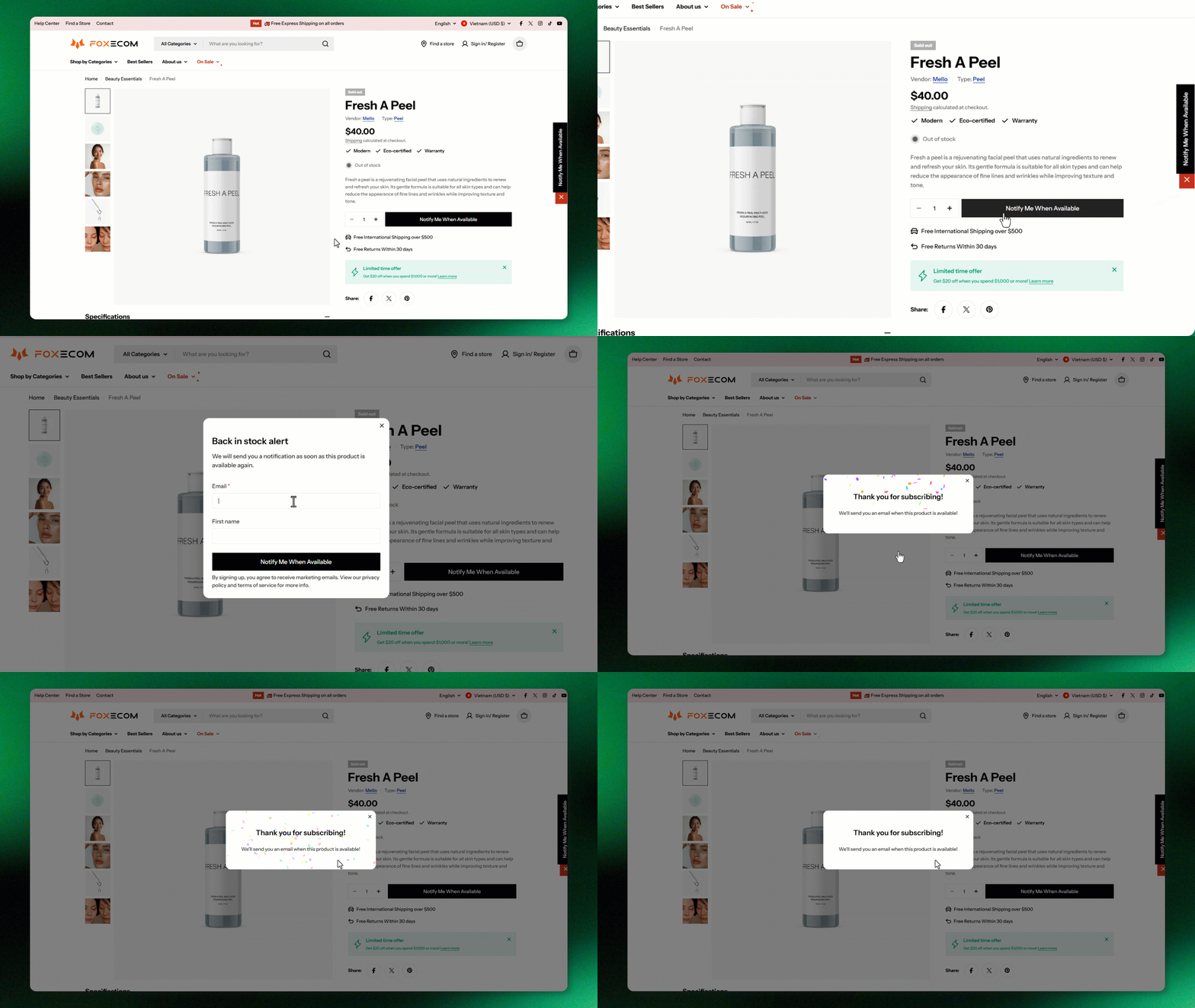
Make sure **XFlow Helper is enabled** in the theme editor. This allows XFlow to work seamlessly with your theme.
*Not sure how to do that? Learn more here:* [Enable XFlow on your storefront](https://docs.foxecom.com/xflow-app/getting-started/quick-start-guide/enable-xflow-on-your-storefront)
## Why customize your 'Notify me' widget?
A well-designed sign-up form encourages shoppers to subscribe when products are sold out — helping you capture buyer intent while maintaining brand consistency. You can customize the form’s **fields, content, messages,** and **display rules** directly inside the XFlow app.
When a product in an active campaign is sold out, the ‘Notify me’ button will show automatically on its page.
[*Learn more about Campaigns*](https://docs.foxecom.com/xflow-app/campaigns/overview)
## Access the "Notify me" widget settings
1. From your XFlow dashboard, select **"Notify me" widget settings**.
2. In the Back-in-stock settings, switch between the following tabs to configure:
Sign-up form
Notify me button
_sPKZ23a9.jpg)
### Sign-up form
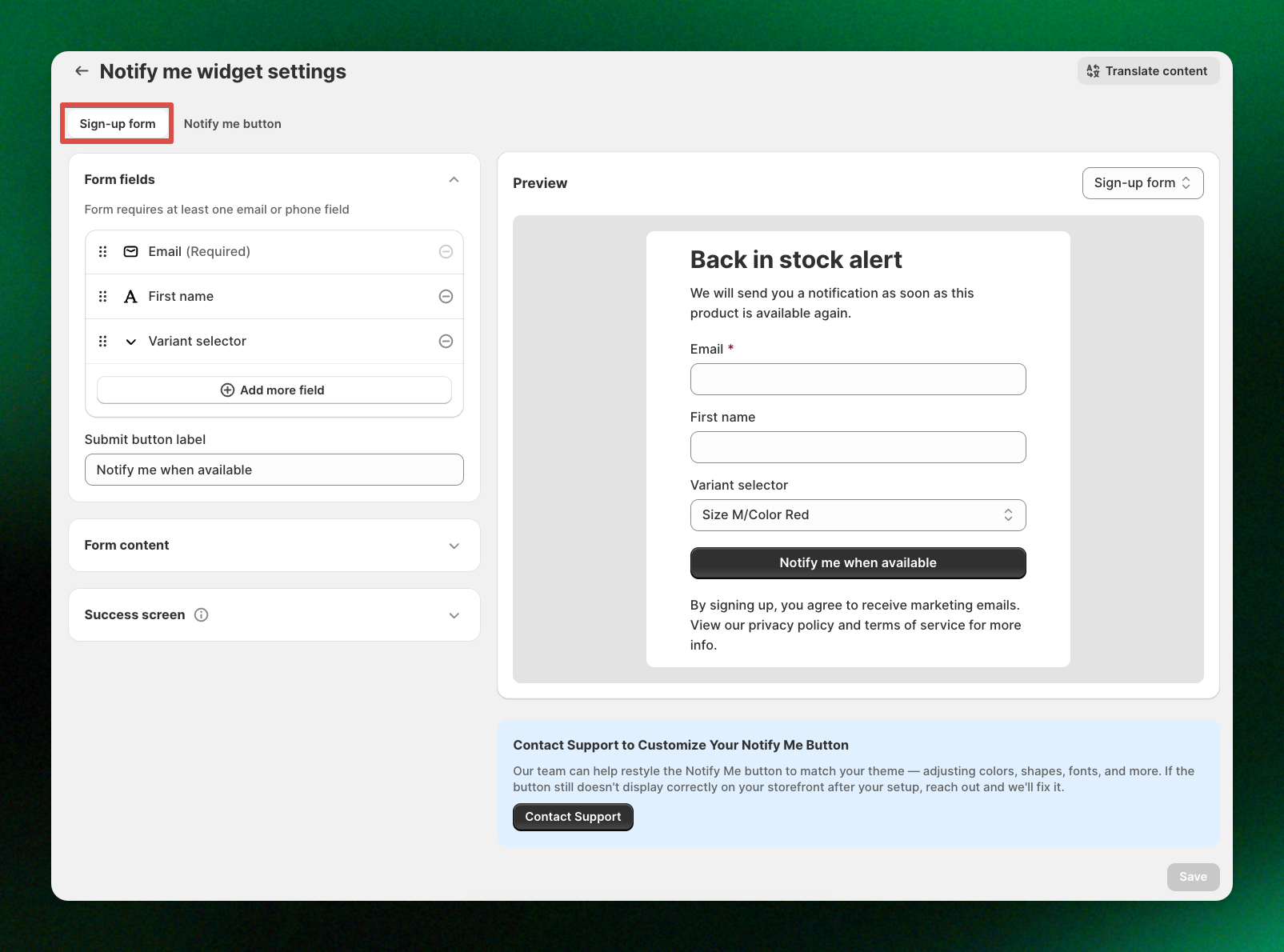
Under the **Sign-up form** tab, you can edit the content customers see when signing up for notifications:
#### Form fields
| Setting | Description |
| ----------------------- | ---------------------------------------------------------------------------------------- |
| **Email** | Add an email field to the sign-up form. At least one email or phone field is required. |
| **First name** | Add a first name field to collect the customer’s name. |
| **Variant selector** | Let customers select the product variant they want to receive restock notifications for. |
| **Add more field** | Add more customer information fields to the sign-up form. |
| **Submit button label** | Customize the text displayed on the form’s submit button. |
#### Form content
| Setting | Description |
| ------------------------------ | -------------------------------------------------------------------------------------------------------------------------- |
| **Show preview product** | Show or hide the product preview in the sign-up form. |
| **Heading** | Customize the main heading displayed on the form. |
| **Description** | Add or edit the descriptive text shown below the heading. |
| **Footer text** | Add supporting text at the bottom of the form, such as marketing consent, privacy policy, or terms of service information. |
| **Already subscribed message** | Customize the message shown when a customer has already subscribed to notifications for the product. |
| Setting | Description |
| ------------------------ | ----------------------------------------------------------------------------- |
| **Heading** | Customize the heading shown after a customer successfully subscribes. |
| **Message** | Customize the confirmation message displayed after a successful subscription. |
| **Show confetti effect** | Show a confetti animation after a successful subscription. |
**Pro tips**:
* Keep the sign-up form simple — email is usually enough.
* Use a clear success message to confirm the subscription and explain what happens next.
### 'Notify me' button
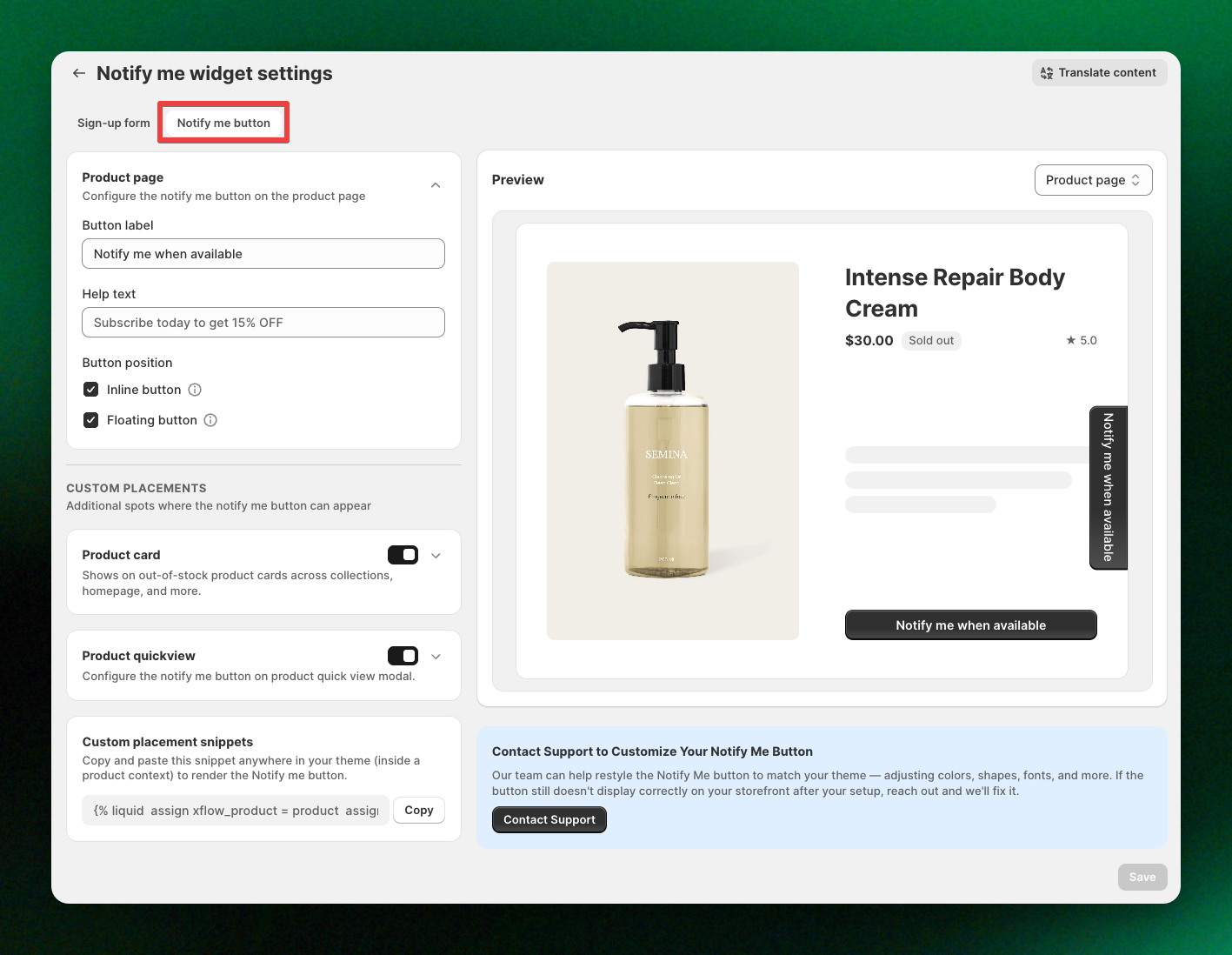
Under the **Notify Me button** tab, customize the Notify me button displayed on your product pages and product cards when items are out of stock.
#### Product page
| Setting | Description |
| ------------------- | ----------------------------------------------------------------------------------------------------- |
| **Button label** | Customize the text displayed on the Notify me button on the product page. |
| **Help text** | Add supporting text below or near the Notify me button. |
| **Button position** | Choose how the Notify me button appears on the product page: **Inline button** or **Floating button** |
_31ejMrm9.jpg)
#### Product card
This feature is available on the **Growth plan and above**.
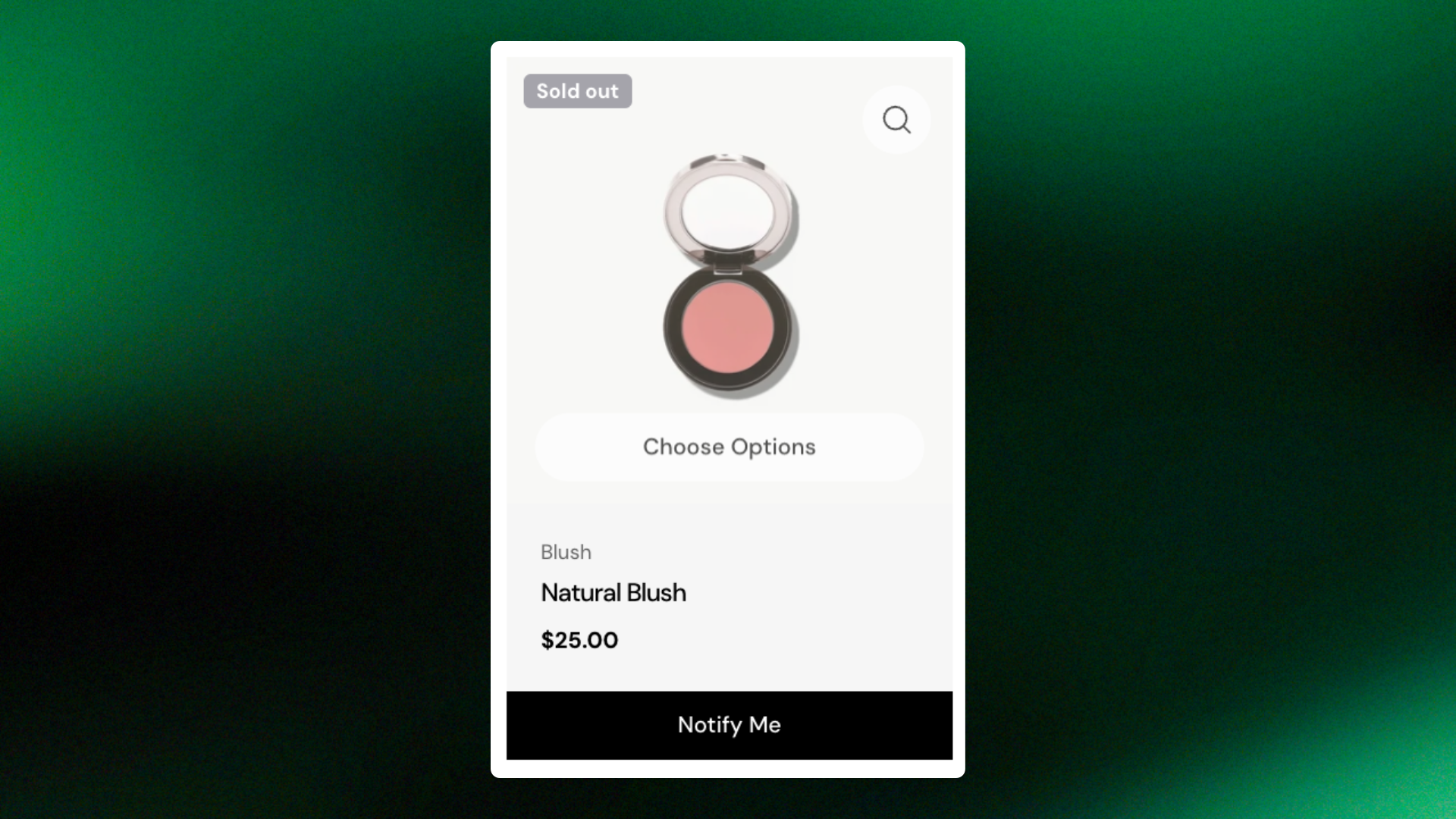
Shows on out-of-stock product cards in collections, homepage, search, and other listings.
| Setting | Description |
| ---------------- | --------------------------------------------------------------- |
| **Enabled** | Check the option to show the Notify me button on product cards. |
| **Button label** | Customize the text shown on product cards. |
**Tip**: Keep the product card button label short to avoid text truncation on smaller product cards.
#### Product quickview
This feature is available on the **Growth plan and above**.
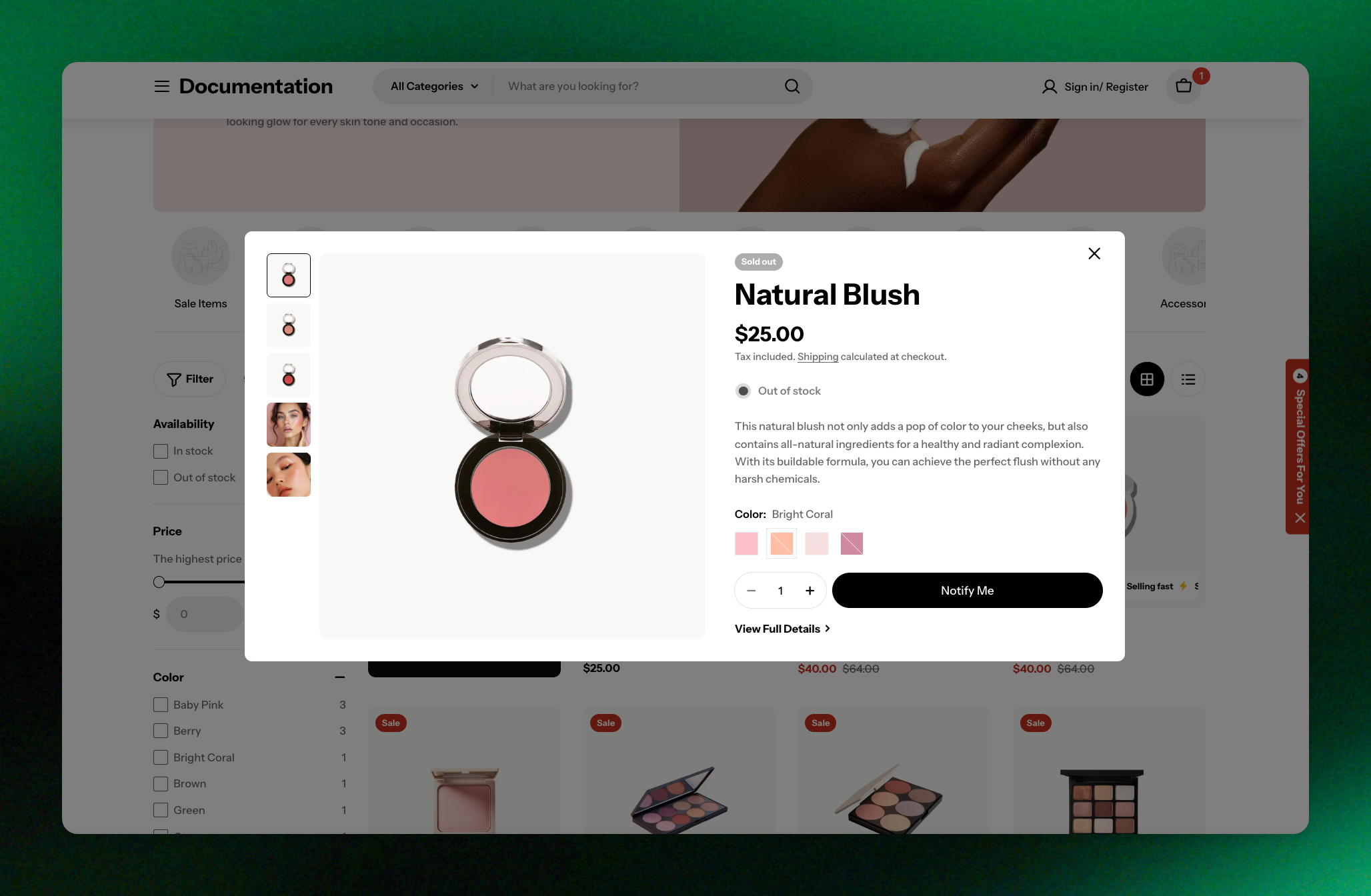
| Setting | Description |
| ---------------- | ------------------------------------------------------------------------------ |
| **Enabled** | Check the option to show the Notify me button in the product quick view modal. |
| **Button label** | Customize the button text displayed in the product quick view modal. |
This option only works if the quick view feature is enabled in your theme. If quick view is already enabled but the **Notify me** button still does not appear, [contact us for assistance](https://docs.foxecom.com/xflow-app/notify-me-widget/customize-notify-me-form-and-messages?chat=true).
#### Custom placement snippet
This feature is available on the **Growth plan and above**.
Use the custom placement snippet to manually render the Notify me button anywhere inside your Shopify theme.
_TnTAR6YV.jpg)
This is useful for:
* Sticky add-to-cart sections
* Custom product templates
* Theme-specific product layouts
* Advanced storefront customizations
Copy the provided Liquid snippet and paste it inside a product context in your theme code.
*Need help adding the snippet?* [*Contact our support team*](https://docs.foxecom.com/xflow-app/notify-me-widget/customize-notify-me-form-and-messages?chat=true)
## Add "Notify me button" block manually
By default, XFlow automatically **replaces the theme’s Buy buttons** (Add to cart / Buy now) with the **Notify me button** when a product or variant is **out of stock**.
If you don’t want the **Notify me button** to appear in the default replacement position, you can use the **XFlow: Notify me button** block to place it in another location within your product page or other supported product sections.
For the **default product form**, we recommend using the **automatic button replacement** rather than adding the block manually to avoid duplicate Notify me buttons.
*Want to translate the **Notify me button block**? Check this guide:* [*Translate "Notify me" widget content*](https://docs.foxecom.com/xflow-app/notify-me-widget/translate-notify-me-widget-content#translate-content-for-the-xflow-notify-me-button-block-in-your-theme)
## Customize the 'Notify me' widget to match your brand
Want the **Notify me form** and **Notify me button** to better match your store’s branding?
Our support team can help customize details such as **colors, button size, spacing, fonts, shapes, and overall styling** so the widget feels more consistent with your theme.
## Related articles
Set up notification rules for back-in-stock alerts"Notify me" widget: FAQsCreate and launch a Restock campaign