# Create and edit a workflow
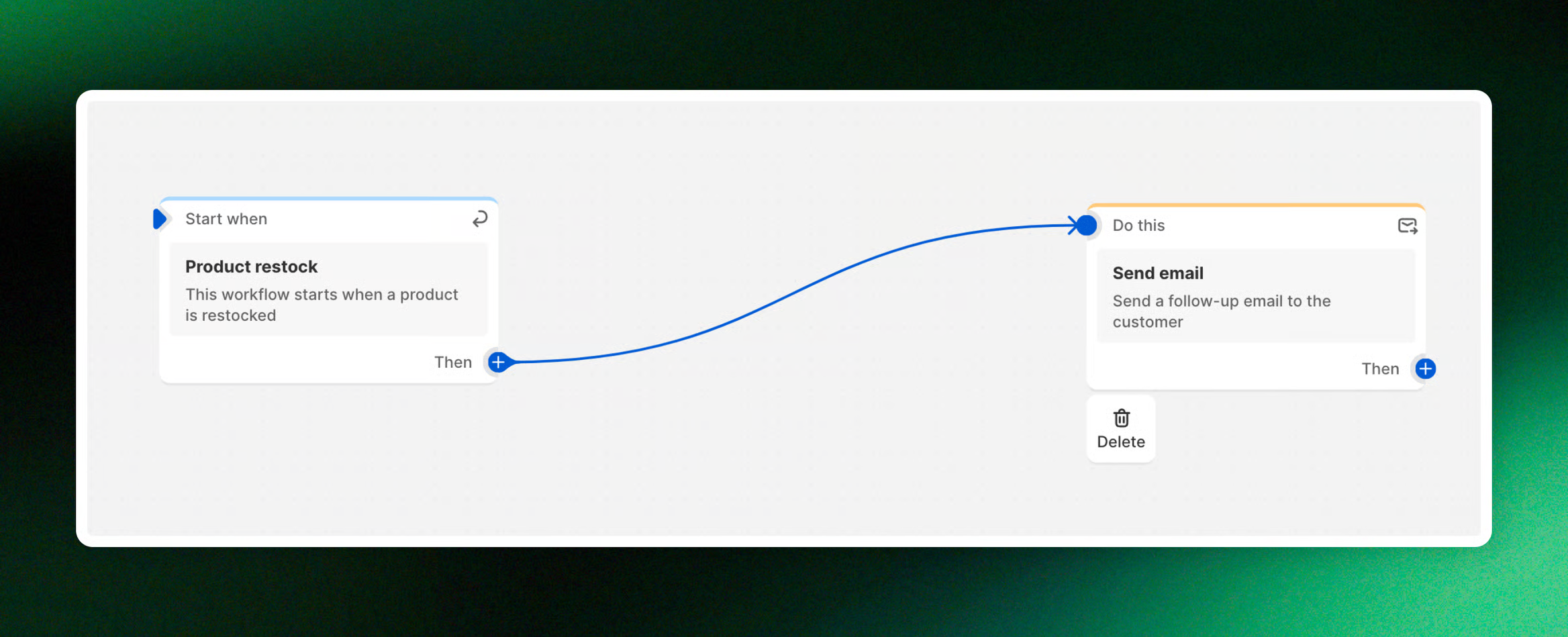
Want a head start? Use our **workflow templates library**: [Get started with workflow templates library](https://docs.foxecom.com/xflow-app/workflows/get-started-with-workflow-templates-library)
## Create and set up a workflow
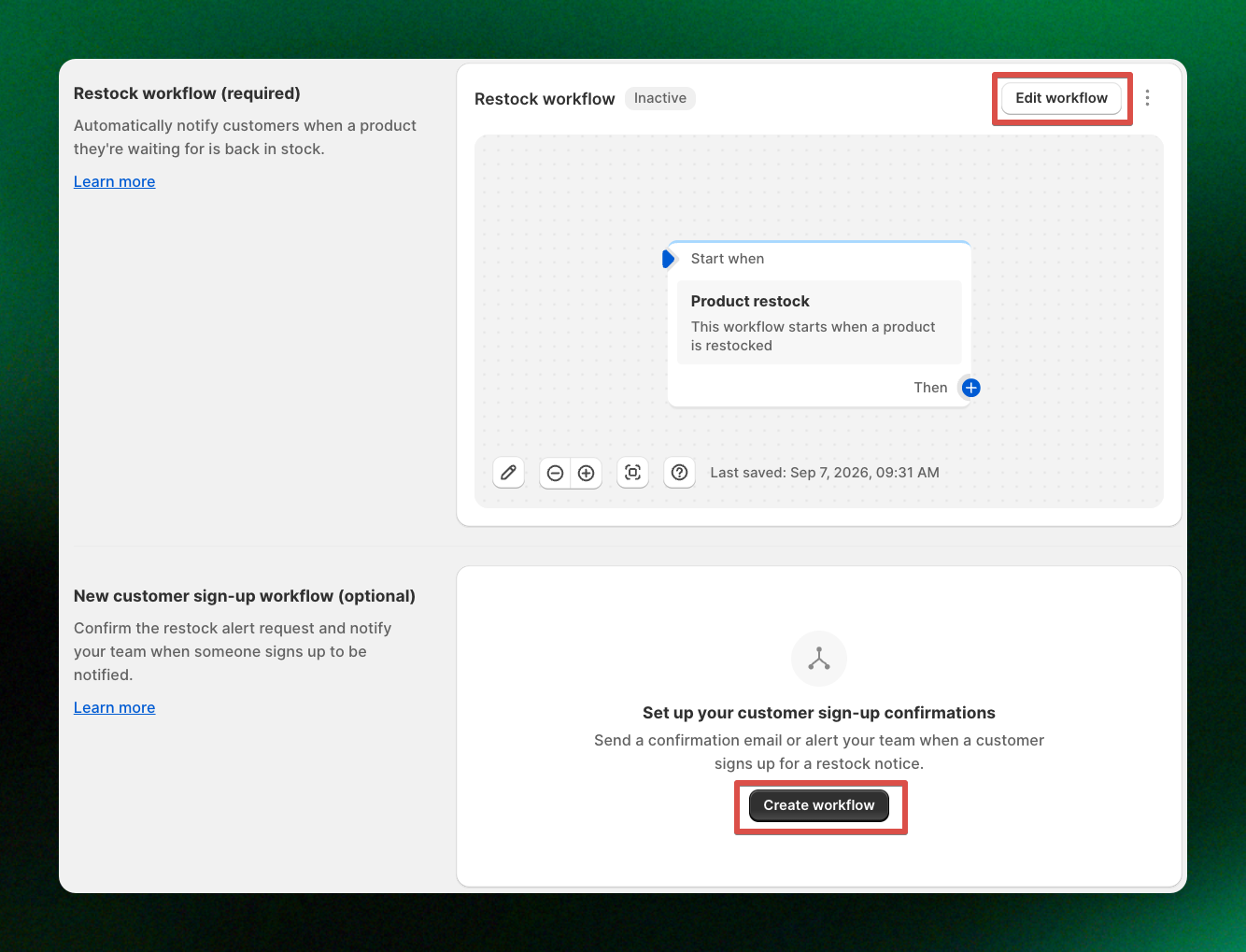
1. From the **XFlow dashboard**, go to **Campaigns**.
2. Open the campaign you want to set up.
3. Go to the **Manage workflows** tab.
4. Click **Create workflow** to add a new workflow, or **Edit workflow** to update an existing one.
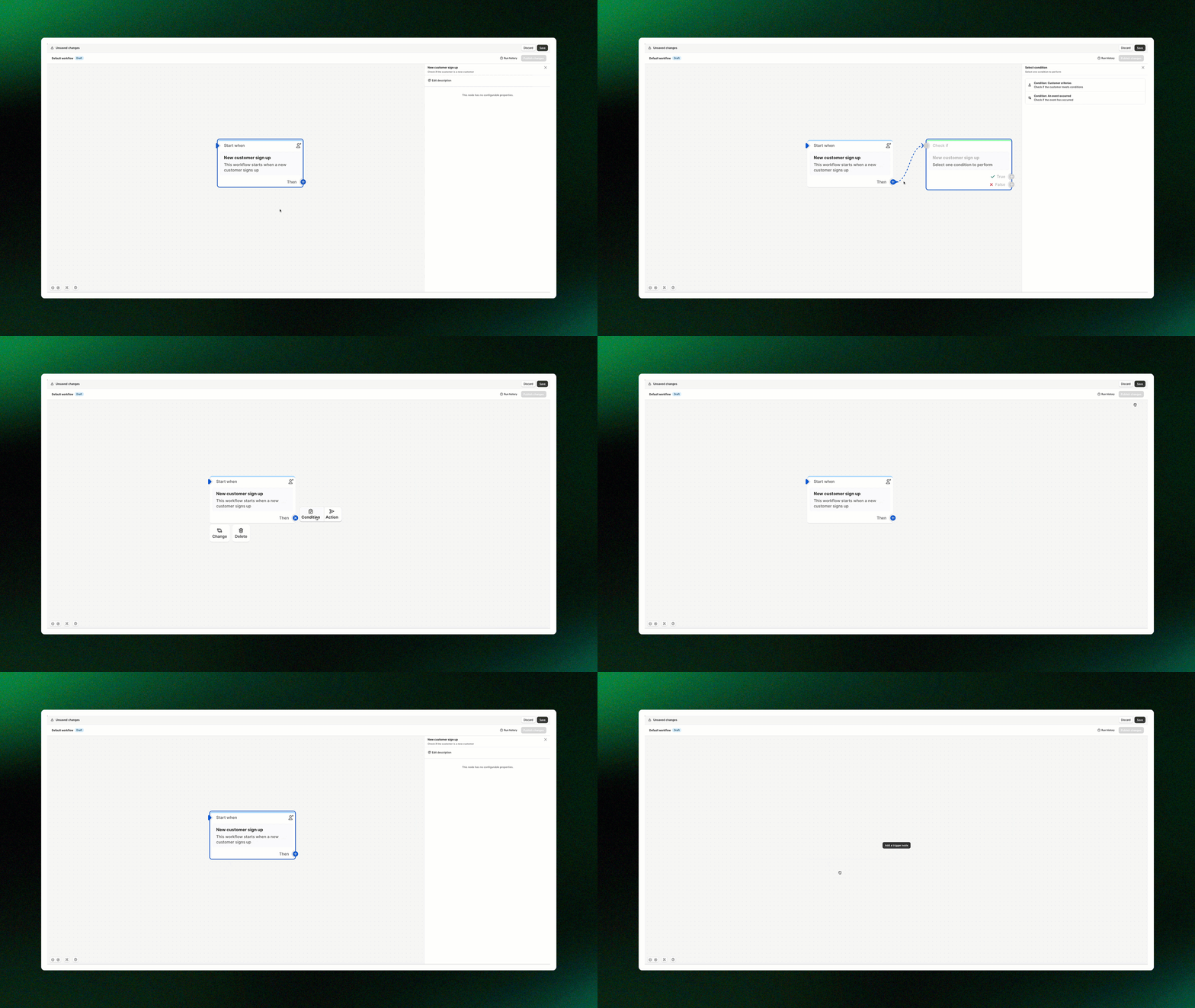
Click the plus () icon to add a **condition** or **action**, and build your workflow according to your needs.
Hover over the block to **change** or **delete** the workflow block.
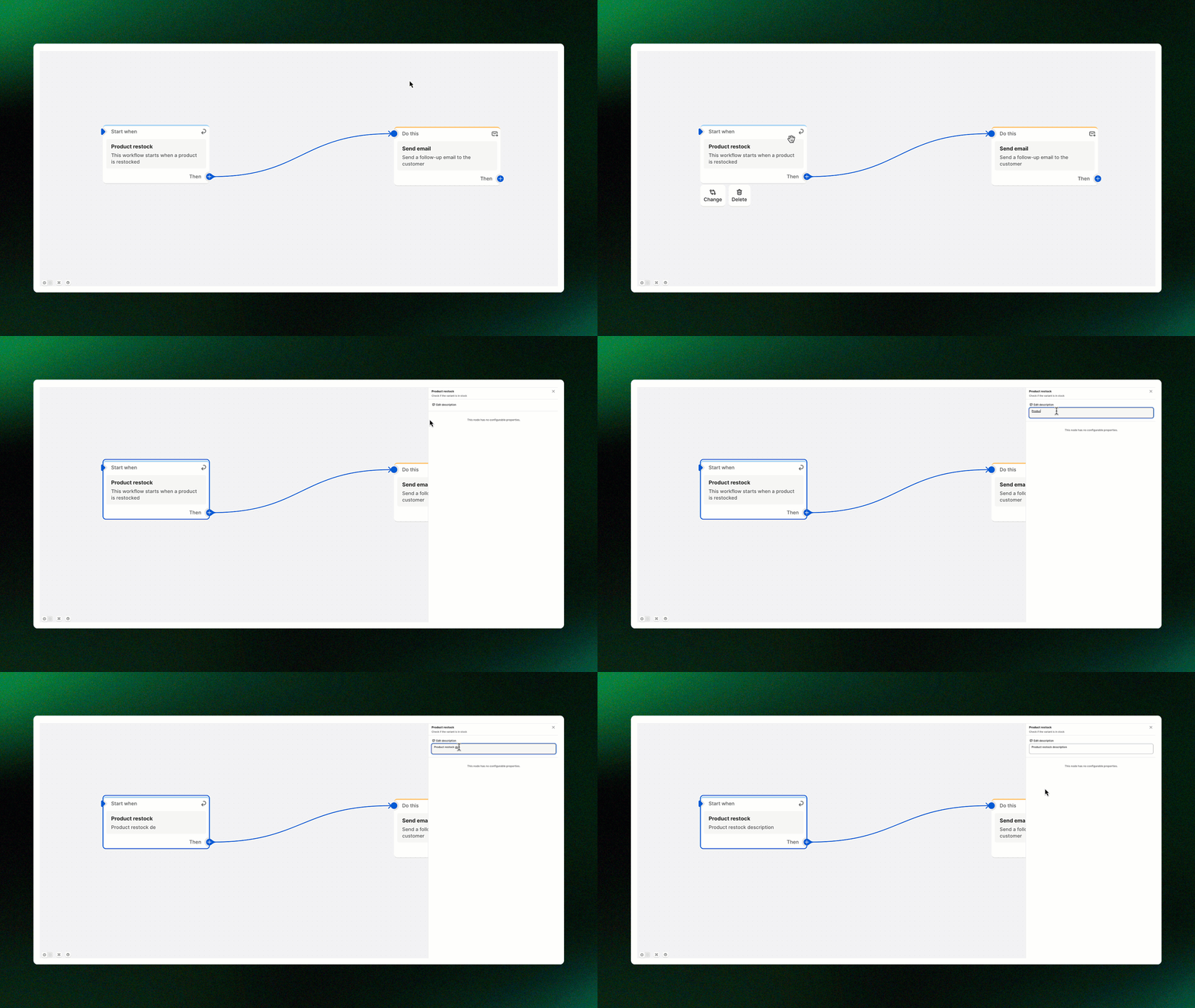
Click the block and select **Edit description** to add a custom description for your workflow.
For a workflow condition, you can choose either the **True** or **False** branch to continue building the next actions.
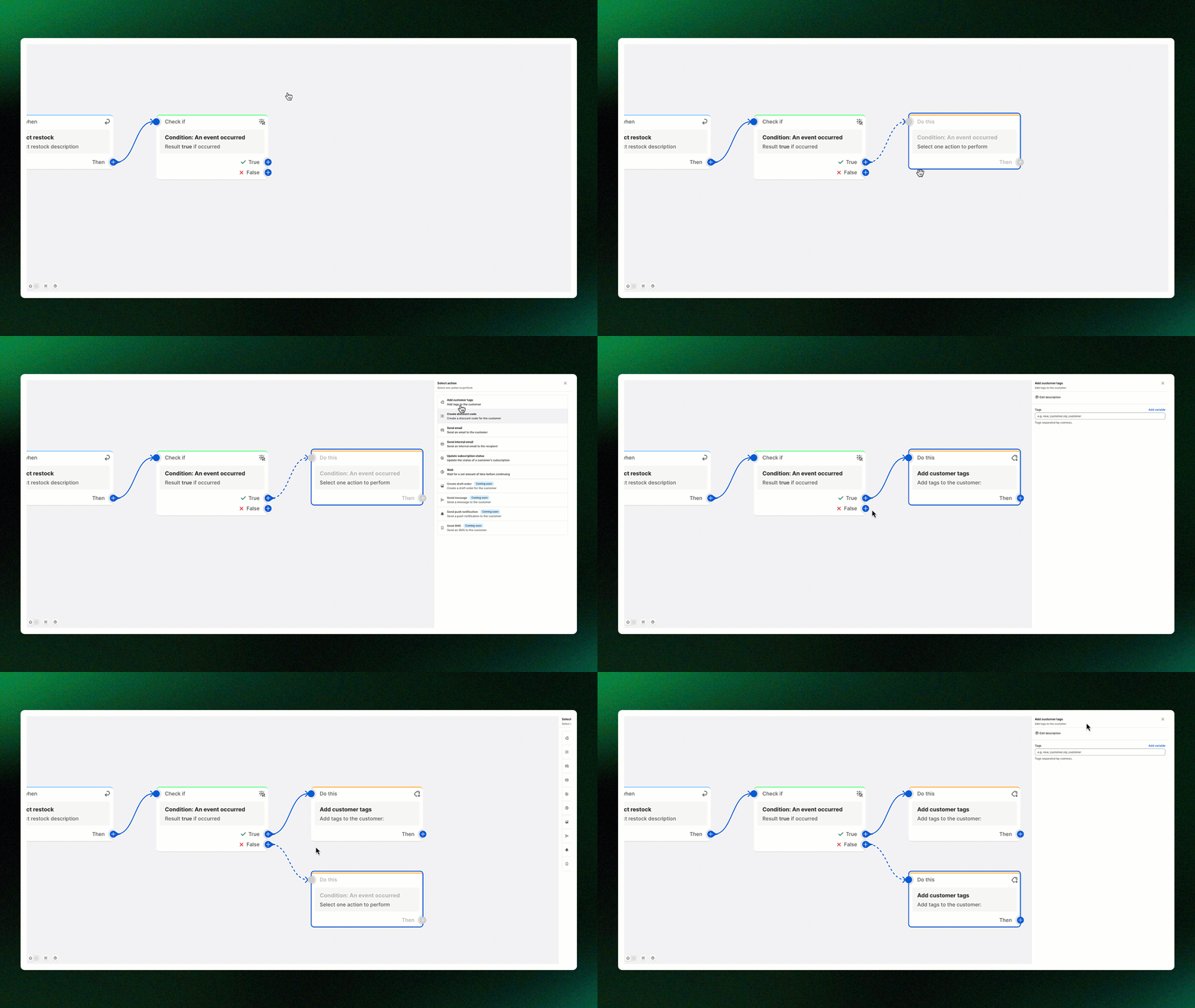
Not sure how workflows work yet? Check out [How workflows work](https://docs.foxecom.com/xflow-app/workflows/how-workflows-work).
Select an available **action** or **condition** to define what happens in your workflow.
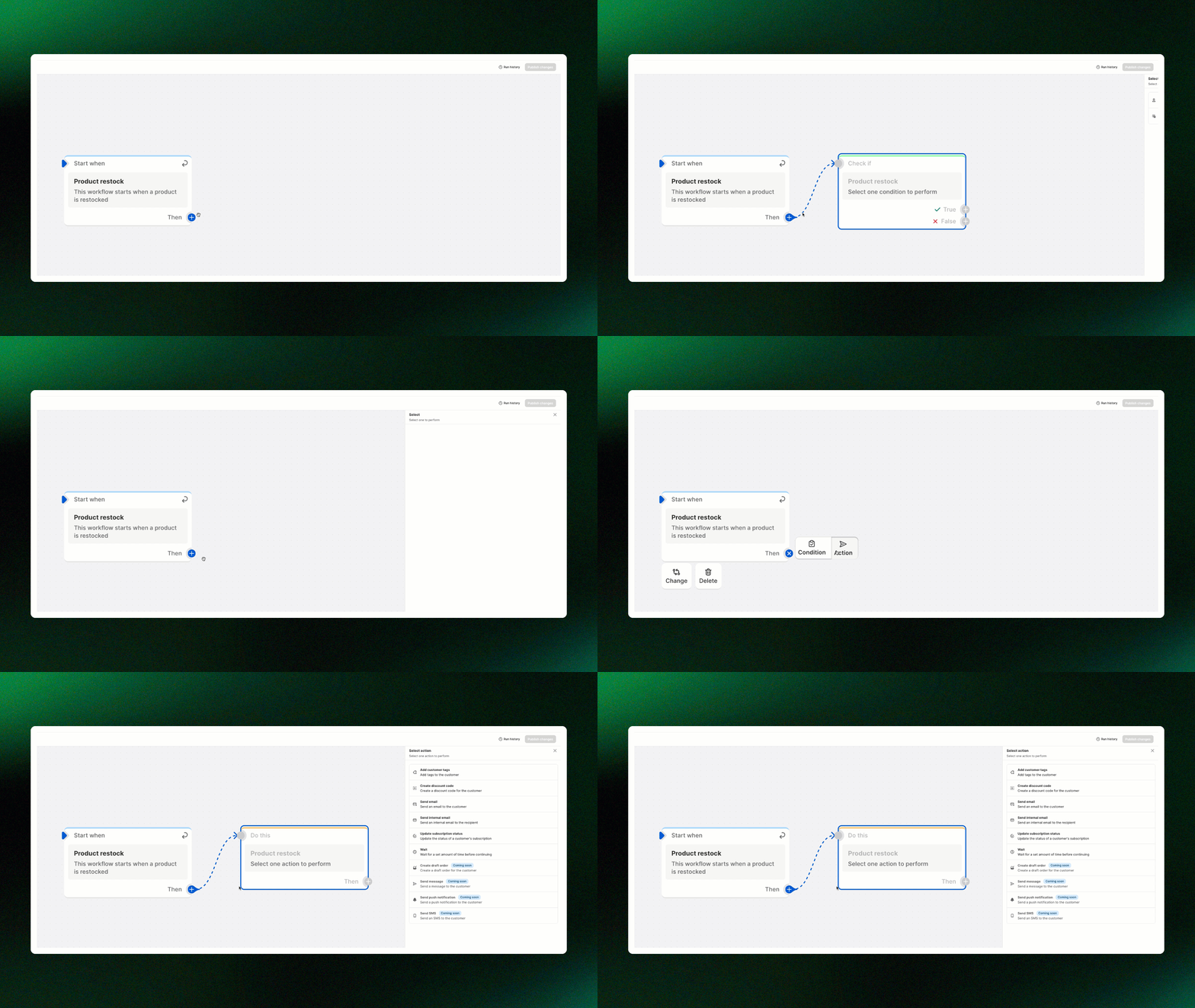
*👉 Check out these articles to learn more about workflow conditions and actions:*
* [Understanding workflow conditions](https://docs.foxecom.com/xflow-app/workflows/understanding-workflow-conditions)
* [Understanding workflow actions](https://docs.foxecom.com/xflow-app/workflows/understanding-workflow-actions)
After editing your workflow, click **Save** to save your changes.
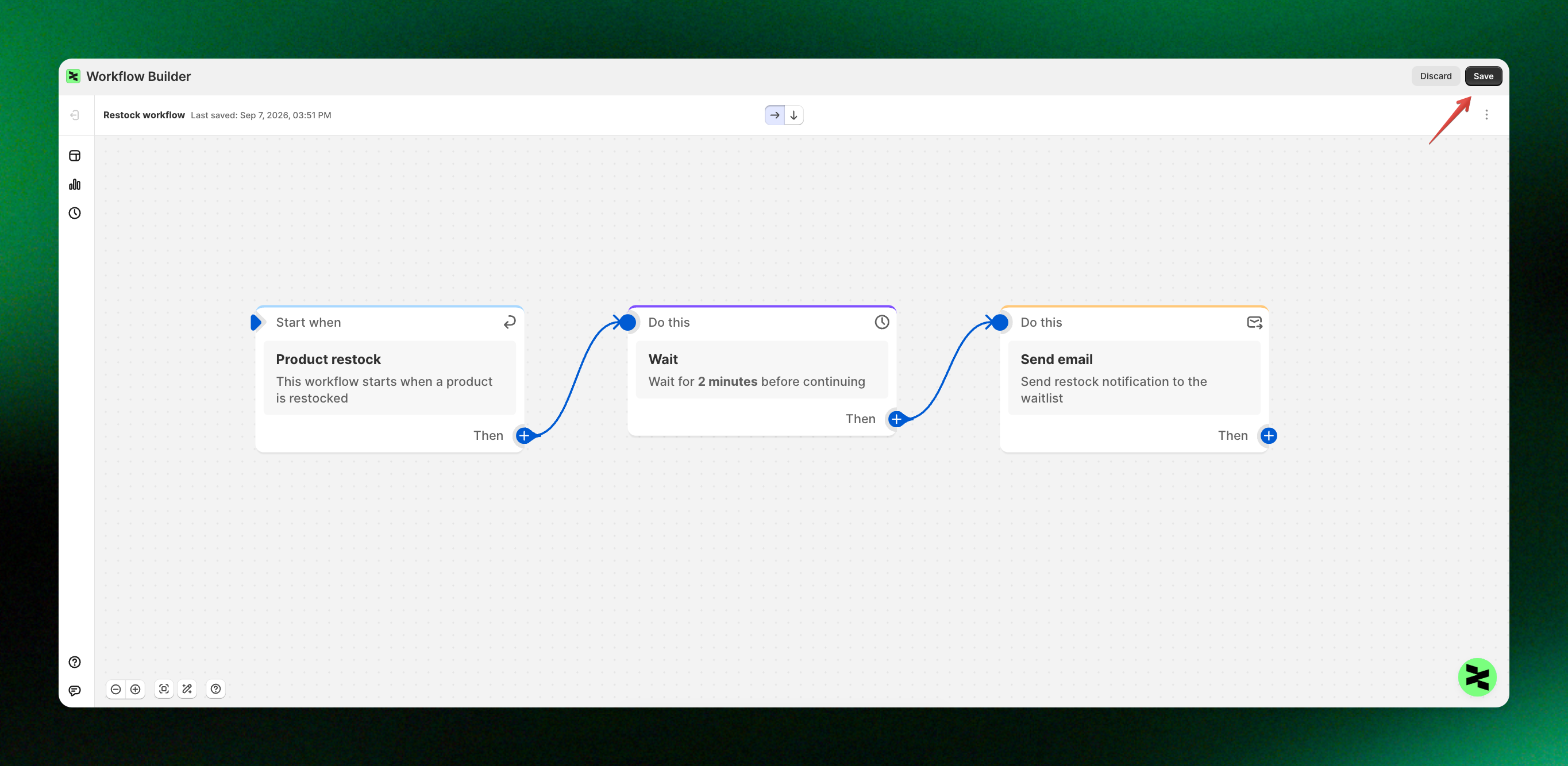
Your workflow is now complete and ready to use. Once you activate the campaign, the workflow will automatically become active as well.
## FAQs
Yes. Open your campaign, go to **Manage workflows**, then click **Edit workflow** to make changes.
No. Once the campaign is activated, the assigned workflow will automatically become active.
Yes. Click the **+** icon to add more actions or conditions and build the workflow based on your needs.
Your latest changes will not be applied until you click **Save**.
Yes. You can start with a ready-made workflow from the [**workflow templates library**](https://docs.foxecom.com/xflow-app/workflows/get-started-with-workflow-templates-library) and customize it as needed.
## Related articles
Email templates
Available triggers, actions, and conditions
Manage workflows
Workflows: FAQs