# Key concept overviews
If you’re new to XFlow or just getting to know how it works, feel free to start with this guide: [What is XFlow](https://docs.foxecom.com/xflow-app/getting-started/what-is-xflow)
When you’re ready to start creating back-in-stock alerts with XFlow, check out our step-by-step guide here: [Quick start guide](https://docs.foxecom.com/xflow-app/getting-started/quick-start-guide)
## How XFlow works
XFlow’s back-in-stock system is built around three core components:
Campaign → Workflow → Email template
They work together to create a complete automation flow.
Think of it like this:
* **Campaign** = What you’re running
* **Workflow** = What happens when restock occurs
* **Email template** = What customers receive
Together, they form one seamless automation.
### Campaign management
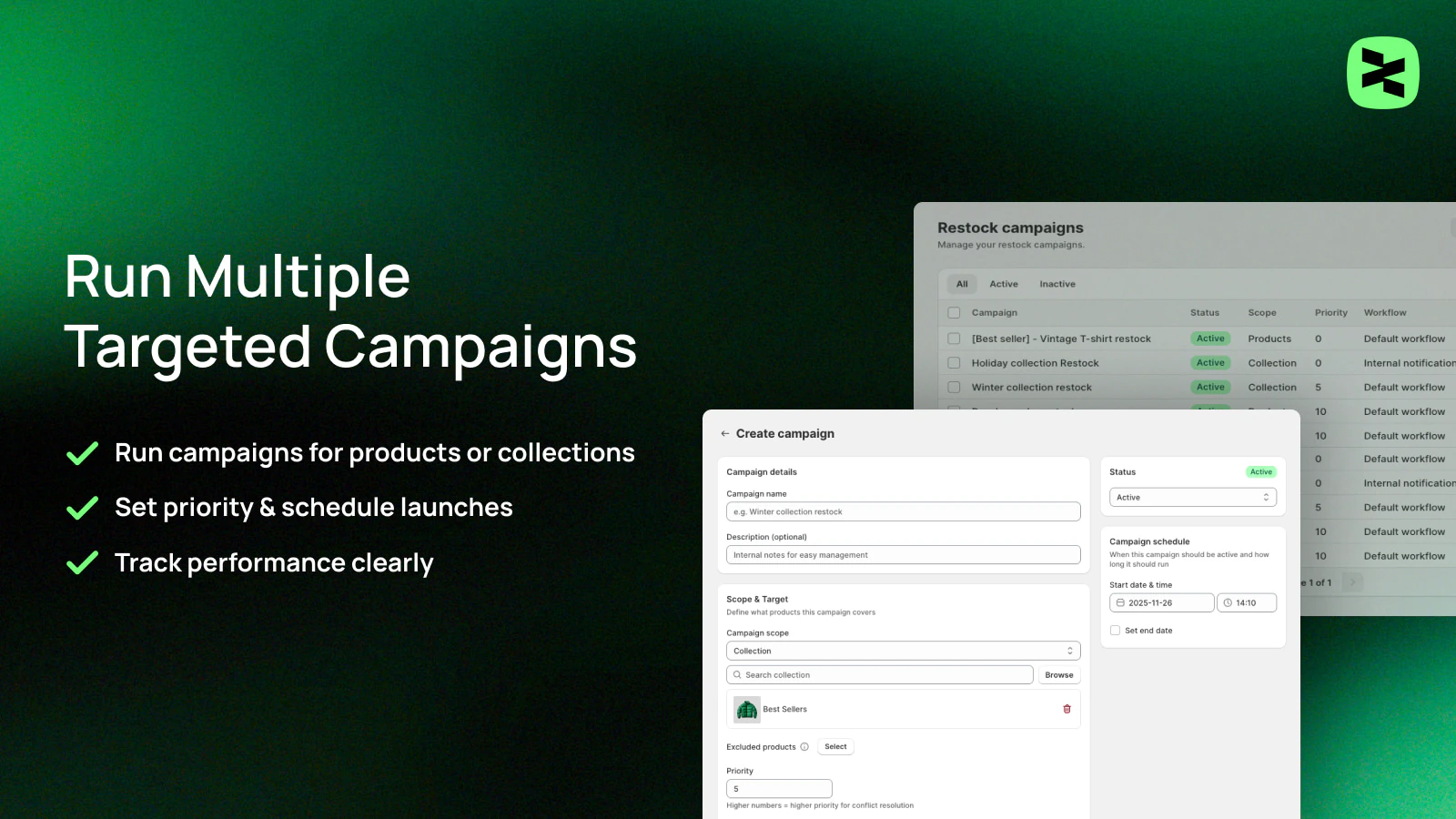
A Campaign defines:
* Which products are included
* When it is active
* How it is prioritized
* How performance is tracked
Each campaign runs independently, meaning you can activate, pause, or modify one without affecting others.
⭐ *Example:*
* A “Winter Collection Restock” campaign
* A “VIP Early Access Restock” campaign
Both can run at the same time, but each has its own rules and tracking.
#### Key elements
| Key elements | Definition |
| --- | --- |
| Scope | Defines which products or collections the campaign applies to |
| Schedule | Determines when the campaign becomes active and inactive |
| Priority | Resolves conflicts when multiple campaigns target the same product |
| Status | Controls whether the campaign is active or inactive |
| Workflow | Defines the automation logic associated with the campaign |
*Learn more:*
Campaigns
### Workflow builder
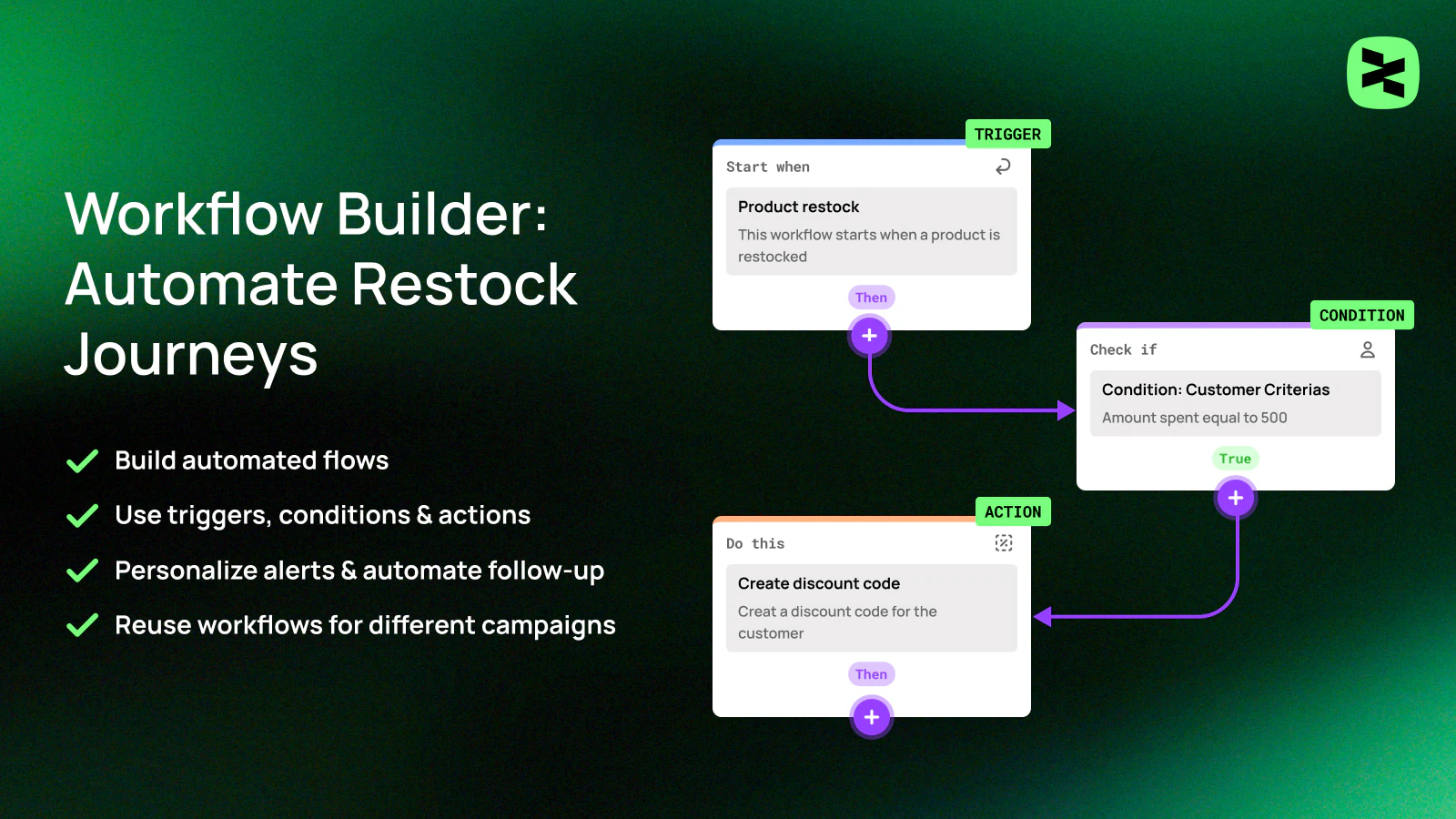
A Workflow defines what happens when a product in a campaign is restocked.
When inventory updates:
* XFlow automatically triggers the workflow
* The workflow runs predefined actions (like sending emails)
Instead of manually notifying customers, everything runs automatically.
⭐ *Example:*
When product restocks →
1. Send back-in-stock email
2. Wait 24 hours
3. Send a reminder
Workflows can be **reused** across **multiple campaigns**.
#### Key elements
| Key elements | Definition |
| --- | --- |
| Trigger | Defines when the workflow starts, such as when a product is restocked. |
| Conditions | Optional rules that determine whether the workflow should continue. |
| Actions | Define what the workflow does as an outcome. |
| Workflow flow | The sequence that connects triggers, conditions, and actions into a complete automation journey. |
*Learn more*
Workflows
### Email template builder
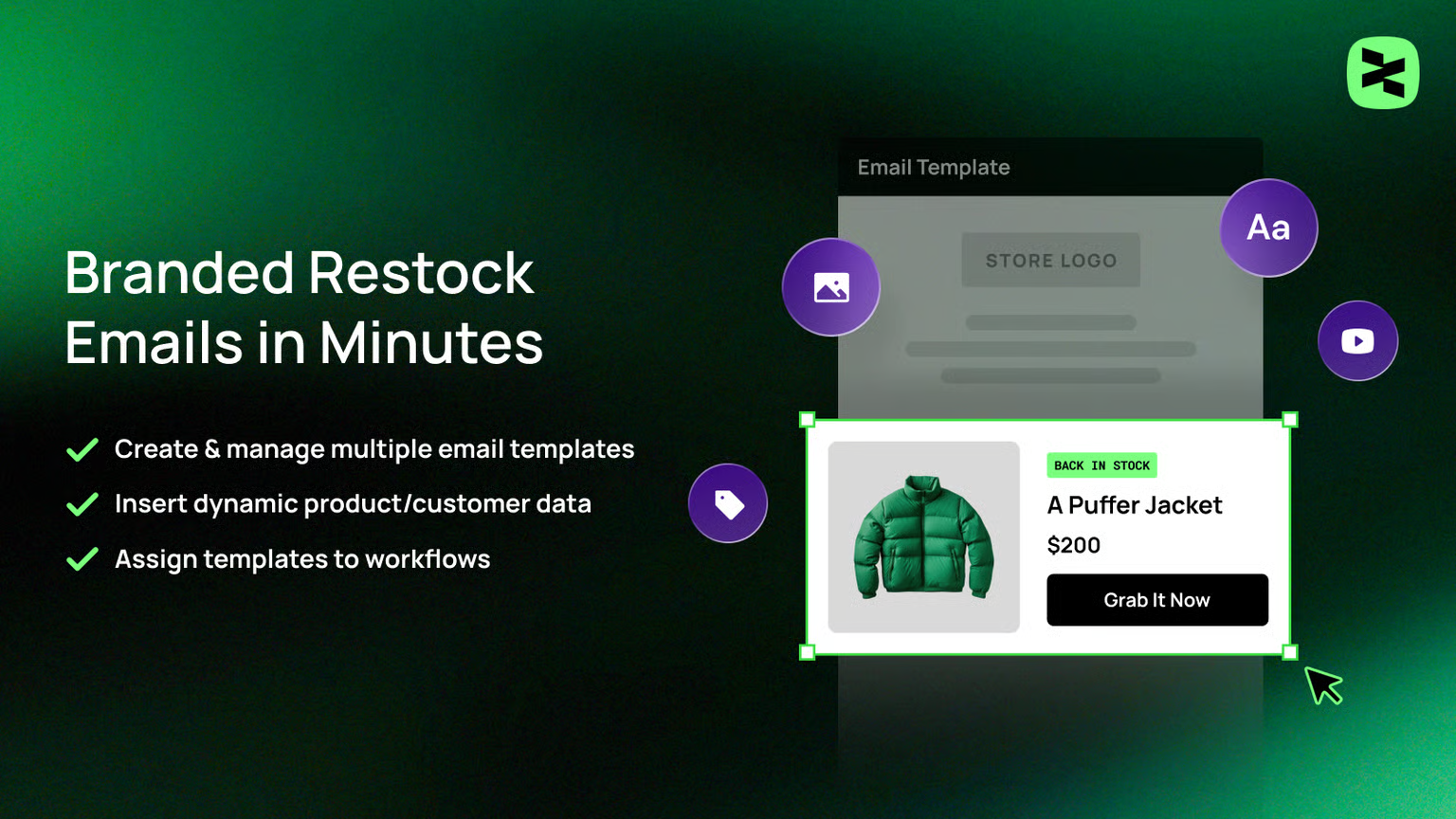
The Email template builder is where you design the actual email customers receive.
You can:
* Create branded restock emails
* Add dynamic product details
* Personalize with customer data
* Reuse the same template across campaigns
Templates are connected to workflows — when a workflow says “Send email,” it uses your selected template.
#### Key elements
| Key elements | Definition |
| --- | --- |
| Visual email editor | Build email layouts without writing code. |
| Dynamic content variables | Personalize emails by inserting dynamic product and customer data that automatically updates at send time. |
| Reusable templates | Create, save, and reuse email templates across multiple campaigns and workflows. |
| Preview & testing | Preview emails before sending to verify layout, content, and personalization. |
*Learn more*
Email templates
### Advanced analytics & attribution
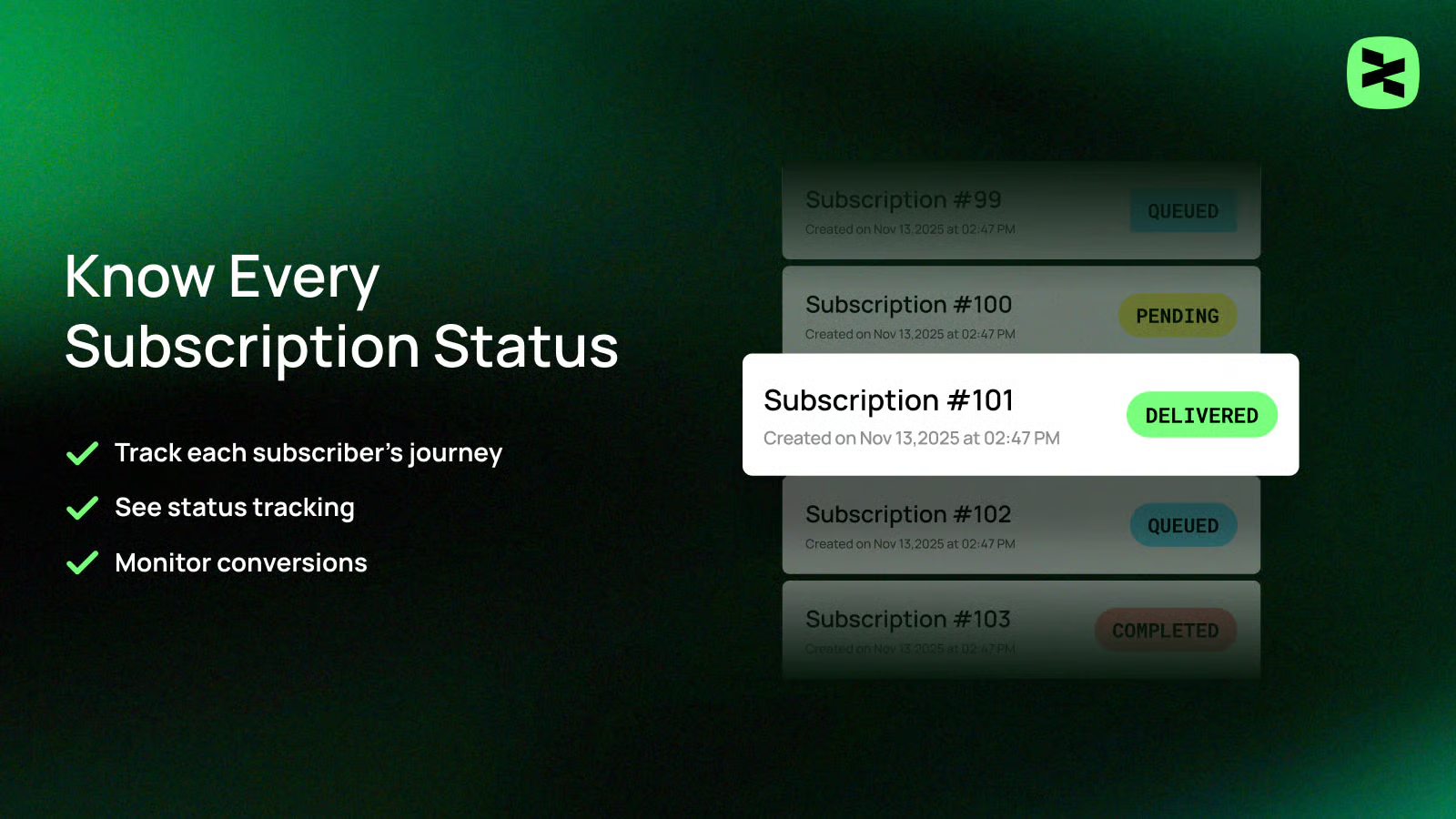
Once your flow is running, **Advanced analytics & attribution** help you:
* Track how many subscribers convert
* Measure revenue from restock emails
* Compare campaign performance
* Identify high-performing workflows
This allows you to optimize based on real data.
#### Key elements
| Key elements | Definition |
| --- | --- |
| Restock subscription tracking | Monitor subscription statuses such as pending, queued, delivered, engaged, converted, completed, or cancelled. |
| Campaign-based attribution | Measure orders and revenue by linking conversions back to the campaigns that influenced them. |
| Performance metrics | View key metrics including attributed orders, attributed revenue, and average revenue per order. |
## How everything connects in XFlow
Here’s what happens in real life:
The product is out of stock
A customer signs up via the “Notify me” button
The product gets restocked
The campaign detects the restock
The workflow is triggered
The email template is sent automatically to customers
## Related articles
What is XFLow
Campaigns
Workflows
Email templates