# Create and launch a Restock campaign
A restock campaign defines *what products are included*, *which workflow runs*, and *when notifications are sent*. This guide walks you through setting up and launching a new campaign step by step.
**Before you begin:**
Choose the setup that best fits your needs:
* **Apply to all products:** Use [**Global restock campaign**](https://docs.foxecom.com/xflow-app/getting-started/quick-start-guide/global-restock-campaign) to enable back-in-stock notifications across your entire store.
* **Apply to specific products or collections:** Create a **restock campaign** to control which products or collections are included, which workflow runs, and when notifications are sent.
## How to create and launch a Restock campaign
1. From the XFlow dashboard, navigate to **Campaigns** from the left sidebar.
2. Select **Create campaign**.
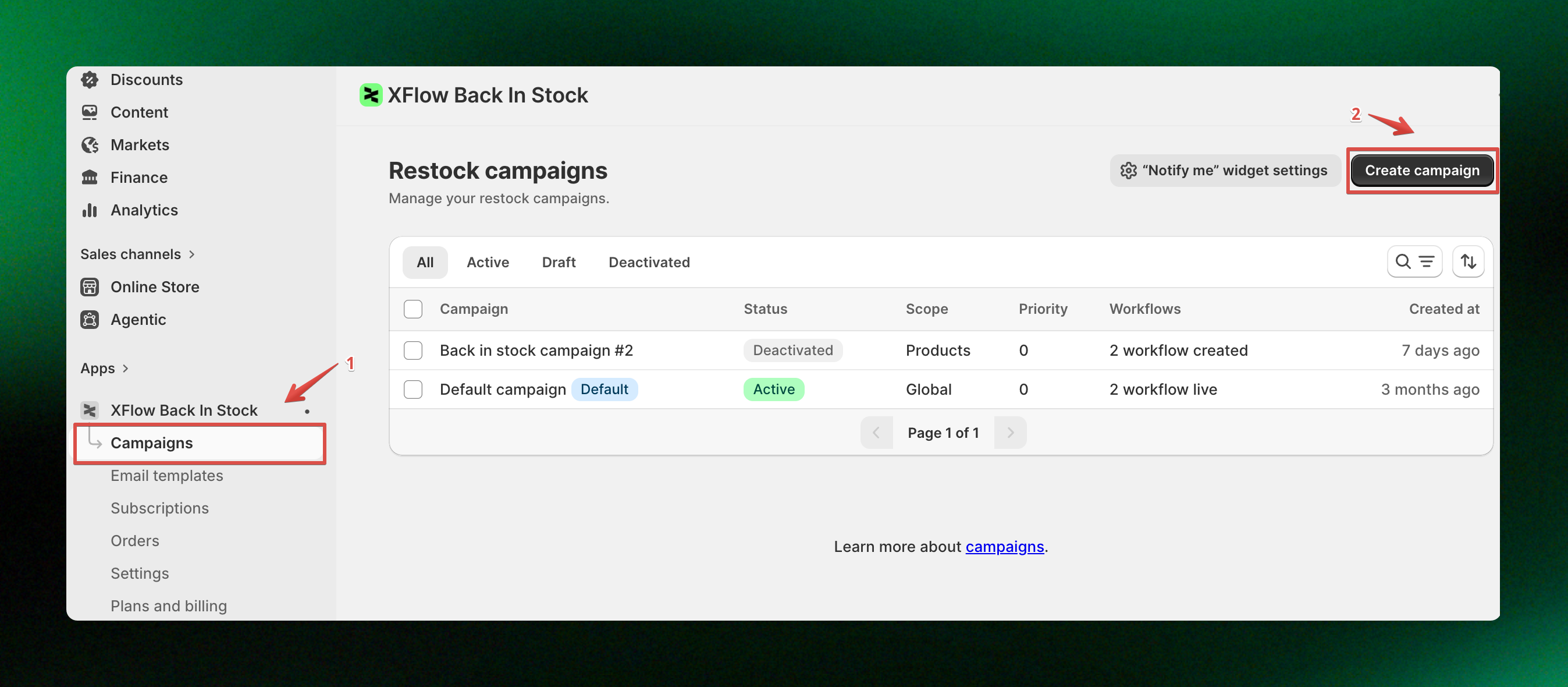
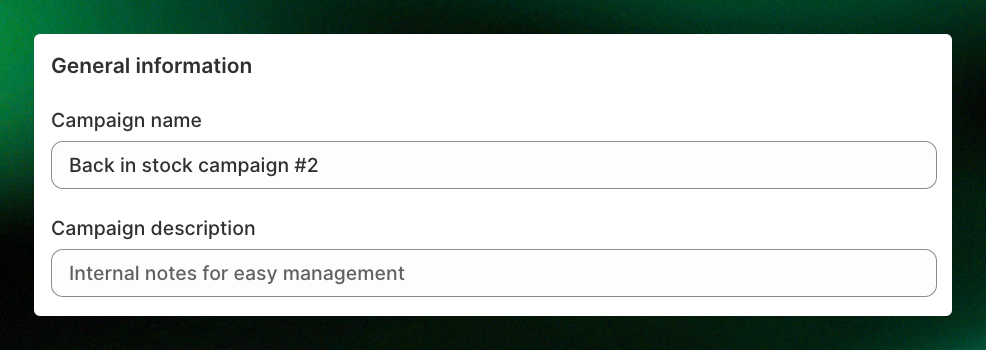
In **General settings**, start by filling in the basic information for your Back in Stock campaign.
* **Campaign name:** Internal name for management
* **Campaign description (optional):** Internal notes for your team
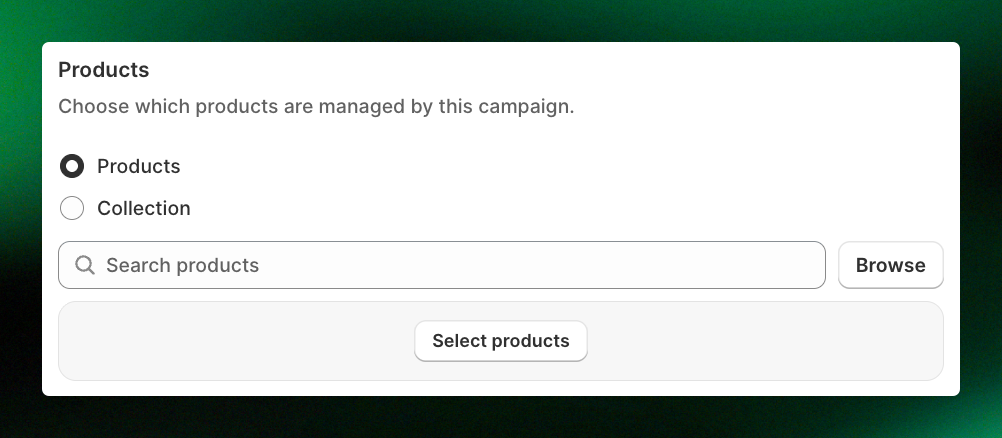
Define which products this campaign applies to. You can choose:
* **Specific products**
* **Specific collections**
* **Minimum restock quantity**: Set the minimum inventory quantity required before subscribers are notified about a restock. The threshold is set at the **campaign level**, meaning the same minimum restock quantity applies to all products included in that campaign.
If set to **1**, subscribers will be notified as soon as the product is back in stock with at least 1 unit.
If set to **5**, XFlow will wait until the available inventory reaches 5 units before notifying subscribers.
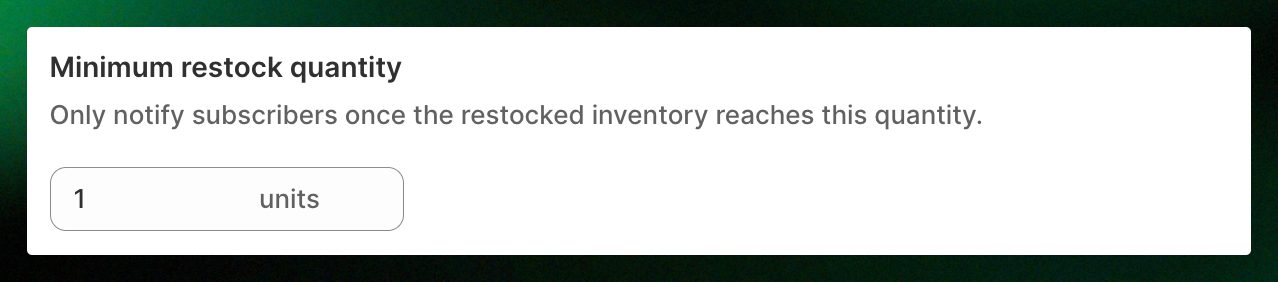
This feature is available on the **Starter plan and above**. On the **Free plan**, the minimum restock quantity is fixed at **1** and cannot be changed.
* **Priority:** Higher numbers take precedence if campaigns overlap
* **Enable for logged-in customers only** *(optional)*
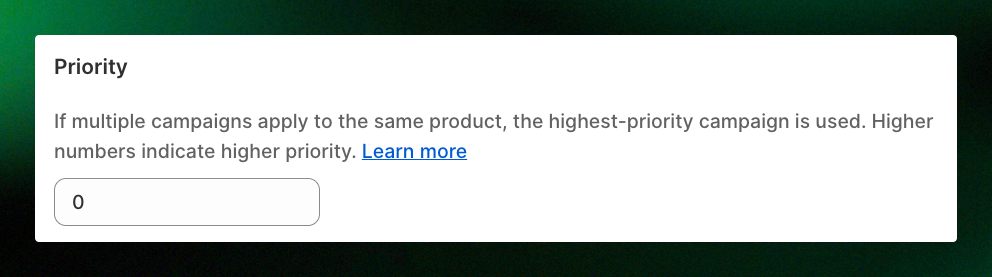
If both **Global restock** and an **advanced campaign** apply to the same product, the product will follow **Global restock campaign** by default. To make the Advanced campaign take precedence, set its **Priority** to **1 or higher**.
If the product is included in multiple Advanced campaigns, the campaign with the **highest priority number** will be used.
Click **Continue to workflow setup** or open the **Manage workflows** tab to assign your workflows:
* **Restock workflow (required):** Notifies customers when a product is back in stock. Make sure it is configured and active.
* **New customer sign-up workflow (optional):** Used for additional actions, such as internal alerts or welcome emails.
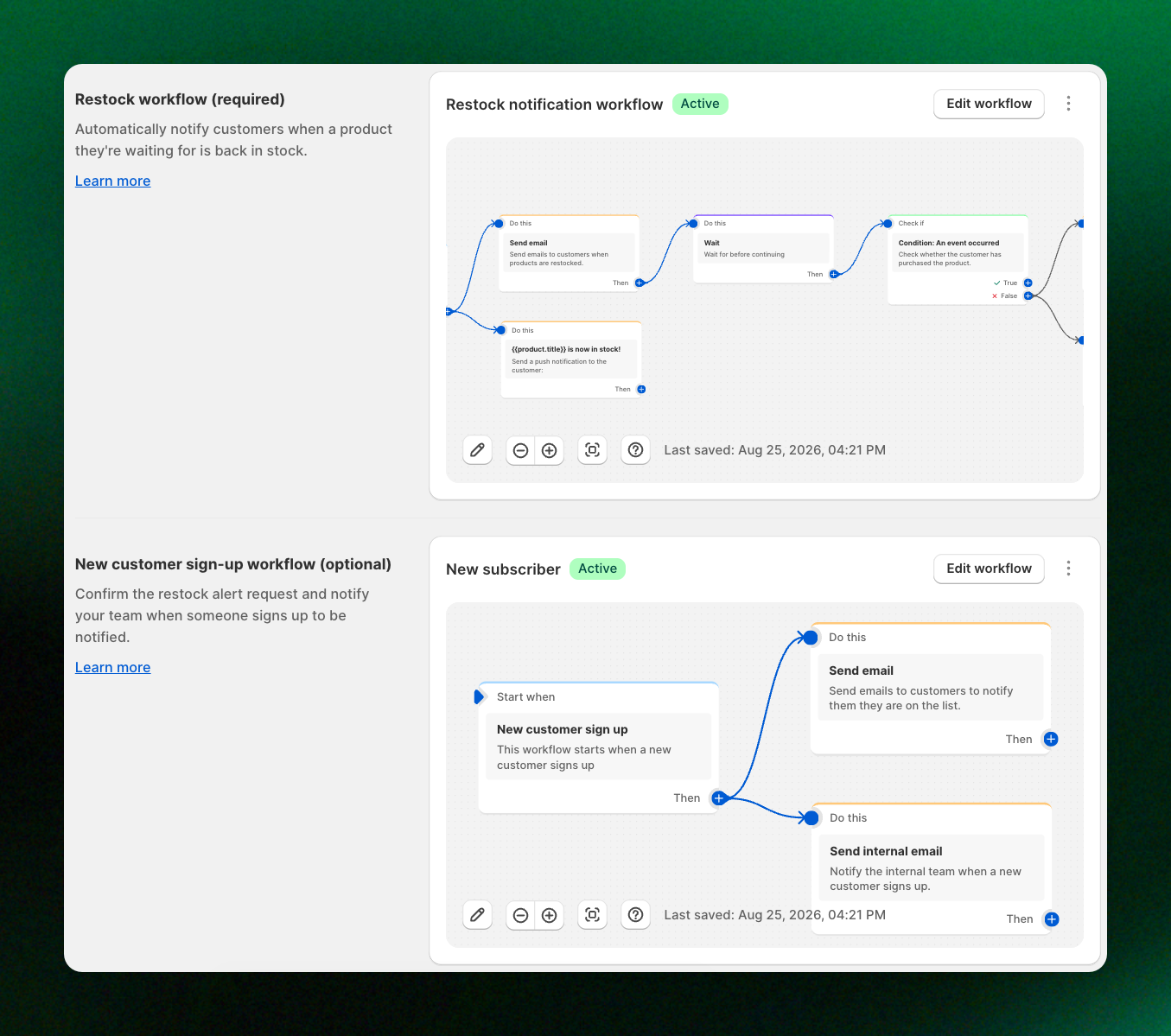
*Learn more about* [*Workflows*](https://docs.foxecom.com/xflow-app/workflows/manage-workflows/overview)
Decide when the campaign should run.
* **Start date & time**
* **End date** *(optional)*
*Example:*
* Set a start date for a new product restock next week, or leave it ongoing for continuous alerts.
* Set an end date for seasonal campaigns to avoid outdated alerts.
1. Review all settings
2. Click **Save**
3. Make sure the campaign status is **Active**
Your restock campaign is now live.
## Campaign status
A Restock campaign can have one of four statuses:
| Status | Description |
| --------------- | ------------------------------------------------------------------------------------------------------------------------------------------------------------------------------------------------------------------------------------------------------------------------------- |
| **Draft** | The campaign has been created but has never been activated. It is not running yet. |
| **Active** | The campaign is currently running. Customers can subscribe through the Notify Me form, and assigned workflows can run when their conditions are met. |
| **Deactivated** | The campaign was previously active but has been manually stopped. Both the **Notify Me form** and assigned **workflows** stop running. |
| **Paused** | The campaign is temporarily paused because the store has reached a usage limit on the Free plan, such as the **order limit** or **email limit**. Customers can still submit back-in-stock subscriptions, but workflows will not run until the campaign becomes available again. |
**View analytics & logs** are available only for campaigns with **Active**, **Deactivated**, or **Paused** status. They are not available for campaigns that are still in **Draft**.
## FAQs
For all products, use a [**Global restock campaign**](https://docs.foxecom.com/xflow-app/getting-started/quick-start-guide/global-restock-campaign) instead of creating a new campaign and selecting specific products or collections.
The campaign with the higher **Priority** value will take precedence.
No. This workflow is optional and can be used for additional actions, such as internal alerts or welcome emails.
Check that the campaign is saved, its status is **Active**, and the required Restock workflow is configured and active.
## Related articles
Campaigns: FAQs
Workflows