# Subscriptions
The **Subscriptions** page lets you track every back-in-stock signup—from the moment a customer subscribes to when they open an email or complete a purchase.
Use this page to monitor performance, understand customer behavior, and measure revenue from restock alerts.
## View subscriptions
1. Open **XFlow** in your Shopify admin
2. Go to **Subscriptions.** You'll see a list of all restock subscriptions across your store.
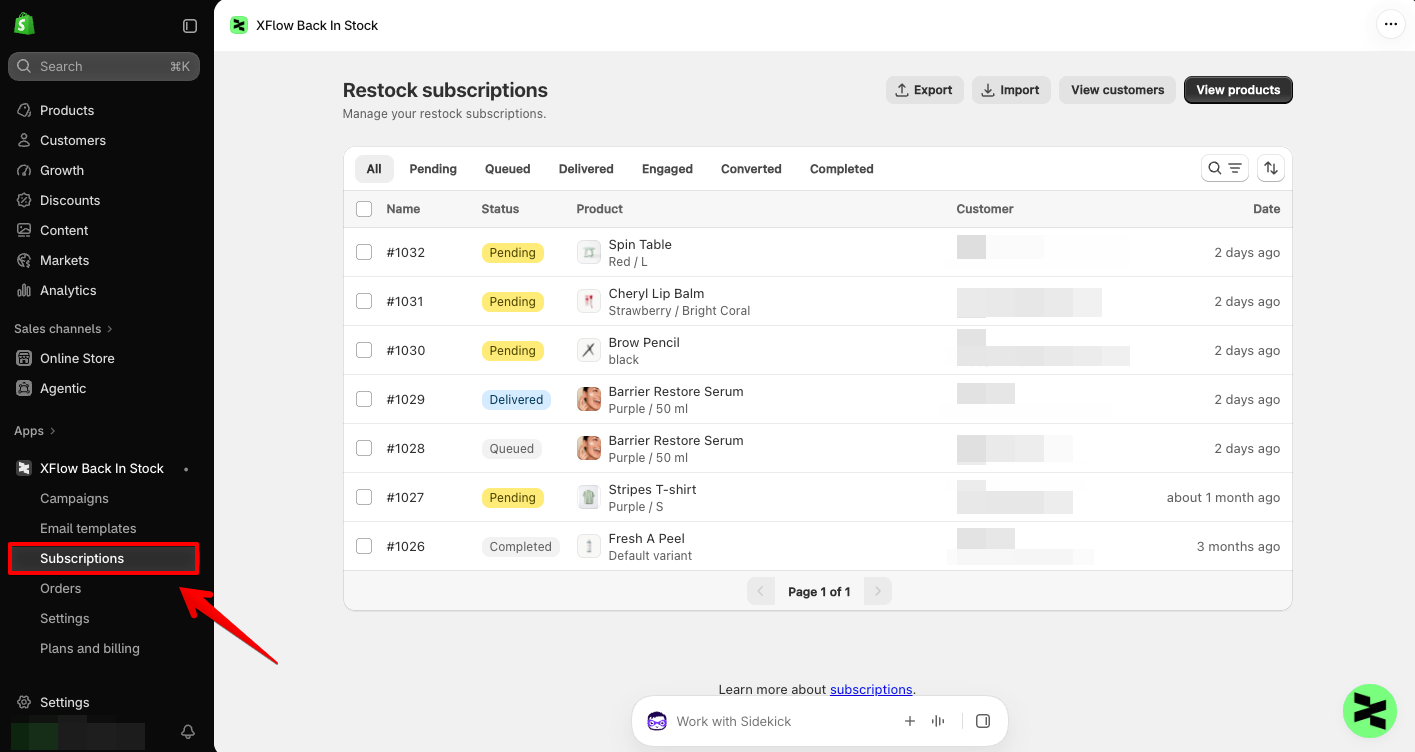
Each row represents one subscription created when a customer signs up via the [Notify me widget](https://docs.foxecom.com/xflow-app/notify-me-widget/overview).
Columns you’ll see:
* **Status** – Current state of the subscription
* **Product** – Product or variant subscribed to
* **Customer** – Email address used to subscribe
* **Date** – When the subscription was created
You can filter subscriptions by status to quickly review performance.
### Subscription statuses explained
XFlow automatically updates subscription status as customers move through the restock journey.
#### Pending
* Customer subscribed
* Product has **not been restocked yet**
* No email sent
#### Queued
* Product is restocked
* Notification is scheduled but **not sent yet**
* Usually waiting for workflow timing or conditions
#### Delivered
* Back-in-stock email was successfully sent to the customer
#### Engaged
* Customer **opened or clicked** the notification email
#### Converted
* Customer placed an order **after receiving the back-in-stock notification**
* Revenue is attributed to XFlow
#### Completed
* Subscription lifecycle has ended
* No further actions will run
#### Cancelled
* Subscription was cancelled
* No notifications will be sent
### View subscription details
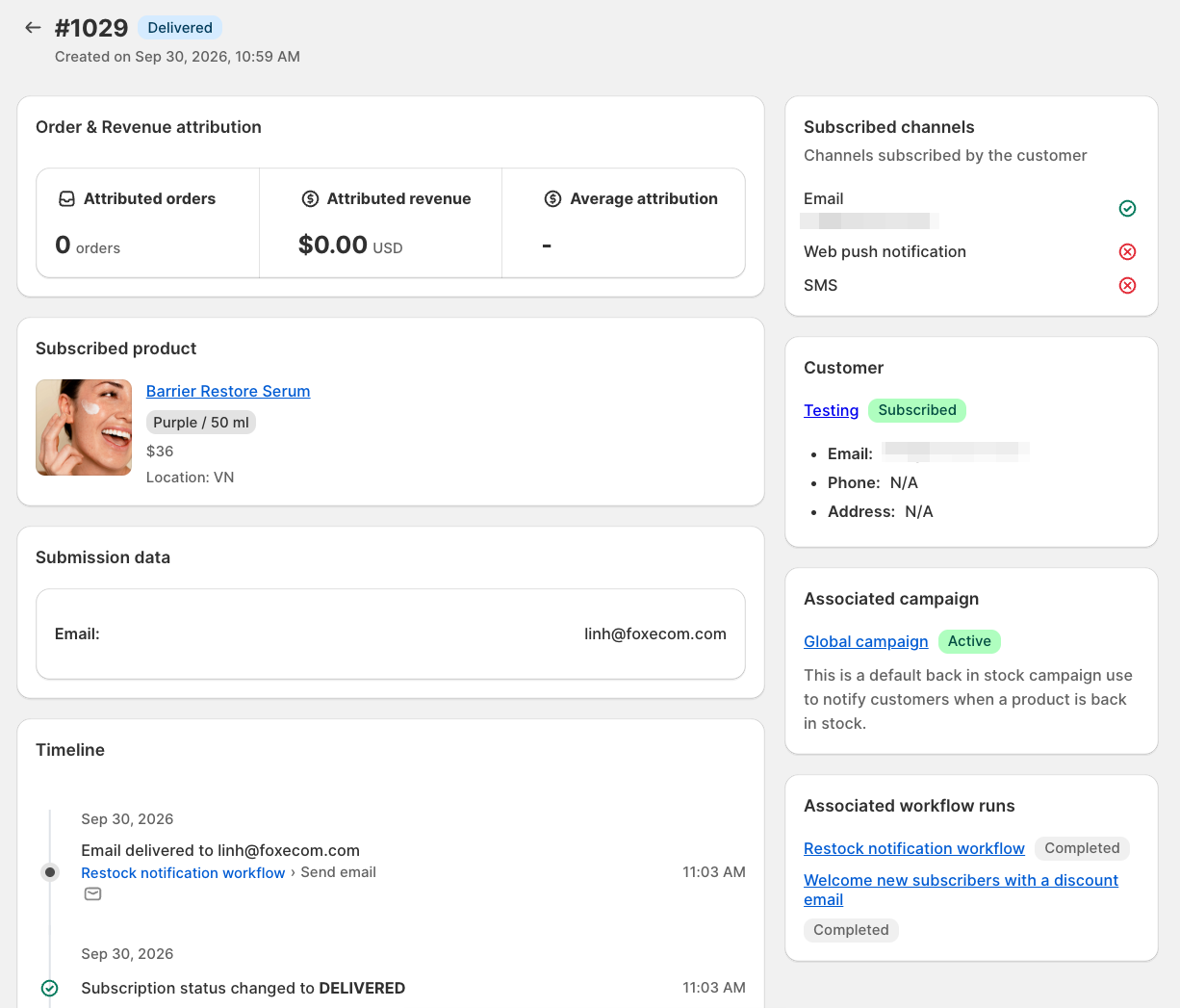
Review the key details of a subscription, including the subscribed product, customer, notification channels, campaign, workflow activity, and attributed revenue.
| Section | Description |
| ------------------------------- | ------------------------------------------------------------------------------------------------------------ |
| **Order & Revenue attribution** | Shows attributed orders, attributed revenue, and average attribution generated from this subscription. |
| **Subscribed product** | Shows the product and variant the customer subscribed to, including price and subscription location. |
| **Submission data** | Shows the information submitted when the customer subscribed, such as email address. |
| **Timeline** | Displays the history of subscription and notification events, including status changes and workflow actions. |
| **Subscribed channels** | Shows which notification channels the customer subscribed to, such as Email, Web push, or SMS. |
| **Customer** | Shows the related customer profile, subscription status, email, phone number, and address. |
| **Associated campaign** | Shows the campaign linked to this back-in-stock subscription. |
| **Associated workflow runs** | Lists the workflows triggered for this subscription and their current status. |
## Import subscriptions
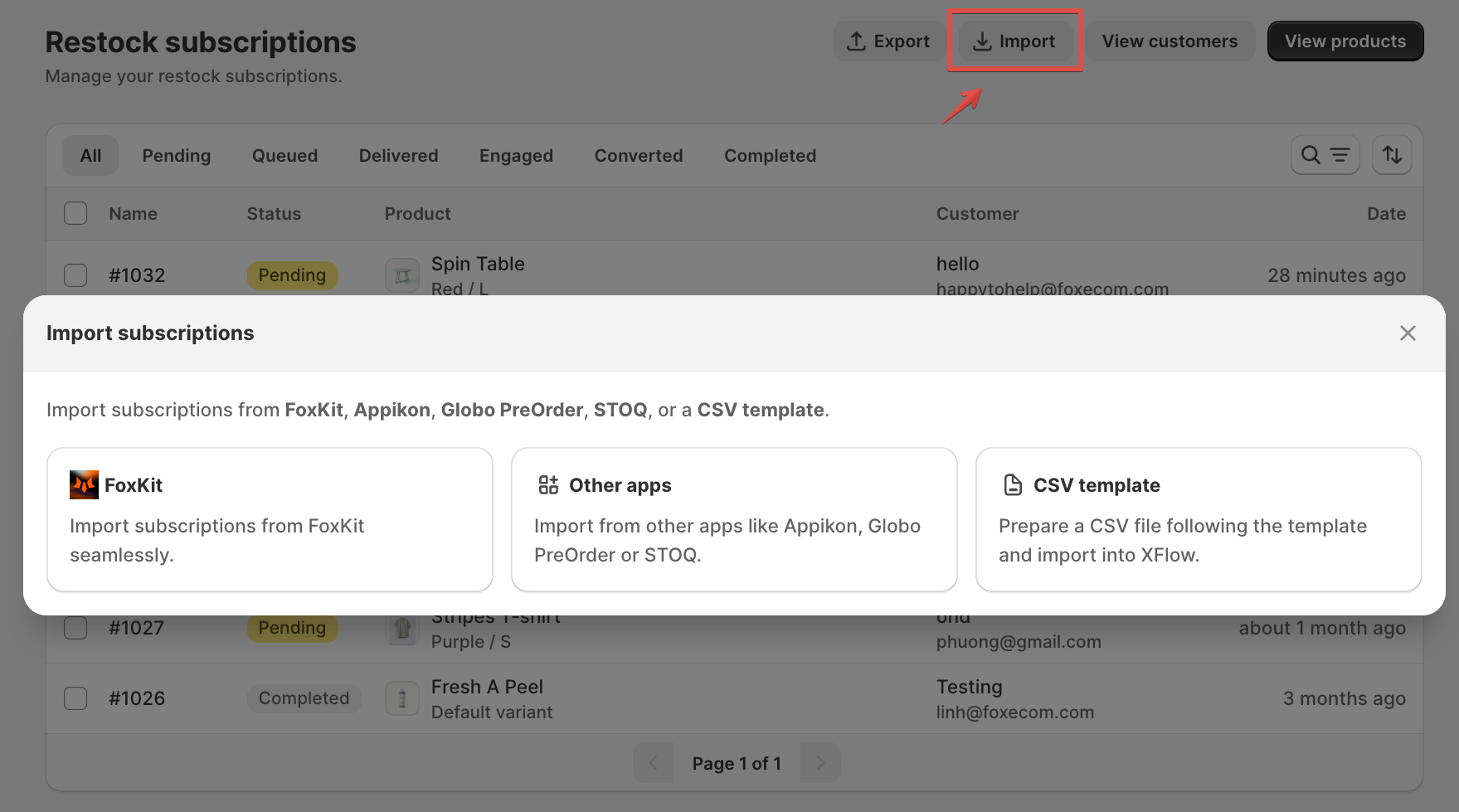
XFlow lets you import existing back-in-stock subscriptions so you don’t lose customer demand when switching tools or setting up a new store.
You can import subscriptions from:
* [**FoxKit app**](https://apps.shopify.com/foxkit?utm_source=foxecom\&utm_medium=help_center_xflow_subscriptions\&utm_campaign=anchor_text\&utm_term=FoxKit_app)
* **Other apps** (Appikon, Globo Pre-Order, STOQ)
* **CSV file** using XFlow’s template
If you’re migrating from **FoxKit app**, XFlow provides a seamless migration path.
* Existing back-in-stock subscriptions can be moved into XFlow
* No manual CSV preparation required
👉 [Follow this guide to migrate subscriptions from FoxKit to XFlow quickly.](https://docs.foxecom.com/foxkit-app/faq/migrate-foxkit-back-in-stock-to-xflow#migrate-subscriptions-from-foxkit)
**Step 1: Download the CSV template**
* Click **Import** in **XFlow → Subscriptions**
* Choose **CSV template**
* [Download the sample file provided in the docs](https://go.xflow.so/csv-template)
**Step 2: Prepare your CSV file**
Your CSV must include these required fields:
| Field name | Required | Notes |
| ----------- | -------- | ---------------------- |
| `status` | ✅ | Use `pending` |
| `productId` | ✅ | Shopify Product ID |
| `variantId` | ✅ | Shopify Variant ID |
| `email` | ✅ | Customer email |
| `campaign` | ✅ | Campaign name in XFlow |
**Formatting notes:**
* Set all ID columns to **Text format**
* Do **not** let Excel auto-format IDs (e.g. `8.07E+XX` will break the import)
**Step 3: Upload the CSV**
1. Go to **XFlow > Subscriptions**
2. Click **Import**
3. Choose **CSV template**
4. Upload your completed file
XFlow will validate the data before importing.
XFlow supports direct imports from popular back-in-stock apps, so you can move existing subscriptions without manual setup.
Currently supported apps:
* **Appikon – Back In Stock**
* **PreOrder Globo | Back in Stock**
* **Preorder, Back In Stock – STOQ**
**Steps:**
1. In the **Subscriptions** page
2. Click **Import**
3. Select **Other apps**
4. Choose the app you’re importing from
5. Follow the on-screen steps to complete the import
XFlow will automatically map subscriptions and bring them into your store.
If you don’t see the app you’re using:
* Use the **CSV import** option instead
* Export subscriptions from your current app
* Format them using XFlow’s CSV template
* Import them into XFlow manually
👉 Refer to the [**Import subscriptions using a CSV file**](#import-subscriptions-using-a-csv-file) section for details.
* Subscriptions with **Pending** status will be imported
* No emails are sent until:
* The product is restocked
* The associated campaign is **Active**
* Subscriptions follow XFlow’s normal workflow logic.
## Export subscriptions
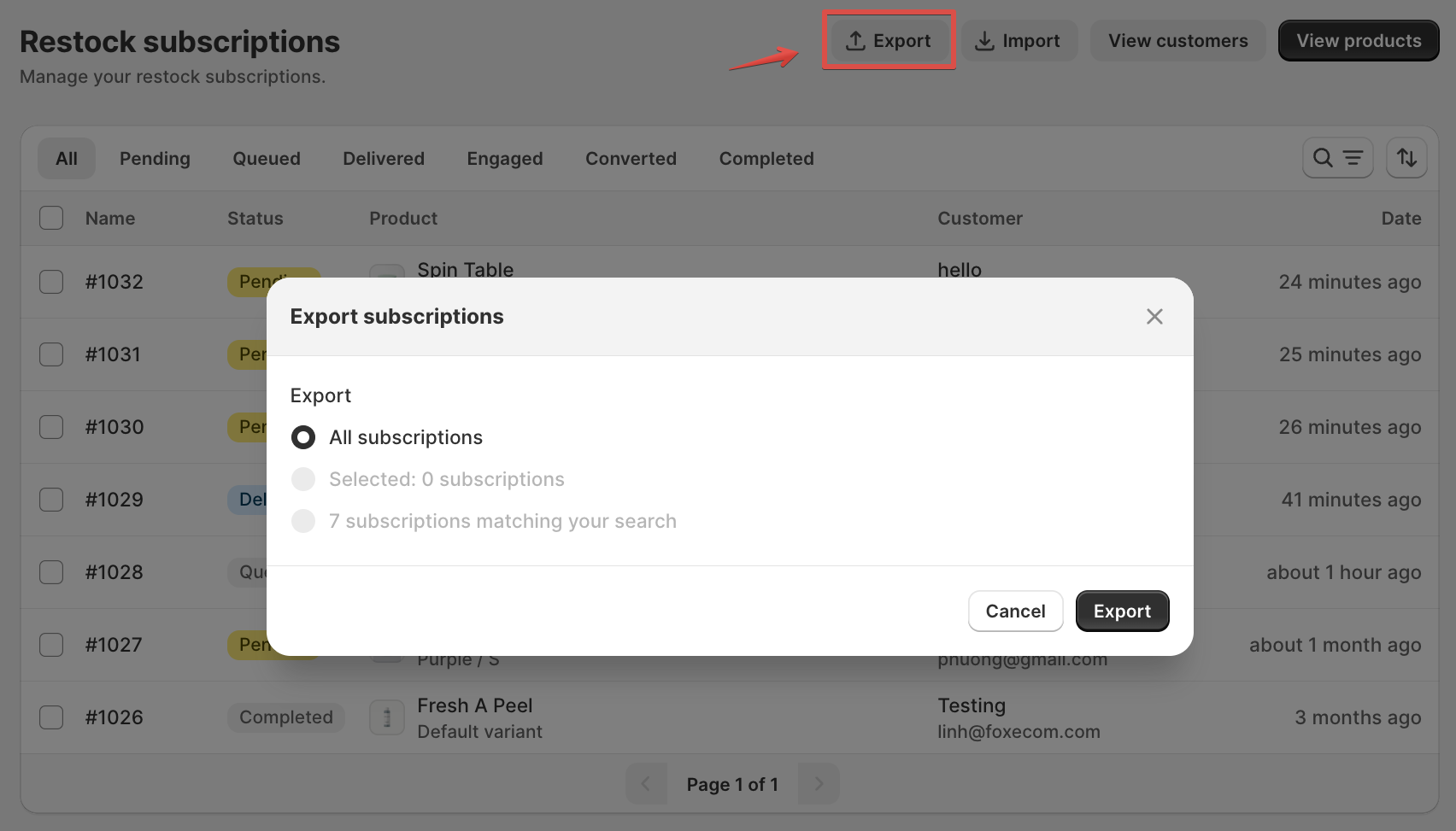
Use **Export** to download subscription data from XFlow for reporting, analysis, or external record keeping. When exporting, you can choose:
| Option | Description |
| -------------------------------------- | ------------------------------------------------------------------------------- |
| **All subscriptions** | Export all restock subscriptions in your store. |
| **Selected subscriptions** | Export only the subscriptions you selected from the list. |
| **Subscriptions matching your search** | Export only the subscriptions that match your current search or filter results. |
After selecting an option, click **Export** to download the data as a **CSV file**.
**Tip:** Use search and filters before exporting if you only need data for a specific product, status, customer, or date range.
## View customers
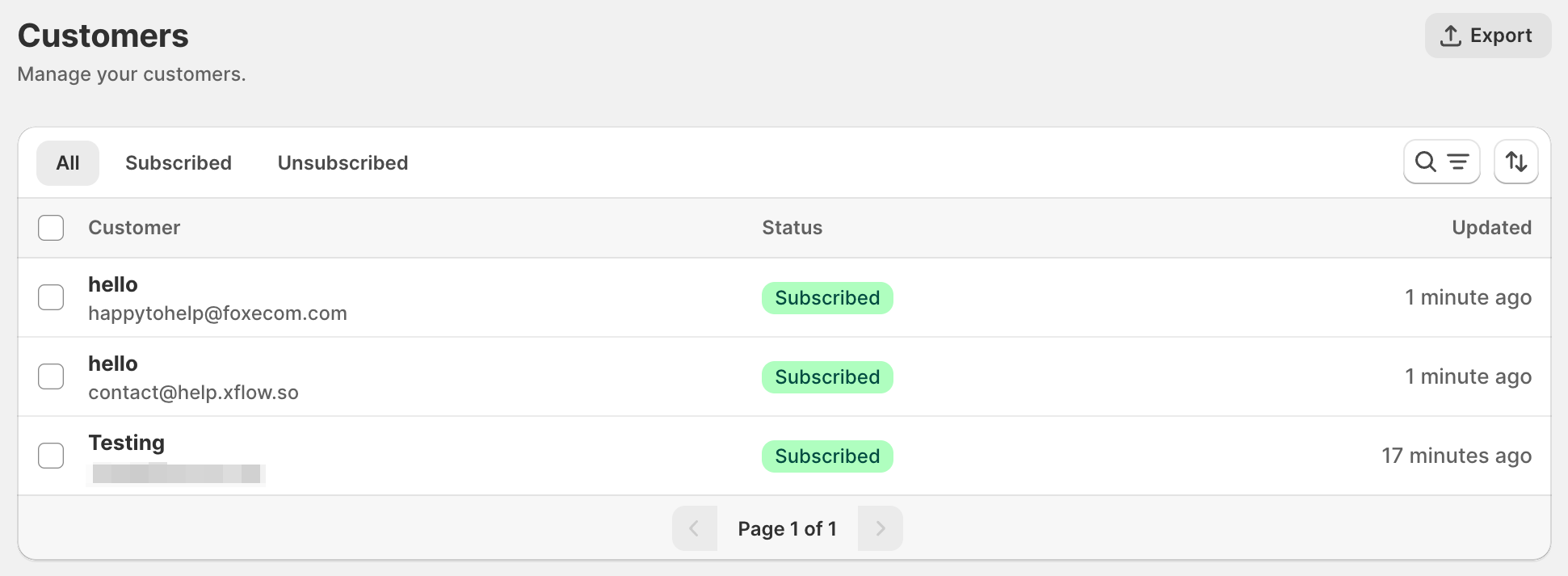
Use **View customers** to see everyone who has subscribed to back-in-stock notifications and review their subscription history, notification activity, and customer details.
From **Subscriptions**, click **View customers**. The customer list shows:
* **Customer** — customer name and email
* **Status** — whether the customer is currently **Subscribed** or **Unsubscribed**
* **Updated** — when their subscription status was last updated
Click a customer to open their profile and review their contact information, subscription history, order activity, and notification events.
A customer can have multiple subscriptions across different products or variants. Their overall customer status and the notification status of each subscription are tracked separately.
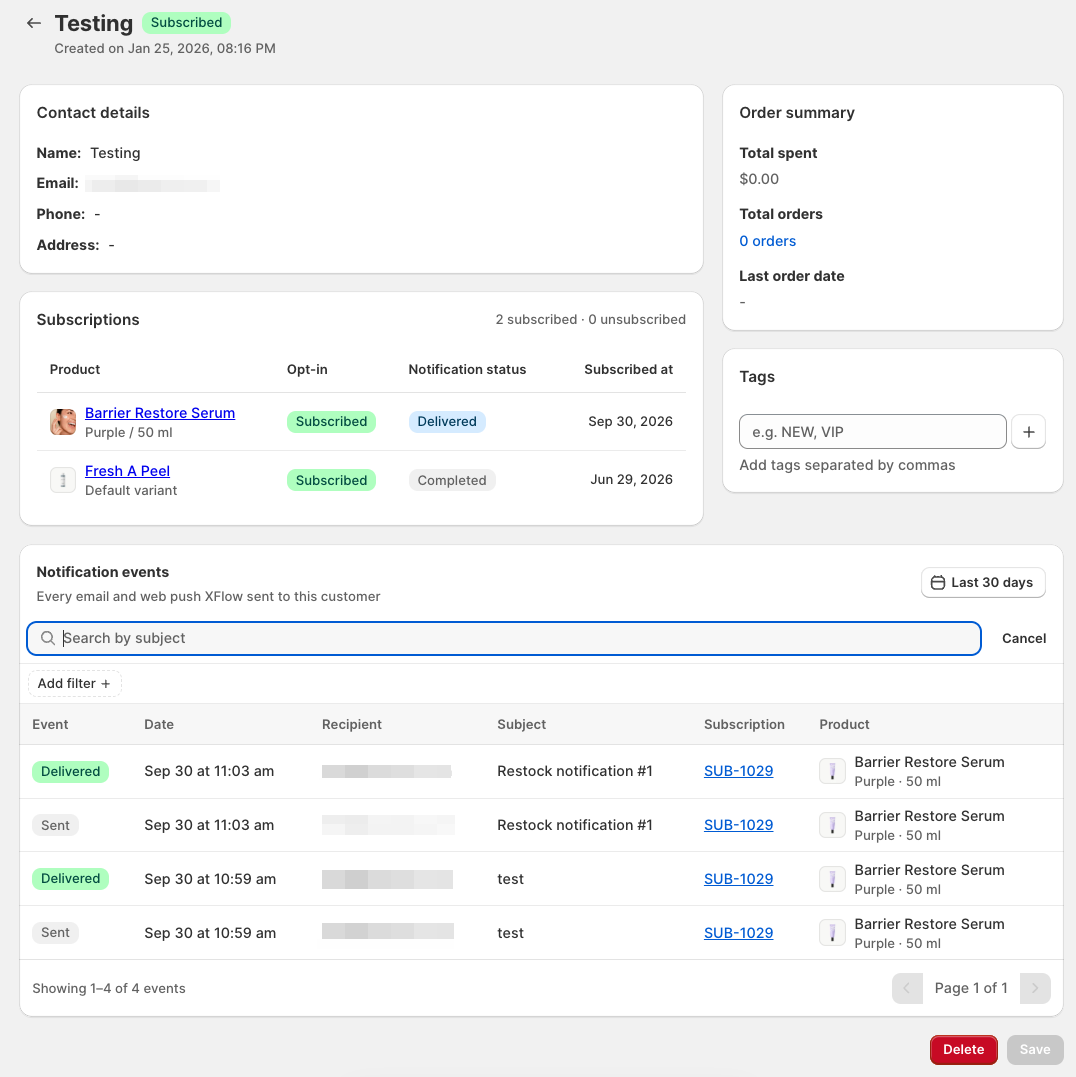
### Customer details
Track the customer’s notification history, including what was sent, when it happened, and which subscription or product it relates to.
| Section | Description |
| ------------------- | ------------------------------------------------------------------------------------------------------------------------------------ |
| **Contact details** | Shows the customer’s name, email, phone number, and address. |
| **Order summary** | Shows the customer’s total spent, total orders, and last order date. |
| **Subscriptions** | Lists the products and variants the customer subscribed to, together with opt-in status, notification status, and subscription date. |
| **Tags** | Add tags to organize customers for easier filtering or segmentation. |
### Notification events
Review the notification history for the customer. You can search by subject, add filters, or change the date range to find specific events.
All notification events for a customer are recorded under **Notification events**, including email and web push activity associated with their subscriptions.
| Section | Description |
| ---------------- | --------------------------------------------------------- |
| **Event** | The notification event status, such as Sent or Delivered. |
| **Date** | When the event occurred. |
| **Recipient** | The email address or recipient of the notification. |
| **Subject** | The subject of the email or notification. |
| **Subscription** | The related back-in-stock subscription. |
| **Product** | The product associated with the notification. |
**Tip:** If a customer says they did not receive an alert, check their **Notification events** first. The event history can help you confirm whether the notification was sent, delivered, skipped, or linked to the correct subscription.
## View products
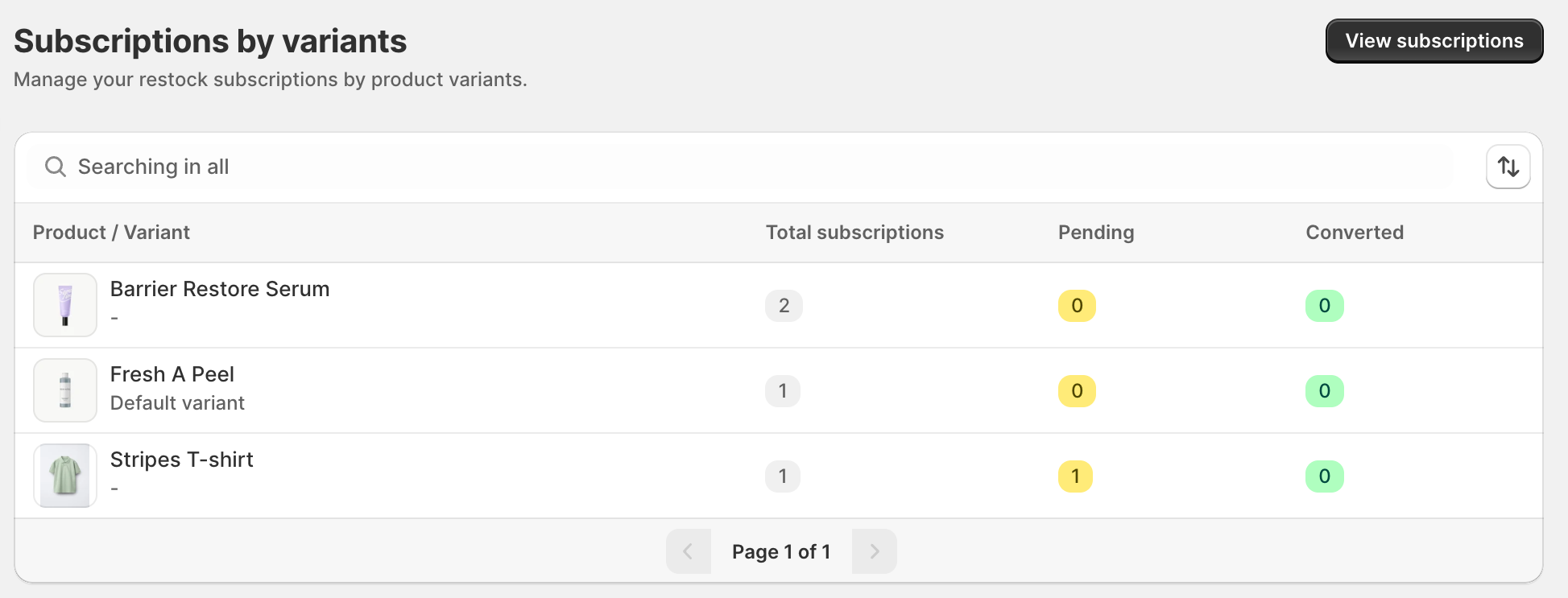
From **Subscriptions**, you can also switch to **View products** when you want to review subscriptions grouped by product instead of by customer.
| Field | Description |
| ----------------------- | ----------------------------------------------------------------------------------------- |
| **Product / Variant** | Shows the product name and variant associated with the back-in-stock subscription. |
| **Total subscriptions** | Total number of back-in-stock subscriptions for that product or variant. |
| **Pending** | Number of subscriptions still waiting for a restock notification to be completed. |
| **Converted** | Number of subscriptions that resulted in a purchase after the back-in-stock notification. |
Total subscriptions may be higher than **Pending + Converted** because subscriptions can also have other statuses, such as **Queued** or **Delivered**.
## Send manually
This feature is available on the **Starter plan and above**
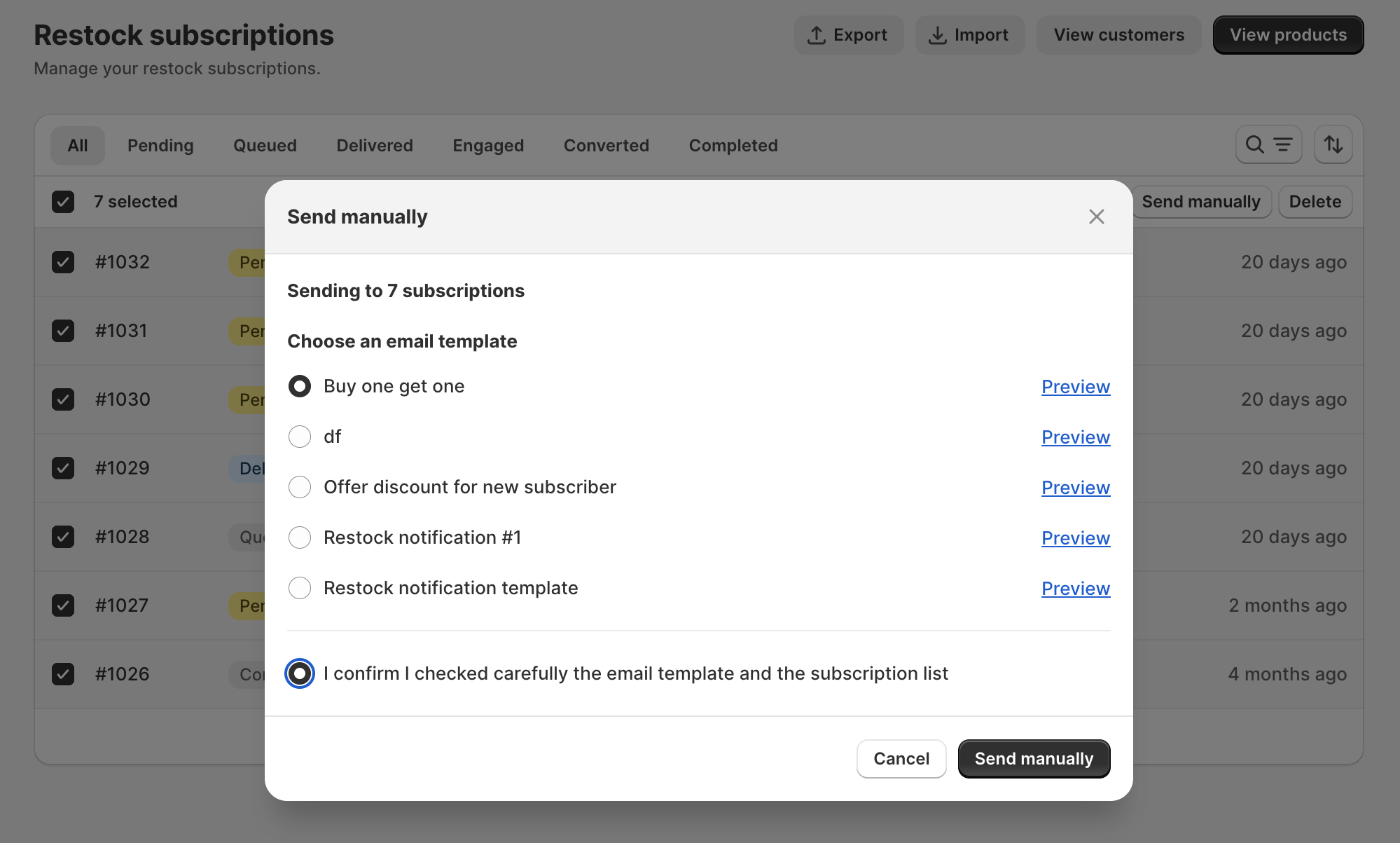
You can manually send emails to one or multiple subscriptions using an existing email template, without waiting for an automated restock workflow.
This is useful when you want to resend a notification, follow up with customers, or send an email to subscriptions that haven't received an alert.
### How to send emails manually
#### Step 1: Choose the subcriptions
You can send emails in 2 ways:
**Option 1: Send to multiple subscriptions**
1. Go to **Subscriptions**.
2. Select one or more subscriptions using the checkboxes.
3. Click **Send manually** in the action bar.
All selected subscriptions will receive an email using the same template.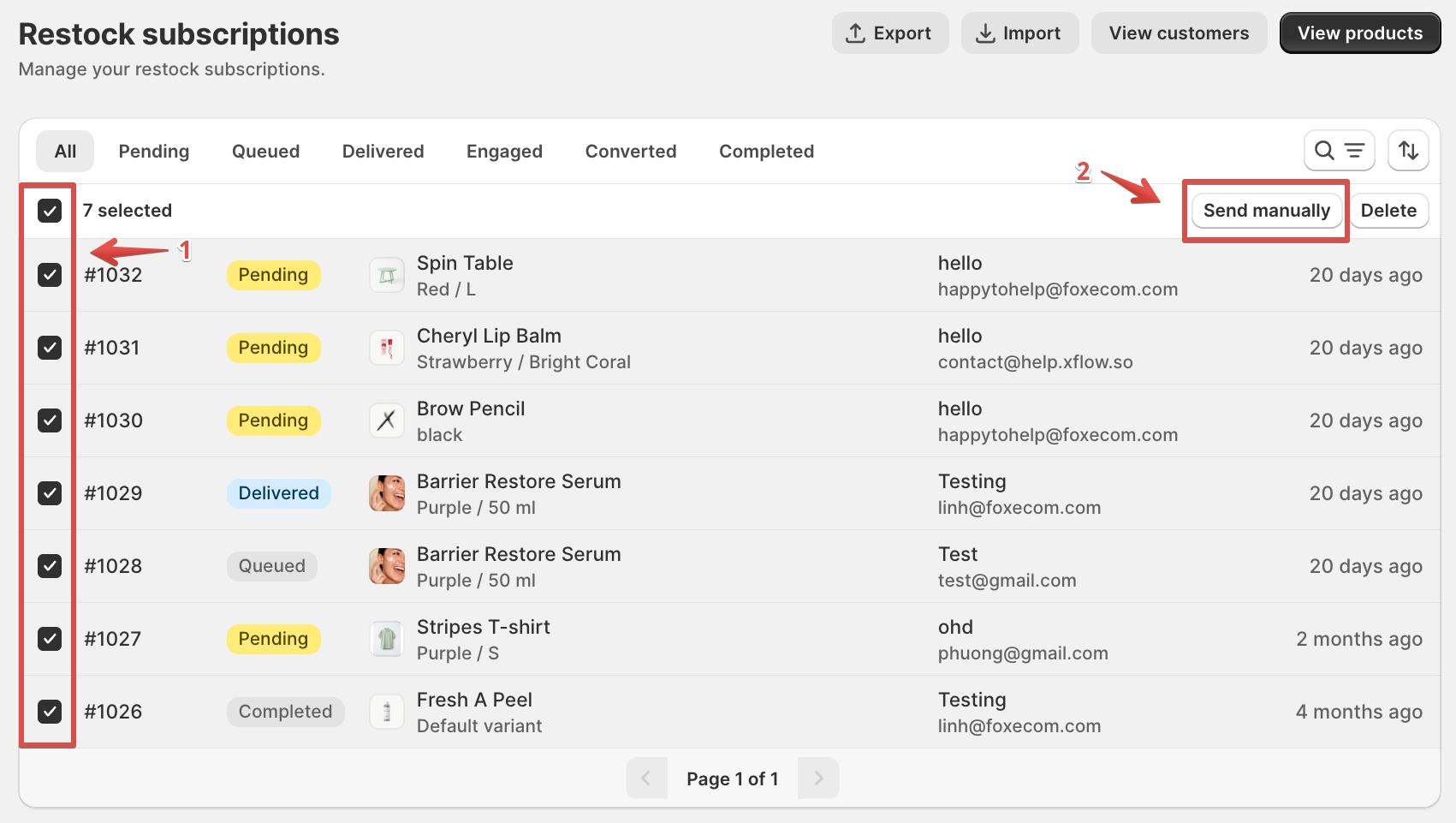
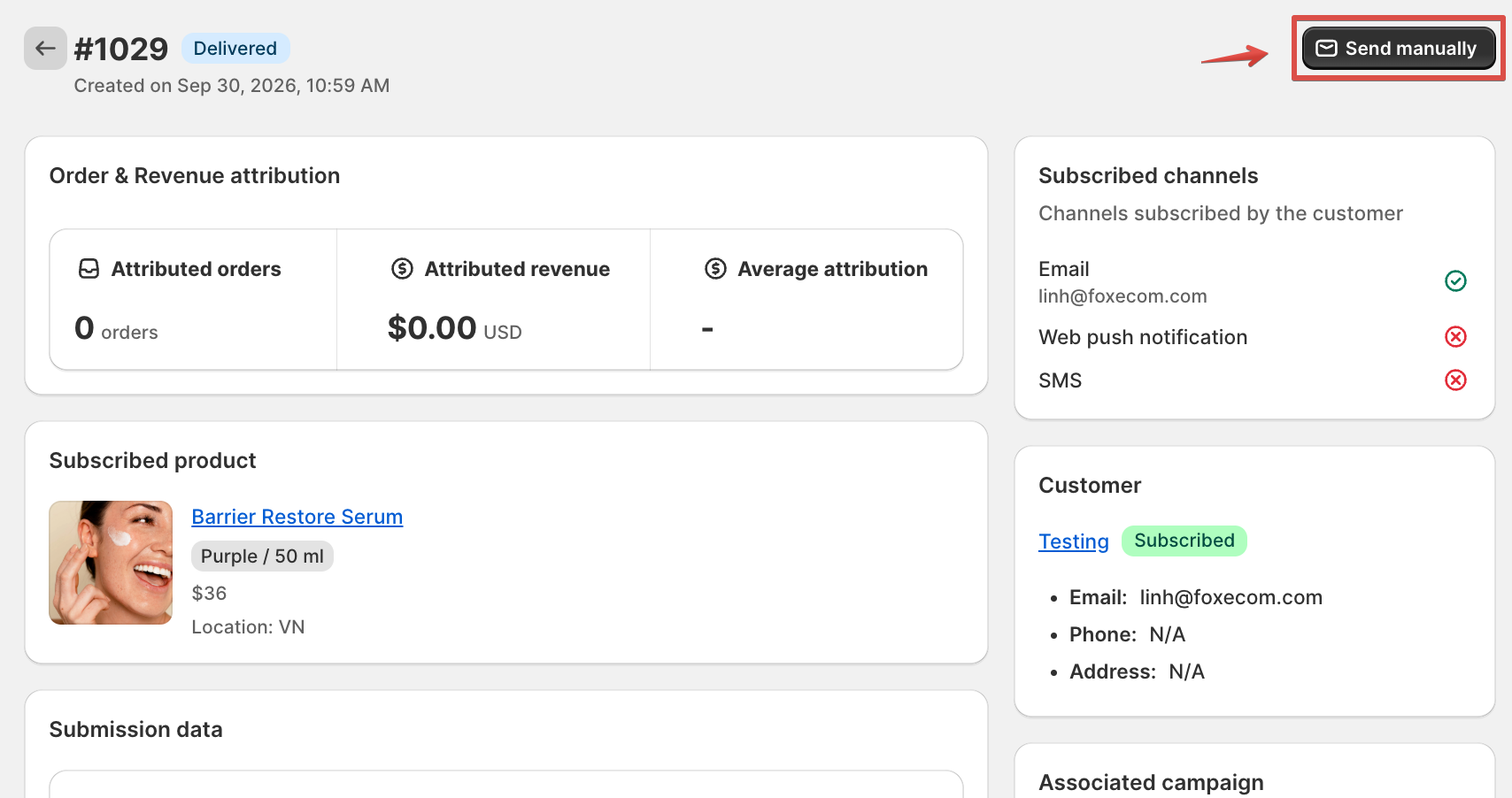
**Option 2: Send from subscription details**
1. Open a subscription to view its details.
2. Click **Send manually** in the page header.
#### Step 2: Select an email template
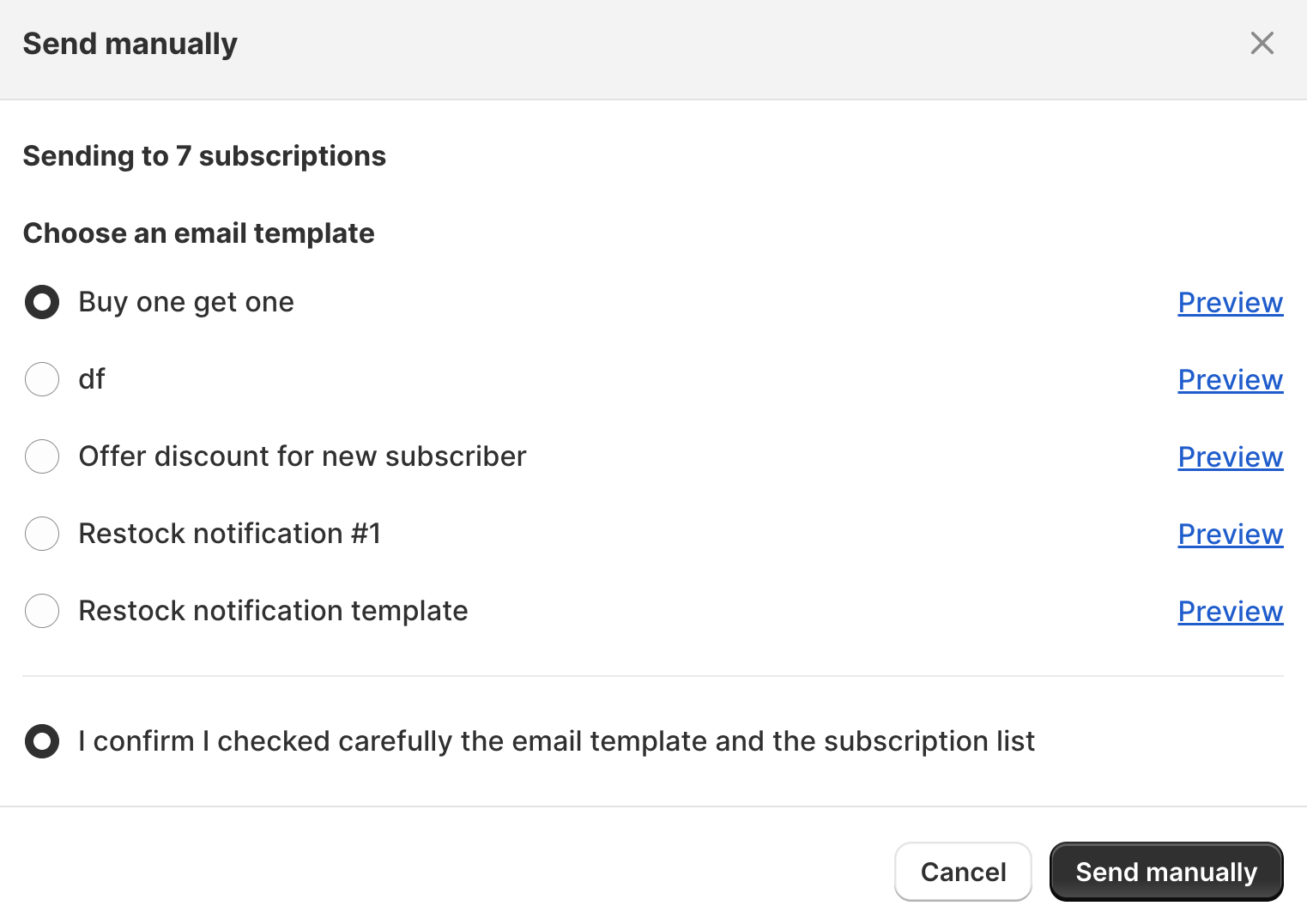
After clicking **Send manually**, a confirmation window opens.
1. Review the number of selected subscriptions.
2. Select an email template from the list.
3. Click **Preview** to review the email subject and content.
4. Check **I confirm I checked carefully the email template and the subscription list**.
5. Click **Send manually** to confirm.
You can select only one template per send. To use different templates, send them separately.
Once confirmed, the emails are queued for sending, and a success message appears.
### How manual sending affects subscription status
Manual sending does not automatically change every subscription's status.
* **Pending:** If the product is still out of stock, the subscription remains Pending, even after a manual email is sent.
* **Other statuses:** Subscription status continues to update based on recorded notification activity and conversions.
* **Engaged:** If the customer opens or clicks the email, the subscription can be marked as Engaged.
* **Converted:** If the customer places an attributed order, the subscription can be marked as Converted.
### Track manually sent emails
You can review manually sent emails in the subscription's **Timeline** and the customer's **Notification events**.
Manually sent emails are marked **Manual** to distinguish them from automated workflow emails.
You can review the email template used, who initiated the send, and notification activity such as sent, delivered, opened, and clicked.
Manually sent emails also contribute to the selected email template's performance metrics, including sends, deliveries, opens, and clicks.
Sending an email manually does not guarantee delivery. Check the notification history to review its latest status.
## Related articles
Create and launch a Restock campaign
Create a workflow
Orders