# Manage workflows

<figure><img src="/files/hs8bnIbnmLCVFifzPxCB" alt=""><figcaption></figcaption></figure>

{% hint style="info" %}

## Before you begin

* New to workflows? Check out [How workflows work](/xflow-app/workflows/how-workflows-work.md) for a quick overview.
* Ready to get started? See [Create a workflow](/xflow-app/workflows/create-a-workflow.md) to learn how to set one up.
  {% endhint %}

## Workflow builder overview

{% hint style="success" %}

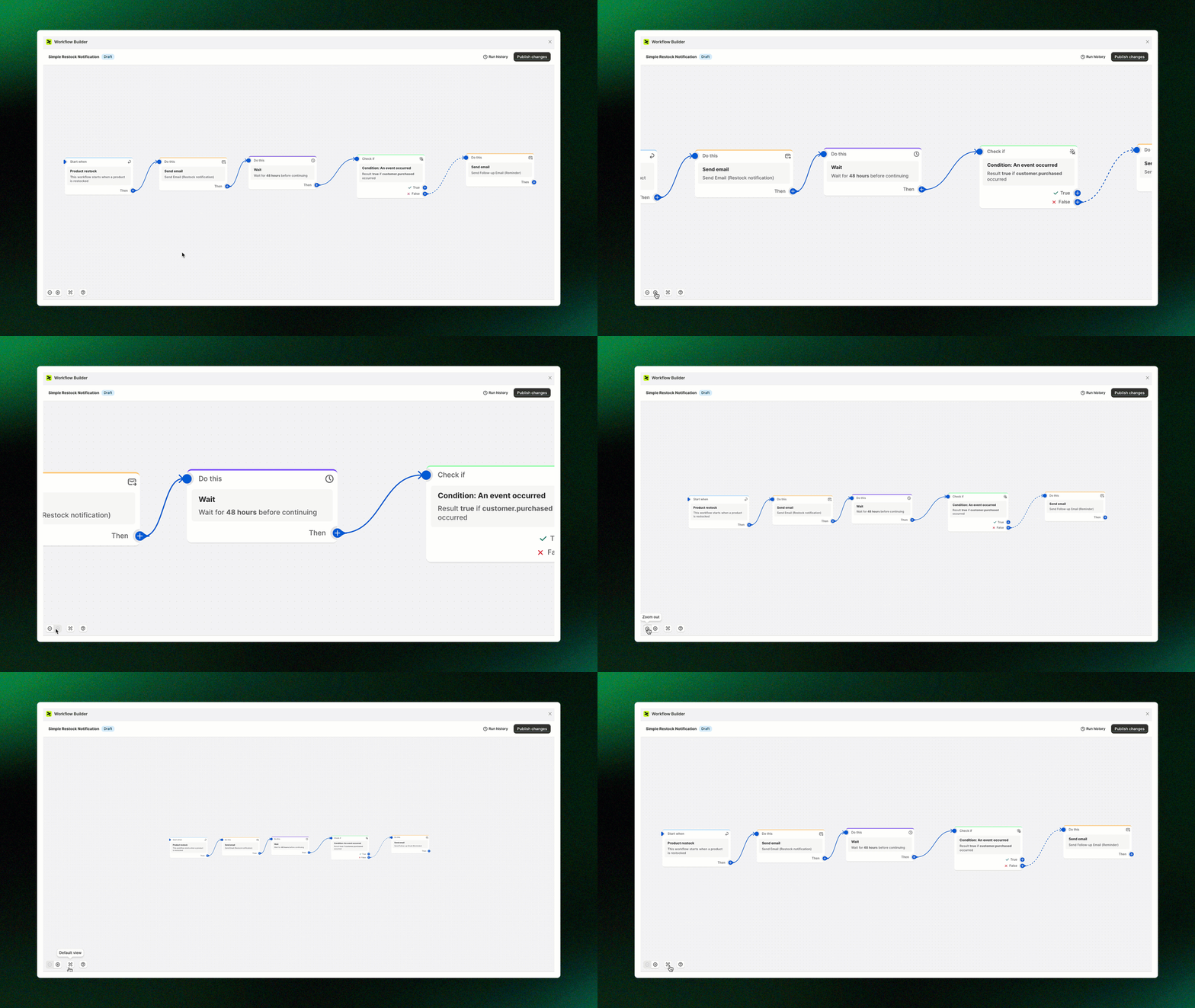
* **Zoom In/Zoom Out:** Adjust the canvas view to see more details or get a wider overview of your workflow.
* **Default view**: Reset the canvas back to the standard zoom level and center the workflow for easier navigation.
* **Help:** [Contact us](#need-help) if you need assistance.
  {% endhint %}

<figure><img src="/files/46c5OjemgAYXyzcm8bod" alt=""><figcaption></figcaption></figure>

{% hint style="success" %}
Choose the **vertical or horizontal flow** to see the workflow you’d like to display
{% endhint %}

{% tabs %}
{% tab title="Horizontal flow" %}

<figure><img src="/files/j44m4SldGprCCEJPSmRE" alt=""><figcaption></figcaption></figure>

{% hint style="info" %}
The Horizontal flow is:

* Easier to view and understand workflows with fewer steps in a single view.
* Ideal for simpler processes or short workflows.
* More compact, fits well in a horizontal space.
  {% endhint %}
  {% endtab %}

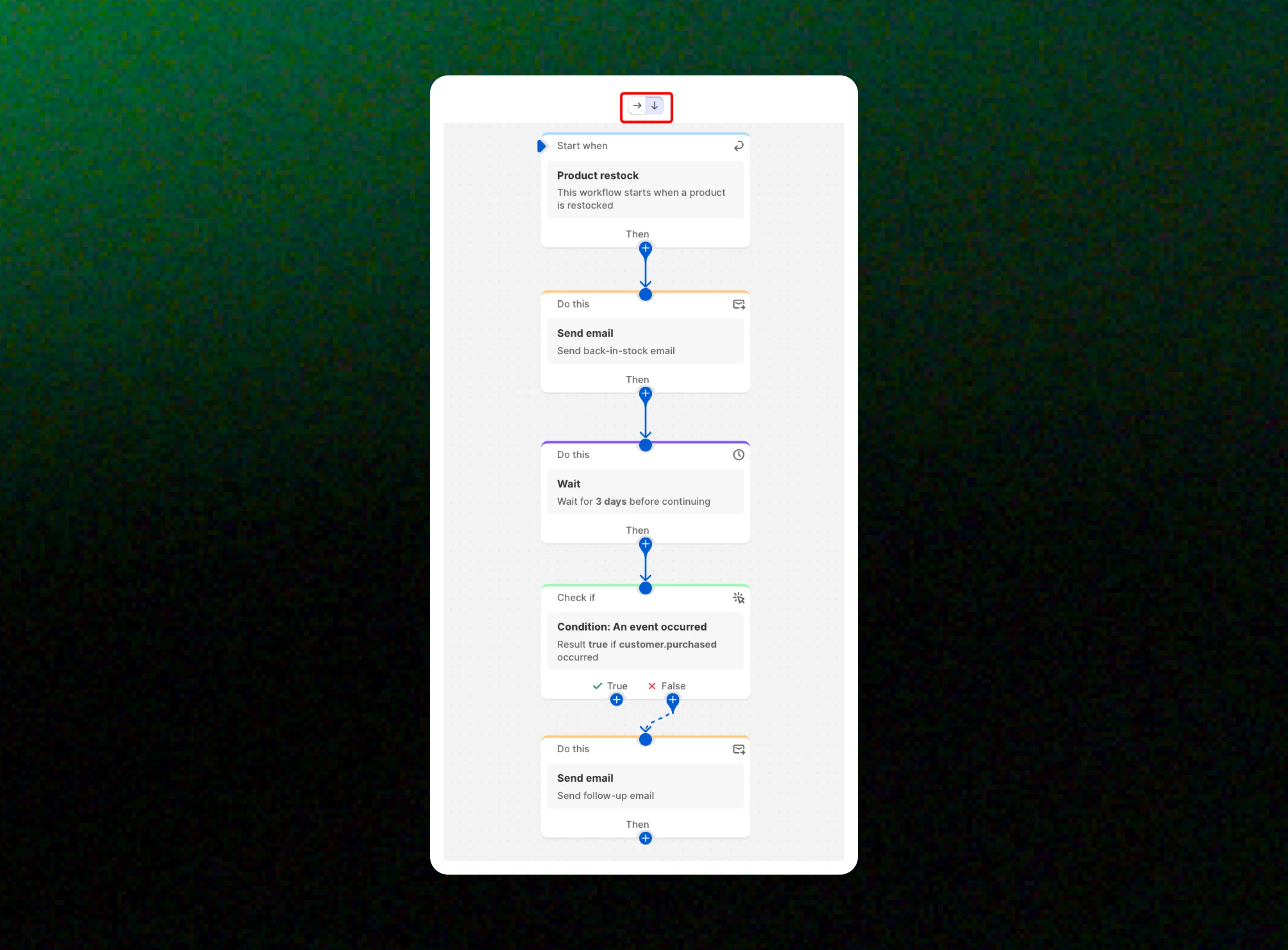
{% tab title="Vertical flow" %}

<figure><img src="/files/G5GoVzDngD96oxuARxPC" alt=""><figcaption></figcaption></figure>

{% hint style="info" %}
The Vertical flow is:

* Better suited for complex workflows with multiple steps or branches.
* Easier to organize and follow long or sequential processes.
* Helps maintain a clear step-by-step progression, making it better for longer workflows.
  {% endhint %}
  {% endtab %}
  {% endtabs %}

## Actions available

{% hint style="success" %}
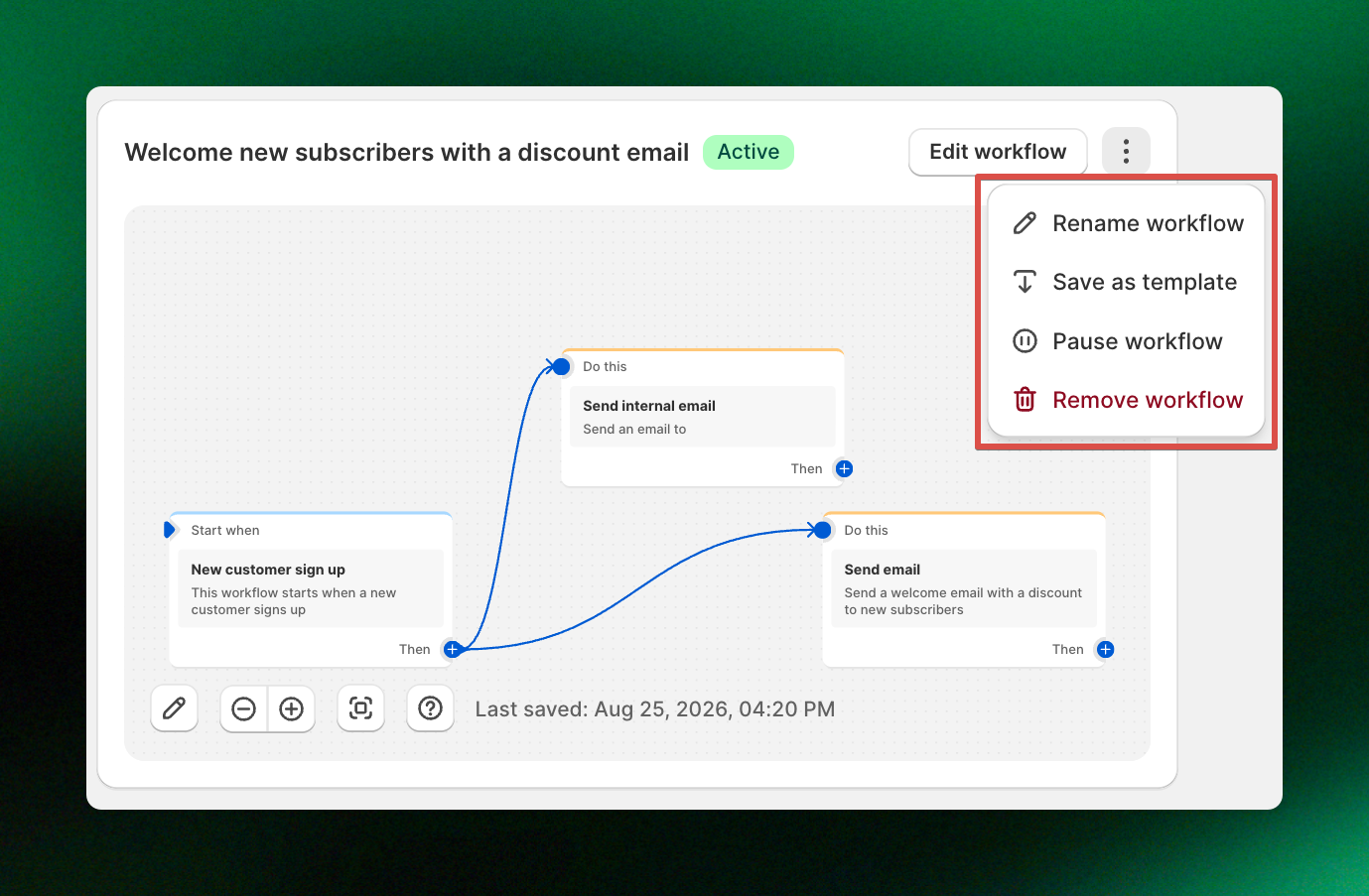
**Edit Workflow:** Opens the visual editor to modify triggers, conditions, or actions.
{% endhint %}

<figure><img src="/files/QZmZRujs1EmfxUZgj3sR" alt=""><figcaption></figcaption></figure>

{% hint style="success" %}
**Turn on Workflow:** Activates your workflow so that it runs automatically when the trigger conditions are met.
{% endhint %}

<figure><img src="/files/vF4s0yspzbTRXzWQWfhS" alt=""><figcaption></figcaption></figure>

{% hint style="success" %}
**Turn off Workflow:** Temporarily deactivates the workflow without deleting it.
{% endhint %}

<figure><img src="/files/BfSpLjXLFlrxIECfIsVf" alt=""><figcaption></figcaption></figure>

{% hint style="success" %}
**Delete:** Permanently removes the workflow.
{% endhint %}

{% hint style="warning" %}
You can only delete **deactivated workflows**. Make sure to turn off a workflow before deleting it. This action cannot be undone, so please consider it carefully before deleting.
{% endhint %}

<figure><img src="/files/nbP69Q6IJmt1UGL2DB24" alt=""><figcaption></figcaption></figure>

## Order & revenue attribution (last 30 days)

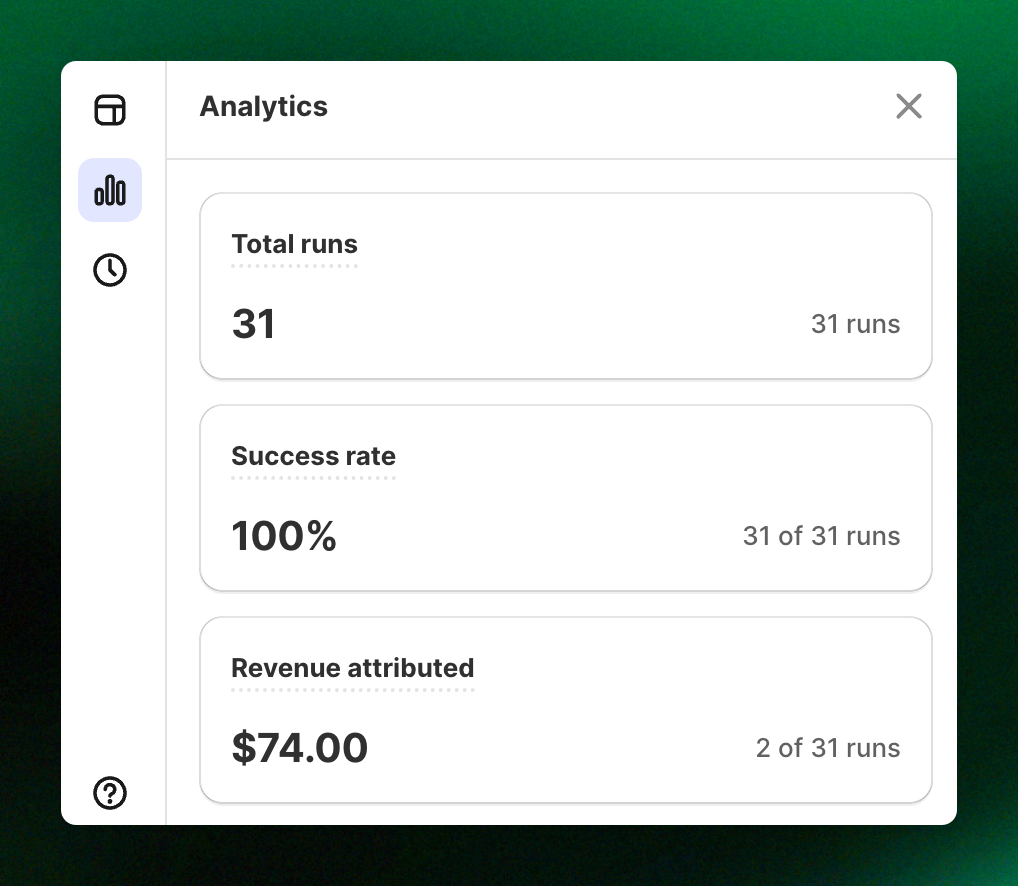
These metrics automatically update to show the workflow's performance and effectiveness over the last 30 days.

* Attributed orders: The number of orders that were generated by this workflow
* Attributed revenue: The total amount of revenue generated from orders that were generated by this workflow
* Average attribution: The average value per workflow run.

{% hint style="info" %}
Learn more: [Orders](/xflow-app/store-management/orders.md)
{% endhint %}

## Recent runs

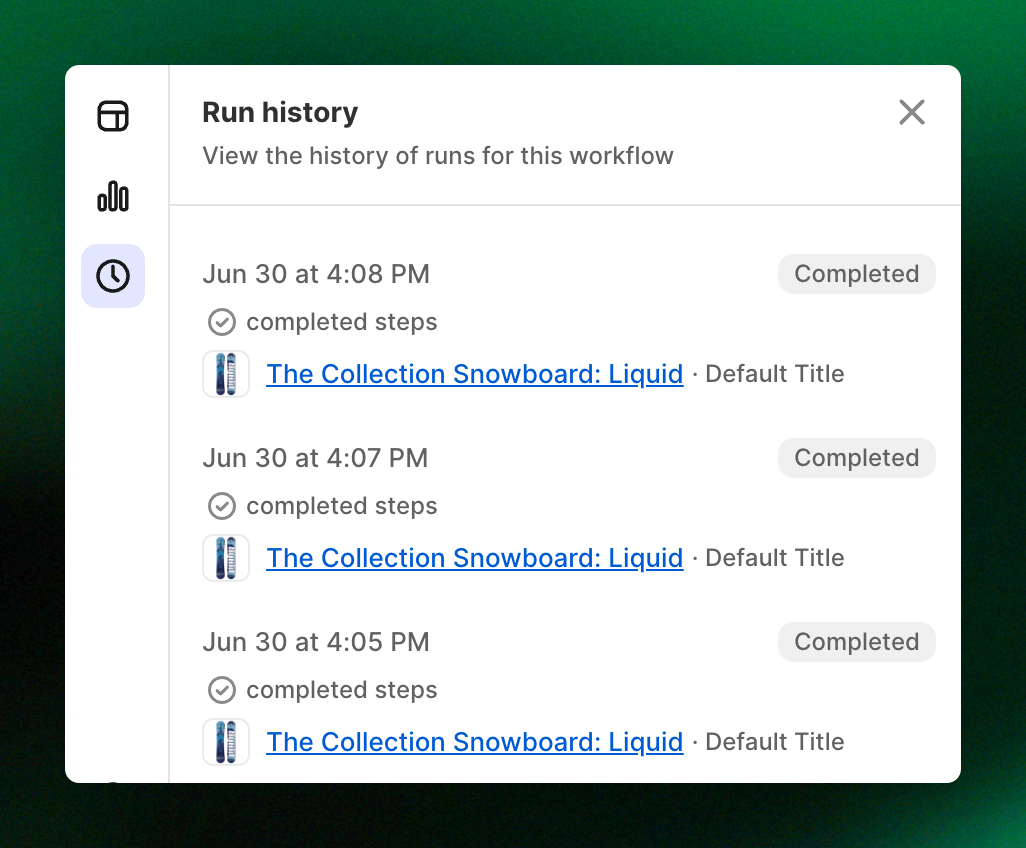
Displays the workflow's execution history. Each entry provides details on when it ran, the status, and completion data.

<figure><img src="/files/eAzYf65Wo9688BajARpe" alt=""><figcaption></figcaption></figure>

<table><thead><tr><th width="171.84503173828125">Column</th><th>Description</th></tr></thead><tbody><tr><td>Started at</td><td>The date and time when the workflow run started. This helps you see when the workflow was triggered.</td></tr><tr><td>Status</td><td>The current state of the workflow run</td></tr><tr><td>Completed steps</td><td>The number of steps that were successfully executed in this workflow run.</td></tr><tr><td>Completed at</td><td>The date and time when the workflow run finished. This helps you understand how long the run took.</td></tr></tbody></table>

{% hint style="info" %}
You can use Recent runs to:

* Monitor workflow activity
* Identify failed or interrupted runs
* Confirm that recent changes are working as expected
  {% endhint %}

## Related articles

{% content-ref url="/pages/3ajXS0dZtcdbezZlA3XI" %}
[Available triggers, actions, and conditions](/xflow-app/workflows/available-triggers-actions-and-conditions.md)
{% endcontent-ref %}

{% content-ref url="/pages/tq1dkTftd6RRjQFhhWjO" %}
[Get started with workflow templates library](/xflow-app/workflows/get-started-with-workflow-templates-library.md)
{% endcontent-ref %}

{% content-ref url="/pages/G8EzNAjsFvzoOwBlg2ZD" %}
[Campaigns](/xflow-app/campaigns/overview.md)
{% endcontent-ref %}

{% content-ref url="/pages/2vPjRx3iv0sn0W8FiqsT" %}
[Assign a workflow to your campaign](/xflow-app/workflows/assign-a-workflow-to-your-campaign.md)
{% endcontent-ref %}

***

#### 📩 **Need help?**

We’re here to make your XFlow experience smooth and successful.\
Our support team is always ready to assist you—no matter how big or small your question is.

<a href="https://admin.shopify.com/apps/xflow?chat=true&#x26;utm_source=foxecom&#x26;utm_medium=help_center_xflow_manage_workflows&#x26;utm_campaign=cta_button&#x26;utm_term=chat_now" class="button primary" data-icon="comment-lines">Chat now</a> <a href="mailto:contact@help.xflow.so" class="button secondary" data-icon="envelopes">Message us</a>


---

# Agent Instructions: Querying This Documentation

If you need additional information that is not directly available in this page, you can query the documentation dynamically by asking a question.

Perform an HTTP GET request on the current page URL with the `ask` query parameter:

```
GET https://docs.foxecom.com/xflow-app/workflows/manage-workflows.md?ask=<question>
```

The question should be specific, self-contained, and written in natural language.
The response will contain a direct answer to the question and relevant excerpts and sources from the documentation.

Use this mechanism when the answer is not explicitly present in the current page, you need clarification or additional context, or you want to retrieve related documentation sections.