# Understanding workflow actions
_lqgZFfNF.jpg)
## What are actions
Actions are tasks that are executed when triggered or after specific conditions are met.
A workflow can have **one or more actions** chained together and run in sequence.
## Types of actions
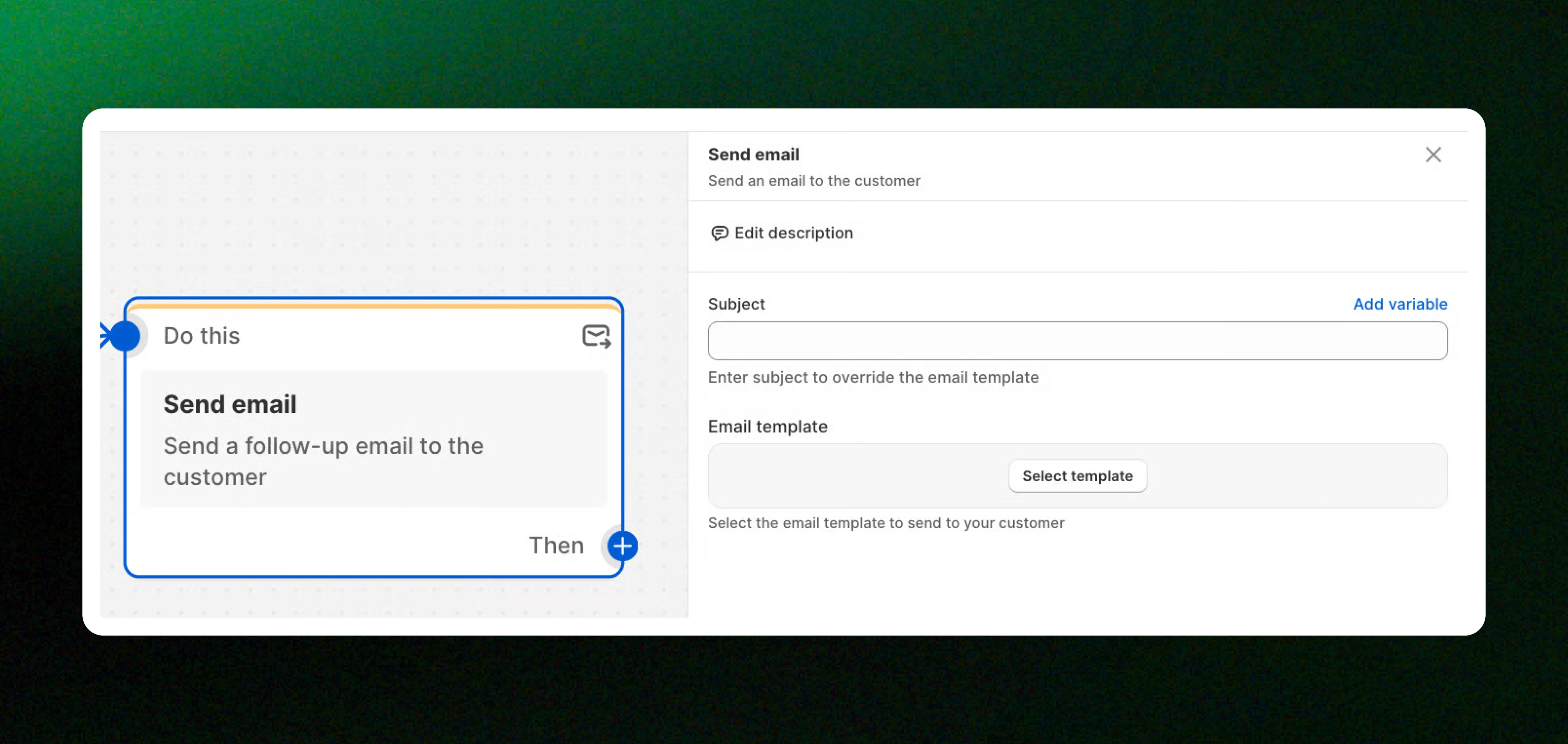
* **Subject:** Enter a custom subject line to replace the default subject in the selected email template.
* **Email template:** Choose the email template you want to send to the customer.
*Personalize your notifications using dynamic variables. See* [*Understanding personalization variables in email templates*](https://docs.foxecom.com/xflow-app/email-templates/understanding-personalization-variables-in-email-templates)
### Email sending time
This feature is available on the **Growth plan and above**.
By default, XFlow sends the email **immediately** when the **Send email action is triggered**.
If you want more control over when the email is sent, turn on **Email sending time** in the **Send email** action. You can choose between **At best time** and **On a custom timeframe**.
| Option | Description |
| --------------------------------------------------- | ---------------------------------------------------------------------------------------------------------------------------------------- |
| [**At best time**](#at-best-time) | XFlow automatically chooses a favorable sending time for each recipient within the next 24 hours, based on the available recipient data. |
| [**On a custom timeframe**](#on-a-custom-timeframe) | Choose the days, time ranges, and time zone when emails are allowed to be sent. |
If you update the sending-time settings, customers who have already been scheduled will keep their existing scheduled send time. The new settings apply only to customers who are evaluated after the changes are saved.
#### At best time
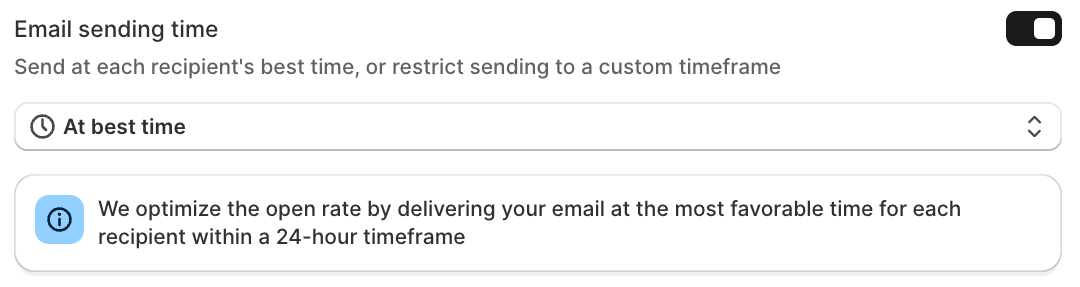 Select **At best time** to let XFlow determine when each recipient is most likely to engage with the email.
XFlow schedules the email to be sent within **24 hours** after the product is back in stock and the Send email action is triggered.
Depending on the data available for each recipient, XFlow determines the sending time using the following priority:
* **Recipient-level data:** If the recipient has enough engagement history, XFlow uses their previous open and click behavior to identify a likely engagement time.
* **Subscription time:** If the recipient subscribed to a specific product, XFlow can use that subscription time as a reference.
* **Country-level data:** If there is not enough recipient-level data, XFlow uses common engagement times for the recipient’s country.
* **Global fallback:** If recipient and country data are unavailable, XFlow uses a global engagement benchmark.
#### On a custom timeframe
Select **At best time** to let XFlow determine when each recipient is most likely to engage with the email.
XFlow schedules the email to be sent within **24 hours** after the product is back in stock and the Send email action is triggered.
Depending on the data available for each recipient, XFlow determines the sending time using the following priority:
* **Recipient-level data:** If the recipient has enough engagement history, XFlow uses their previous open and click behavior to identify a likely engagement time.
* **Subscription time:** If the recipient subscribed to a specific product, XFlow can use that subscription time as a reference.
* **Country-level data:** If there is not enough recipient-level data, XFlow uses common engagement times for the recipient’s country.
* **Global fallback:** If recipient and country data are unavailable, XFlow uses a global engagement benchmark.
#### On a custom timeframe
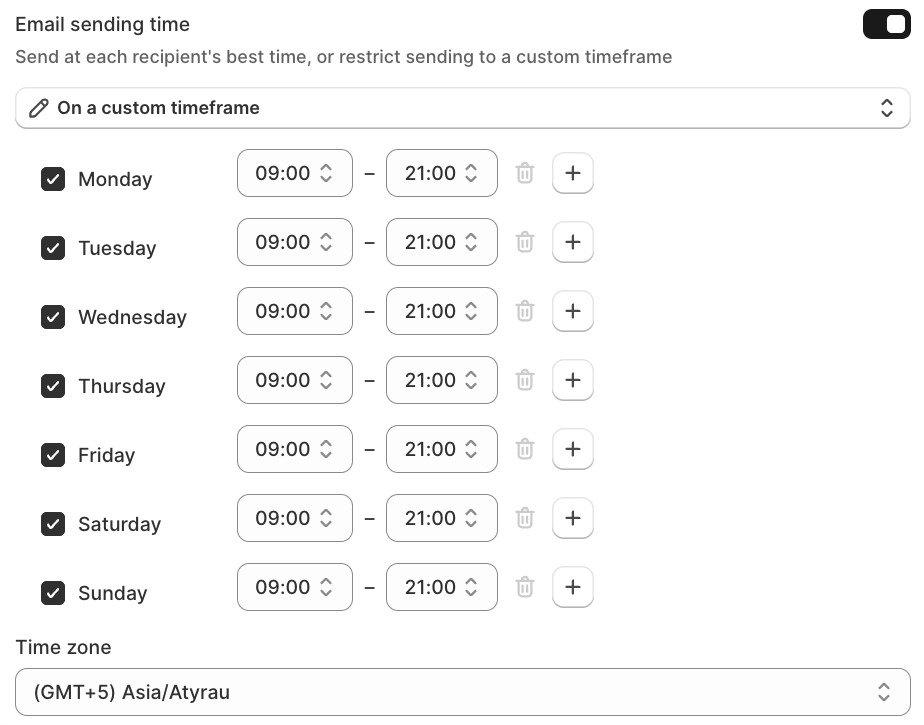 Select **On a custom timeframe** when you want to define exactly when emails are allowed to be sent.
You can:
* **Choose active days** by selecting or clearing the checkbox next to each day. If you turn off a day, XFlow skips that day when looking for the next available sending time.
* **Set a sending time range** for each active day, such as **09:00–21:00**.
* Click the **+** button to add another sending time range to the same day.
* Remove a time range using the delete icon.
* Choose the **Time zone** used to evaluate the schedule. By default, XFlow uses your store’s primary market time zone. If this information is unavailable, XFlow uses **GMT+07:00**
When the **Send email** action starts, XFlow checks whether the current time is within your selected sending schedule:
* **Within the selected time:** XFlow sends the email right away.
* **Outside the selected time:** XFlow waits and sends the email when the next available sending time starts.
*Example:*
If your sending schedule is **Monday, 9:00 AM–9:00 PM**:
* If the **Send Email** action starts at **3:00 PM on Monday**, XFlow sends the email immediately.
* If it starts at **10:00 PM on Monday**, XFlow waits and sends the email at **9:00 AM on the next active day**.
You can also add multiple time ranges to the same day. Time ranges on the same day cannot overlap, and at least one day must be active.
#### What happens when you change the settings?
If an email has already been scheduled, XFlow keeps its existing send time even if you later change the sending mode, time range, time zone, or turn Email sending time off.
The new settings apply only to recipients processed after the changes are saved.
### Tips & best practices
* **Use At best time when you want XFlow to optimize delivery automatically.**
Select **On a custom timeframe** when you want to define exactly when emails are allowed to be sent.
You can:
* **Choose active days** by selecting or clearing the checkbox next to each day. If you turn off a day, XFlow skips that day when looking for the next available sending time.
* **Set a sending time range** for each active day, such as **09:00–21:00**.
* Click the **+** button to add another sending time range to the same day.
* Remove a time range using the delete icon.
* Choose the **Time zone** used to evaluate the schedule. By default, XFlow uses your store’s primary market time zone. If this information is unavailable, XFlow uses **GMT+07:00**
When the **Send email** action starts, XFlow checks whether the current time is within your selected sending schedule:
* **Within the selected time:** XFlow sends the email right away.
* **Outside the selected time:** XFlow waits and sends the email when the next available sending time starts.
*Example:*
If your sending schedule is **Monday, 9:00 AM–9:00 PM**:
* If the **Send Email** action starts at **3:00 PM on Monday**, XFlow sends the email immediately.
* If it starts at **10:00 PM on Monday**, XFlow waits and sends the email at **9:00 AM on the next active day**.
You can also add multiple time ranges to the same day. Time ranges on the same day cannot overlap, and at least one day must be active.
#### What happens when you change the settings?
If an email has already been scheduled, XFlow keeps its existing send time even if you later change the sending mode, time range, time zone, or turn Email sending time off.
The new settings apply only to recipients processed after the changes are saved.
### Tips & best practices
* **Use At best time when you want XFlow to optimize delivery automatically.**
This works best when XFlow has enough recipient engagement data to identify likely open or click times. If recipient-level data is limited, XFlow falls back to broader signals such as country-level or global engagement patterns.
* **Use a custom timeframe when your business has clear sending-hour rules.**
This is useful if you only want emails sent during business hours, within a support window, or during specific campaign periods. XFlow will hold emails that arrive outside your allowed schedule and send them at the next available time.
* **Keep your sending window wide enough for time-sensitive emails.**
A very narrow custom timeframe can delay emails until the next available window. For back-in-stock emails, consider how quickly you want customers to hear about a restock before limiting the schedule too much.
Sending desktop push notifications requires that the browser permission settings are configured to **allow notifications** from a specific website.
**How to allow notifications in browser settings (User action)**
* 🌐 Google Chrome: [https://support.google.com/chrome/answer/3220216](https://support.google.com/chrome/answer/3220216)
* 🦊 Mozilla Firefox: [https://support.mozilla.org/en-US/kb/push-notifications-firefox](https://support.mozilla.org/en-US/kb/push-notifications-firefox)
* 🔵 Microsoft Edge: [https://support.microsoft.com/en-us/microsoft-edge/manage-website-notifications-in-microsoft-edge-0c555609-5bf2-479d-a59d-fb30a0b80b2b](https://support.microsoft.com/en-us/microsoft-edge/manage-website-notifications-in-microsoft-edge-0c555609-5bf2-479d-a59d-fb30a0b80b2b)
* 🍎 Safari (Mac): [https://support.apple.com/en-vn/guide/safari/sfri40734/mac](https://support.apple.com/en-vn/guide/safari/sfri40734/mac)
* 📱 Safari (iPhone/iPad — iOS 16.4+): Settings > Notifications > Safari and enable Allow Notifications.
_QwgUmgIN.jpg)
* **Title**: The title appears at the top of the notification. Use variables to personalize the message.
* **Body:** The main message of the notification, used to share details or prompt action.
*Example:*
**Trigger:** Product restock
**→ Action:** Send email (Send a back-in-stock notification to customers who requested a restock alert)
**→ Action:** Wait (Wait 1 day)
**→ Action:** Send push notification (Send a push notification to remind the customer the item is back)
Personalize your notifications using dynamic variables: [Understanding personalization variables in email templates](https://docs.foxecom.com/xflow-app/email-templates/understanding-personalization-variables-in-email-templates)
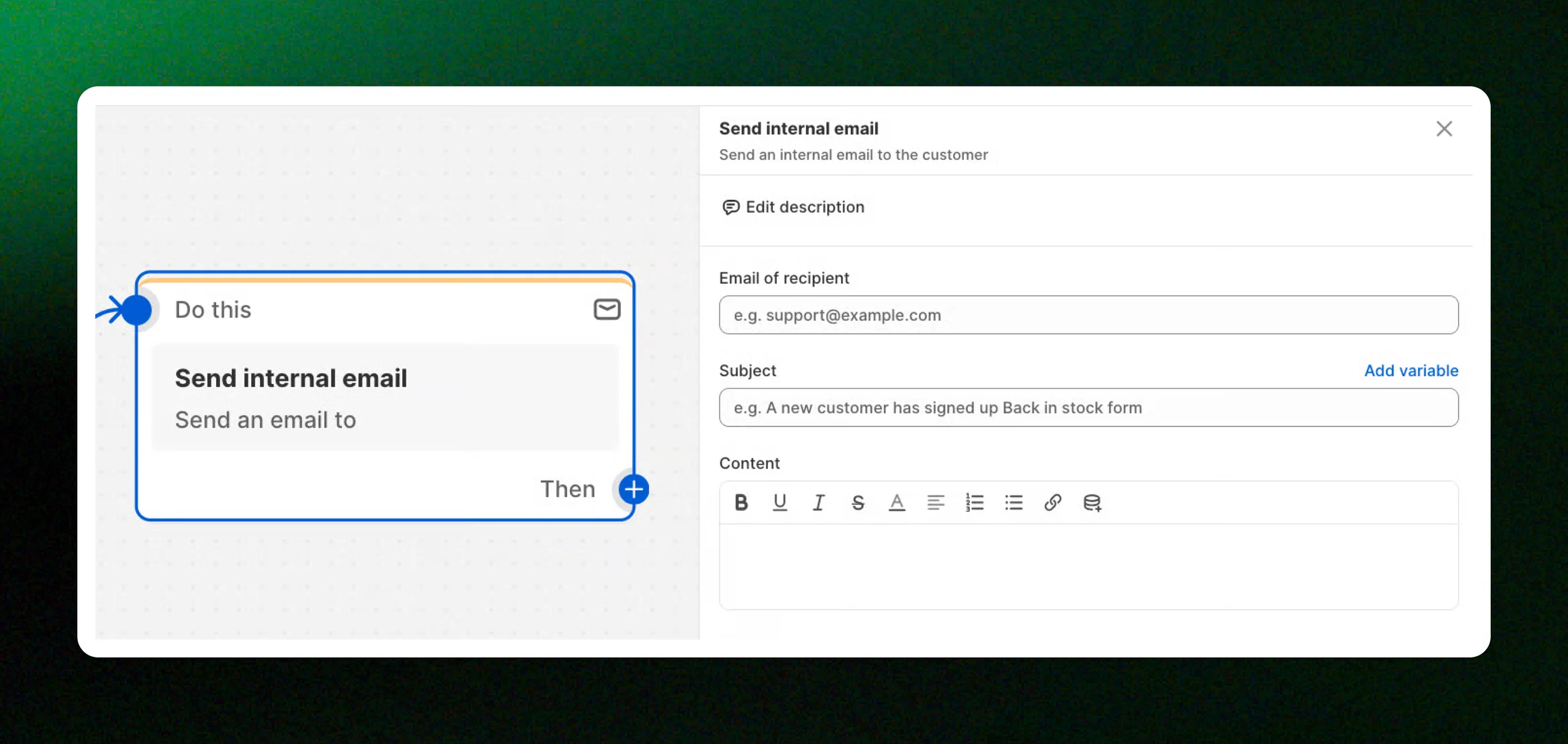
* **Email of recipient:** Enter the internal email address that should receive this notification.
* **Subject:** Add a subject line for the internal email, or use variables to include dynamic information.
* **Content:** Write the message to be sent in the internal email.
*Example:*
**Trigger:** New customer sign-up
**→ Action:** Send email (Send a welcome email containing a link to a high-value catalog or offer)
**→ Action:** Wait (Wait 2 days for the customer to interact)
**→ Condition:** An event occurred - Email clicked (Check if the customer clicked the link in the email)
**→ Action (If True):** Send internal email (Notify the sales team that this is a "Hot Lead" because they engaged with the content)
Personalize your notifications using dynamic variables: [Understanding personalization variables in email templates](https://docs.foxecom.com/xflow-app/email-templates/understanding-personalization-variables-in-email-templates)
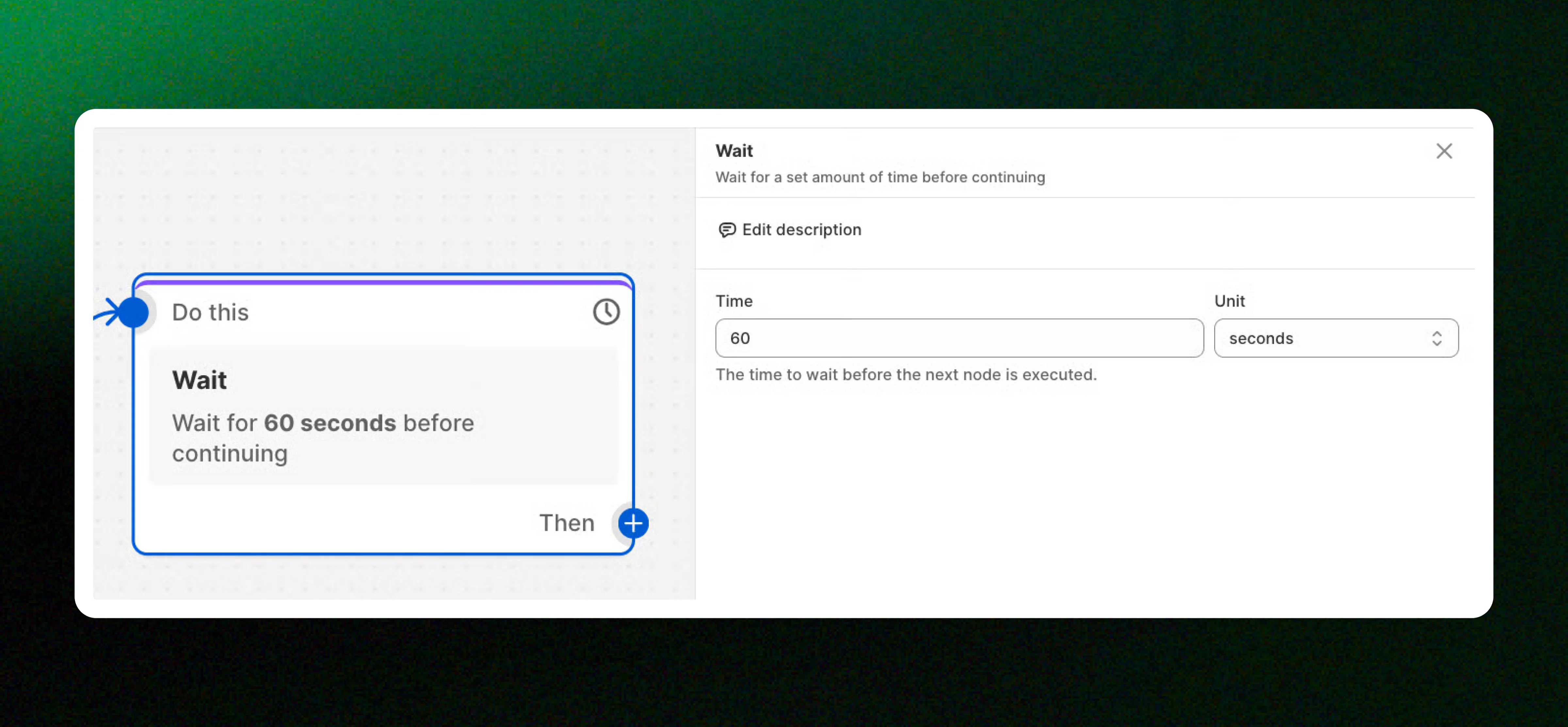
* **Time & Unit:** Set how long the workflow should wait before moving to the next step.
*Example:*
**Trigger:** New customer sign-up
**→ Action:** Send email (Send an initial welcome email)
→ **Action:** Wait (Wait 3 days before follow-up)
**→ Action:** Send email (Send follow-up brand story email)
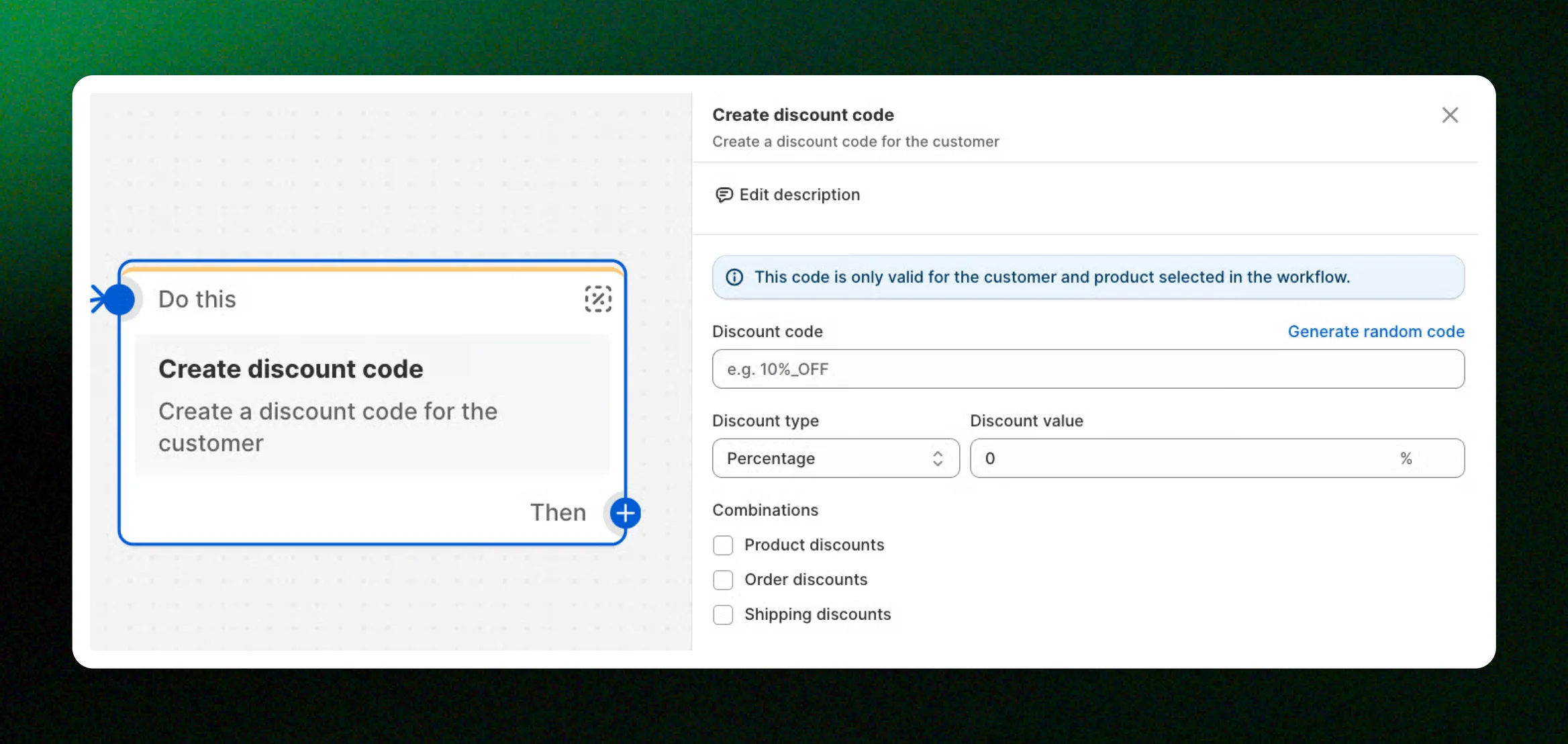
* **Discount code:** Enter the custom code you want to generate or click “Generate random code” to create one automatically.
* **Discount type:** Select the type of discount you want to apply (Percentage/Fixed amount).
* **Discount value:** Specify the value of the discount based on the selected discount type.
* **Combinations:** Choose which types of discounts this code can be combined with, such as product, order, or shipping discounts.
This code is only valid for the **specific customer and product** selected in the workflow.
*Example:*
**Trigger:** Product restock
**→ Condition:** Customer criteria - Order count (Check if the customer has multiple orders)
**→ Action (If True):** Create discount code (Create an exclusive VIP discount code)
**→ Action:** Send email (Send a back-in-stock notification email that includes the exclusive discount)
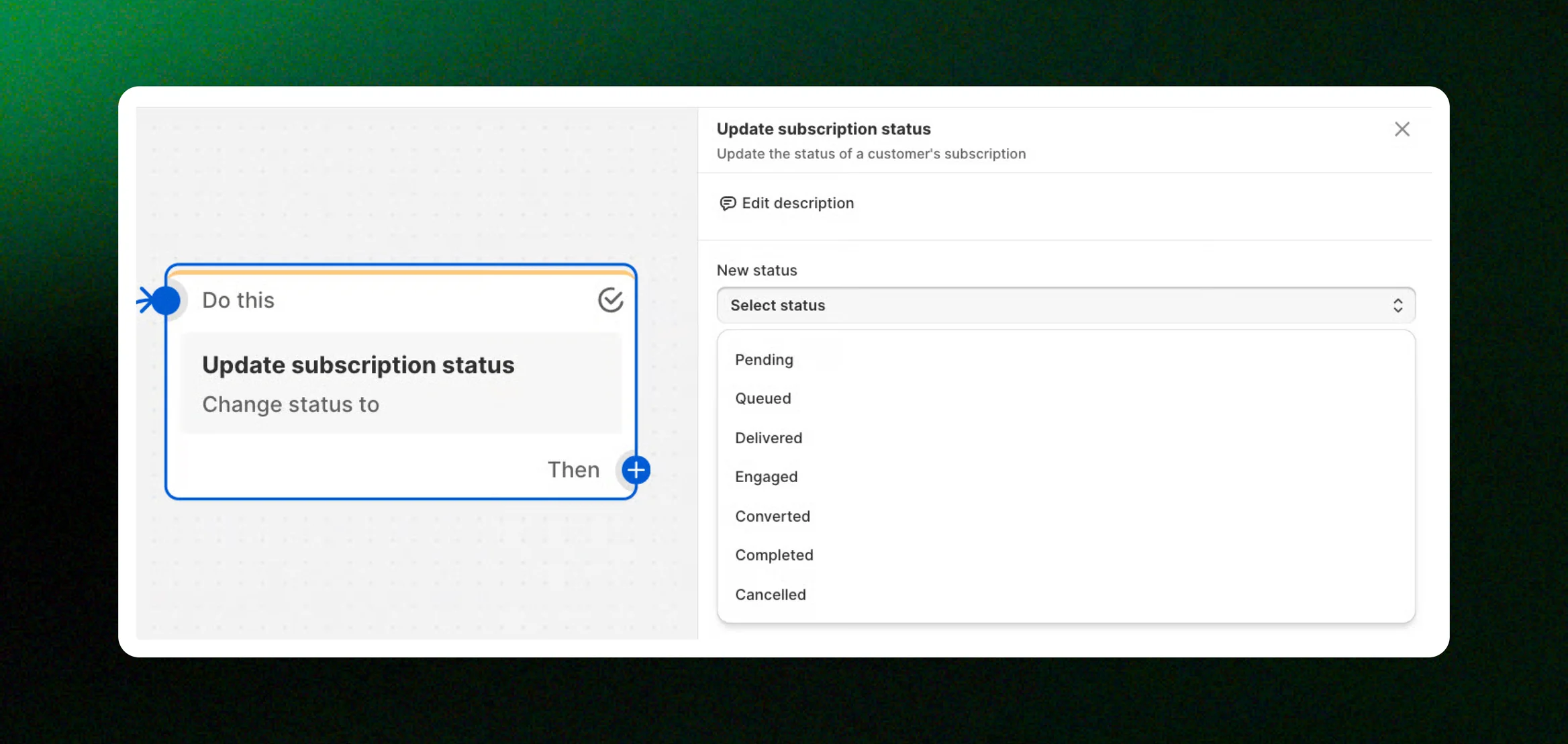
* **New status:** Select the subscription status you want to update the customer to.
*Example:*
**Trigger:** New customer sign up
**→ Condition:** Customer criteria - Accepts marketing \= True
**→ Action (If True):** Update subscription status - Engaged (If they accepted marketing)
**→ Condition:** Customer criteria - Accepts marketing \= False
**→ Action (If True):** Update subscription status - Cancelled (If they did not accept marketing)
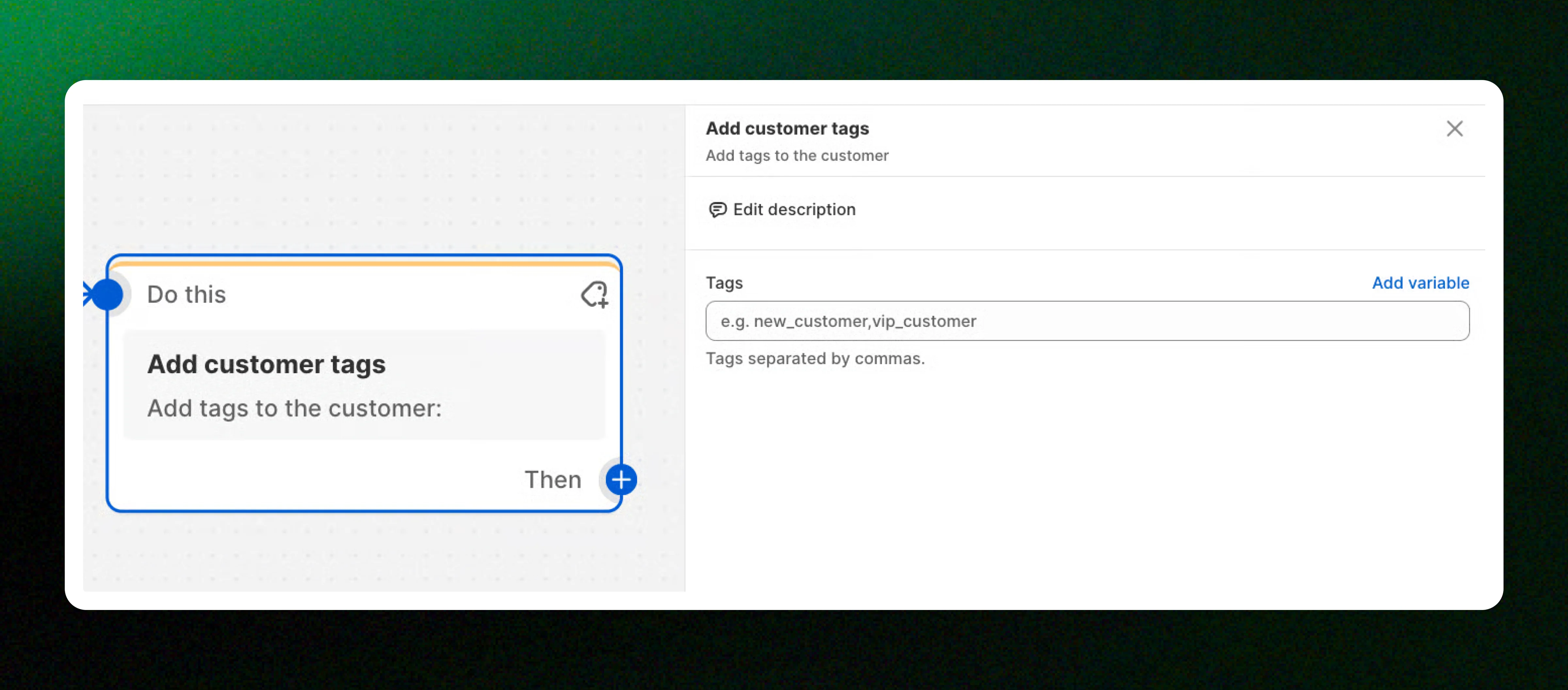
* **Tags:** Enter the tags you want to use to categorize the customer, separated by commas.
*Example:*
**Trigger:** New customer sign up
**→ Condition:** Customer criterias - Order count (Check if the customer has more than 5 orders)
**→ Action (If True):** Add customer tags (Add the "VIP" tag to the customer profile)
Personalize your notifications using dynamic variables: [Understanding personalization variables in email templates](https://docs.foxecom.com/xflow-app/email-templates/understanding-personalization-variables-in-email-templates)
## How actions work
A trigger starts the workflow.
The workflow runs each action using data from the trigger or conditions.
Each action runs only after the previous one has finished.
Information created or updated by one action can be used in later actions.
Want a full picture? Learn more about how workflows work: [How workflows work](https://docs.foxecom.com/xflow-app/workflows/how-workflows-work)
## Preview actions before running your workflow
When building a workflow, you can preview how each action works before activating it.
Preview mode lets you test your action settings (such as emails) using sample data, ensuring everything works as expected.
This is especially useful for:
* Checking email content and variables
* Verifying workflow logic
* Testing with real customer and product data.
Learn how to [Preview actions in a workflow](https://docs.foxecom.com/xflow-app/workflows/preview-actions-in-a-workflow)
## Common workflow actions use cases
| Action | Common use cases |
| -------------------------- | ------------------------------------------------------------------------------------------------------------------------------------------------------------------------------------------------------------------------------------------------------------------------------------------------------------------------------------------------ |
| Send email | • Send back-in-stock notifications to customers
• Deliver welcome or confirmation emails
• Follow up with customers who didn’t purchase after restock
• Send promotional or discount emails
• Share order updates or important announcements |
| Send push notification | • Notify customers when a product is back in stock
• Send real-time alerts for time-sensitive offers or low inventory
• Remind customers to complete a purchase
• Announce limited-time promotions or discounts
• Share important updates that require immediate attention |
| Send internal email | • Alert inventory team when 100+ customers waiting
• Notify manager of high-demand products
• Daily digest of restock activity
• Low inventory warnings with waitlist data |
| Wait | • Delay follow-up messages after the initial notification
• Give customers time to complete a purchase
• Space out messages to avoid over-messaging
• Create timed sequences (for example, wait 24 hours before sending a reminder) |
| Create discount code | • Incentivize immediate purchase ("10% off if you buy today")
• VIP exclusive discounts
• Loyalty reward for patient waitlist customers
• Limited-time urgency ("Code expires in 48 hours") |
| Update subscription status | • Mark subscriptions as Delivered after a notification is sent
• Update status to Engaged when a customer interacts with a message
• Set status to Converted after a successful purchase
• Mark subscriptions as Completed when the workflow finishes
• Cancel subscriptions if the customer opts out or no longer qualifies |
| Add customer tags | • Segmentation: "High-Intent-Customers", "VIP-Waitlist"
• Product interest tracking: "Interested-Blue-Tshirt"
• Engagement level: "Email-Engaged", "Never-Opened"
• Lifecycle stage: "Waitlist-Converted", "Waitlist-Non-Converter"
• Future targeting: Use tags in future campaigns |
| Create draft order | *Coming soon* |
| Send message | *Coming soon* |
| Send SMS | *Coming soon* |
## Examples of workflow actions
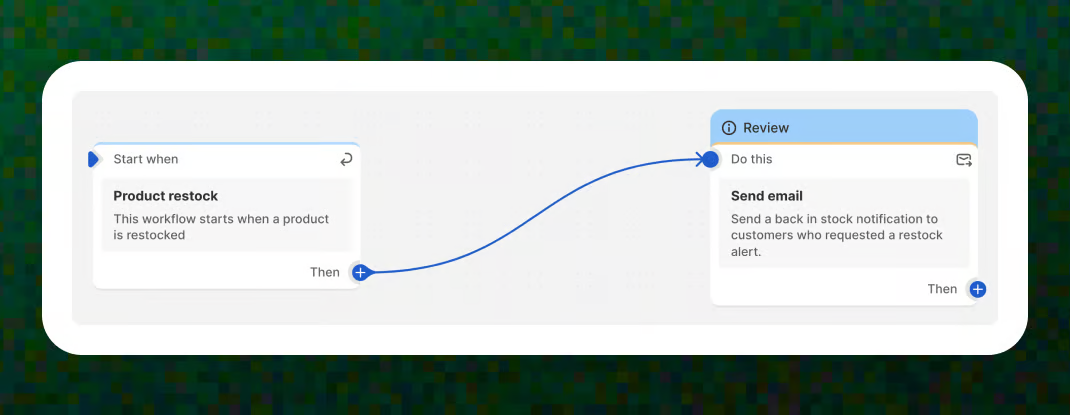
#### Example 1: Send email
**Trigger:** Product restock
**→ Action:** Send email (Send a back in stock notification to customers who requested a restock alert)
#### Example 2: Send internal email
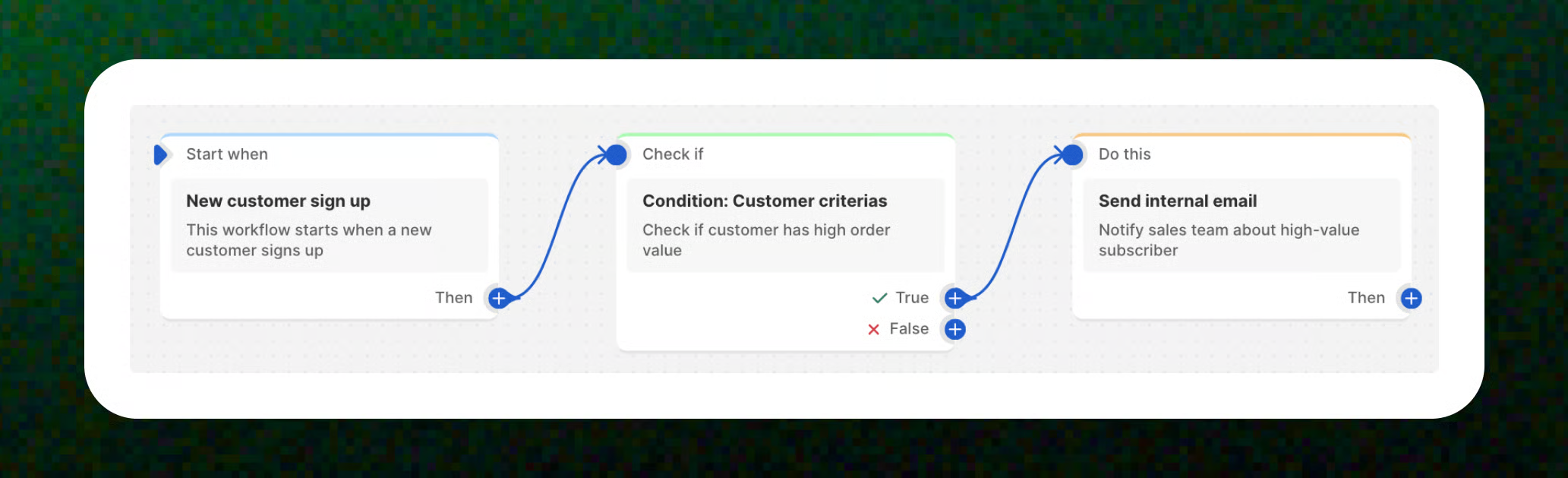
**Trigger:** New customer sign up
**→ Condition:** Customer criterias - Order count: Check if customer has high order value (Proceeds if the condition is True)
**→ Action:** Send internal email (Notify sales team about high-value subscriber)
#### Example 3: Wait
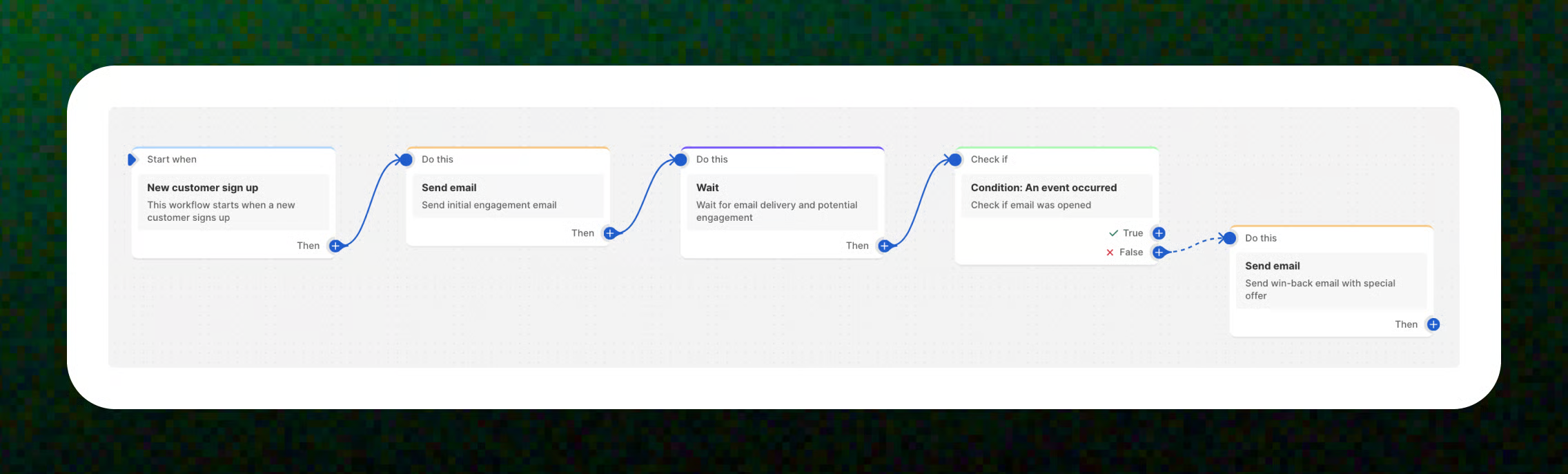
**Trigger:** New customer sign up
**→ Action:** Send email (Send initial engagement email)
**→ Action:** Wait (Wait for email delivery and potential engagement)
**→ Condition:** An event occurred - Email opened (Check if "An event occurred")
**→ Action (If False):** Send email (Send win-back email with special offer)
## Related articles
Available triggers, actions, and conditions
Create a workflow
Get started with workflow templates library