# How workflows work
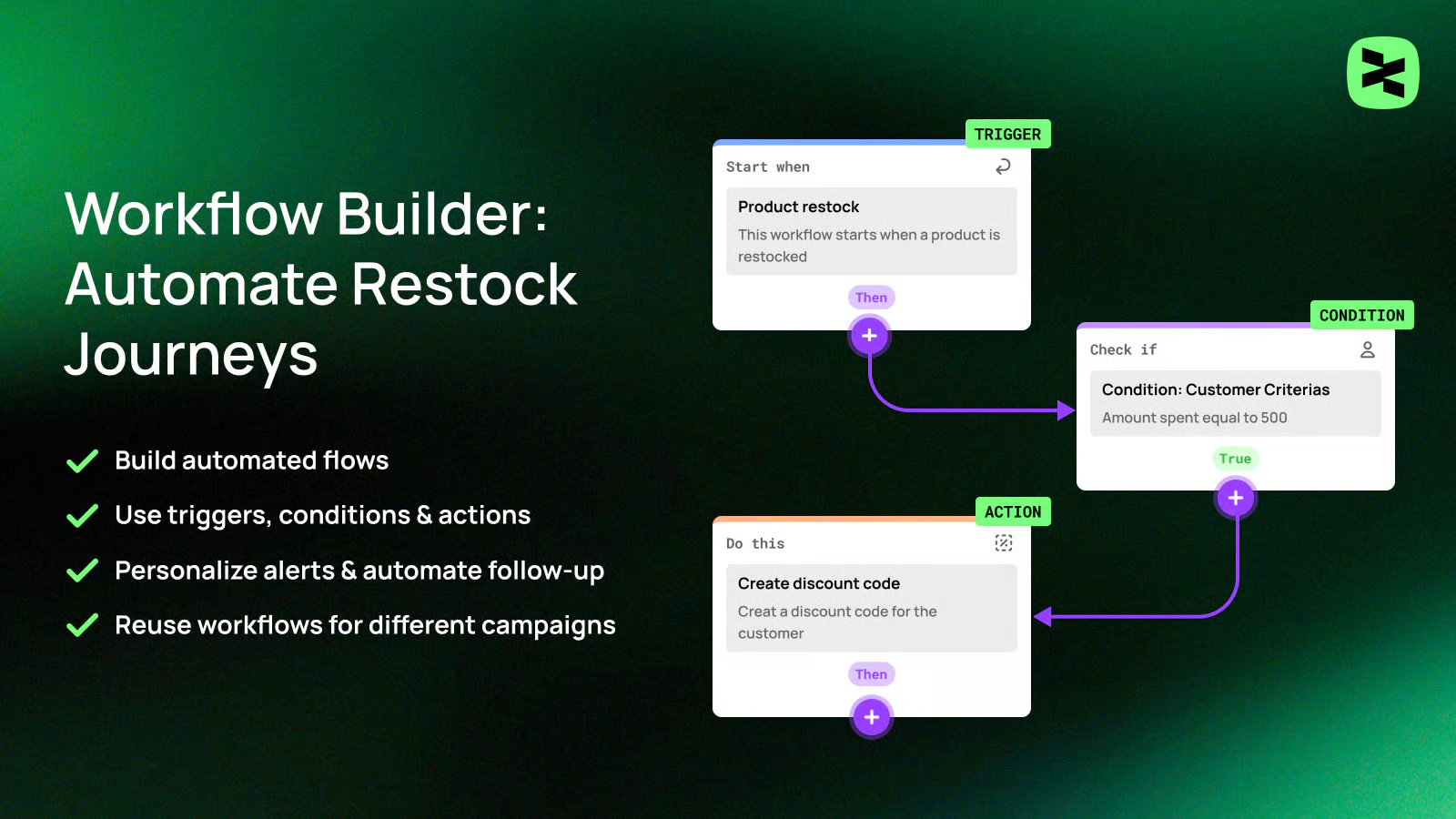
## What are workflows
Workflows are **automated processes** that control **how and when customers receive notifications**.
Instead of sending messages manually, workflows let you build a visual flow of steps that run automatically when specific events happen.
*Examples:*
* *Back-in-stock notification: When a product is restocked, automatically send an email to customers who subscribed to alerts.*
* *New subscriber welcome: When someone subscribes to the Notify me form, automatically send a welcome email or a discount code.*
## Understanding workflow systems
Each workflow is a visual sequence of **Triggers → Conditions → Actions** that runs automatically when a restock event happens.
*Examples:*
1. *Trigger**:** A product is back in stock*
2. *Condition**:** The customer has purchased before*
3. *Action**:** Send a back-in-stock email with a discount code*
## How workflows work
Workflows help you automatically notify customers when a product is back in stock. Once a workflow is turned on, everything runs on its own.
### Customers enter the workflow
Customers enter the workflow when they meet the trigger defined at the workflow’s entry point.
📝 Learn more: [Understanding workflow triggers](https://docs.foxecom.com/xflow-app/workflows/understanding-workflow-triggers)
### Moving through steps
After entering, Customers move through the workflow’s sequence of steps, which may include **actions** and **conditions**.
📝 Learn more: [Understanding workflow actions](https://docs.foxecom.com/xflow-app/workflows/understanding-workflow-actions)
### Conditions decide what happens next
* If the customer meets the condition, they move to the next step on the **Yes** path.
* If the customer does not meet the condition, they normally exit the workflow. However, if a **No** path is defined, the customer will continue to the next steps on the **No** path instead of exiting the workflow.
📝 Learn more: [Understanding workflow conditions](https://docs.foxecom.com/xflow-app/workflows/understanding-workflow-conditions)
### Exiting the workflow
A customer leaves the workflow automatically when there are no more steps to complete.
### Track everything easily
You can see exactly what happens to each workflow in the workflow logs, including:
* Which workflow was run
* When the workflow started
* The current status of the workflow
* How many steps were completed
* When the workflow finished
## Benefits of workflows
Workflows help you automate critical customer actions, saving time and delivering better experiences at scale.
* **Save time with automation:** Once a workflow is set up, it runs automatically. You don’t need to manually send emails or track product restocks.
* **Send timely and relevant messages:** Workflows ensure customers receive messages at the right moment, when they are most likely to engage.
* **Personalize customer experiences:** Use conditions to send different messages based on customer behavior, purchase history, or preferences.
* **Reduce missed opportunities:** Automatically notifying customers when products are back in stock helps recover lost sales and increase conversions.
* **Scale your communication easily:** Workflows work the same way whether you have 10 subscribers or 10,000, allowing your store to grow without extra effort.
* **Track and improve performance:** With workflow logs, you can monitor each run, understand what’s happening, and quickly identify issues or areas for improvement.
## Common workflow use cases
Workflows can be used in many real-world scenarios to automate customer communication and actions.
* **Back-in-stock notifications**: Automatically notify customers when an out-of-stock product becomes available again, helping recover lost sales and drive conversions.
* **New subscriber welcome flow**: Send a welcome email or discount code as soon as someone subscribes, creating a strong first impression and encouraging early engagement.
* **Priority emails for VIP customers**: Send emails with higher priority or exclusive content to VIP or loyal customers based on their purchase history or customer tags.
* **Create and send discount codes**: Automatically generate discount codes and send them to customers via email to encourage purchases and increase conversions.
* **Internal team reminders**: Automatically notify internal teams about important leads to ensure timely follow-up and better coordination.
📝 Not sure where to start? Check out our workflow templates library: [Get started with workflow templates library](https://docs.foxecom.com/xflow-app/workflows/get-started-with-workflow-templates-library)
## Workflow best practices
Follow these best practices to build effective, reliable, and scalable workflows.
* **Prevent overlapping workflows**: Design workflows carefully to avoid multiple workflows triggering for the same user at the same time, which can result in duplicate emails or conflicting actions.
* **Use conditions strategically**: Apply conditions only when they add meaningful personalization, avoiding unnecessary complexity or over-segmentation.
* **Test before enabling**: Always test workflows to ensure triggers, conditions, and actions work correctly before turning them on for all customers.
* **Monitor workflow logs regularly**: Review logs to track workflow performance, understand customer paths, and quickly identify issues.
* **Optimize message timing and content**: Send messages at the right moment with clear, relevant content to maximize engagement.
* **Review and update workflows over time**: Continuously improve workflows based on performance data and changing business needs.
You might find this helpful: [Common mistakes when creating workflows](https://docs.foxecom.com/xflow-app/workflows/workflows-faqs/common-mistakes-when-creating-workflows)
## Related articles
Available triggers, actions, and conditions
Create a workflow
Workflows: FAQs