# Design your email templates
Learn more how to create an email template: [Create an email template](https://docs.foxecom.com/xflow-app/email-templates/create-an-email-template)
## Email template builder overview
Get an overview of the Template editor and learn how to design, customize, and configure your email templates before activating them for use in workflows.
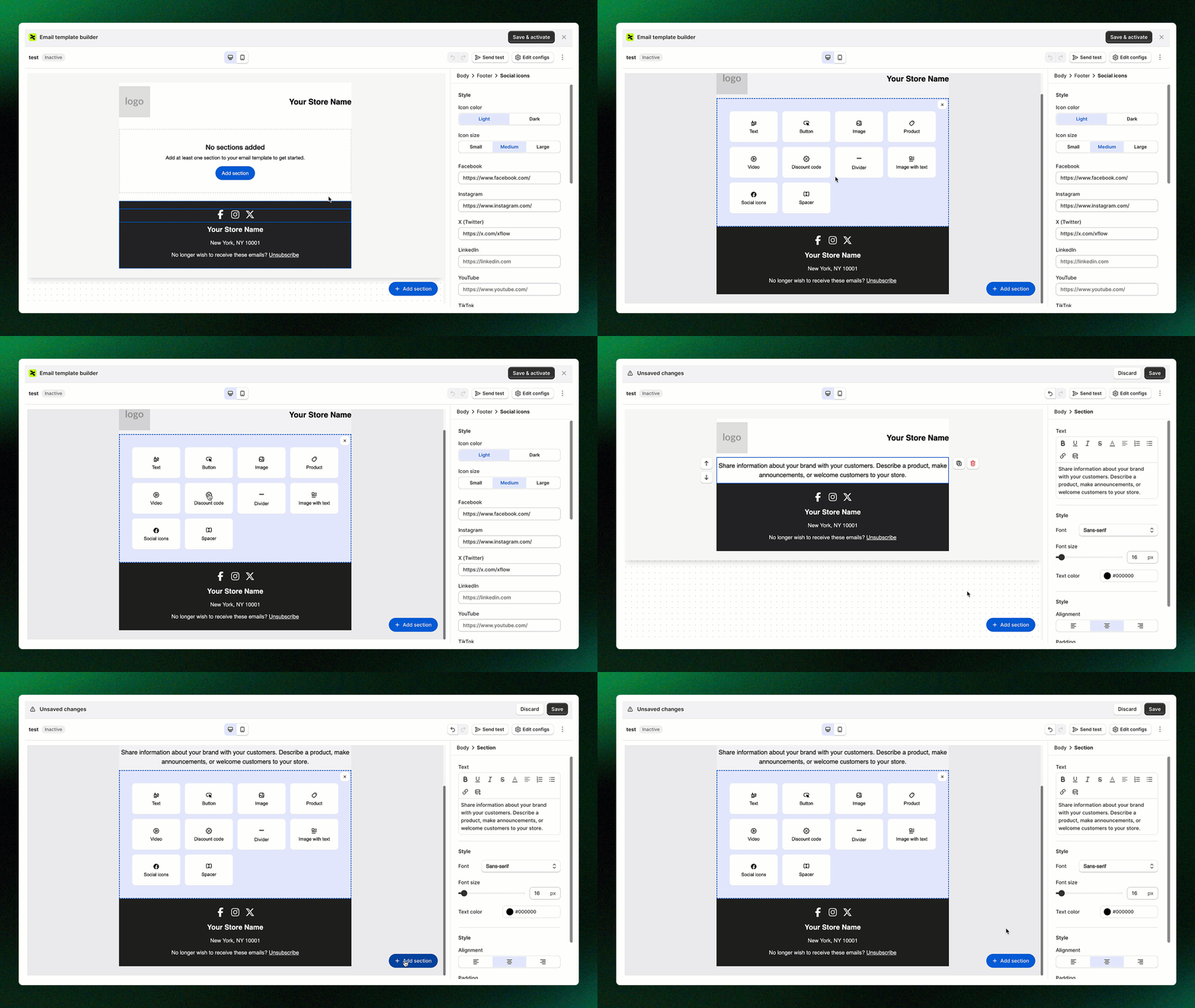
* **Add section:** Build your email layout by adding content sections such as images, text, buttons, or dividers.
*Learn more:* [Content blocks](#content-blocks)
_9Qz6KxDI.jpg)
* **Body settings:** Customize the background color, padding, and overall layout of your email.
* **Background color:** Set the background color for the email.
* **Padding:** Adjust the spacing inside the email.
* **Content container:**
* **Desktop width:** Define the maximum width of the email content displayed on desktop devices.
* **Padding:** Adjust the inner spacing between the content and the edges of the email container.
* **Background color:** Set the background color of the email content area.
* **Border color:** Add or change the border color around the email container.
* **Border radius:** Round the corners of the email container for a softer look.
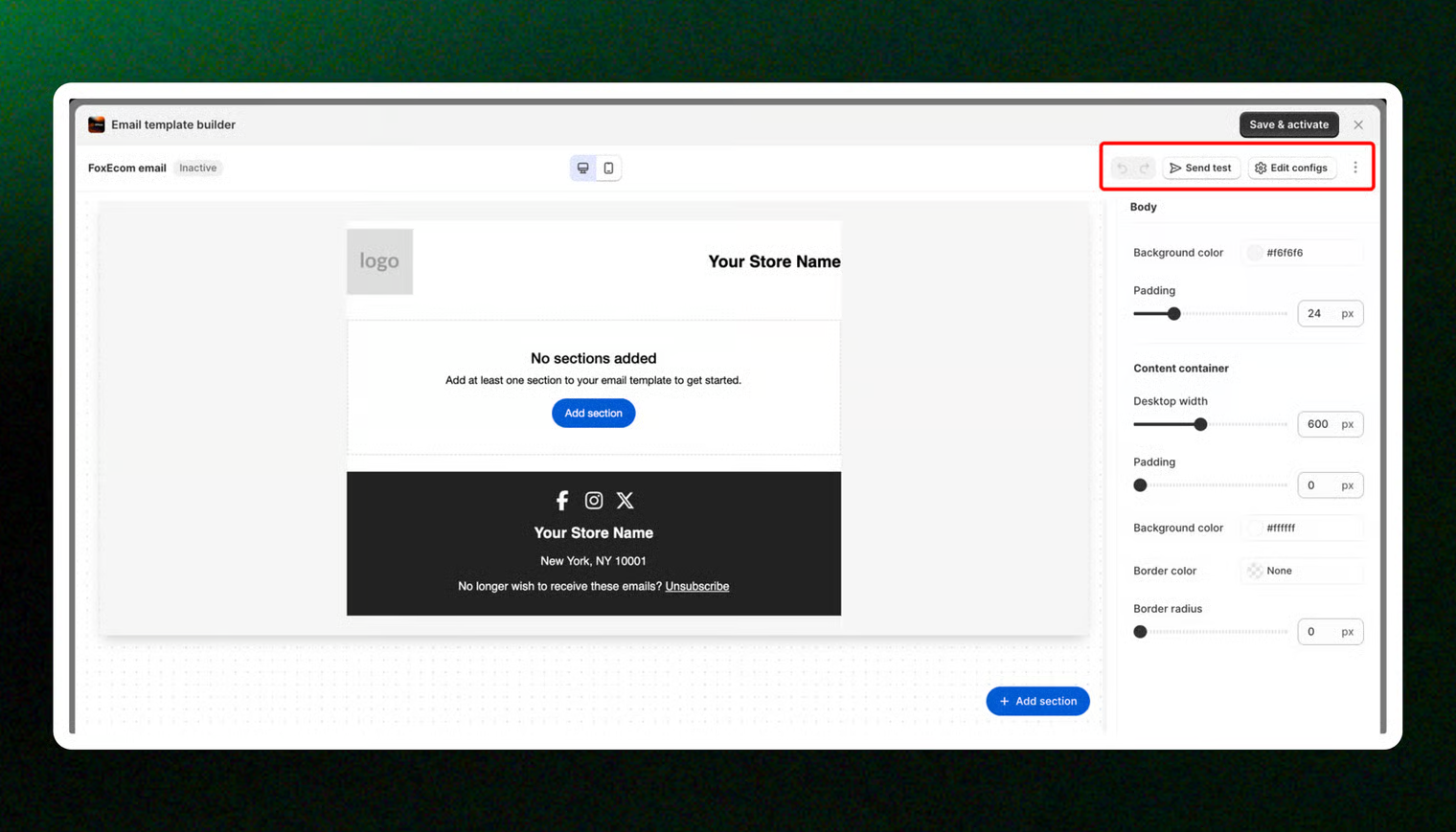
* **Undo/Redo**: Revert or reapply changes made in the email editor.
* **Send test:** Click **Send test** to send a preview email to yourself or your team and verify the design and content.
Learn more: [Preview and test your email](https://docs.foxecom.com/xflow-app/email-templates/preview-and-test-your-email)
* **Edit configs:** Open the **Edit email configs** panel to set up the subject line, preview text, sender name, and reply-to address.
Learn more: [Control how your email is presented with email configs](https://docs.foxecom.com/xflow-app/email-templates/control-how-your-email-is-presented-with-email-configs)
* **Save & activate:** Once your template is finalized, click **Save & activate** to make it active and available for use in your workflows.
## Content blocks
Content blocks allow you to build and structure your email by adding different types of elements to your template.
### General section style
Customize the appearance and layout of all your email sections for better visual balance and design consistency.
_Ad2pYdZ6.jpg)
* **Alignment:** Choose how the content is aligned within the section (left, center, or right).
* **Padding:** Adjust the spacing around content to control how much white space surrounds it.
* **Background color:** Set a background color for the section.
Customize the header section of your email template to include your brand identity.
_Lyorna2z.jpg)
* **Layout:** Choose how the logo and store name are arranged.
| Layout | Design |
| ----------------------------- | -------------------------------------------------------------------------------------- |
| Logo left \| Store name right |  |
| Logo right \| Store name left |
|
| Logo right \| Store name left |  |
| Center vertically |
|
| Center vertically |  |
|
* **Logo and logo width:** Upload or change your store logo and adjust its width.
* **Store name:** Enter the name that will appear in your email header. Leave the field blank to hide it.
* **Font size & color:** Customize the font size and text color of your store name.
* **Font:** Select a font style that matches your brand.
* **Padding:** Adjust spacing around the header content.
* **Background color:** Set a background color to make your header stand out.
Add and format text content, such as headings, paragraphs, or promotional messages.
_ojXwVudW.jpg)
* **Text:** Enter and style your message using formatting options such as bold, italic, underline, alignment, lists, links, and connect Shopify's Liquid placeholders for dynamic data.
* **Font:** Choose a font that fits your brand’s visual style.
* **Font size:** Adjust the text size.
* **Text color:** Set a color that complements your design and improves contrast.
Use the **Button block** to create call-to-action buttons that encourage customers to engage with your email.
_DCj3iz2i.jpg)
* **Button label:** Set the text displayed on the button.
* **Link:** Add the URL where recipients will be directed when they click the button.
* **Font & font size:** Choose the button text style and adjust its size.
* **Text color:** Set the color of the button text.
* **Fill color:** Choose the button’s background color.
* **Fill style:** Select between **Solid** or **Outline** button styles.
| Style | Design |
| ------- | -------------------------------------------------------------------------------------- |
| Solid |  |
| Outline |
|
| Outline |  |
|
* **Shape:** Customize the button corners (square, rounded, or pill-shaped).
| Shape | Design |
| ----------- | -------------------------------------------------------------------------------------- |
| Square |  |
| Rounded |
|
| Rounded |  |
| Pill-shaped |
|
| Pill-shaped |  |
|
* **Width:** Choose between **Auto** (fits text) or **Full** (spans container width).
| Width | Design |
| ----- | -------------------------------------------------------------------------------------- |
| Auto |  |
| Full |
|
| Full |  |
|
Use the **Image block** to add a visual element to your email. This block lets you upload an image, add alt text, include a link, and customize its size and style to match your design.
_h0DOTItS.jpg)
* **Image:** Select an image to upload from your media library.
* **Alt text** (optional): Add a short description of the image.
* **Image link:** Enter a URL to make the image clickable, directing customers to a product page or any link you choose.
* **Image width:** Adjust the width of the image.
* **Border radius:** Customize the image’s corner rounding.
The **Video block** allows you to add a video, increasing engagement by linking to YouTube or other videos, and providing an effective way to showcase product demos, tutorials, or promotional content.
_Jvf8aSas.jpg)
* **Video URL:** Enter a YouTube link to embed a video preview in your email.
* **Alt text** (optional): Add a brief description of the video.
* **Preview image:** Upload a custom thumbnail for the email and link to the video.
* **Video width:** Adjust the video preview size.
* **Border radius:** Customize the corner rounding of the video.
The **Image with Text block** lets you display an image alongside text in your email, making it ideal for showcasing products, announcing promotions, or sharing information with your audience.
_hT1c9U9c.jpg)
* **Content:** Includes blocks for an **image**, **text**, and an optional **button.**
* **Layout**: Choose whether the image appears on the left or right side of the text.
| Layout | Design |
| ------------------------ | -------------------------------------------------------------------------------------- |
| Image left \| Text right |  |
| Image right \| Text left |
|
| Image right \| Text left | 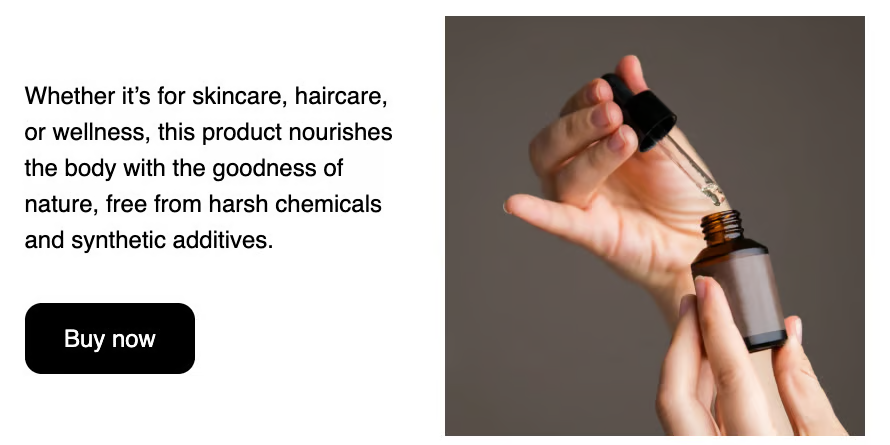 |
|
Use the **Product block** to automatically display key product details for promotional or restock notifications.
_3EwbffUt.jpg)
* **Select product:** Choose a product to feature in the email, or leave blank to use the product referenced in your workflow.
* **Content options:** Toggle visibility for the **Image**, **Title**, **Price**, and **Buy button** based on your design preferences.
| Content | Description |
| ------------ | ---------------------------------------------------------------------------------------------------------------------------------------------------------------------------------------------------------------------------------------------------------------------------------------------------------------------------------------------------------------------------------------------------------------------------------------------------------------------------------------------------------------------------------------------------------------------------------------------------------------------------------------- |
| Image | • **Select an image:** Upload or choose an image to display. Leave blank to use the default product image.
• **Border radius:** Adjust the corner roundness of the image for a softer or more modern look. |
| Title | • **Font:** Choose a font style that matches your brand’s design.
• **Font size:** Adjust the size of the product title for better visibility.
• **Text color:** Set the color of the product title to ensure clear contrast and readability.
• **Font weight**: You can choose between **regular** or **bold**. |
| Price | • **Font:** Choose the font style for the price text.
• **Font size:** Adjust the size of the price.
• **Text color:** Set the color of the product price.
• **Compare at price:** Optionally show the original price with a strikethrough to highlight discounts or sale prices.
• **Show price strikethrough:** Enable this option to display the original price crossed out.
• **Color:** Choose the color for the strikethrough price text. |
| Buy button | • **Button link:** This button automatically adds the product to the cart and links the customer to the checkout page.
• **Button label:** Set the text that appears on the button.
• **Font & font size:** Choose a font style and adjust the size.
• **Text color:** Set the color of the button text.
• **Fill color:** Choose the background color of the button.
• **Fill style:** Select between **Solid** or **Outline** styles.
• **Shape:** Adjust the button’s corners (square, rounded, or pill-shaped).
• **Width:** Choose **Auto** (fits text) or **Full** (spans the container width). |
| View details | A button that links to the product detail page.
• **Button label:** Set the text that appears on the button.
• **Font & font size:** Choose a font style and adjust the size.
• **Text color:** Set the color of the button text.
• **Fill color:** Choose the background color of the button.
• **Fill style:** Select between **Solid** or **Outline** styles.
• **Shape:** Adjust the button’s corners (square, rounded, or pill-shaped).
• **Width:** Choose **Auto** (fits text) or **Full** (spans the container width). |
* **Width:** Adjust the product block width to fit your email layout.
Use the **Discount code** block to display promotional offers and encourage customers to complete their purchase.
_9Yws4kPt.jpg)
* **Button link:** Links to the store homepage. The discount code will automatically apply at checkout when customers use this link.
* **Discount code:** Enter the discount code text.
* **Font & font size:** Choose a font style and adjust the size to make the code easier to read.
* **Text color:** Set the text color for the discount code.
* **Background color:** Customize the background color to highlight the code.
* **Width:** Choose **Auto** (fits the button label) or **Full** width for the button display.
* **Border radius:** Adjust the corner roundness of the discount code block for your preferred look.
Use the **Divider block** to visually separate different sections of your email and improve readability.
_pLEuMbO4.jpg)
* **Style:** Choose the divider style: **Solid**, **Dashed**, or **Dotted**.
| Style | Design |
| ------ | -------------------------------------------------------------------------------------- |
| Solid |  |
| Dashed |
|
| Dashed |  |
| Dotted |
|
| Dotted |  |
|
* **Width:** Adjust the divider’s length as a percentage of the email width.
* **Thickness:** Set the line thickness in pixels.
* **Color:** Choose the color of the divider line to match your email design.
Use the **Spacer block** to add empty space between sections or elements in your email for better visual balance.
_qXjPhodZ.jpg)
* **Space height:** Adjust the vertical space in pixels to control the gap between elements.
Use the **Social icons** block to add links to your store’s social media profiles and encourage customers to connect with your brand.
_4sqCDZme.jpg)
* **Icon color:** Choose between **Light** or **Dark** icons.
| Color | Design |
| --------- | -------------------------------------------------------------------------------------- |
| **Light** |  |
| **Dark** |
|
| **Dark** |  |
|
* **Icon size:** Select from **Small**, **Medium**, or **Large** to fit your design layout.
| Size | Design |
| ---------- | -------------------------------------------------------------------------------------- |
| **Small** |  |
| **Medium** |
|
| **Medium** |  |
| **Large** |
|
| **Large** |  |
|
* **Social links:** Add URLs for your social platforms (Facebook, Instagram, X /Twitter, LinkedIn, YouTube, TikTok, Pinterest, Tumblr, Snapchat, Reddit, Telegram, WhatsApp, Discord, Twitch, Threads). The corresponding icons will automatically appear in the email.
Use the **Footer** block to include important business and contact information at the bottom of your email.
_SoQWHySG.jpg)
| Content | Description |
| ------------------- | --------------------------------------------------------------------------------------------------------------------------------------------------------------------------------------------------------------------------------------------------------------------------------------------------------------------------------------------------------------------------------------------------------------------------------------------- |
| Social icons | • Display your social media links to encourage customers to follow or connect with your brand. |
| Store name | • **Text editor:** Add and format your store name
• **Font:** Choose a font style that aligns with your brand identity.
• **Font size:** Adjust the text size.
• **Text color:** Set the color of your store name to match your footer design. |
| Store address | • **Text:** Enter and format your store’s address.
• **Font:** Choose a font style that fits your email design.
• **Font size:** Adjust the size.
• **Text color:** Set the color of your address text. |
| Unsubscribe details | • **Text:** Customize the unsubscribe message.
• **Font:** Choose a font style that matches your footer design.
• **Font size:** Adjust the text size.
• **Text color:** Set the text color. |
| Logo | • **Image**: Upload an image or your store logo to display in the email footer.
• **Alt text (optional)**: Add descriptive text for your image. This helps improve accessibility and is shown if the image cannot be loaded.
• **Image link**: Add a URL to make the logo clickable.
• **Image width**: Adjust the size of the logo to fit your email layout.
• **Border radius**: Set the corner roundness of the image, |
## Related articles
Create an email template
Understanding personalization variables in email templates
Preview and test your email
Manage email templates
Use email templates in campaigns and workflows
Email templates: FAQs