# Understanding personalization variables in email templates
If you’re new to designing email templates, check out this guide to get started: [Design your email templates](https://docs.foxecom.com/xflow-app/email-templates/design-your-email-templates)
## What are variables
Variables are **placeholders** that **automatically pull in dynamic data** and insert it into your email content. When an email is sent, **each variable is replaced with real information** from your store, customer, or product.
Variables update **automatically based on the recipient**, so you only need to design your email once and reuse it across different customers and campaigns.
*Example:*
* `Hi {{customer.name}}`
* `Thanks for purchasing {{product.title}} from {{shop.name}}.`
From the example above, you can see that `{{customer.name}}`, `{{product.title}}`, and `{{shop.name}}` are variables. These values **automatically update for different products and different customers.**
## Types of variables
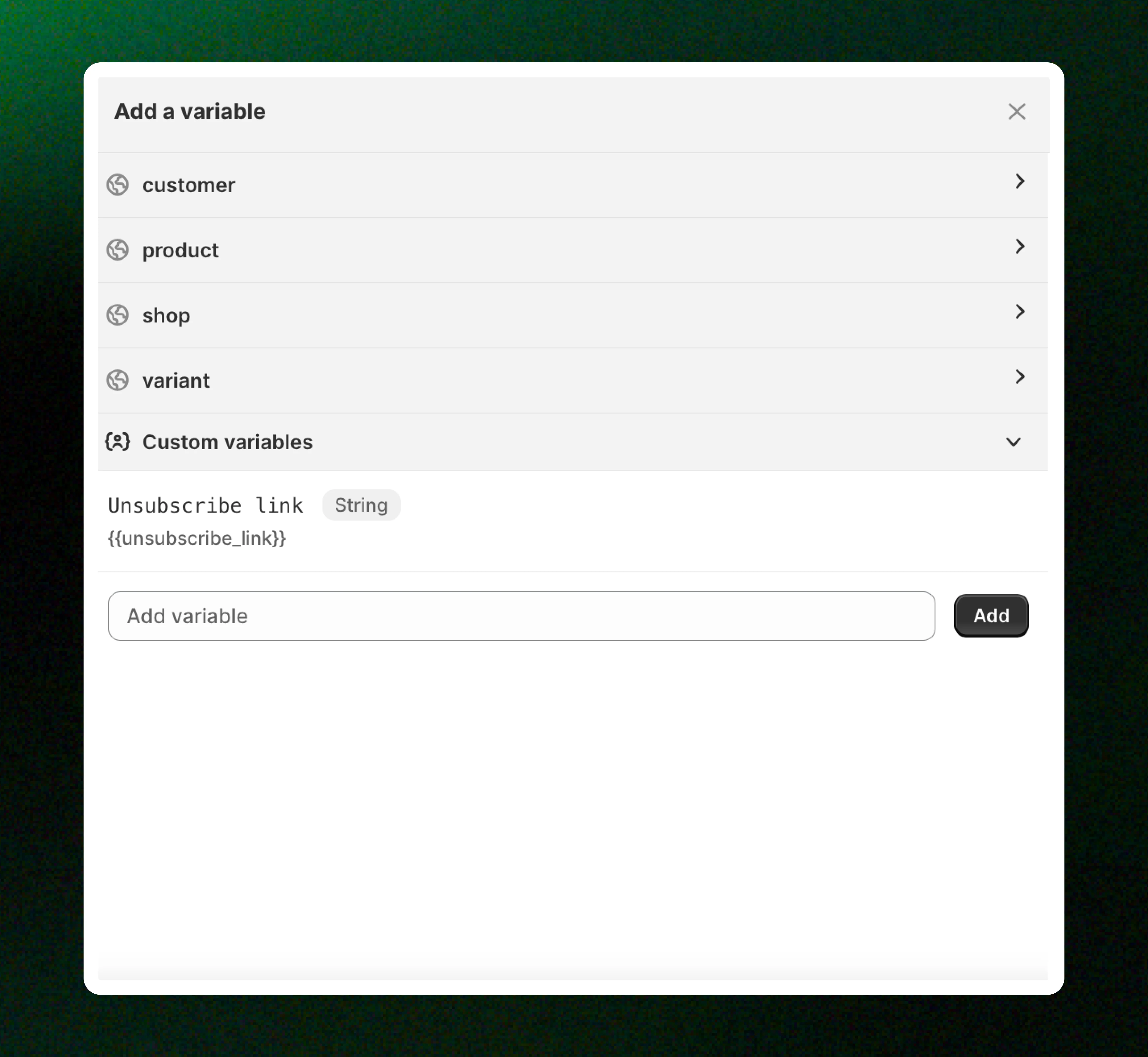
| Variable | Description |
| ---------------- | ------------------------------------------------------------------------- |
| customer | Data related to customer information, such as name or email address. |
| product | Data related to the product, such as product name, price, or description. |
| shop | Data related to your store, such as shop name or contact details. |
| variant | Data related to a specific product variant, such as size, color, or SKU. |
| Custom variables | Custom values created by you to fit specific needs. |
More about variables in XFlow: [Available variables in email templates](https://docs.foxecom.com/xflow-app/email-templates/understanding-personalization-variables-in-email-templates/available-variables-in-email-templates)
## How to use variables to personalize your email
### Add variables to your email
In **Email configs** or a **Workflow action**, click **Add variable** in the subject or email content field.
Learn more about workflow actions: [Understanding workflow actions](https://docs.foxecom.com/xflow-app/workflows/understanding-workflow-actions)
In the **email template builder**, click to add variables.
Learn more: [Design your email templates](https://docs.foxecom.com/xflow-app/email-templates/design-your-email-templates)
_cJgC5fYM.jpg)
### Select the variables you want to use
Choose the variables that fit your email purpose. All available variables can be found in the variable list after clicking **Add variable**.
Use variables thoughtfully and make sure they are relevant to your email content for the best experience.
Learn more: [Available variables in email templates](https://docs.foxecom.com/xflow-app/email-templates/understanding-personalization-variables-in-email-templates/available-variables-in-email-templates)
_wW4vPKZ0.jpg)
### Your email is successfully personalized!
Once added, variables will appear in the format `{{variable_name}}` in your subject or email content.
When the **email is sent**, these variables will **automatically be replaced with real data**.
Want to make sure your variables are working perfectly? Check out [Test an email campaign](https://docs.foxecom.com/xflow-app/campaigns/test-an-email-campaign)
_9oFkkNDI.jpg)
Make sure the data is available, as **variables with missing values** will **appear empty** in the email.
## Benefits of using variables
Using variables allows you to personalize your emails with dynamic data, making your communication more relevant and engaging for each recipient.
* **Personalized customer experience:** Automatically tailor emails with customer, product, or order details to create a more personal connection.
* **Higher engagement rates:** Personalized subject lines and content are more likely to be opened, read, and clicked.
* **Time-saving and scalable:** Create one email template and use variables to dynamically populate content for many customers.
* **Consistent and accurate messaging:** Reduce manual edits and human errors by pulling data directly from your system.
* **More relevant content:** Show the right information (such as product names or order details) at the right time.
## Common use cases of using variables
| Variable | Common use cases | Example |
| ---------------- | ----------------------------------------------------------------------------- | ------------------------------------------------------------------------------------------------- |
| customer | Email greetings that mention the customer’s name and personalize the message. | Hi *`{{customer.first_name}}`*, thanks for signing up! |
| product | Showing product details such as product name in the email content. | *`{{product.title}}`* is back in stock! |
| shop | Adding store information for branding or support purposes | You’re receiving this email from *`{{shop.name}}`*. |
| variant | Showing specific product variant details such as size or color | You selected size *`{{variant.size}}`* in *`{{variant.color}}`*. |
| Custom variables | Adding custom messages, links, or values you want to control. | If you no longer wish to receive these emails, you can unsubscribe here: *`{{unsubscribe_link}}`* |
## Related articles
Create an email template
Design your email templates
Preview and test your email
Use email templates in campaigns and workflows
Email templates: FAQs