
Page ManagementCreate a page
Create a Collection page
2 min read
Create a collection page
Select the page type
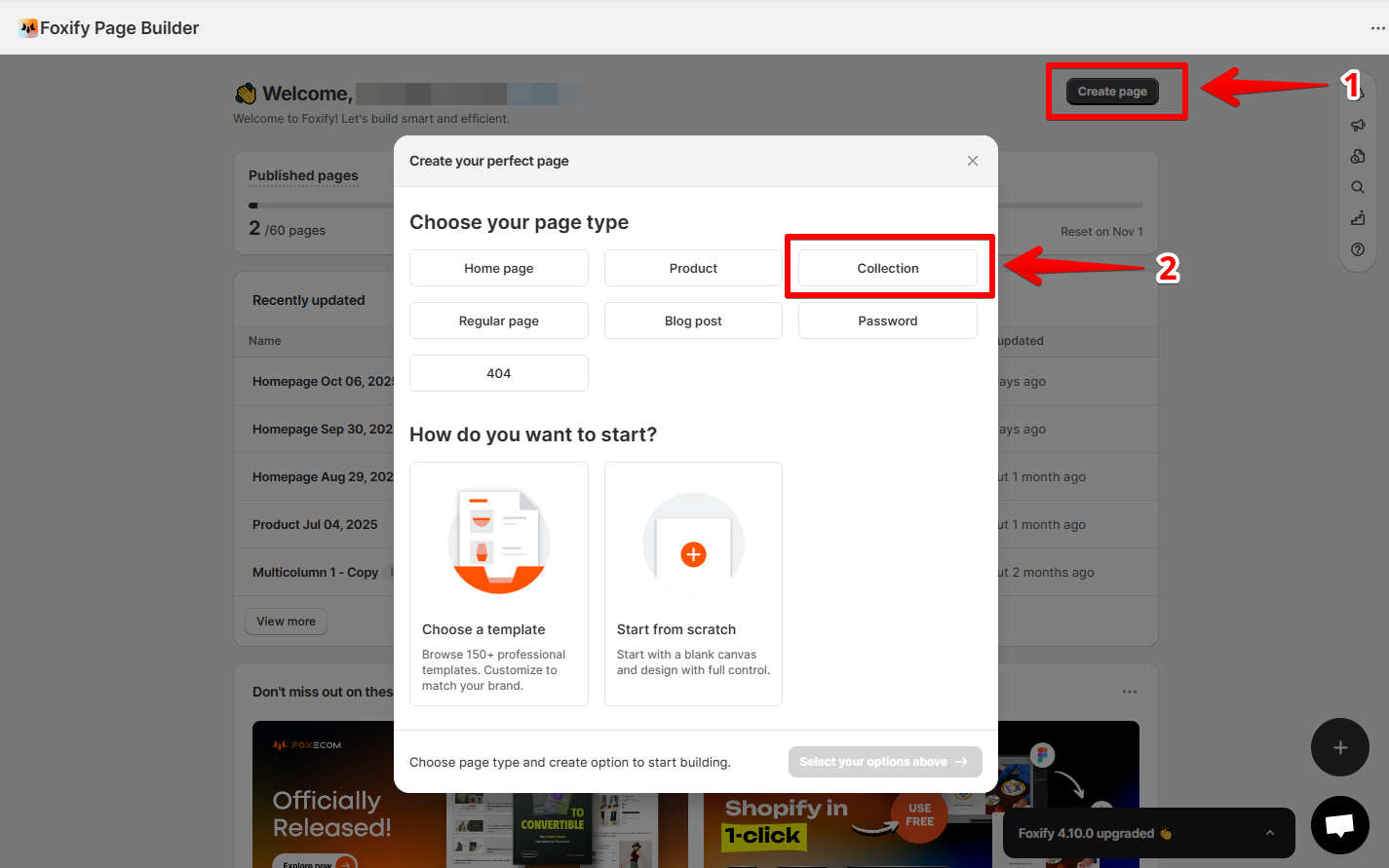
Select how you want to start
- Start from template → Choose from professional, ready-made layouts. Learn more: Templates
- Create with AI → Describe your vision and let AI design your page. Learn more: AI Layout Generator
- Build from scratch → Start with a blank canvas and customize every detail.
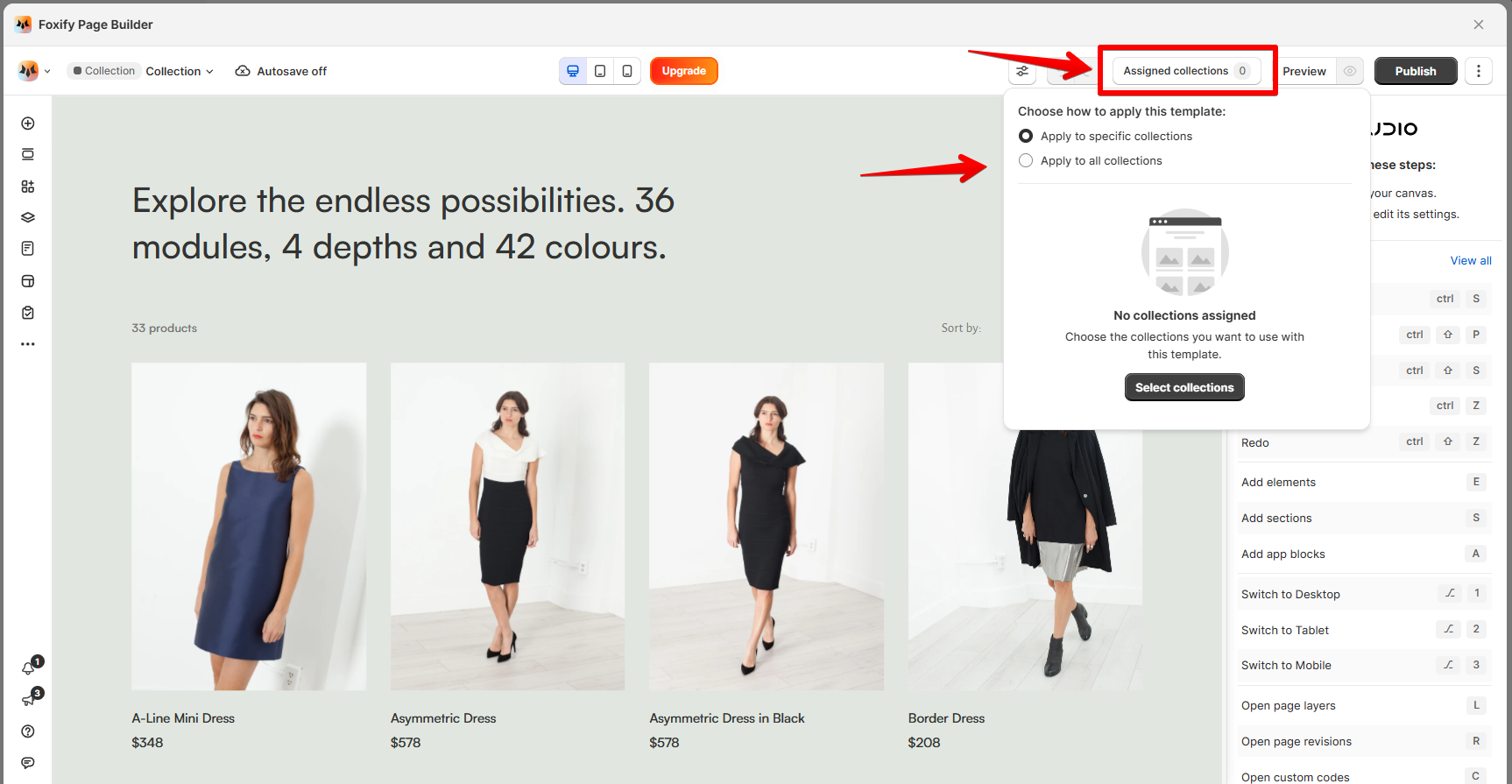
Assign a collection page to collections
- In the Page editor > Top bar, select Assigned collections.
- In the Template assignment pop-up, you can:
- Apply the template to specific collections
- Apply the template to all collections (a.k.a default collection template).
See Pricing plans
Publish a collection page
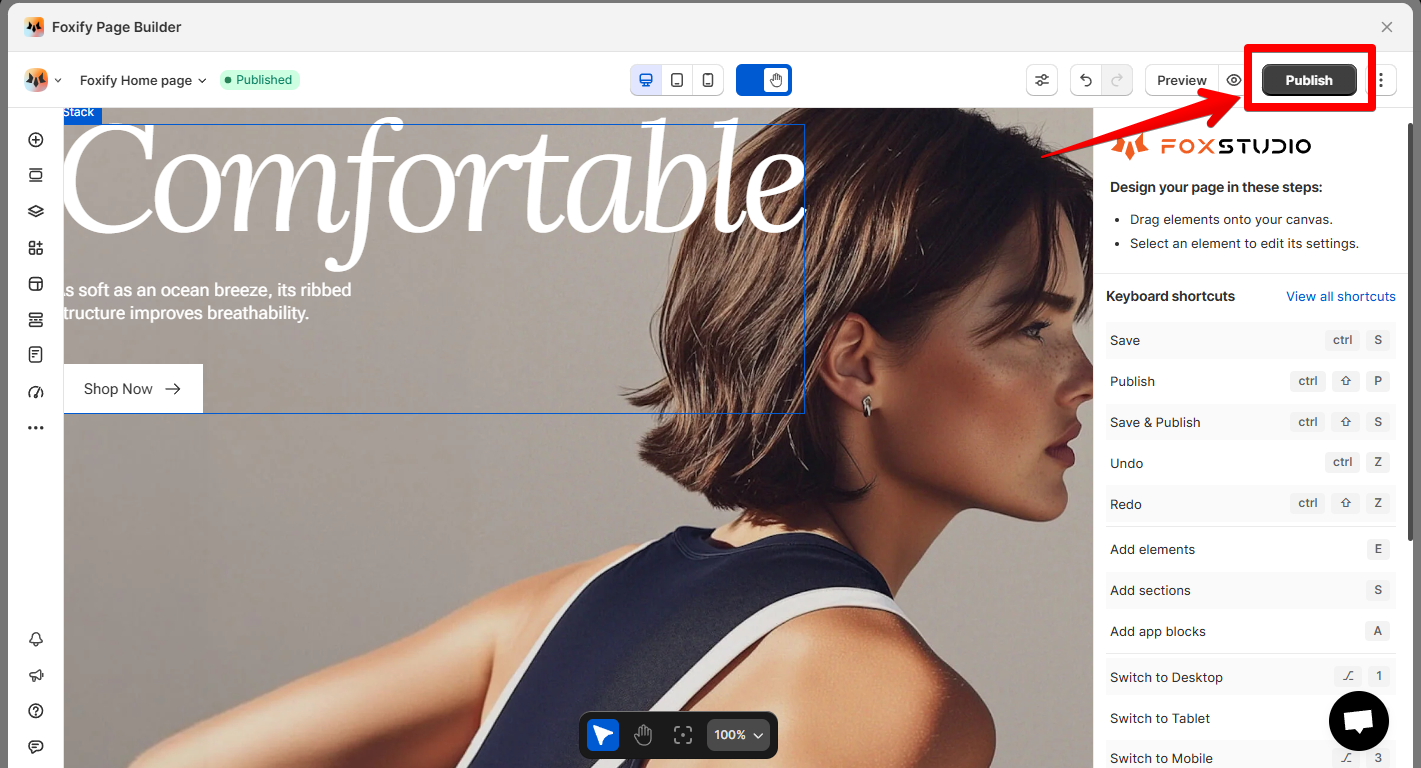
You need to enable Foxify Theme Helper in your Theme App embeds so Foxify can work with your Shopify theme.
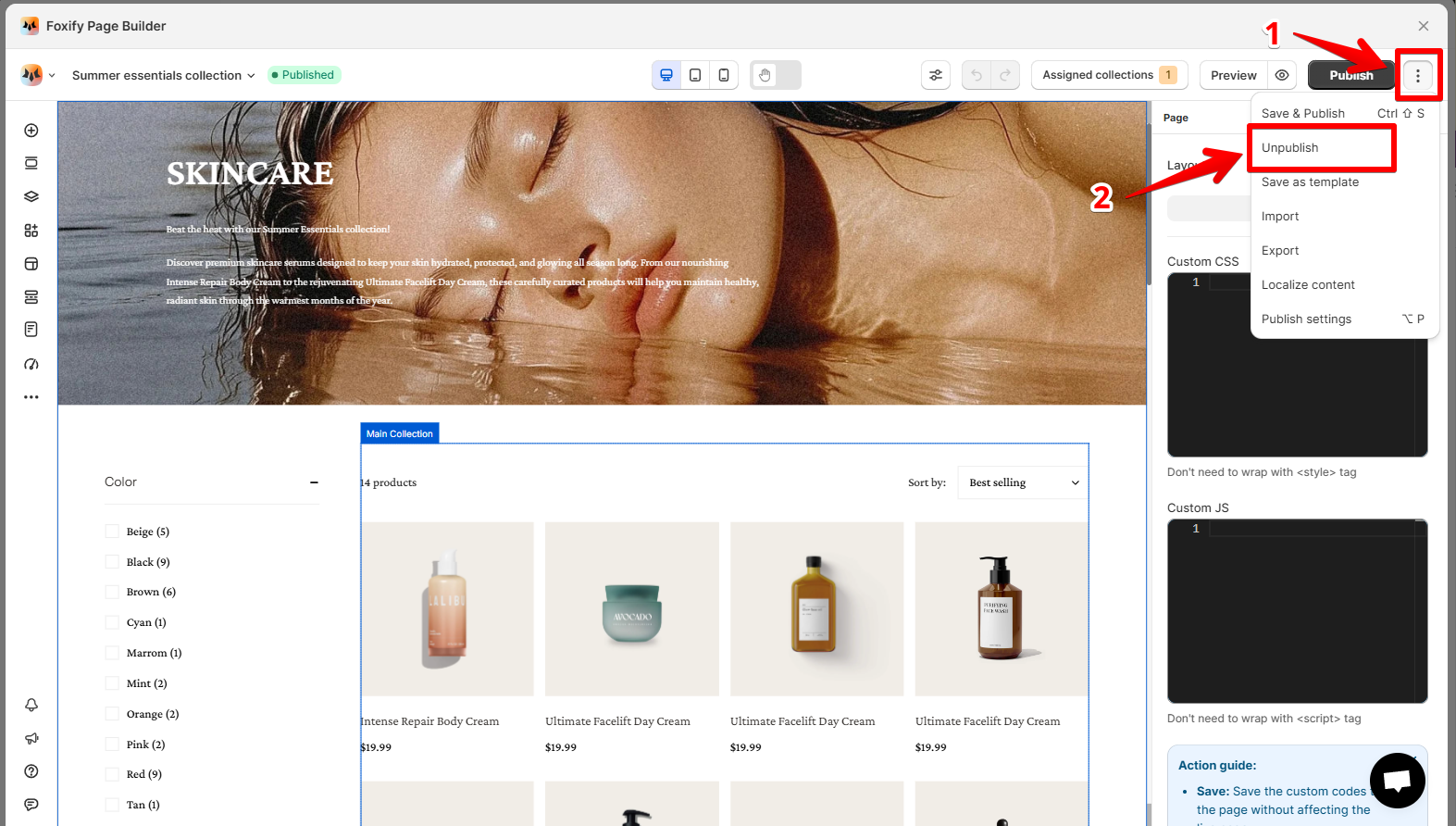
Unpublish a collection page
Last updated