# Import & Export pages

<div data-full-width="false"><figure><img src="https://1749964694-files.gitbook.io/~/files/v0/b/gitbook-x-prod.appspot.com/o/spaces%2FfgpgvtRaQLc36GYyIktZ%2Fuploads%2FETk3RTZrTHUxALnqCtTH%2FFoxEcom%20changelog%20%20%201250%20x%20200.png?alt=media&#x26;token=a72791be-b9fe-4806-8a28-f1592e470b10" alt=""><figcaption><p><a href="https://foxecom.com/pages/affiliate?utm_source=foxecom&#x26;utm_medium=help_center_foxify_import_export_page&#x26;utm_campaign=anchor-text&#x26;utm_term=explore_foxecom_affiliate_program_perks_now">Explore FoxEcom affiliate program perks now</a> <span data-gb-custom-inline data-tag="emoji" data-code="2728">✨</span></p></figcaption></figure></div>

{% embed url="<https://youtu.be/K4DSHF9lCqg>" %}

Foxify lets you export/ import your Foxify pages and sections from one Shopify store to another. This helps you save tons of time by simplifying your multi-store setup.

Exported file is in *`.foxify`* format.

## How to export a Foxify page

There are 2 ways to export a Foxify page.

{% hint style="success" %}
Steps:

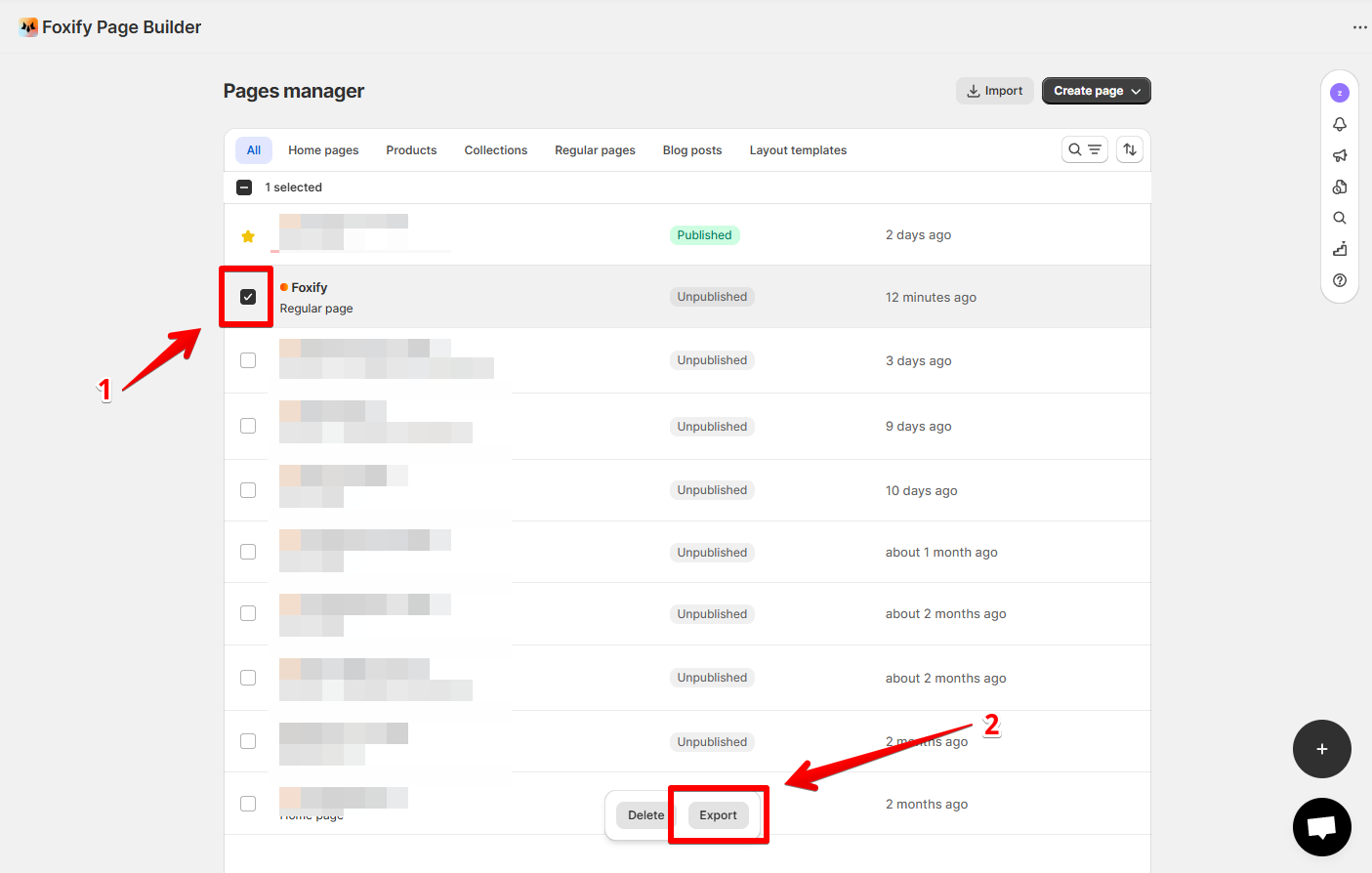
1. From your Foxify Dashboard, go to **Manage pages.**
2. Select the page you want to export by clicking on the corresponding checkbox.
3. Click **Export**.
   {% endhint %}

<figure><img src="https://1749964694-files.gitbook.io/~/files/v0/b/gitbook-x-prod.appspot.com/o/spaces%2FfgpgvtRaQLc36GYyIktZ%2Fuploads%2Fq3JNep37sXRVMCIxTaq4%2Fimage.png?alt=media&#x26;token=b3a143a3-1a8f-4451-a57b-fef3d8eccc74" alt=""><figcaption></figcaption></figure>

{% hint style="success" %}
Another way to **export a Foxify page:**

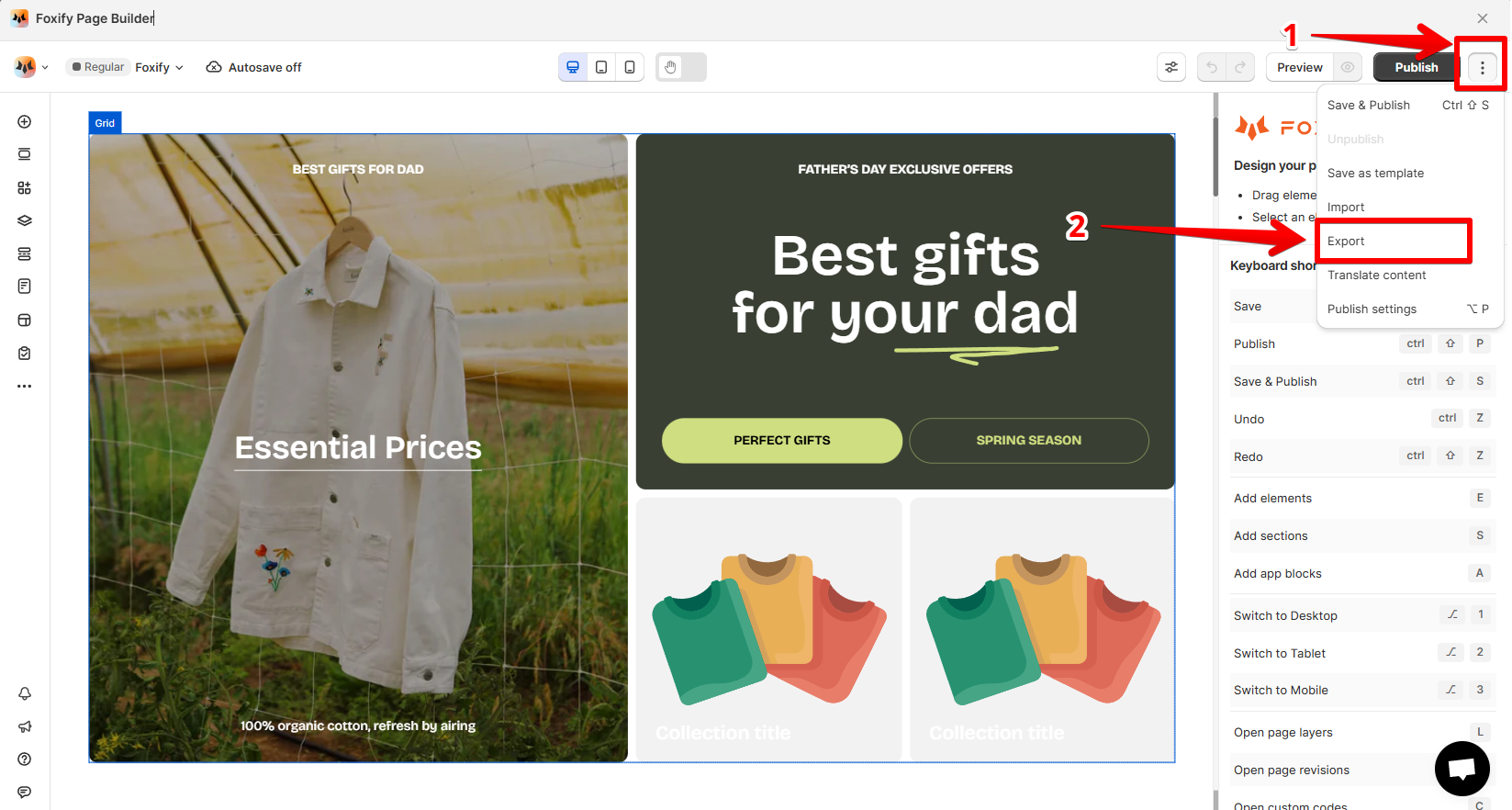
1. In the page editor, on the Top bar, click the three-dot icon.
2. In the dropdown, click **Export.**
   {% endhint %}

<figure><img src="https://1749964694-files.gitbook.io/~/files/v0/b/gitbook-x-prod.appspot.com/o/spaces%2FfgpgvtRaQLc36GYyIktZ%2Fuploads%2Fc0wyONWMrXDrkI2Wqd0V%2Fimage.png?alt=media&#x26;token=05feb27d-3273-4ff7-824b-d44878f574c5" alt=""><figcaption></figcaption></figure>

## How to import a Foxify page

There are 2 ways to import a page to Foxify.

{% hint style="success" %}
Steps:

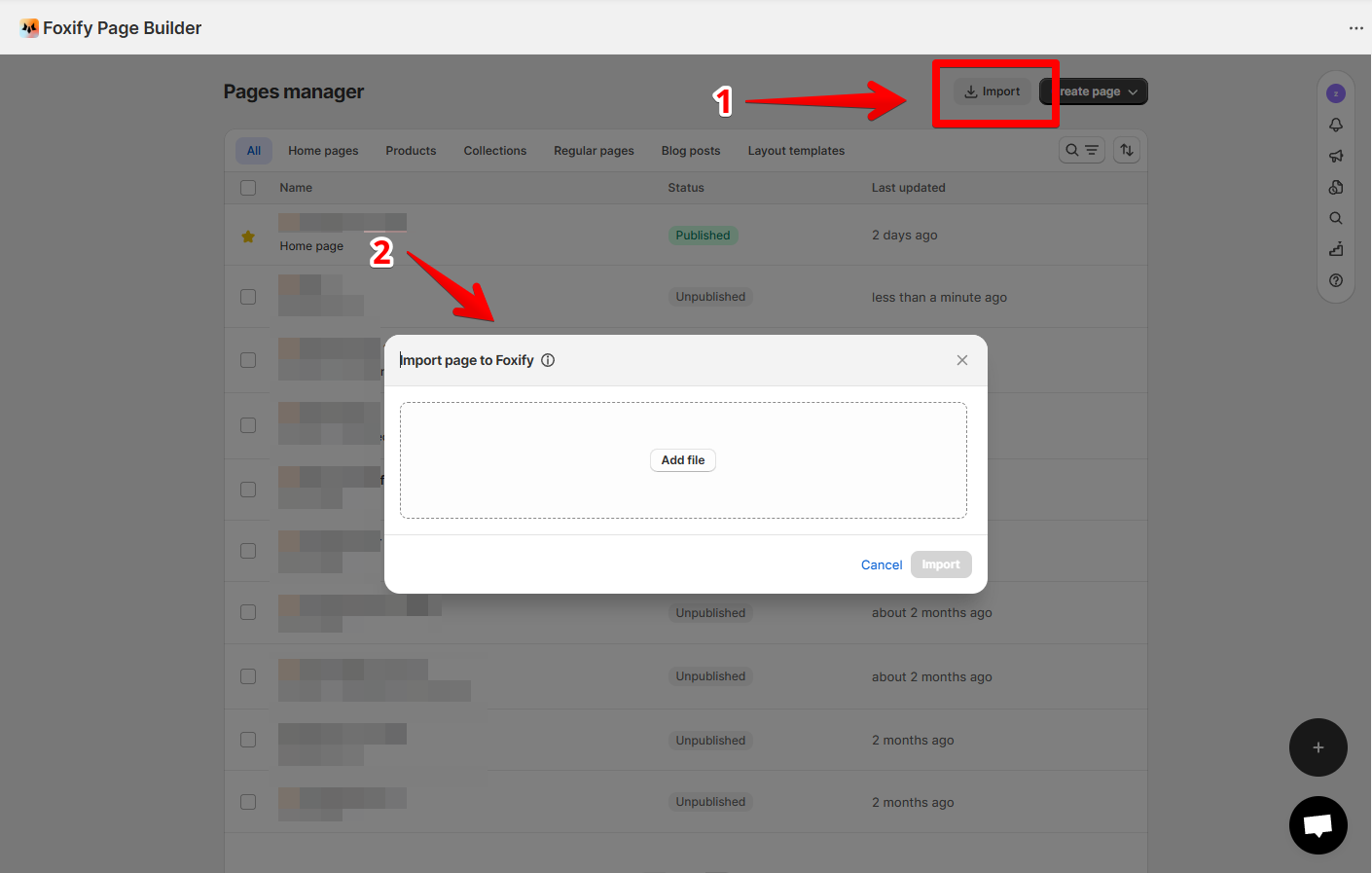
1. From your Foxify Dashboard, go to **Manage pages.**
2. Click **Import.**
3. Add your *.foxify* file.
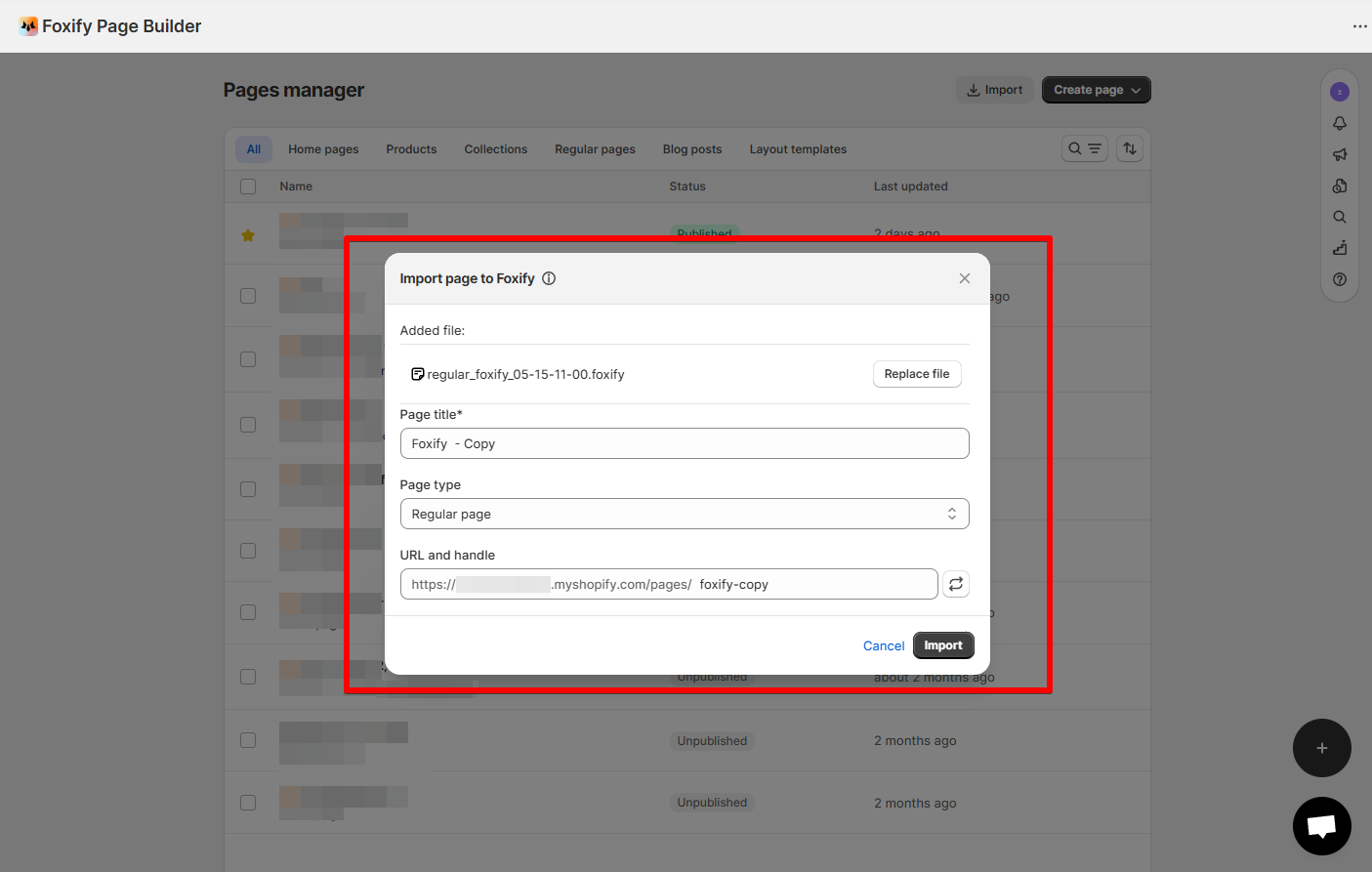
4. Give your page a name, select the page type and change the handle as you wish.
5. Click **Import**.
   {% endhint %}

<figure><img src="https://1749964694-files.gitbook.io/~/files/v0/b/gitbook-x-prod.appspot.com/o/spaces%2FfgpgvtRaQLc36GYyIktZ%2Fuploads%2FAhikgKjsKpLcDLk5gxBh%2Fimage.png?alt=media&#x26;token=c20a9a2a-b273-4827-97db-5a29da7189d7" alt=""><figcaption></figcaption></figure>

<figure><img src="https://1749964694-files.gitbook.io/~/files/v0/b/gitbook-x-prod.appspot.com/o/spaces%2FfgpgvtRaQLc36GYyIktZ%2Fuploads%2F855whPnDQliy7RX5mc7T%2Fimage.png?alt=media&#x26;token=bae7b3bf-99f0-40d3-9464-187728d6c56a" alt=""><figcaption></figcaption></figure>

{% hint style="success" %}
**Another way around is:**

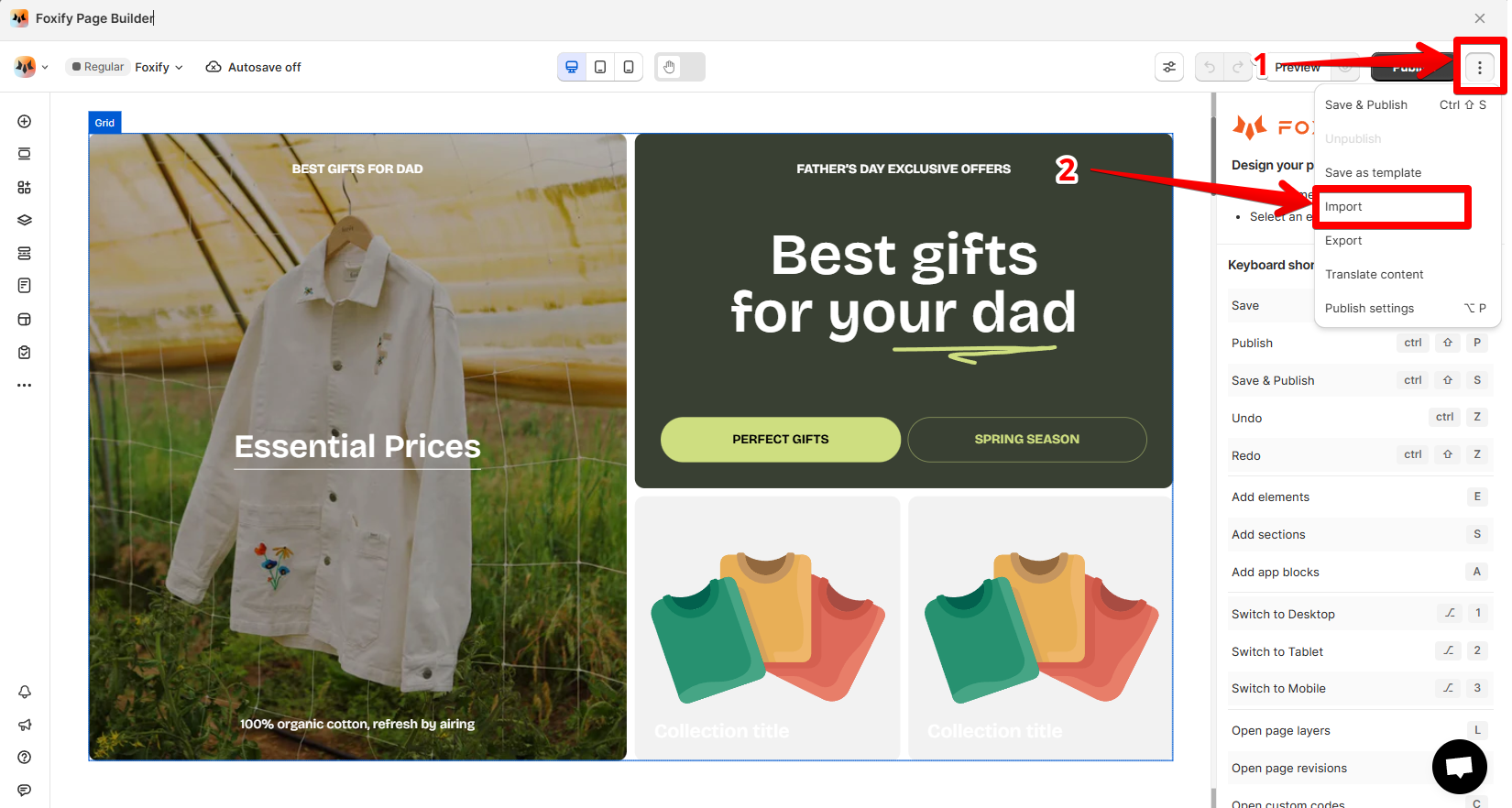
1. In the page editor, on the Top bar, click the three-dot icon.
2. In the dropdown, click **Import.**
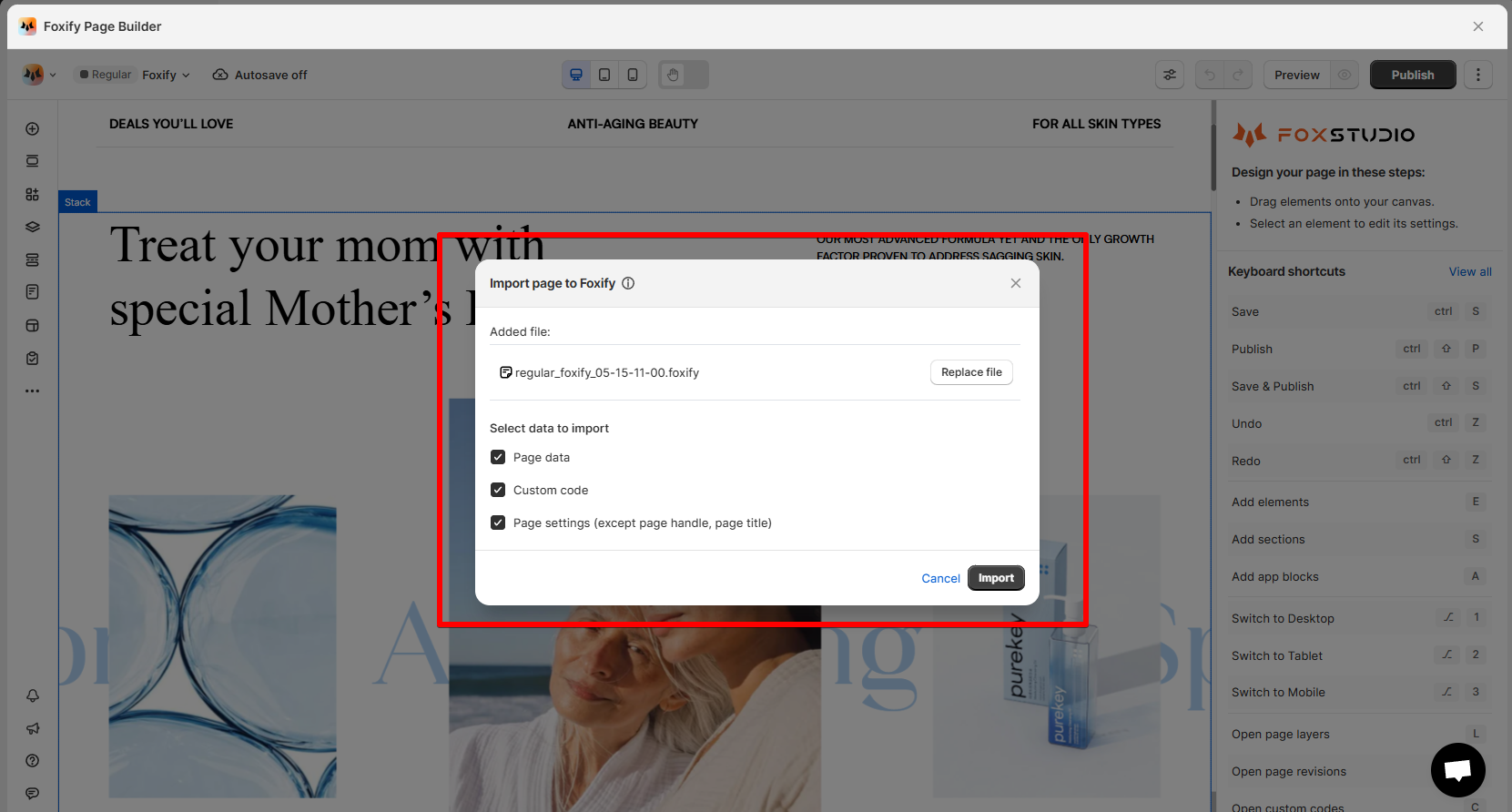
3. Add your *.foxify* file.
4. Decide what data will be overwritten after importing.
5. Click **Import**.<br>
   {% endhint %}

<figure><img src="https://1749964694-files.gitbook.io/~/files/v0/b/gitbook-x-prod.appspot.com/o/spaces%2FfgpgvtRaQLc36GYyIktZ%2Fuploads%2FwsbOsUbwjaTr8mRCPCf7%2Fimage.png?alt=media&#x26;token=ab3434ab-8f84-4f5a-854d-04ef2af0c5b1" alt=""><figcaption></figcaption></figure>

<figure><img src="https://1749964694-files.gitbook.io/~/files/v0/b/gitbook-x-prod.appspot.com/o/spaces%2FfgpgvtRaQLc36GYyIktZ%2Fuploads%2FoDBYBf5vLA8zU3tNl9wo%2Fimage.png?alt=media&#x26;token=34f4300d-4072-4f14-8b9e-98ec135a216f" alt=""><figcaption></figcaption></figure>