# Global styles

{% embed url="<https://youtu.be/5x-42UZWFJ4>" %}

{% hint style="success" %}
From new update, Global styles section is moved to **Foxify dashboard > Settings**.

![](https://1749964694-files.gitbook.io/~/files/v0/b/gitbook-x-prod.appspot.com/o/spaces%2FfgpgvtRaQLc36GYyIktZ%2Fuploads%2FYokgd0Px5PW6MvNfiaK0%2Fimage.png?alt=media\&token=6fb172fc-3c61-4b58-ae74-e666790d0519)
{% endhint %}

## What is Foxify Global styles?

**Design consistency** all across the online store is an important factor to give your store a professional look and to fortify the brand's identity.&#x20;

With that in mind, **Foxify Global styles**, a powerful and time-saving feature, is created to help you use predefined styles for any elements of the store.&#x20;

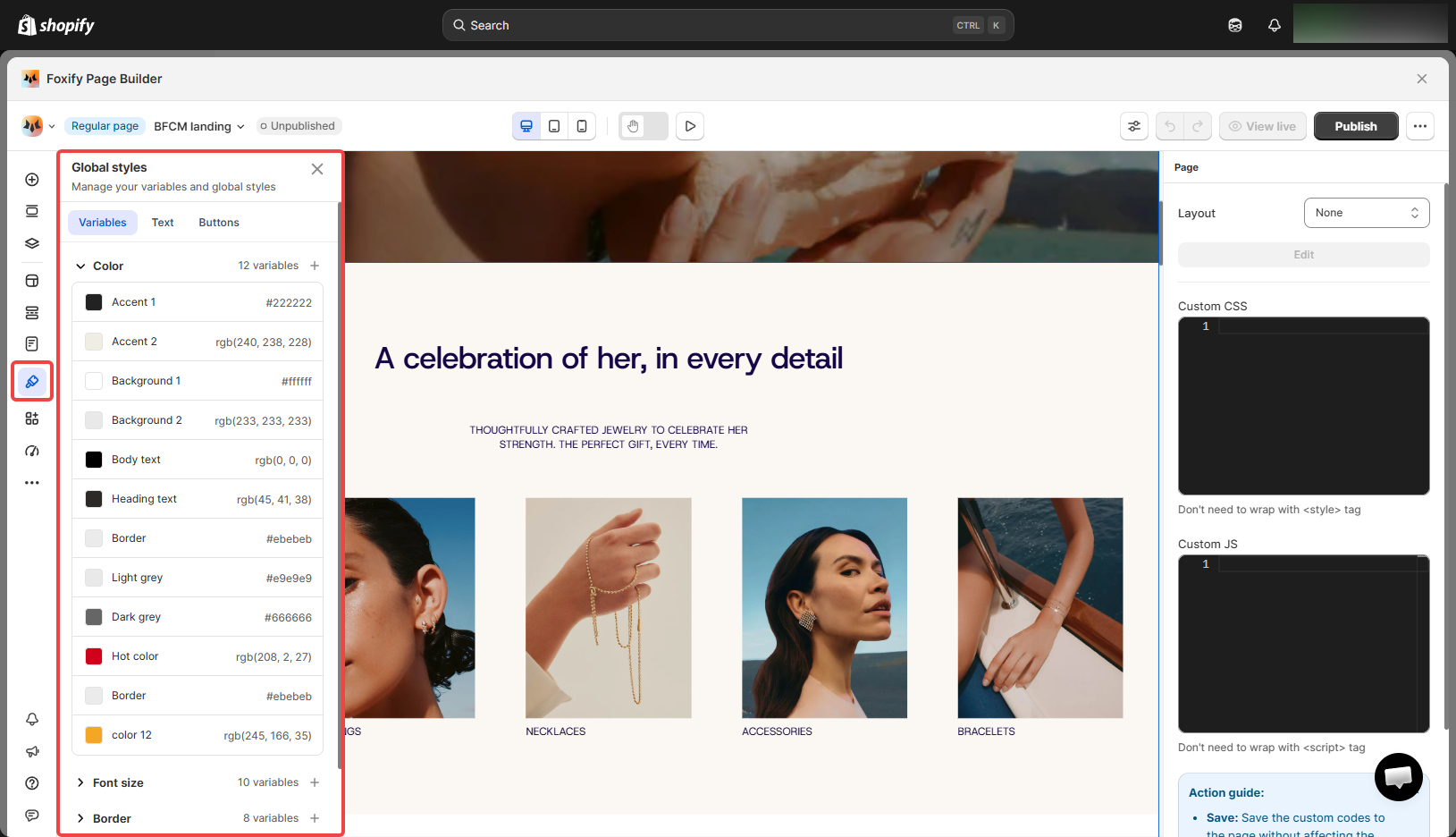
**Foxify Global Styles** preset settings include **Colors**, **Typography**, and **Buttons**.&#x20;

<figure><img src="https://1749964694-files.gitbook.io/~/files/v0/b/gitbook-x-prod.appspot.com/o/spaces%2FfgpgvtRaQLc36GYyIktZ%2Fuploads%2FSGATK5WD2RIAPoxPJFAl%2Fezgif.com-gif-maker%20(31).gif?alt=media&#x26;token=455efaef-e112-4baa-9a32-8b188c370969" alt=""><figcaption></figcaption></figure>

This article shows you how to access this feature and how to use it.

## How to access the Global Styles

Merchants can access the **Global styles** settings with 2 options, which are:

* Option 1:&#x20;
  * From the **Foxify Dashboard** > navigate to the left menu > click **Global styles.**&#x20;
* Option 2:

1. In your **Page editor**, select any element > [General settings tab](https://docs.foxecom.com/foxify-app/legacy-editor/page-editor/general-settings) > locate **global styles settings** of that selected element.&#x20;
2. Then, click **Edit styles** (for Typography and Buttons) or **Update colors** (for Color) to be directed to the Global styles tab.

## How to customize the Global styles

### Colors

Predefine your colors list (branding colors) by choosing from the color palette or adding color hex codes.&#x20;

There will be 10 default preset colors. You can edit (change color and rename) or add new colors to your list.

<figure><img src="https://1749964694-files.gitbook.io/~/files/v0/b/gitbook-x-prod.appspot.com/o/spaces%2FfgpgvtRaQLc36GYyIktZ%2Fuploads%2F01W6L4snKRh0p7qArqNZ%2Fimage.png?alt=media&#x26;token=7e49a0b8-0b6a-474a-840a-c425d3f82bf4" alt=""><figcaption></figcaption></figure>

{% hint style="info" %}
You can always change these colors, or make custom changes to any elements that you don't want to follow the Global styles colors.
{% endhint %}

#### Use a predefined color

In the Color section, click the 4-dot icon and you will see the list of **Global styles** colors here.&#x20;

<figure><img src="https://1749964694-files.gitbook.io/~/files/v0/b/gitbook-x-prod.appspot.com/o/spaces%2FfgpgvtRaQLc36GYyIktZ%2Fuploads%2FMz70Ah25hfi2bqdajZem%2Fxolor-ezgif.com-video-to-gif-converter.gif?alt=media&#x26;token=86d3697c-81f6-4532-8c78-2bd2b489c8d5" alt=""><figcaption></figcaption></figure>

### Buttons

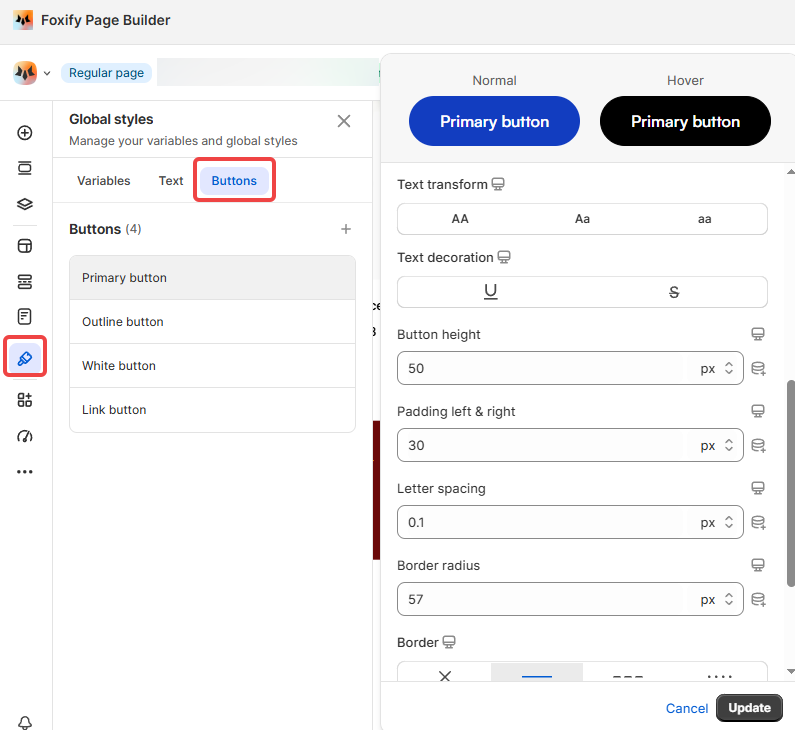
**Foxify Global styles** **buttons** provide merchants with 4 default preset buttons, namely:&#x20;

* Primary button
* Outline button
* White button
* Link button

<figure><img src="https://1749964694-files.gitbook.io/~/files/v0/b/gitbook-x-prod.appspot.com/o/spaces%2FfgpgvtRaQLc36GYyIktZ%2Fuploads%2FBI6ccS2MhnPoqkFuo586%2Fimage.png?alt=media&#x26;token=7e1d2cd7-a2b9-4a83-a313-66f987eec667" alt=""><figcaption></figcaption></figure>

Similar to **Colors**, you can add and customize your new button styles for later use.

#### Customize a button style

To customize a button style, hover over the style you want to adjust > click **Edit**. Then, you can see a settings popup for that button.&#x20;

In the popup, each button settings include advanced settings for that button.&#x20;

You can also change the colors of the button elements (text color and background color) in the Normal state and Hover state respectively.

When you're done, hit **Save**.

<figure><img src="https://1749964694-files.gitbook.io/~/files/v0/b/gitbook-x-prod.appspot.com/o/spaces%2FfgpgvtRaQLc36GYyIktZ%2Fuploads%2FTPpKNqJVaDnK4eWgAVVJ%2Fimage.png?alt=media&#x26;token=ab8c6be4-0262-4aaf-9fac-966ac4a569fa" alt=""><figcaption></figcaption></figure>

#### Use a button style

To use these predefined button styles in the Page editor, select the button element and click **Select style**.

<figure><img src="https://1749964694-files.gitbook.io/~/files/v0/b/gitbook-x-prod.appspot.com/o/spaces%2FfgpgvtRaQLc36GYyIktZ%2Fuploads%2FJ9fhaSpRUtsRkNR5VBq4%2Fbuttons-ezgif.com-video-to-gif-converter.gif?alt=media&#x26;token=dd5a3a26-d6ba-42c6-b111-343466348076" alt=""><figcaption></figcaption></figure>

### Typography

**Foxify** provides a useful pre-made set of text styles that you can apply to your page with just one click.&#x20;

There are 11 default preset text styles, namely:&#x20;

* Mega title
* Heading 1-6
* Subheading
* Caption
* Body text
* Text link
* Cart title

Similar to **Colors** and **Buttons**, you can add and customize your new text styles for later use.

#### Customize a text style

To customize a text style, hover over the style you want to adjust > click **Edit**.&#x20;

Then, you can see a settings pop up.&#x20;

In the pop-up, each text style setting includes various options for you:

* Color
* Font family
* Font size
* Line height
* Font weight
* Text transform
* Text decoration
* Letter spacing

When you're done, hit **Save**.

<figure><img src="https://1749964694-files.gitbook.io/~/files/v0/b/gitbook-x-prod.appspot.com/o/spaces%2FfgpgvtRaQLc36GYyIktZ%2Fuploads%2FfpJl2zrwG9lBwNaw53Bx%2Fimage.png?alt=media&#x26;token=9c74ec9a-86eb-4716-a0c5-0bcac743eb28" alt=""><figcaption></figcaption></figure>

#### Use a text style

To use the predefined button styles in the Page editor, select the text element and click **Select style**.

<figure><img src="https://1749964694-files.gitbook.io/~/files/v0/b/gitbook-x-prod.appspot.com/o/spaces%2FfgpgvtRaQLc36GYyIktZ%2Fuploads%2FssCtJzM3yFtGAR20Eml1%2Ftypi-ezgif.com-video-to-gif-converter.gif?alt=media&#x26;token=eae25ae5-cce0-4868-8d2f-9275f7d743b7" alt=""><figcaption></figcaption></figure>

{% hint style="info" %}
You can edit Foxify default global styles but cannot delete them.
{% endhint %}

<figure><img src="https://1749964694-files.gitbook.io/~/files/v0/b/gitbook-x-prod.appspot.com/o/spaces%2FfgpgvtRaQLc36GYyIktZ%2Fuploads%2F9qmn8aaAKJQakDH0Ndwa%2FE11.jpg?alt=media&#x26;token=0211452a-c7ad-4615-80b2-996251856011" alt=""><figcaption><p><a href="https://www.figma.com/community/plugin/1415136291103675876/figma-to-shopify-with-foxify-shopify-smart-visual-page-builder?utm_source=foxecom&#x26;utm_medium=help_center_foxify_global_styles&#x26;utm_campaign=anchor-text&#x26;utm_term=use_free_now">Use free now </a><span data-gb-custom-inline data-tag="emoji" data-code="26a1">⚡</span></p></figcaption></figure>

<figure><img src="https://1749964694-files.gitbook.io/~/files/v0/b/gitbook-x-prod.appspot.com/o/spaces%2FfgpgvtRaQLc36GYyIktZ%2Fuploads%2F7XPXP7N8JF45MBz9QuR7%2FHelp%20Center%20(1).jpg?alt=media&#x26;token=a410b77a-e826-41a8-b8a3-33b68894d731" alt=""><figcaption><p><a href="https://chromewebstore.google.com/detail/foxtransfer-html-to-shopi/babcinhpofjfhjjbcnjhoikcjbgebimb?utm_source=foxecom&#x26;utm_medium=help_center_foxify_global_styles&#x26;utm_campaign=anchor-text&#x26;utm_term=install_foxtransfer_chrome_extension_free">Install FoxTransfer Chrome Extension FREE</a></p></figcaption></figure>