# How to Add Google Tag Manager Tracking Events for Buttons
Tracking events is essential for monitoring user interactions and gathering valuable insights on how visitors engage with your store. By implementing GTM tracking, you can track important actions like button clicks to improve your conversion rate.
**Step-by-step instructions:**
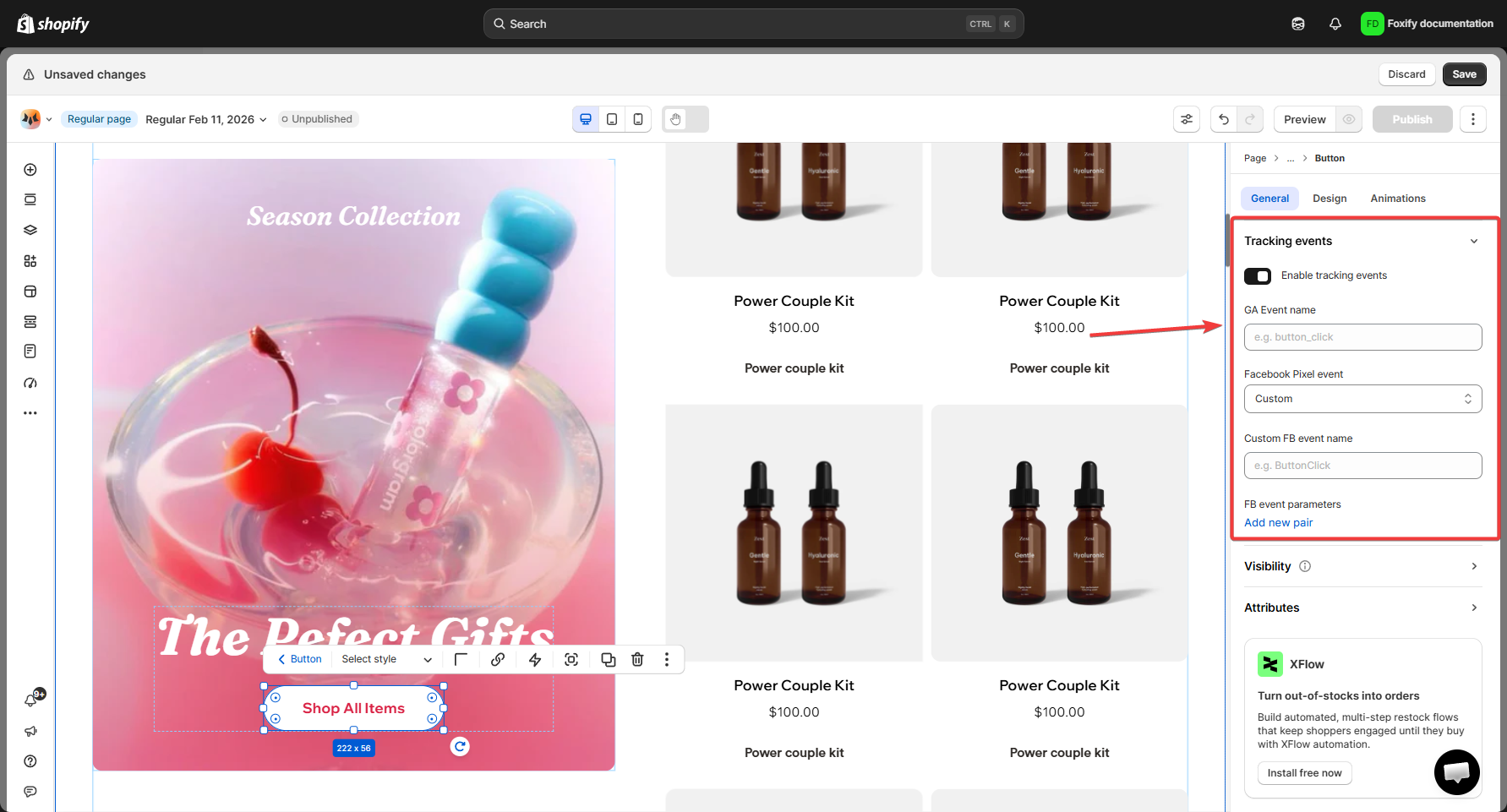
### Navigate to the Button element in the editor
1. In Foxify studio, find the button element you want to track (such as the "Add to cart" button).
* Click on the button to open its settings.
### Enable Tracking events
Toggle the **Enable tracking events** switch to "ON".
### Set up Google Analytics event tracking
Under **GA Event name**, input the name of the Google Analytics event you'd like to track.
A common event name for button clicks is `button_click`, but you can customize this based on your needs.
### Integrate Facebook Pixel *(optional)*
If you’re also using Facebook Pixel to track button clicks, you can set up the event for Facebook as well.
### Save your changes
Once you've configured the event tracking settings:
* Click **Save** in the top right corner to apply the changes.
* Your button is now set to trigger the GTM and Pixel events when clicked.
### Test the tracking setup
After setting up the tracking events, make sure to test them:
* Open the page in a browser and click the button.
* Use **Google Tag Assistant** or the **Facebook Pixel Helper** extension to verify if the events are being sent correctly to Google Analytics and Facebook.
⭐ Tips:
* Ensure you have correctly set up Google Tag Manager and Facebook Pixel on your store before adding tracking events.
* Regularly review your tracking setup to ensure that all necessary events are captured accurately.
* You can add tracking to other buttons or elements by repeating this process for each one.