> For the complete documentation index, see [llms.txt](https://docs.foxecom.com/foxify-app/llms.txt). Markdown versions of documentation pages are available by appending `.md` to page URLs; this page is available as [Markdown](https://docs.foxecom.com/foxify-app/page-management/app-extensions/predictive-search.md).

# Predictive search

<figure><img src="/files/ITelNyAYSVZLpUiMv18P" alt=""><figcaption></figcaption></figure>

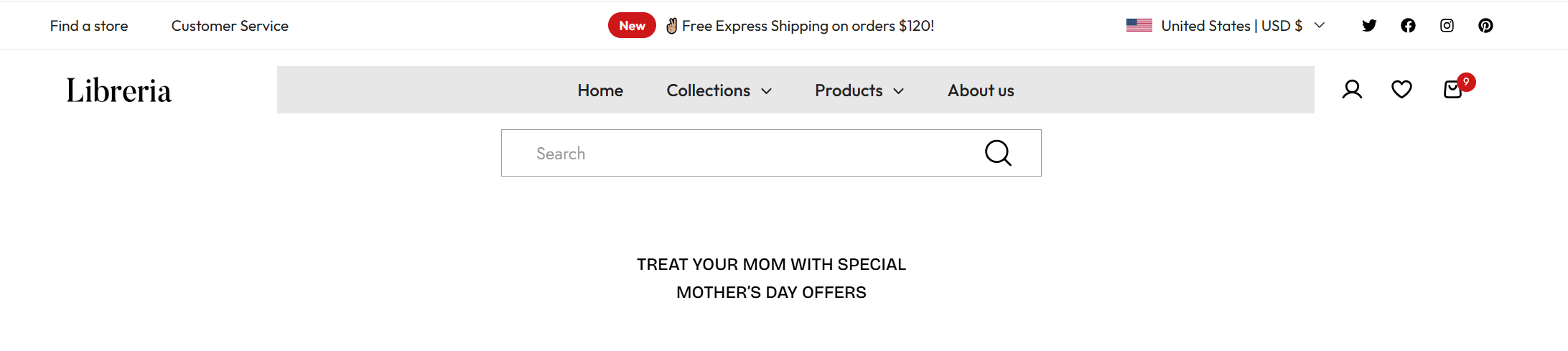
Display real-time search suggestions as customers type — helping them find products, collections, pages, and articles instantly.

## When to use this element

Use Predictive Search extension when you want to help customers find what they're looking for faster — without waiting for a full page reload.

**Best fits for:**

* Stores with large catalogs where navigation alone isn't enough
* Pages where search is a primary discovery tool — homepage, landing pages
* Replacing a basic search input with a smarter, faster experience
* Any page where reducing time-to-product improves conversion

## Quick setup

#### **Part 1 — Install the extension**

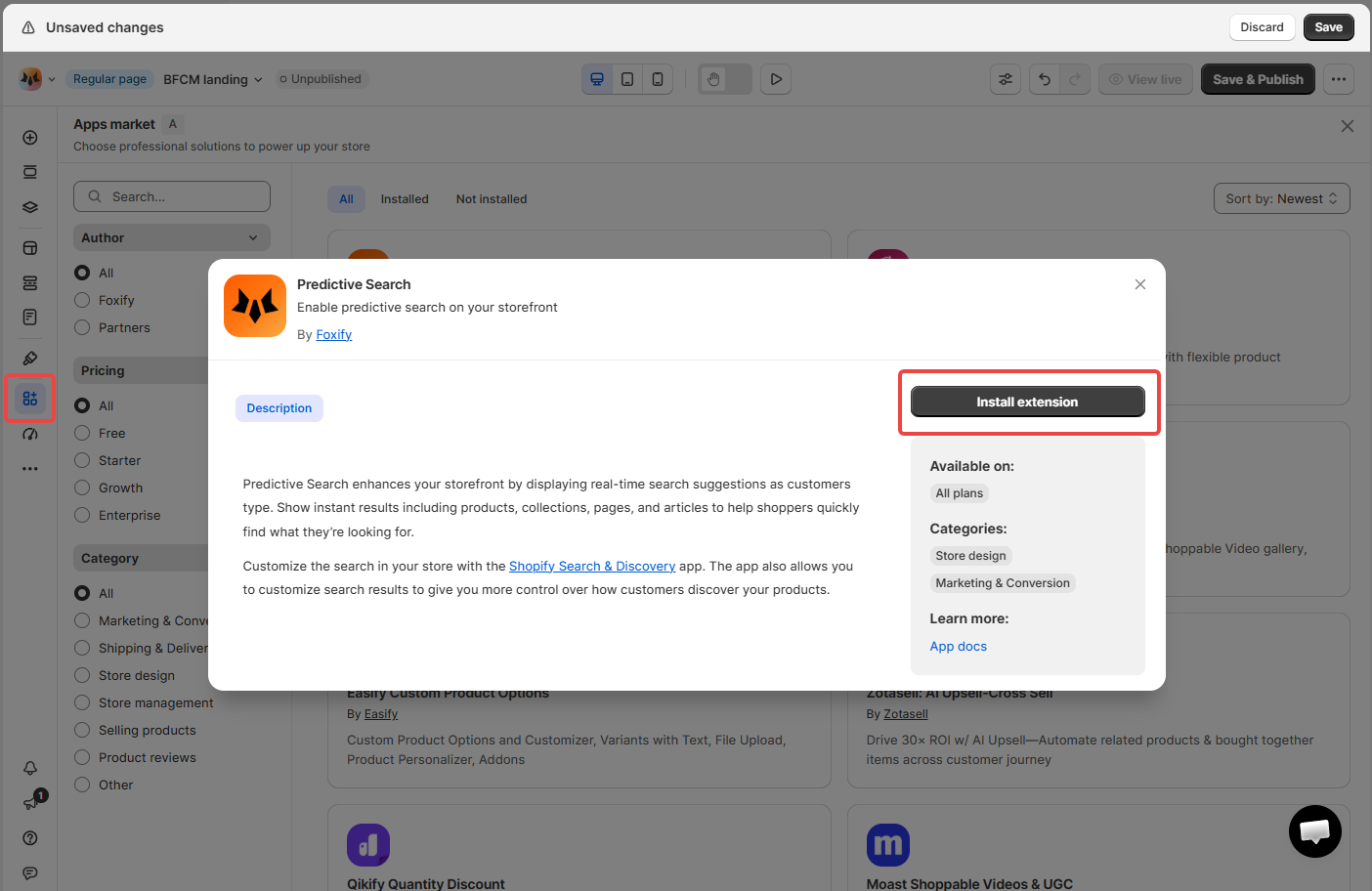
1. **Open Apps market** — In the FoxStudio editor, click the Apps market icon (or press **A**) in the left sidebar.
2. **Find Predictive Search** — Search for "Predictive Search" or browse the list. Published by Foxify, available on all plans.
3. **Install the extension** — Click **Install extension**. Once installed it appears under Installed Apps.
<figure><img src="/files/frtxJPBj1Whw20lKEXpA" alt=""><figcaption></figcaption></figure>

#### **Part 2 — Add the Search element to your page**

1. **Open Add elements** — Click **Add elements** (or press **E**).
2. **Go to App blocks** — Click **App blocks** → find **Predictive Search** under Installed Apps → select the **Search** block.
3. **Drag onto your canvas** — Place it wherever you want the search input to appear.
4. **Configure** — In Inspector → **General** tab, set number of results and layout.
5. **Style** — Switch to **Design** tab to style each layer.
6. **Preview and publish** — Check mobile preview, then **Save & Publish**.

> **Expected result:** A search input appears on your page. As customers type, real-time suggestions appear showing matching products, collections, pages, and articles — without a page reload.

## Settings — General

| Setting                   | What it does                                | When to use                                                          |
| ------------------------- | ------------------------------------------- | -------------------------------------------------------------------- |
| Number of results to show | How many suggestions appear in the dropdown | 3–5 recommended. More results can feel overwhelming on mobile.       |
| Layout                    | Controls the search input display style     | **Input** — full text field with search icon. Best for most layouts. |

{% hint style="info" %}
For more control over what appears in results, use the [Shopify Search & Discovery](https://apps.shopify.com/search-and-discovery) app alongside Predictive Search.
{% endhint %}

## Settings — Design

4 layers you can style independently:

* **Element container** — outer wrapper: width, padding, background, borders
* **Input** — search text field: background, border, text color, font, spacing
* **Icon search** — default state of the search icon: size, color, spacing
* **Icon search text hover** — icon on hover: set a different color to signal interactivity

## FAQs

#### Do I need to install anything before using this element?

Yes — install the Predictive Search extension from Apps market first. Then the Search element becomes available under Add elements → App blocks.

#### What does Predictive Search show in results?

Products, collections, pages, and articles matching what the customer is typing — in real time.

#### Can I control which products appear in results?

Yes — use Shopify Search & Discovery to customize rankings, synonyms, and product visibility.

#### Is it available on all plans?

Yes — available on all Foxify plans at no extra cost.


---

# Agent Instructions
This documentation is published with GitBook. GitBook is the documentation platform designed so that both humans and AI agents can read, navigate, and reason over technical content effectively. Learn more at gitbook.com.

## Querying This Documentation
If you need additional information that is not directly available in this page, you can query the documentation dynamically by asking a question.

Perform an HTTP GET request on the current page URL with the `ask` query parameter:

```
GET https://docs.foxecom.com/foxify-app/page-management/app-extensions/predictive-search.md?ask=<question>
```

The question should be specific, self-contained, and written in natural language.
The response will contain a direct answer to the question and relevant excerpts and sources from the documentation.

Use this mechanism when the answer is not explicitly present in the current page, you need clarification or additional context, or you want to retrieve related documentation sections.