
PagesTemplates
Save a page as a template
2 min read
When to use this
- You've built a page you're happy with and want to reuse its design for future pages
- You're running recurring campaigns (e.g. seasonal sales, product drops) that share the same layout each time
- You want every new page from a certain type to start from your brand's design instead of a blank canvas or a generic Foxify template
How is this different from Foxify's built-in templates?
Use this
Save a page as a template
Reuse a page you've already designed and customized yourself.
Use instead if...
Templates
You want a ready-made design from Foxify instead of one of your own.
How to save and reuse a page as a template
Save your page as a template
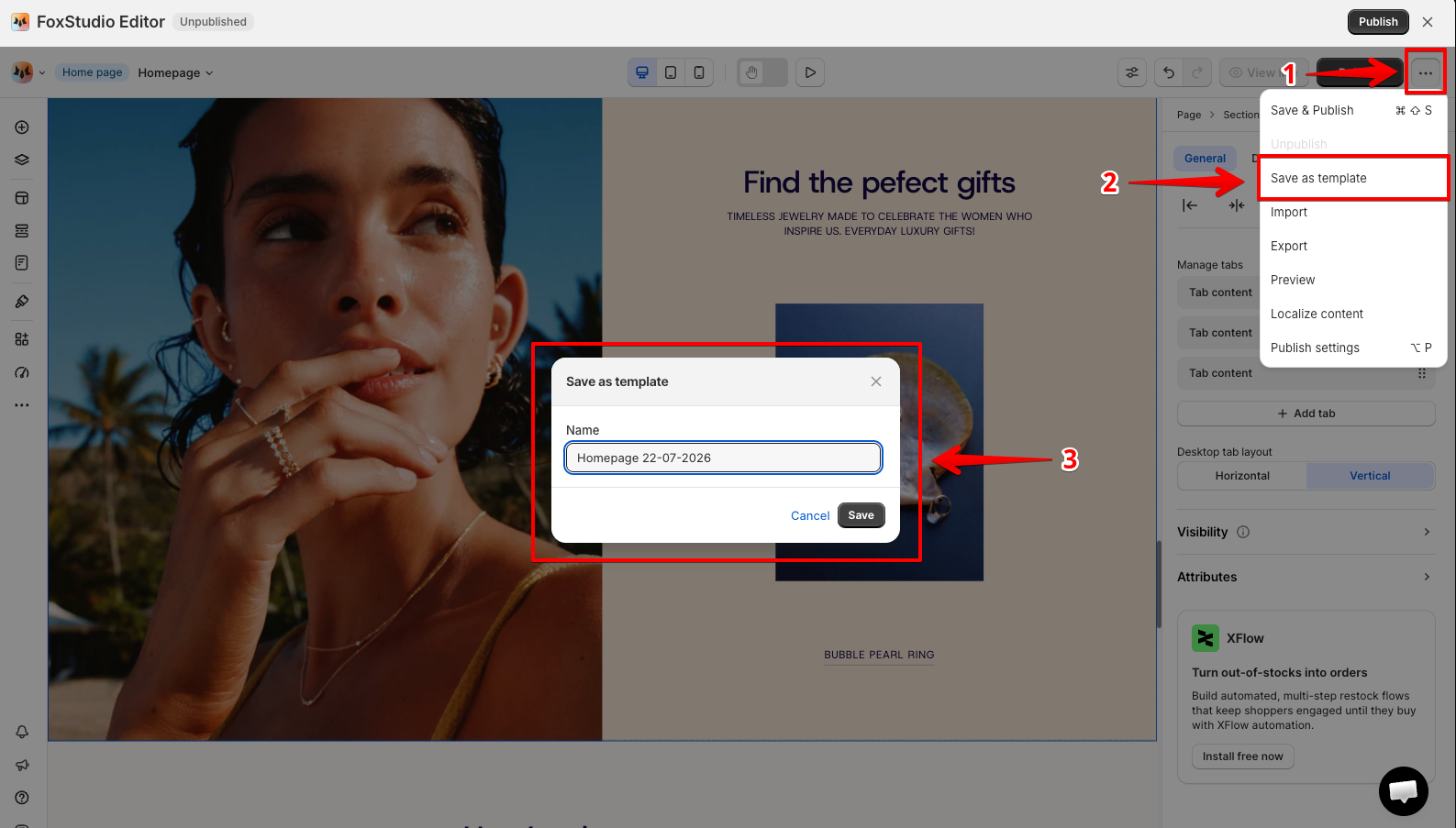
- After you've finished designing your page, click Save.
- Click the three-dot icon next to the Save button, then select Save as template.
- Enter a name for the template and click Save.
Use your saved template
- Start creating a new page.
- On the template gallery, select the Your saved templates tab.
- Pick your template to apply it.
Rename or delete a saved template
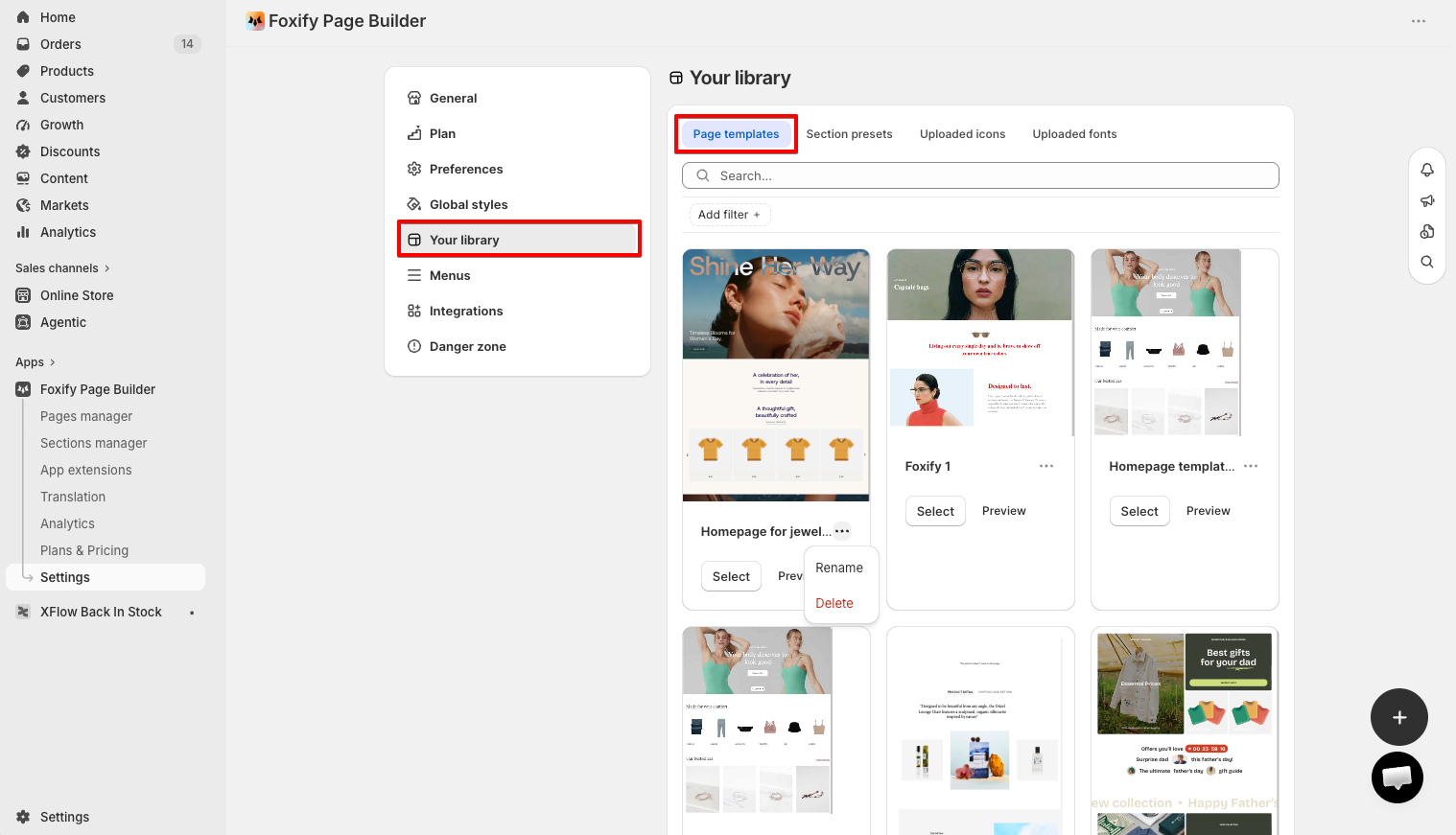
- In your Foxify dashboard, go to Settings > Your library.
- Open the Page templates tab and click the three-dot icon next to the template.
- Select Rename — enter the new name and press Enter or click outside the field to save — or select Delete to remove it.
FAQs
Related articles
Last updated