# Create a home page
Your Foxify home page replaces your theme's default homepage when published, giving you full design control over your store's most visited page, without touching your theme code.
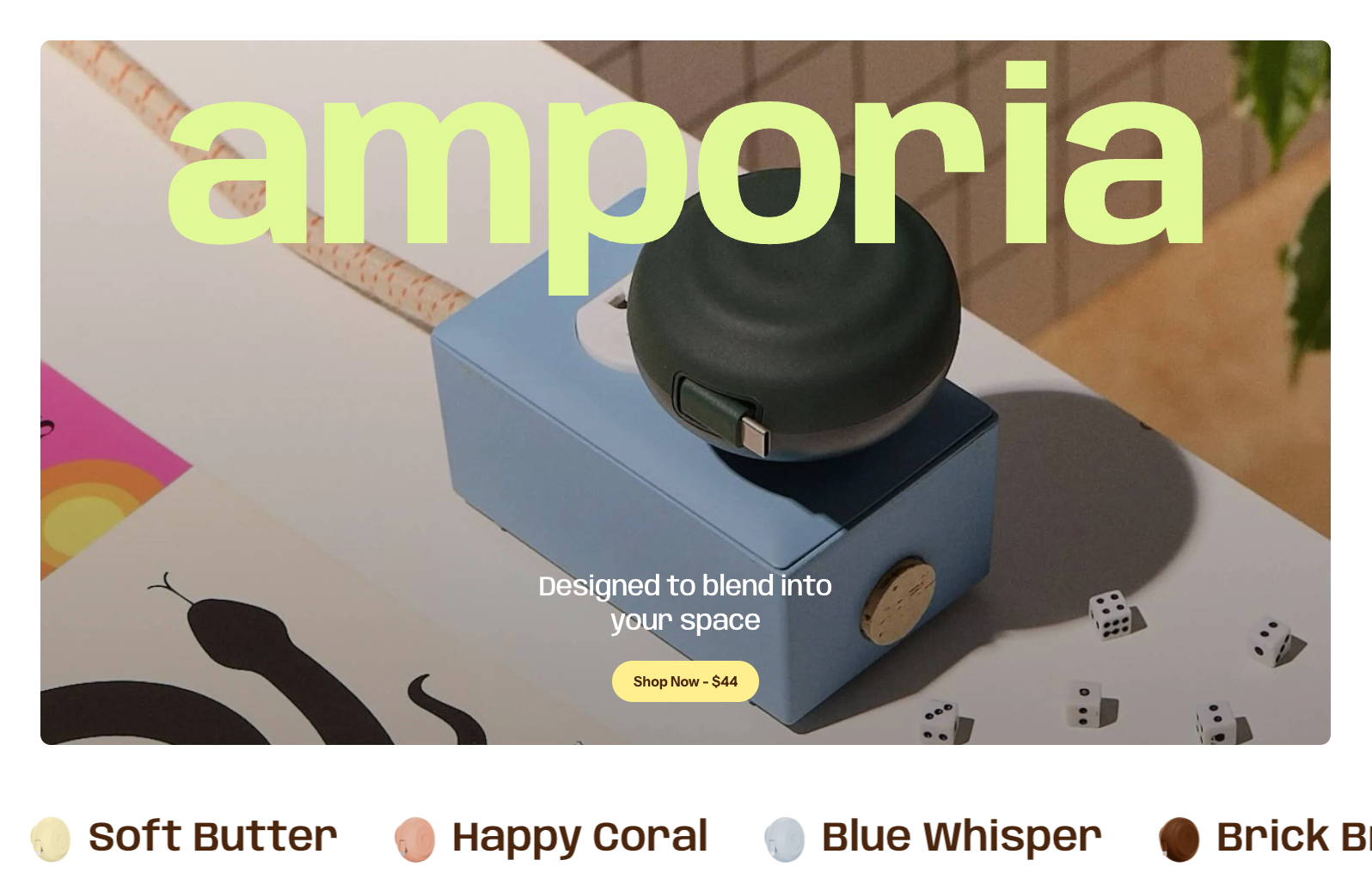
Source: Foxify demo - Charger
## Create and publish your home page
Choose how you want to start:
| Approach | Best for |
| -------------------------------------------------------------------- | -------------------------------------------------------------------------------------------- |
| [Create with Foxie AI](https://docs.foxecom.com/foxify-app/pages/page-creation/ai-layout-generator) | You know what you want and want a page built for you |
| [Start from a template](https://docs.foxecom.com/foxify-app/pages/templates) | The fastest way to a polished page. Browse layouts by style and customize them to your brand |
| Create a blank page | Full control, adding every section yourself |
Customize your home page. A well-structured homepage typically includes:
* **Hero section** — your store's headline, value proposition, and a primary call-to-action button
* **Featured collections or products** — guide visitors to your key categories or bestsellers
* **Social proof** — testimonials, reviews, press mentions, or trust badges
* **Brand story or about section** — optional, but useful for building trust with new visitors
To customize each section, click any element to select it and edit settings in the **Inspector panel**. You can also ask **Foxie AI** in the left sidebar to make changes for you.
New to the editor? These guides cover the essentials:
* [Get to know the editor](https://docs.foxecom.com/foxify-app/foxstudio/get-to-know-the-editor) — find your way around FoxStudio.
* [Add and edit elements](https://docs.foxecom.com/foxify-app/foxstudio/add-and-edit-elements) — add text, images, buttons, and more to your page
* [Layout & styling](https://docs.foxecom.com/foxify-app/foxstudio/layout-and-styling) — control spacing, alignment, and element positioning
* [Global styles](https://docs.foxecom.com/foxify-app/foxstudio/page-customization/global-styles) — set brand colors and fonts once, apply across all pages automatically
* [Check and adjust mobile view](https://docs.foxecom.com/foxify-app/guides/build-your-store-pages/check-and-adjust-mobile-view) — make sure your page looks right on smaller screens
1. Select **Save** to keep your changes.
2. Select **Preview** to review your page on desktop and mobile.
3. When you're ready, select **Publish**.
Publishing a Foxify home page **replaces your theme's current homepage content**. Your theme's homepage sections aren't deleted. They're just hidden while your Foxify home page is published. Unpublishing restores your theme's original homepage.
Want to publish to a draft theme instead of your live store? See [Pick a theme to work with Foxify](https://docs.foxecom.com/foxify-app/faqs-and-troubleshooting/faqs/pick-a-theme-to-work-with-foxify)
The [Build a homepage that drives engagement](https://docs.foxecom.com/foxify-app/guides/build-your-store-pages/build-a-homepage-that-drives-engagement) guide includes real store examples and video walkthroughs you can follow along with.
## Unpublish your home page
1. Open the Home page in Foxify.
2. Click **Unpublish** in the top-right corner of the editor.
Your theme's original homepage is restored right away.
## FAQs
#### Can I have multiple Home page designs in Foxify?
Yes — you can create multiple Home page designs, but only one can be published at a time. This is useful for seasonal campaigns: build your holiday homepage in advance, publish it when the campaign starts, and unpublish when it ends to restore the previous design.
#### Will publishing a Foxify Home page delete my theme's homepage content?
No — your theme's homepage sections are preserved. Publishing Foxify simply shows your Foxify design instead. Unpublishing brings your theme's homepage back exactly as it was.
#### My home page is published but not showing on my store. What's wrong?
Foxify Theme Helper may not be enabled in your theme. Go to **Shopify admin > Online Store > Themes > Edit theme** **> App embeds** and make sure **Foxify Theme Helper** is toggled on and saved.
#### Can I use my Foxify home page with a different theme?
Yes — switch which theme Foxify works with in **Foxify > Settings**. If you change your active theme, you'll need to re-enable Foxify Theme Helper in the new theme.
## Related articles
Create a page with Foxie AI
Templates
Get to know the editor
Editor tools