# Create a Product page
A product template controls how your product pages look. Use one template for your whole catalog, or create different templates for different product types, like one for skincare and another for accessories.
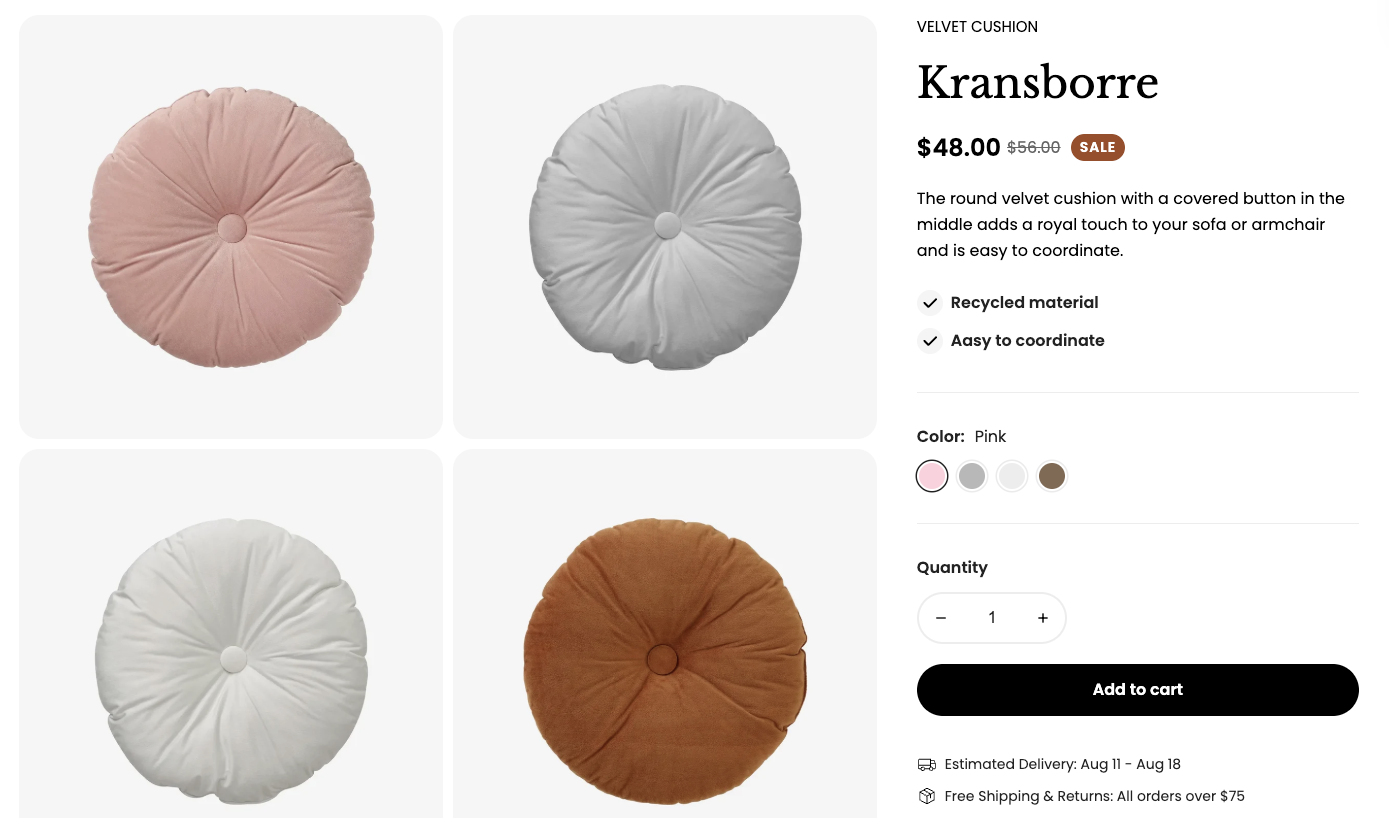
Source: Foxify demo - Product: Decor
## Create and publish your product page
| Approach | Best for |
| -------------------------------------------------------------------- | -------------------------------------------------------- |
| [Create with Foxie AI](https://docs.foxecom.com/foxify-app/pages/page-creation/ai-layout-generator) | You know what your product page should include |
| [Start from a template](https://docs.foxecom.com/foxify-app/pages/templates) | The fastest way to a polished, conversion-focused layout |
| Create a blank page | Full control over every section |
Assign products before you design, so the editor shows real product data.
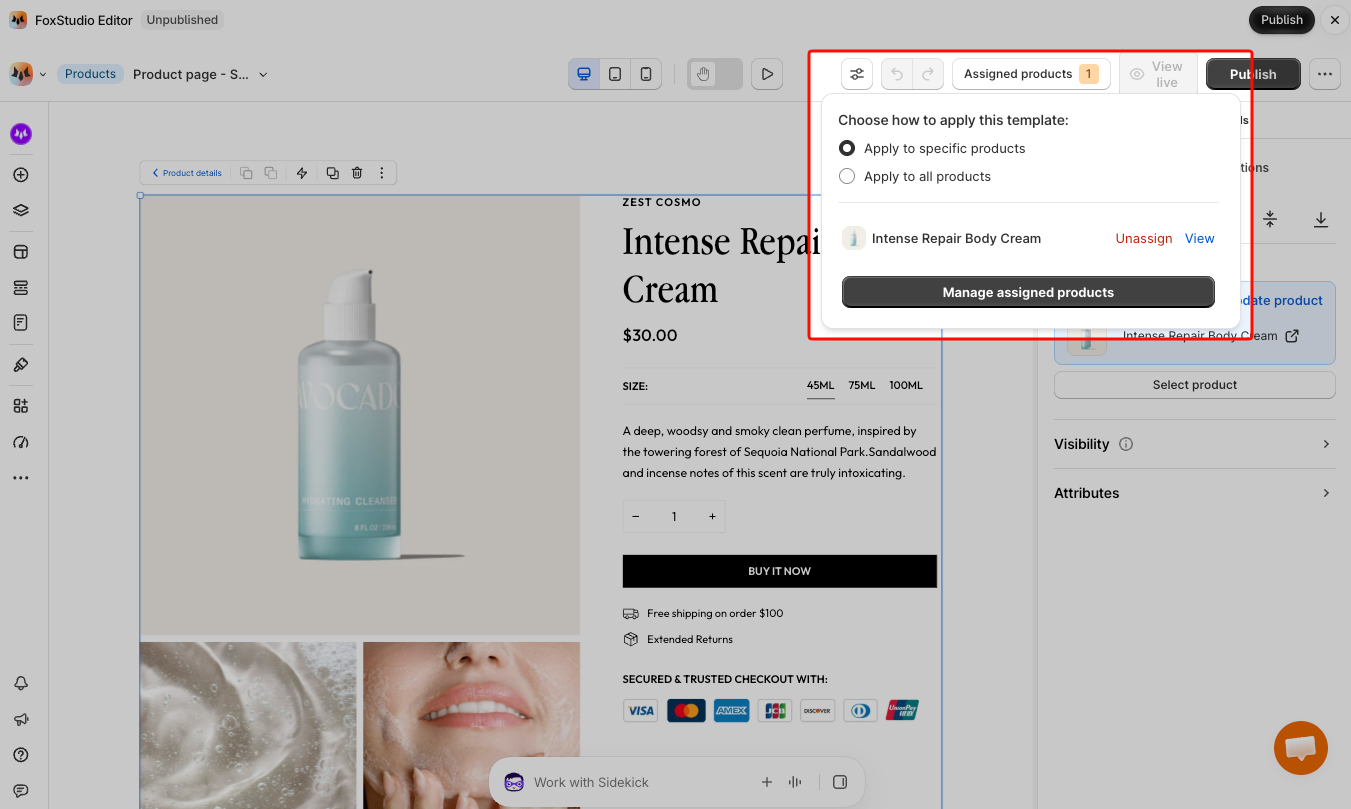
1. In the editor, select **Assigned products** in the top bar.
2. In the **Template assignment** pop-up, choose:
* **Apply to specific products:** select individual products.
* **Apply to all products:** use this template for your entire catalog, as your default product template.
Leave the product in the [Product details](https://docs.foxecom.com/foxify-app/foxstudio/add-and-edit-elements/product-details) element unselected. If you choose a specific product there, every product using this template will show that same product.
A well-structured product page typically includes:
* **Product details:** images, title, price, variant options, and the add to cart button.
* **Trust and delivery info:** shipping times, returns, and payment icons, placed near the add to cart button.
* **Product description:** benefits, ingredients or materials, and how to use it. Tabs or accordions keep long content tidy.
* **Social proof:** star ratings and customer reviews.
* **Recommendations:** related products, frequently bought together, or recently viewed items.
Extensions that work well on product pages:
* [Sticky add to cart](https://docs.foxecom.com/foxify-app/integrations/foxify-extensions/sticky-add-to-cart): keep the buy button visible as shoppers scroll.
* [Inventory status](https://docs.foxecom.com/foxify-app/integrations/foxify-extensions/inventory-status): show low stock alerts to create urgency.
* [Color swatches](https://docs.foxecom.com/foxify-app/integrations/foxify-extensions/color-swatches): show options as colors or images instead of a dropdown.
* [Recently viewed products](https://docs.foxecom.com/foxify-app/integrations/foxify-extensions/recently-viewed-products): help shoppers get back to items they liked.
New to the editor? See [Get to know the editor](https://docs.foxecom.com/foxify-app/foxstudio/get-to-know-the-editor).
1. Select **Save** to keep your changes.
2. Select **Preview** to check the page with a few of your assigned products, on desktop and mobile.
3. When you're ready, select **Publish**.
Publishing replaces your theme's product page layout **for assigned products only**. Your theme's template isn't deleted, and products not assigned to this template keep their current layout.
The [Build a high-converting product page](https://docs.foxecom.com/foxify-app/guides/build-your-store-pages/build-a-high-converting-product-page) guide includes real store examples and video walkthroughs you can follow along with.
## Unpublish a product page
1. Open the Product page in Foxify.
2. Click **Unpublish** in the top-right corner of the editor.
Assigned products go back to your theme's default product page layout.
## FAQs
#### Can I use different product page designs for different products?
Yes. Create a separate product template for each layout, then assign the right products to each one. This is useful when some products need extra content, like size guides or ingredient lists.
#### Will publishing a Product page affect products I haven't assigned it to?
No — only the products you assign use the Foxify template. Everything else keeps your theme's product page.
#### My product template is published but not showing. What should I check?
Make sure the product is assigned to the template under **Assigned products**. Then check the **App embed enabled status** at the top of your Foxify dashboard. If it's off, see [Enable Foxify app embed](https://docs.foxecom.com/foxify-app/getting-started/setup-and-quick-start/how-to-install-foxify#enable-foxify-on-your-theme).
#### Can I use my Foxify Product page with a different theme?
Yes — switch which theme Foxify works with in **Foxify > Settings**. If you change your active theme, you'll need to re-enable Foxify Theme Helper in the new theme.
## Related articles
Templates
Product details
Editor tools