---
description: How to set up product quick view modal in Zest theme
---
# Product quick view
The Product Quick view option offers several unbeatable advantages:
* Improved shopping experience: It's easier for your customers to select and add any items to cart without loading the whole product age and clicking back-and-forth between the product page and the item pages for details.
* Reduced server load: The product page is not reloaded when the shopper selects this feature.
* Display of discounted pricing and other details: You can utilize the quick view feature to show discounts before the cart page.
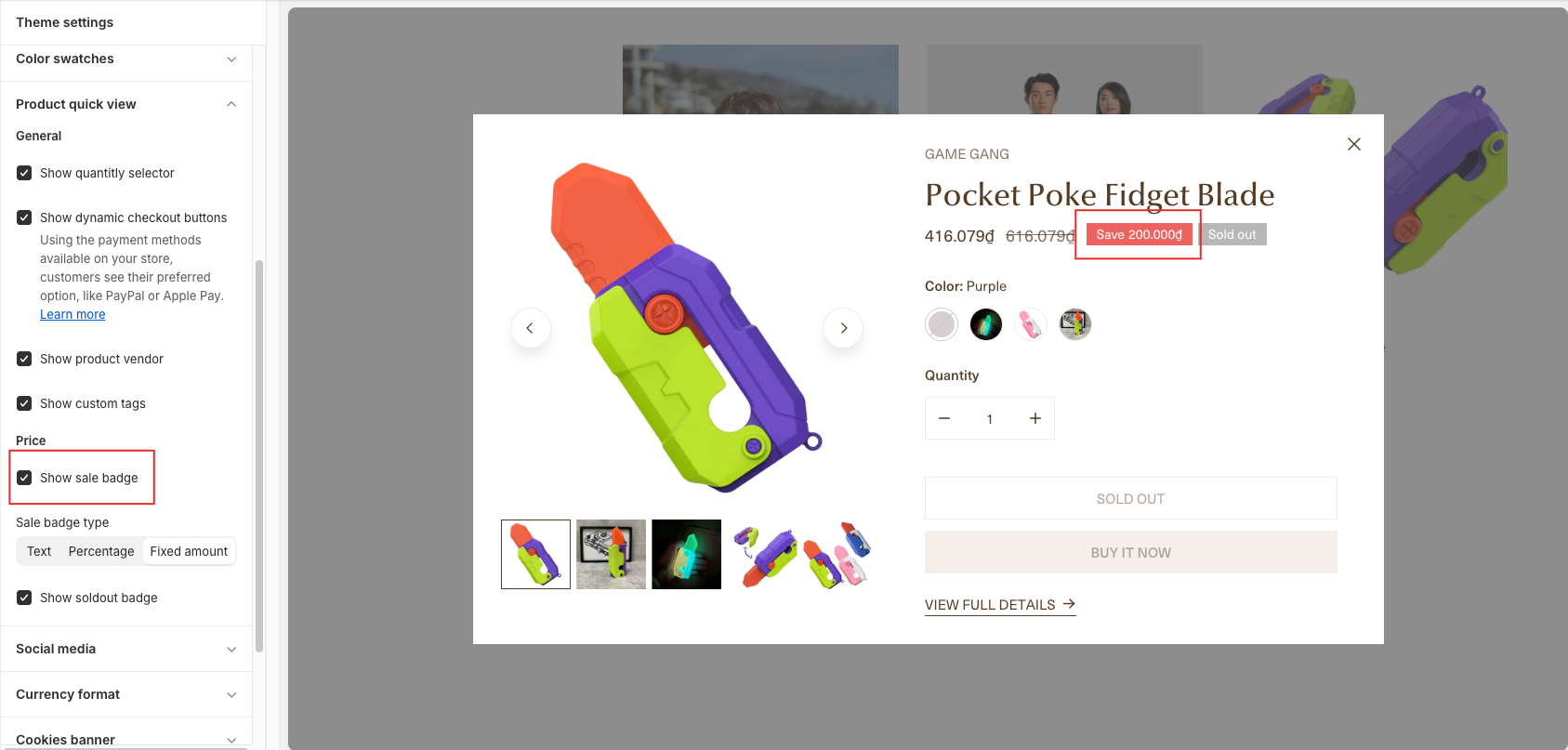
You can manage which elements are shown on the product quick view - such as the quantity selector, dynamic checkout button, product vendor, custom tags, and sale or sold-out badge.
{% hint style="success" %}
**Steps**
1. In the theme editor (**Customize**), click **Theme settings.**
2. Locate **Product quick view.**
3. Make necessary changes.
4. **Save.**
{% endhint %}
## General
Decide what to show on your product quick view, including:
* **Show quantity selector;**
* **Show dynamic checkout buttons** (Using the payment methods available on your store, customers see their preferred option, like PayPal or Apple Pay. [Learn more](https://help.shopify.com/en/manual/online-store/dynamic-checkout))**;**
* **Show product vendor;**
* **Show custom tags** (See [**Custom tags**](../faqs/generic/add-custom-badges-to-the-product-card-and-product-page)).
## Price
In the **Price settings**, you can enable or disable to show:
* **Show sale badge**
* Choose **Sale badge type** (Text/Percentage/Fixed amount)
{% tabs %}
{% tab title="Text" %}
{% endtab %}
{% tab title="Percentage" %}
{% endtab %}
{% tab title="Fixed amount" %}
{% endtab %}
{% endtabs %}
* **Show sold-out badge**
## Variant picker
Select the **Picker type** for your product variants in the Quick view as **Buttons**/**Dropdown.**
You can opt to show/hide the selected option.
{% hint style="warning" %}
If you want to show your Color options as Color swatches in the Quick view, make sure:
* The **Picker type is Buttons**.
* You set the **Color swatch trigger** and **Swatch style** in **Theme settings** > **Color swatches**. Learn more: [color-swatches](color-swatches "mention")
{% endhint %}