# How to trigger a restock workflow manually
Manually start a restock workflow to send emails to eligible subscribers at your preferred time or restart the workflow from the first step.
Works only with workflows that use the **Product restock** trigger. Workflows that start with **New customer sign up** can't be started manually.
***
## When to use
Best for:
* You'd rather decide when restock emails go out, so you send them yourself instead of letting XFlow send them automatically.
* You want to run the full restock workflow again, from the first email, for shoppers who are still waiting.
When you start a workflow manually, each eligible subscription gets a new run from the first step. Every email in the workflow is sent again. Earlier runs and their email history stay in place.
### How is this different from the automatic restock trigger?
| | Use manual trigger | Use the automatic Product restock trigger instead if… |
| --------------- | ----------------------------------------------------------------- | -------------------------------------------------------------------------------------- |
| When it runs | Whenever you choose, for the products or subscriptions you select | You want emails to go out on their own as soon as Shopify shows the item back in stock |
| Inventory check | XFlow doesn't check stock, so you confirm it yourself | You want XFlow to send only when Shopify shows stock |
## Quick setup
Before you start, make sure the items are in stock in Shopify, and that the restock workflow is turned on.
XFlow doesn't check inventory before sending. If the items aren't in stock yet, shoppers get a back-in-stock email for a product they can't buy.
There are two ways to start a restock workflow: from the **Out of stock Products** table or from the **Subscriptions** page. Both open the same confirmation window.
| | Out of stock products table | Subscriptions page |
| ---------------------------- | ----------------------------------------------------------------- | ---------------------------------------------- |
| Best for | Notifying everyone waiting for a product that's back | Notifying only specific shoppers |
| What you select | Products or variants. Every subscription for them is included. | Individual subscriptions |
| What you see while selecting | Which products are out of stock and how many shoppers are waiting | Each shopper's status, opt-in and last restock |
**From the Out of stock products table (recommended)**
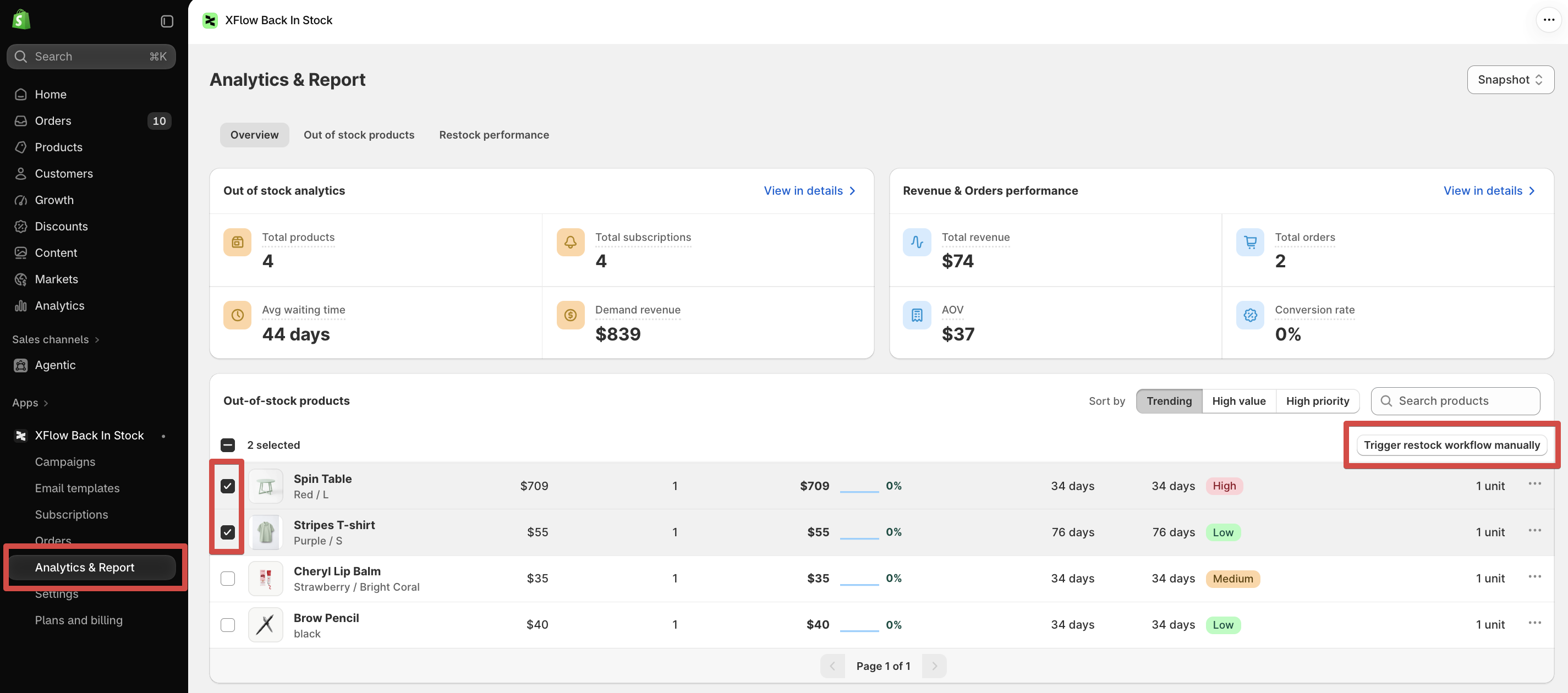
1. In XFlow, go to **Analytics & Report** and scroll down to **Out-of-stock products**.
2. Check which products and variants are out of stock and how many shoppers are waiting for each.
3. Select the products or variants you want to notify shoppers about.
4. Click **Trigger restock workflow manually**.
**From the Subscriptions page**
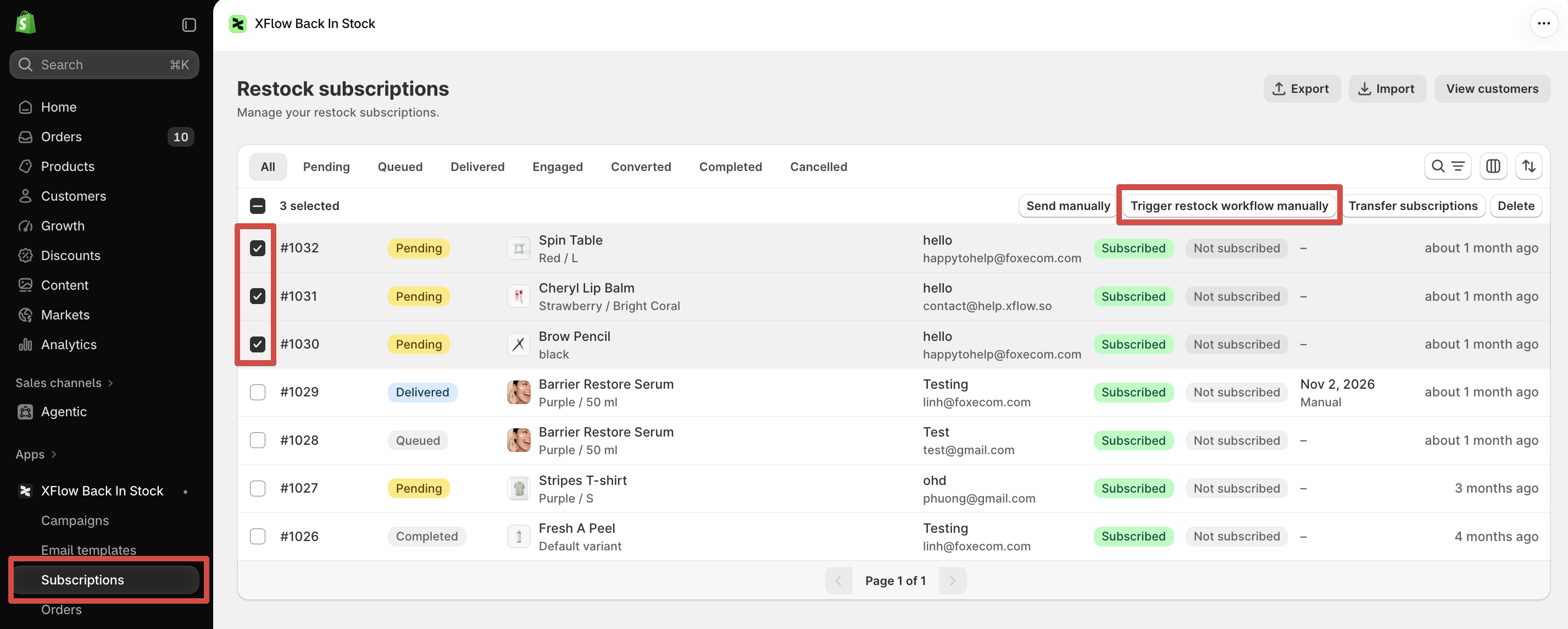
1. In XFlow, go to **Subscriptions**.
2. Use the tabs, search, or filters to find the subscriptions you want.
3. Select the subscriptions you want to notify.
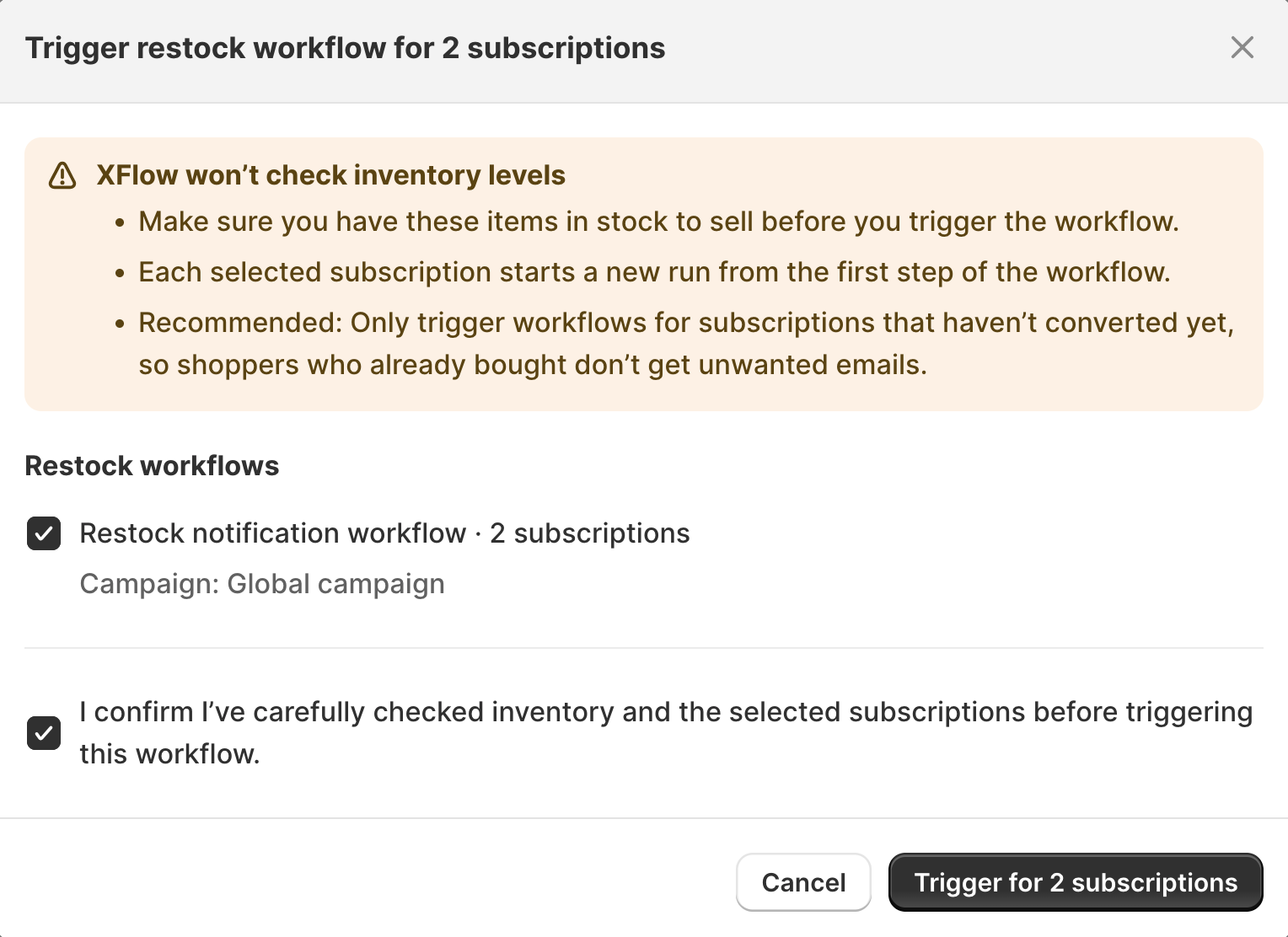
The **Trigger restock workflow** window opens. It shows which restock workflows will run and how many subscriptions each one includes.
1. Under **Restock workflows**, clear the checkbox next to any workflow you don't want to run.
2. Leave **Converted** under **Also include** unchecked, unless you have a reason to email shoppers who already bought.
3. Check the number of subscriptions that aren't eligible.
4. Select **I confirm I've carefully checked inventory and the selected subscriptions before triggering this workflow.**
## What happens to each subscription
| Subscription | What happens |
| --------------------------------------------------------- | ------------------------------------------------------------------------------------------------------------------- |
| Waiting, Queued, Delivered, Engaged or Completed | Gets a new run from the first step |
| Already in a run (Queued, Delivered or Engaged) | That run is marked Completed. Its remaining steps, like waits and later emails, don't send. The new run takes over. |
| Converted | Skipped by default. Included only if you check Converted. |
| Unsubscribed, email opt-in Pending, or GDPR Not confirmed | Never sent |
| Not linked to a restock workflow in its campaign | Never sent |
Each subscription only runs the restock workflow of its own campaign. XFlow never sends it a workflow from another campaign.
### How subscription status changes
* **Waiting** subscriptions change to **Queued** right after you start the workflow.
* Subscriptions already at **Queued** or further keep their current status. It moves forward only when the new run gets further, for example to **Delivered** when the email is sent, or **Engaged** when the shopper opens or clicks it.
A status never moves backward. A subscription that's **Engaged** stays **Engaged** after you start the workflow again
## Check which subscriptions you've notified
1. Go to **Subscriptions**.
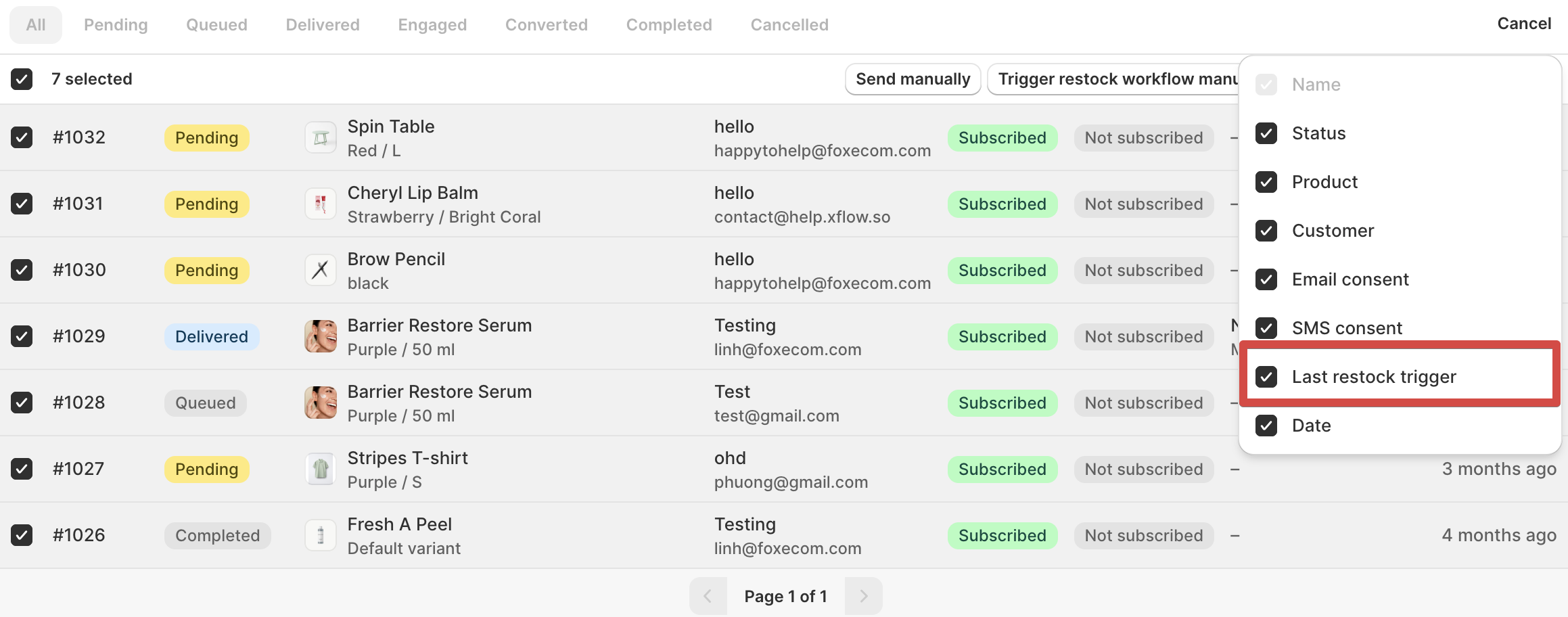
2. Click **Edit columns**.
3. Select **Last restock trigger**.
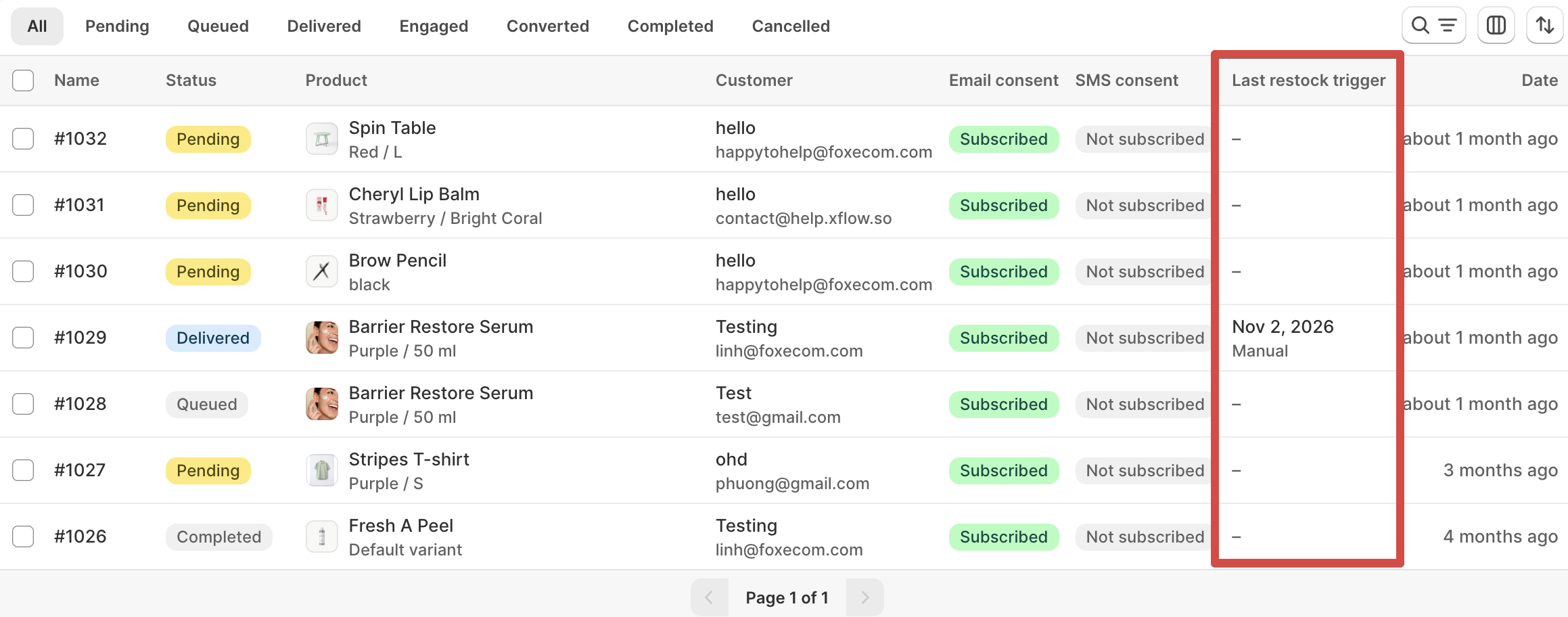
The column shows the date of the last restock and whether it was **Manual** or **Automatic**. A dash means the subscription hasn't had one yet.
To narrow the list, filter by:
* **Last restock trigger**: **Manual**, **Automatic** or **Not triggered yet**
* **Last restock trigger date**: **Today**, **Last 7 days**, **Last 30 days** or **More than 30 days**